
Purchase Order Approval Workflow: Route Every PO by Value, Not by Email
A purchase order approval workflow decides who signs off a PO before it reaches the supplier, and holds the order until they do. Here is how thresholds, multi-level steps, notifications and delegation work in Qualis, with a real order going from submit to approved.
Qualis ERP team
11 min read
A purchase order approval workflow is a rule that says who must sign off a purchase order before it goes to the supplier, and a system that holds the order until they do. In Qualis ERP you write the rule once: which orders need approval (for example, a total above 10,000), which approvers sign at each level, and what happens when someone goes quiet. Every matching PO then waits in Draft until the last approver says yes.
It is 4:47 on a Friday. A $12,000 order for aluminum sheet is sitting in a supplier's inbox, already accepted. Nobody approved it. The buyer is sure she forwarded it to you, and you never saw it. Finance finds out three weeks later, when the invoice lands on a budget line that is already spent.

Most small manufacturers approve purchases this way: a reply on an email thread, a nod across the desk, a sticky note on a monitor. It holds up with one buyer and one boss. With three buyers, two sites and a rule that anything over 10,000 needs a director, it breaks quietly, and you find the gap after the money is committed.
Where the email PO approval process breaks
The rule itself is usually fine. Enforcing it is where things go wrong:
- Nobody can say who was supposed to approve a given order.
- "Looks good" on the wrong thread gets read as an approval.
- The approver is on leave for two weeks and orders pile up, or worse, go out anyway.
- The auditor asks for proof of sign-off on last March's orders, and the proof is in someone's inbox.
- A buyer adds three lines to an order after the boss said yes.
An email approval puts no gate in front of the supplier and keeps no record. The order can move because someone assumed it was approved.
What a purchase order approval workflow is, in plain terms
A workflow has three parts.
- A trigger. Which orders need approval. "Every purchase order" is a valid answer, and so is "purchase orders whose total is above 10,000" or "purchase orders from this supplier".
- Steps. Who approves, in what order. Each step names people or teams and says how many of them must agree.
- Rules for silence. What happens when a step waits too long: remind, escalate to someone else, or decide automatically.
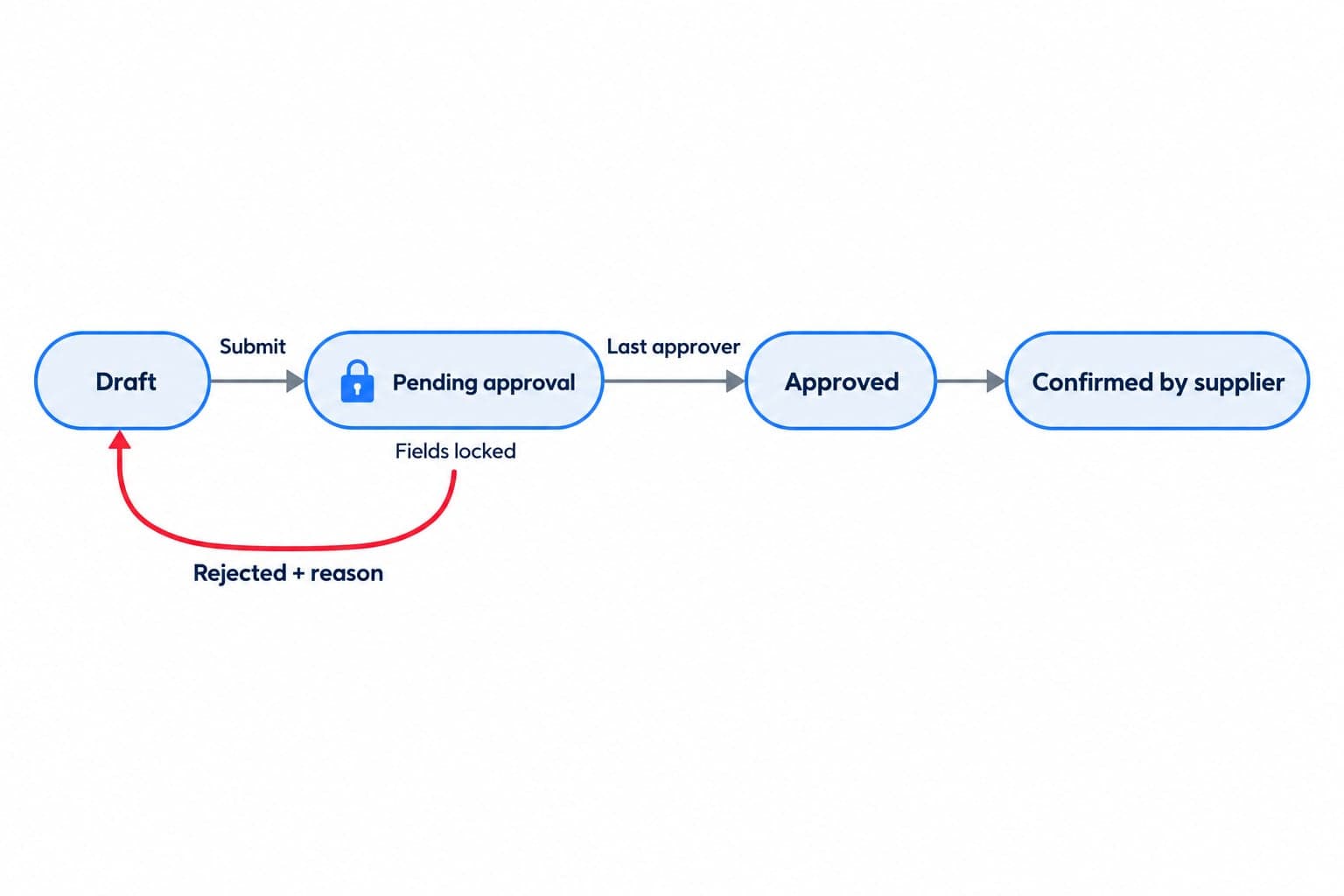
The buyer submits the order and Qualis does the routing. It finds the workflow that matches, notifies the first approvers, moves to the next level when a step is done, and only then lets the order become Approved. If someone rejects, the order stays in Draft with the reason attached.
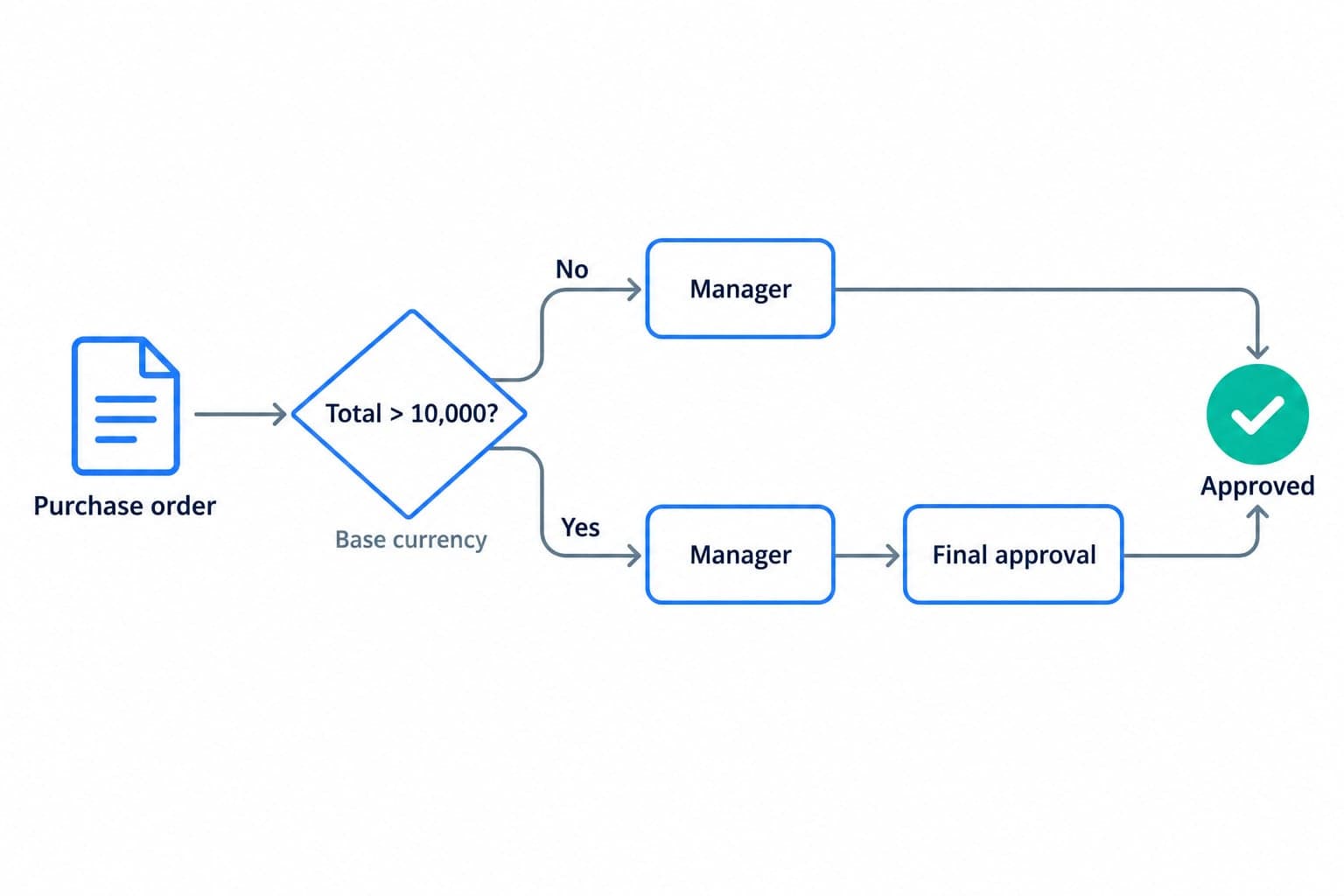
How the purchase order approval workflow runs in Qualis
The example below uses a real order: a draft PO to Metal Solutions Inc. for 100 sheets of Aluminum Sheet 6061-T6 and 50 plates of Stainless Steel Plate 304. With tax and shipping it comes to $11,855, which puts it above a 10,000 threshold.
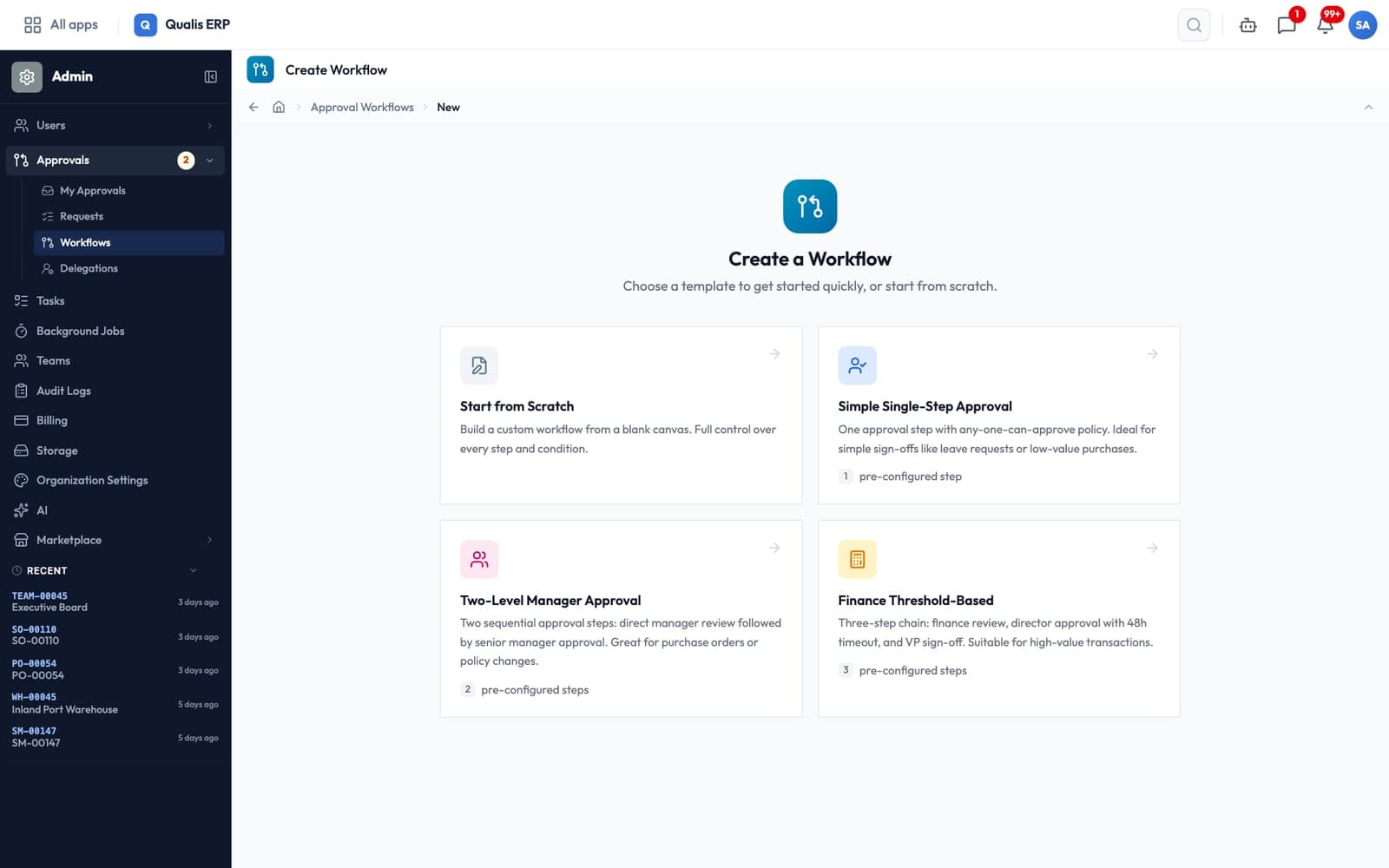
Start from a template
Under Approvals > Workflows, Create Workflow opens a choice of starting points. Simple Single-Step Approval is one step where any one approver is enough, meant for low-value purchases. Two-Level Manager Approval chains a direct manager review and a senior manager approval. Finance Threshold-Based is a three-step chain (finance review, director approval with a 48-hour timeout, VP sign-off) that already targets purchase orders above 10,000. You can also start from scratch.
Set approval thresholds in the trigger
The trigger card at the top of the workflow holds three settings. Entity Type is Purchase Orders. Gated Transition is the status the workflow guards, here Approved: the workflow only runs when an order tries to move into that status, and any other status change goes through untouched. Trigger Conditions filter which orders qualify, for example Total Amount greater than 10000. Conditions can also test the subtotal, tax rate, shipping cost, order date, supplier or warehouse, and you can combine them with AND or OR.
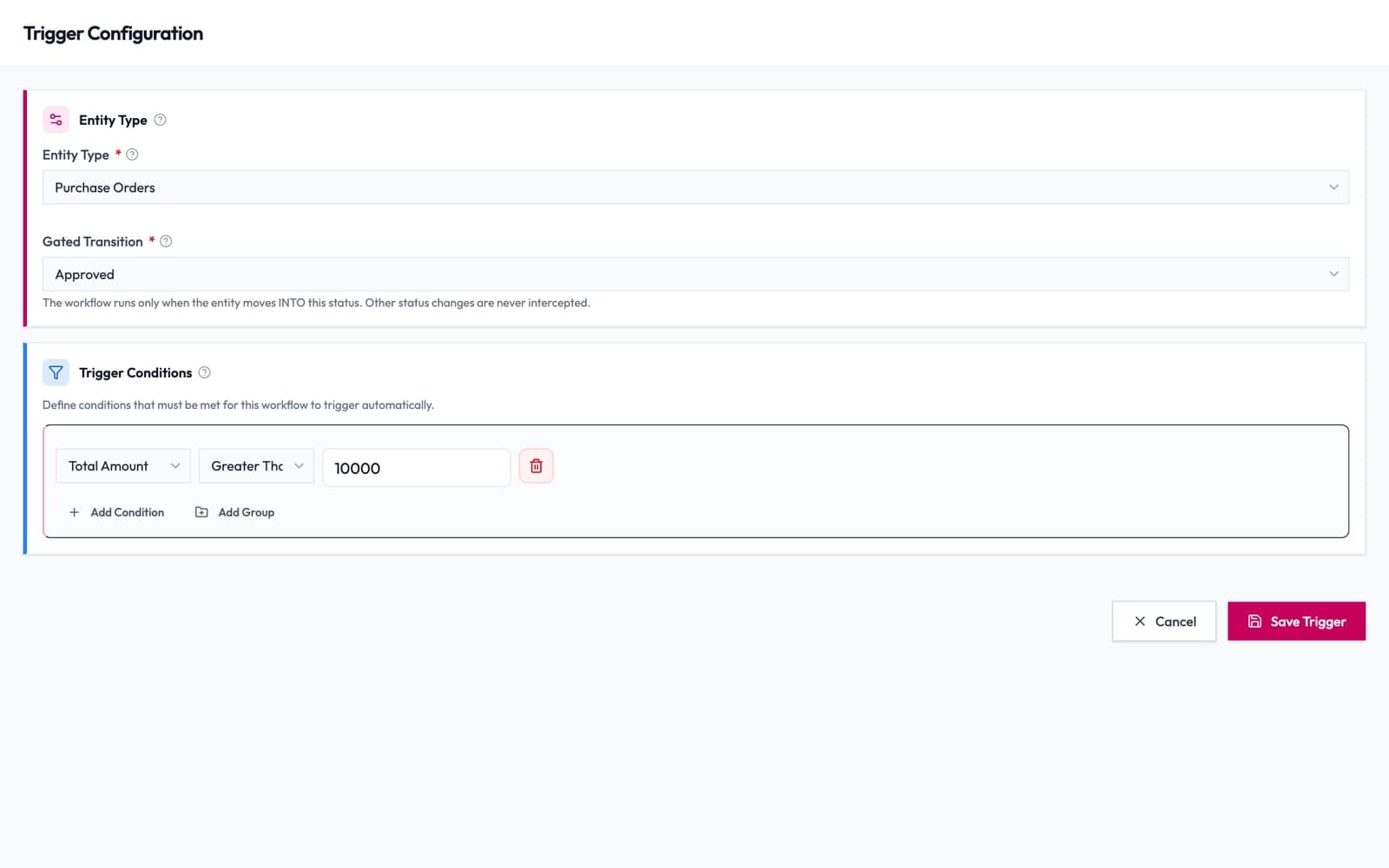
The threshold is compared in your company's base currency. An order placed in euros by a company that keeps its books in dollars is measured on its dollar value, using the rate stored on the order. The multi-currency guide explains how that rate gets locked to the document.
For several tiers, you have two options. The first is two workflows on the same transition: a catch-all for every PO and a "high-value" one with the threshold. Each workflow has a Priority, and for each order Qualis runs the highest-priority workflow whose conditions match, so the high-value one must rank above the catch-all. The second is one workflow with Skip Conditions on its later steps, so a director step drops out when the order is small.
Build a multi-level approval chain
The Visual Flow Editor draws the workflow from top to bottom: the trigger, each approval step, then two endings, Approved and Rejected. Add Step inserts a new level anywhere in the chain. Each step card shows its policy, its approvers and badges for a timeout or skip conditions.
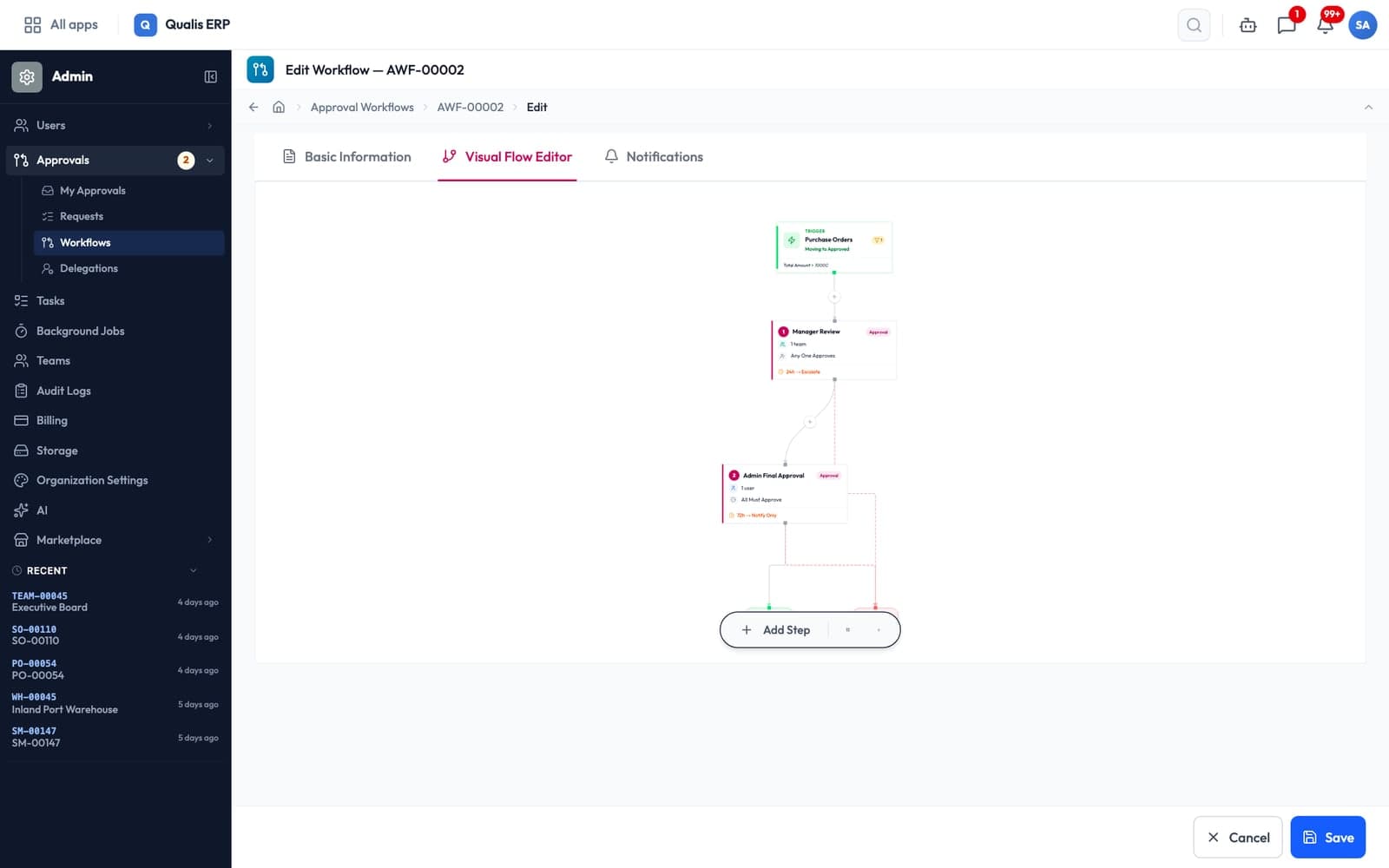
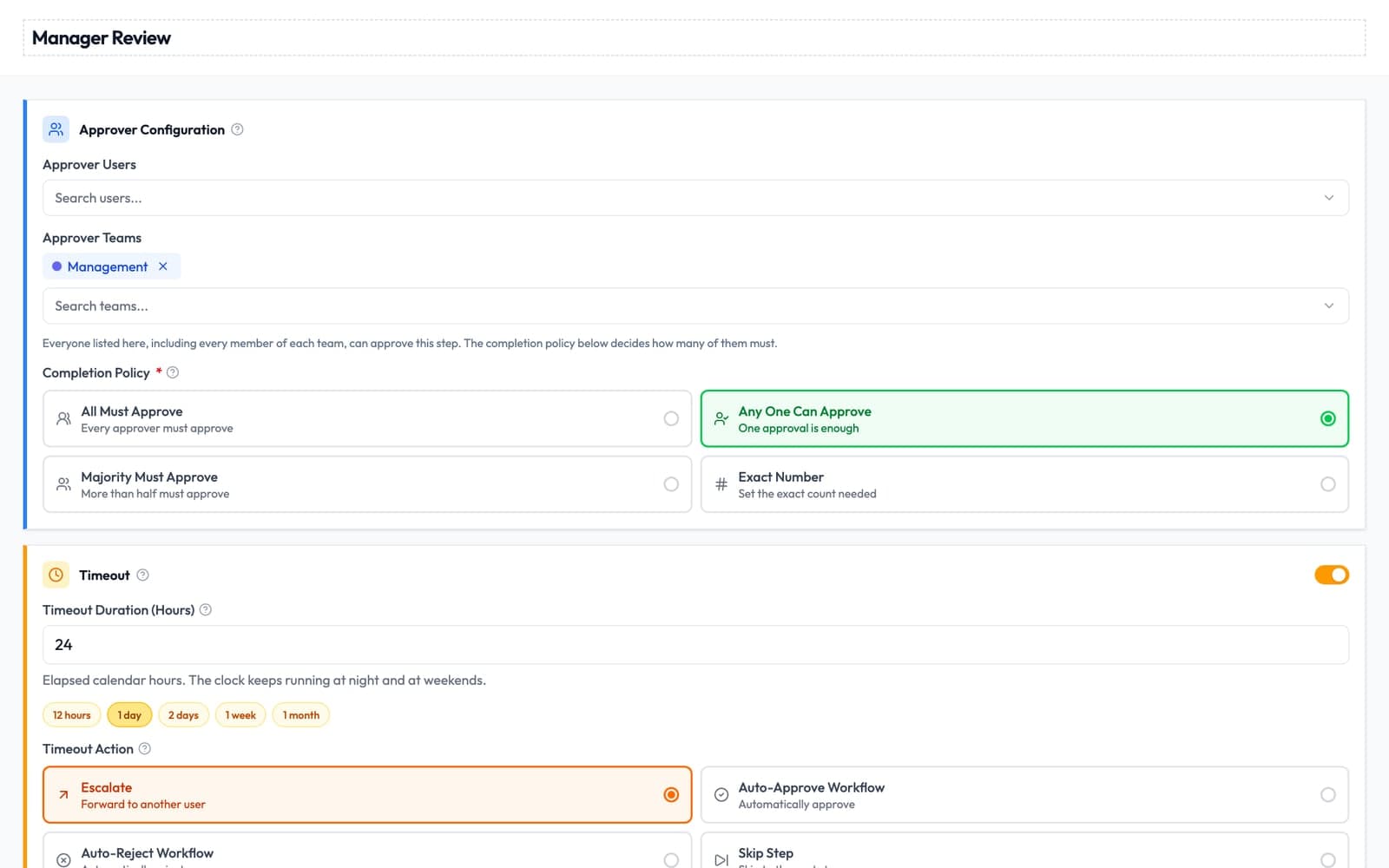
Click a step to configure it. Under Approver Users and Approver Teams you list who can approve. A team follows its membership, so when someone joins the Management team they start receiving that step's requests. The Completion Policy sets how many must agree:
- All Must Approve: everyone listed signs, and one rejection stops the step.
- Any One Can Approve: the first decision settles the step.
- Majority Must Approve: a majority of the listed approvers.
- Exact Number: you pick the count, for example 2 of 5.
The Timeout section covers silence. You set a duration in hours (quick buttons offer 12 hours, 1 day, 2 days, 1 week and 1 month) and a Timeout Action: Escalate to a named user, Notify Only, Skip Step, Auto-Approve Workflow or Auto-Reject Workflow. The clock counts calendar hours, nights and weekends included, so a 24-hour timeout started on Friday evening runs out on Saturday evening. Qualis looks for overdue steps every 15 minutes.
The automatic actions decide at whatever hour the timeout falls, with nobody looking. For purchase orders, Escalate or Notify Only keeps the decision with a person.
Submit a PO over the threshold
The buyer never picks a workflow. On a draft order, the main button reads Mark as Approved when no workflow applies and Submit for Approval when one does. Qualis checks the match before she clicks.
The Submit for Approval dialog names the workflow, the first step and Who will be asked, and says plainly that the order stays in Draft until they decide. After she confirms, a toast names the approvers the order is now waiting on, and an Approval Status banner appears at the top of the order.
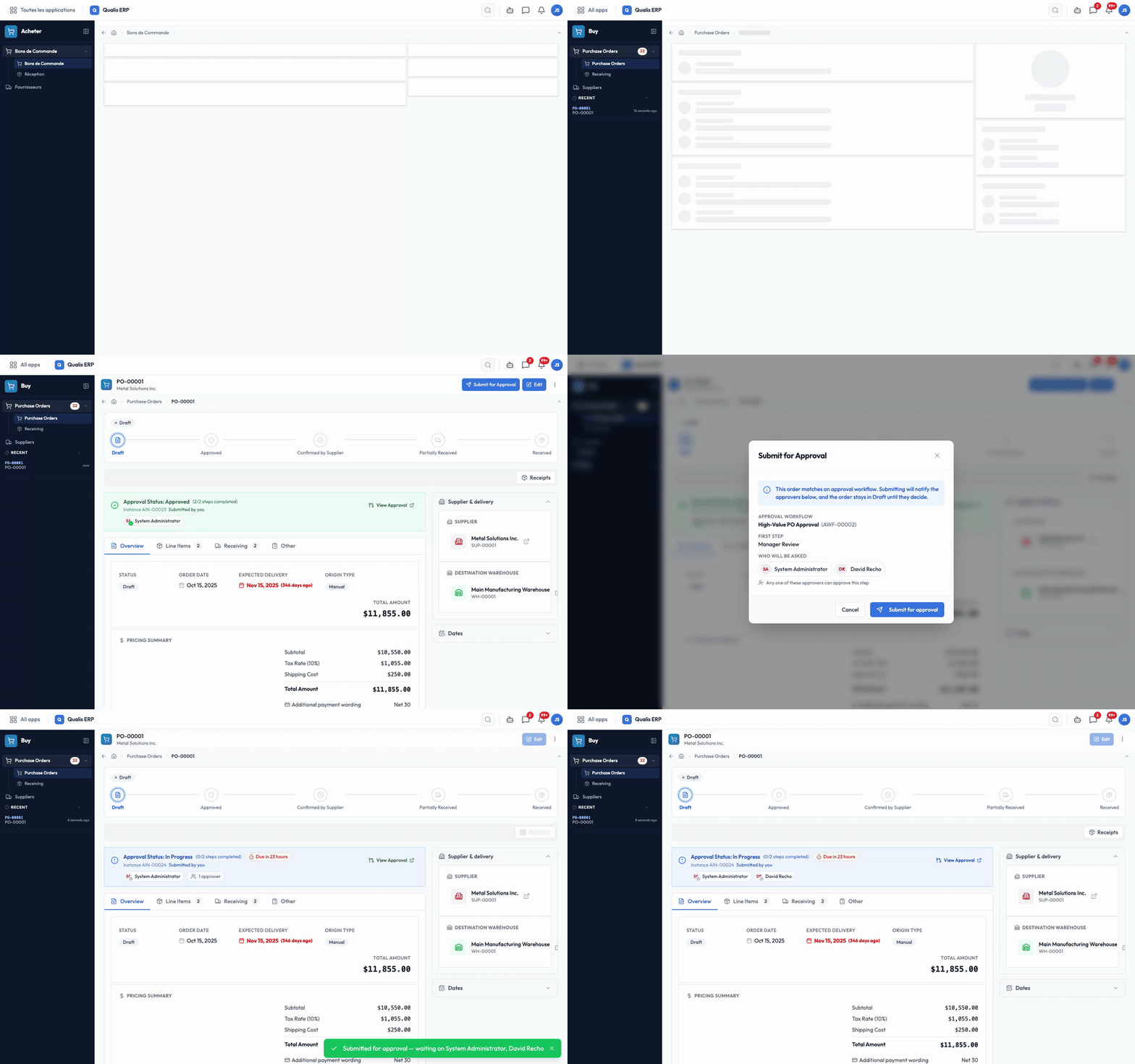
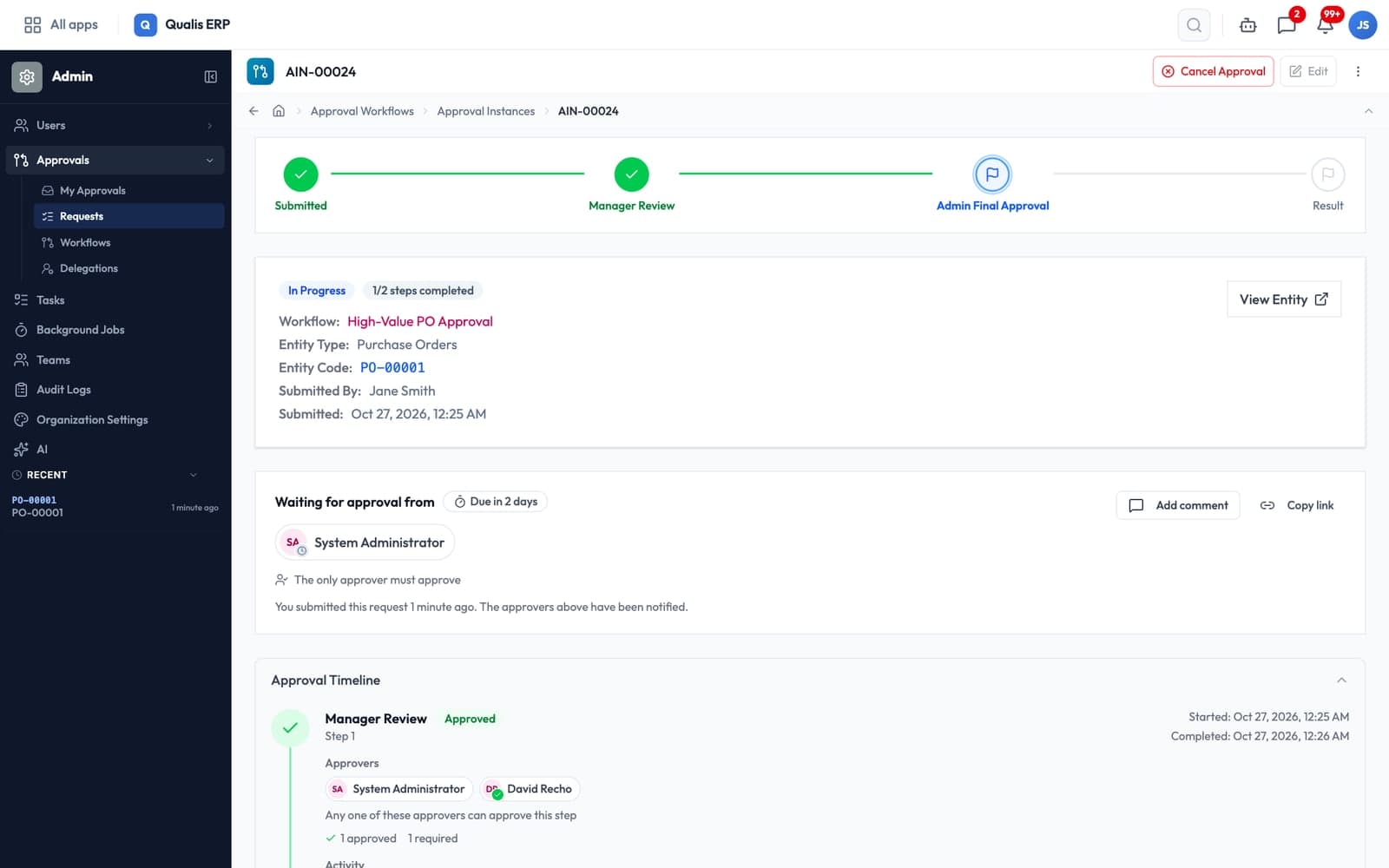
While the request is open, the order's business fields are locked. Trying to change the order gets the message "Approvers are reviewing this order. Withdraw or complete the approval first." Nobody can raise the quantity after the approvers have seen the number. To change the order, the buyer opens the request and clicks Cancel Approval, edits, then submits again. Cancelling the order itself also cancels its open request.
Approve from the notification
Each approver on the first step gets a high-priority Approval Required notification in the bell, naming the step (here Manager Review), the order and the workflow. One click opens the approval request. The panel at the top says Your approval is requested and offers Approve, Reject, Comment and Reassign. Reject needs a reason before it can be sent. Comments go on the record for everyone involved.
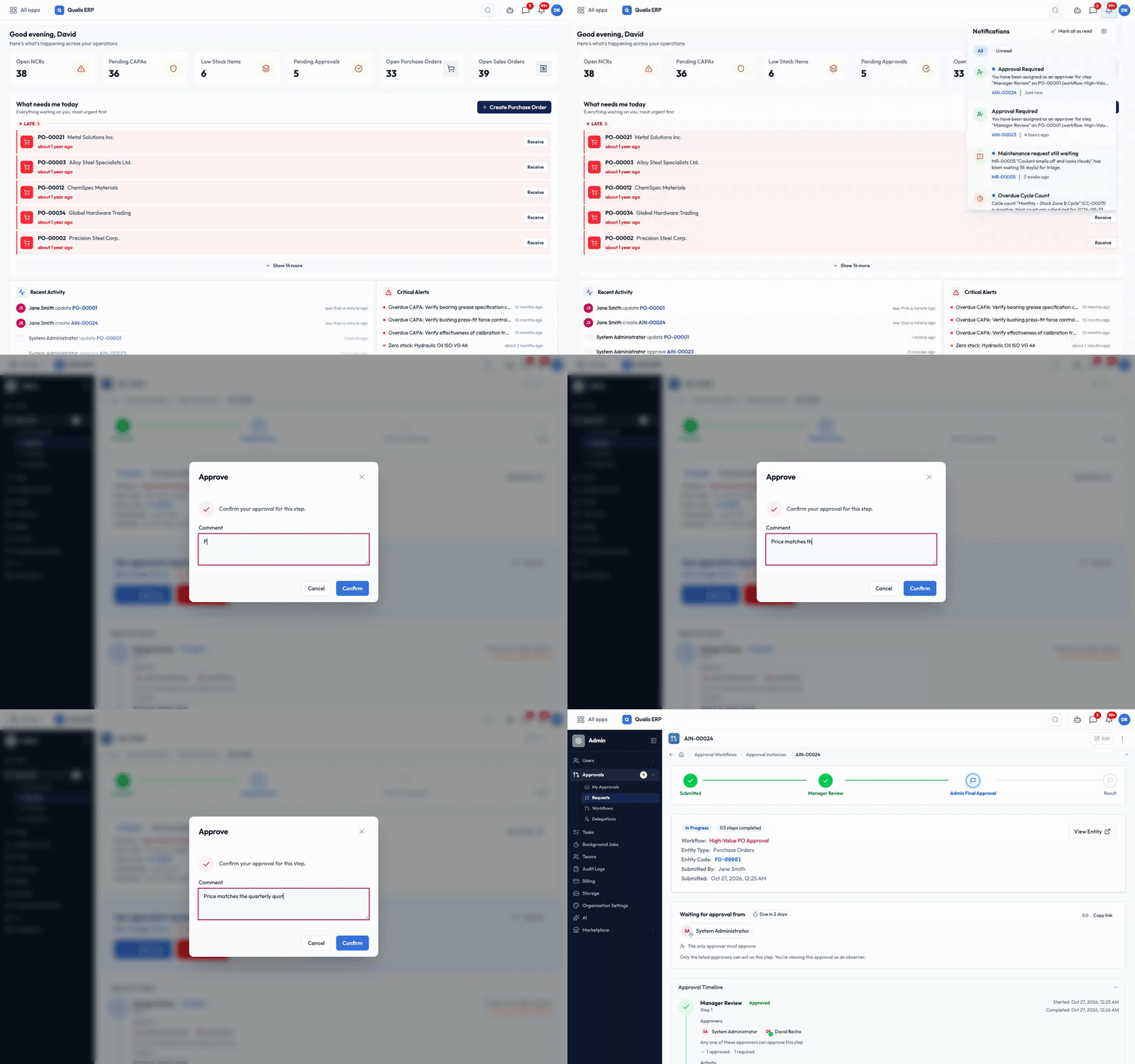
An approver who reaches the order itself first sees a Review & Approve link in its banner. Every approval and rejection also sends the buyer a notification, and when the whole chain is done she gets Approval Complete (the templates switch this on by default).
Work the queue in My Approvals
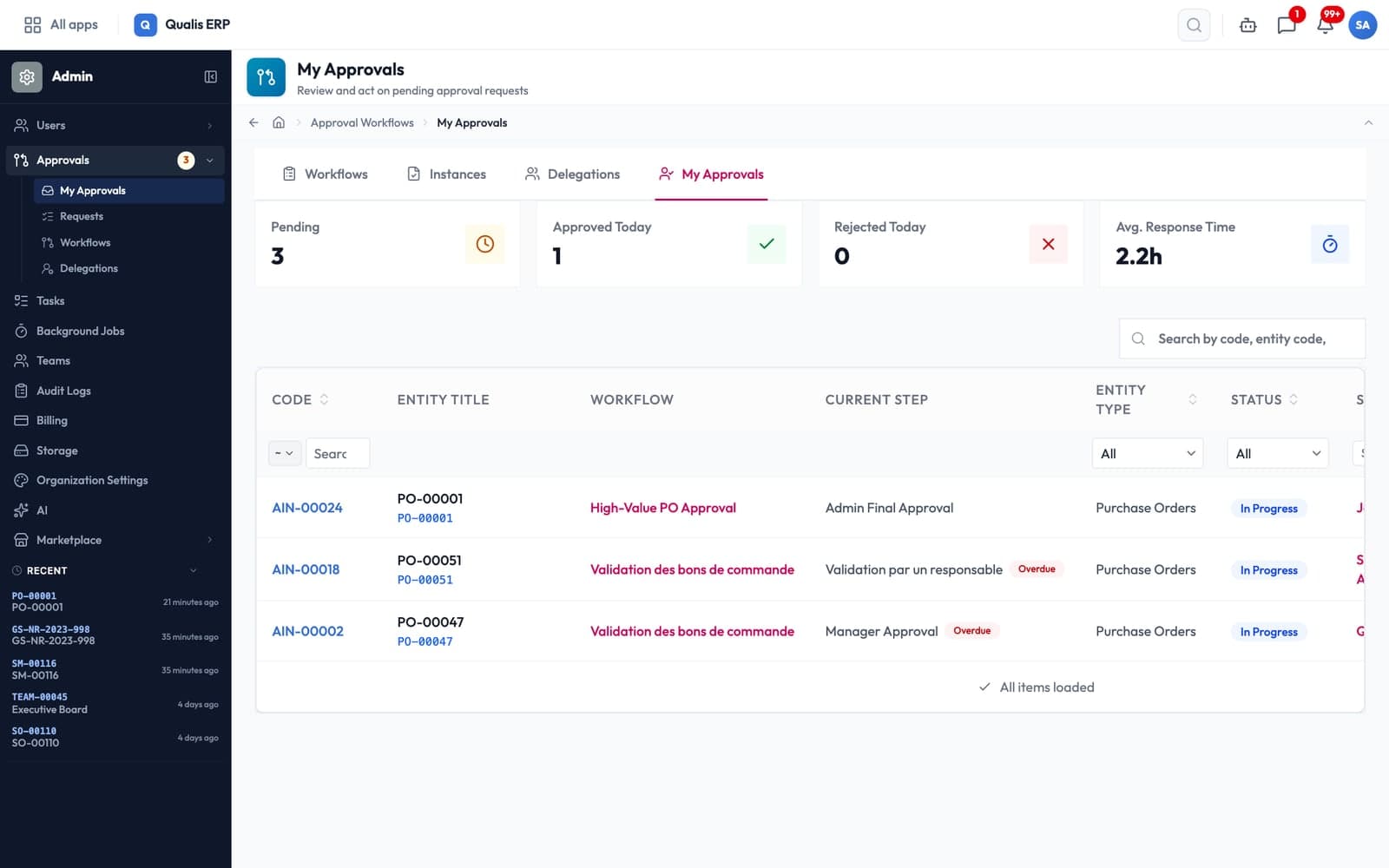
Approvers with more than a handful of requests work from Approvals > My Approvals. The cards at the top count Pending, Approved Today, Rejected Today and Avg. Response Time. The list below shows every request waiting on you, with overdue ones flagged.
Watch the PO move on
When the last level approves, Qualis applies the transition the buyer asked for. The order becomes Approved, its main button switches to Confirm Order, and the next job (recording the supplier's acknowledgment) is one click away. Nobody has to come back and press Approve again.
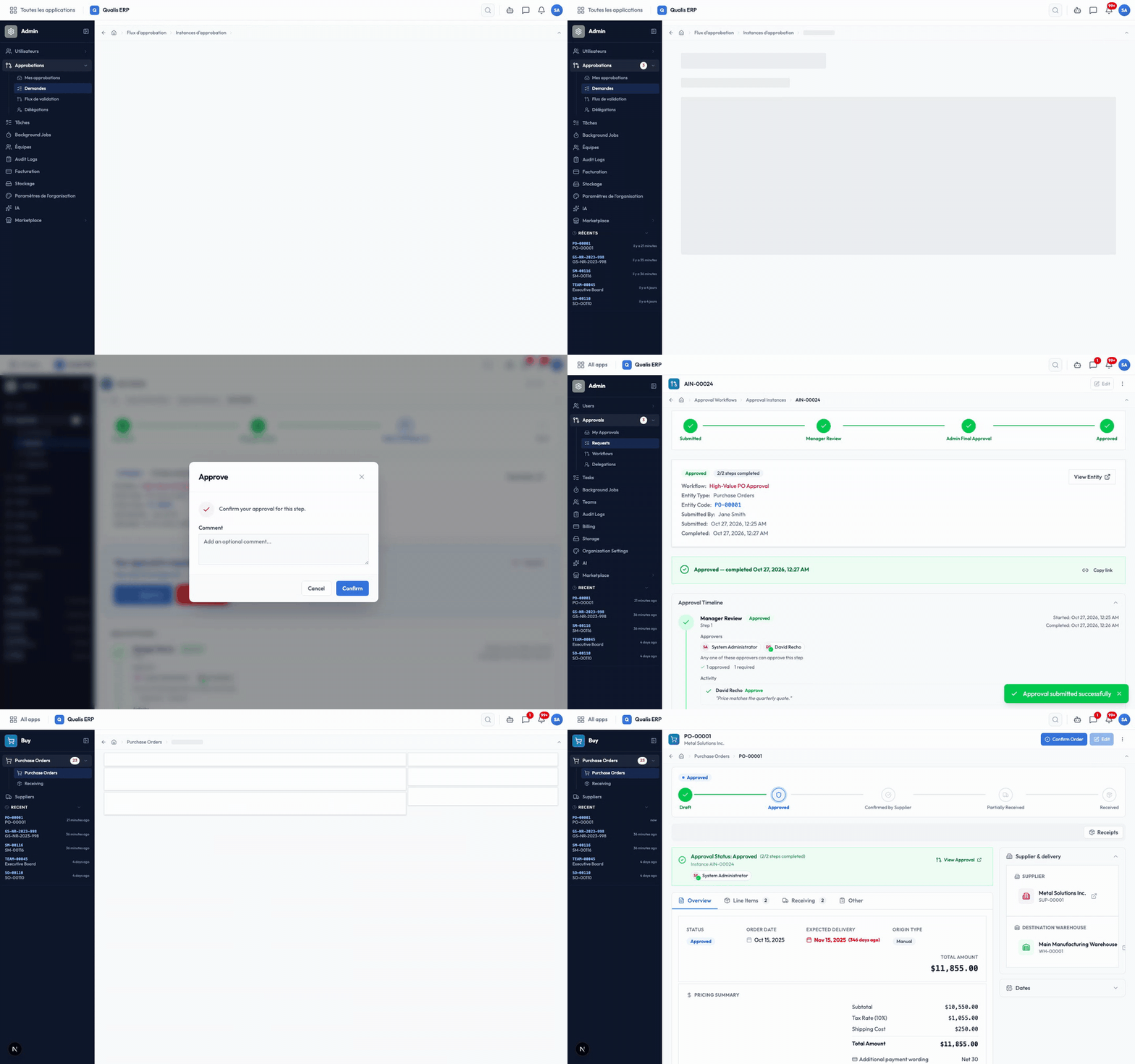
If an approver rejects instead, the order stays in Draft. The banner shows "Rejected:" followed by the reason, and tells the buyer to address it and submit again.
Each request keeps its own page. Waiting for approval from names who is holding it and when it is due. The Approval Timeline lists every step with who acted, what they decided and when, including steps that were skipped.
Why purchase order approval software beats the inbox
The gate holds. The order cannot become Approved while a request is open, whether the attempt comes from the order screen or from anywhere else in the system. The check sits on the order itself, not on a button.
Nobody approves their own order. Qualis blocks an approval from the person who submitted the request. If the buyer is also on the approver list, the submit dialog warns her: "You are one of the approvers, but you cannot approve your own submission."
Absences are covered. Under Approvals > Delegations, a manager going on leave names a delegate, a start date and an end date, and can limit the delegation to specific workflows with Workflow Scope. While it runs, the delegate receives the requests too and signs "on behalf of" the manager. The delegate's vote uses the manager's seat, so the pair can never count twice. The delegation expires by itself at the end date.
An approval cannot be recycled. Reverting an approved order to Draft clears its approval, so it has to be approved again before it can be confirmed with the supplier.
The record is there when someone asks. Submissions, votes, comments, reassignments and escalations are recorded with who, what and when, and the request keeps a snapshot of the order as it was submitted. Finance can filter the purchase order list with the Awaiting Approval quick filter or the Approval Status column.
Plenty of ERPs offer PO approvals. The useful questions are whether a buyer can bypass them, what happens when an approver is away, and whether you can prove who signed. Those are the parts covered above.

In the purchasing explainer, Imane places an order for 1,500 casters with an overseas supplier (chapter "Imane places the order", 1:01). The video is narrated in French.
Frequently Asked Questions
What is a purchase order approval workflow?
It is a rule that decides who must sign off a purchase order before it can be sent, and a system that enforces it. In Qualis the rule names which orders qualify, the approval steps and their approvers, and what to do when a step times out. Matching orders wait in Draft until the last step approves.
How do I require approval only above a certain amount?
Add a trigger condition on Total Amount, for example greater than 10000. Orders below it skip the workflow, and the buyer sees Mark as Approved instead of Submit for Approval. The amount is compared in your base currency, so foreign-currency orders are measured on their converted value.
Can different amounts go to different approvers?
Yes. Create two workflows on the same transition, a catch-all and a high-value one, and give the high-value workflow the higher priority so it wins whenever its threshold matches. You can also keep one workflow and add skip conditions so later steps drop out for smaller orders.
What happens if an approver is on leave?
Create a delegation that names the approver, the delegate, a start date and an end date. During that window the delegate gets the requests and can decide on the approver's behalf, and the delegation expires on its own when the end date passes.
What if an approver never responds?
Set a timeout on the step. When it runs out, Qualis applies the timeout action you picked: escalate to a named user, send an overdue reminder, skip the step, or approve or reject automatically. Escalation adds the named user to the step and sends them an urgent notification.
Can a buyer edit a purchase order while it waits for approval?
No. The order's fields are locked while the request is open, so the approvers decide on the order exactly as it was submitted. To change it, the buyer cancels the approval request from its page, edits the order and submits it again.
The bottom line
A purchase order approval workflow changes "I think someone approved it" into an order that cannot reach Approved until the right people sign, plus a timeline that shows who signed and when. In Qualis you set the threshold, stack as many levels as you need, decide what happens when someone is slow or away, and the order moves to Confirm Order the moment the last approver clicks.
If your POs still get approved in reply threads, see how approval workflows run on your own purchase orders in Qualis, or read the step-by-step guide to set up your first one.
Comments
Loading comments...