How to set your manufacturing defaults
Set your manufacturing defaults in one place: reference number prefixes, where production flows, how products are costed and the shop floor guard rails.
See the Manufacturing Settings moduleLast updated on October 20, 2026
Manufacturing Settings is the control panel for how your factory works in Qualis. Instead of repeating the same choices every time you create an order or a bill of material, you set sensible defaults here once and the rest of the system follows them. There is a single page with everything on it, grouped into five tabs: the numbering on your reference codes, your default production locations, how work orders are scheduled, your costing rules, and the guard rails that decide what the shop floor is allowed to do. You will usually visit this page when you first set up manufacturing, and then only now and then to fine tune it.
Before you start
A couple of things make this page easier to fill in:
- The Production tab points at things you set up elsewhere. To choose a default production location you will want at least one storage location, for a finished-goods default you will want a warehouse, and for a default work center you will want at least one work center. You can also leave the location and the warehouse on Resolve automatically and Qualis will pick a sensible one for you. The work center can stay on No default.
- Editing these settings is reserved for platform staff and administrators of your organization. Anyone can open the page and read it, but if you are not an administrator the Save settings button stays greyed out, with a tooltip explaining why.
Open the Make app from the Apps page, then Manufacturing Settings in the left sidebar.
Open your manufacturing settings
Start here to see every default in one view.
- Open the Make app from the Apps page.
- Click Manufacturing Settings in the left sidebar. The page opens on the Numbering tab, with five tabs along the top: Numbering, Production, Scheduling, Costing, and Execution & guard rails. Click a tab to show its settings.
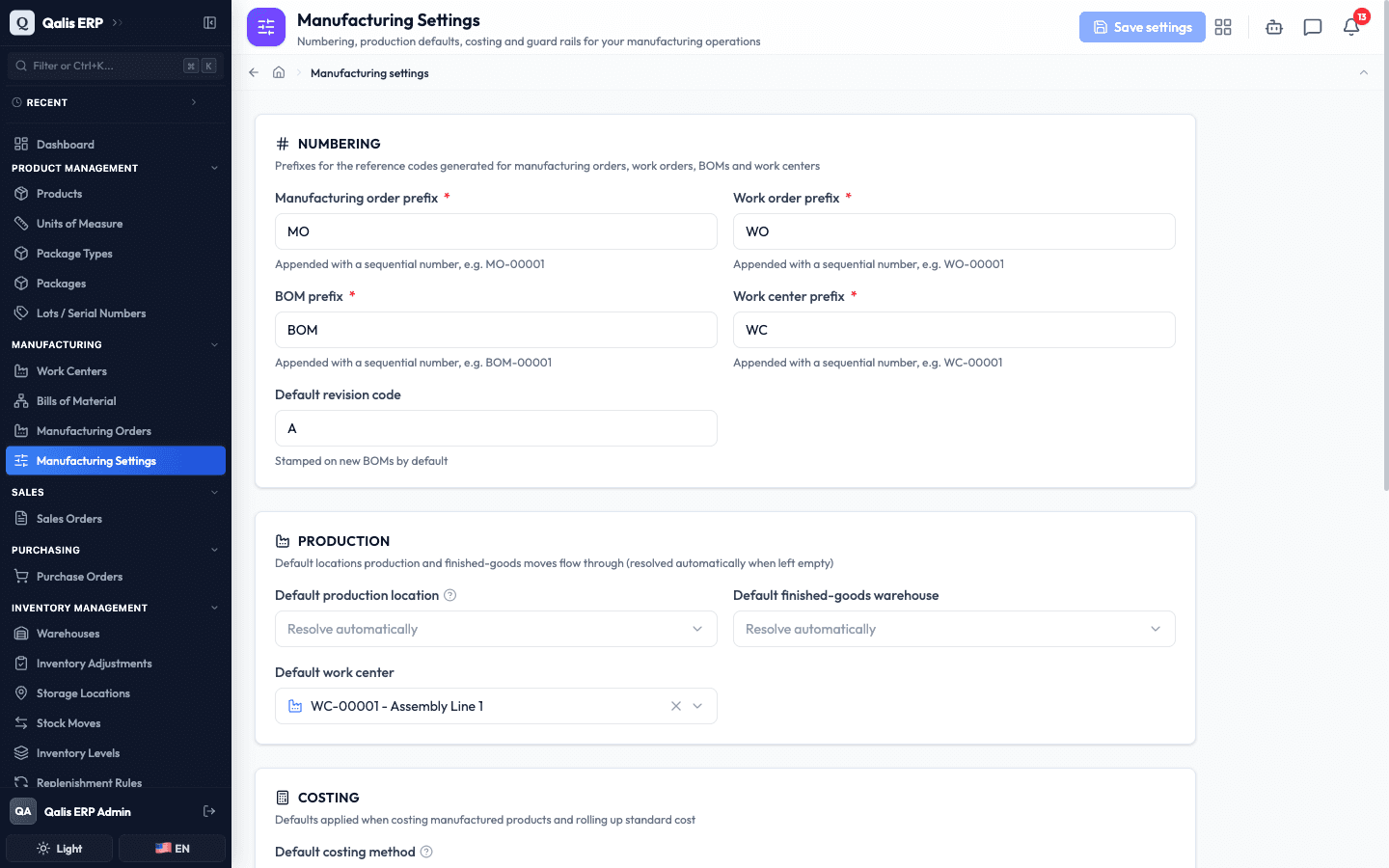
Everything lives on this one page, and there is a single Save settings button at the top right. It stays disabled until you change something, so you can look around freely without worrying about saving by accident.
Set your reference numbering
This decides the short code at the front of every reference number Qualis generates for you.
- On the Numbering tab, set the Manufacturing order prefix. Qualis adds a sequential number after it, so a prefix of
MOproducesMO-00001,MO-00002, and so on. - Do the same for the Work order prefix (for example
WO), the BOM prefix (for exampleBOM), the Work center prefix (for exampleWC), and the Change order prefix (for exampleECO). These five are required, shown by the red asterisk next to each label. - Set the Default revision code that new bills of material start at. Qualis suggests
A. Under Revision numbering, choose how the next revision is proposed when a change order creates a draft: Letters (A, B, C…) or Numbers (1, 2, 3…).
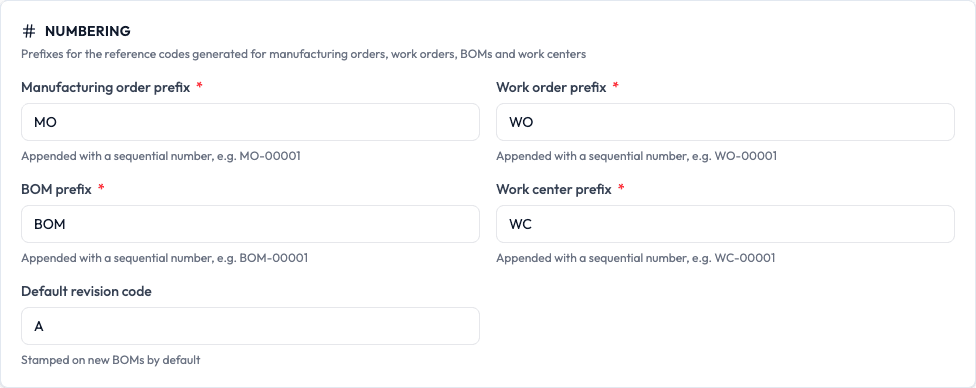
A prefix can be 1 to 8 letters or digits, with no spaces or symbols. If you type something it does not accept, the field turns red and tells you what to fix before you can save.
Choose your default production locations
These tell Qualis where production normally happens, so new orders and moves do not have to ask every time.
- Open the Production tab and click the Default production location box. A searchable list opens. This is the work-in-progress location that materials are consumed from and finished work flows through.
- Use the Search locations... box or the type tabs at the top (such as Production) to narrow the list, then expand a warehouse and pick the location inside it.
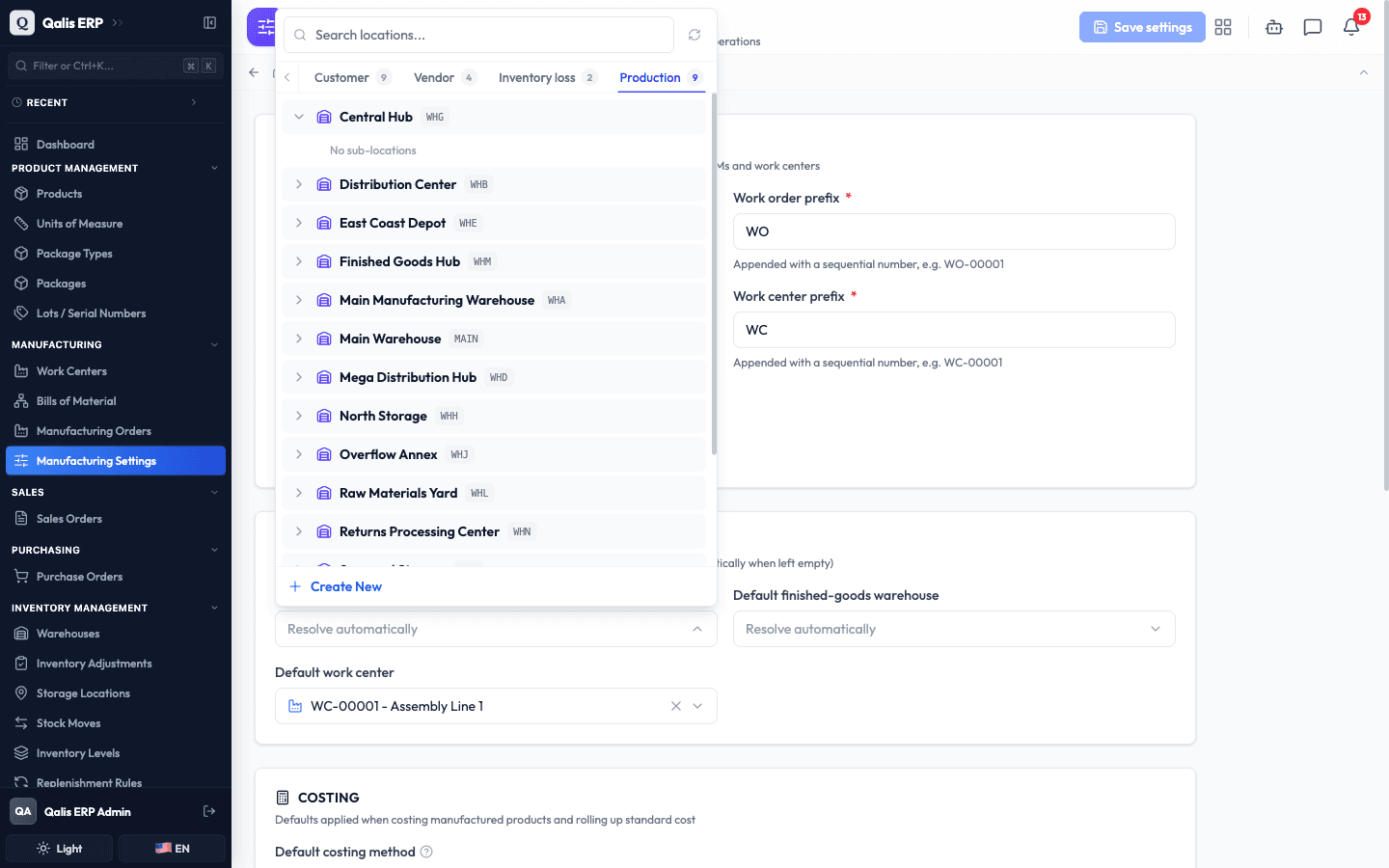
- Click the Default finished-goods warehouse box and choose the warehouse your finished products are received into.
- Click the Default work center box and choose the work center preselected on the operations you add to a bill of material in the BOM editor.
When you are done, the three boxes show your choices, each with a small x to clear it again.
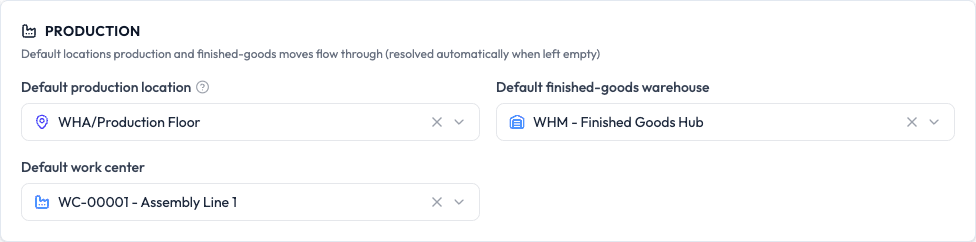
Leaving the location or warehouse box on Resolve automatically is perfectly fine. Qualis will work out a sensible location at the moment it is needed, rather than forcing you to decide up front.
Choose your costing defaults
These set how newly manufactured products are costed and how their standard cost is added up.
- On the Costing tab, pick a Default costing method: Average, Standard, or Actual. Click the one you want and it highlights.
- Pick a Default cost-rollup level: Single level adds up only the direct parts and steps, while All levels follows every sub-assembly down to the bottom.
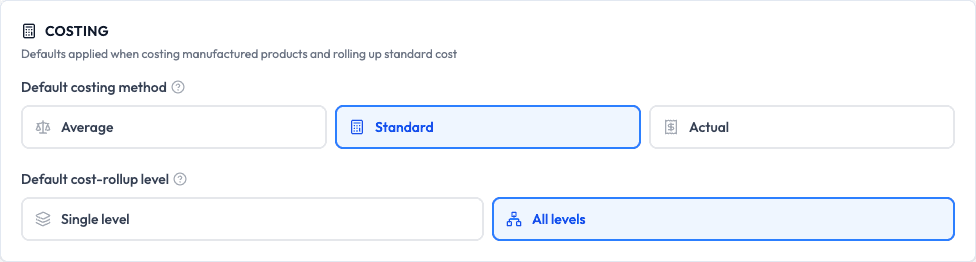
These are only the starting points for new products. You can always override the method or the roll-up depth on an individual product or run later.
Set your execution behavior and guard rails
The Execution & guard rails tab controls what happens automatically when you report production, and the limits the shop floor must stay within.
- Use the two backflush switches to decide what Qualis records for you. They set the starting value for the operations you add to a bill of material from now on; existing operations are unchanged. Backflush materials auto-consumes materials at control points, and Backflush labor auto-reports standard labor when an order is completed.
- Below the divider, set the guard rails. Each is a switch that is off by default:
- Allow over-completion lets people finish more than the ordered quantity.
- Allow under-issue lets an operation finish with less material issued than planned.
- Include scrap in completions counts scrapped quantity toward an order being finished.
- Auto-create scrap orders routes reported production scrap to a scrap order on its own.
- Allow release with shortage lets an order be released even when components are short, reserving what is available and flagging the rest, instead of blocking the release.
- Inspect finished goods on receipt sends received finished goods to the QC hold location behind an automatically created final inspection, and releases them to stock when it passes.
- Require a change order to edit released BOMs freezes bills of material once they are active, so edits and status changes go only through an engineering change order. Draft revisions stay freely editable.
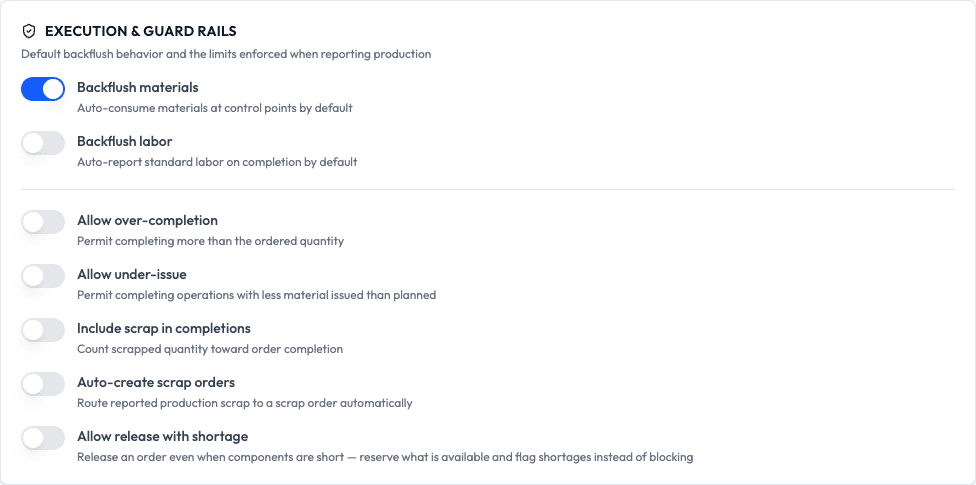
Leave the guard rails off if you want Qualis to keep people inside the plan. Turn one on only when your process genuinely needs that flexibility.
Save your changes
Nothing you change takes effect until you save, and one button saves the whole page at once.
- As soon as you change anything on any tab, the Save settings button at the top right turns solid and becomes clickable.
- Click Save settings. While it saves, the button shows Saving... so you know it is working.

- A green Manufacturing settings saved message appears at the bottom right to confirm. The button goes quiet again until your next change.
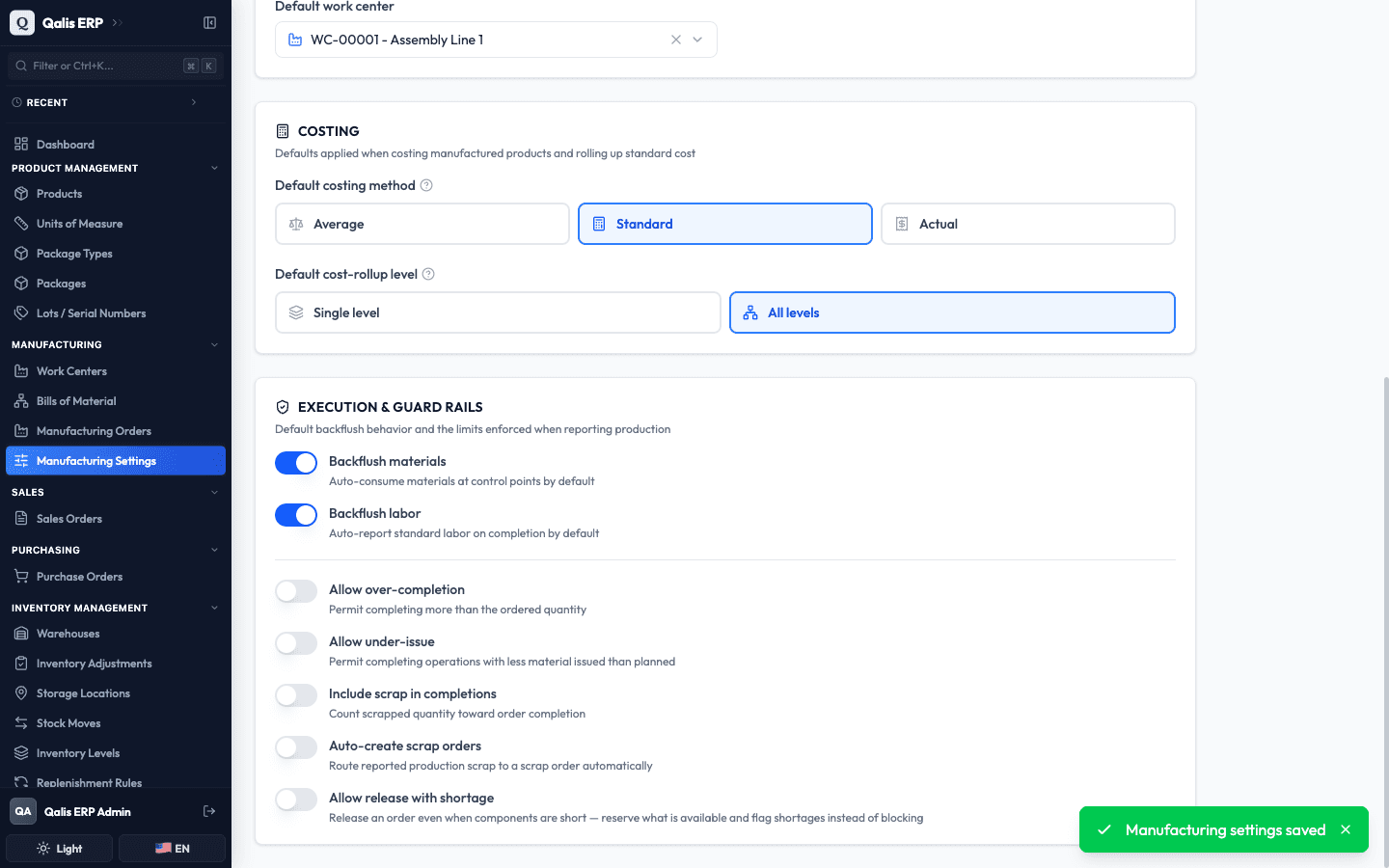
If a save fails for any reason, your entries are kept on screen and a red message explains what went wrong, so nothing you typed is lost.
Good to know
A few terms show up on this page. Here is what they mean in plain language:
- Prefix: the short code at the start of a reference number. In
MO-00001, the prefix isMO. - Revision: a version label for a bill of material, usually a letter like
A, thenB, thenCas the recipe changes. - Backflush: recording material or labor automatically at the moment you report production, instead of typing it in by hand.
- Cost roll-up: adding up the cost of every part and step that goes into a product to get its total standard cost.
- Guard rail: a rule that blocks or flags an unusual action, like finishing more than you ordered, so mistakes are caught early.