How to manage and approve suppliers
Keep a record of every vendor you buy from, with contact details, certifications, risk and performance, and an approval process before you start trading.
See the Suppliers Management moduleLast updated on October 20, 2026
A supplier is any company you buy from, for example a metal mill, a parts distributor, or an outside service provider. The Suppliers module is the address book at the heart of your purchasing and quality work: it holds each vendor's name, contact details, certifications, risk rating, performance scores, and a record of whether they have passed your approval process. You set a supplier up once, and the rest of Qualis reuses it everywhere, for example when you raise a purchase order, set a preferred supplier on a product, log an inspection, or open a quality case. This guide walks you through the things you do most often: finding a supplier, creating one, reading its details, approving or rejecting it, updating it, importing a batch from a spreadsheet, exporting your list, and reviewing the change history.
Open the Buy app from the Apps page, then Suppliers in the left sidebar. There is nothing to set up first, you can add your first supplier straight away. Linking products or a default currency is optional and can be done at any time.
Two kinds of status, and why it matters. Every supplier has two separate states. The Operational Status (Active, Inactive, or Suspended) says whether you are actively doing business with them right now. The Approval Status (Approved, Conditionally Approved, Pending Review, or Not Approved) says whether they have passed your vetting process. A supplier can only be set to Active once it has been Approved (or Conditionally Approved). You change the Operational Status on the form or with the Activate button, and you usually set the Approval Status with the Approve and Reject buttons, covered below.
Find and browse your suppliers
Start here to see every supplier you have and zero in on the one you need.
- Open Suppliers from the sidebar. At the top, four tiles count how many suppliers are Orderable, Approved, Pending Review, or High Risk; click one to show just those suppliers. Below that, the list shows one row per supplier with its Supplier Code, Name, Operational Status (with an approval or risk badge when one needs attention), and Email. You can add more columns, such as Type, Default Currency, Approval Status, or Risk Rating, from the Columns menu. You can switch between Table view and Grid view with the toggle above the list.
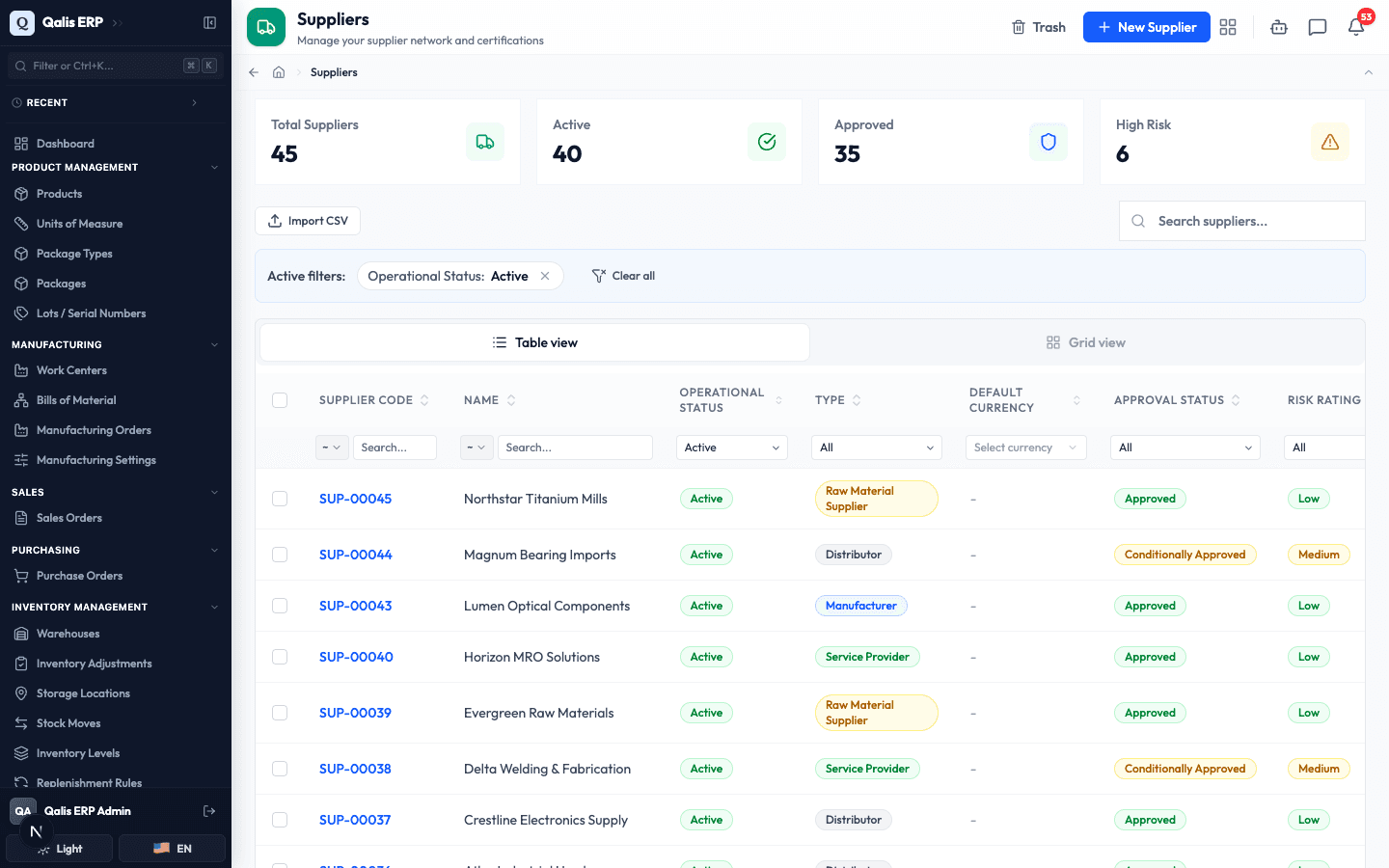
When you open Suppliers, it shows your Active suppliers by default (the Orderable quick filter), which is why an Active filters banner is already on. To see everyone, including inactive or suspended vendors, click the small x on the Operational Status: Active filter, or Clear all.
- To find one fast, type in the Search suppliers... box above the list. The list filters as you type, so there is no need to press Enter. It matches on the supplier's name, code, description, and email.
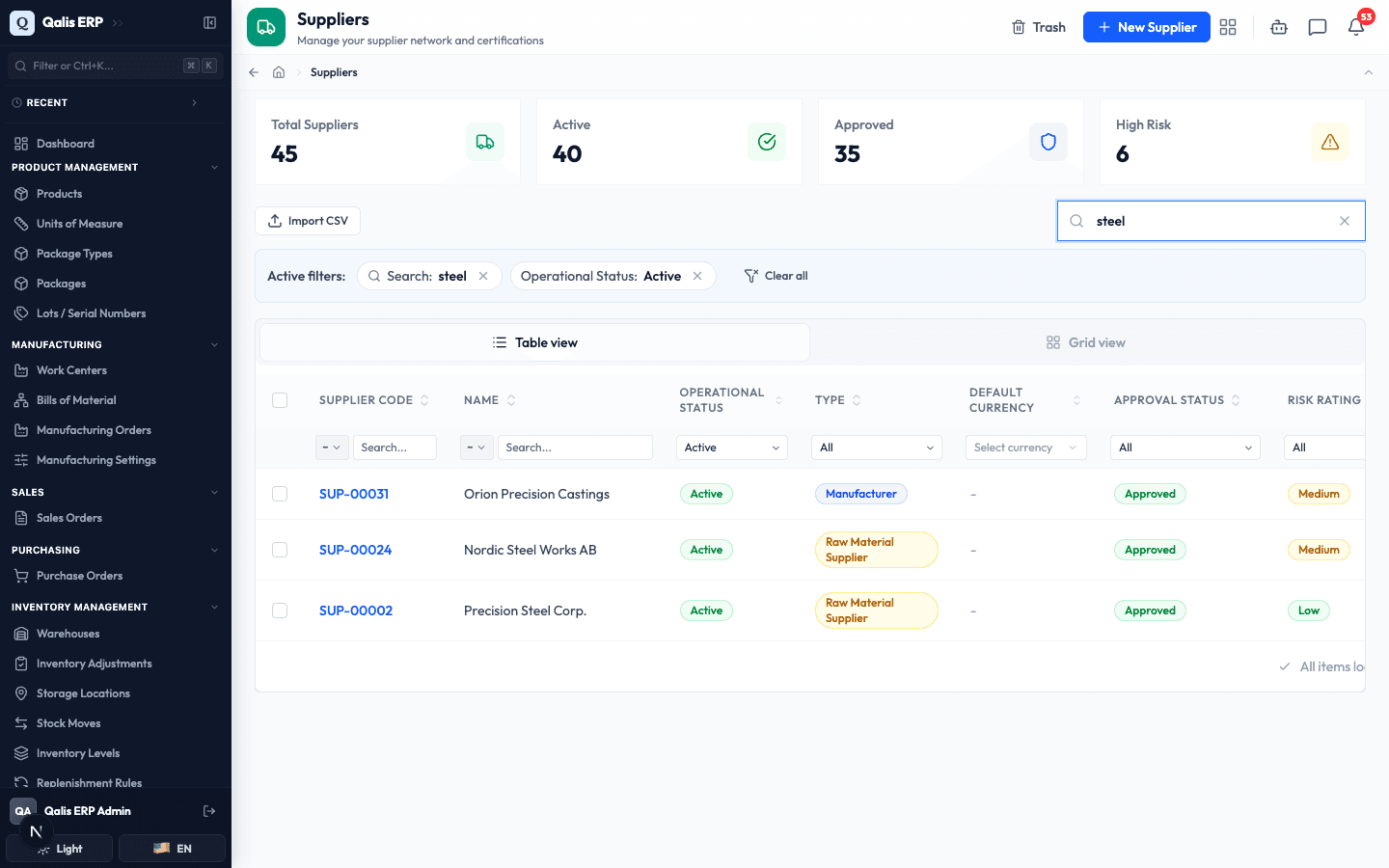
- To narrow the list by a column, open the dropdown under that column heading; a hidden column must first be added from the Columns menu. Here we add Risk Rating, open its dropdown, and choose High to see only the suppliers that need watching. You can filter the same way on Operational Status, Type, Default Currency, Approval Status, Created By, or a date range on when records were created or updated.
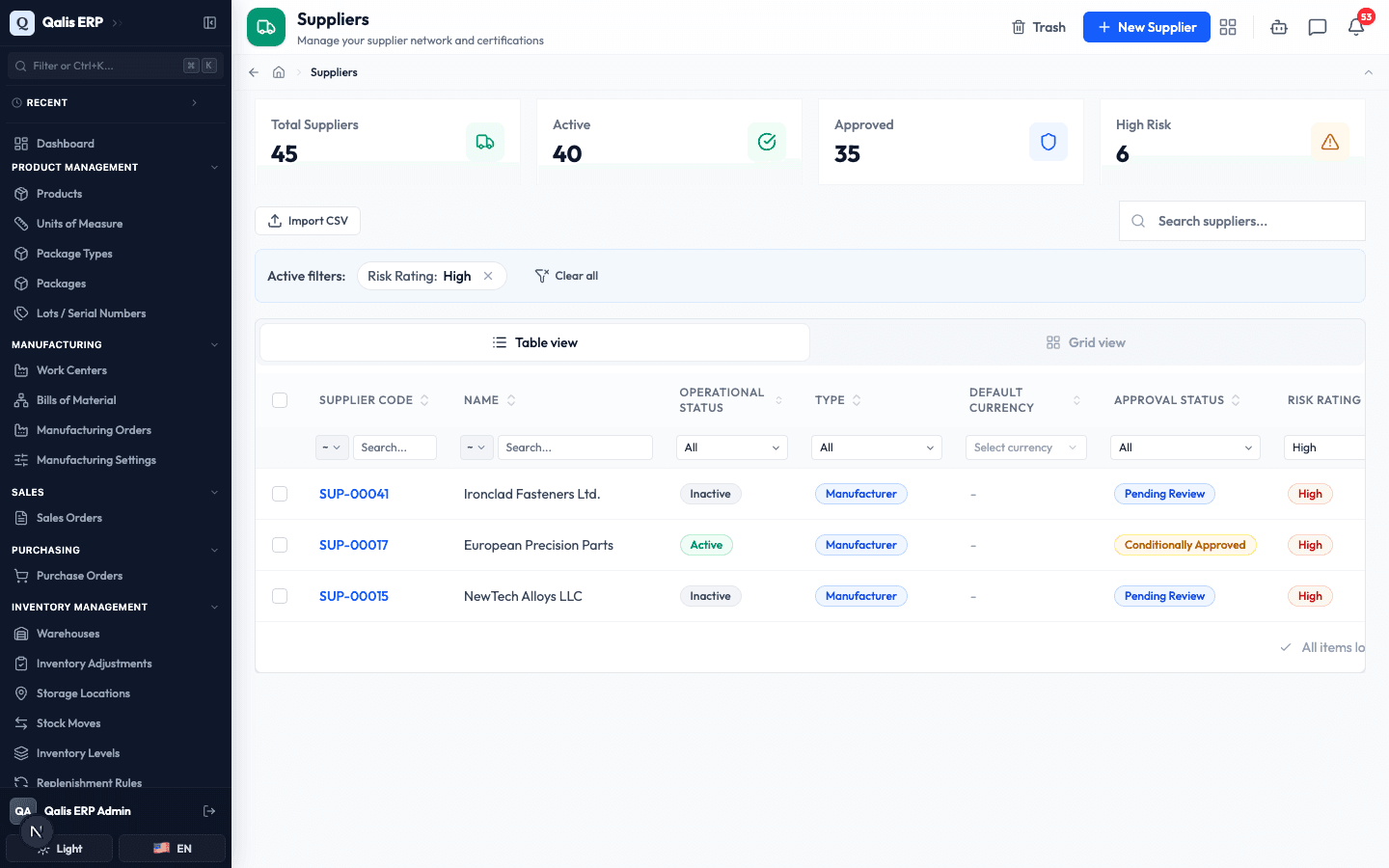
Whenever a filter is on, an Active filters banner appears under the search box showing what is applied. Click the small x on a filter to drop it, or Clear all to reset everything. The web address updates too, so you can bookmark or share a filtered view.
Create a supplier
This is the main task: adding a new vendor so the rest of the system can use it. The form is split into six tabs, so you can fill it in one part at a time. Only the Name and Type are required, everything else is optional. You choose the starting status when you save: Create Under Review saves the supplier as Inactive and Pending Review, so you can vet it, approve it, then set it Active. Create Approved saves it as Active and Approved straight away, for a vendor you have already vetted. This guide follows the first path.
- Click New Supplier (top right of the list). You start on the Basic Info tab.
- Choose the Type (here Manufacturer), type a clear Name, for example
Apex Composite Materials, and add an optional Description under Optional details. A new supplier has no status to set here: the button you save with decides it.
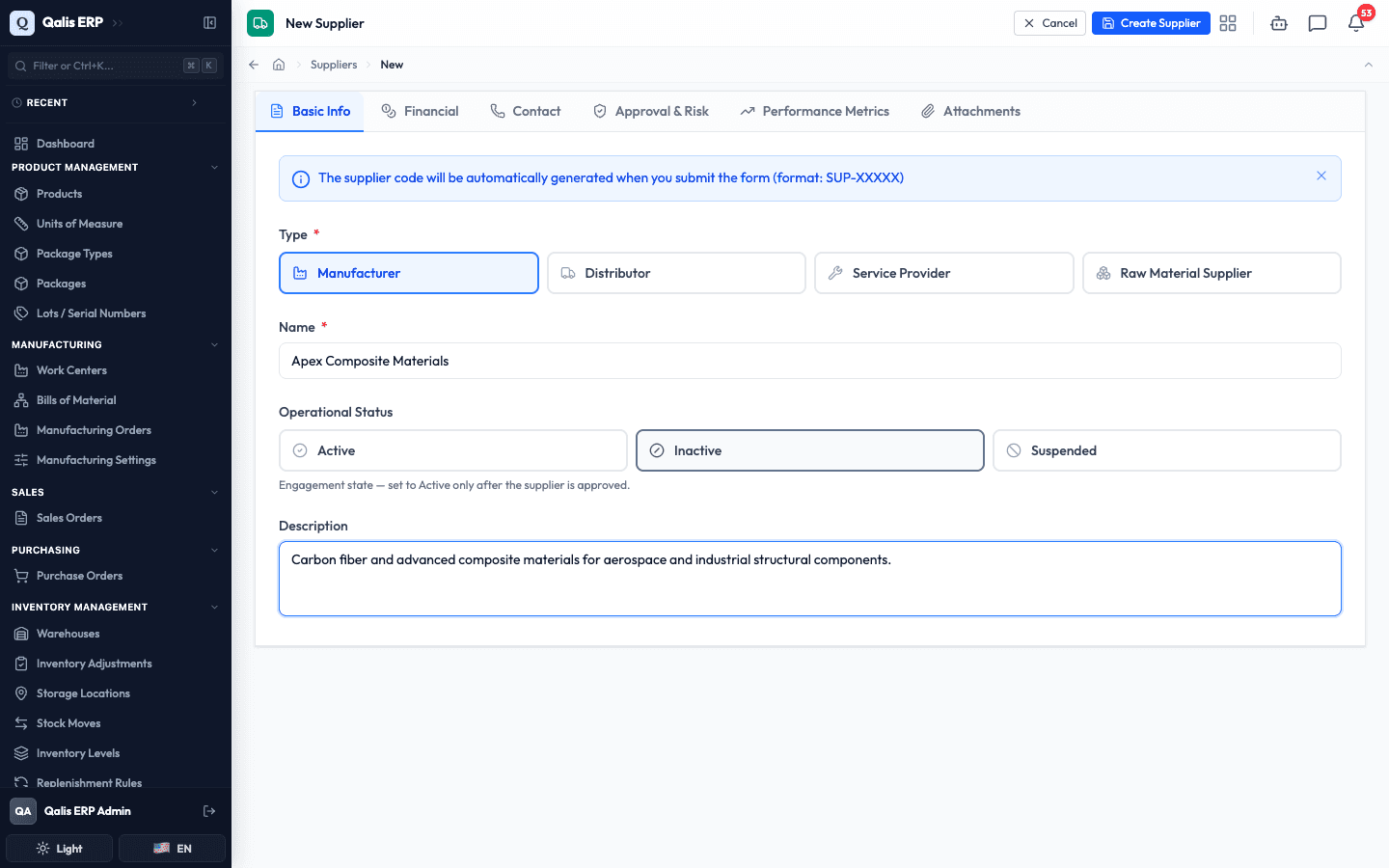
You do not type a code. Qualis assigns one automatically when you save (for example
SUP-00046), as the blue note on the form explains.
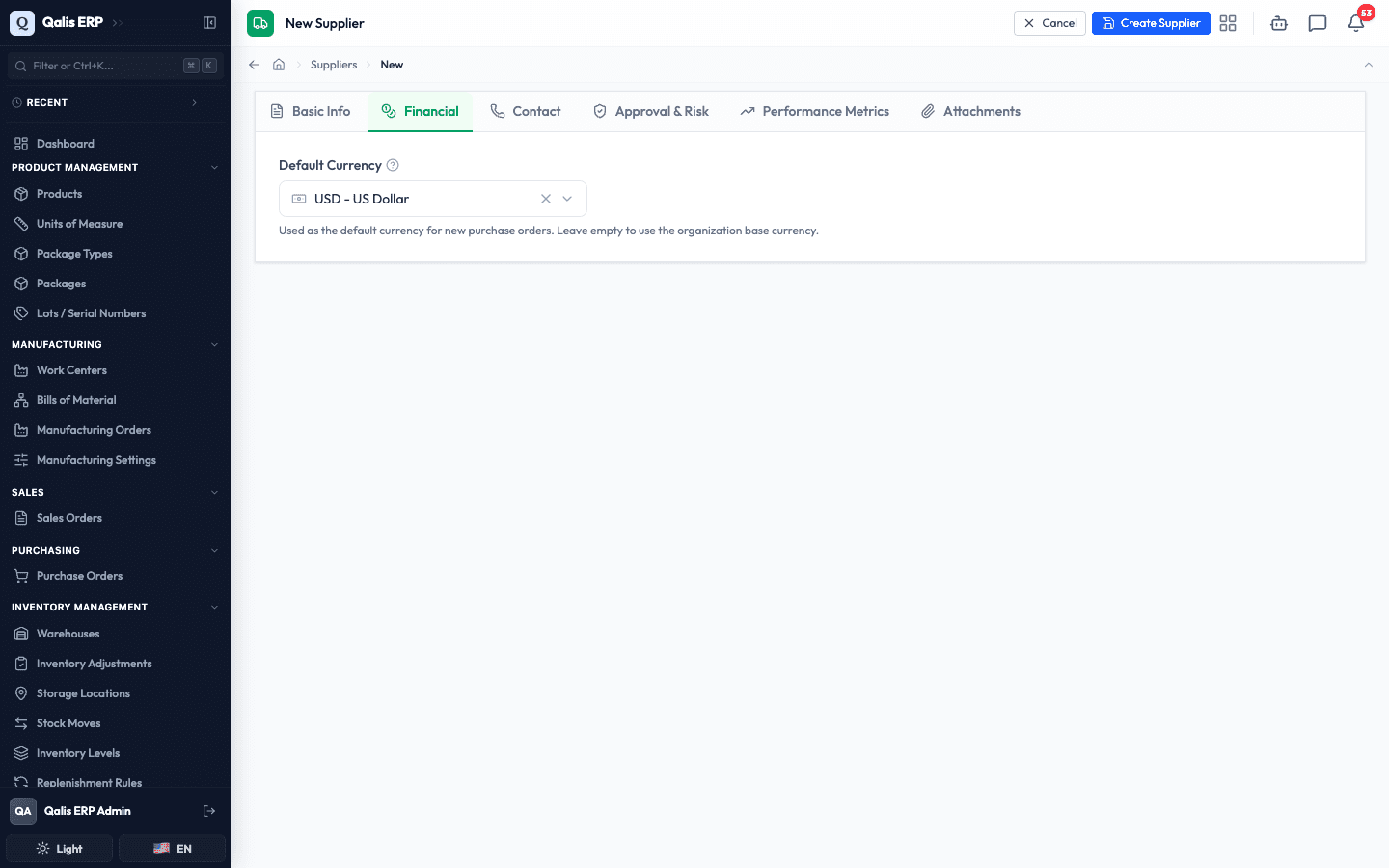
- Open the Financial tab to set a Default Currency if you usually pay this supplier in a particular currency. Start typing to search, then pick one from the list. Leaving it empty means new purchase orders use your organization's base currency instead.
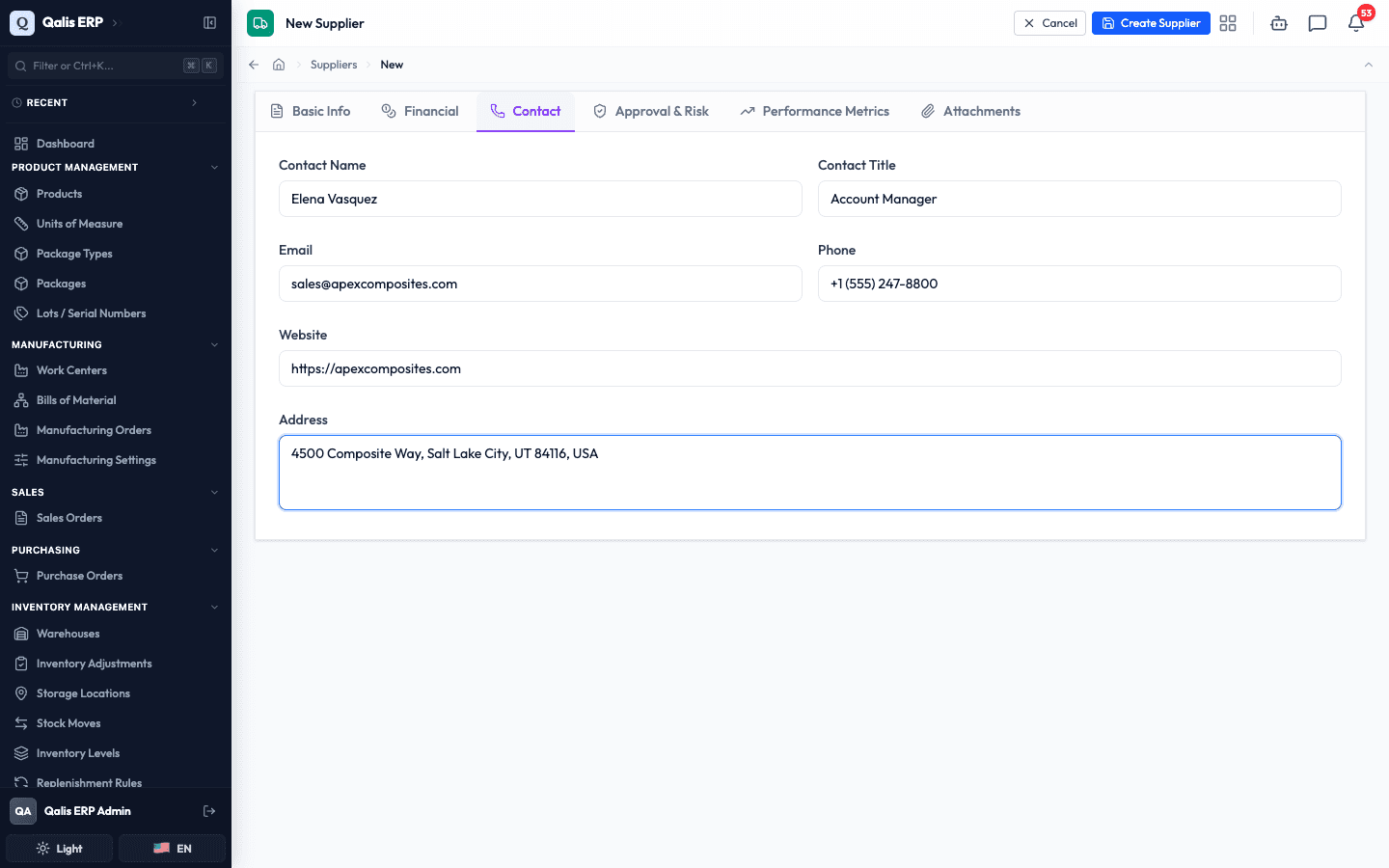
- Open the Contact tab and fill in the Contact Name and Contact Title of your main contact, plus the supplier's Email, Phone, Website, and Address. These are all optional, but the email and website are checked for a valid format as you type.
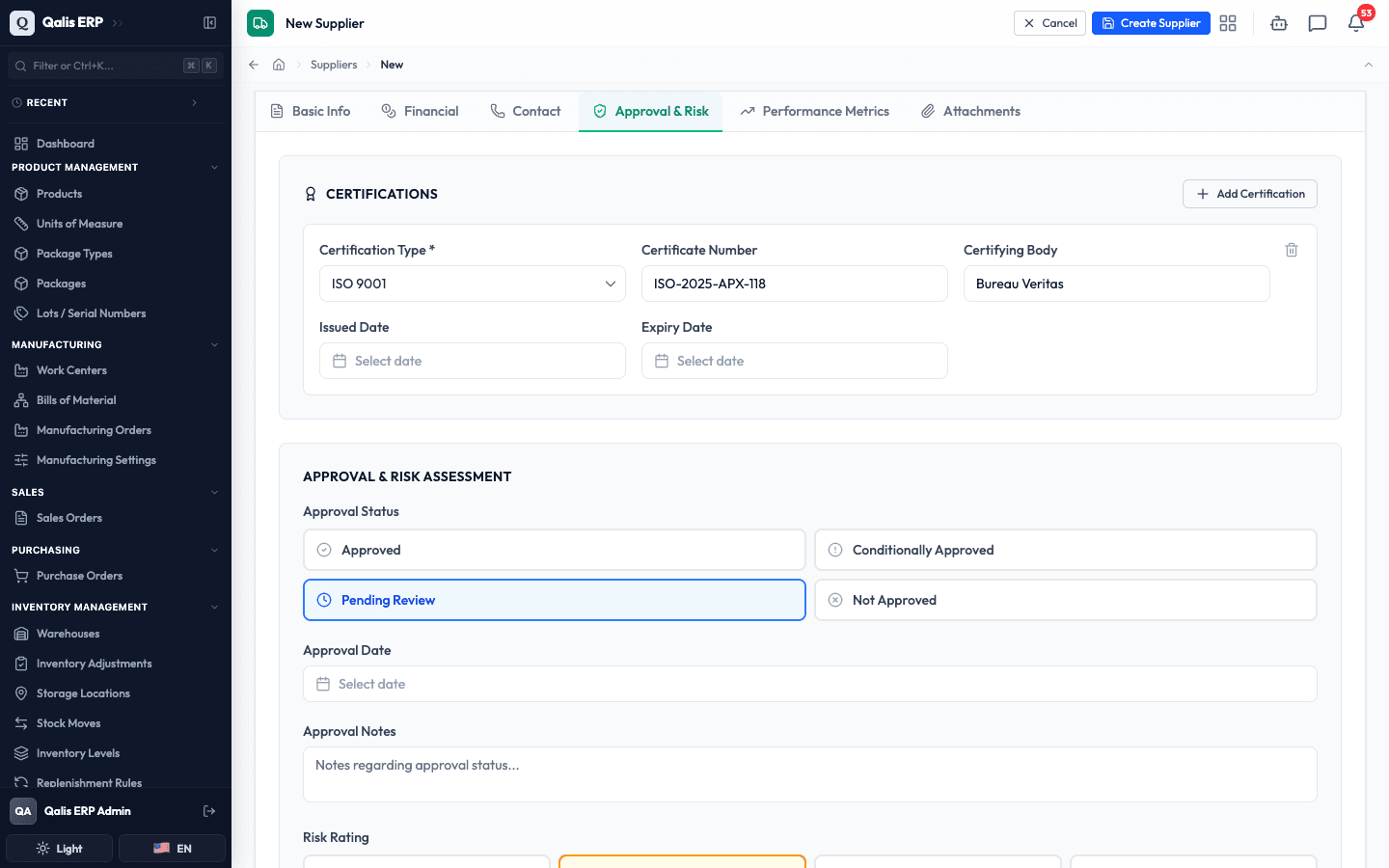
- Open the Approval & Risk tab. Click Add Certification to record a quality certification (for example ISO 9001), with its certificate number and certifying body. Set the Risk Rating if you have assessed the supplier, and add Risk Notes to explain it. You can leave the Approval Status as it is: the button you save with sets it.
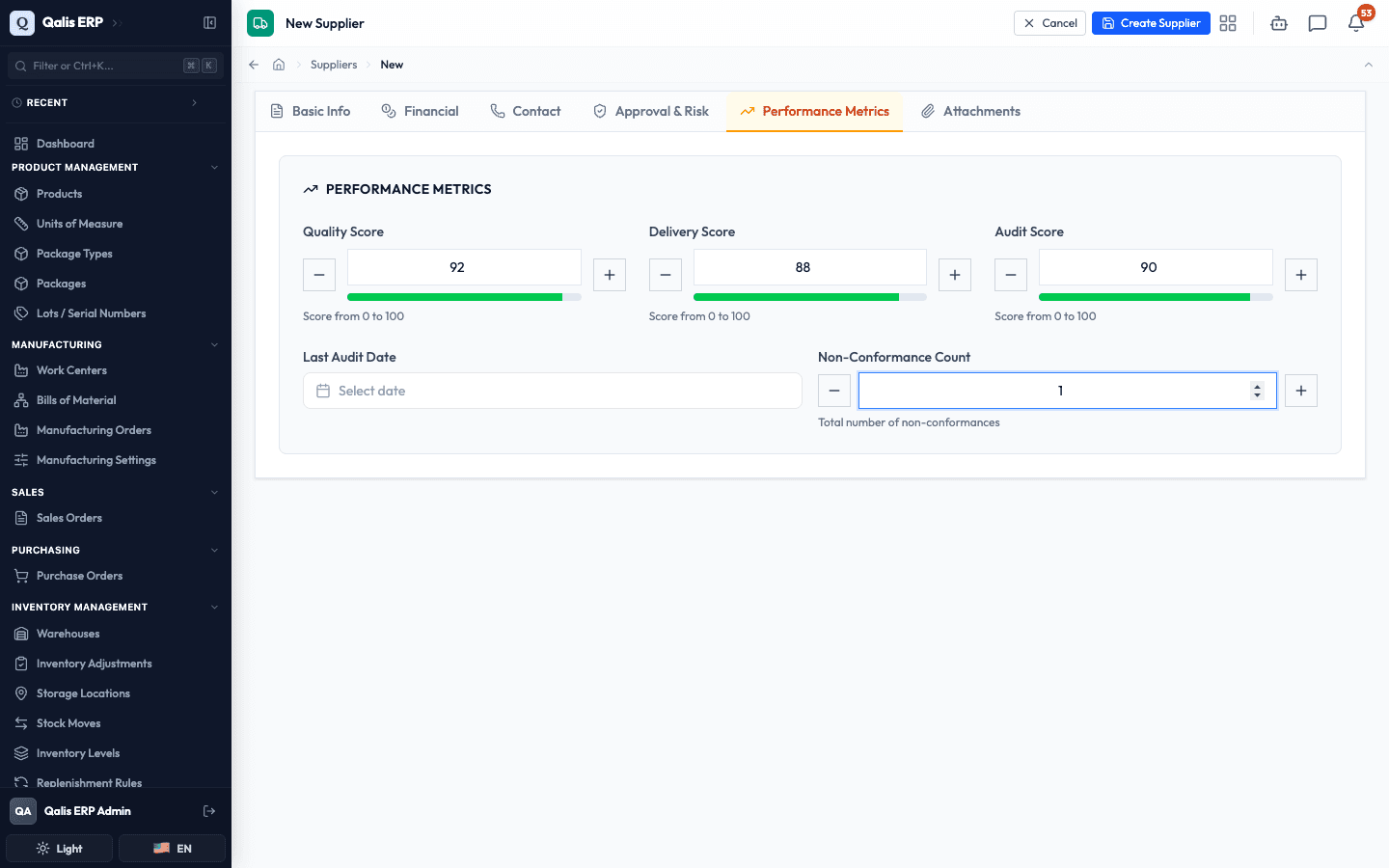
- Open the Performance Metrics tab to record how the supplier is doing. Enter a Quality Score, Delivery Score, and Audit Score (each from 0 to 100), the Last Audit Date, and the Non-Conformance Count. You can use the plus and minus buttons or type a number directly.
- Open the Attachments tab to add a Logo or supporting Documents (a quality manual, a contract, and so on). You can click to browse or drag a file straight onto the upload area. Files are added when you save, not before, so you never leave stray files behind if you change your mind.
- When you are happy, click Create Under Review in the action bar at the bottom of the page.
What happens next: Qualis saves the supplier, gives it a code, and opens its details page so you can review everything you entered.
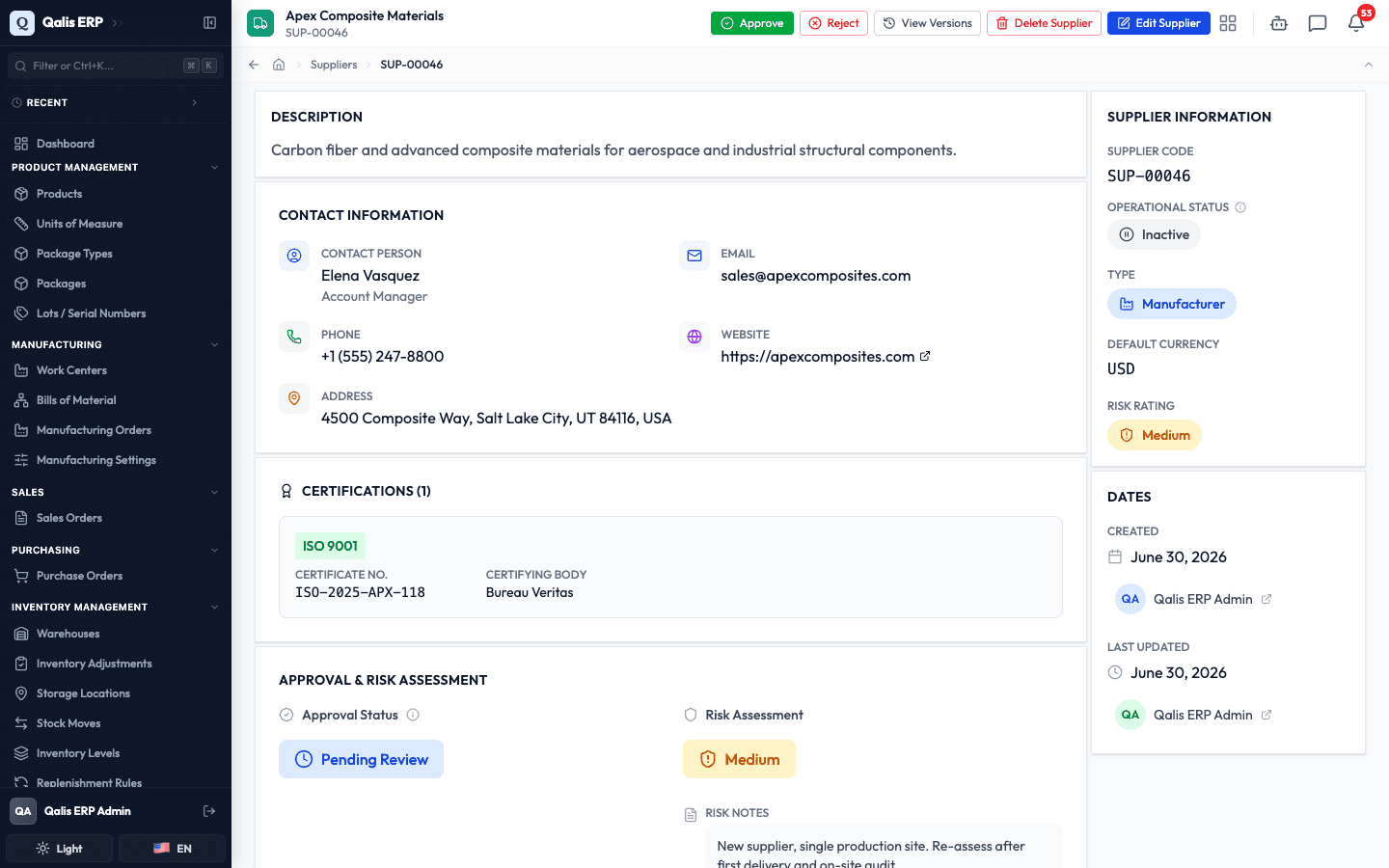
Open and read a supplier
Open any supplier to see everything about it on one page.
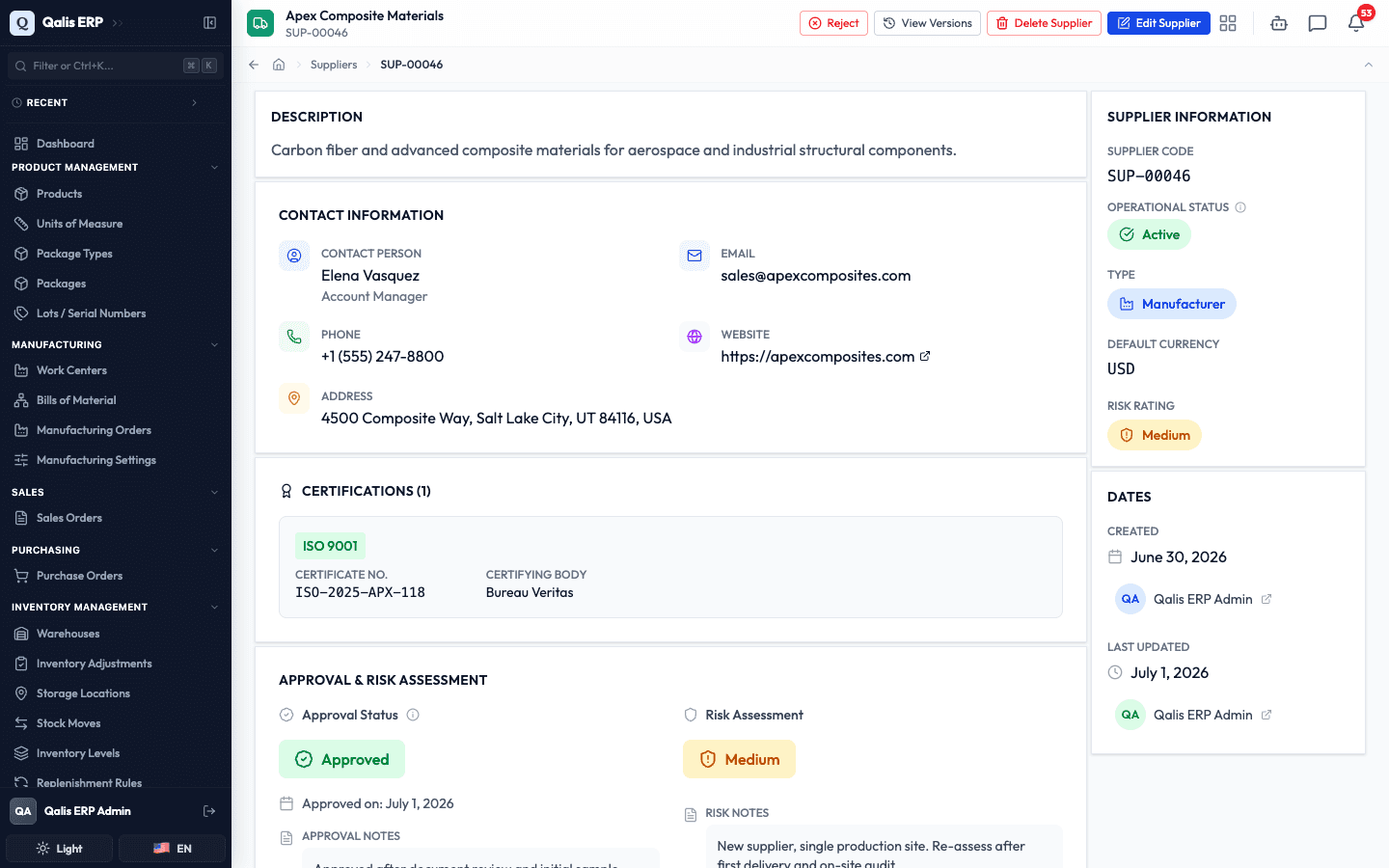
- From the list, click a supplier's Supplier Code, or the eye icon (View Details) at the end of its row, to open its details page. This is the same page you saw right after creating one.
- A status track at the top shows where the supplier stands (Registered, Under review, Approved, Active). Below it, the details are organised into tabs: Overview (the Description and the Related Products sourced from this supplier), Contacts & Certifications (the Contact Information, any Certifications on file, and the Approval & Risk Assessment), Performance (the Delivery reliability and the Performance Metrics), Documents, and Other (notes and custom attributes).
- The panel on the right gives you the key facts at a glance: the Delivery reliability, the Identity (code, type, default currency, and risk rating) and, under Record, who created and last updated the supplier and when.
- The buttons at the top right let you act on the supplier: Approve or Reject it, Activate it once it is approved, or open Edit Supplier. View Versions and Delete Supplier are in the ⋮ (More actions) menu.
Approve or reject a supplier
This is the step that makes a supplier ready to trade with. Approving records that the vendor has passed your vetting, and only an approved supplier can be set to Active. Rejecting records that they did not pass, with the reason why.
- Open the supplier and click Approve (the green button at the top right). A short window opens confirming which supplier you are approving. Add an optional Notes entry to record why, for example what audit or documents you checked.
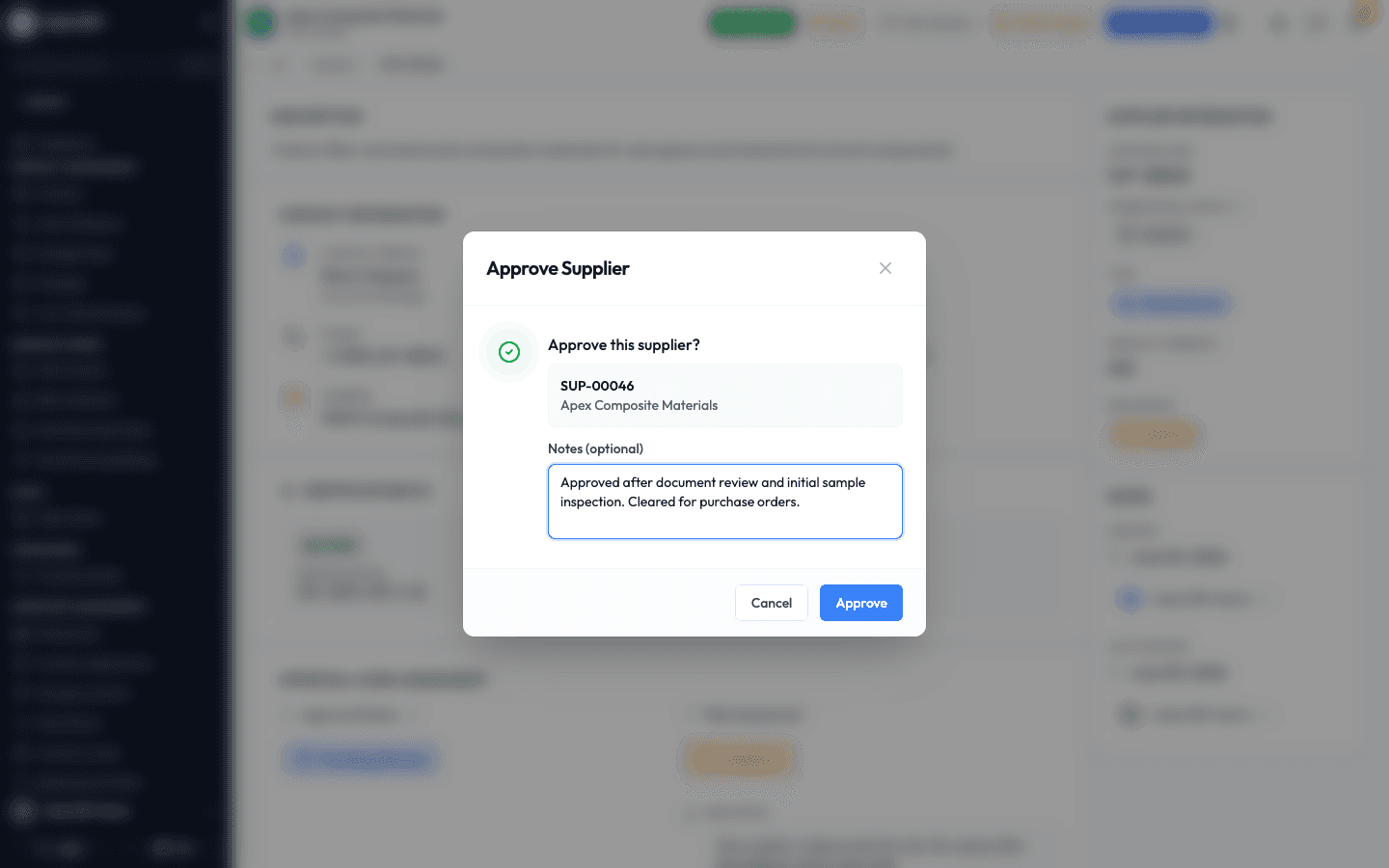
- Click Approve to confirm. Qualis records the decision, stamps it with today's date, and shows a short confirmation message.
What happens next: the Approval Status changes to Approved, the date and your note appear under it on the Contacts & Certifications tab, and the Approve button disappears from the top bar (since it is already approved) while an Activate button appears. The supplier can be used on purchase orders once it is also Active, as shown in the next section.
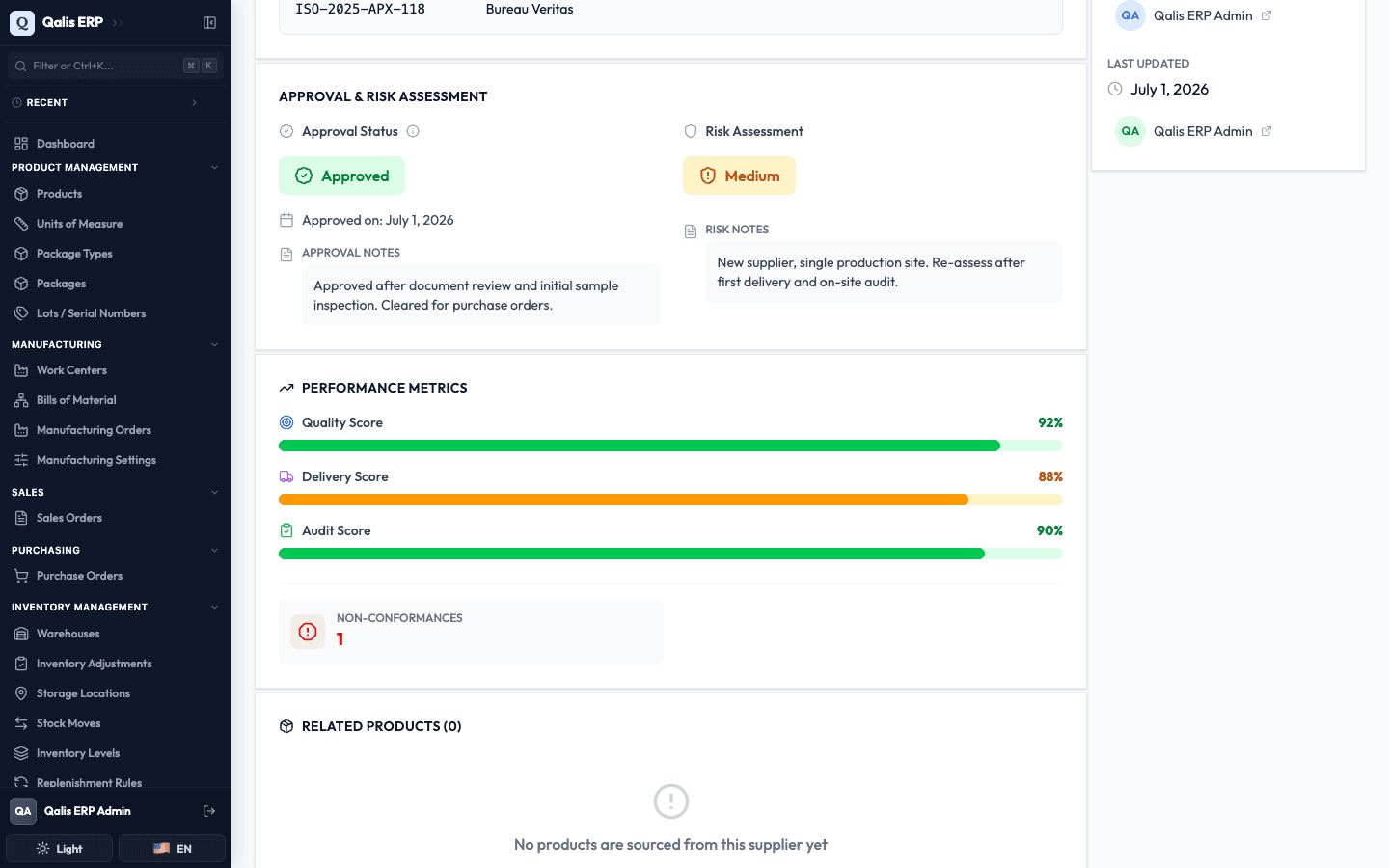
Rejecting works the same way, with one difference: when you click Reject, a reason is required before you can confirm. This keeps a clear record of why a supplier was turned down. Rejecting sets the Approval Status to Not Approved.
Edit a supplier
Update a supplier's details whenever something changes, for example after you approve it and want to start trading, or when you need to suspend an account.
- Open the supplier and click Edit Supplier at the top right (or choose Edit Supplier from the ⋮ menu of its row in the list).
- The form opens with everything already filled in, across the same six tabs. Go to the tab with the field you want to change. Here, now that the supplier is approved, we open the Basic Info tab, expand Optional details, and change the Operational Status from Inactive to Active. (The Activate button on the supplier's page does the same in one click.) The Supplier Code is shown but cannot be changed.
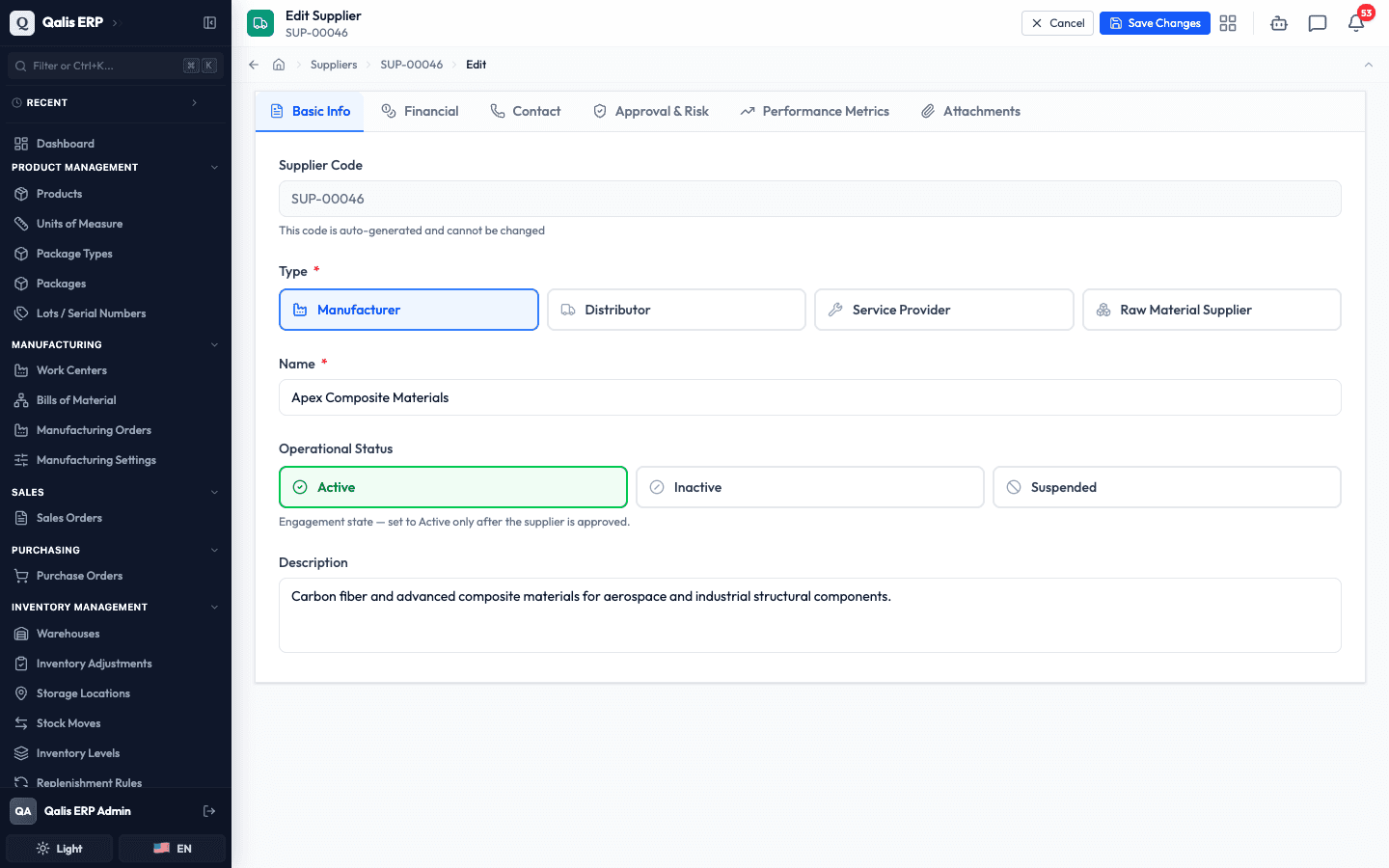
- Click Save Changes in the action bar at the bottom of the page.
What happens next: Qualis saves your change, shows a short confirmation message, and returns you to the details page with the new value in place. The status track at the top now reaches Active, after Approved, and the Last Updated time under Record refreshes.
If you try to set a supplier to Active before it is approved, Qualis stops you and explains that you must approve it first. Approve it, then come back and set it Active.
Import many suppliers from a CSV
When you are setting up the system, or adding a batch of new vendors, you can import them all at once from a spreadsheet instead of creating them one by one.
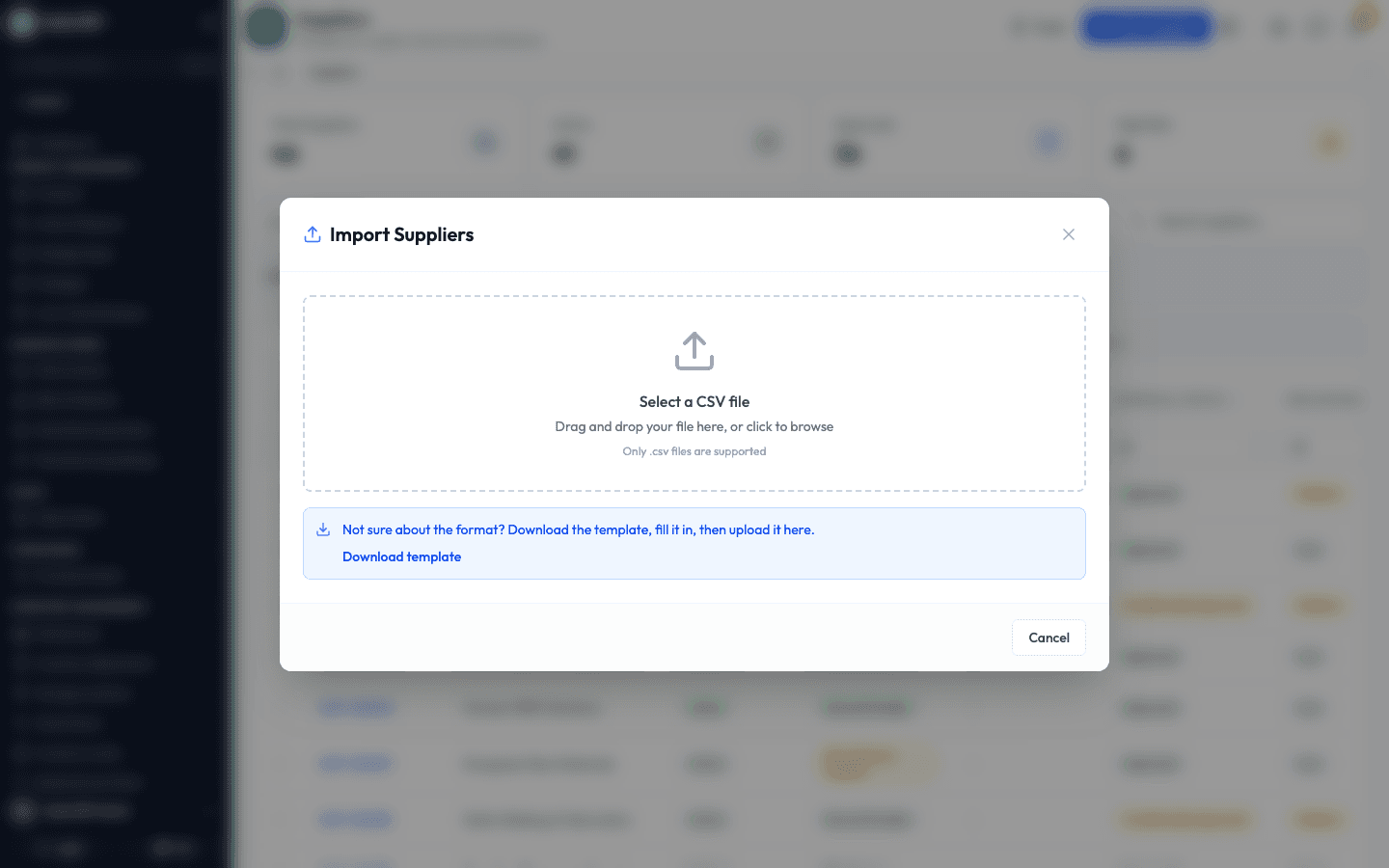
- On the list, click Import CSV (on the right, across from the search box). The Import Suppliers window opens.
- Drag your CSV file onto the upload area, or click it to browse for the file. If you are not sure of the format, click Download template, fill it in, then upload it. The columns you must fill in are Supplier Code, Name, Status, and Type; everything else (email, phone, risk rating, and so on) is optional.
- Qualis checks every row and shows you a preview with a green tick for each valid row and a count of how many are ready. Review it to make sure the data looks right.
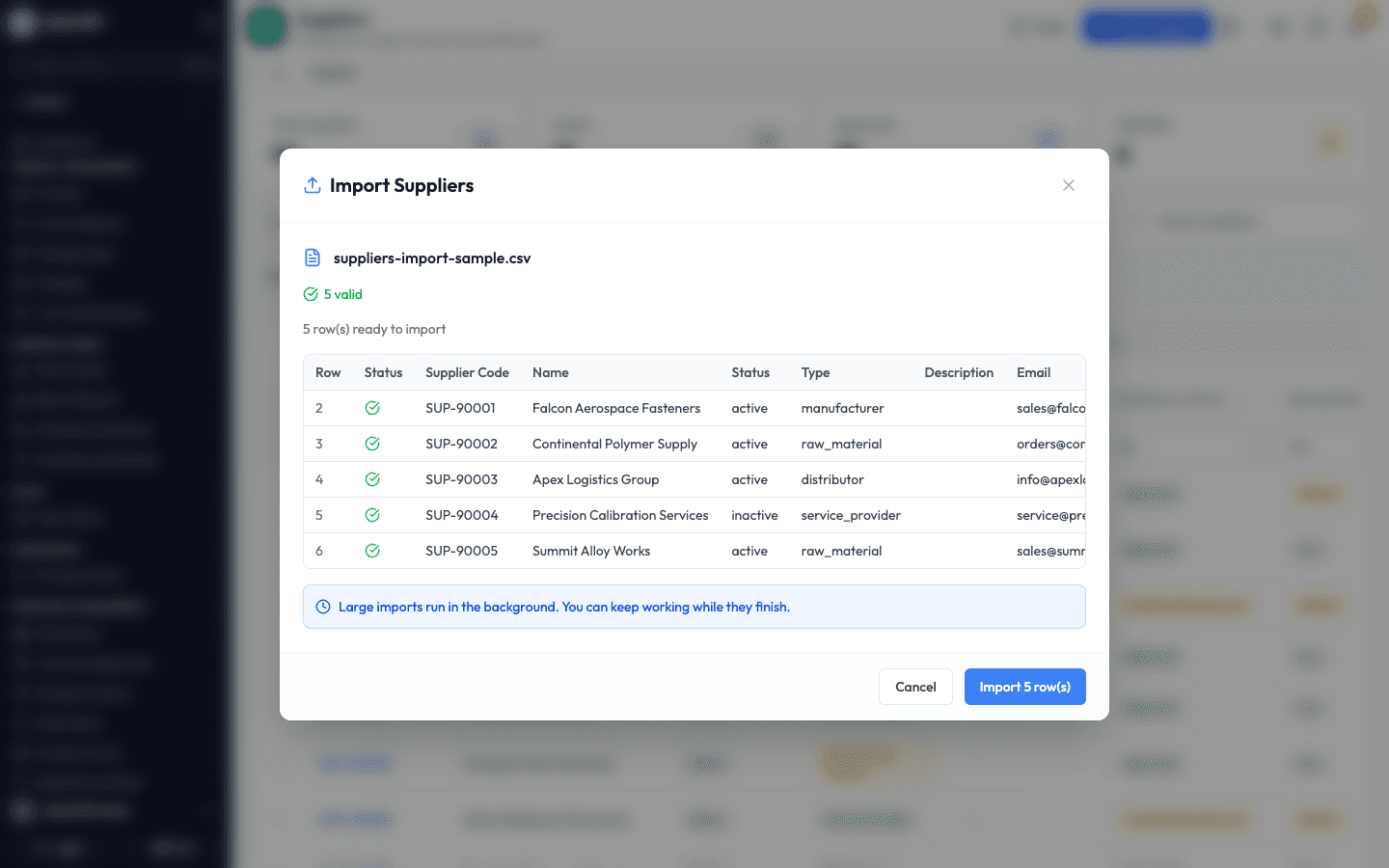
- Click the import button, here Import 5 rows, to confirm. Large imports run in the background, so you can keep working while they finish. You can follow their progress on the Background Jobs page.
If any row has a problem (for example a missing name, a duplicate supplier code, or a status that is not one of the allowed values), it is flagged in the preview so you can fix your file and try again before anything is saved.
Export suppliers
Export your suppliers to a spreadsheet whenever you need them outside Qualis, for sharing or reporting.
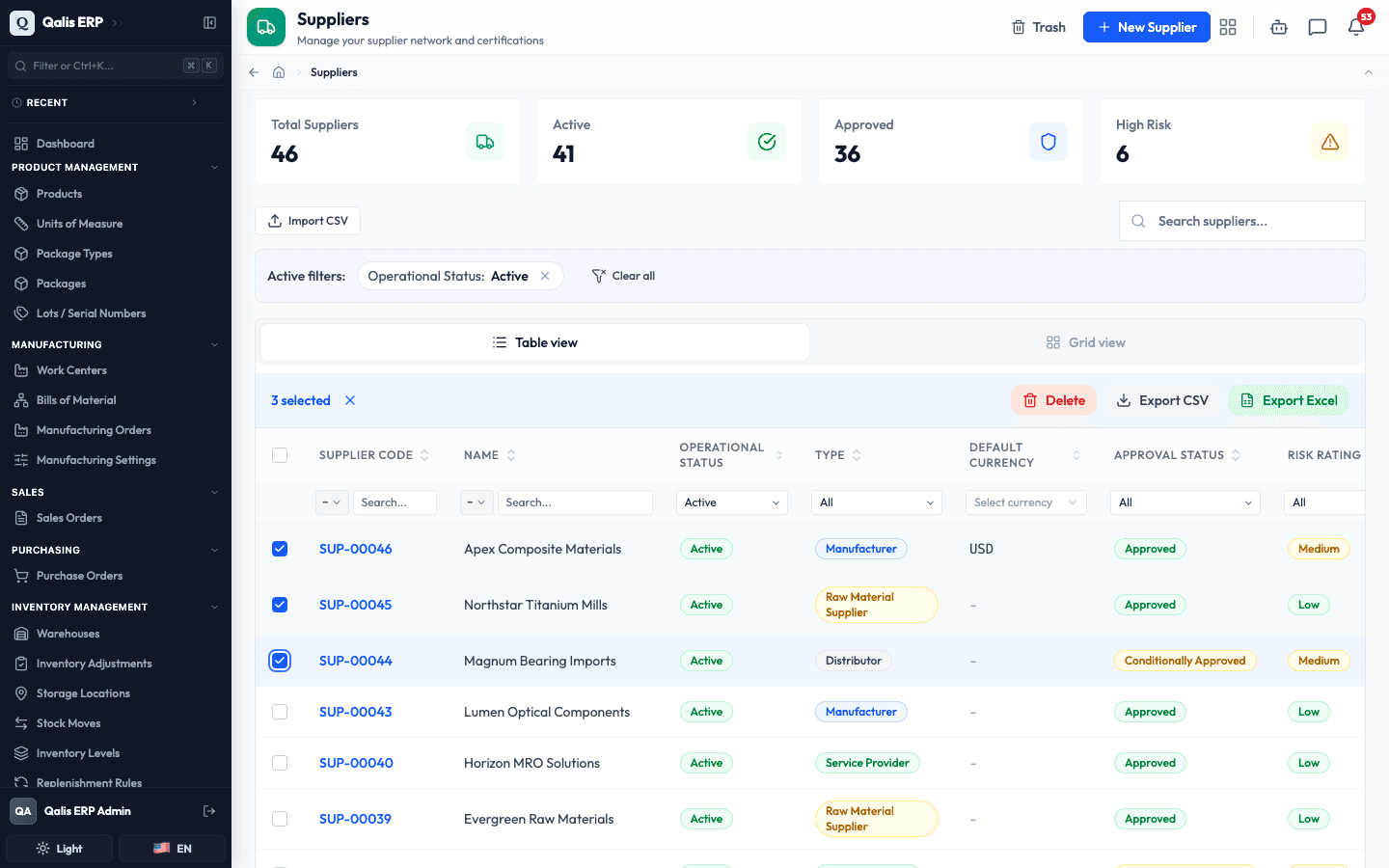
- On the list, tick the checkbox at the far left of each row you want, or tick the checkbox in the header to select everything on screen.
- A toolbar appears showing how many are selected, with Export CSV and Export Excel buttons. Click the format you want, and the file downloads.
Track changes with version history
Every time someone saves a change, Qualis keeps a snapshot, so you always have a full history of who changed what and when. This is part of your audit trail.
- Open a supplier, click the ⋮ (More actions) menu at the top right, and choose View Versions.
- The Current Version is shown at the top, followed by every earlier version in order under All Versions. Each entry shows its version number, who made the change, and when, along with a badge for its status at that point (for example Active or Inactive).
- Click a version to expand it and see exactly what the supplier looked like then: its status, type, contacts, certifications, and more. Comparing the badges and snapshots from one version to the next shows you how the supplier has changed over time.
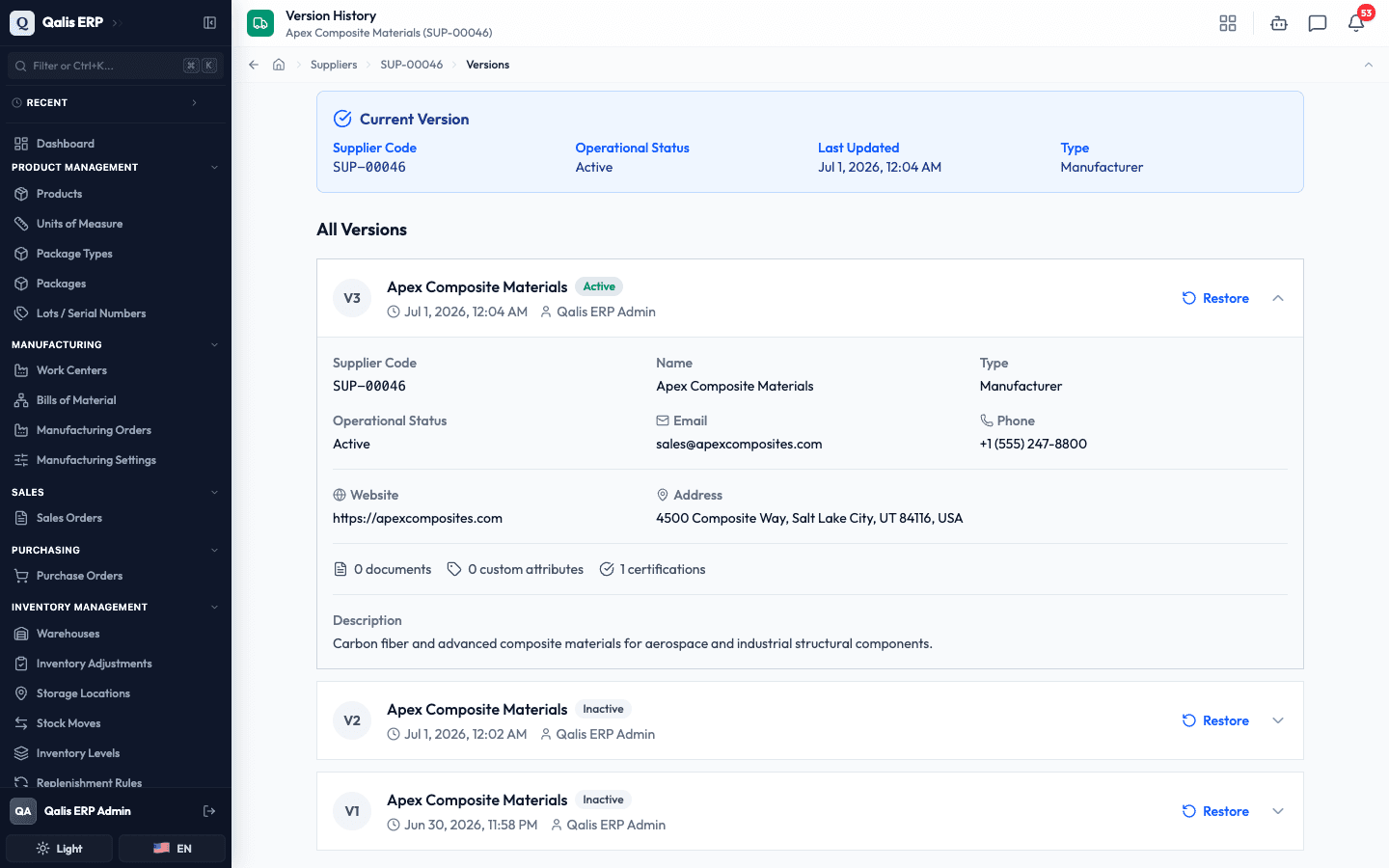
If you have permission to edit, each earlier version has a Restore button that brings its values back as a new version, without losing the history in between.
Good to know
- Code: a short reference Qualis assigns automatically when you create a supplier (like
SUP-00046). You never type or change it. - Operational Status: whether you are actively trading with the supplier right now, one of Active, Inactive, or Suspended. A supplier created with Create Under Review starts as Inactive, and can only be set to Active once approved (or conditionally approved).
- Approval Status: whether the supplier has passed your vetting, one of Approved, Conditionally Approved, Pending Review, or Not Approved. You usually set this with the Approve and Reject buttons, though it can also be changed on the form's Approval & Risk tab. A supplier created with Create Under Review starts as Pending Review.
- Type: what kind of vendor this is, one of Manufacturer, Distributor, Service Provider, or Raw Material Supplier.
- Risk Rating: your assessment of how risky the supplier is, one of Low, Medium, High, or Critical. The High Risk count at the top of the list helps you keep an eye on the riskier ones.
- Certifications: quality certifications you record against a supplier (for example ISO 9001), each with its number, certifying body, and issue and expiry dates.
- Performance Metrics: the quality, delivery, and audit scores (0 to 100) and non-conformance count you track to judge how a supplier is doing over time.
- Default Currency: the currency new purchase orders for this supplier start in. It is only a default for future documents, not a lock, so changing it does not affect orders you already raised. Leave it empty to use your organization's base currency.
- Files go to the document library: any logo or document you attach is stored in the Document Management System, and can be downloaded by anyone who can view the supplier.
- Deleting is protected: deleted suppliers first go to the Trash, where you can restore them or remove them for good. If a supplier is still used elsewhere (for example on a purchase order, a product, a replenishment rule, or a quality case), Qualis will not let you remove it for good, so you never end up with records pointing at a missing supplier. Set it to Inactive instead.