Comments
Discuss any record with your team right where the work happens. Post comments, mention people and records, edit or remove what you wrote, and follow the full history of changes.
Last updated on June 28, 2026
Comments let you have a conversation about a record without leaving it. Every part, supplier, order, task, non-conformance, and more carries its own Comments card, so questions, decisions, and sign offs stay attached to the thing they are about, instead of getting lost in email or a separate chat. This guide covers the everyday things you do: finding the comments on a record, posting one, mentioning a colleague or another record, editing or deleting what you wrote, and reading the record's history.
Before you start
There is nothing to set up. Comments are built into every record's detail page, so wherever you can open a record, you can comment on it. You only need permission to view the record, which you already have if you can open it.
Find the comments on a record
The Comments card sits at the bottom of a record's detail page.
- Open any record, for example a product, a supplier, or a task.
- Scroll to the bottom of the page. The Comments card is the last card.
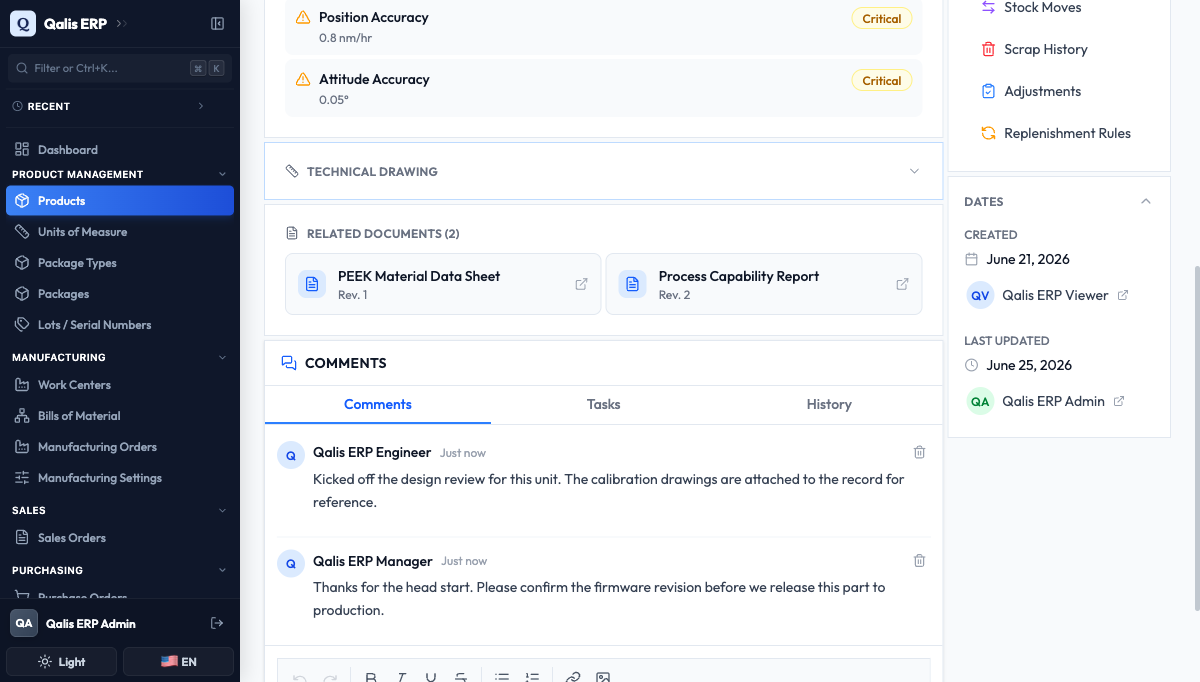
The card has a few parts:
- A row of tabs: Comments for the discussion, History for the record's change log, and sometimes Tasks when other features add their own tab.
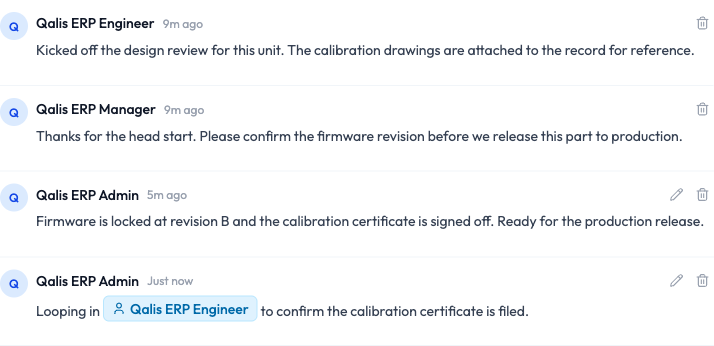
- The conversation itself, with the oldest comment at the top and the newest at the bottom.
- A box at the bottom for writing a new comment.
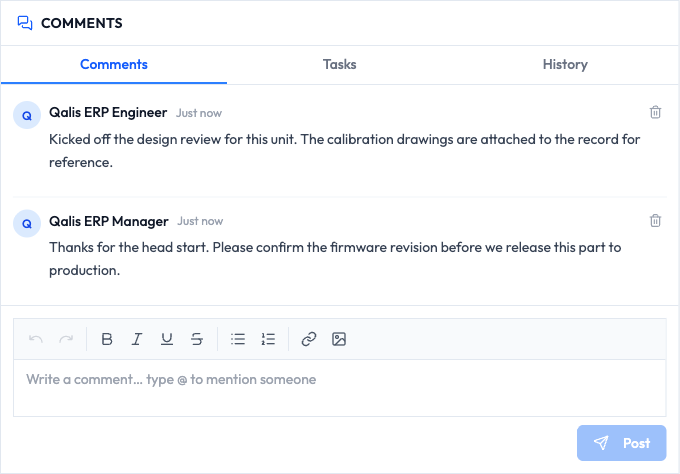
Add a comment
Writing a comment is as simple as writing an email.
- Click the Write a comment... box at the bottom of the card.
- Type your message. You can make text bold or italic, underline it, or add bullet and numbered lists using the small toolbar above the box. You can also paste a link.
- Click Post.
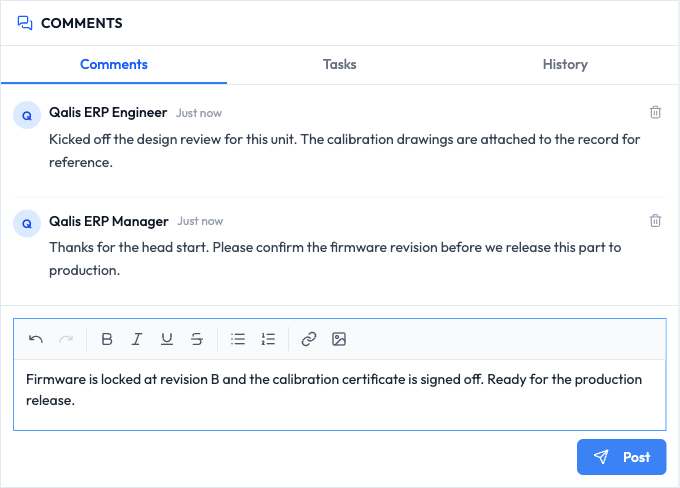
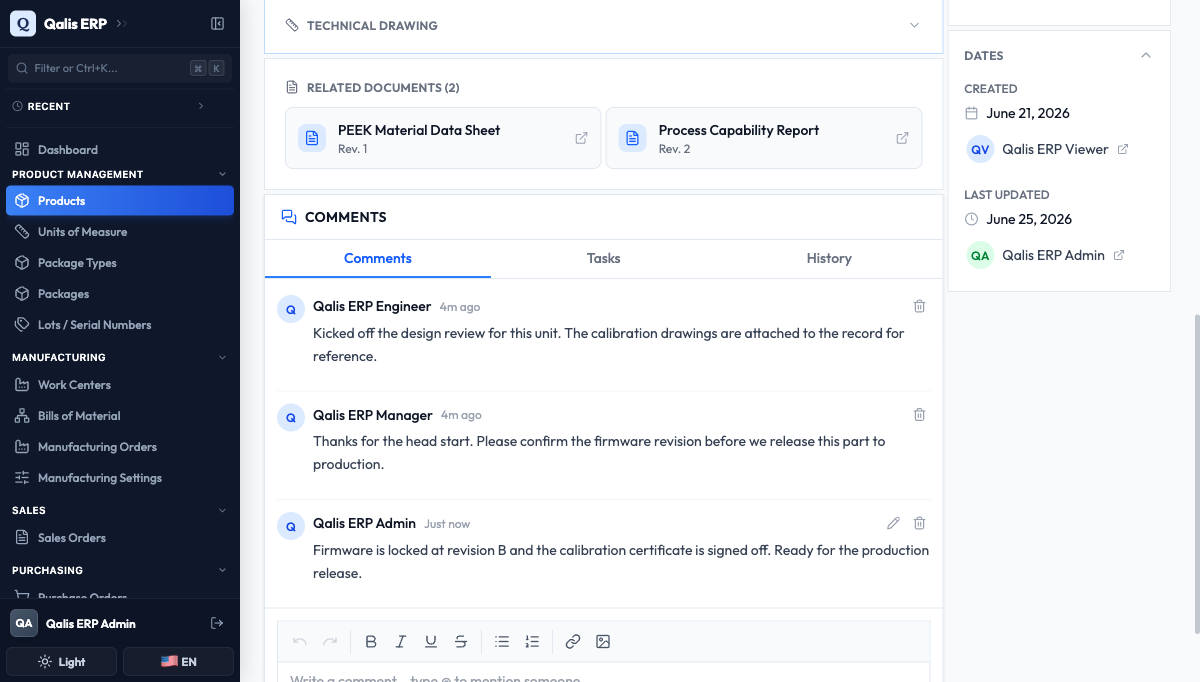
Your comment appears at the bottom of the conversation straight away, with your name and Just now next to it. A short confirmation message (Comment posted) lets you know it saved.
The Post button stays greyed out until you have typed something, so you cannot post an empty comment by accident.
Mention a person or a record
This is what makes comments more than a notepad. You can drop a live link to a colleague or to any record into your comment. Mentioning a person also sends them a notification, so it is the easiest way to pull someone in.
- With your cursor in the writing box, type the @ symbol.
- A menu appears listing the kinds of things you can mention, such as User (a person), Part, Supplier, Client, Document, NCR, Task, and more.
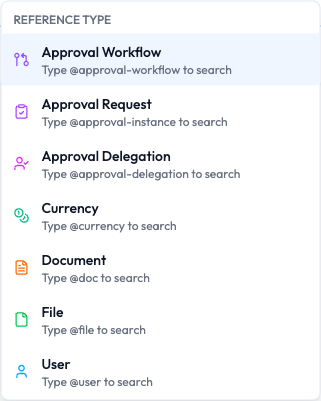
- Choose a type, for example User to mention a person.
- Start typing a name. The list filters as you type, so there is no need to press Enter.
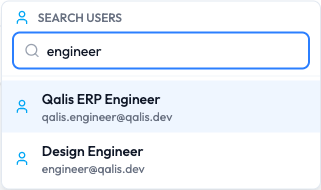
- Click the person or record you want.
The mention is added to your comment as a tidy chip. Finish your sentence and post as usual.
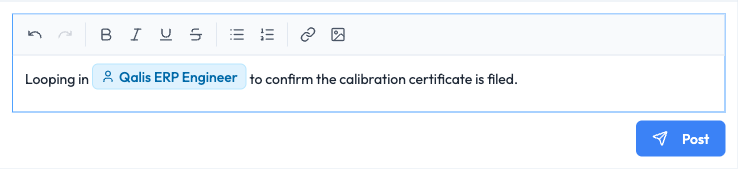
Once posted, the chip becomes a clickable link in the conversation, and anyone you mentioned by name is notified.
Edit a comment
Spotted a typo or need to add a detail? You can edit your own comments at any time.
- Find your comment. Hover over it and click the pencil on the right.
- The comment turns into an editing box. Make your changes.
- Click Save (or Cancel to keep the original).
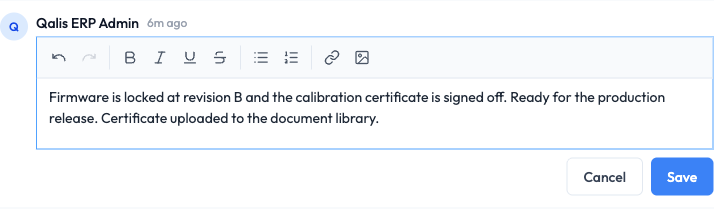
The comment updates in place, and a small (edited) label appears next to the time so everyone knows it was changed.

You can only edit comments you wrote yourself. This keeps a person's words their own.
See a comment's edit history
Nothing is lost when a comment is edited. The full history is one click away.
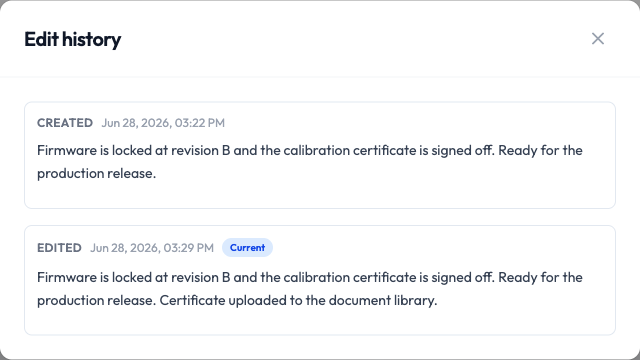
- Click the (edited) label on a comment.
- A window opens showing every version of that comment, from the first Created version to the latest, which is marked Current. Each version shows its date and time.
Delete a comment
You can remove a comment you no longer want.
- Hover over your comment and click the trash icon on the right.
- A confirmation window asks you to confirm, because removing a comment cannot be undone.
- Click Delete to remove it, or Cancel to keep it.
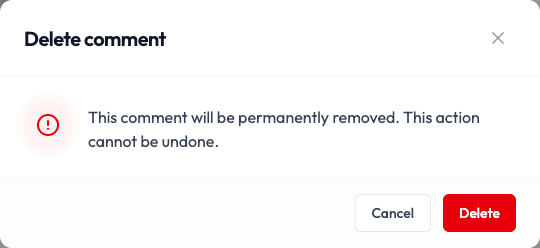
Asking before deleting is deliberate. There is no undo, so the extra click protects you from removing the wrong comment.
Review the record's history
The History tab next to Comments is a running log of everything that has happened to the record, not just the comments.
- In the Comments card, click the History tab.
- Read from the top (most recent) down. Each entry shows who did what and when, for example added, edited, or deleted a comment, with older changes to the record below.
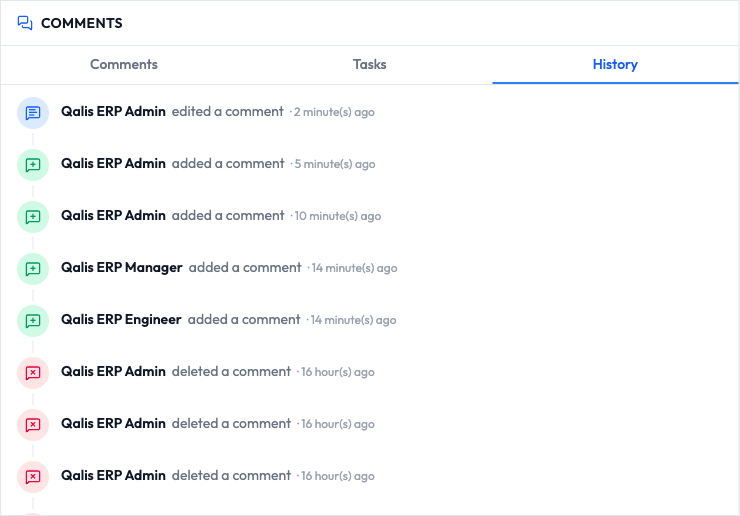
If the list is long, a Load more button at the bottom brings in older entries.
Good to know
- Where comments live: at the bottom of every record's detail page, in the Comments card. There is no separate inbox to check.
- Empty conversation: a record with no comments yet shows No comments yet. Be the first to start the discussion. Just type in the box to begin.
- Mention: a link to a person or a record that you add with the @ symbol. It appears as a clickable chip, and mentioning a person notifies them.
- (edited): a label shown on any comment that was changed after posting. Click it to see every version.
- Older comments: when a conversation is long, a Load older comments button at the top loads earlier messages without losing your place.
- History tab: the record's full audit trail, showing who changed what and when. Deleting a comment is recorded here too.
- Permissions: you can always edit and delete your own comments. Editing someone else's comment is never allowed, and removing other people's comments needs the delete permission.