AI Assistant
Chat with a built-in AI helper that lives in a side panel, understands your ERP, and helps you find, manage, and make sense of your data in plain language.
Last updated on June 28, 2026
The AI Assistant is a chat helper that sits in a panel on the right side of the screen, ready whenever you need it. You talk to it in plain language, the same way you would message a colleague, and it helps you work with your products and data without hunting through menus. You can ask it questions, ask it to find or summarize things, and ask it how to do something in Qualis. It remembers each chat, so you can pick up where you left off. The assistant runs on the AI provider you connect in AI Settings, so once that is set up, it is ready to use from any page.
Before you start
Two things need to be in place before the assistant can answer you:
- An AI provider must be connected and a chat model chosen on the AI Settings page (open the left sidebar, then Administration, then AI). If this is not done yet, the assistant shows a short Setup required note with buttons that take you straight there. See the AI Settings guide for how to add a key and pick a model.
- You need permission to use the AI Assistant. If you do not have it, the assistant tells you and suggests contacting your administrator.
Open the assistant
The assistant is always one click away from the top of the screen.
- Look at the top bar, towards the right. Click the robot icon (its tooltip says AI Assistant). You can also press Ctrl+Shift+A at any time to open it.
- The panel opens on the right with a friendly welcome, a few suggested questions to get you started, and a message box at the bottom.
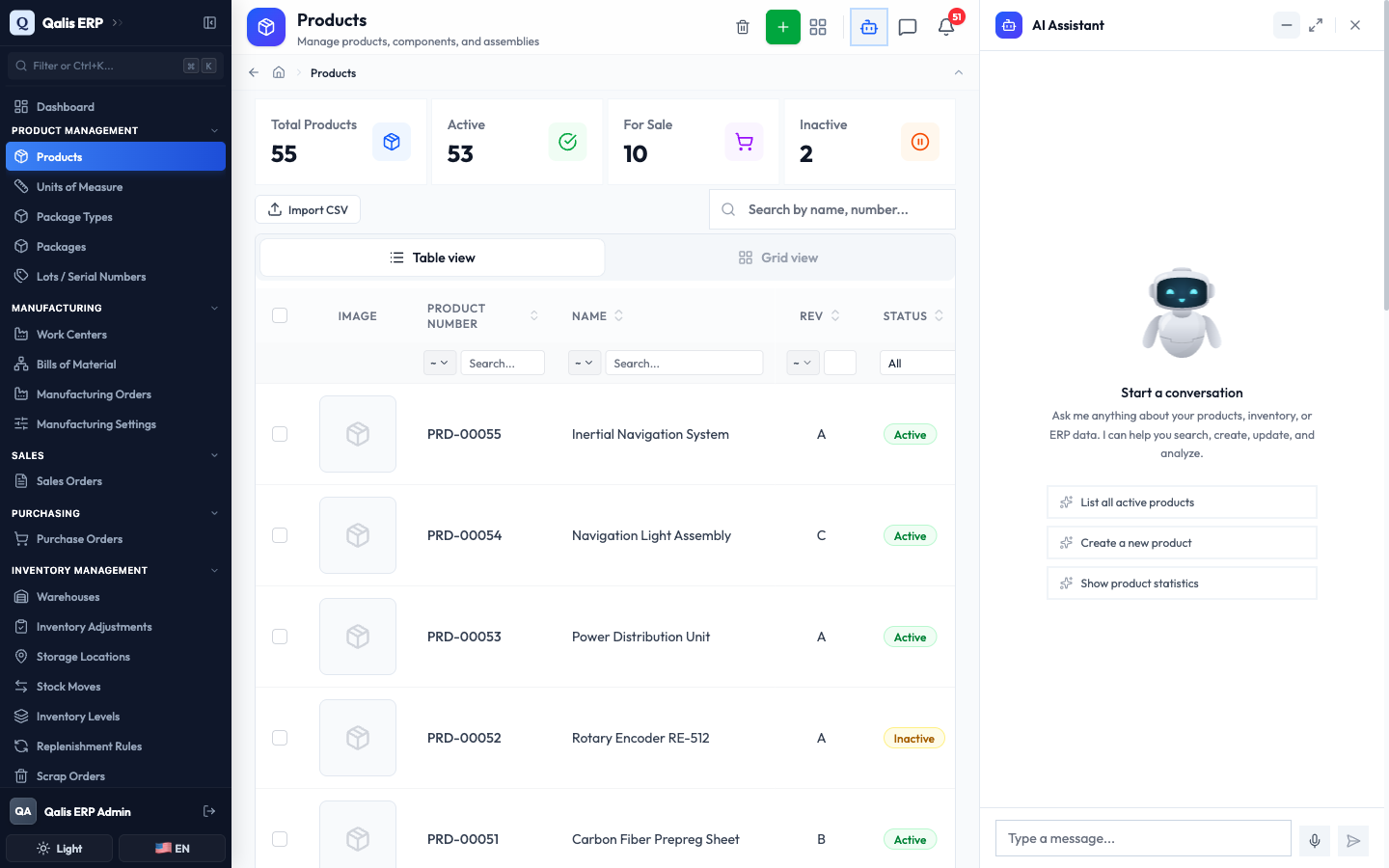
Each time you open it, the assistant plays a short loading animation while it gets ready, then brings back your most recent conversation so you can pick up where you left off.
Ask the assistant a question
This is the heart of it: type what you want in everyday words, and the assistant answers.
- Click the Type a message... box at the bottom of the panel.
- Write your question or request, for example "What can you help me with?", then press Enter (or click the blue Send arrow). To add a new line without sending, press Shift+Enter.
- The assistant shows your message, thinks for a moment, and writes its answer below it.
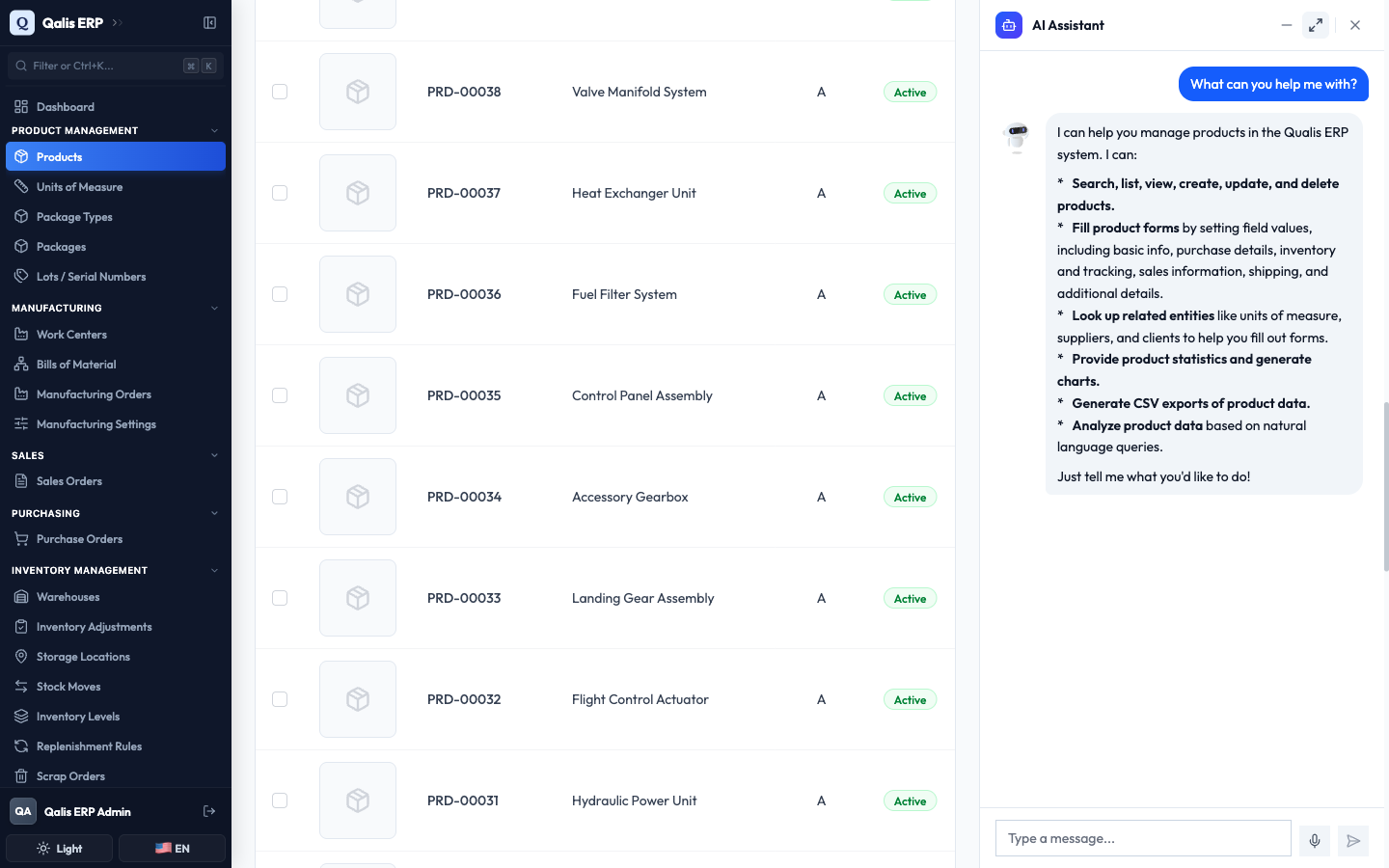
You do not need to phrase things in any special way. Ask the way you would ask a person. If an answer is not quite what you wanted, just reply with more detail and the assistant keeps the thread of the conversation.
What the assistant can help with
The assistant is built around your product data. In plain language, you can ask it to:
- Find and view products: search your catalog, list products that match what you describe, and pull up the details of one.
- Create and update products: add a new product or change an existing one by describing what you want.
- Fill in forms: help you complete a product form field by field, including the trickier sections like purchase, inventory, sales, and shipping details.
- Look up related records: find the right unit of measure, supplier, or client to use while you fill something in.
- Summarize and analyze: answer questions about your products and turn a plain request into a quick summary.
- Show statistics and charts: give you product numbers and a simple chart to go with them.
- Export data: produce a CSV file of product data you can download.
- Take you there: jump you to the right page when that is the fastest way to get something done.
When the assistant carries out one of these actions, it shows a small card describing the step it took, so you can always see what it did on your behalf.
Manage your conversations
Every chat is saved, so you can return to it later or start a clean one.
- Click the Maximize icon at the top right of the panel to switch to full screen. A list of your past conversations appears down the left side, grouped by Today, Yesterday, Last 7 Days, and Older.
- Click any conversation to reopen it and keep chatting.
- Click New Chat to start a fresh conversation with a clean slate.
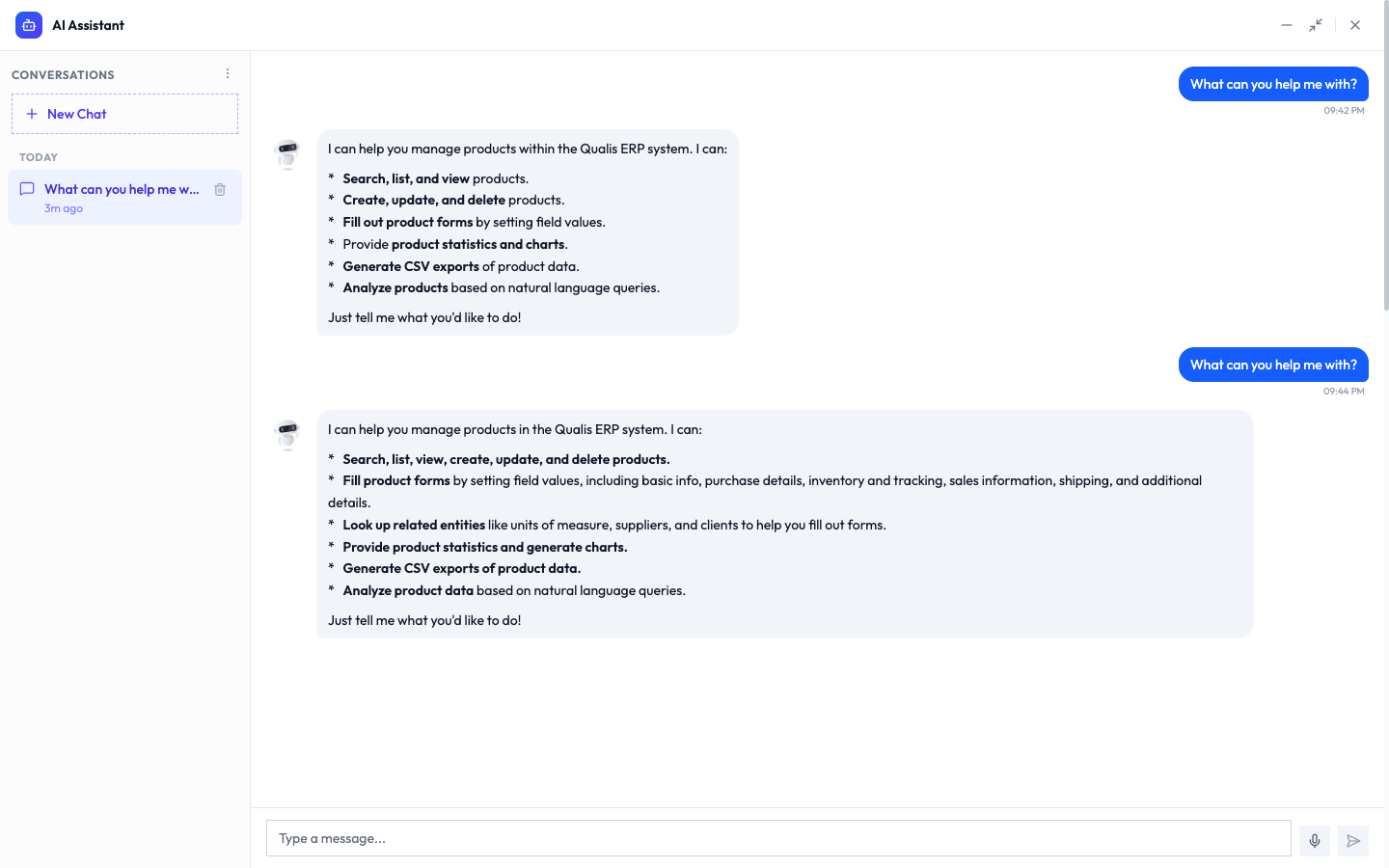
To tidy up, hover a conversation and click its trash icon to remove just that one, or use the More options menu (the three dots) and choose Delete all conversations. Both ask you to confirm first, and deleting cannot be undone.
Resize and move the panel
The panel bends to fit how you like to work.
- Make it wider or narrower: drag the left edge of the panel.
- Go full screen: click the Maximize icon to fill the window, then the Restore icon to dock it back to the side.
- Tuck it away: click the minimize dash or the close X to hide the panel. Your conversation is kept, and clicking the robot icon again brings it right back.
Talk with voice
If you would rather speak than type, the assistant can listen and reply out loud.
- Make sure voice is switched on in AI Settings (it needs an OpenAI API Key) and that your browser is allowed to use your microphone.
- Click the microphone button next to the message box to start a voice session.
- Speak naturally. A glowing orb shows whether the assistant is connecting, listening, processing, or speaking, and what you both say appears as text below it.
- Click End Session when you are done to go back to typing.
Good to know
- Setup lives in AI Settings: the assistant uses whatever provider, key, and chat model you set on the AI Settings page. Change the model there and the assistant uses it on your next message.
- It focuses on your products: the assistant is geared toward your product catalog and the records around it, so the clearest results come from product-related questions.
- Your chats are private to you: conversations are saved to your own account, and you can delete any of them at any time.
- Plain language is enough: there is no command syntax to learn. Ask, read the reply, and follow up if you need more.