BOM & Routing
Define how each product is built, the materials it consumes and the steps it goes through, then roll those into a standard cost.
Last updated on June 26, 2026
A bill of material (often shortened to BOM) is the recipe for making a product. It lists the components that go into it, the operations (the steps on the shop floor), and how much of everything you need. Qualis keeps the materials and the routing in one document, so a single bill of material tells you both what to gather and what to do with it. This guide walks you through the things you do most often: finding a bill of material, creating one, reading it, setting it active, checking where a component is used, and rolling up its cost.
Before you start
A bill of material points at things you set up in other parts of Qualis, so it helps to have these ready first:
- The product you want to build, set up in Products.
- The components it consumes, also set up in Products.
- At least one work center (for example an assembly line or a machining cell), set up in Work Centers.
You reach the module from the left sidebar under Manufacturing, then Bills of Material.
Find and browse your bills of material
Start here to see everything you have and zero in on the one you need.
- Open Bills of Material from the sidebar. The list shows one row per bill of material, with its BOM Number, Product, Revision, Type, Status and more.
- Across the top you have quick buttons for Where Used, BOM Report, Cost Rollups and New Bill of Material, plus quick filters like My BOMs, Default and Effective Today.
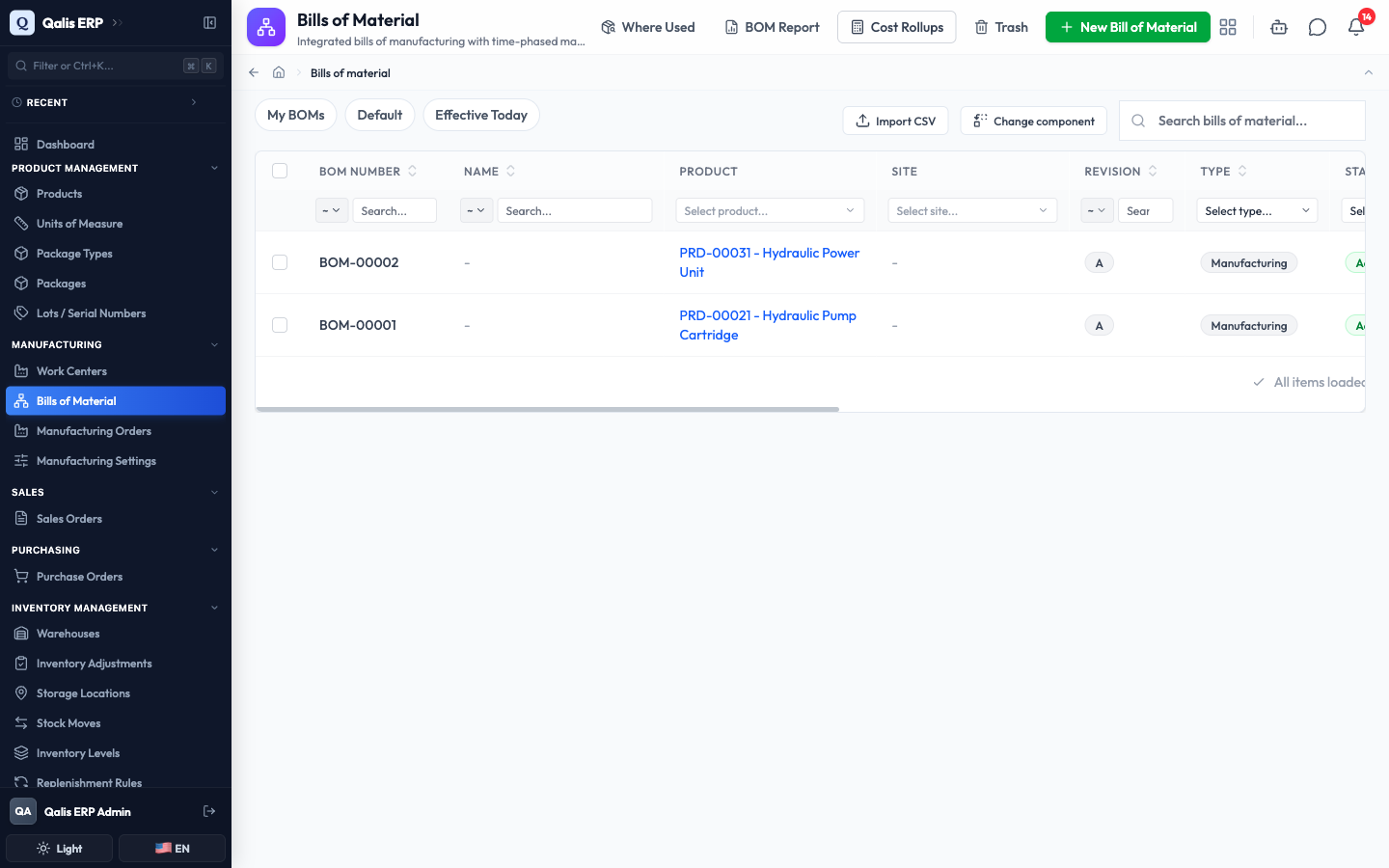
- To find one fast, type in the Search bills of material... box at the top right. The list filters as you type, so there is no need to press Enter. Search looks at the BOM number, the name, the revision, and the product it builds (by number or name), so typing Pump finds the bill of material for the Hydraulic Pump Cartridge.
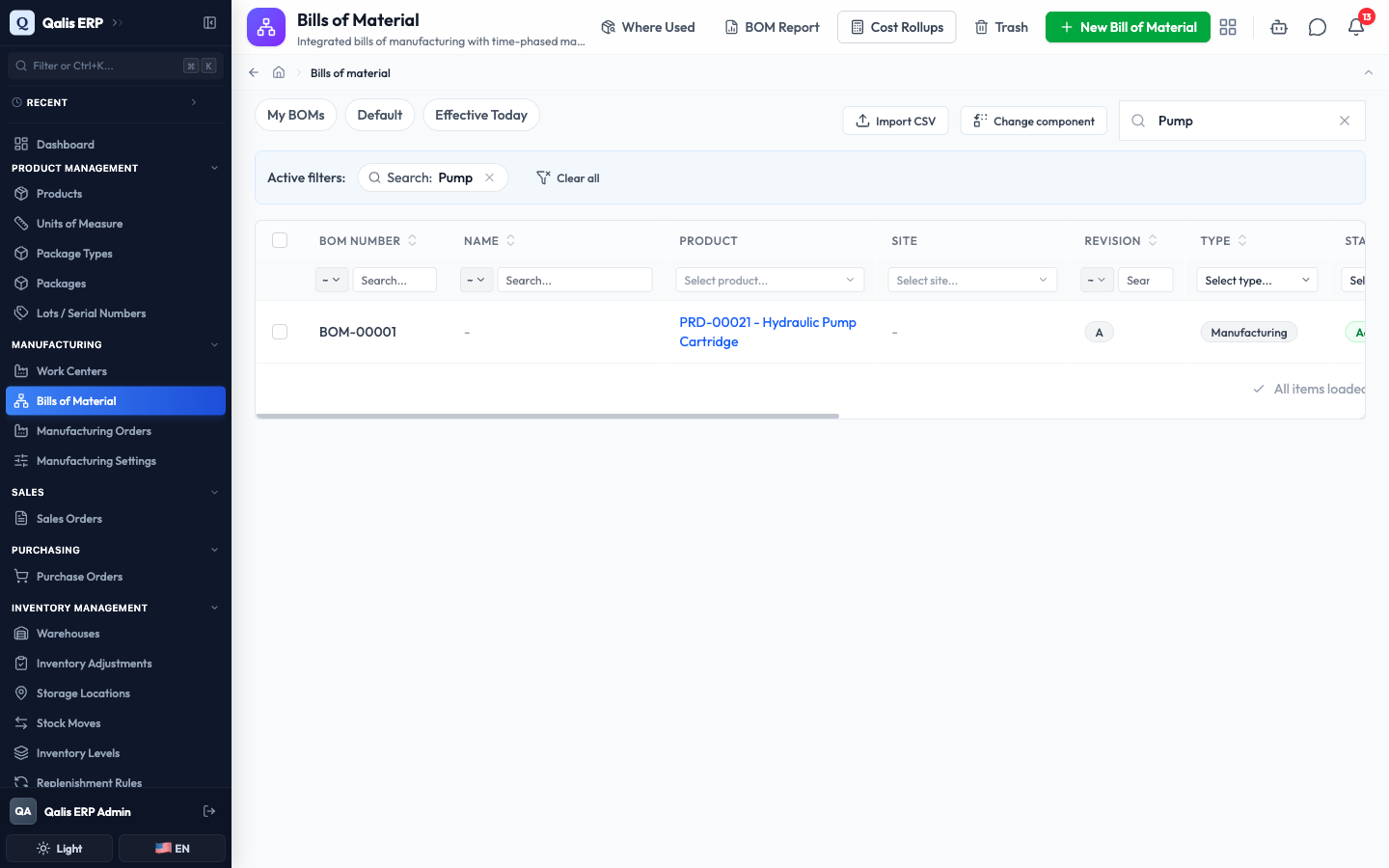
- To pin the list to one exact product, click the Select product... box under the Product column heading and pick it from the list. You can search and scroll for more.
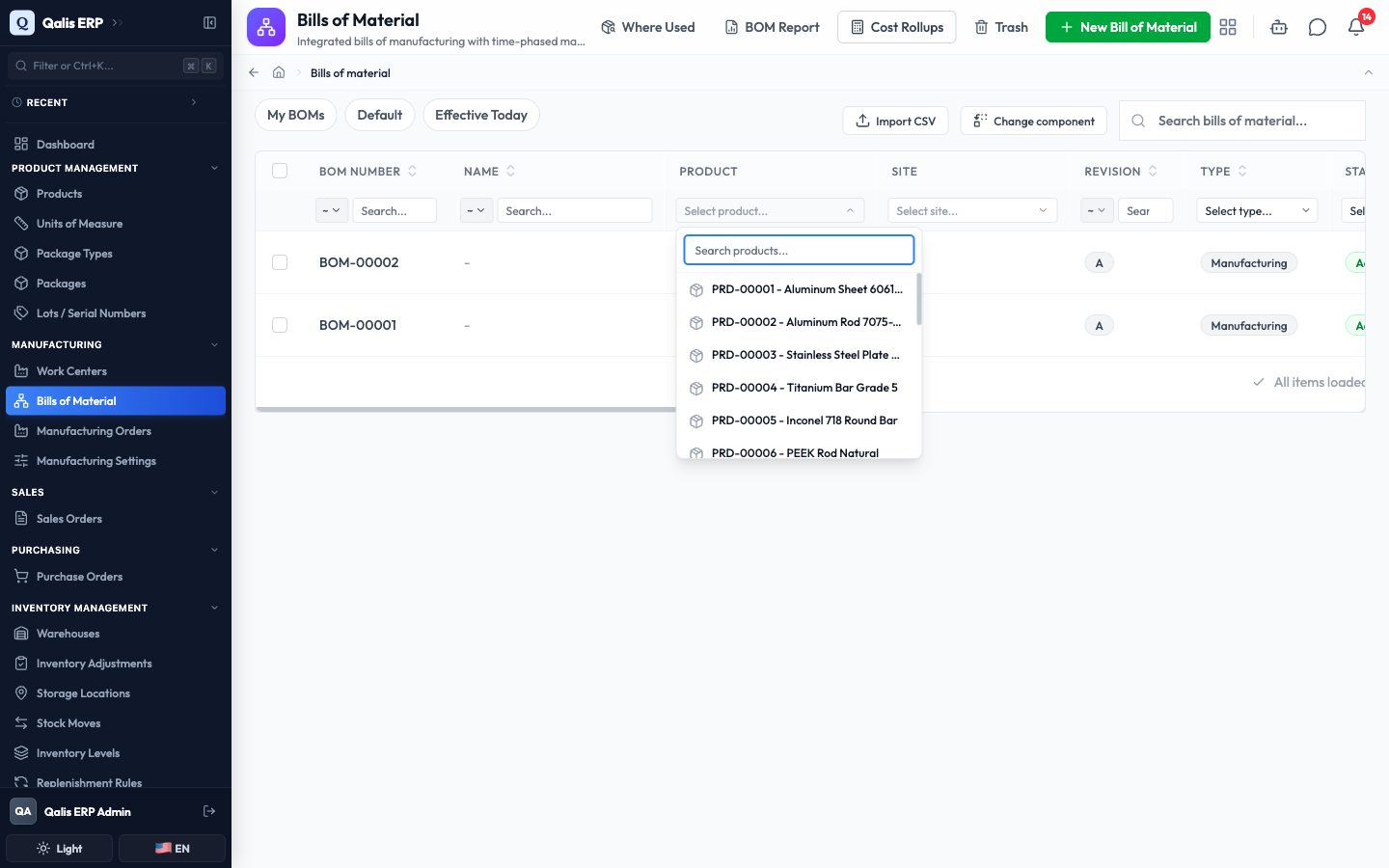
Whenever a filter is on, a banner appears under the search box showing what is applied. Click the small x on a filter to drop it, or Clear all to reset everything. The web address updates too, so you can bookmark or share a filtered view.
Create a bill of material
This is the main task: writing the recipe for a product. The form is split into tabs, so you can fill it in one section at a time.
- On the list, click New Bill of Material at the top right.
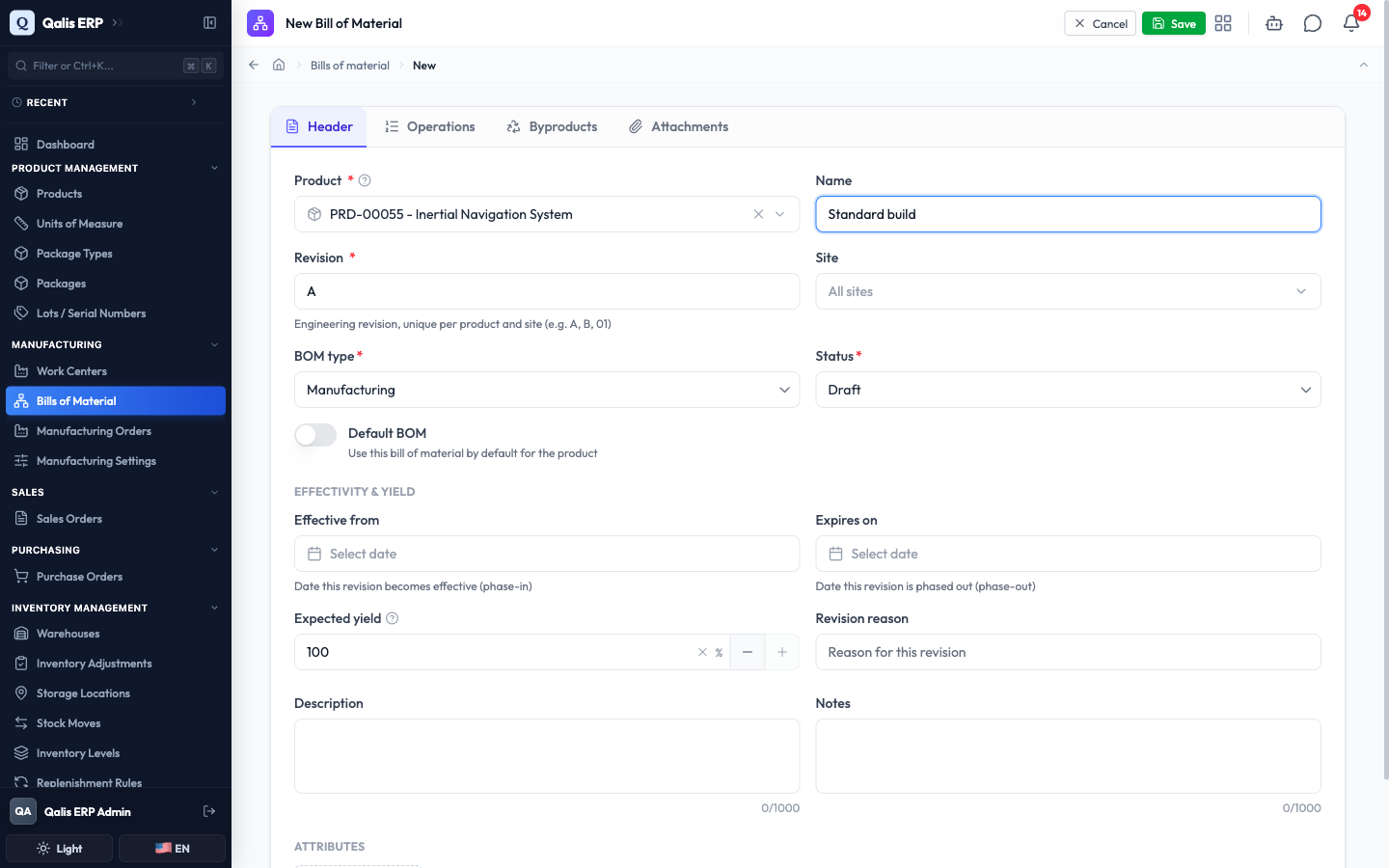
- On the Header tab, click Select product... and choose the finished product this bill of material makes. This is required.
- Give it a Name if you like (for example "Standard build"), and check the Revision. Qualis suggests A for the first revision, and you can change it. Leave Site as All sites unless this recipe is only for one location.
- Pick the BOM type (usually Manufacturing) and leave Status as Draft for now. You can fill in Effective from, Expires on and Expected yield if you know them.
- Switch to the Operations tab and click Add operation. Each operation is a step in making the product.
- Give the operation a Sequence number (Qualis starts at 10), an Operation name like "Final Assembly", and pick the Work center where it happens. Fill in the Times if you track them, such as a Run time of 1.5 hours.
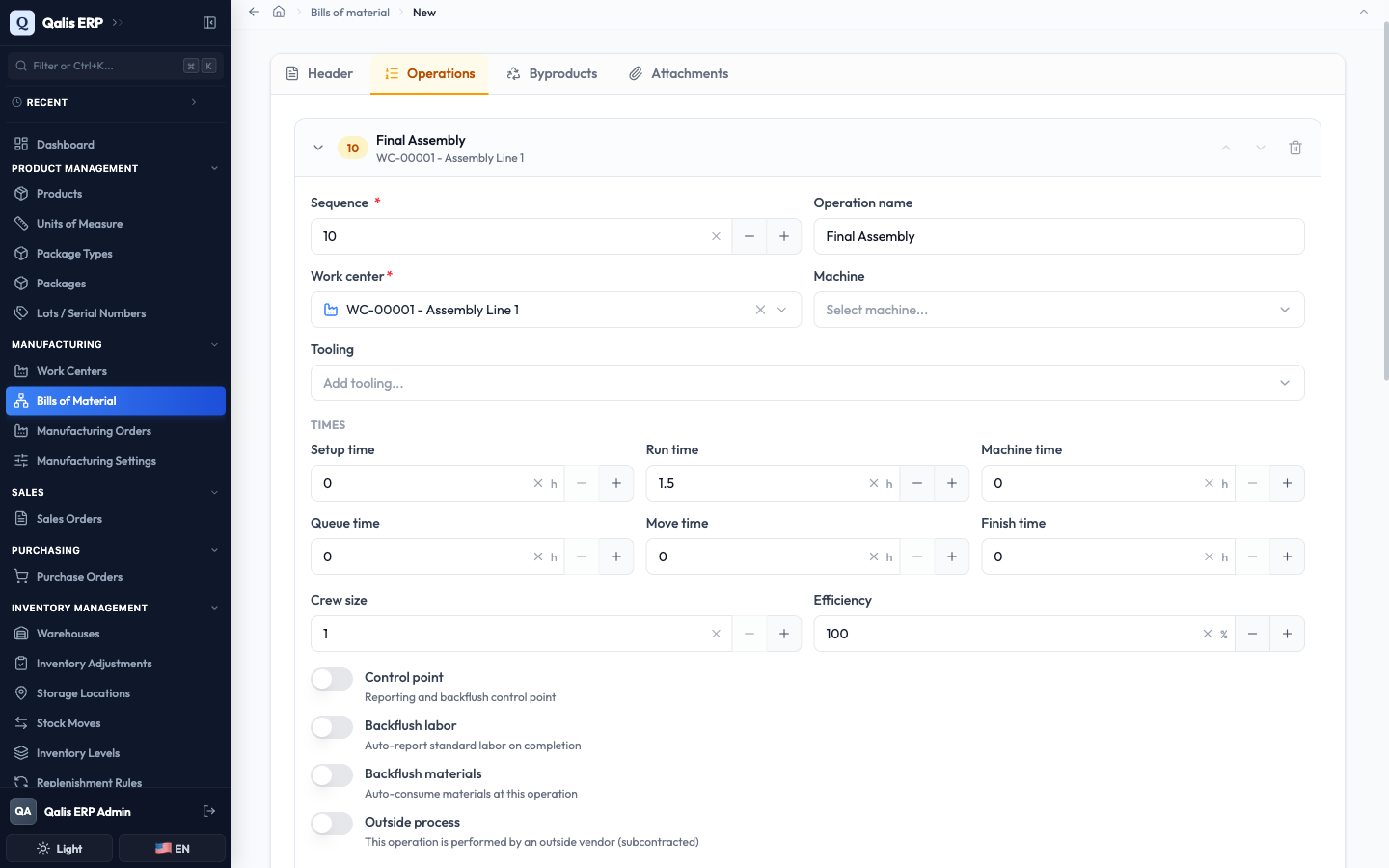
- Still inside the operation, scroll to Material lines and click Add component. Choose the Component, set the Qty per (how many you need for each unit you build), and add more components the same way. Each operation carries its own materials, so the components are consumed exactly where they are needed.
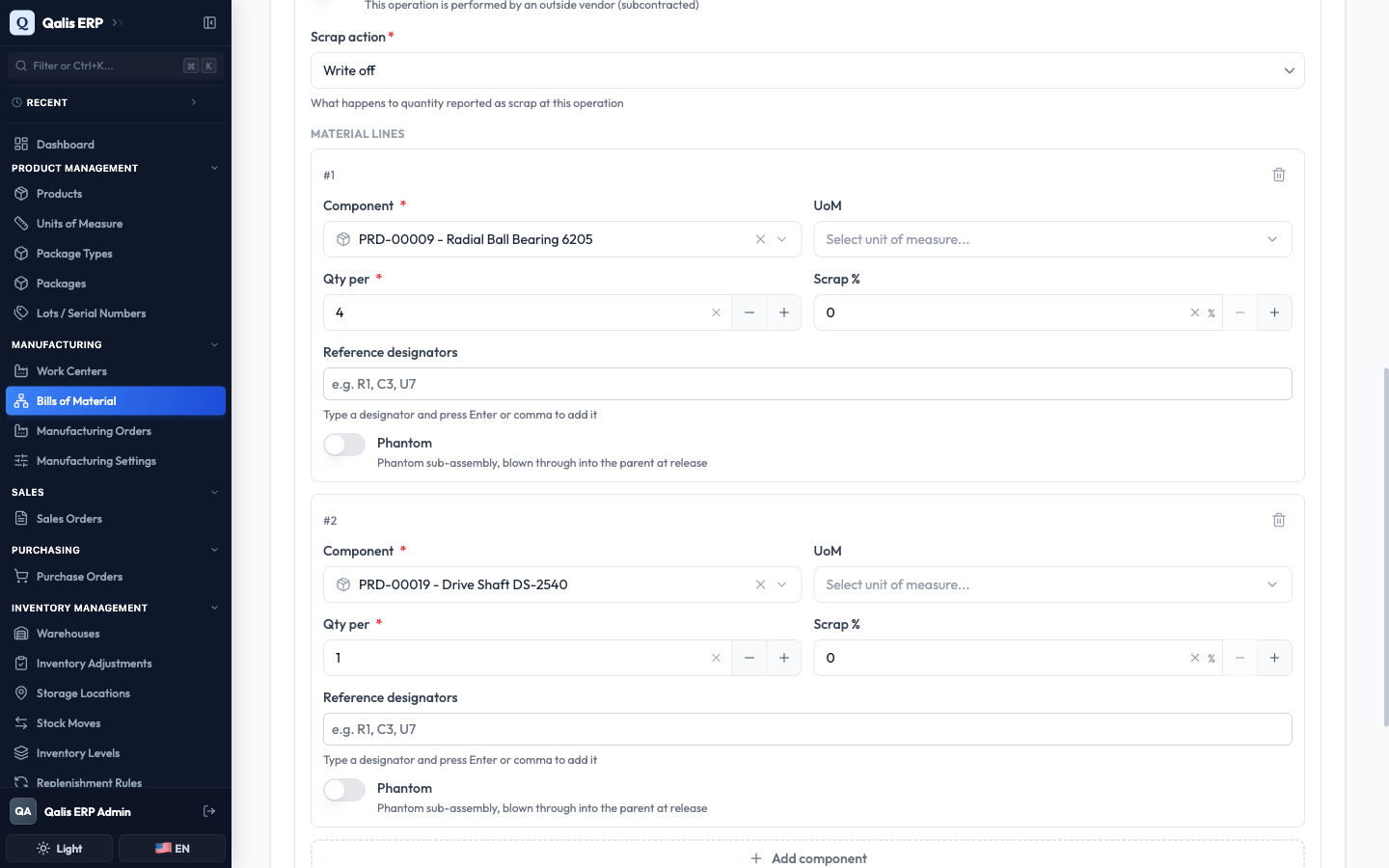
- When you are happy, click Save at the top right.
Qualis saves the bill of material, gives it a number (like BOM-00003), and takes you straight to its detail page.
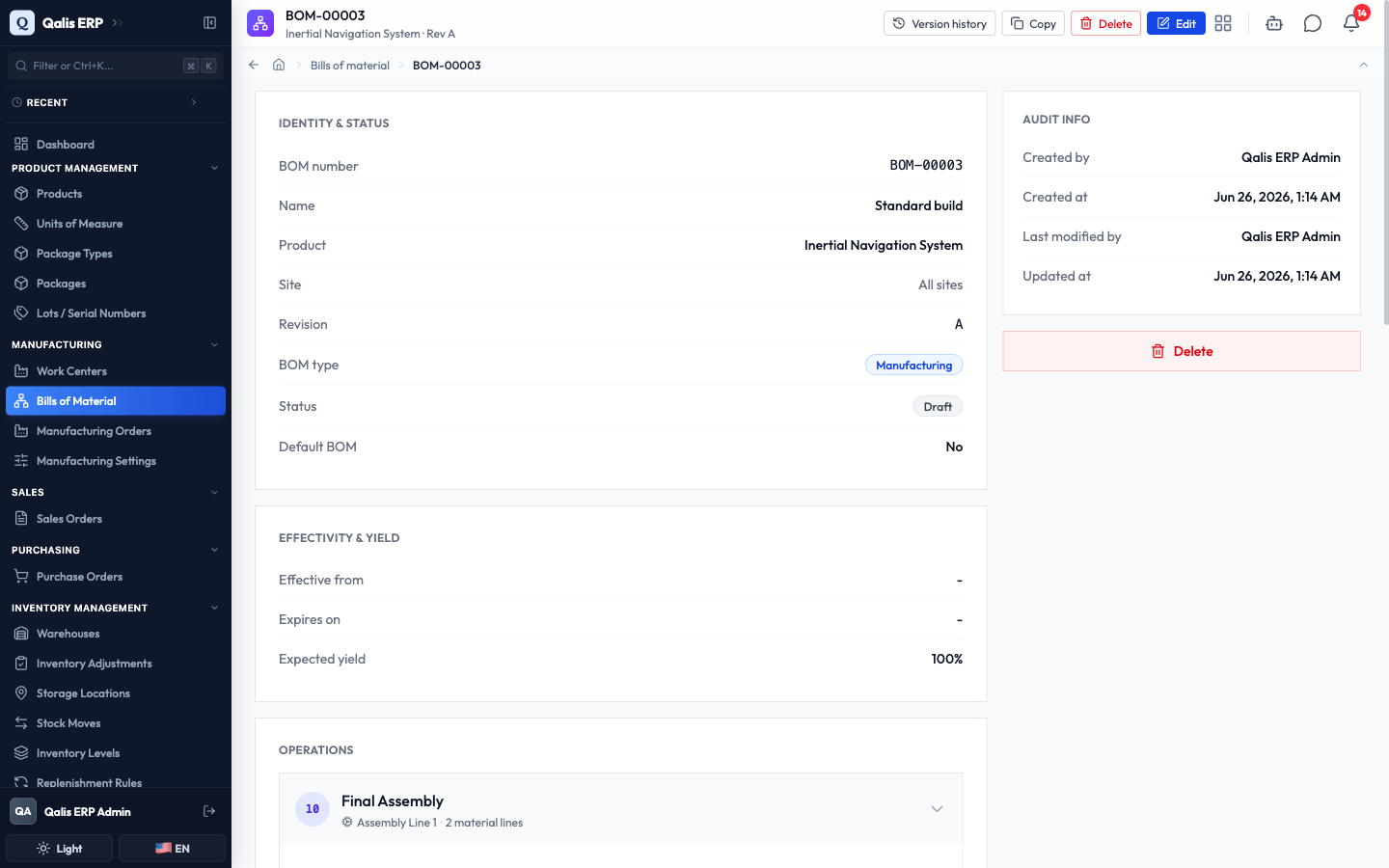
Components are only saved when you click Save. Nothing is committed while you are still filling in the form, so you can change your mind freely.
Read a bill of material
Open any bill of material to understand how a product is built, top to bottom.
- Click a row in the list (or a BOM Number link anywhere in Qualis). The detail page opens.
- The top of the page shows Identity & Status (the number, product, revision, type and whether it is Active) and Effectivity & Yield (the dates it applies and the expected yield).
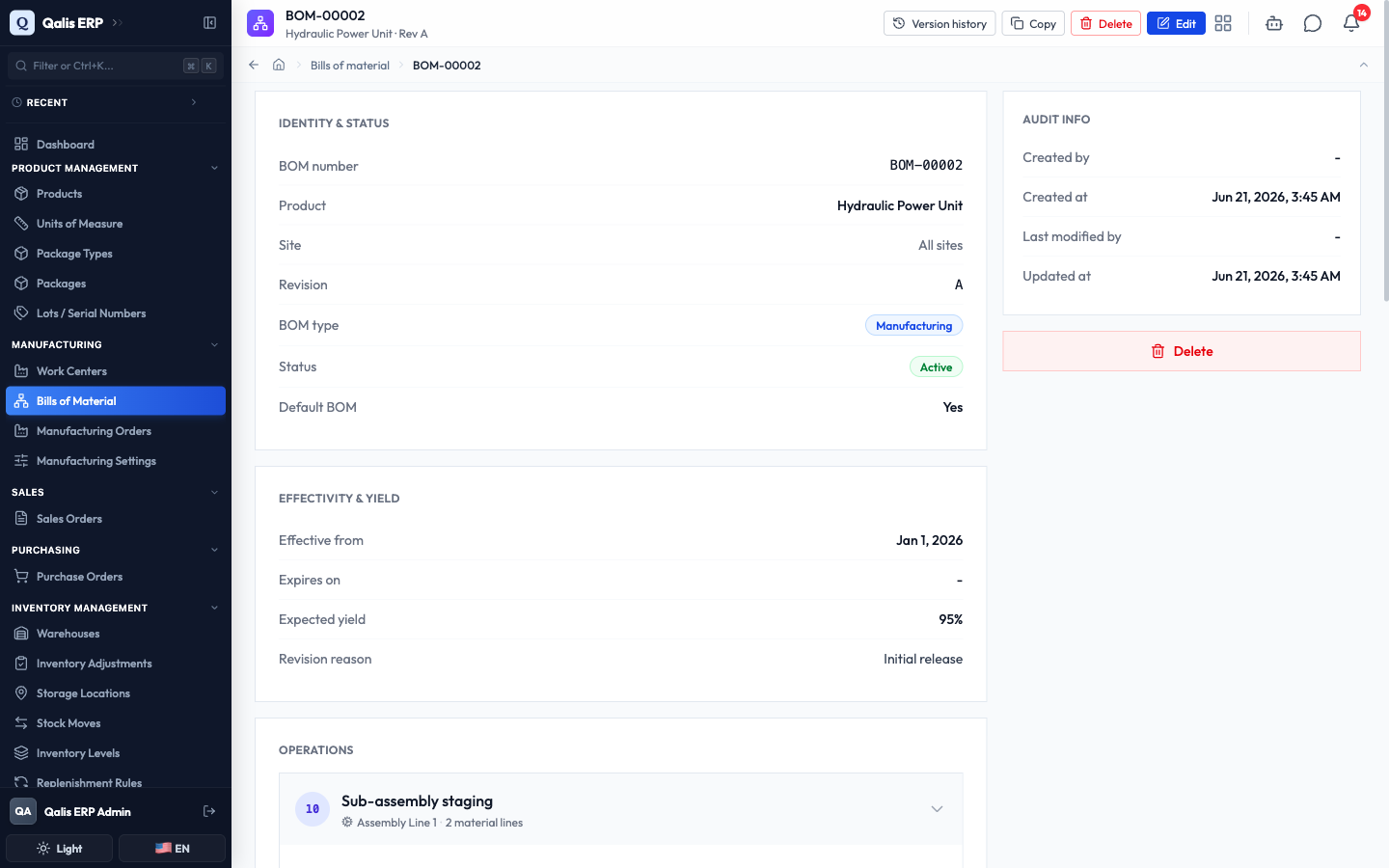
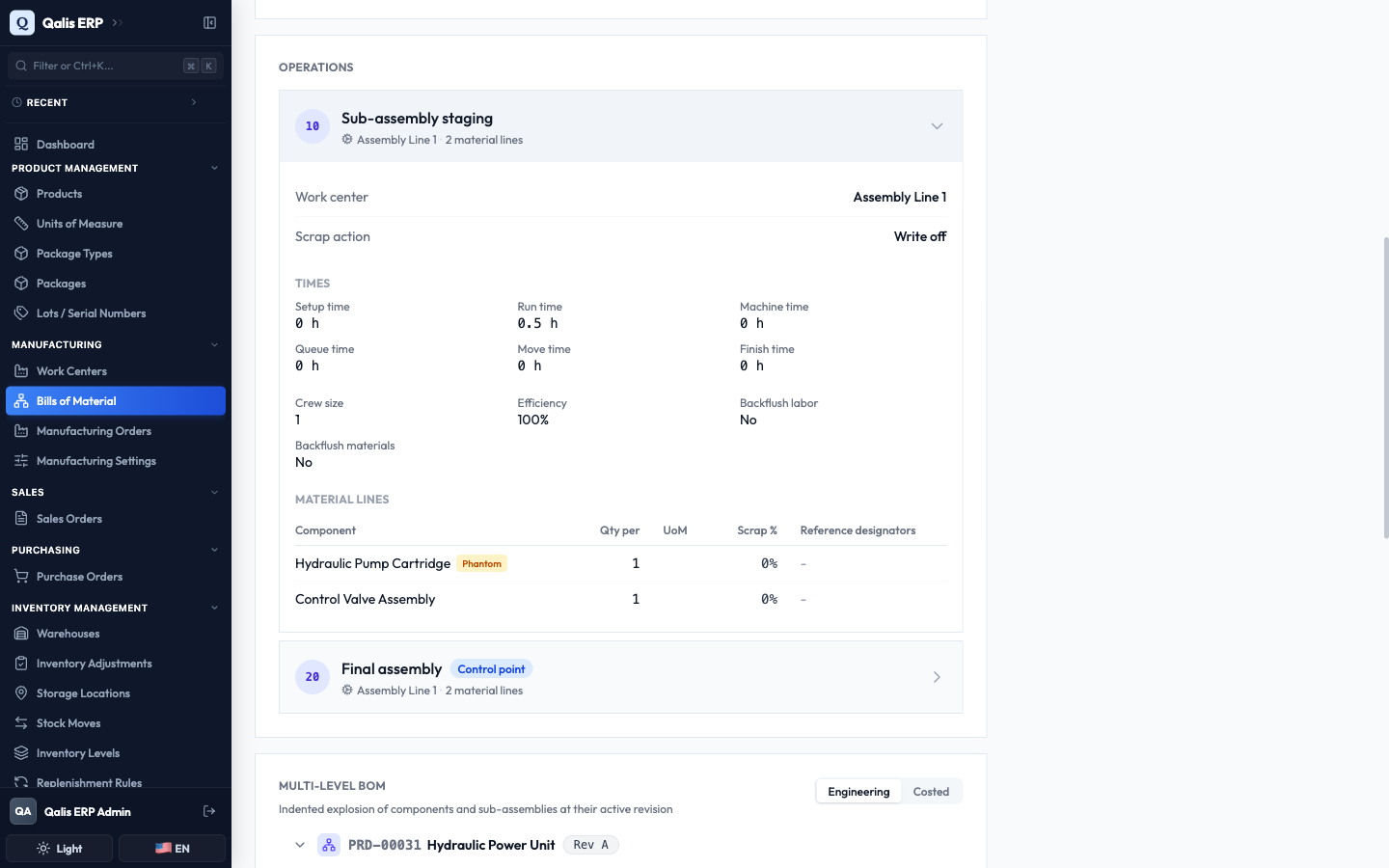
- Scroll to Operations and click an operation to open it. You will see its work center, its times, and a Material lines table listing every component it consumes. A Phantom tag marks a sub-assembly that is built into its parent rather than stocked on its own.
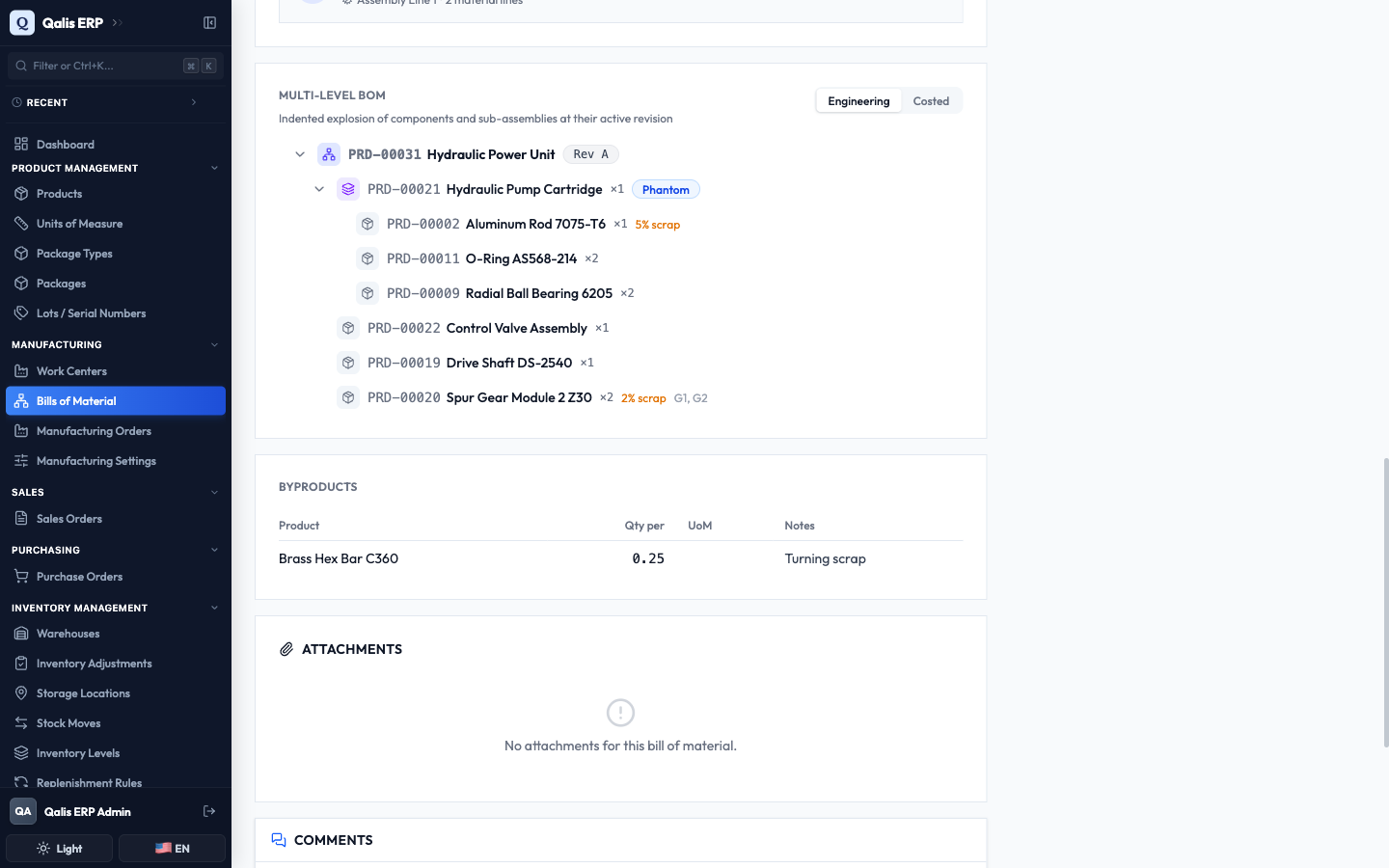
- Below that, the Multi-level BOM section shows the full tree of components and sub-assemblies. Click the arrow next to a sub-assembly to expand it and see what goes into it, level by level.
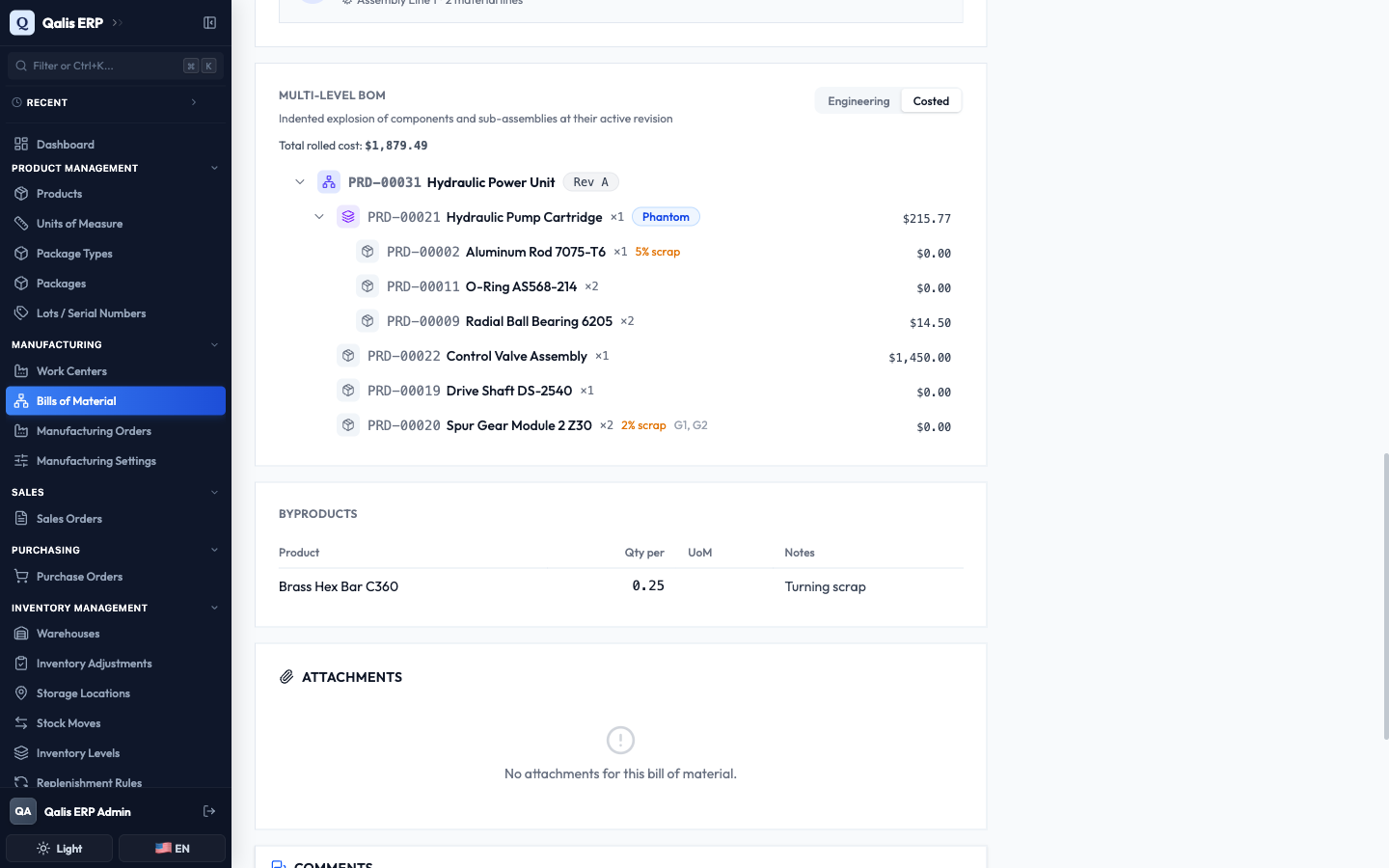
- Switch the toggle from Engineering to Costed to see the rolled cost of each line and a Total rolled cost for the whole product.
Every detail page also has Version history, Copy, Delete and Edit buttons at the top, so you can review past changes, branch a new revision, or make edits from here.
Edit a bill of material and set it active
A new bill of material starts as a Draft. When the recipe is final, you make it Active so the rest of Qualis can use it.
- Open the bill of material, then click Edit at the top right.
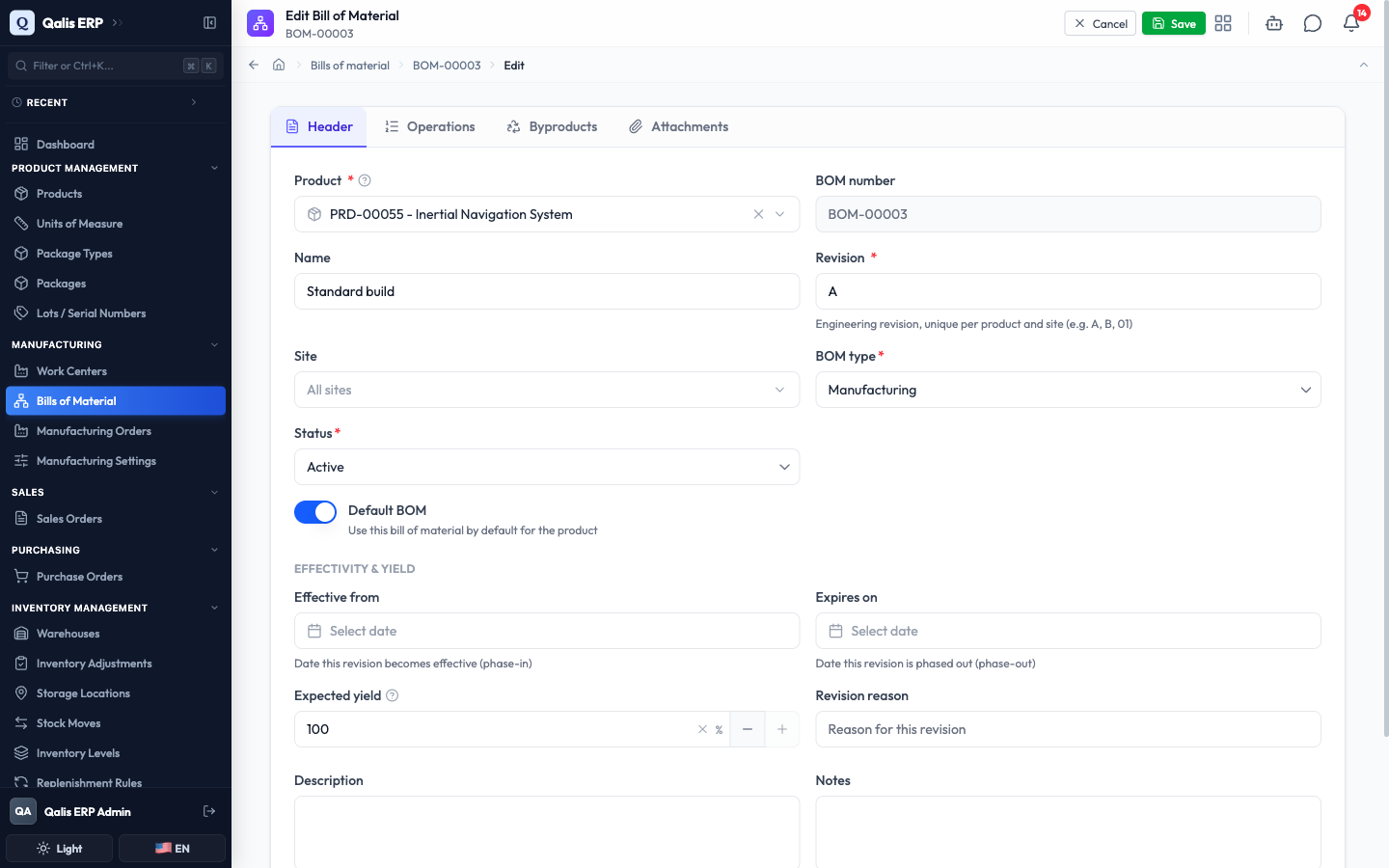
- On the Header tab, change the Status from Draft to Active. If this should be the product's main recipe, turn on the Default BOM switch as well.
- Click Save.
The detail page reopens with the Active badge, and the bill of material is now the live recipe for that product.
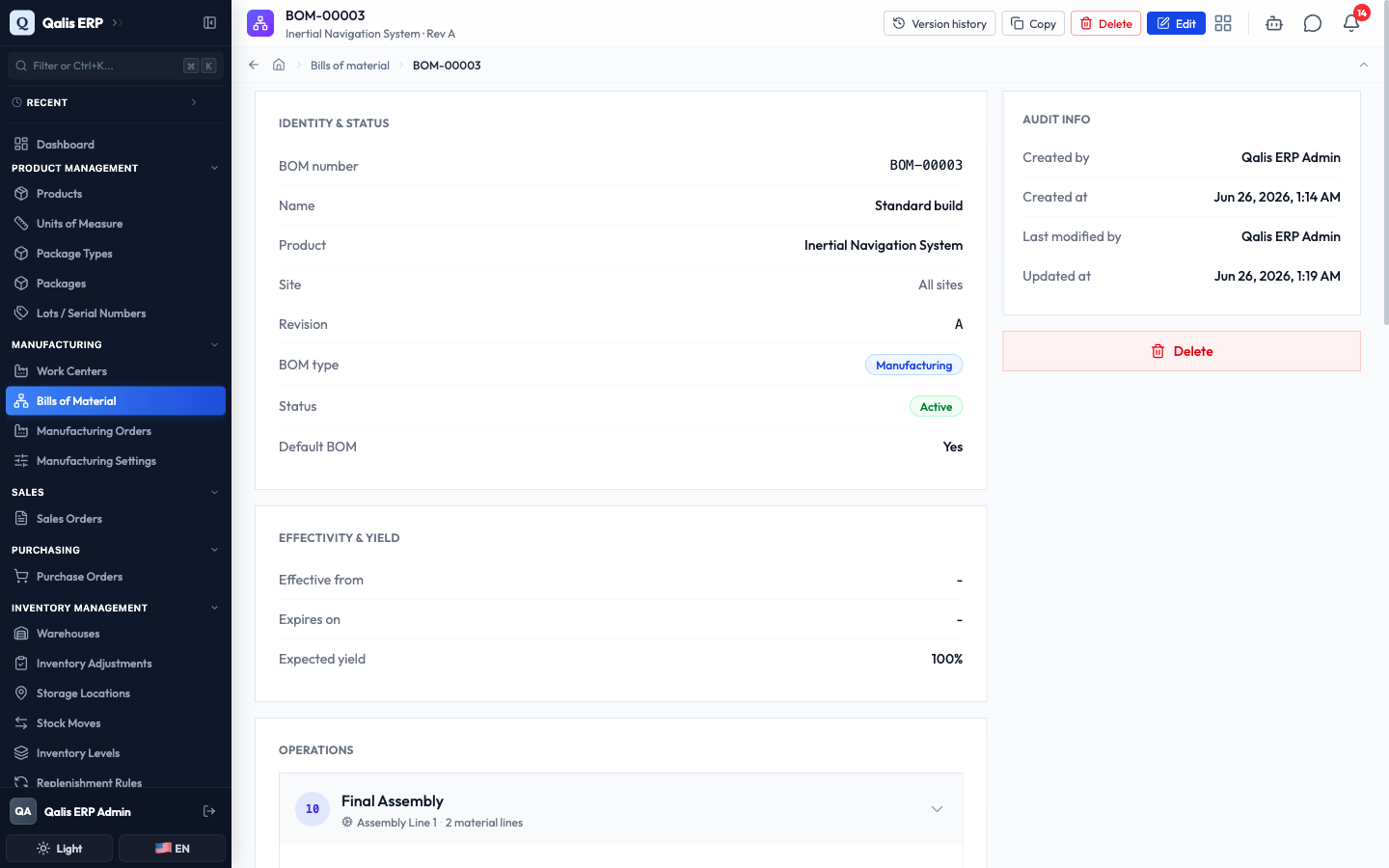
A product can have one default bill of material per site. Setting a new one as default keeps your recipes tidy and predictable.
Find where a component is used
Before you change or retire a part, it is wise to check which products depend on it. The Where Used tool answers that in one click.
- From the Bills of Material list, click Where Used at the top.
- Click the Search a product by number or name box and choose the component you are interested in.
- Leave Levels on Direct to see only the bills of material that consume the part directly, or switch to Multi-level to follow it all the way up through sub-assemblies. You can also narrow by BOM type, Site or Effective on.
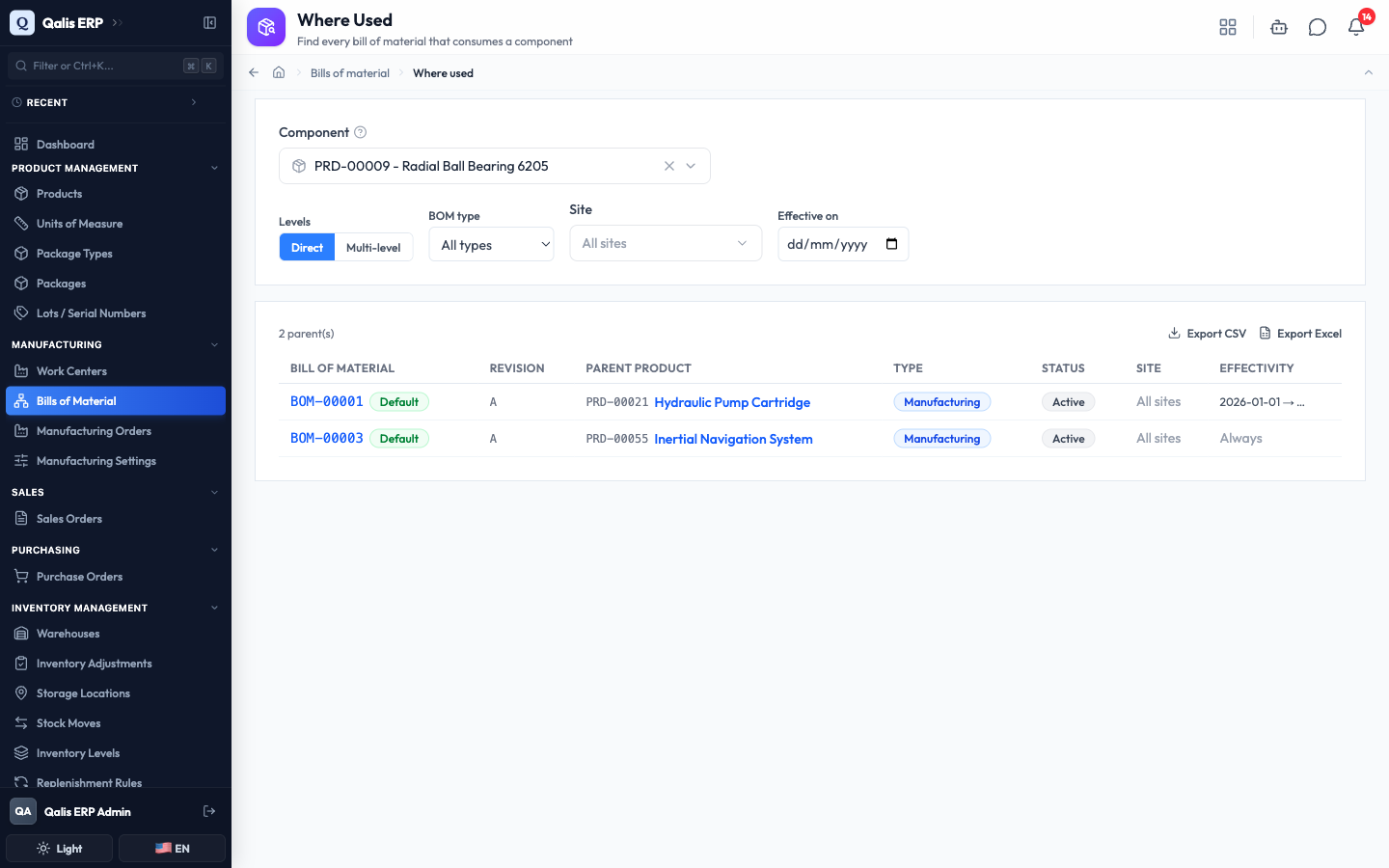
The table lists every parent bill of material, its product and status. Click any Bill of Material or product link to jump straight to it, or use Export CSV / Export Excel to take the list with you.
Roll up standard costs
A cost rollup adds up the materials, labor and overhead of a product, all the way down its bill of material, to work out its standard cost.
- From the Bills of Material list (or the Cost Rollup Runs page), click Cost Rollups, then New Rollup.
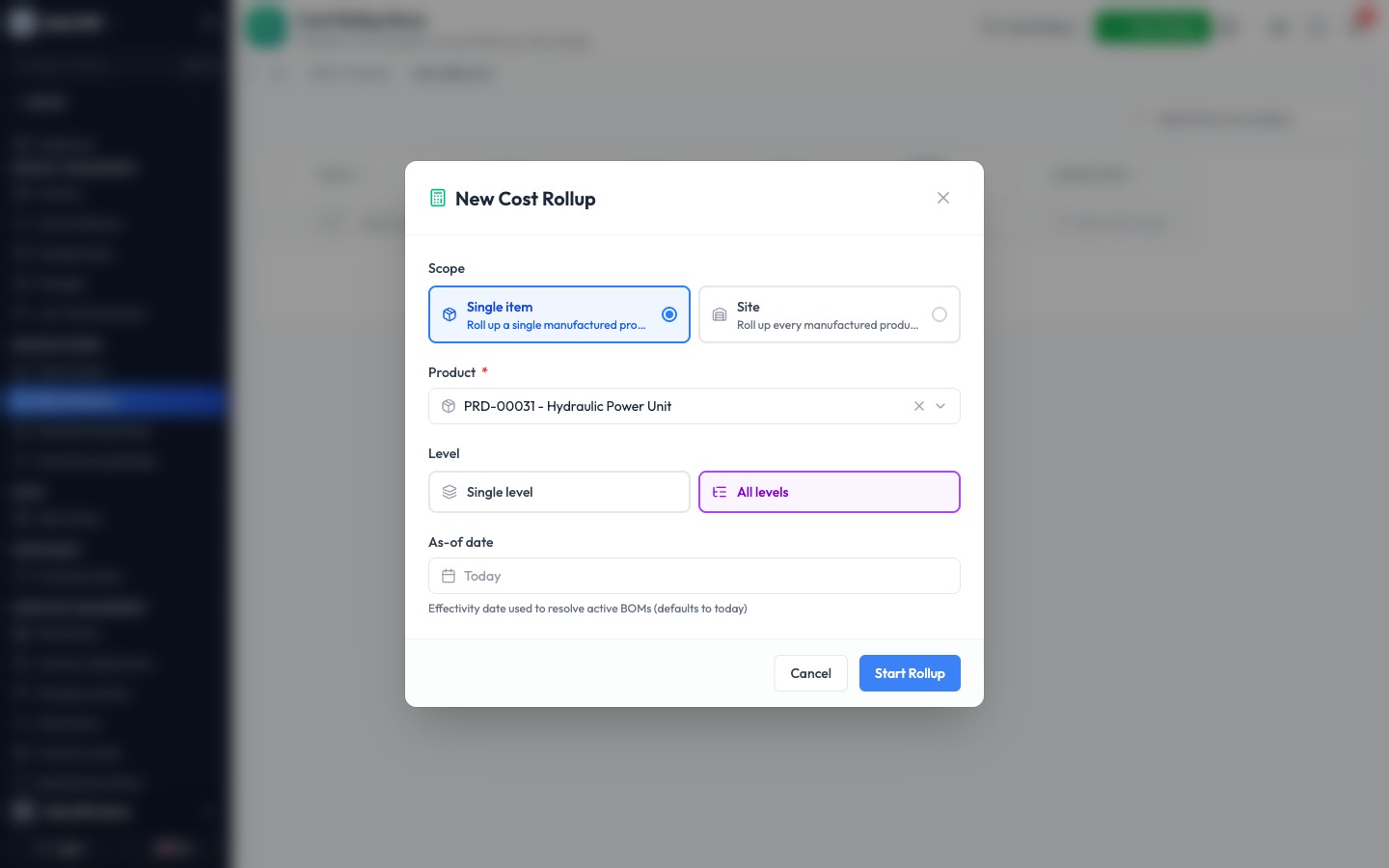
- Choose a Scope. Single item rolls up one product; Site rolls up everything made at a site.
- Pick the Product, choose a Level (All levels also recalculates the sub-assemblies underneath), and leave the As-of date on Today unless you need a different effectivity date. Click Start Rollup.
- The rollup runs in the background and finishes as Calculated. Open the run to see the Cost Buildup: each product broken down into material, labor, machine, overhead and so on, with the New Cost next to the Current Cost and the Variance between them.
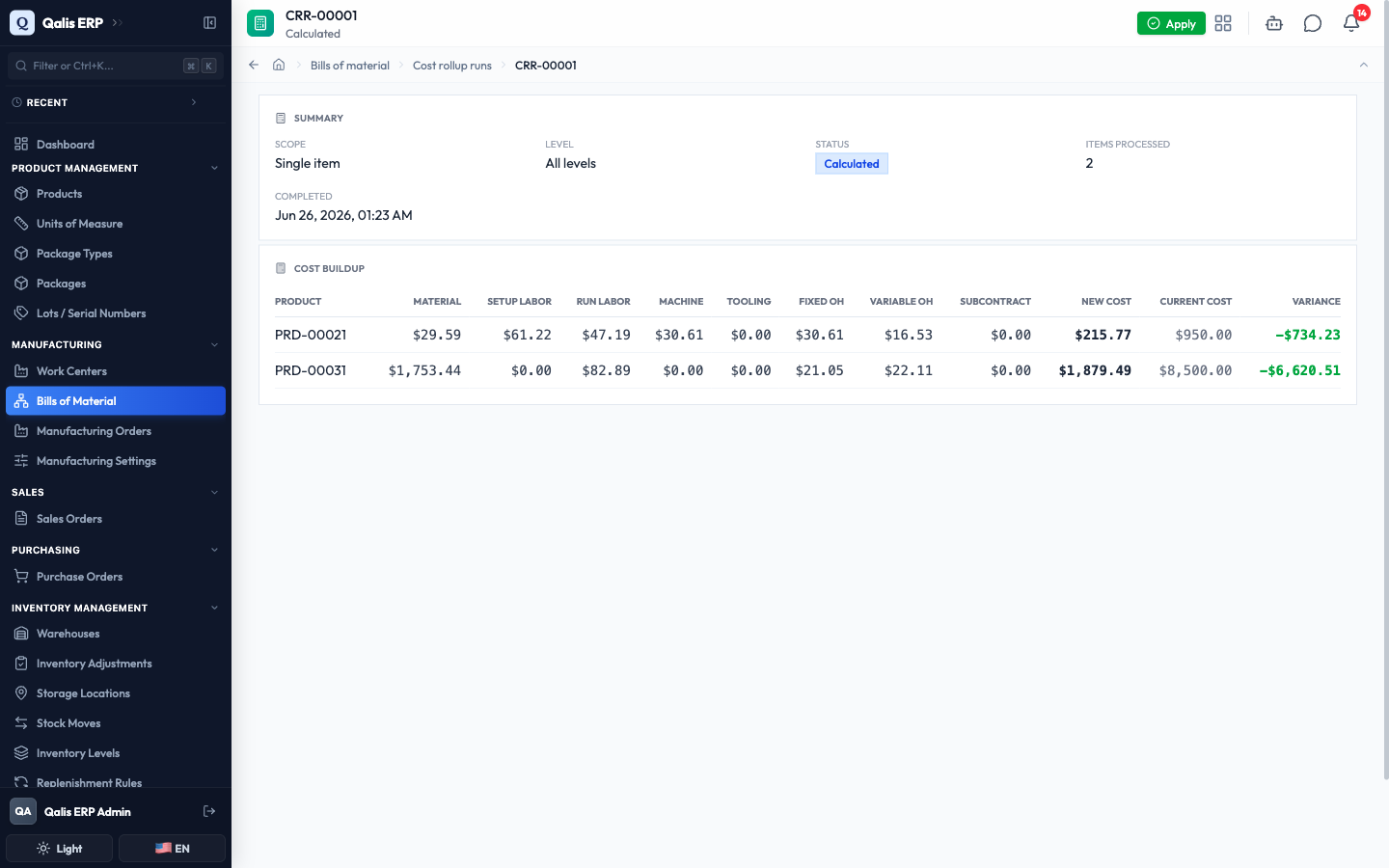
- If the new figures look right and you want them to become the products' official cost, click Apply and confirm.
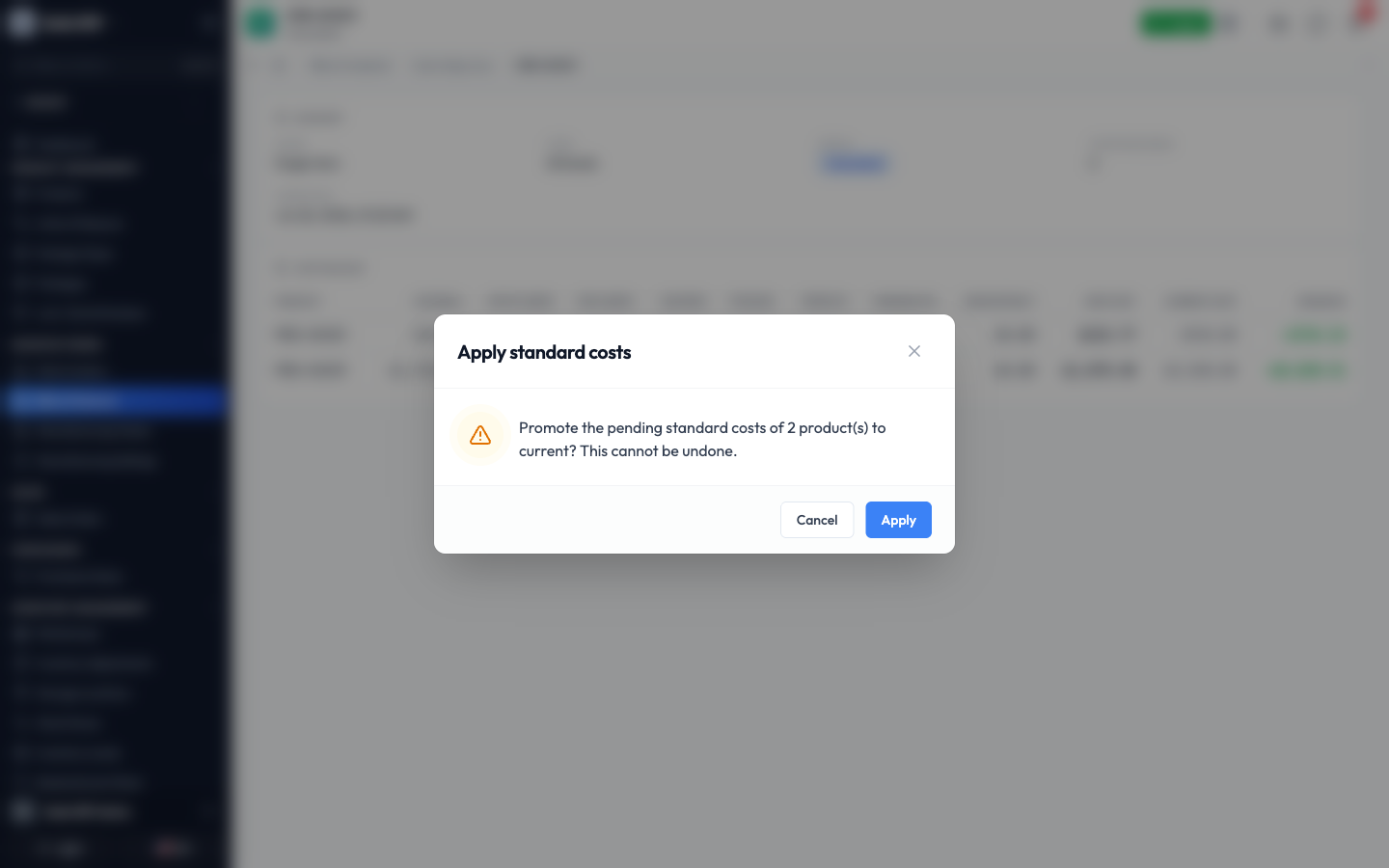
Applying a rollup updates the products' standard cost and cannot be undone, so review the buildup first. If you only want to see the numbers, you can stop after the run is calculated.
More you can do
- Copy a bill of material to start a new revision from an existing one, without retyping everything.
- BOM Report prints an indented, multi-level list of a product's whole structure, with an engineering or a costed view.
- Cost History shows how a product's standard cost has changed across every rollup over time.
- Change component swaps one component for another across many bills of material at once.
- Version history and Trash let you review past edits, restore a previous version, or recover a bill of material you deleted.
Good to know
- Bill of material (BOM): the recipe for a product, listing its components and the steps to build it.
- Revision: a version of a recipe, labelled A, B, 01 and so on. A product can have several, with one set as the default.
- Operation: a single step in making the product, carried out at a work center, such as machining or assembly.
- Material line: one component used at an operation, with how much of it you need (the quantity per unit).
- Phantom: a sub-assembly that is built straight into its parent during production rather than stocked on its own.
- Byproduct: a secondary output that comes out of the process alongside the main product.
- Effectivity: the dates a revision applies, so a new recipe can phase in and an old one can phase out.
- Cost rollup: a calculation that adds up materials, labor and overhead down the whole bill of material to give a standard cost.