Stock Moves
Follow every movement of stock through your warehouses in one place, a complete history of what moved, how much, from where to where, and why.
Last updated on June 30, 2026
Stock Moves is the complete history of your inventory. Every time stock changes hands inside Qualis, when you receive goods, ship an order, adjust a count, scrap a damaged part, or consume materials in production, a stock move is recorded here automatically. Each move tells you the same simple story: which product moved, how much of it, from where to where, who did it, and which document it came from. You never type a stock move in by hand. This screen is a place you read, not a place you edit, so there are no buttons to add or change a move. Think of it as your inventory logbook: when a number on a stock report looks off, this is where you come to see exactly what happened and trace it back to its cause. This guide covers what you do here most often: browsing the log, finding a specific move, reading one in full, tracing a move back to the document that caused it, and exporting the list.
Before you start
You never create a stock move yourself, so there is nothing to fill in. A move appears on its own whenever an inventory operation happens somewhere else in Qualis. For example:
- Applying an Inventory Adjustment records adjustment moves.
- Validating a Scrap Order records a scrap move.
- Receiving a Purchase Order, delivering a Sales Order, or running a Manufacturing Order each records its own moves.
If this screen is empty, it simply means no stock has moved yet. Carry out one of those operations and the matching move shows up here by itself.
You reach the module from the left sidebar under Inventory Management, then Stock Moves.
Find and browse your stock moves
Start here to see the full history of stock movements and to get a feel for what is recorded.
- Open Stock Moves from the sidebar. A violet banner at the top reminds you that moves are generated automatically and cannot be created or edited by hand. Below it is the full log, with the most recent move at the top.
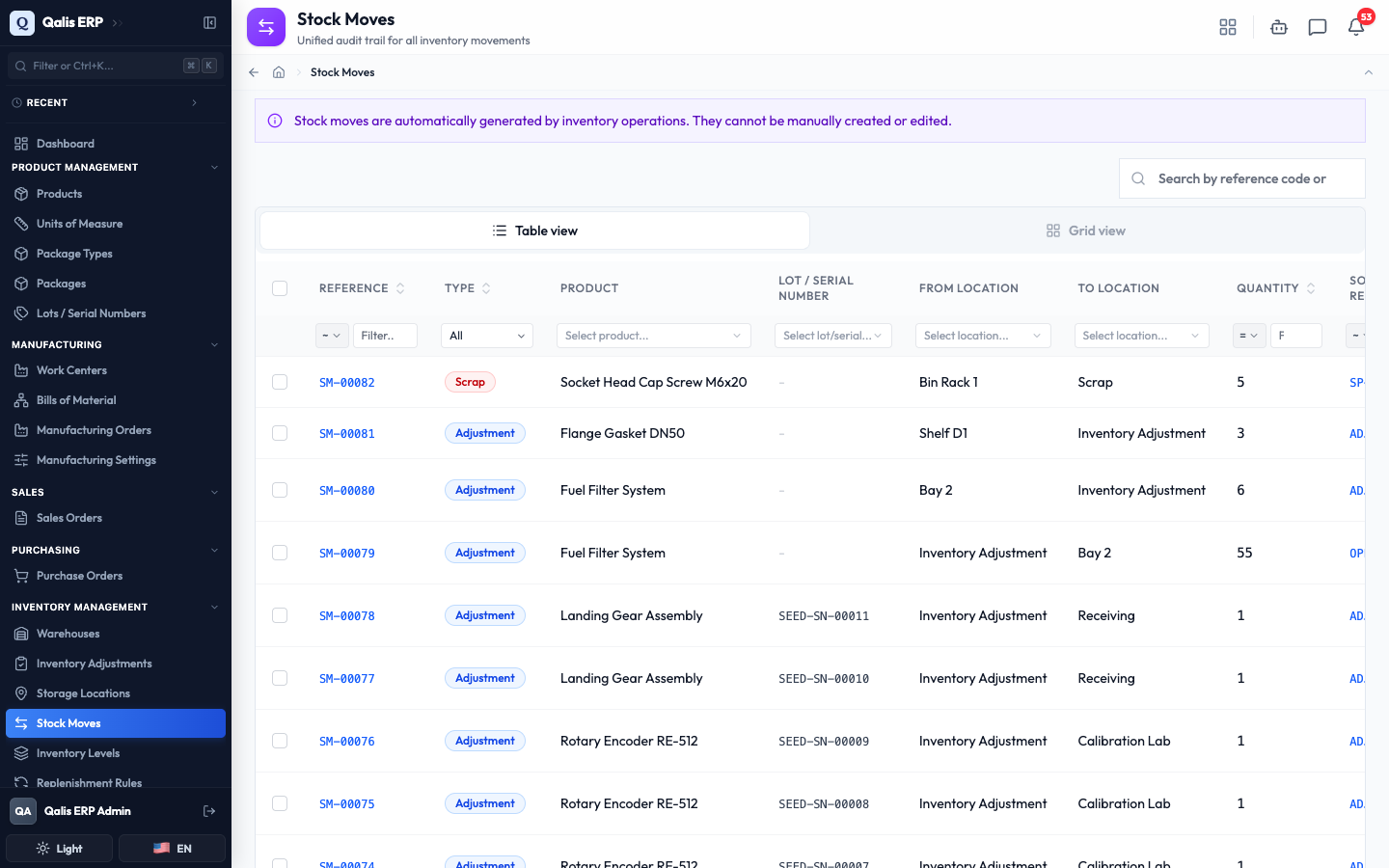
- Each row tells the whole story of one movement: its Reference (an automatic code like
SM-00082), the Type of move shown as a colored tag, the Product that moved, any Lot / Serial Number, the From Location and To Location, the Quantity, the Source Reference (the document behind the move), the person in Done By, when it happened in Done At, and whether it has been Reverted. Many cells are links, so you can jump straight to the product, location, person, or source document.
Some location names, such as Inventory Adjustment, Scrap, or Receiving, are special holding places rather than a physical shelf. They show you where stock came from or went to when it entered or left your real locations. A row reading Bin Rack 1 → Scrap means five units left Bin Rack 1 and were written off as scrap.
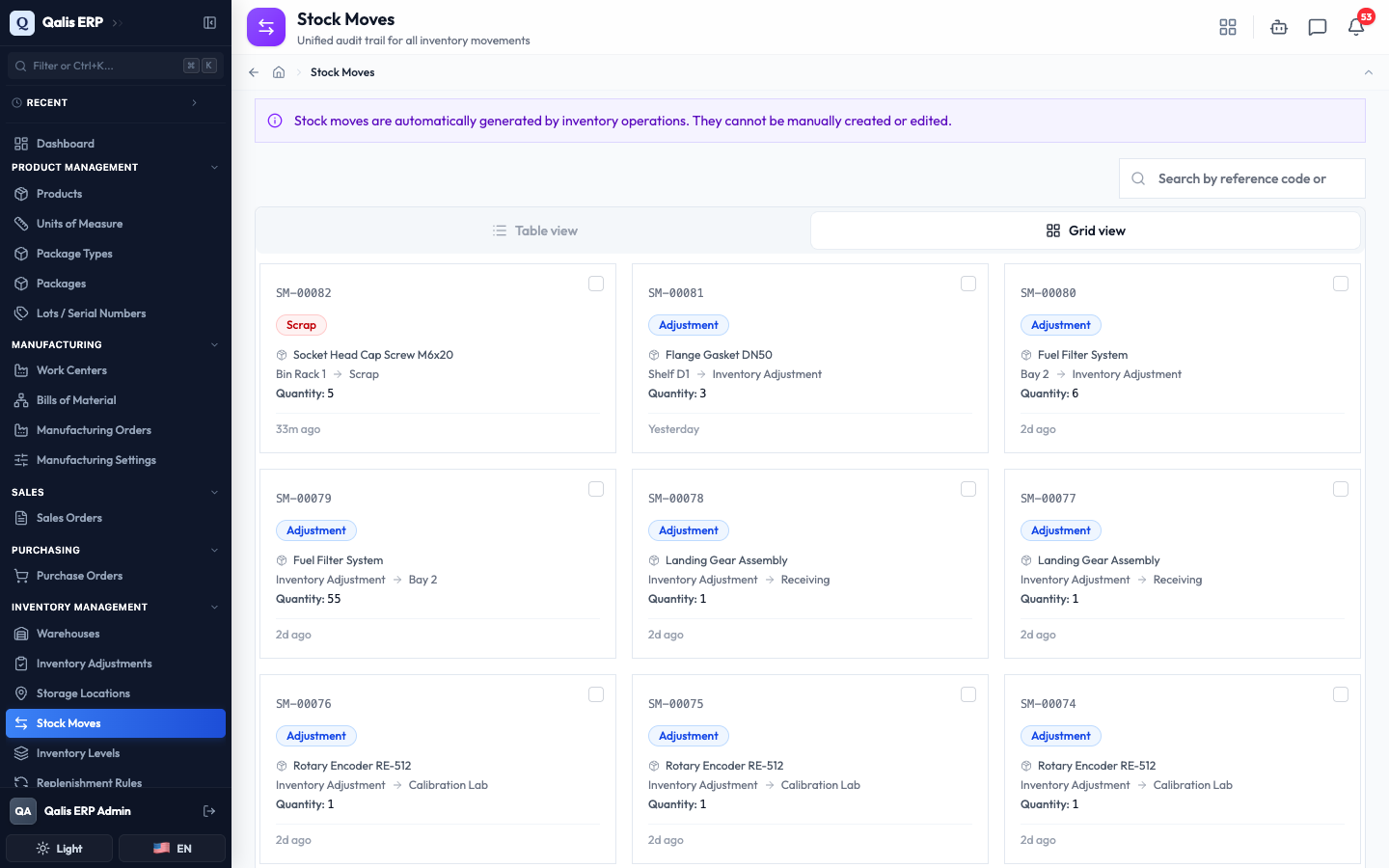
- Prefer cards to rows? Click Grid view above the list. Every move becomes a tidy card showing its code, type, product, the from and to locations, the quantity, and when it happened. Click Table view to switch back.
Search and filter to the move you need
With a busy warehouse the log grows quickly. Use search and the column filters to narrow it down to exactly what you are looking for.
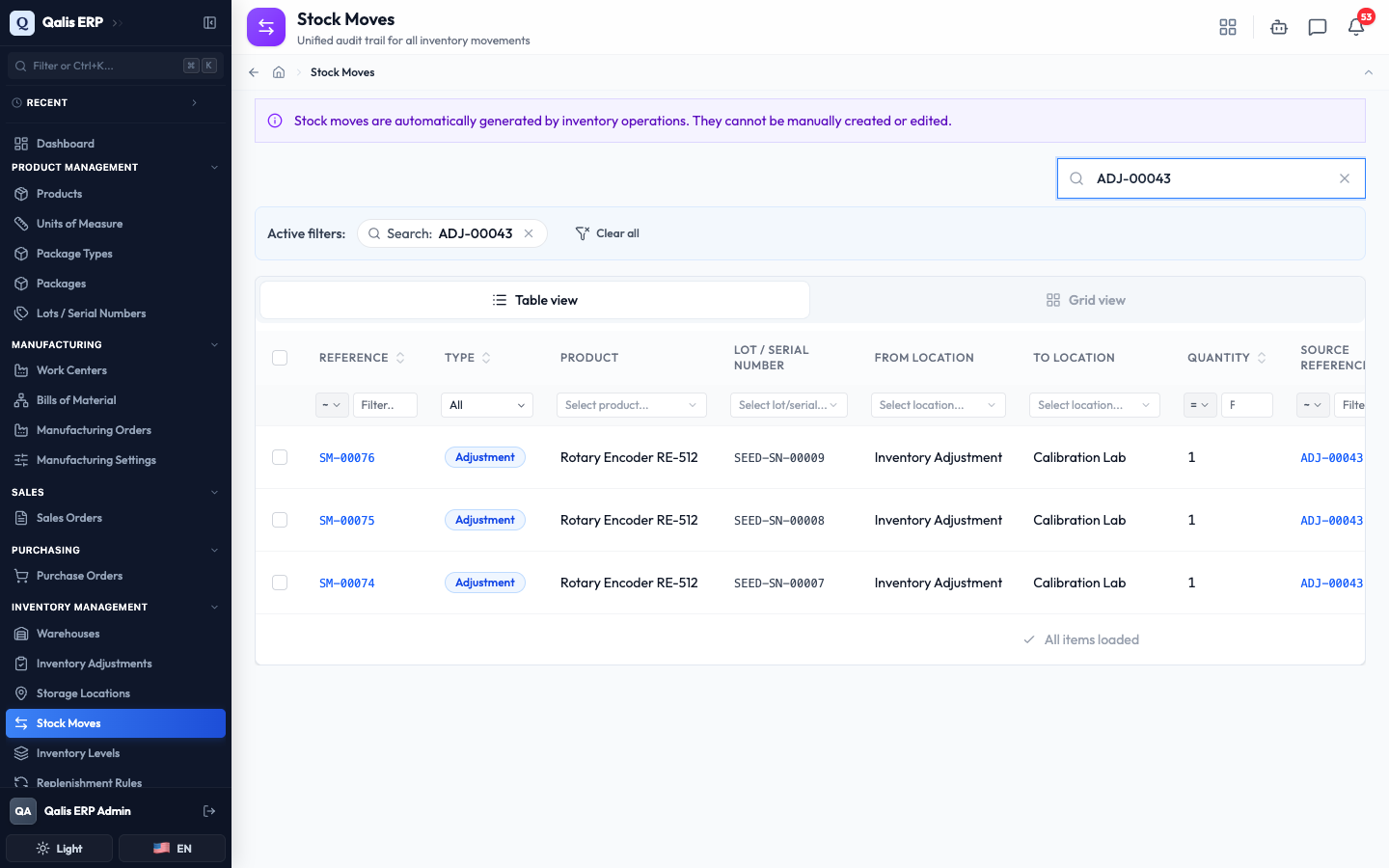
- To find moves tied to a particular document or code, type in the Search by reference code or source... box on the right. The list filters as you type, so there is no need to press Enter. For example, typing an adjustment number shows every move that adjustment produced. A small Active filters banner shows what you have applied as a chip with an X to remove it, plus a Clear all button.
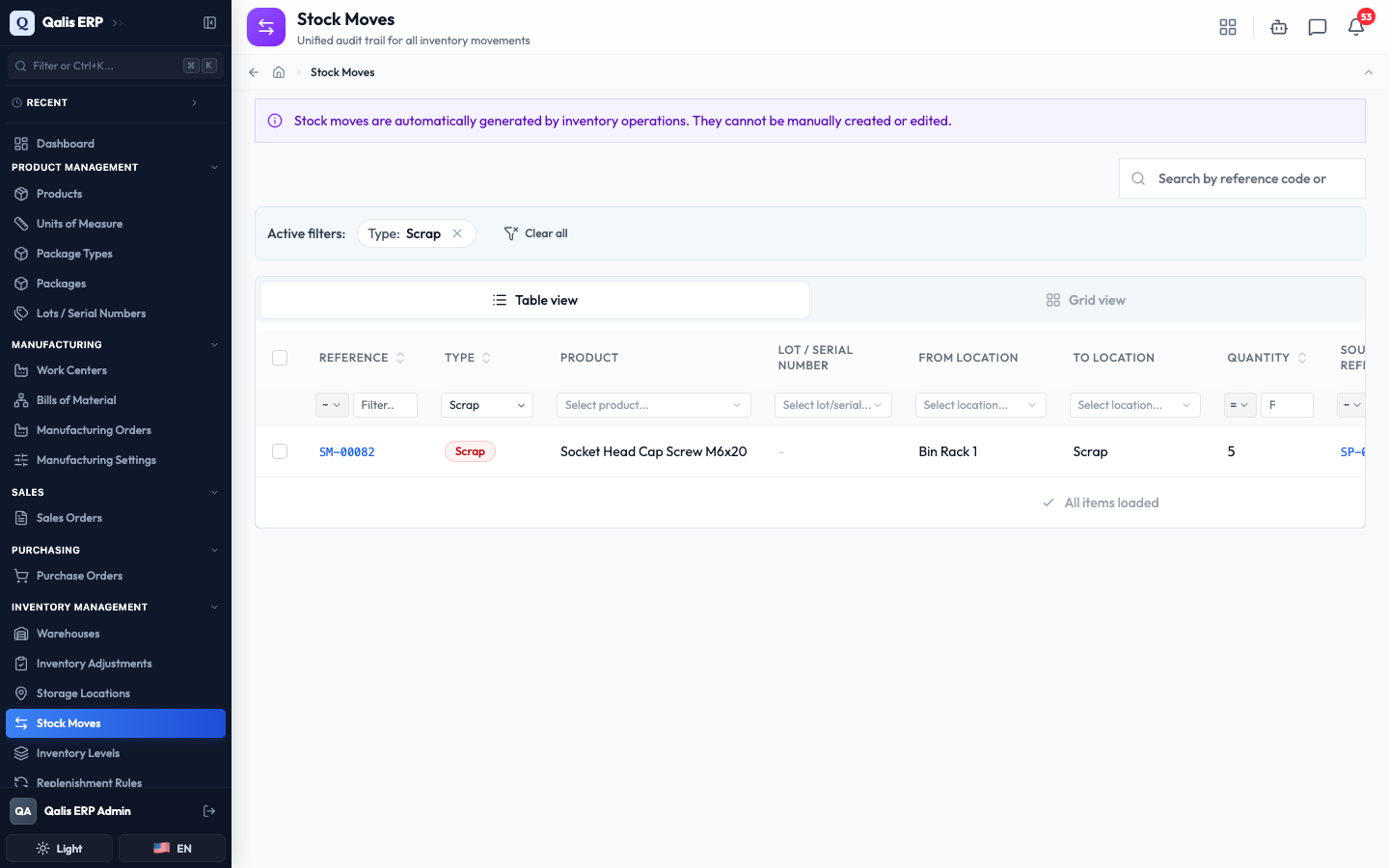
- To filter by a specific detail, use the boxes in the row just below the column headers. Open the Type box and pick a movement type (such as Scrap) to see only those moves. You can filter the same way by product, location, who did it, a date range, quantity, and whether a move was reverted. Each filter you set is added to the Active filters banner.
Your filters are saved in the page address, so you can bookmark a filtered view or send the link to a colleague and they will see exactly the same list.
Read a stock move in detail
Open any move to see the full picture on one page, laid out clearly.
-
Click a move's Reference code (for example
SM-00082) to open its detail page. The top shows the move code and, beneath it, its type and source document. -
The Movement panel is the heart of the page. It names the product and draws the journey: a red From Location box on the left, the Quantity with an arrow in the middle, and a green To Location box on the right. At a glance you see what moved and which way it went.
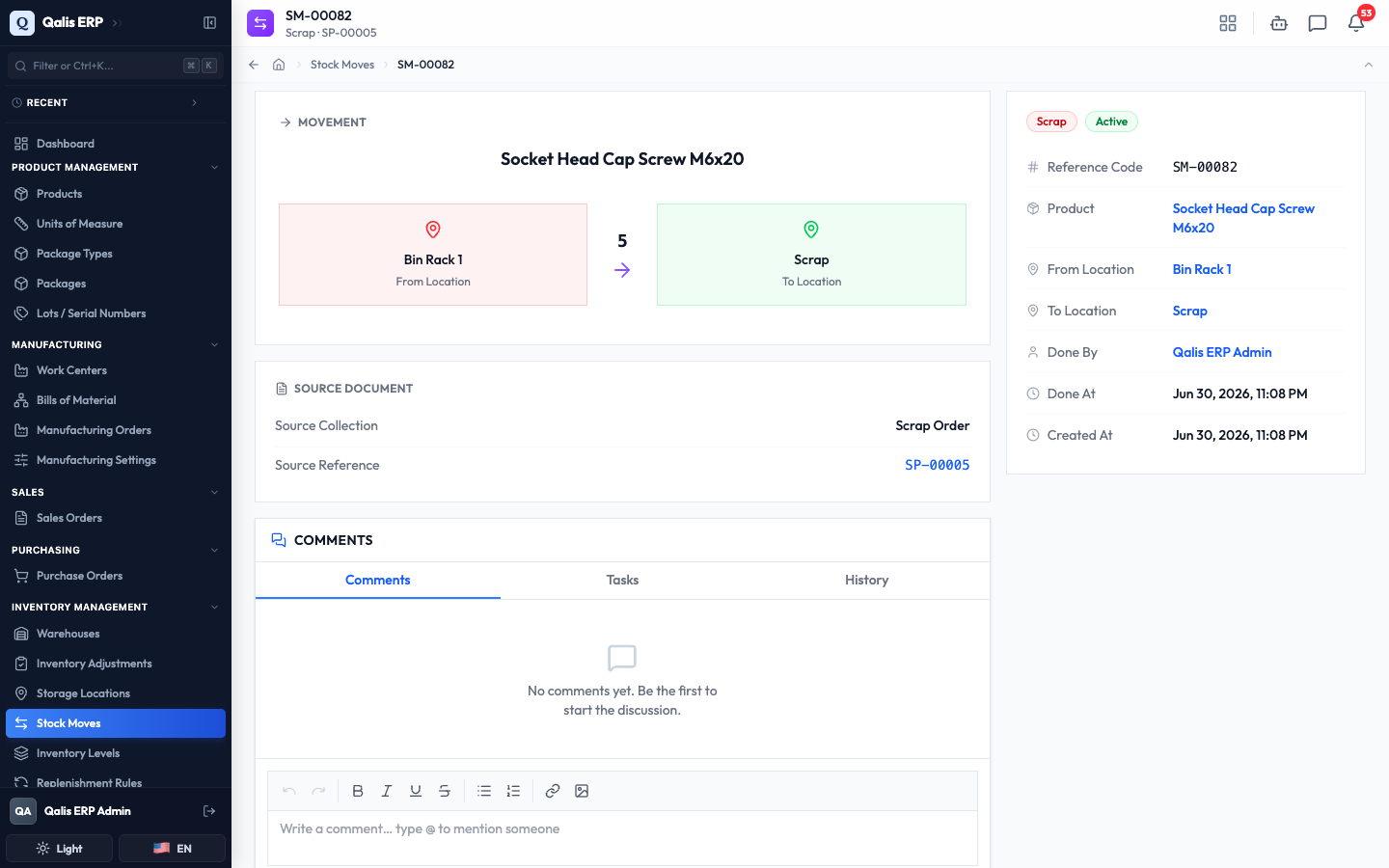
- The Source Document panel tells you what caused the move: the kind of document (for example Scrap Order) and its reference as a link. On the right, the information panel lists everything in one column: the type and status tags, the Reference Code, the Product, the From Location and To Location, Done By, Done At, and Created At. If you have a note to leave for colleagues, the Comments area at the bottom lets you start a discussion about this move.
There is nothing to edit on this page, and that is by design. A stock move is a permanent record of something that already happened, so it stays exactly as it was logged.
Trace a move back to its source document
This is the real power of the log: when a movement raises a question, you can jump straight to the document that caused it and see the full story.
-
On a move's detail page, find the Source Document panel and click the reference link (for example
SP-00005). -
Qualis opens the document that created the move, in this case the Scrap Order itself. There you see the complete reason behind the movement: the product and quantity, the locations involved, the scrap reason, and any notes the person added. The original move is linked at the bottom, so you can hop back just as easily.
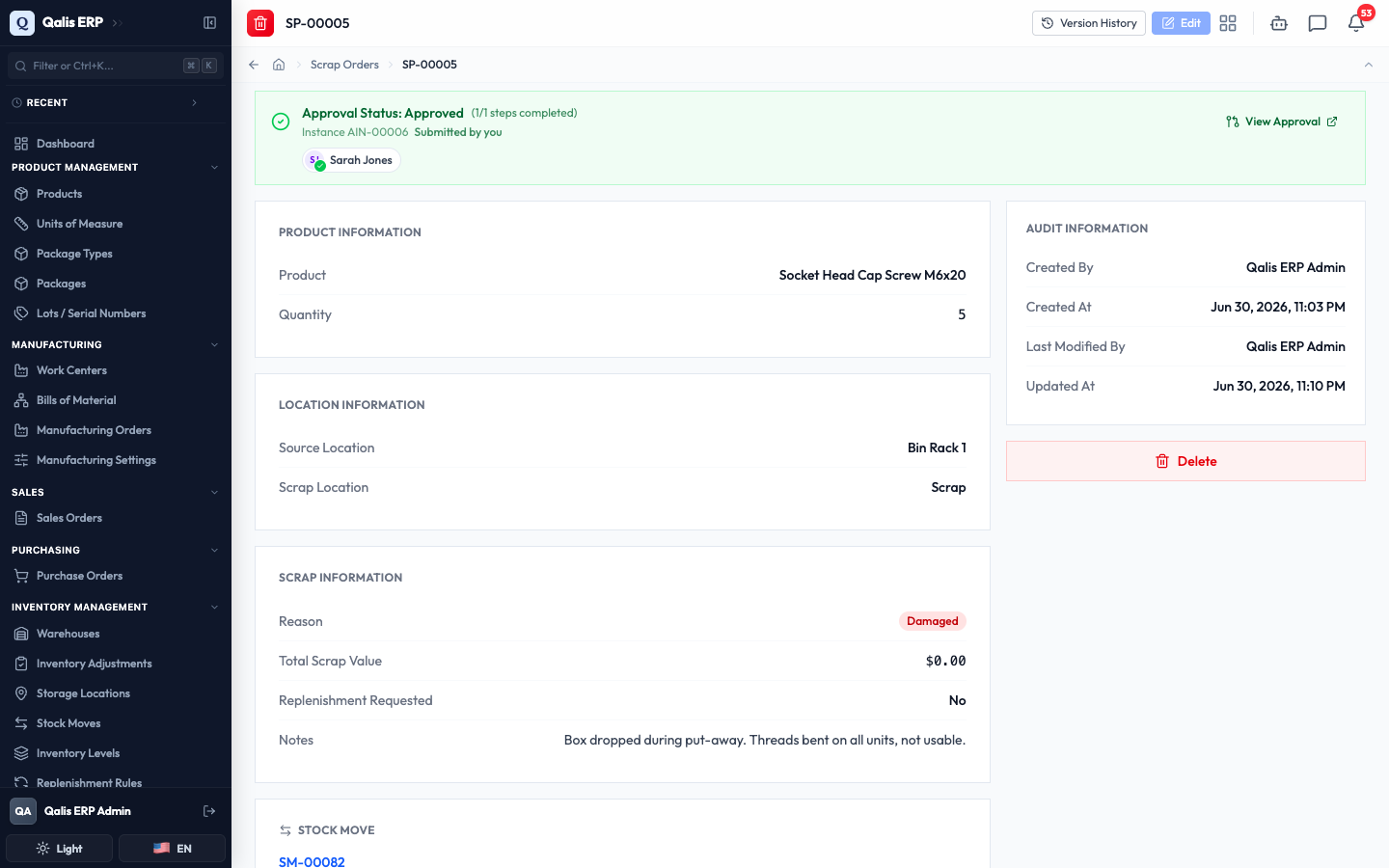
The same trick works for every move. An adjustment move links to its Inventory Adjustment, a receipt links to its Purchase Order, a delivery links to its Sales Order, and so on. You are never more than one click from the why.
Export your stock moves
When you need the history outside Qualis, for a report or an audit, export it in a couple of clicks.
- Tick the checkbox on each move you want, or use the checkbox in the table header to select the whole page at once. A toolbar appears showing how many are selected, with Export CSV and Export Excel buttons.
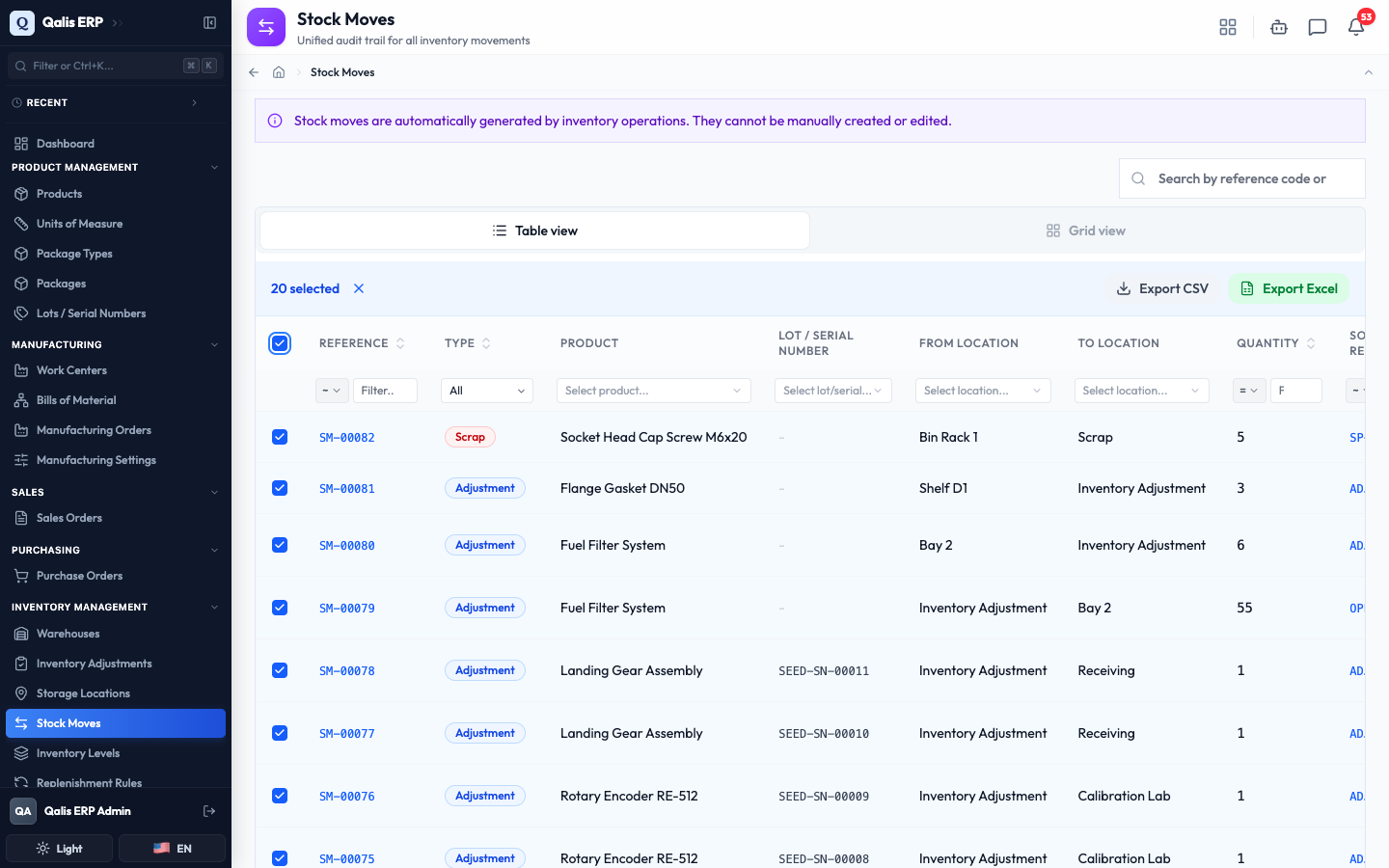
- Click Export CSV to download a spreadsheet-ready file with every selected move and its details. (Export Excel currently downloads the same CSV file, and Qualis tells you so when you use it.)
Good to know
A few terms and tags you will see on this screen, in plain words:
- Type: what kind of movement it was. Adjustment corrects a stock count, Scrap writes off unusable stock, Receipt brings stock in, Delivery ships stock out, Relocation and Transfer move stock between locations, Return sends stock back, and Consumption, Production Receipt, and Byproduct Receipt cover materials used and goods made during manufacturing.
- From Location and To Location: where the stock started and where it ended up. Names like Inventory Adjustment, Scrap, or a supplier or customer are holding places that represent stock entering or leaving your real shelves.
- Quantity: how many units moved. It is always a positive number, the direction is told by the from and to locations.
- Source Reference: the document that caused the move, such as a scrap order or an inventory adjustment. Click it to open that document.
- Reverted and Active: most moves are Active, meaning they still count. If a move is later cancelled (for example when an adjustment is reversed), it is marked Reverted and linked to the move that cancelled it, so the history stays honest.
- Lot / Serial Number: a batch or single-item code, shown when the product that moved is tracked that way.