Background Jobs
Watch the long-running tasks Qualis runs for you, like imports and exports, and retry the ones that did not finish.
Last updated on June 28, 2026
Some things take a moment to finish. Importing a large spreadsheet, exporting your data, or recalculating costs can run for several seconds or more. Instead of making you sit and wait, Qualis runs that work in the background and lets you carry on. The Background Jobs page is where you keep an eye on all of it. You can see what is running, what finished, what failed, and you can ask a failed job to try again.
You will use this page mostly to answer a simple question: "Did my import (or export, or other action) actually go through?" This guide shows you how to find a job, read what happened, and retry one that failed.
You reach the page from the left sidebar under Administration, then Background Jobs.
You do not create jobs here. Jobs appear on their own whenever you do something that runs in the background, such as importing products from a CSV file. This page is for watching and managing them after the fact.
Find and browse your jobs
Start here to see everything that has run and spot anything that needs attention.
- Open Background Jobs from the sidebar. At the top, five cards summarize your jobs at a glance: Total Jobs, Pending, Processing, Completed, and Failed. They give you the overall picture before you read a single row.
- Below the cards, the table lists one row per job, newest first. Each row shows the Job ID, the Task (the kind of work that ran), the Status, who it was Queued By, how many Attempts it took, and when it was Created and Completed.
- Use the Refresh button at the top right to pull in the latest activity at any time.
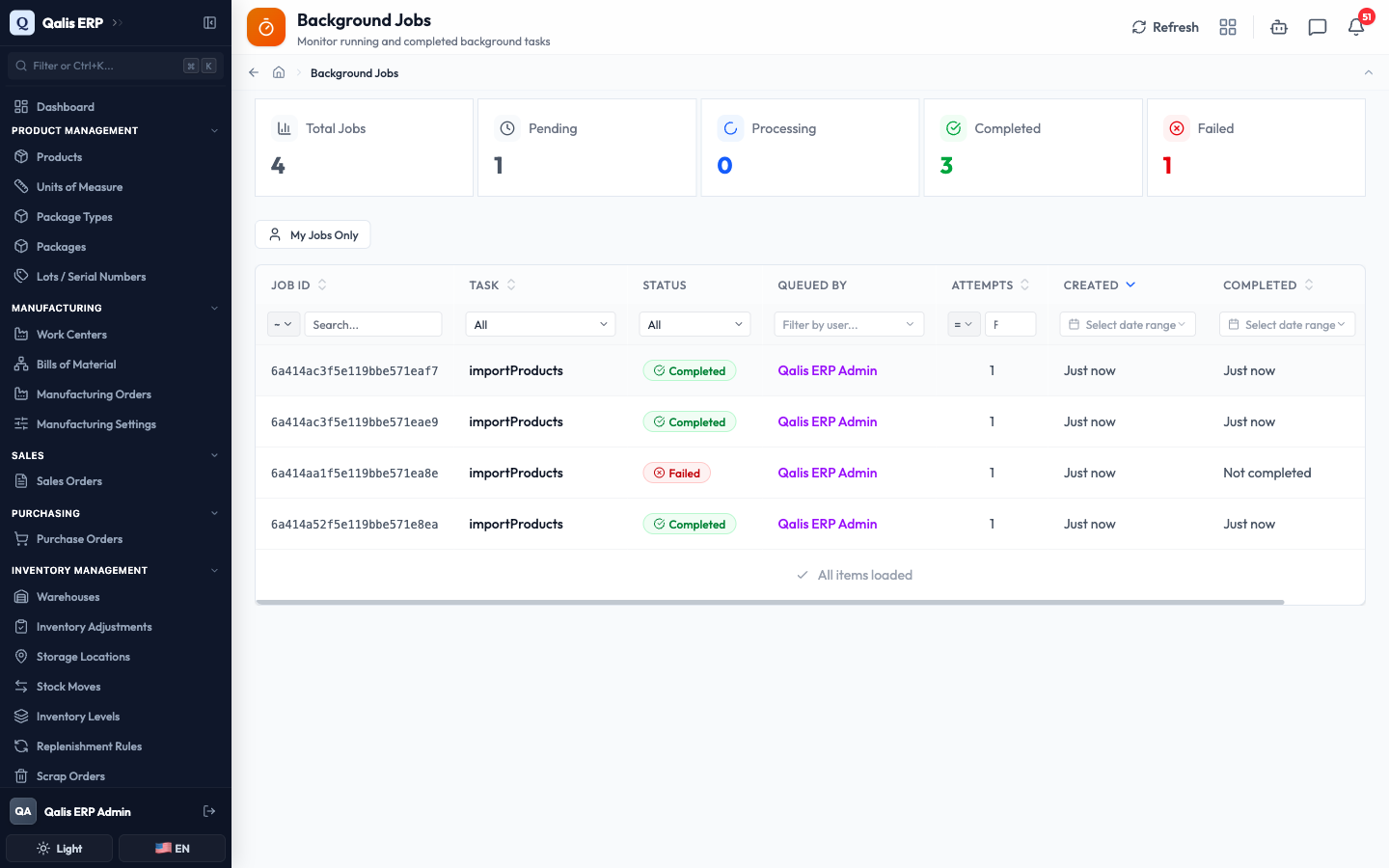
Here is what the columns tell you:
- Job ID: a unique code for the job. You rarely need it, but it helps if you ask support about a specific job.
- Task: the kind of work that ran, such as importing products.
- Status: a colored badge showing where the job is. Green Completed means it finished, red Failed means something went wrong, and blue Processing means it is running right now.
- Queued By: the person who started the job. If Qualis started it automatically, this shows System.
- Attempts: how many times the job has been tried. A number above 1 means it was retried.
- Created and Completed: when the job started and finished. Hover over a time to see the exact date.
The Created and Completed times show a friendly format like "Just now" or "2 hours ago". Rest your mouse on one to read the full date and time.
Filter to the jobs you need
When the list gets long, narrow it down to exactly what you are looking for. Filtering by Status is the most useful, for example to find everything that Failed.
- Under any column heading, open the small filter control. Under Status, choose the value you want, such as Completed.
- The table updates right away and shows only the matching jobs. There is no need to press Enter.
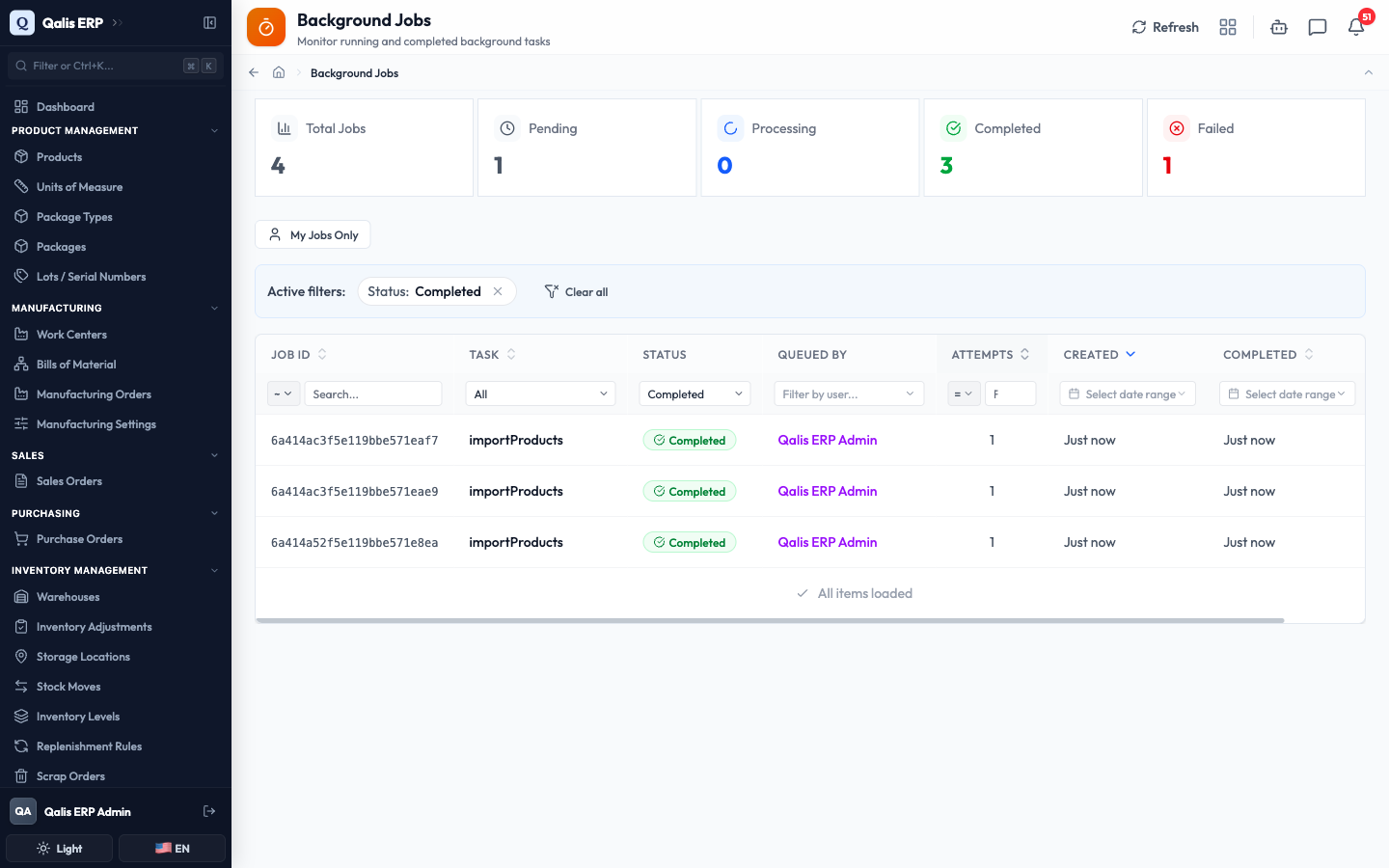
- Whenever a filter is on, an Active filters banner appears above the table showing what is applied. Click the small x on a filter to drop it, or Clear all to reset everything.
- The web address updates as you filter, so you can bookmark a view or share it with a colleague and they will see the same filtered list.
The Created and Completed columns offer a date filter, so you can focus on a single day or a range of dates. If you have permission to see other people's jobs, a My Jobs Only button appears above the table to quickly hide everyone else's.
Open and read a job
Open any job to understand exactly what it did and how it turned out.
- In the Actions column, click the eye icon (View Details) on the job's row. The job's detail page opens.
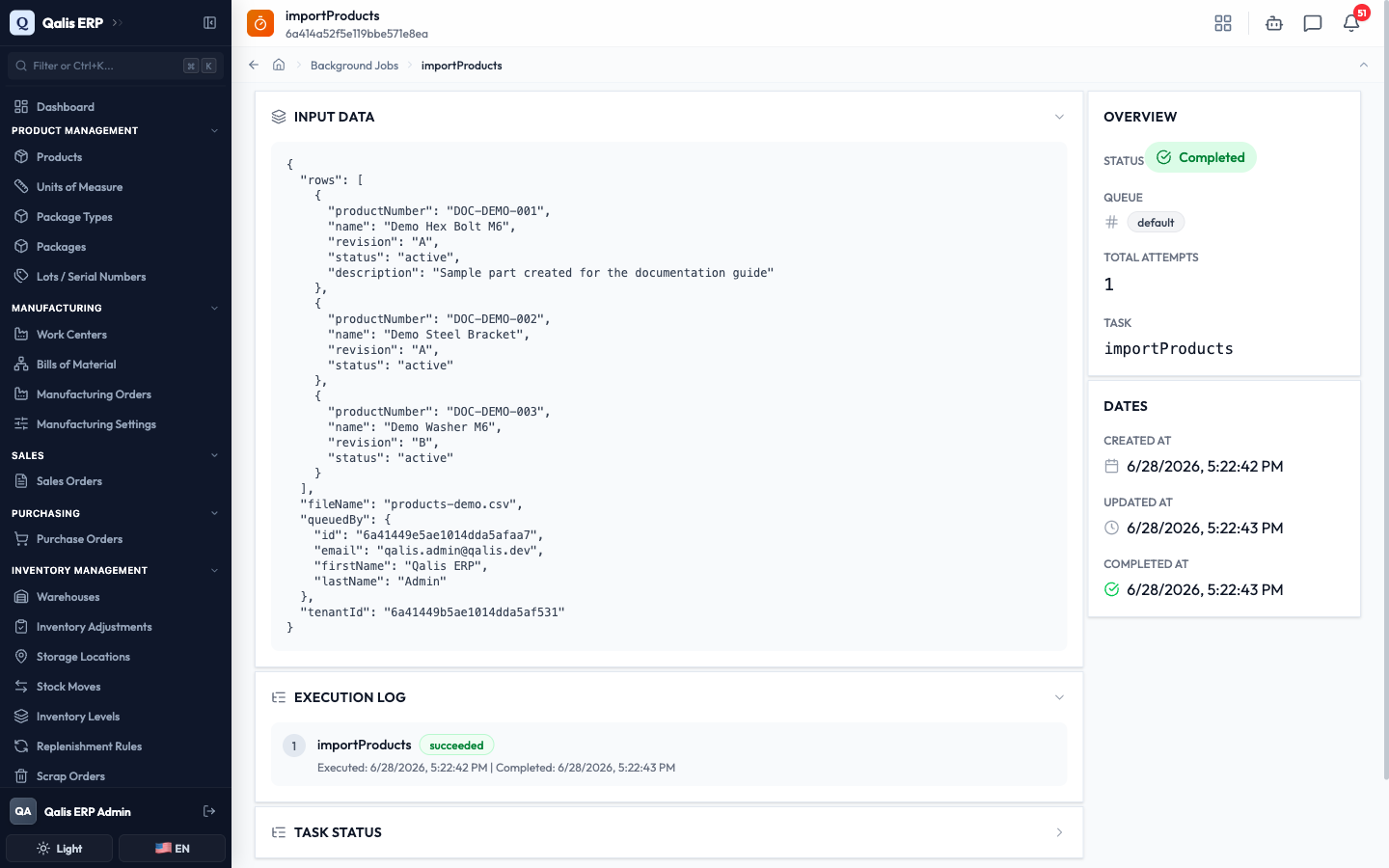
- On the right, the Overview panel shows the job's Status, its Queue, the Total Attempts, and the Task. The Dates panel below it shows when the job was Created, last Updated, and Completed.
- On the left, Input Data shows what the job was given to work with, such as the rows from your import file and who started it.
- Execution Log lists each step the job ran, with a green succeeded or red failed marker and the time it ran. This is the quickest way to see whether the work went through.
A job that finished will not have a Completed time only if it never finished. If a job is scheduled to run later, the Dates panel shows a Scheduled For time so you know when to expect it.
Retry a job that failed
If a job failed, you can ask Qualis to run it again. This is handy when the failure was a temporary glitch.
- Open a job whose status is Failed. Its detail page shows a Processing Errors section explaining what went wrong, and a Retry Job button appears at the top right.
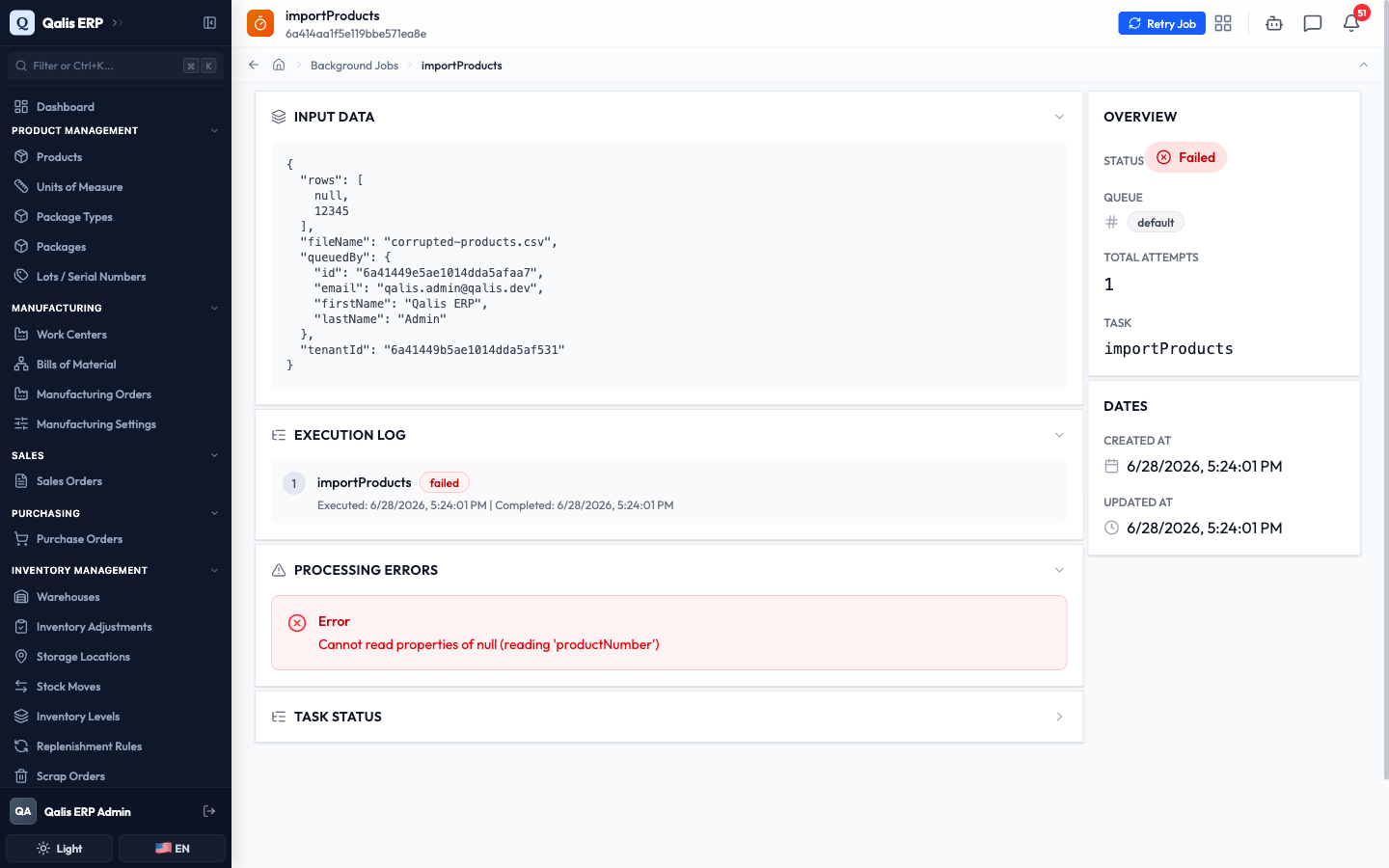
- Click Retry Job. Qualis confirms with a short message and puts the job back in line to run again. Its status returns to Pending, the error clears, and the Attempts count goes up the next time it runs.
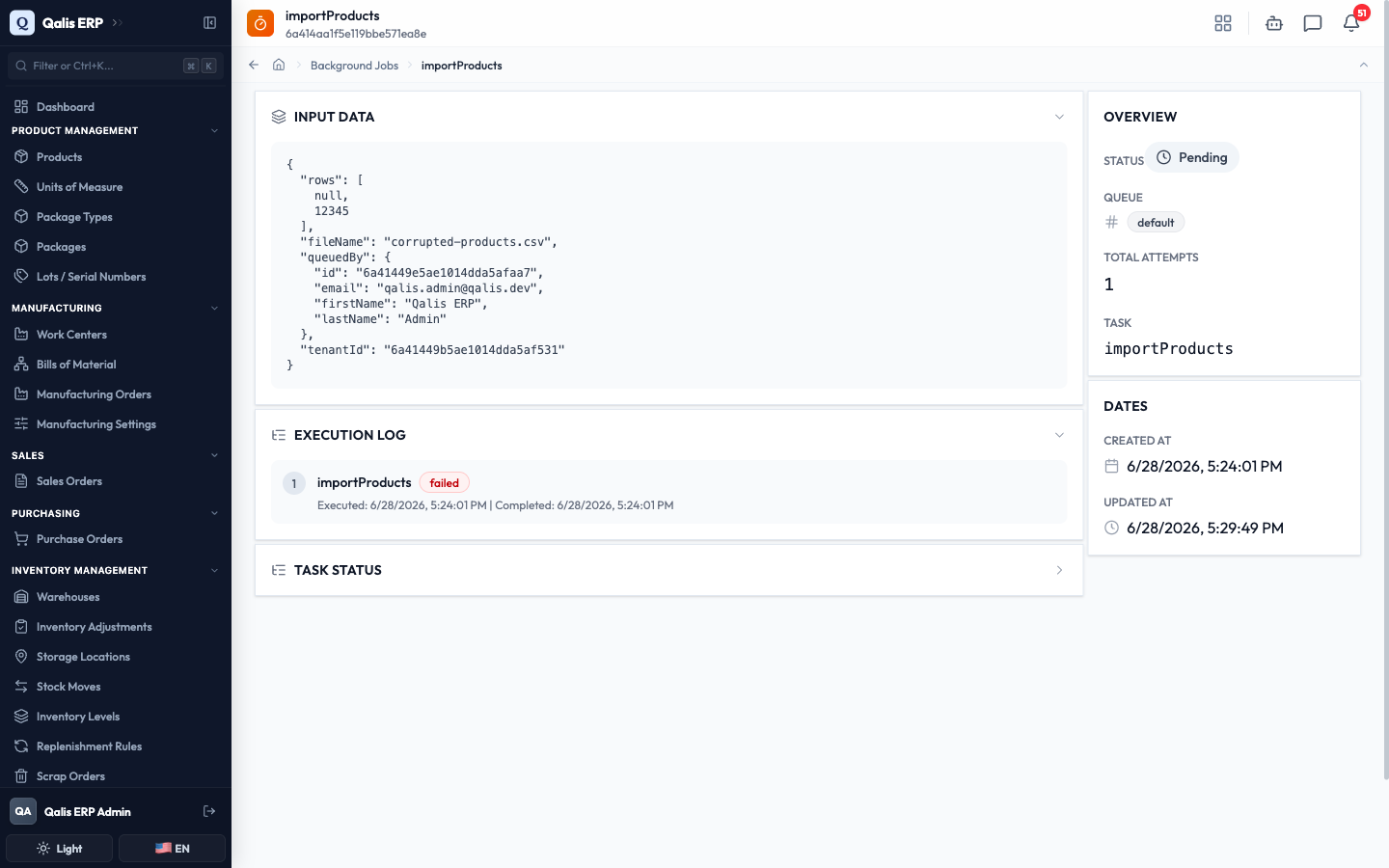
Retry is best for jobs that failed because of a temporary hiccup. If the job failed because of a problem with the data it was given (for example, a broken import file), retrying will only fail again. In that case, fix the underlying problem first, then start the original action over (for example, re-run the import with a corrected file).
The Retry Job button only appears on jobs that failed. A completed or running job has nothing to retry, so the button is hidden.
Good to know
A few terms show up on this page. Here is what each means in plain language:
- Background job: a piece of work Qualis runs on its own so you do not have to wait, such as an import or an export.
- Task: the kind of work a job does. The Task column names it, for example the routine that imports products.
- Queue: the line a job waits in to run. Most jobs use the default queue. Queues let urgent work move ahead of routine work.
- Attempts: how many times a job has been tried. It starts at 1 and goes up each time the job runs or is retried.
- Queued By: the person who started the job. System means Qualis started it automatically, such as a scheduled maintenance task.
- Status: where a job is in its life. Pending means it is waiting to start, Processing means it is running, Completed means it finished, Failed means it stopped with an error, and Cancelled means it was stopped on purpose.