AI Settings
Connect your AI providers and pick the models that power the assistant chat, image generation, and voice, all from one page.
Last updated on June 28, 2026
AI Settings is where you switch on the artificial intelligence features in Qualis and tell them which provider and model to use. Think of it as the control panel for everything "smart" in the app: the assistant you chat with, the pictures it can generate for your products, and the voice you can talk to it with. You connect your own AI accounts here by pasting in an API key, choose a model for each job, and save. You will usually set this up once when you first turn on AI, and then only come back now and then to swap a model or add another provider. There is a single page, split into five tabs: Configuration, Models, API Keys, Voice, and Billing.
Before you start
A few things make this page easier to fill in:
- You will need an account with at least one AI provider (Anthropic, Google, OpenAI, or xAI) and an API key from them. An API key is a long secret code, a bit like a password, that lets Qualis use your AI account on your behalf. The API Keys tab has a Get API Key link for each provider.
- Editing these settings needs the permission to update AI settings. Anyone with access can open the page and read it, but without that permission the Save Settings button stays greyed out, with a tooltip (You do not have permission to update AI settings) explaining why.
- You reach the page from the left sidebar under Administration, then AI.
Open your AI settings
Start here to see every AI option in one place.
- In the left sidebar, open the Administration group.
- Click AI. The page opens on the Configuration tab, with the other four tabs (Models, API Keys, Voice, Billing) along the top.
The Save Settings button at the top right stays disabled until you change something, so you can click through the tabs and look around freely without saving by accident.
Connect an AI provider
This is the most important step. Until you add at least one API key, the AI features have nothing to run on.
- Click the API Keys tab. You will see one box for each provider: Anthropic API Key, Google API Key, OpenAI API Key, and xAI API Key.
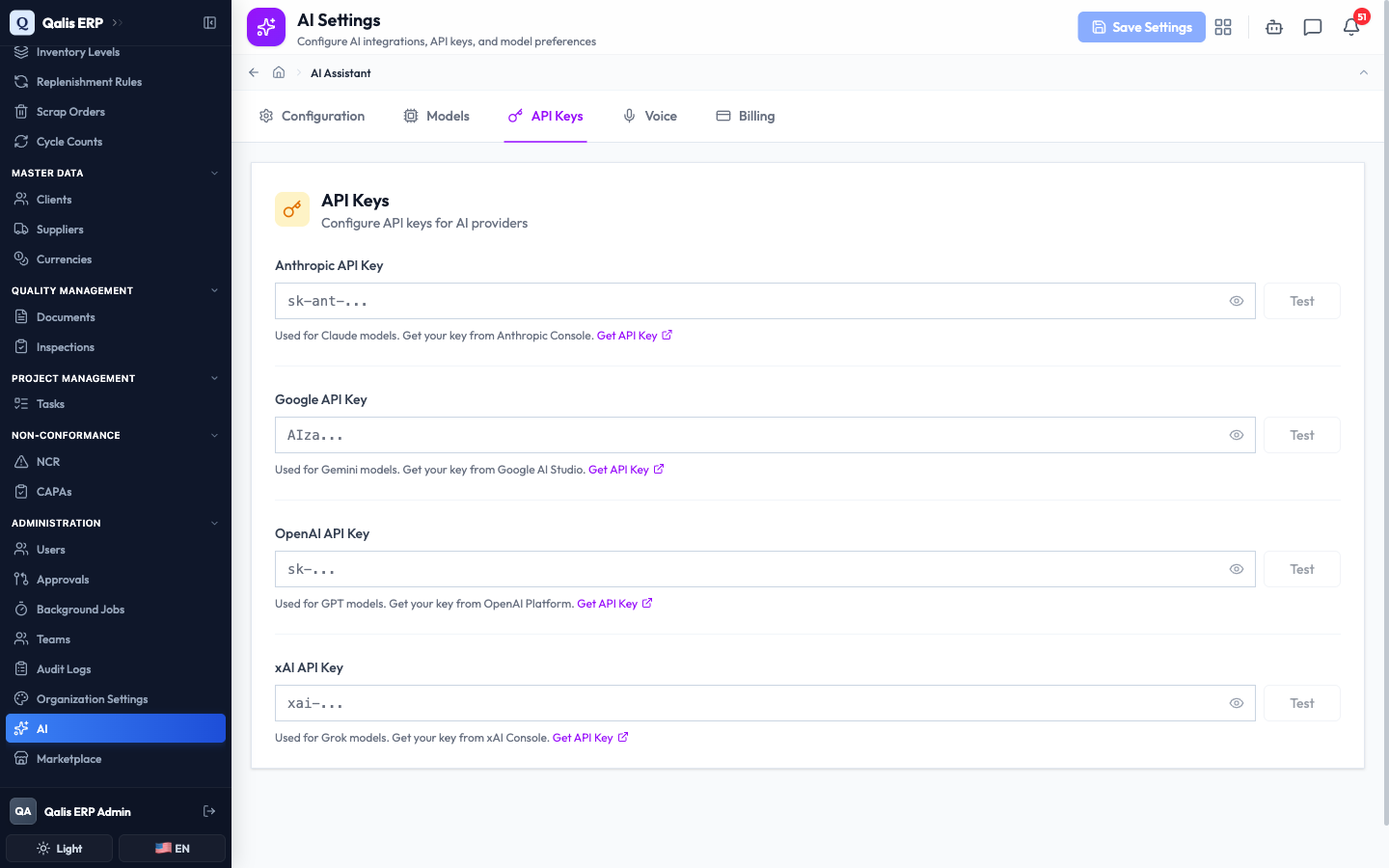
- If you do not have a key yet, click the Get API Key link under the provider you want. It opens that provider's website in a new tab, where you can create one.
- Paste your key into the matching box. The box hides the key behind dots as you type, so it cannot be read over your shoulder. Click the eye icon (Show) if you ever need to check it.
- Click Test next to the box. Qualis checks the key with the provider and shows a green API key is valid message when it works.
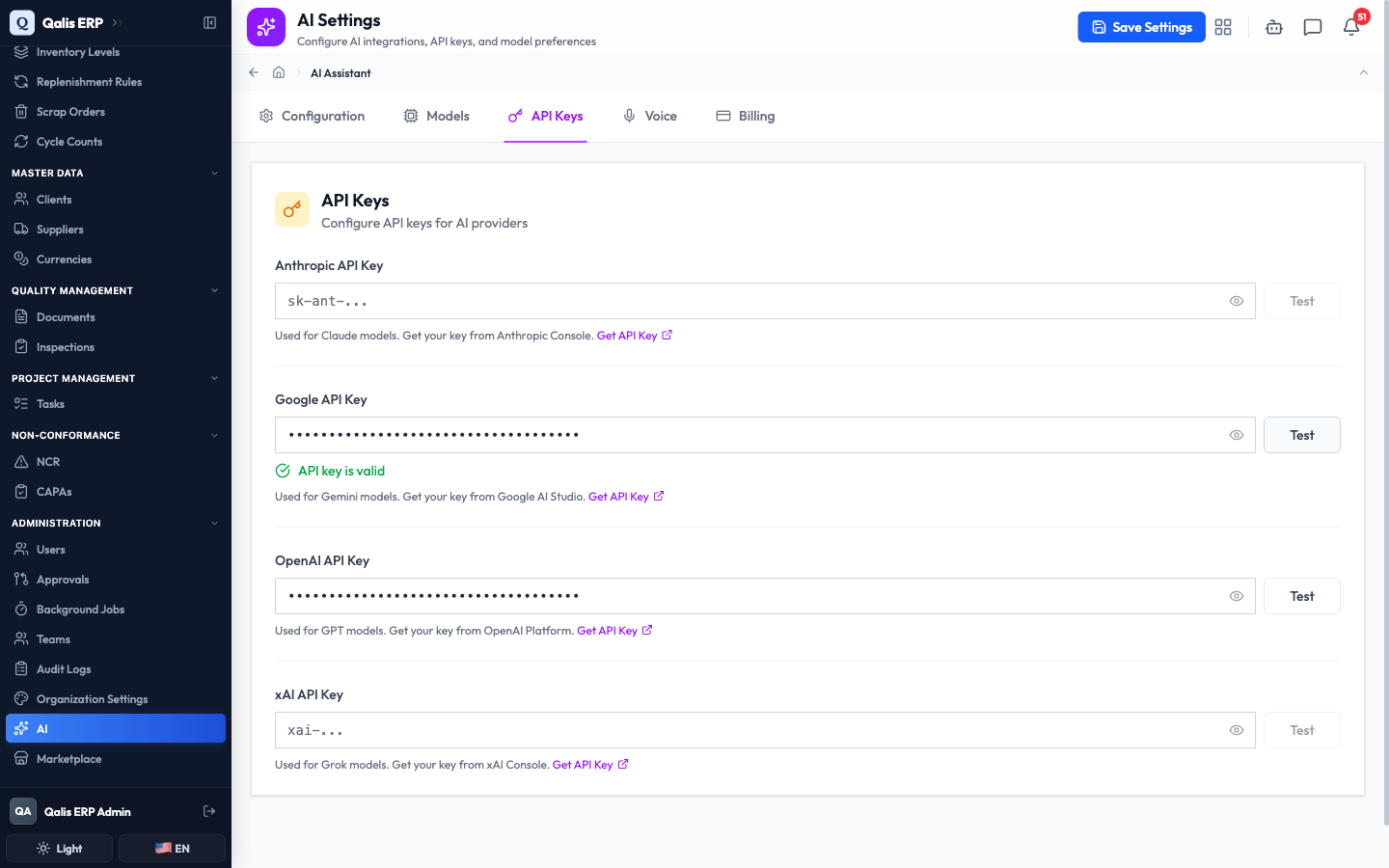
You only need a key for the providers you actually want to use. A box you leave empty simply means that provider's models stay switched off. You can add more providers later.
Choose which models to use
The Models tab is where you decide which AI model does each job. A model is a specific "brain", and each provider offers a few, from fast and cheap to slow and powerful.
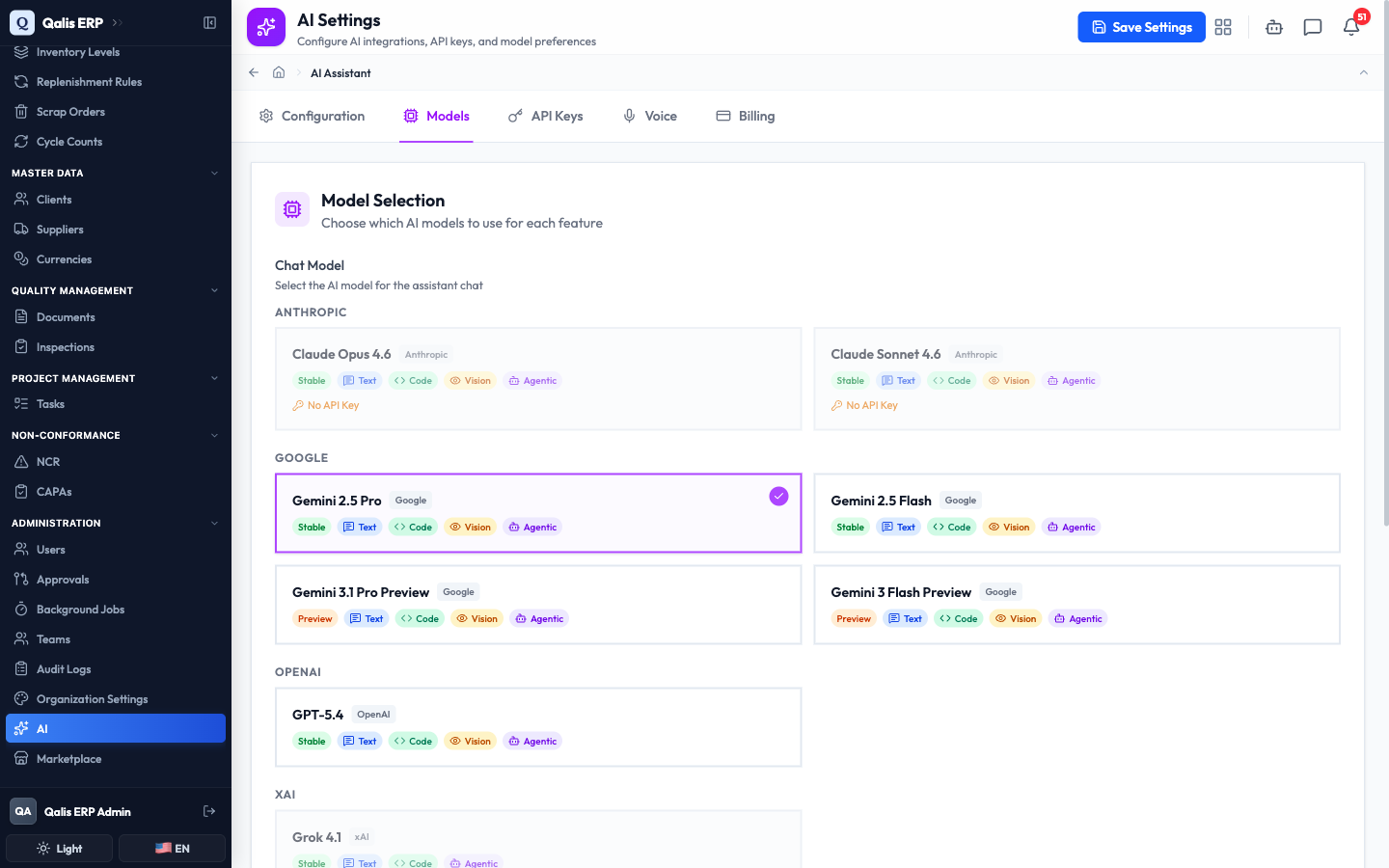
- Click the Models tab. Models are grouped under their provider and shown as cards you can click. The card you pick is outlined and gets a check mark.
- Under Chat Model, choose the model that powers the assistant you chat with. Click the card you want, for example Gemini 2.5 Pro.
- Scroll down to Image Generation Model and pick the model used to create pictures. One model is marked Default and is already chosen for you.
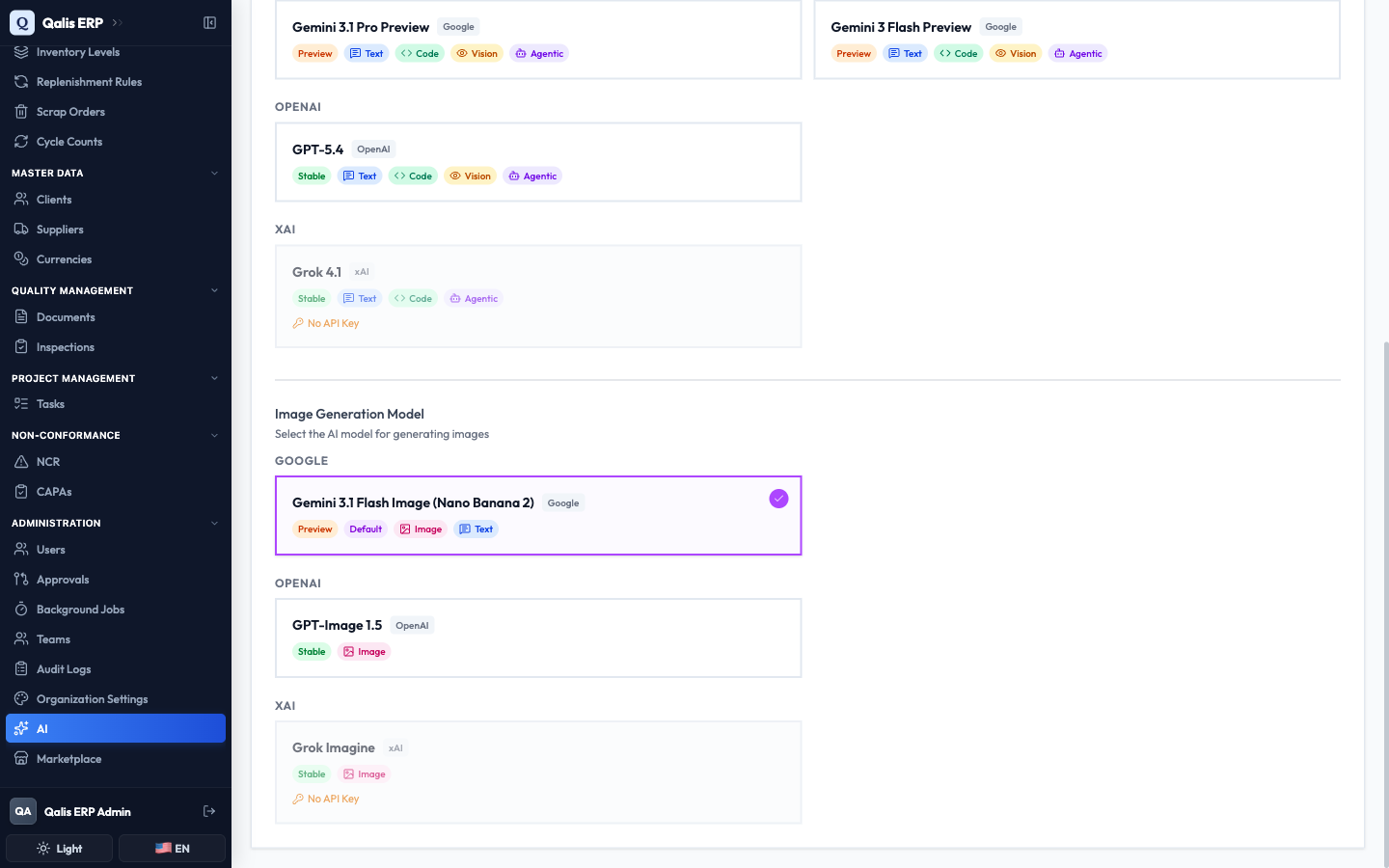
Each card carries small labels that tell you what the model can do, so you can pick the right tool for the job:
- Text writes and answers in plain language.
- Code reads and writes code.
- Vision understands images you show it.
- Agentic can take multi-step actions for you, which is what the assistant uses.
- Image creates pictures from a description.
- Voice holds a spoken, real-time conversation. You set this up on the Voice tab rather than picking a model here.
A green Stable label means the model is ready for everyday use, while an orange Preview label marks a newer one that is still being tried out.
A card that is greyed out with a No API Key note means you have not added that provider's key yet. Add the key on the API Keys tab and the card becomes selectable.
Turn AI image generation on or off
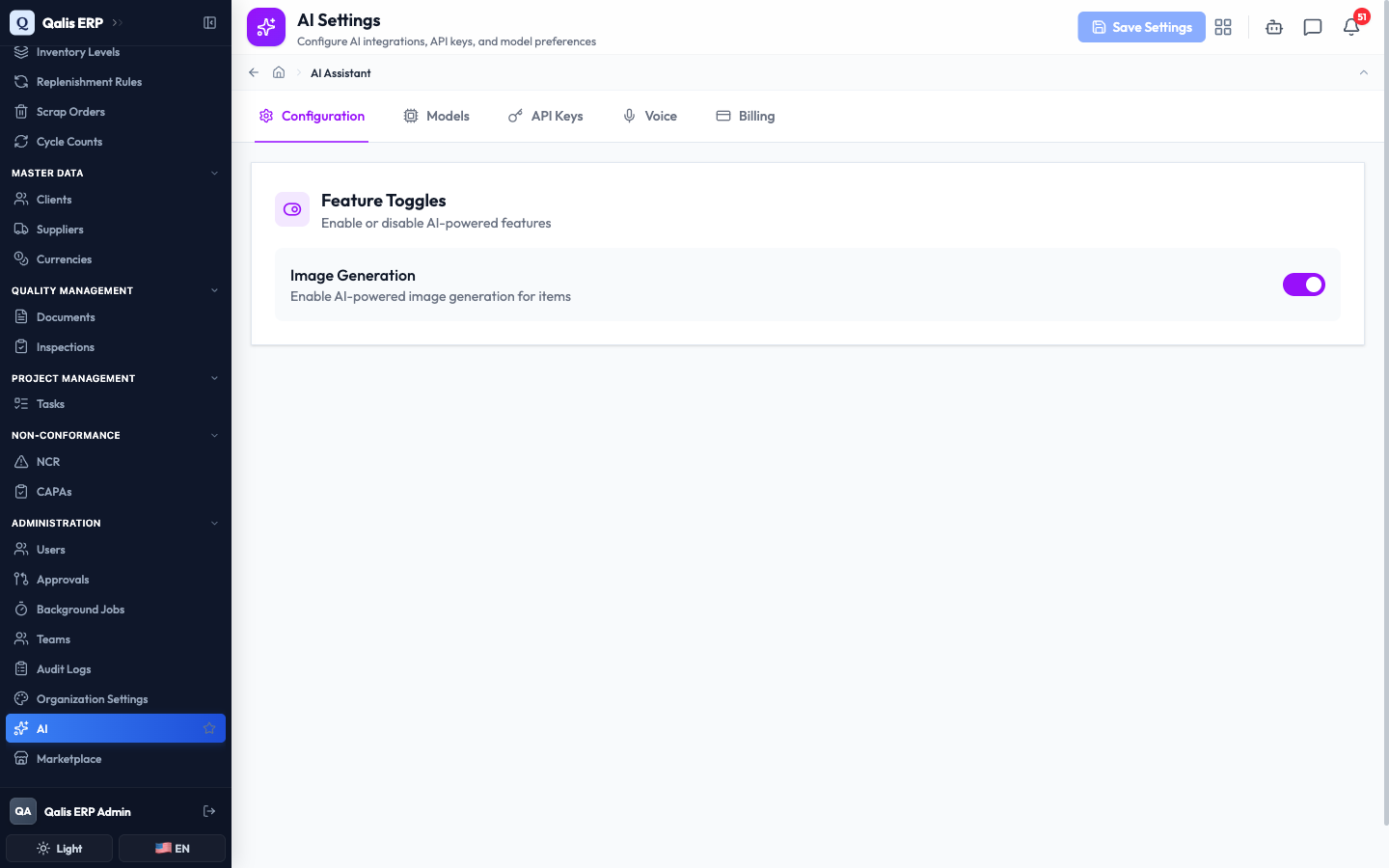
The Configuration tab has a single switch that controls whether Qualis can create images for your items.
- Click the Configuration tab.
- Use the Image Generation switch to turn the feature on (purple) or off (grey).

Leave this on if you want the option to generate product images with AI. Turning it off hides that feature everywhere, and the image model on the Models tab is greyed out while it is off.
Set up the voice assistant
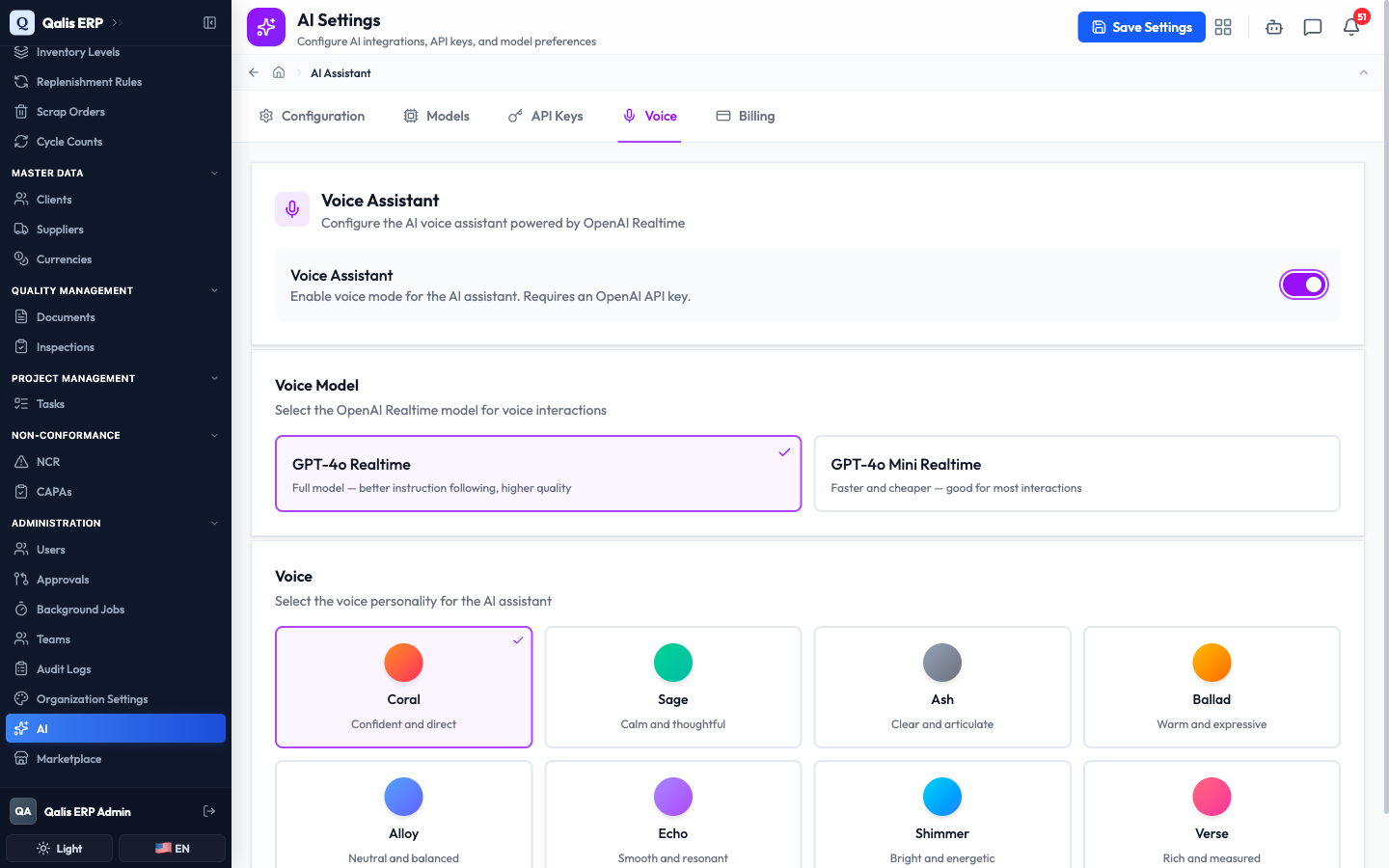
The Voice tab lets you talk to the assistant out loud instead of typing. Voice runs on OpenAI, so you need an OpenAI API Key first (add it on the API Keys tab).
- Click the Voice tab.
- Turn on the Voice Assistant switch. This switch only works once an OpenAI API Key is saved on the API Keys tab. Until then it stays greyed out, with a note reminding you to add the key.
- Under Voice Model, pick GPT-4o Realtime for the best quality, or GPT-4o Mini Realtime for a faster, cheaper option.
- Under Voice, choose the personality the assistant speaks with, such as Coral or Sage. Each option has a short description of how it sounds.
Save your changes
Nothing you change takes effect until you save, and one button saves the whole page at once.
- As soon as you change anything on any tab, the Save Settings button at the top right turns solid and becomes clickable.

- Click Save Settings. While it saves, the button briefly shows that it is working, then goes quiet again.
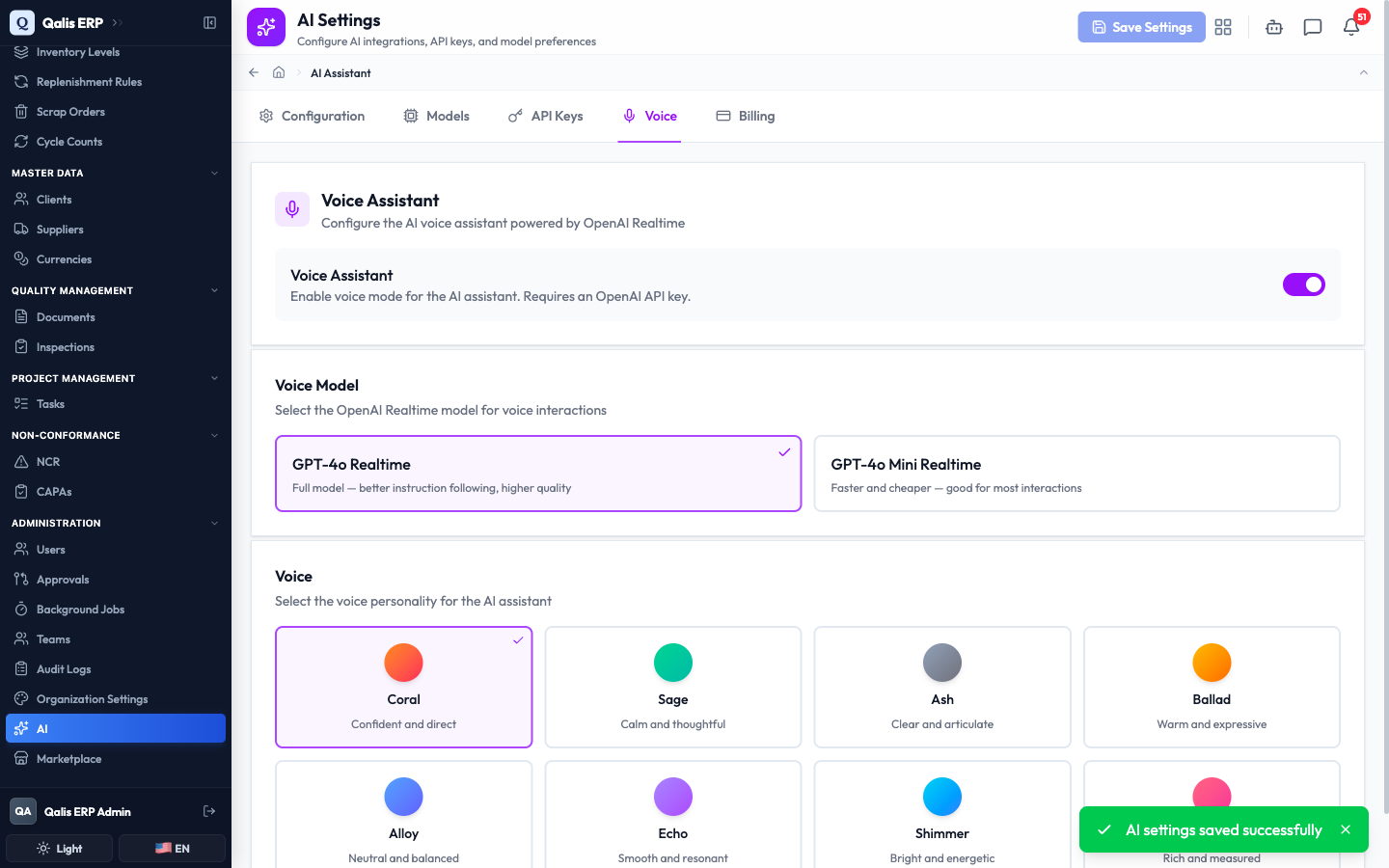
- A green AI settings saved successfully message appears at the bottom right to confirm.
If a save fails for any reason, your entries stay on screen and a red message explains what went wrong, so nothing you typed is lost.
Good to know
- API key: a long secret code from an AI provider that lets Qualis use your AI account. Keep it private, like a password.
- Provider: the company that runs the AI, such as Anthropic, Google, OpenAI, or xAI. You can connect more than one.
- Model: a specific AI "brain" from a provider. Different models trade off speed, cost, and ability.
- Capability: what a model is good at, such as Text, Image, Code, Vision, Agentic, or Voice. Most of these show as small labels on the model's card.
- Stable vs Preview: Stable models are ready for daily use, Preview models are newer and still being tried out.
- Billing: the Billing tab is marked Coming Soon. Usage and cost tracking will arrive in a future update. For now you are billed directly by each provider through your own account.