Files and Documents
Store, organize, search, and version every file and written document your team needs, all in one place.
Last updated on June 25, 2026
Documents is your organization's shared library for files and written content. Upload a supplier certificate, a drawing, or a spec sheet, write a work instruction in the built-in editor, sort everything into folders, and find any of it again in seconds. Every change is saved as a version you can look back on, and anything you delete sits safely in the trash until you decide to remove it for good. This guide walks you through the things you will do here every day.
How your documents are organized
Documents works like the file browser on your computer, but shared with your whole organization.
- Folders hold your items and can be nested, so you can keep "Manuals" inside "Technical Documentation", and so on.
- There are two kinds of items you can add:
- Files you upload from your computer, such as a PDF, an image, or an Office document.
- Rich text documents you write directly in Qualis using the built-in editor, like a procedure or a work instruction.
- Each item has a revision, a short label such as
1orAthat tells people which version they are looking at.
Files that are attached to other records, for example a photo on a purchase order or an inspection, are stored here too, but they are hidden from this library so it stays clean and easy to browse. You will still see them on the record they belong to.
Before you start
- Make sure the correct organization is active. The top bar shows which one you are in, and your documents live inside that organization.
- To open this area you need the "view documents" permission. To upload or write documents you need "create documents", and to delete them you need "move documents to trash". An organization admin already has all of these.
- You can always open, edit, and delete documents you created yourself, even without the matching permission.
- If you cannot see Documents in the sidebar, or you reach a page that says you have no access, ask your organization administrator to grant you these permissions.
Browse your documents
Start here to find your way around and see what already exists.
- Open the sidebar, scroll to the Quality Management group, and click Documents. The library opens at the top level, showing your folders. Across the top you will find a search box, a toolbar with New Folder, Upload, and view controls, and, over on the right, the New Document and Trash buttons.
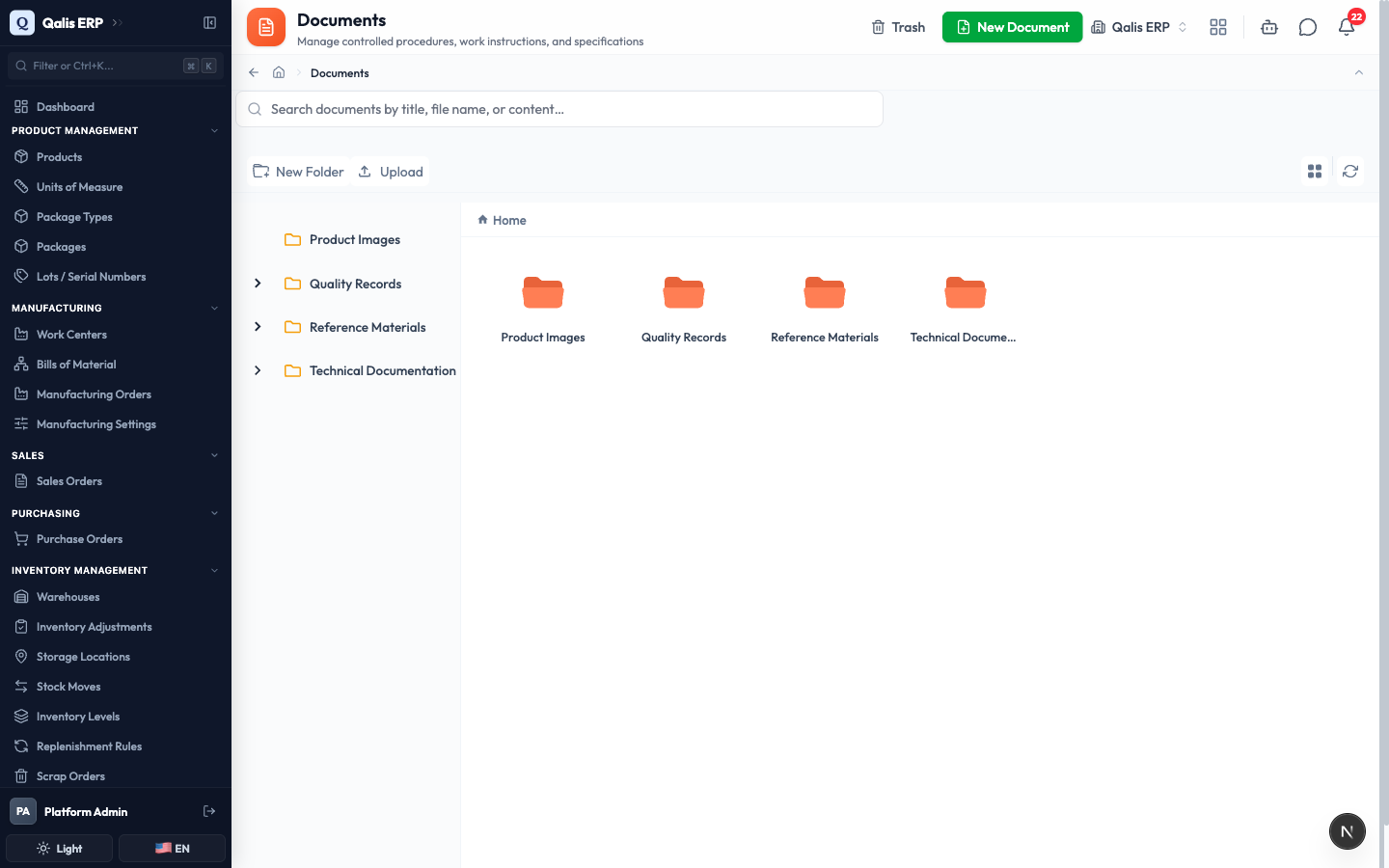
- Double click any folder to open it. The trail along the top (for example Home › Technical Documentation › Manuals) shows where you are, and the panel on the left lets you jump between folders. Click any part of the trail to go back up.
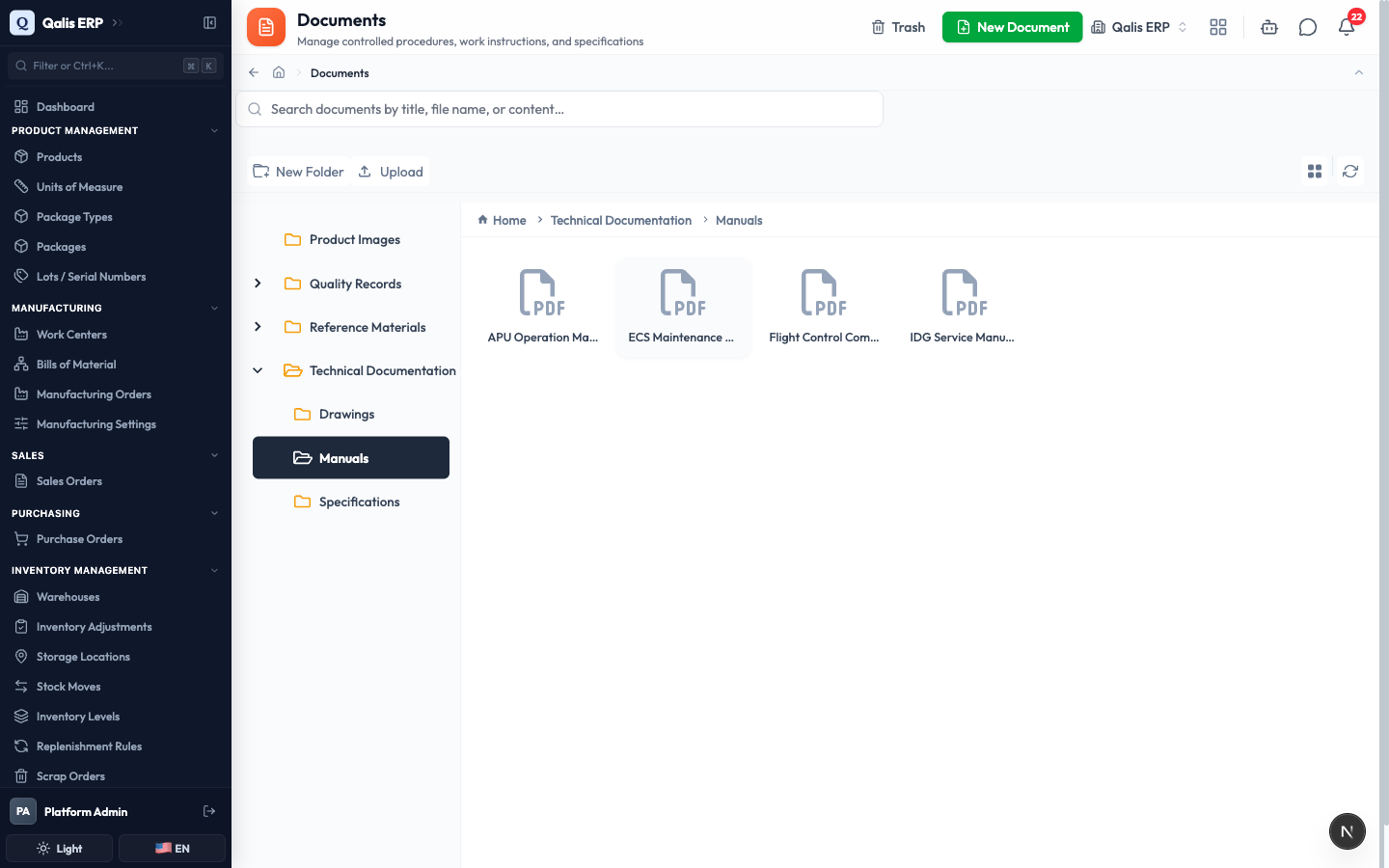
- Files show a small icon for their type, such as PDF. Double click a file or a document to open and read it.
Use the Change View and Refresh buttons on the toolbar to switch how items are shown and to reload the list after someone else makes a change.
Upload a file
This adds a file from your computer to the current folder.
- Open the folder where you want the file to live.
- Click Upload on the toolbar. An Upload window opens.
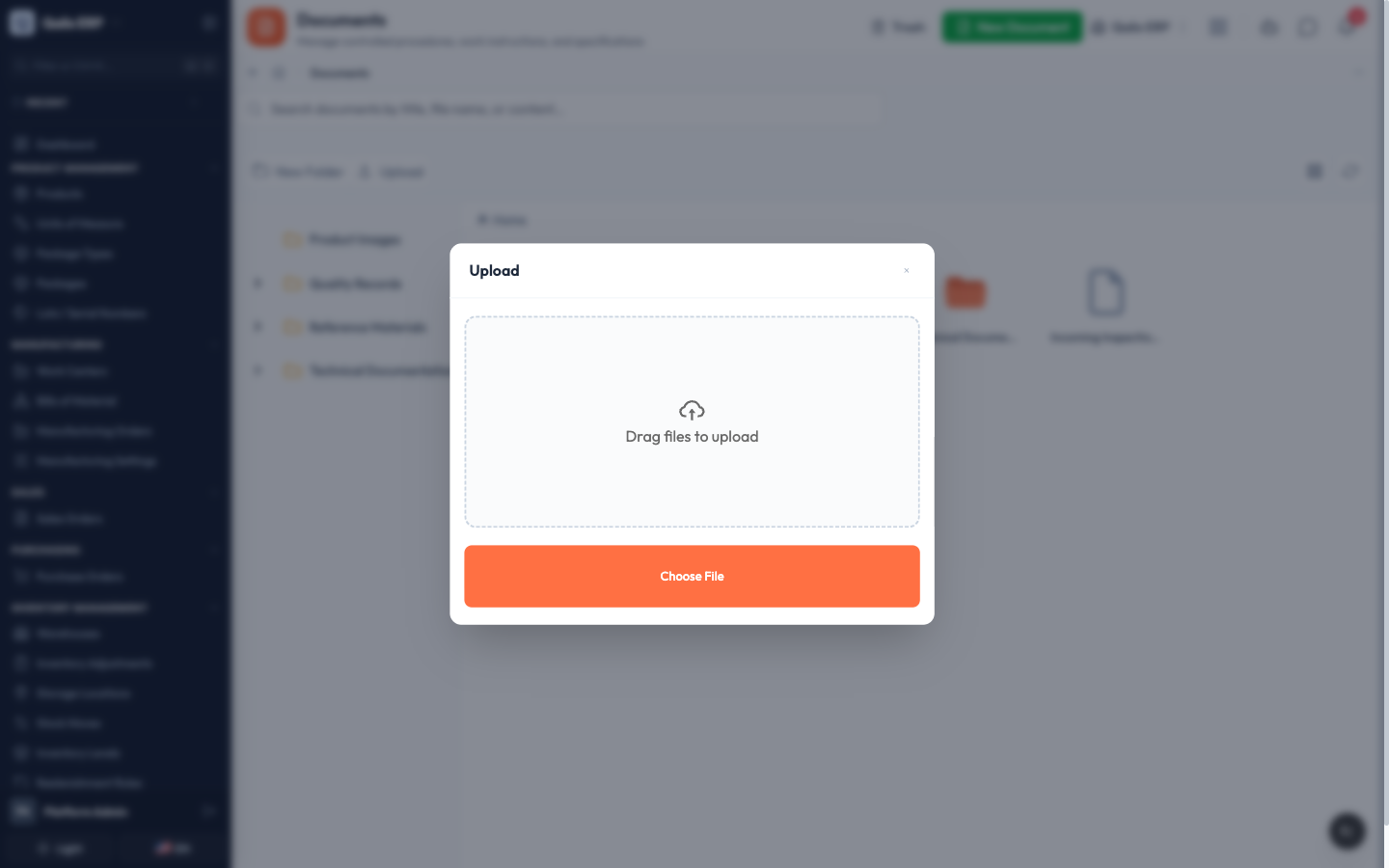
- Drag a file onto the Drag files to upload area, or click Choose File and pick a file from your computer.
- The file uploads and appears in the folder, and you get a short confirmation message.
You can drop a file straight onto the library without opening this window. The file lands in the folder you are currently viewing.
Organize your files into folders
Keep things tidy by grouping items into folders and moving them around.
- To make a folder, click New Folder on the toolbar. A new folder appears with its name ready to edit. Type a clear name, such as
Supplier Certificates, and press Enter.
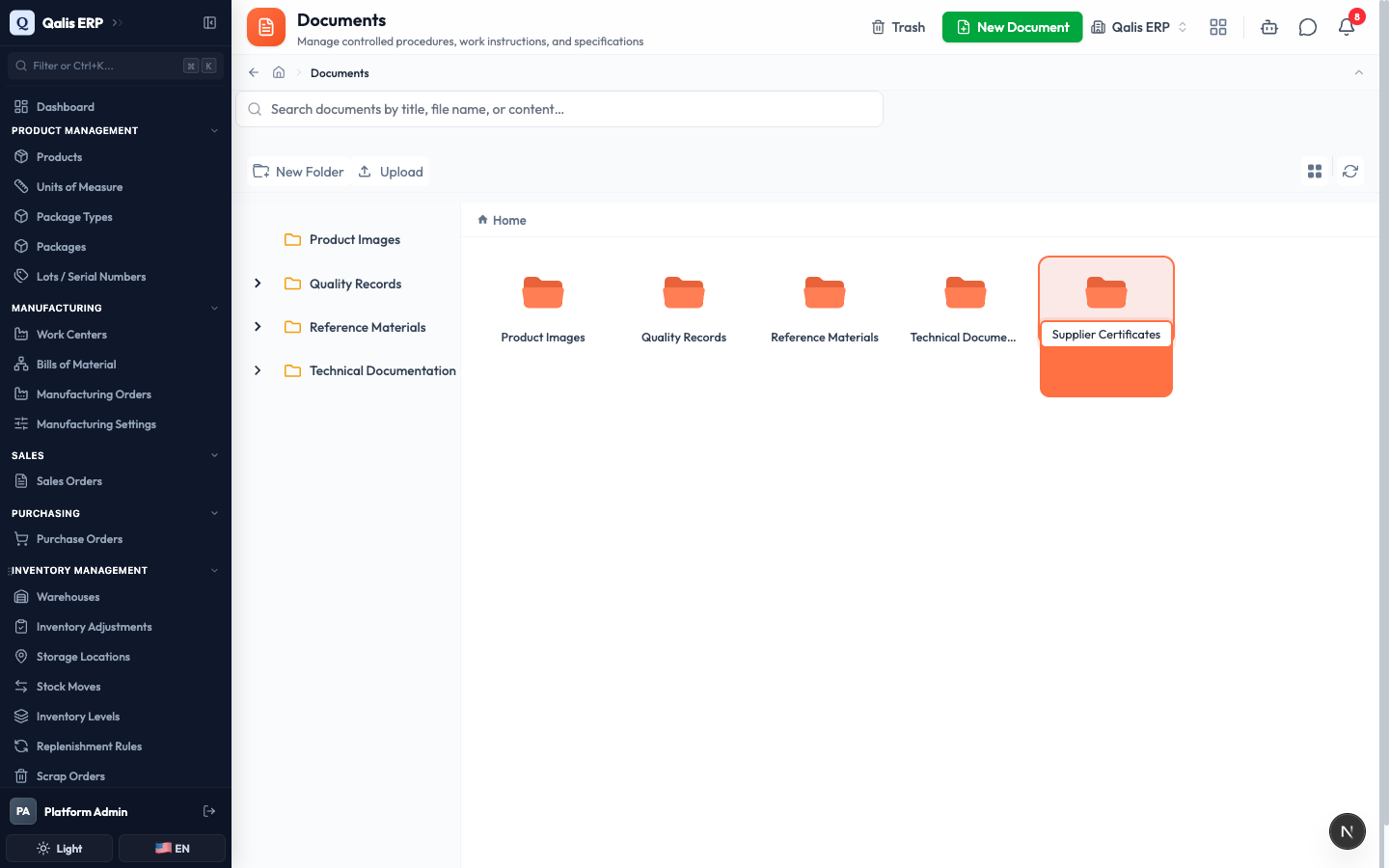
- To act on an existing item, right click it. A menu opens with everything you can do to it.
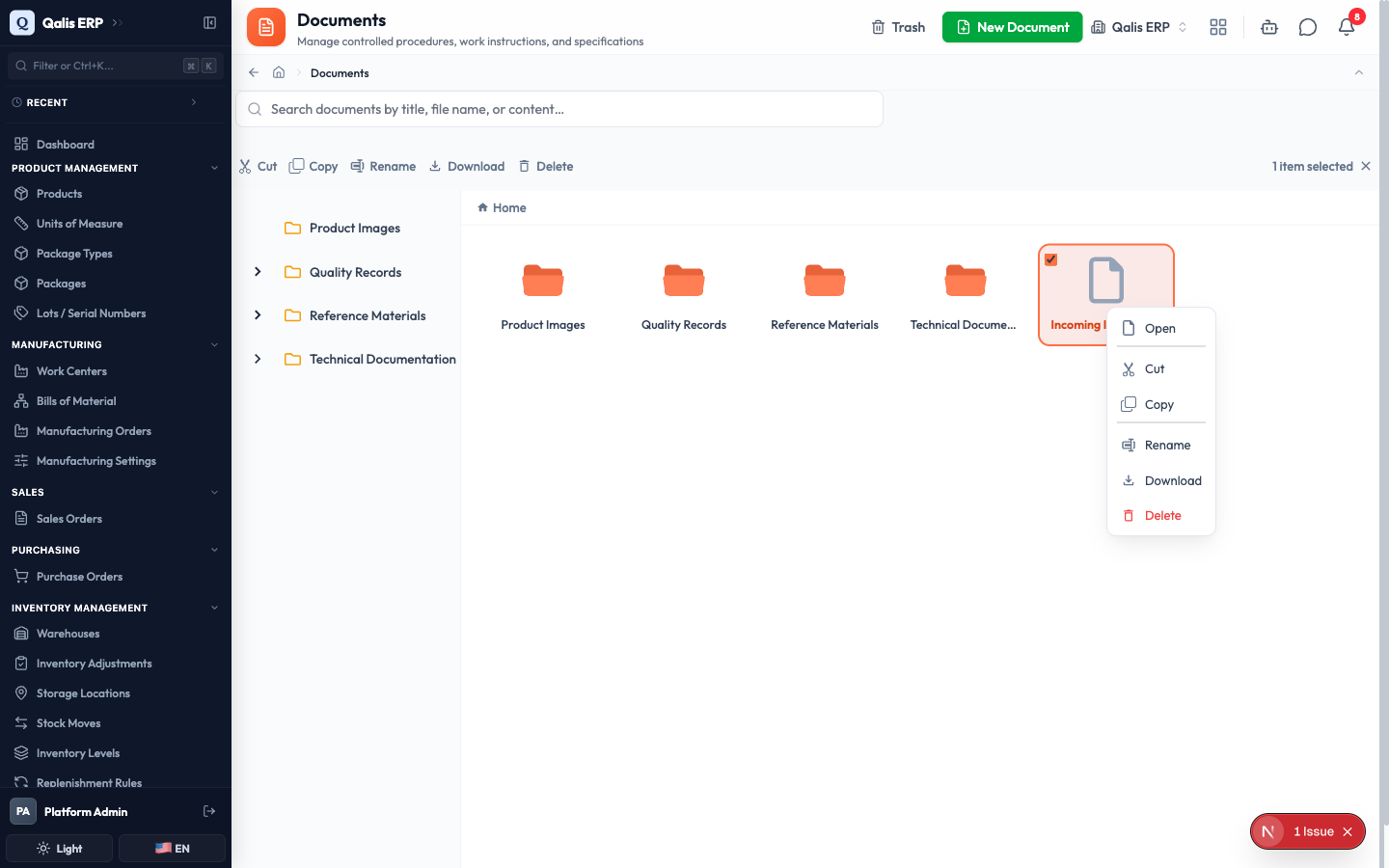
- From this menu you can:
- Rename the item.
- Cut it, open another folder, then paste it there to move it.
- Copy it to duplicate it into another folder.
- Download a file to your computer.
- Delete it, which sends it to the trash.
You can also drag an item and drop it onto a folder to move it. A file keeps its file type, so when you rename a file you should keep the part after the dot (for example
Find a document with search
When you know roughly what you are looking for, search is the fastest way to get to it.
- Click the Search documents by title, file name, or content box at the top of the library.
- Start typing. Results appear as you type, so there is no need to press Enter. The matching part of each result is highlighted.
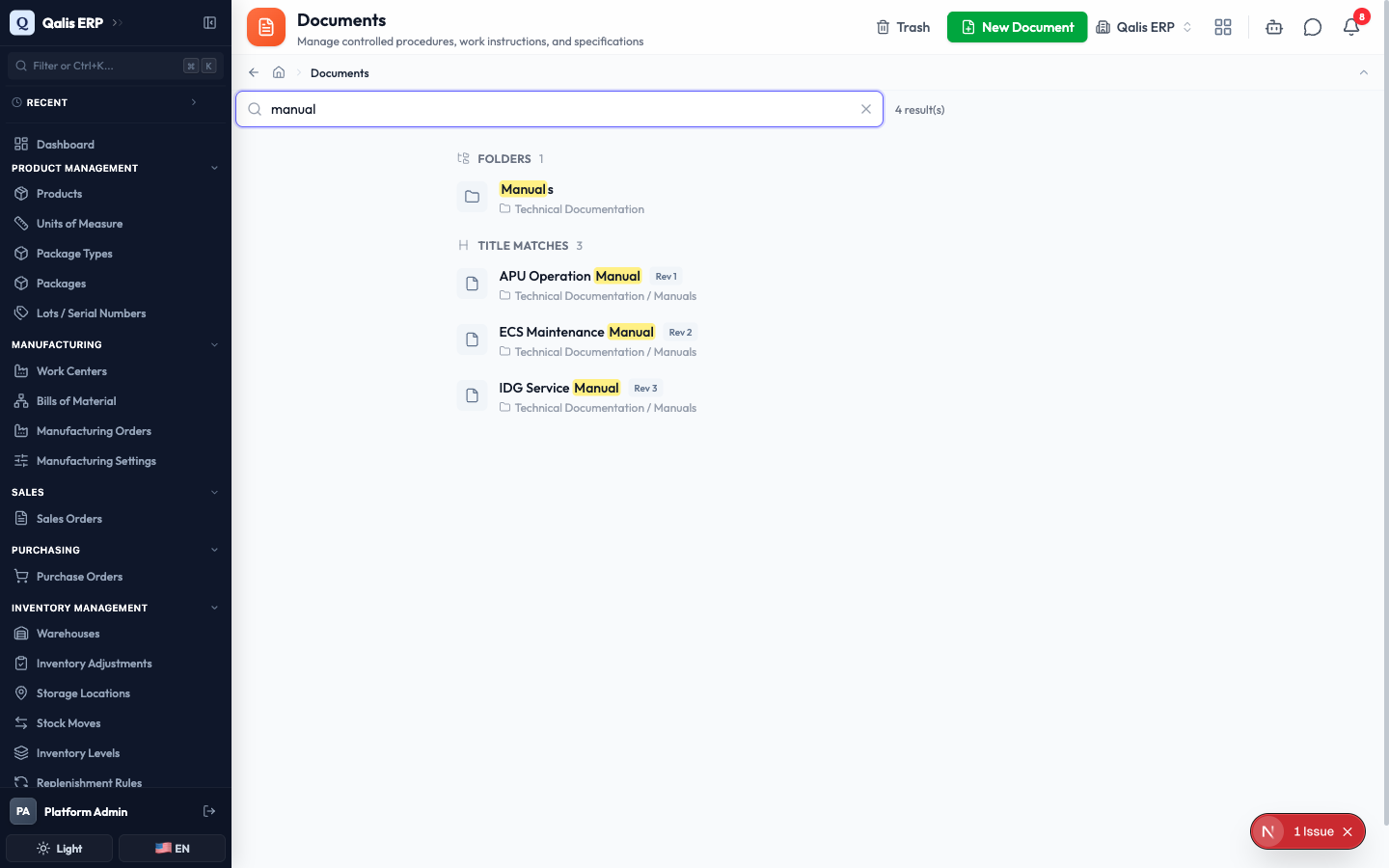
- Results are grouped to help you scan them: Folders, then Title matches, then File name and Content matches. Each result shows which folder it lives in. Click a result to open it, or click a folder to jump into it.
- To leave search and go back to browsing, clear the box with the X on the right.
Search looks inside your documents as well as at their names, so you can find a procedure by a phrase it contains, not only by its title.
Write a document
Use the built-in editor to write a procedure, a work instruction, or any note, without leaving Qualis.
- Click New Document at the top right of the library. The editor opens with an empty page.
- Type a name in the title box where it says Untitled Document, and set a Rev (revision) such as
1orA. - Write your content in the main area. Use the toolbar to add headings, bold or italic text, lists, links, and images, just like a normal word processor.
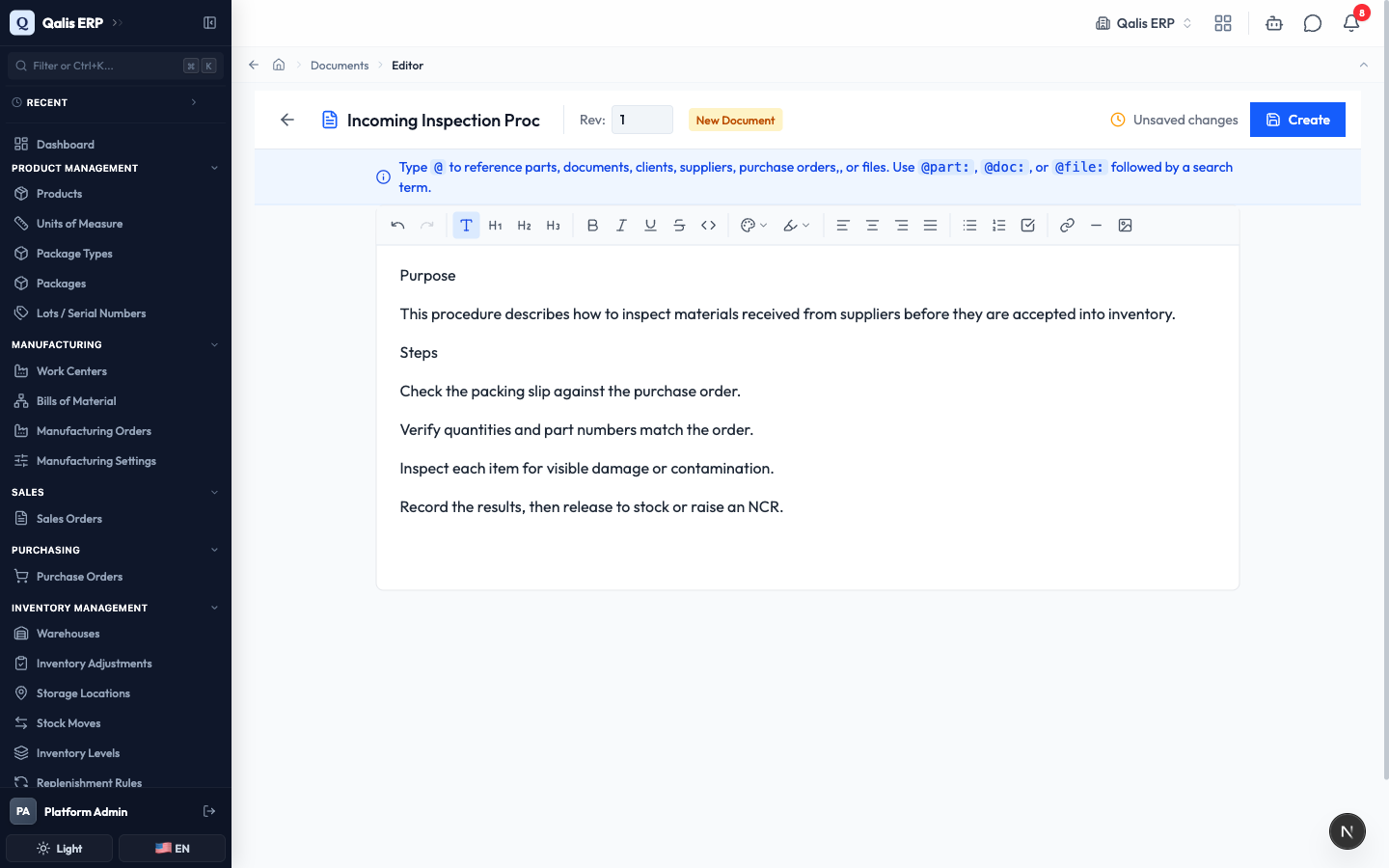
- When you are ready, click Create at the top right. Your document is saved and opens so you can read it.
The blue help bar reminds you that typing
@lets you link to other records, such as a part, a supplier, or a purchase order. This turns your document into a connected reference, not just plain text.
Open, read, and print a document
Opening a document shows it full screen, with everything you can do to it along the top.
- From the library or from a search result, click a document to open it. It fills the screen so you can read it comfortably.
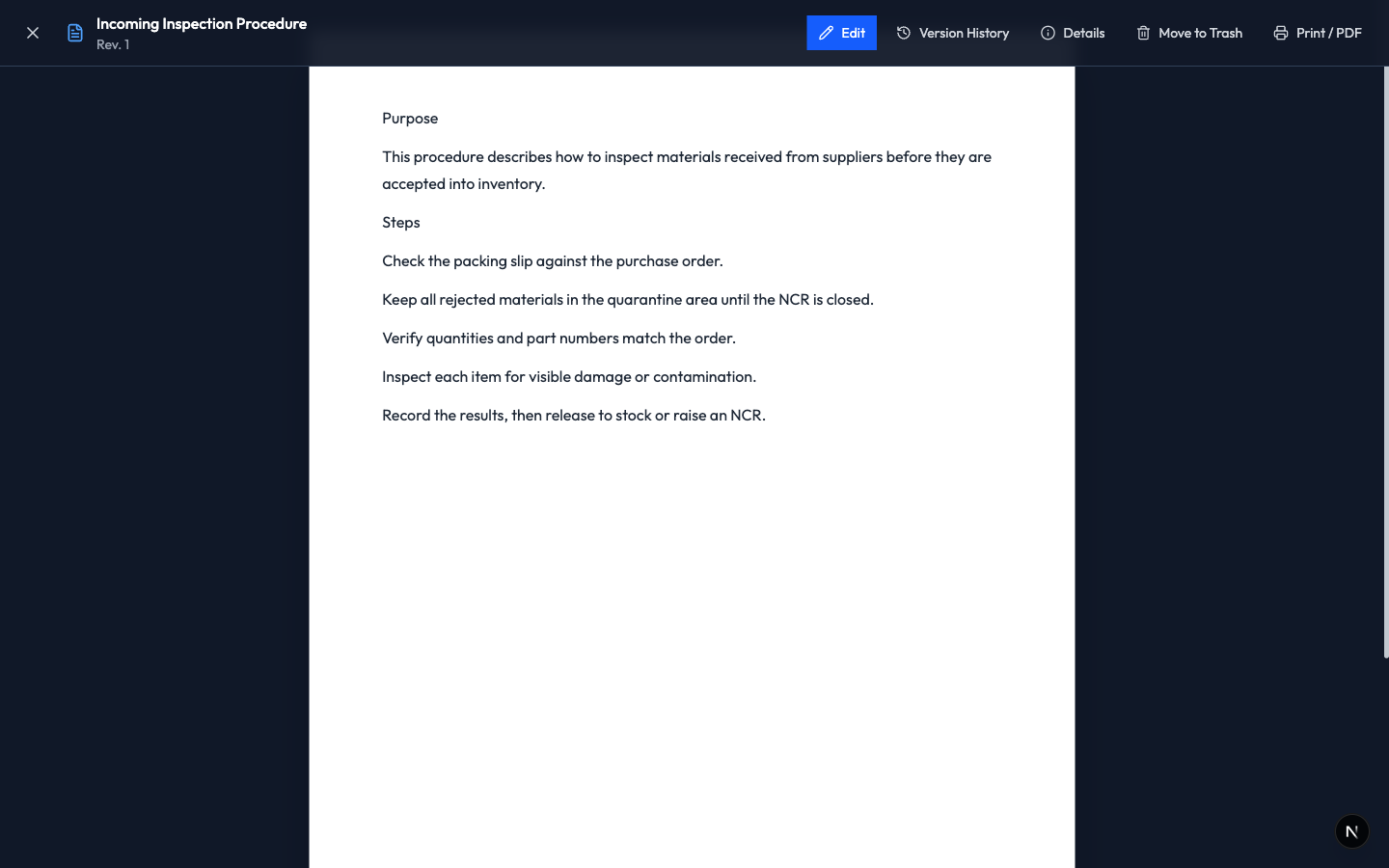
- Move your mouse to show the bar across the top. From there you can:
- Edit the document.
- Open its Version History.
- See its Details, such as its content type, revision, and folder, and for an uploaded file its type and size.
- Move to Trash.
- Print / PDF a written document, or Download an uploaded file.
- Click the X on the left to close the document and return to the library.
Uploaded files open the same way. A PDF or an image shows right on screen, and other file types offer a Download button so you can open them on your computer.
Edit a document and track its changes
Every time you save, Qualis keeps the previous version, so you can always look back and undo a change.
- Open the document and click Edit. The editor opens with the current content.
- Make your changes. You can also raise the Rev when the change is significant. The top of the screen shows Unsaved changes until you save.
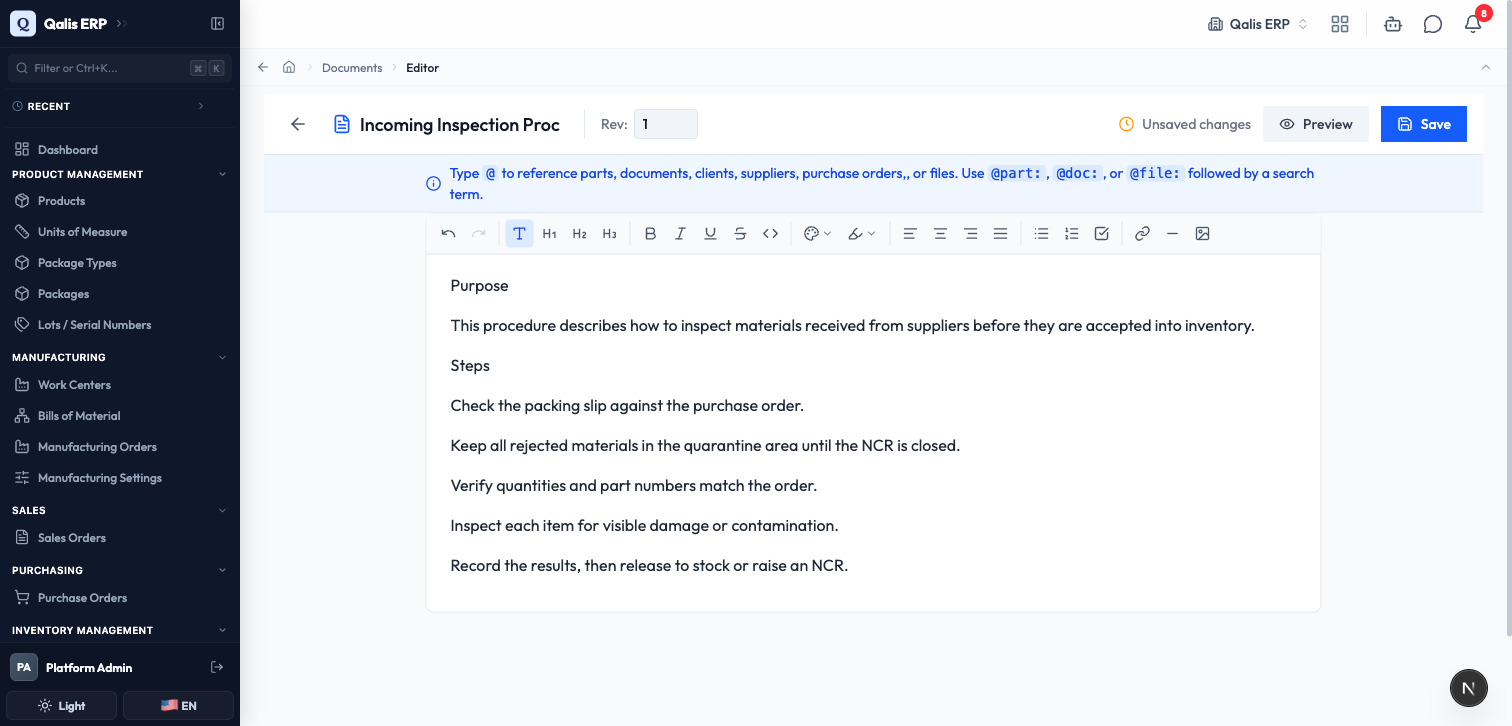
- Click Save. A new version is recorded automatically.
- To review history, open the document and click Version History. The Current Version is shown at the top, and All Versions lists every saved version with who changed it and when. Each one has a Restore button.
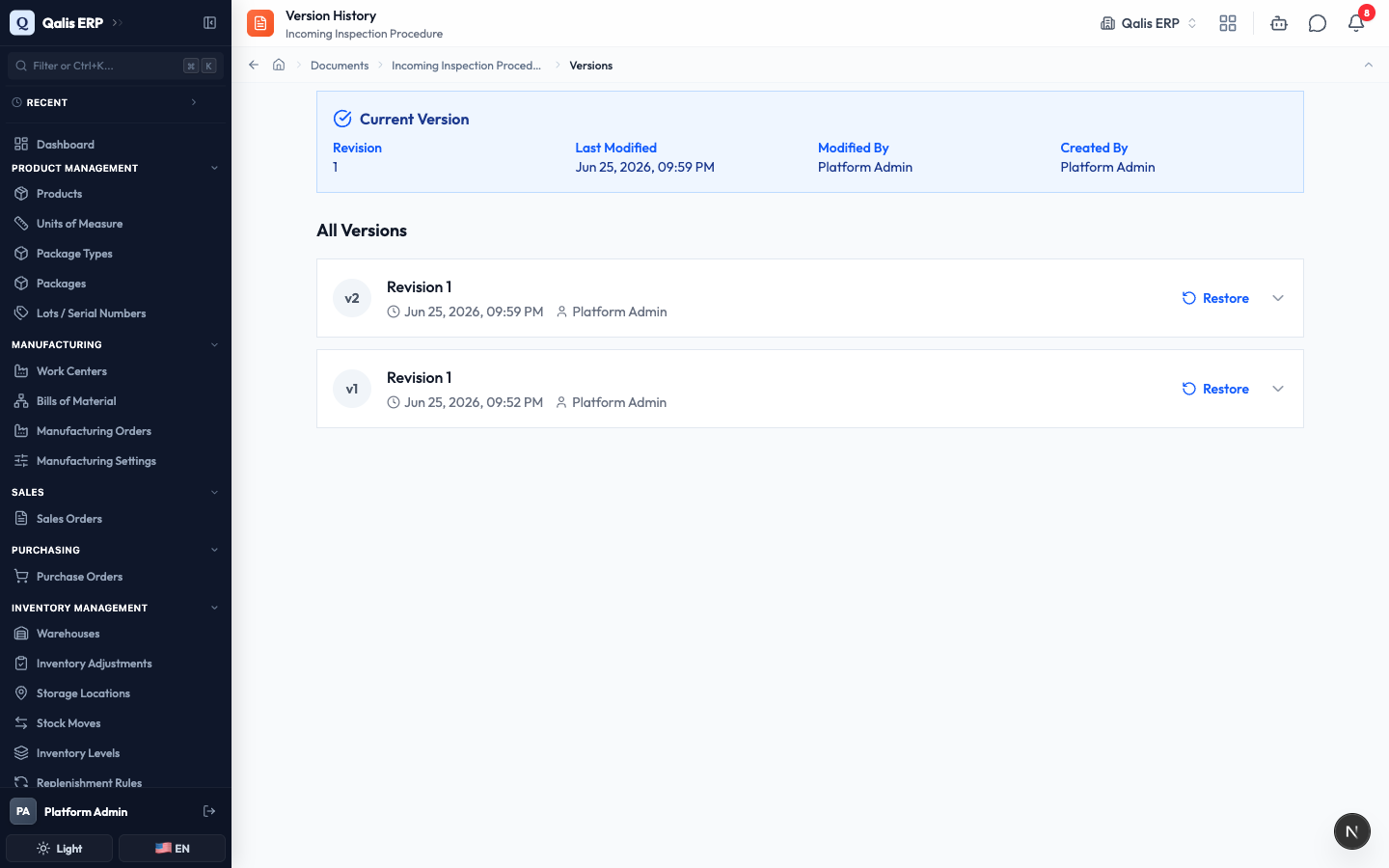
- Click a version to expand it, then open the Changes tab to see exactly what was added (in green) and removed (in red) compared with the version before it.
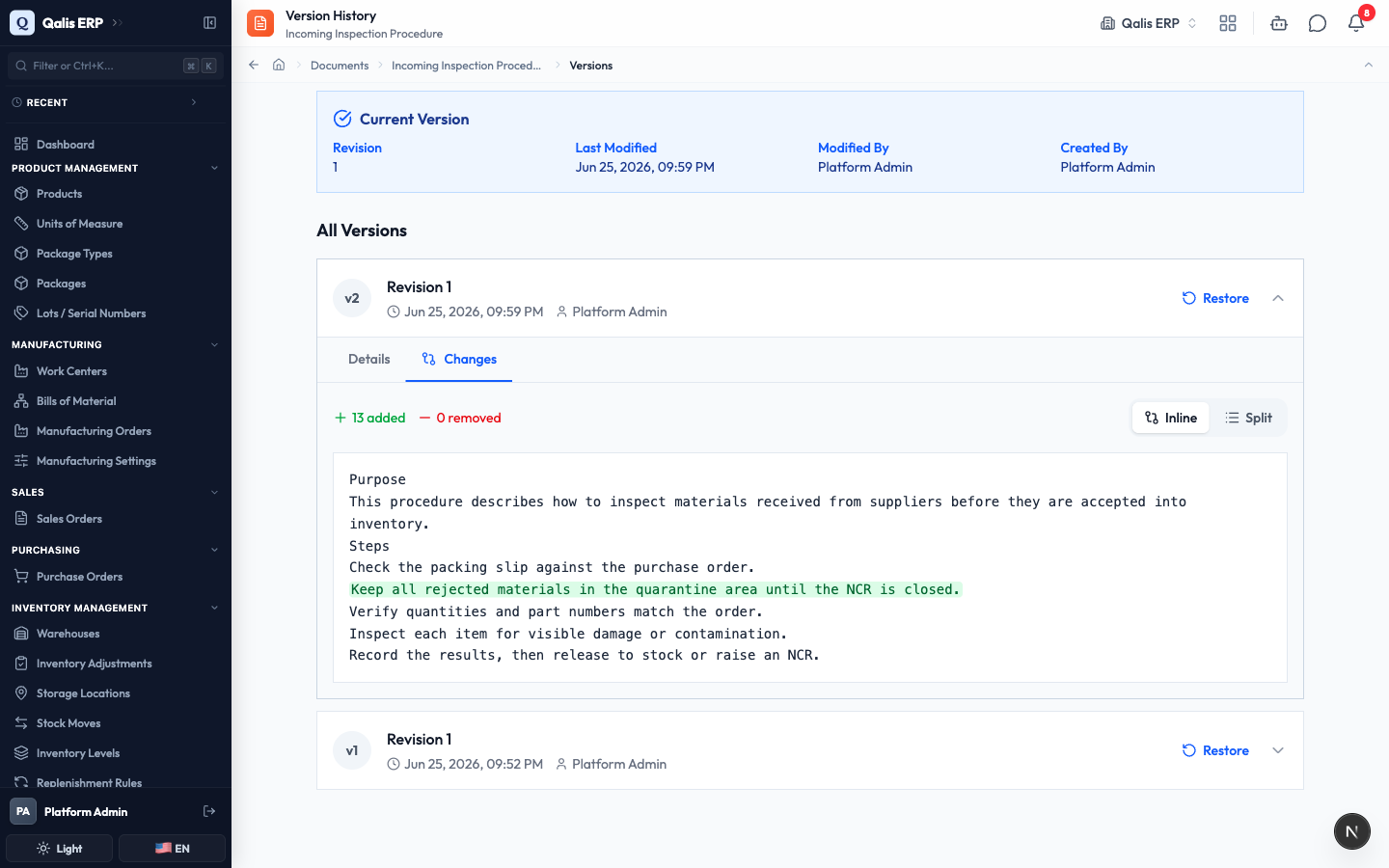
To go back to an earlier version, click Restore next to it. This does not erase anything: it creates a new version with the older content, so your full history stays intact.
Delete a document and restore it
Deleting is safe. Items go to the trash first, where you can bring them back.
- To delete an item, right click it and choose Delete, or open it and click Move to Trash, then confirm.
- To see deleted items, click Trash at the top right of the library. Each row shows what was deleted, when, and who created it.
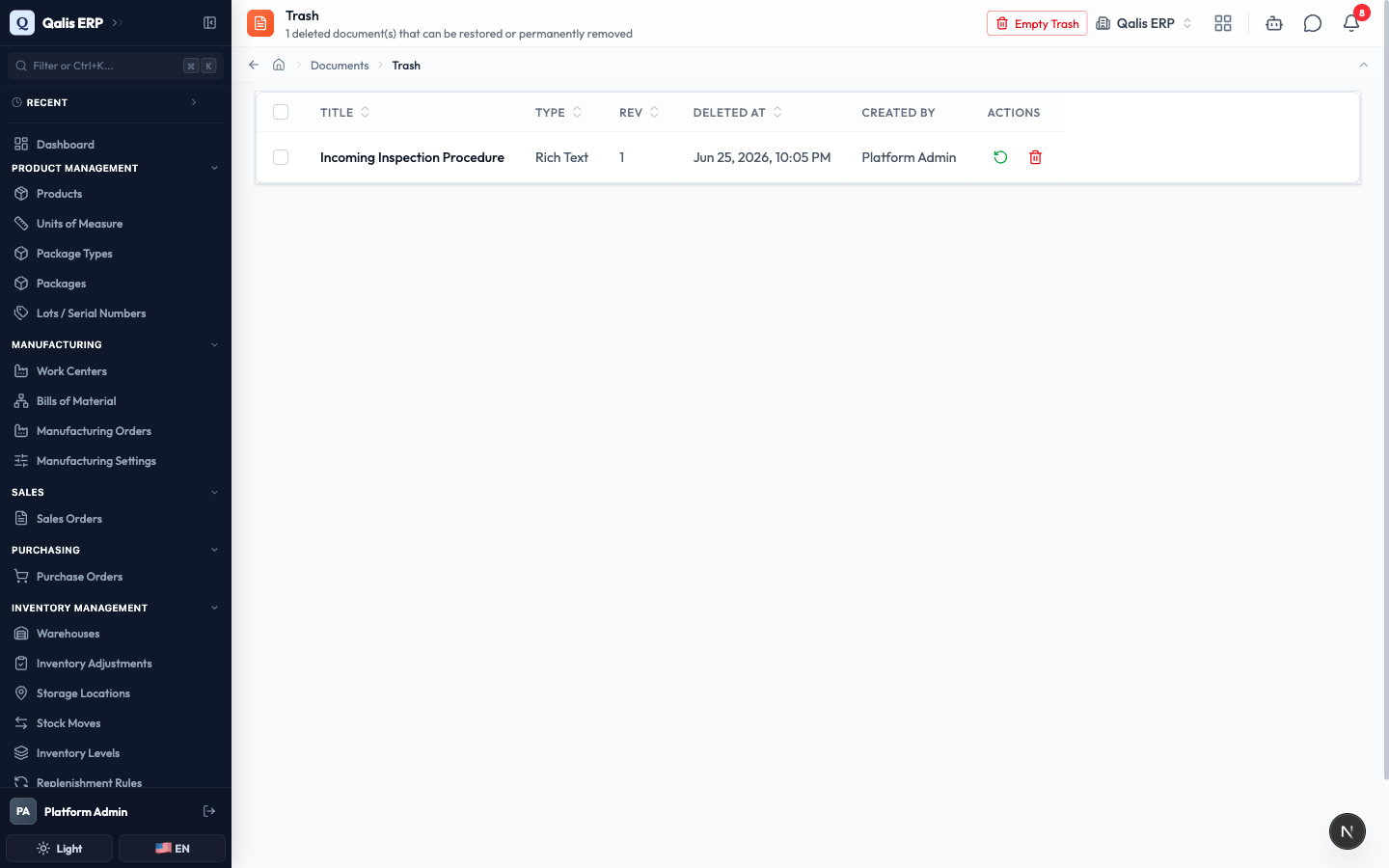
- To bring an item back, click the restore icon on its row and confirm. It returns to the documents list, right where it was.
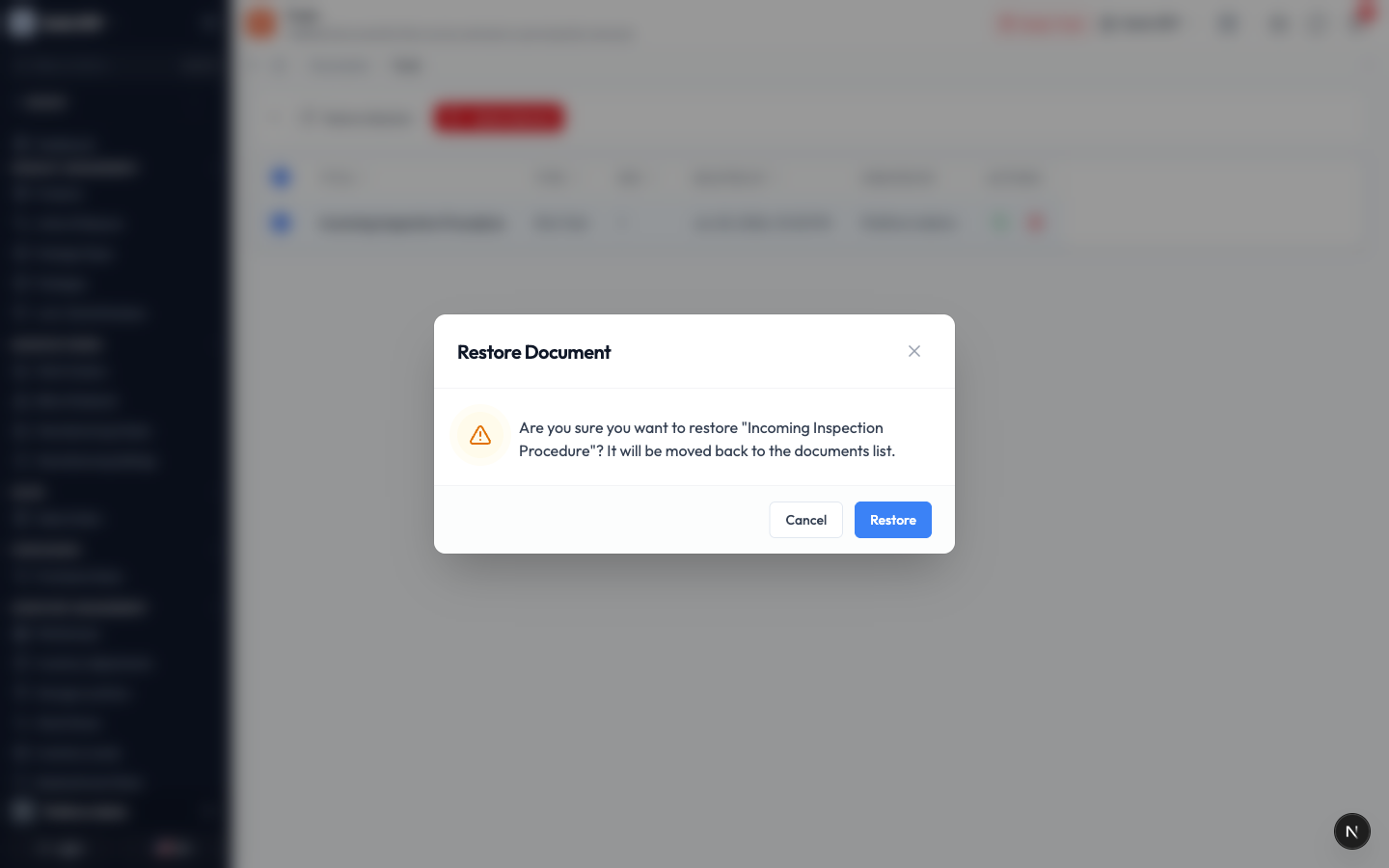
To remove something for good, use the delete icon on its row, or Empty Trash to clear everything. Permanent deletion cannot be undone, so use it only when you are sure.
Good to know
- File: something you upload from your computer, such as a PDF, an image, or an Office document.
- Rich text document: content you write inside Qualis using the built-in editor, like a procedure or a note.
- Folder: a container that holds files and documents, and can sit inside another folder.
- Revision: a short label (like
1orA) that tells people which version of a document they are looking at. - Version: an automatic snapshot saved every time you save a document, so you can compare changes and restore an earlier one.
- Trash: where deleted items wait. You can restore them, or remove them for good.
- Attachment: a file linked to another record (such as a purchase order). It is stored here but hidden from the library so the library stays clean.