Tasks
Capture the work your team needs to do, assign it, set a due date and priority, and follow each task from idea to done on a board or in a table.
Last updated on July 1, 2026
The Tasks module is your team's shared to-do list. Use it to write down work that needs doing, hand it to the right people, give it a priority and a due date, and follow it all the way to done. You can watch your tasks on a drag-and-drop board or in a sortable table, link a task to the records it relates to (a product, a supplier, an order, a non-conformance, and more), talk it through with comments, and keep a full history of every change.
You reach the module from the left sidebar under Project Management, then Tasks.
Before you start
You can create a task with nothing more than a title, so there are no hard requirements. Two things make a task more useful, so it helps to have them ready:
- The people you want to assign a task to must already exist as users.
- Any record you want to link a task to (a product, supplier, client, order, non-conformance, and so on) should already exist, so you can pick it from the list.
Find and browse your tasks
Start here to see everything on your plate and zero in on what matters now. Tasks come in two views, and you switch between them with the Table and Kanban buttons at the top.
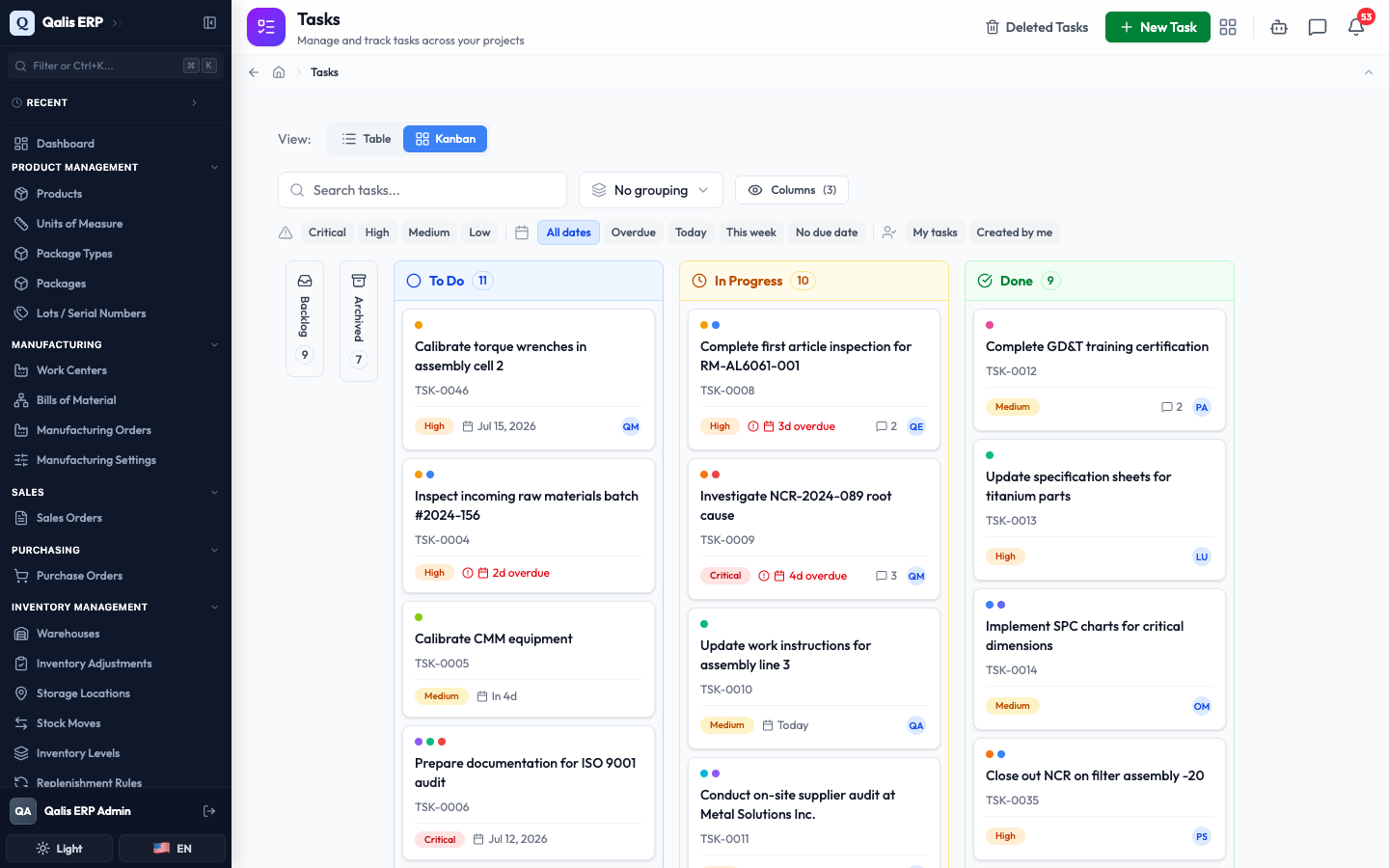
The Kanban board is the default. It lays your tasks out in columns by status: Backlog, To Do, In Progress, Done, and Archived (Backlog and Archived sit as small chips on the left; click one to open it). Each card shows the task's title, its number (like TSK-0009), its priority, its due date, and the initials of whoever it is assigned to. A due date turns red when it is past due.
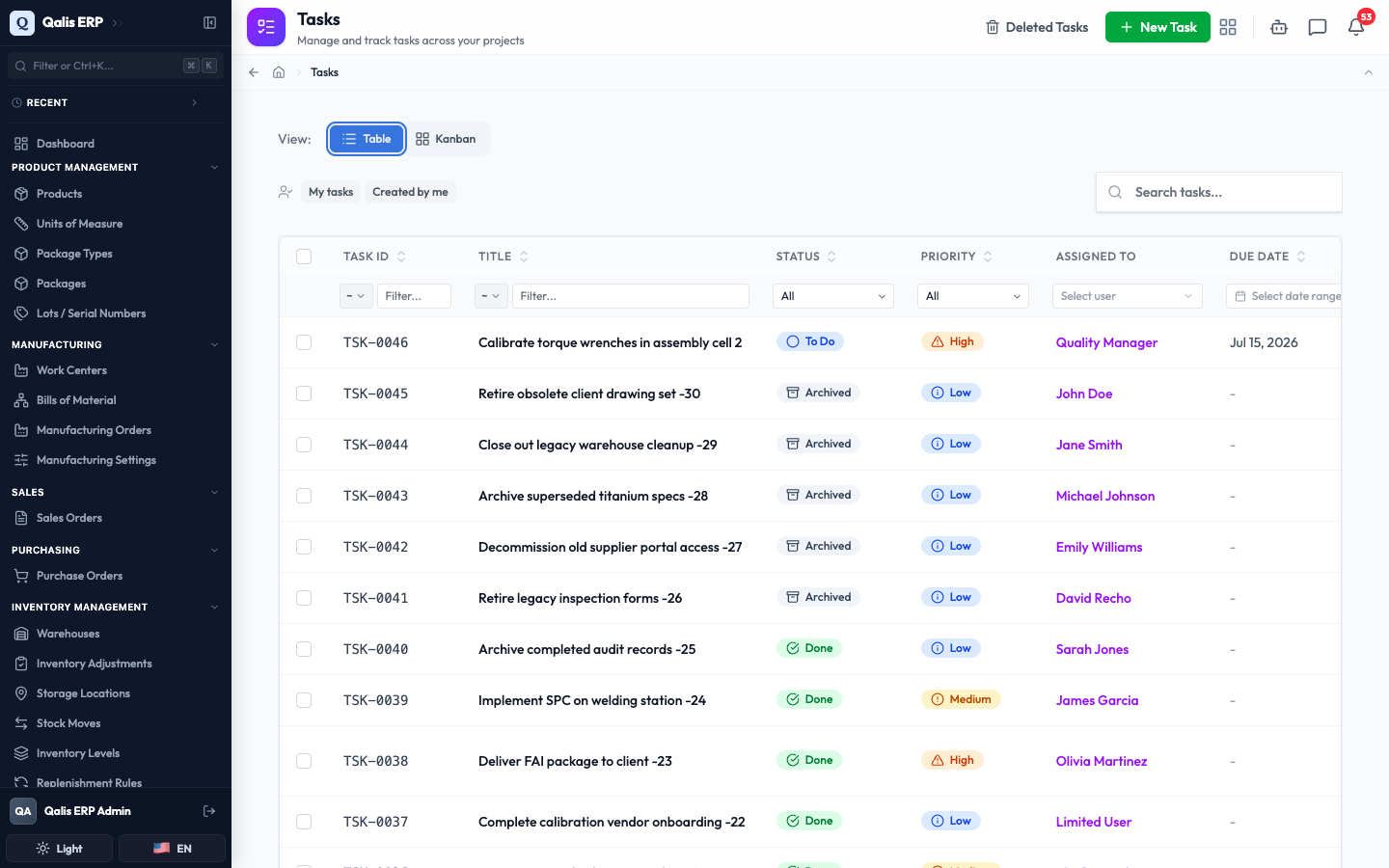
Click Table to see the same tasks as a list instead. The table gives you sortable columns (Task ID, Title, Status, Priority, Assigned To, Due Date, and more), a filter under each column heading, and clickable links to the people and records a task points to.
To narrow things down, use the filter row above the tasks:
- Type in the Search tasks... box to match by title. The list filters as you type, so there is no need to press Enter.
- Click a priority chip (Critical, High, Medium, Low) or a due date chip (All dates, Overdue, Today, This week, No due date).
- Click My tasks to see only tasks assigned to you, or Created by me for the ones you raised.
Here the board is filtered to High priority tasks that are Overdue, so only the urgent, past-due work shows.
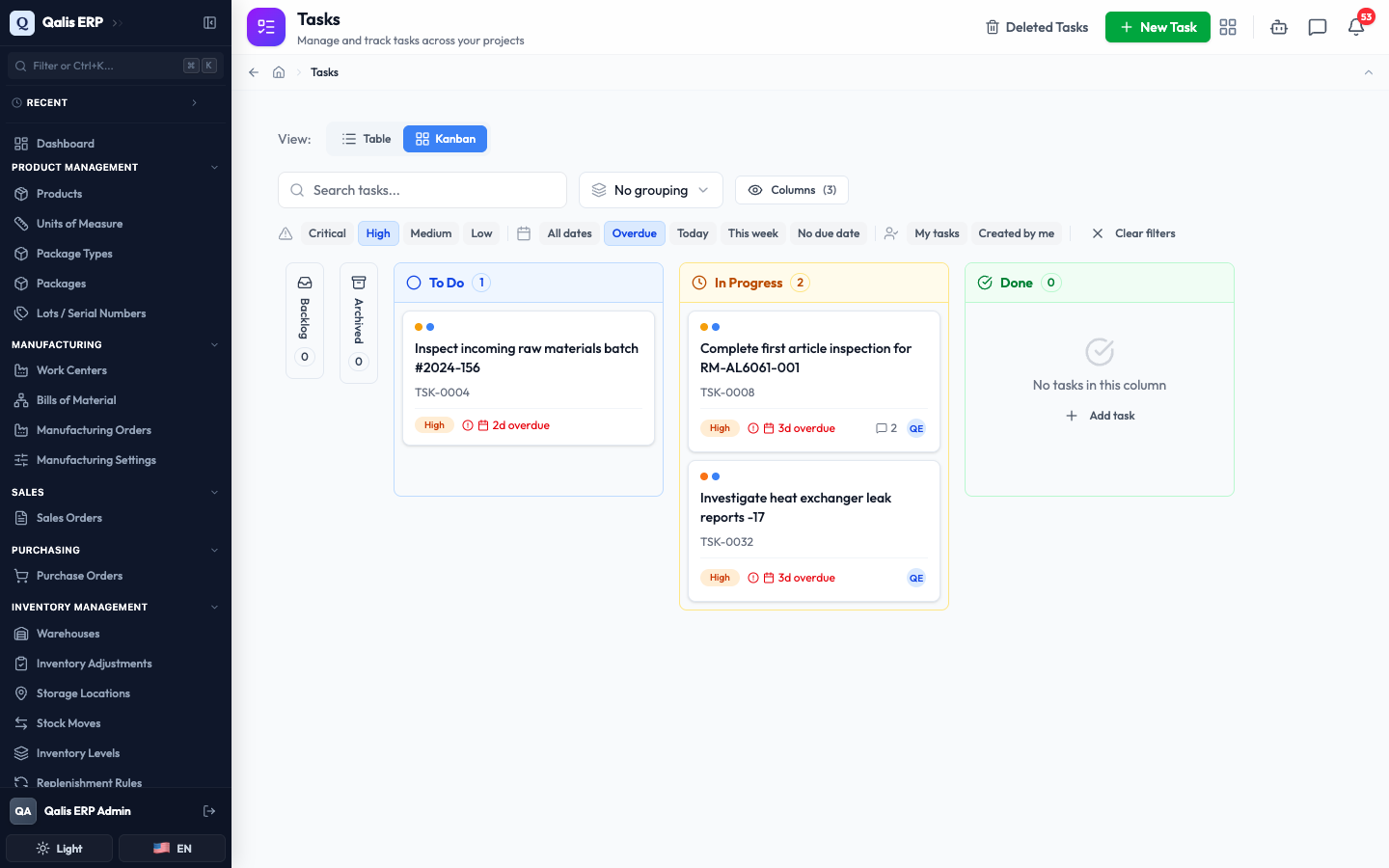
Whenever a filter is on, a Clear filters button appears so you can reset everything in one click. The web address updates with your filters too, so you can bookmark a view or share it with a colleague.
Create a task
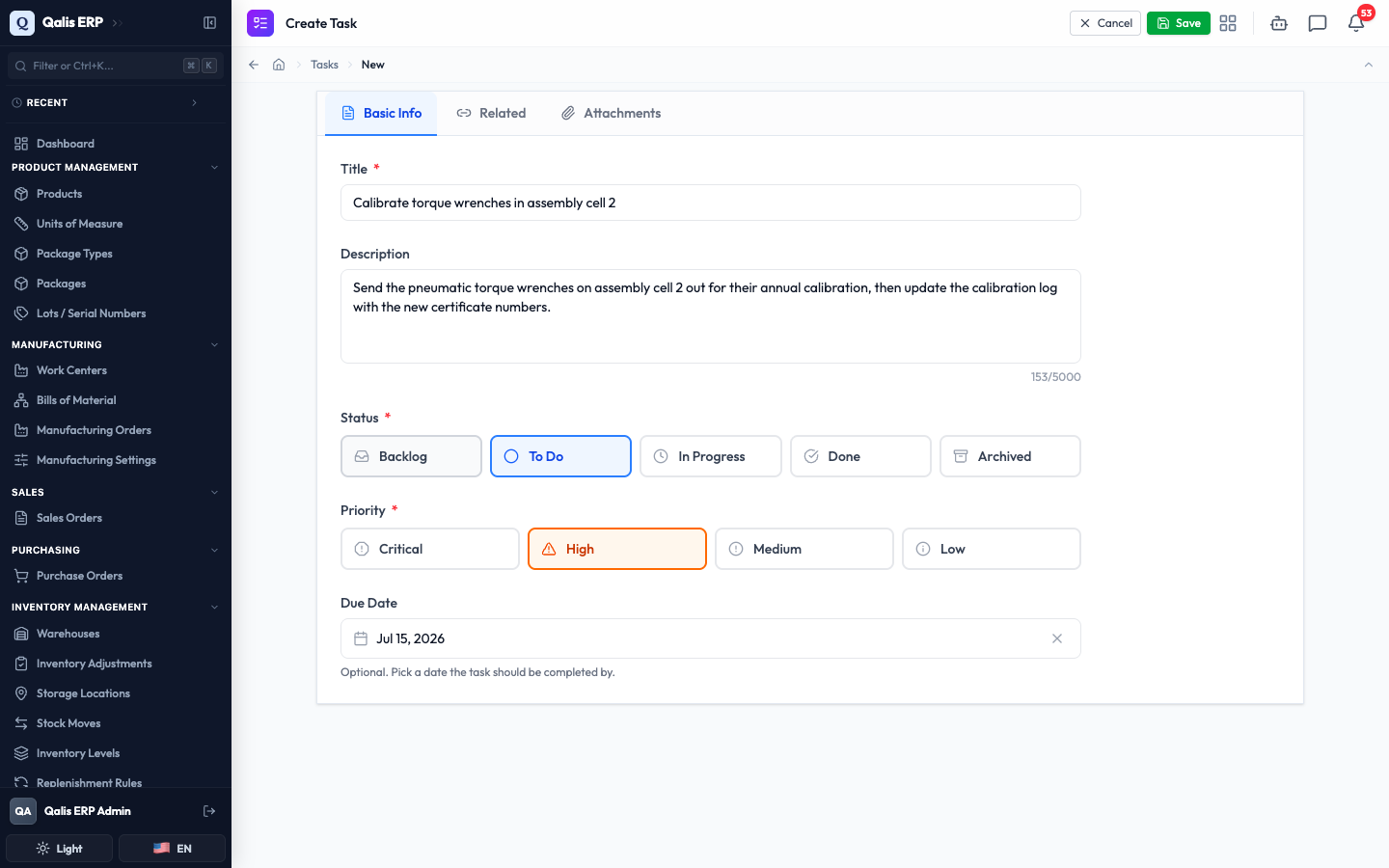
This is the main task: writing down a new piece of work. Click New Task at the top right. The form is split into three tabs, so you can fill it in one part at a time. Only a Title is required.
- On the Basic Info tab, type a Title that says what needs doing (for example, "Calibrate torque wrenches in assembly cell 2").
- Add an optional Description with the details.
- Choose a Status (where the task starts, such as To Do) and a Priority (Critical, High, Medium, or Low).
- If the work has a deadline, click Due Date and pick a day from the calendar. There is a Today button for quick picks.
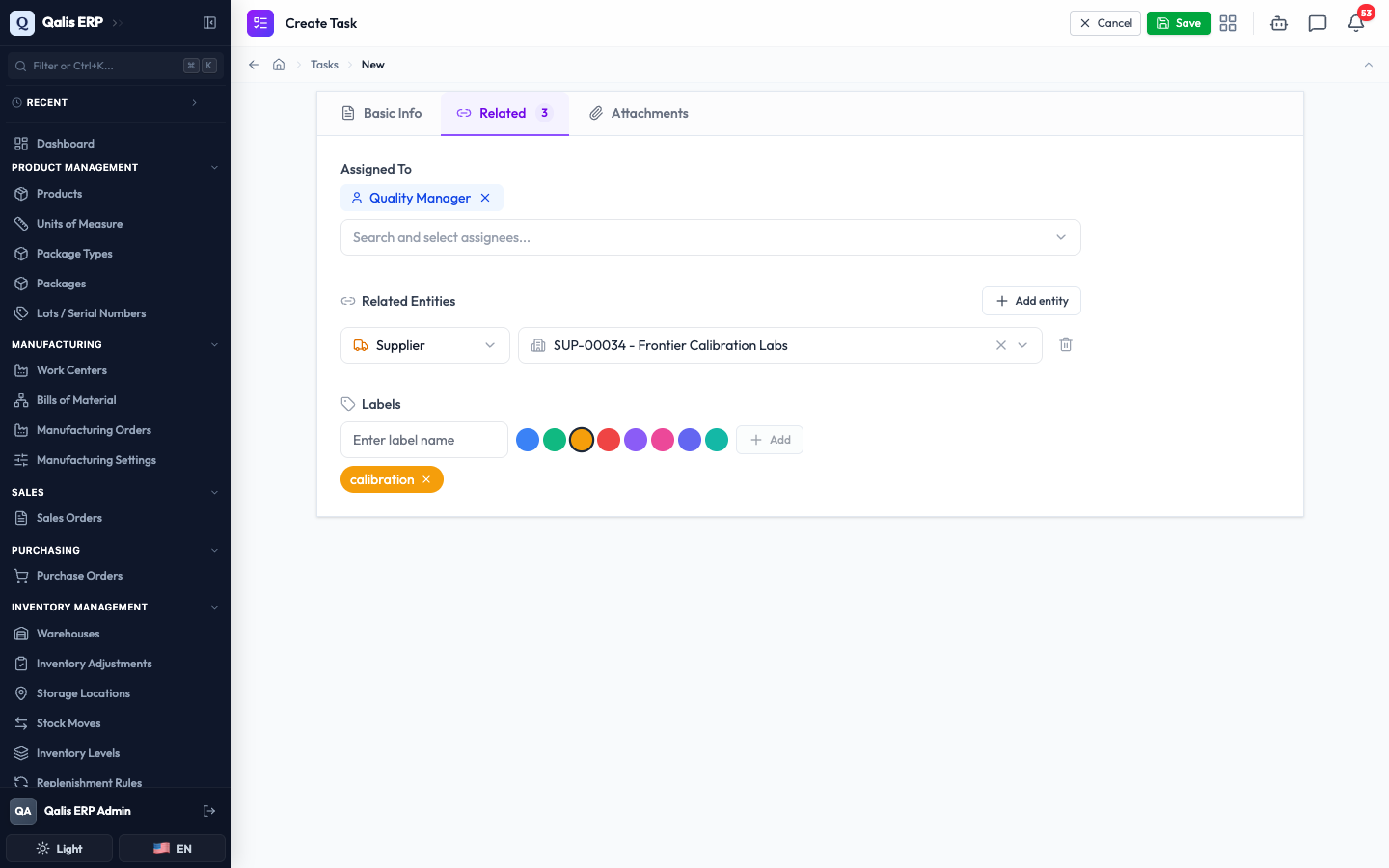
- Open the Related tab to connect the task to people and records. Under Assigned To, search for and pick one or more people. Under Related Entities, click Add entity, choose a type (such as Supplier), and pick the record. Under Labels, type a short tag, pick a color, and click Add.
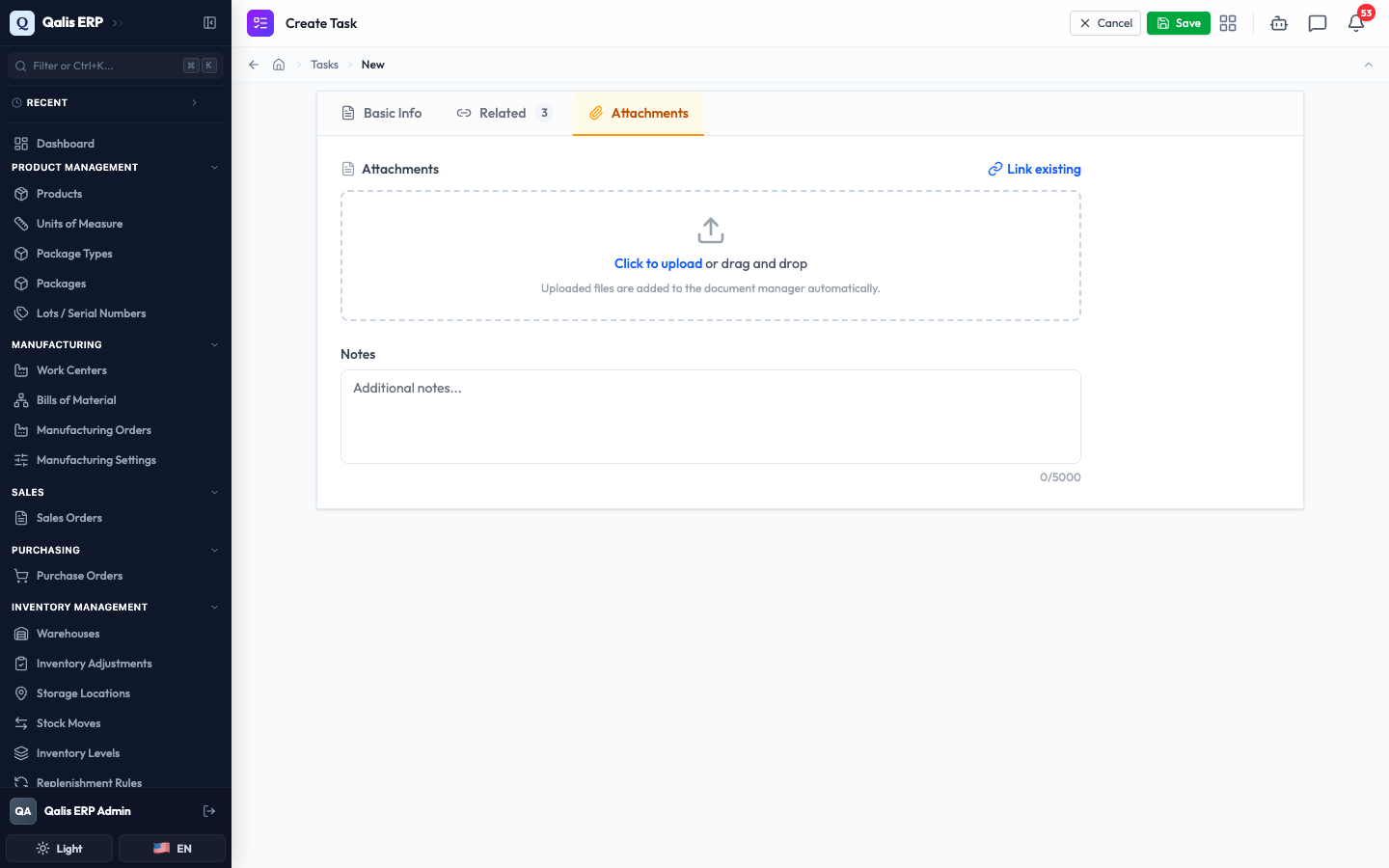
- Open the Attachments tab if you want to attach a file. Drag a file onto the box or click Click to upload, or use Link existing to point to a file already in the document manager. This tab also holds a Notes field for anything extra.
- Click Save at the top right.
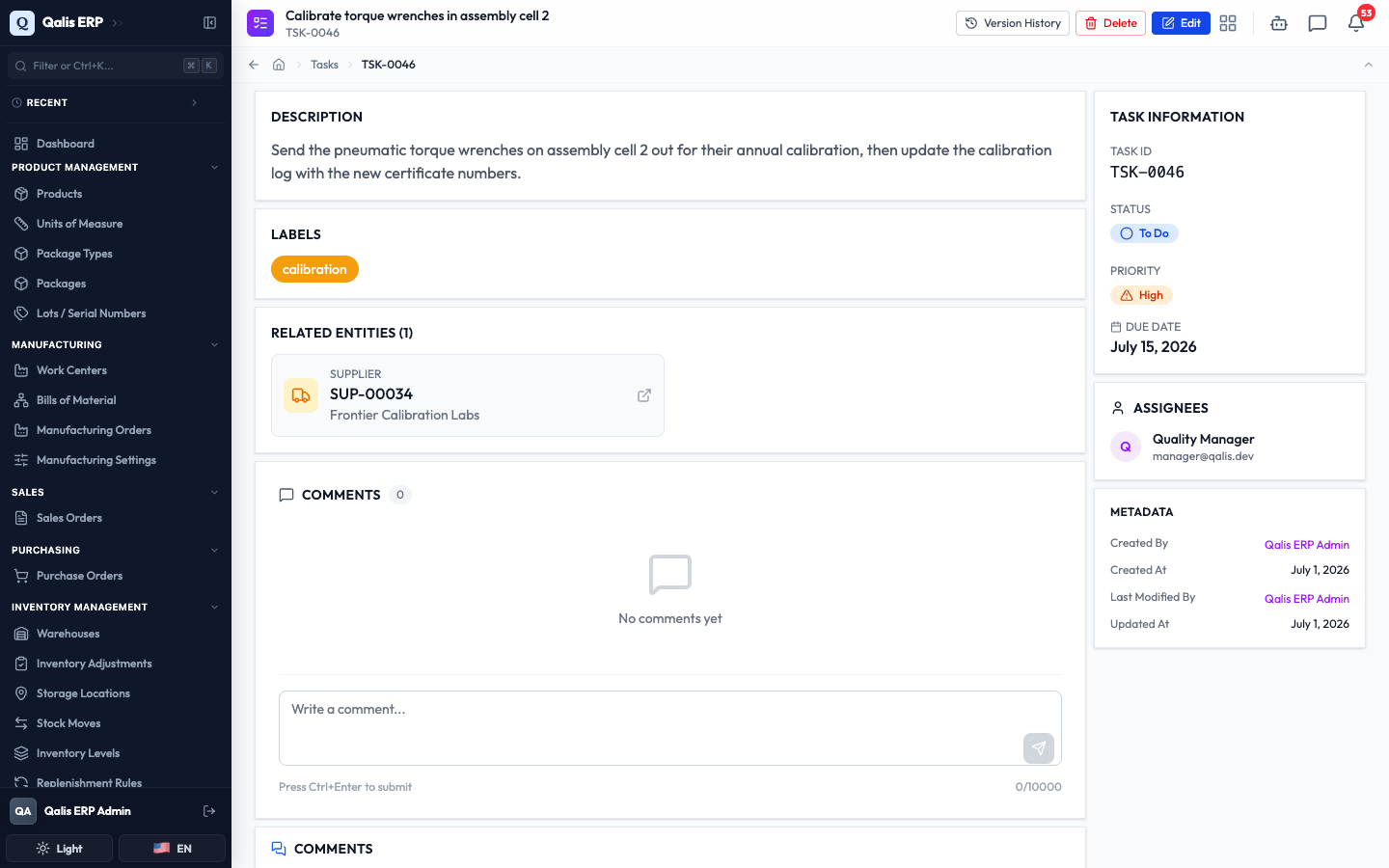
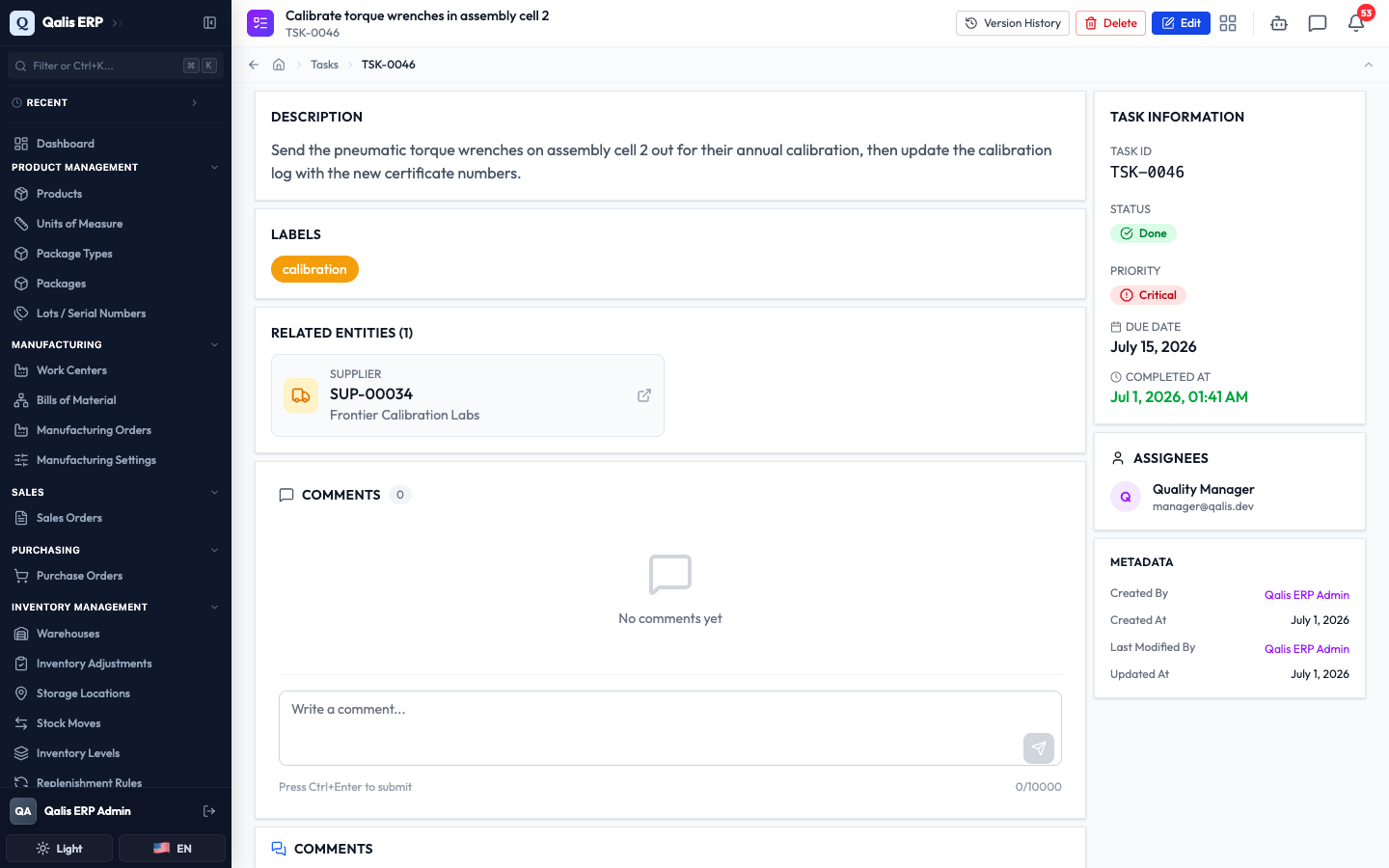
Qualis saves the task, gives it a number (like TSK-0046), and takes you straight to its detail page, where you can see everything you entered.
Nothing is saved while you are still filling in the form, so you can change your mind freely. The task only exists once you click Save.
Move a task through its stages
The board is where day-to-day work happens. To change a task's status, drag its card from one column to another. Move it from To Do to In Progress when you start, and into Done when it is finished. As you drag, the card lifts and the target column highlights so you can see where it will land.
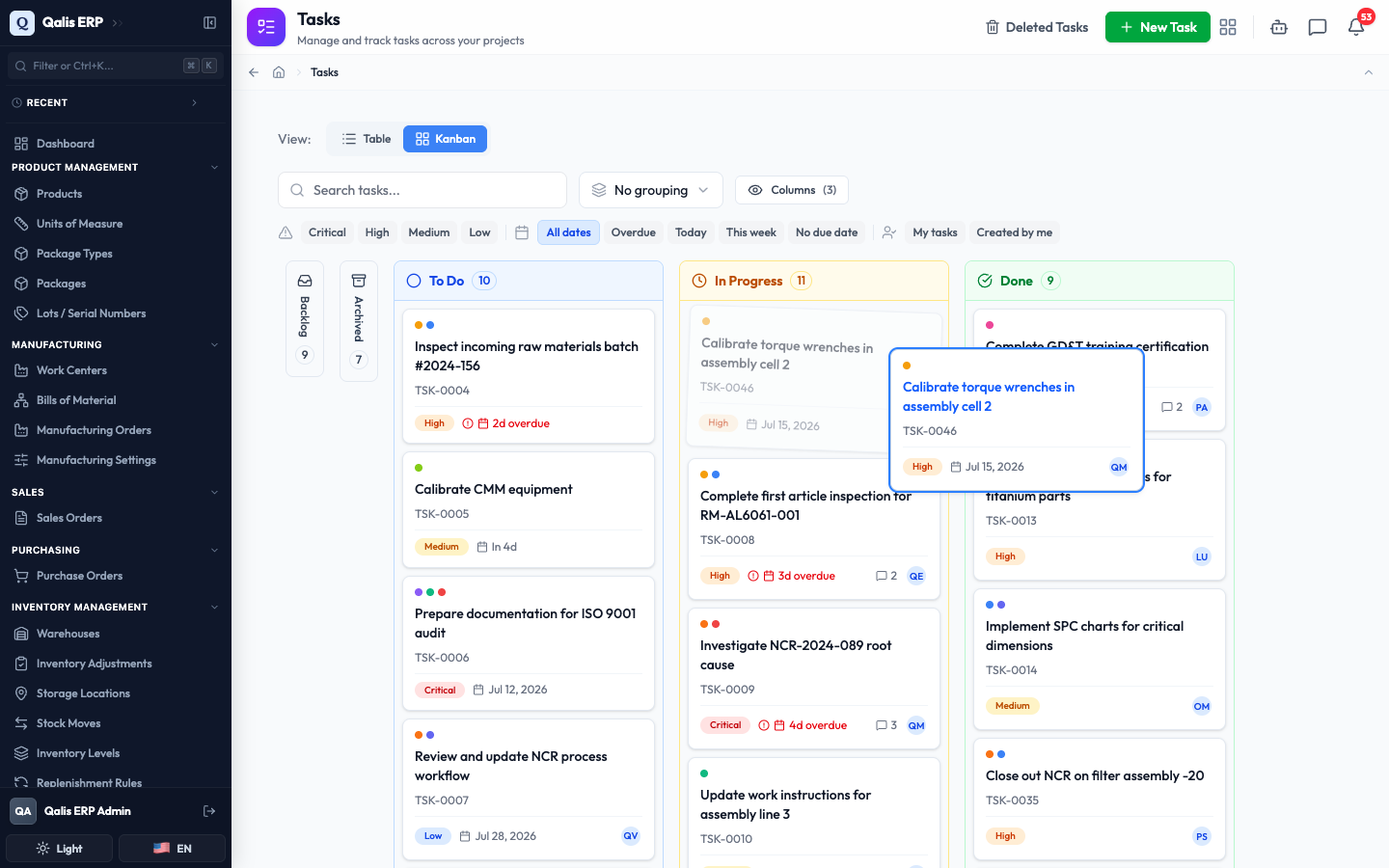
When you drop a task in Done, Qualis records the time it was completed. You can drag it back to another column at any time if the work reopens.
Each column also has a small + at the top to add a task straight into that stage. It opens the same New Task form with the status already chosen for you. An empty column shows an Add task button that does the same thing.
Open and read a task
Open any task to understand it fully. Click a card on the board, a row in the table, or a task number anywhere in Qualis.
- The top of the page shows the title, the task number, and the buttons for everything you can do: Version History, Delete, and Edit.
- If a task is past its due date and not yet done, a red Overdue banner appears at the top.
- The main area lays out the Description, Labels, Related Entities (each one a link you can follow), any Attachments, Notes, and the Comments.
- The panel on the right sums up the Task Information (task number, status, priority, due date, and the completed date once it is done), the Assignees, and the Metadata (who created and last changed it, and when).
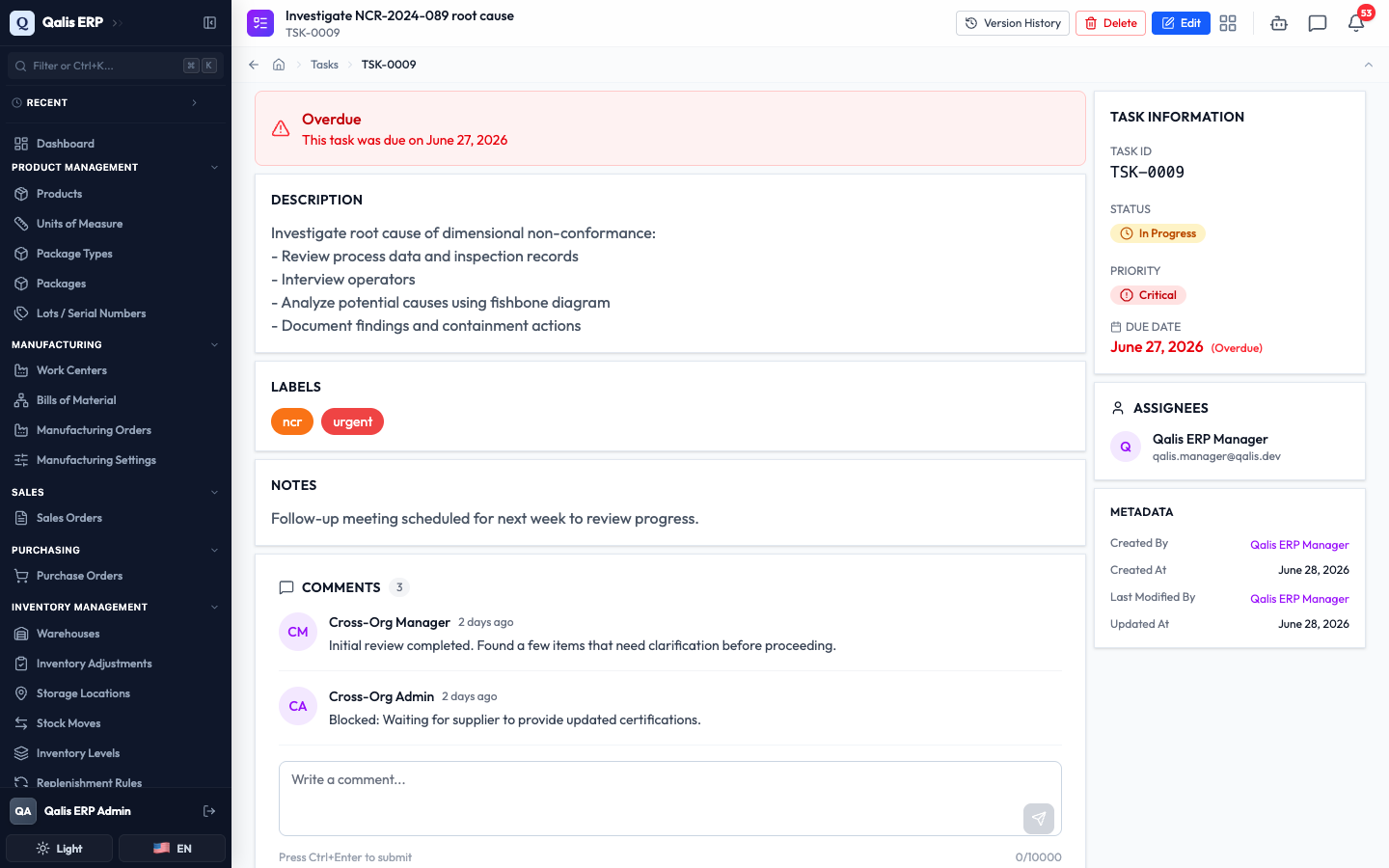
Further down the page there is an Activity area with Comments, Tasks, and History tabs. It keeps a running log of what has happened on the task.
Discuss a task with comments
Comments keep the conversation about a task in one place, right next to the work. Open a task and scroll to the Comments section.
- Type your note in the Write a comment... box.
- Click the send button, or press Ctrl+Enter.
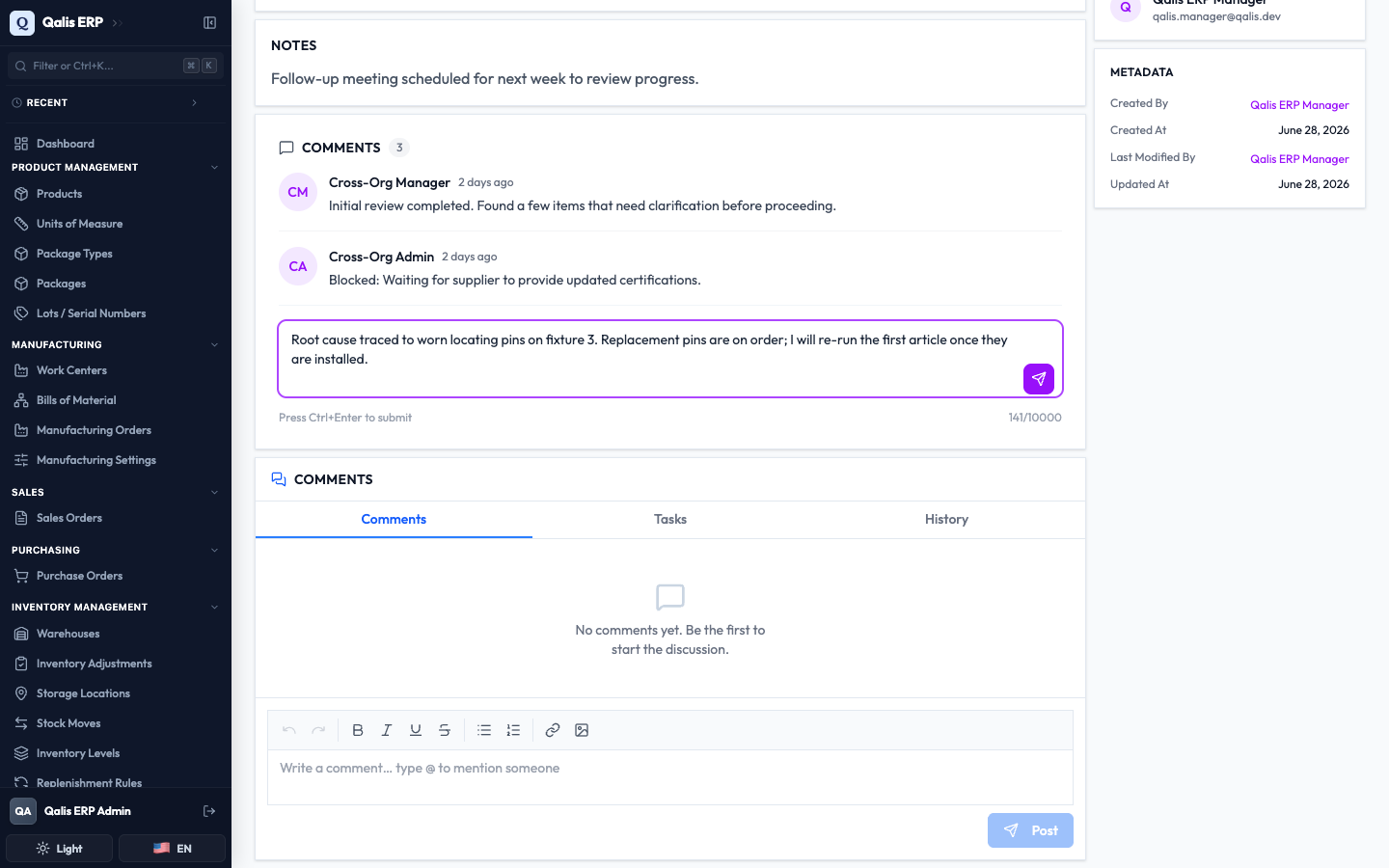
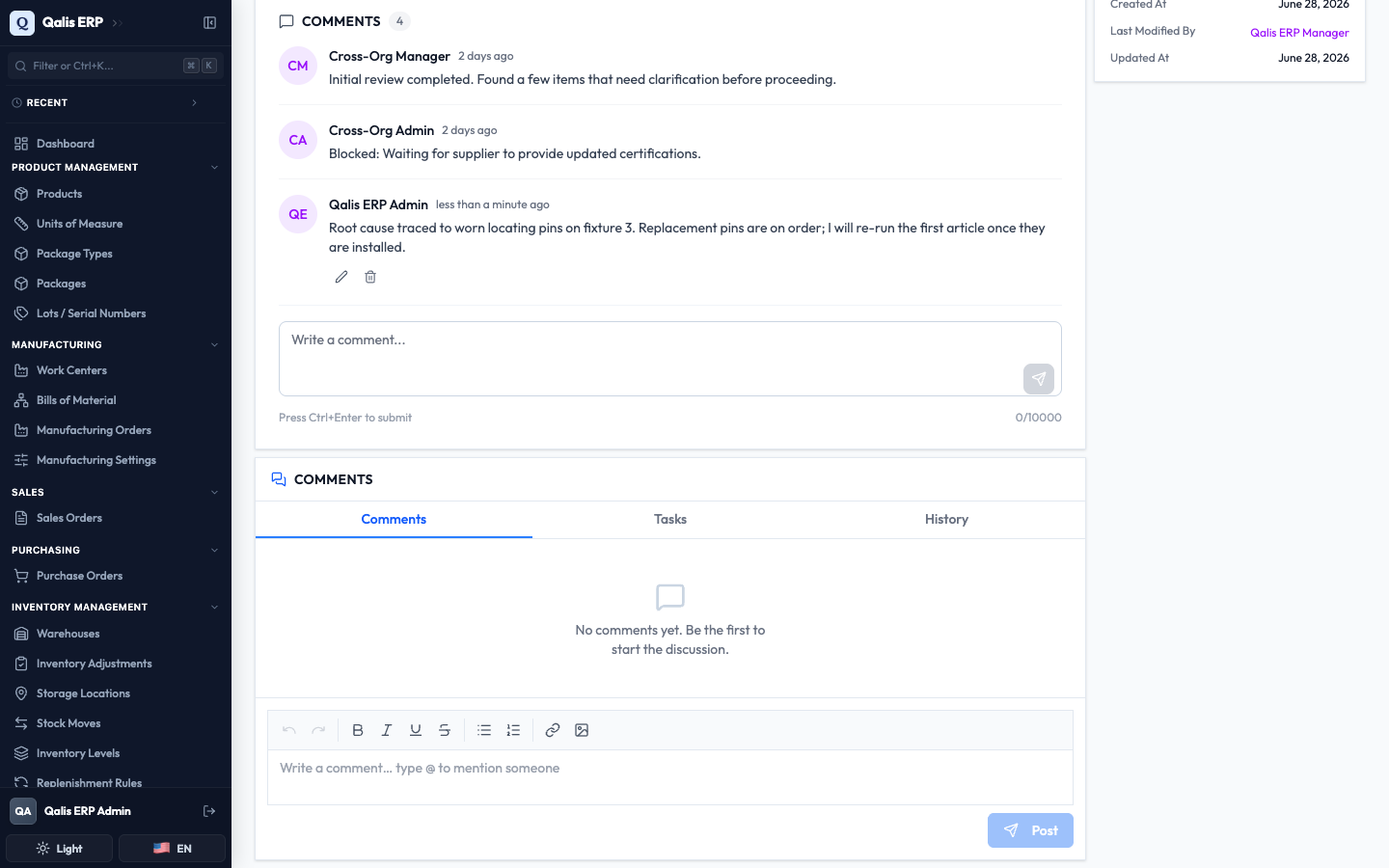
Your comment appears straight away, with your name and the time. You can edit or delete your own comments later using the small icons on them.
Edit a task
Update a task whenever something changes, such as its priority, its due date, or who is working on it.
- Open the task and click Edit at the top right. The same three-tab form opens, already filled in with the current values.
- Make your change. Here the priority is raised from High to Critical.
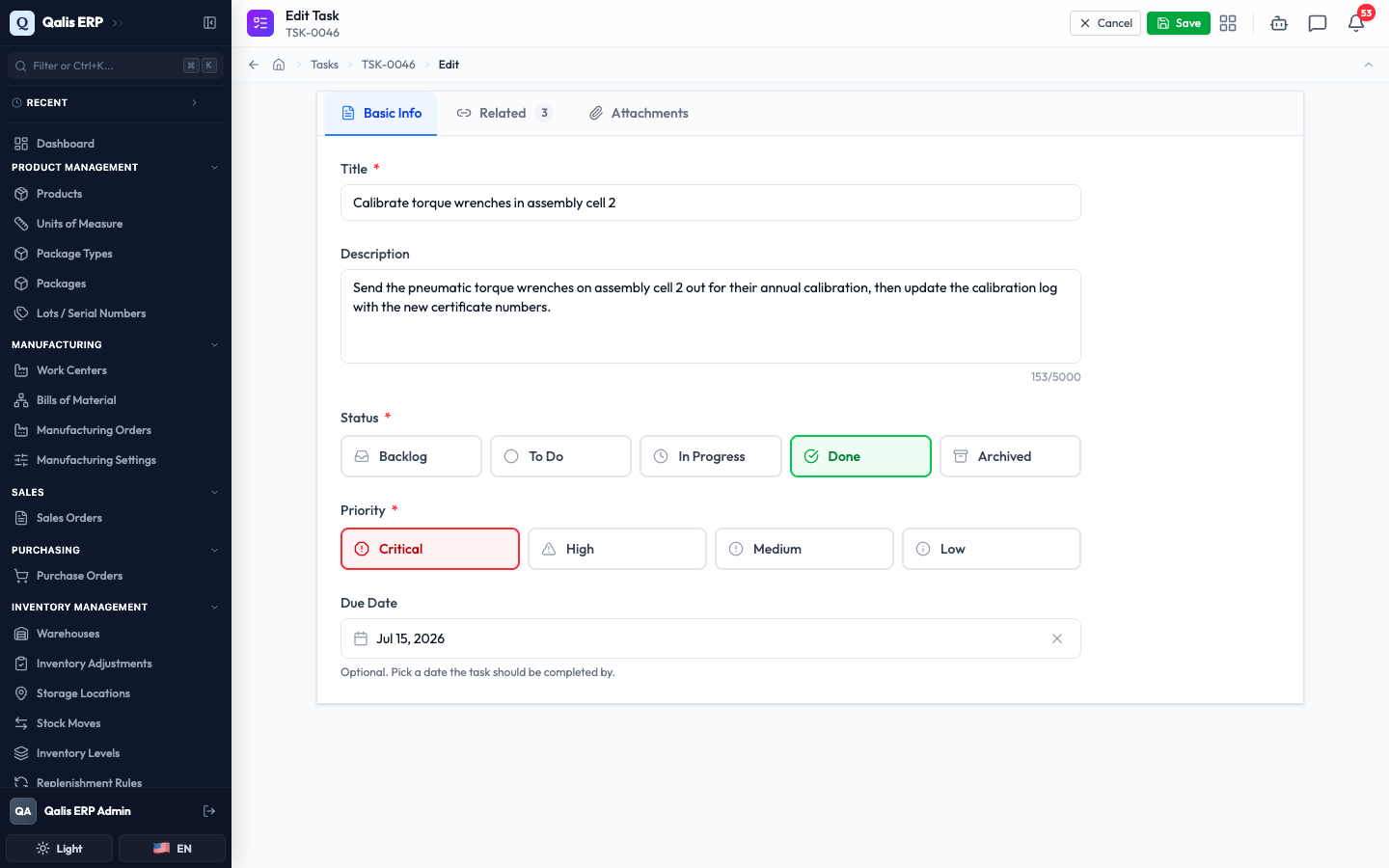
- Click Save. Qualis returns you to the detail page, where your change shows right away.
Keep track of changes and deleted tasks
Every task keeps a full history, and anything you delete can be brought back.
To see the history, open a task and click Version History. Each saved change is a numbered version (v1, v2, and so on) with the time it was made and who made it. This one shows the task moving from To Do to In Progress to Done, with the priority change at the end.
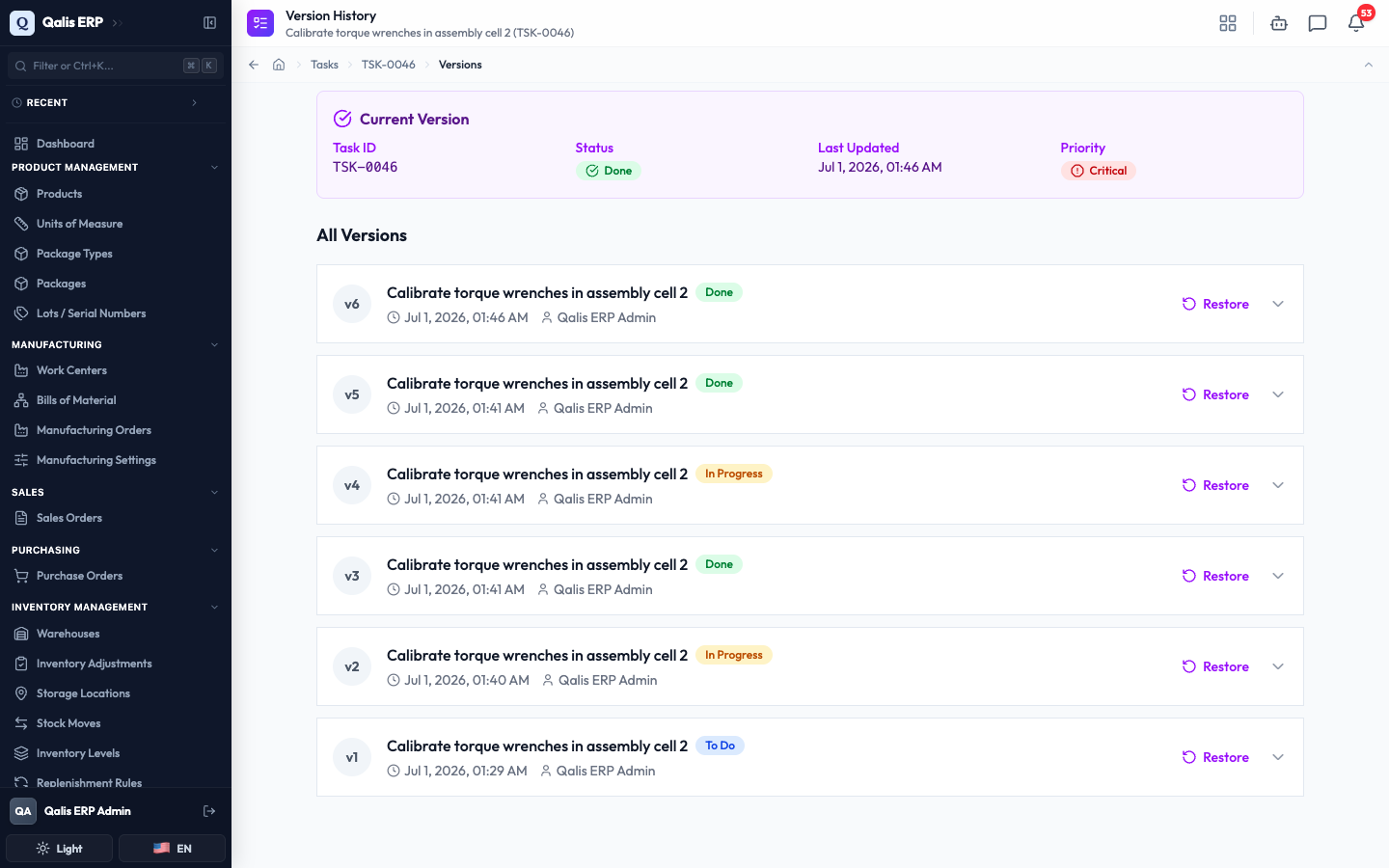
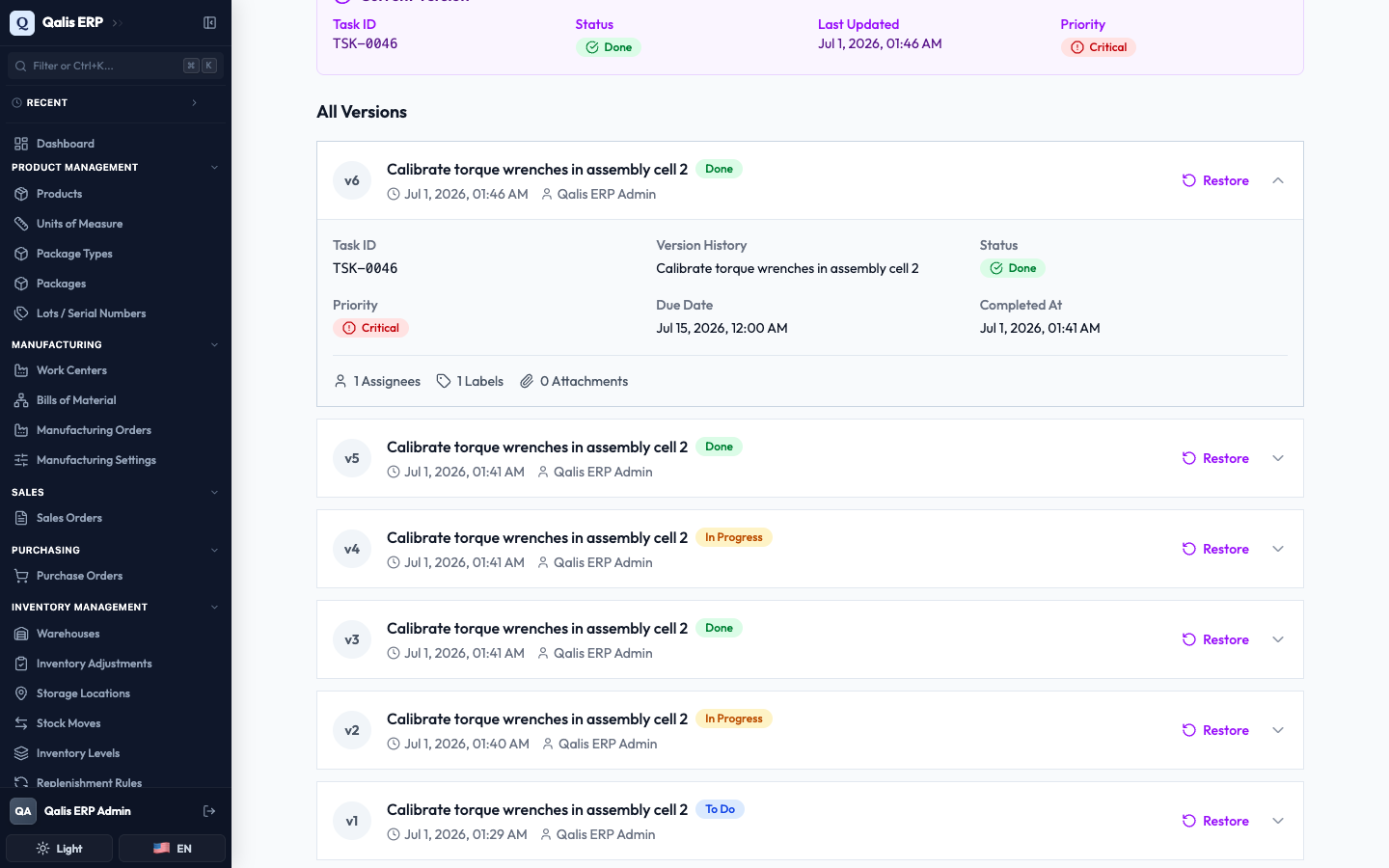
Click any version to open it and see exactly what the task looked like at that point. If you need to undo a change, click Restore to roll the task back to that version.
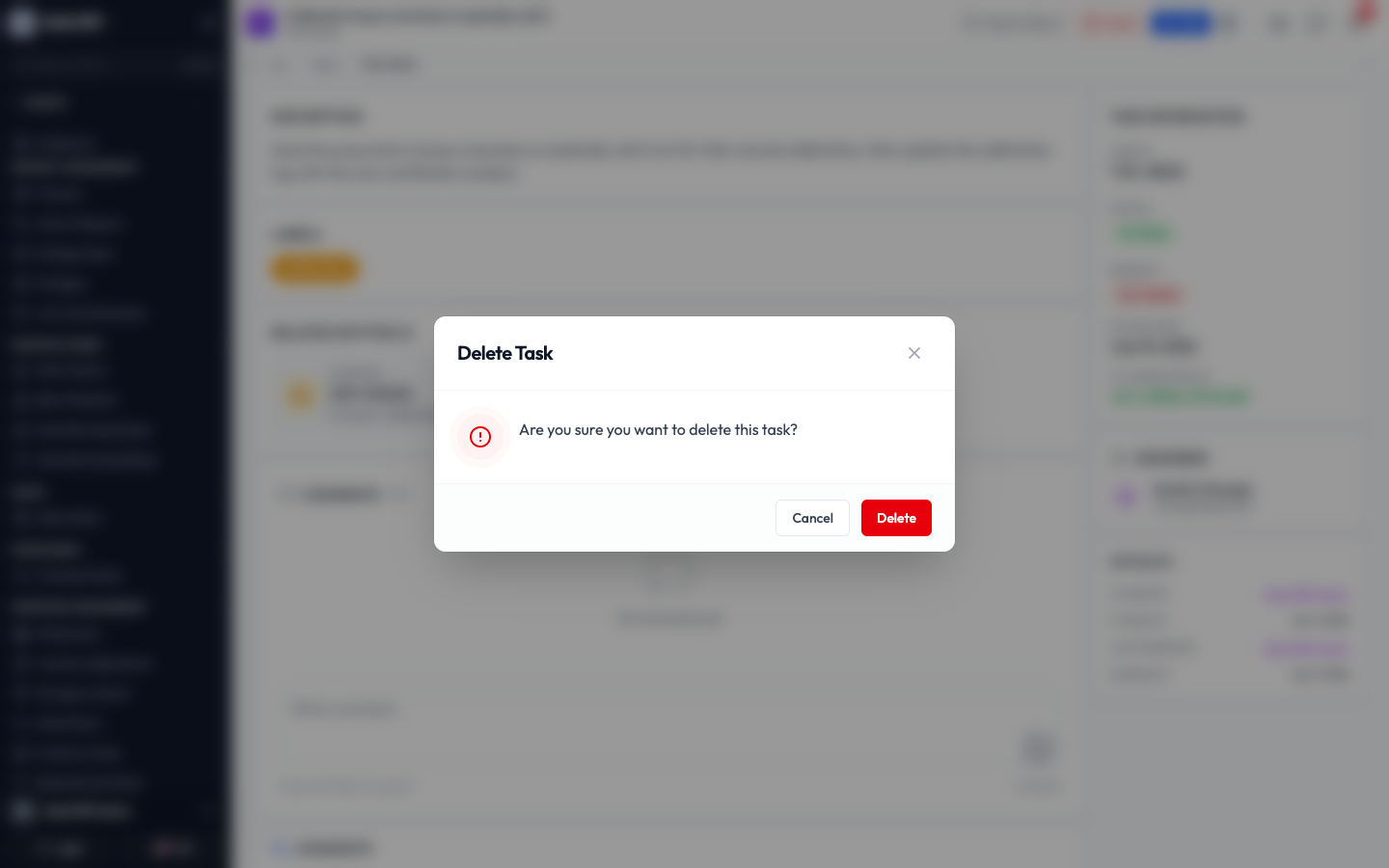
To remove a task, open it and click Delete. Qualis asks you to confirm first, so nothing is deleted by accident.
Deleting a task moves it to the trash rather than erasing it. To find deleted tasks, click Deleted Tasks at the top of the list. From there you can Restore a task to bring it back, or delete it permanently.
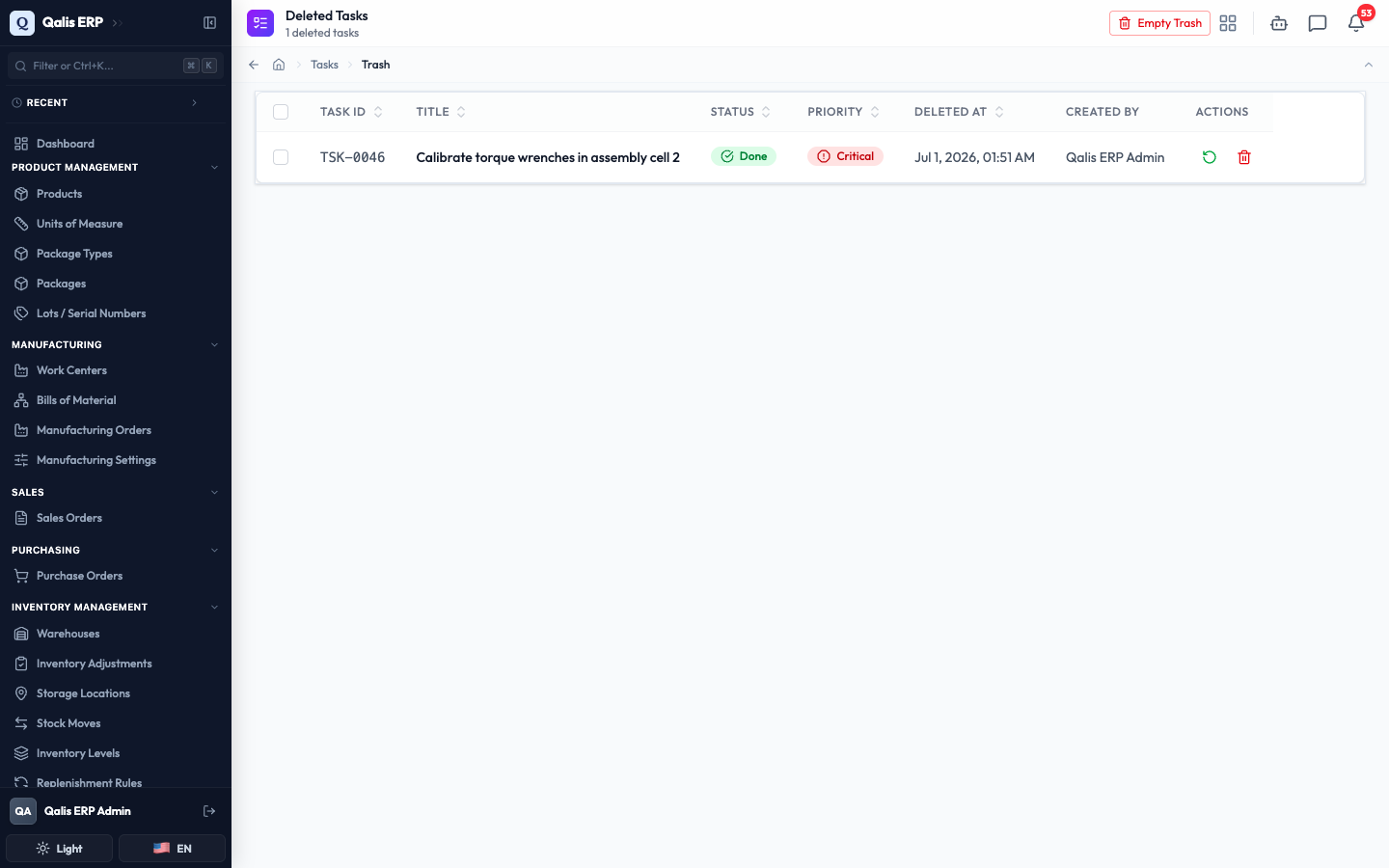
A restored task returns exactly as it was, in whatever status it had when you deleted it. Only a permanent delete cannot be undone.
Good to know
A few terms show up throughout the module. Here is what each means in plain language:
- Status: the stage a task is in. The stages are Backlog (not started), To Do (ready to start), In Progress (being worked on), Done (finished), and Archived (put away). On the board, each status is a column.
- Priority: how urgent a task is, from Critical down through High, Medium, and Low.
- Assignee: a person the task is given to. A task can have more than one.
- Label: a short colored tag you add to group or flag tasks (for example, "calibration" or "urgent").
- Related entity: another record in Qualis that a task is connected to, such as a product, supplier, order, or non-conformance. Each one is a link you can click to jump straight to it.
- Overdue: a task whose due date has passed and that is not yet done. It is shown in red.
- Kanban and Table: the two ways to view your tasks. Kanban is the drag-and-drop board grouped by status; Table is the sortable list with columns and filters.
- Version: a saved snapshot of a task from a moment in its history, which you can view and restore.
- Trash: where deleted tasks go. They stay there until you restore them or delete them permanently.