Currencies
Keep the list of currencies your business works in, set the one you report in, and record the exchange rates used to convert between them.
Last updated on June 28, 2026
The Currencies area is where you manage money settings for your whole organization. It holds the list of currencies you can use on orders, invoices, and costs, the one base currency that everything is reported in, and the exchange rates used to convert foreign amounts back into your base currency. Most of this is set up once and rarely changes, so this guide focuses on the handful of things people actually do: finding a currency, adding one, reading and editing it, choosing your base currency, and keeping exchange rates up to date.
You reach the module from the left sidebar under Master Data, then Currencies.
This area has two lists. Currencies is the main one (the currencies themselves). Exchange Rates is a second list for the conversion rates between them. You open Exchange Rates by adding
/exchange-ratesto the currencies web address (for example.../dashboard/currencies/exchange-rates). Both are covered below.
Before you start
There is almost nothing to set up first, because the currency list comes ready to use:
- The list already includes every standard world currency (the full ISO 4217 list), so you will rarely need to add one. A small set is switched on by default, including US Dollar, Euro, Pound Sterling, Canadian Dollar, Yen, and Moroccan Dirham.
- Your organization has one base currency, the currency every amount is reported in. An administrator chooses it in Organization Settings. See "Set your base currency and turn on automatic exchange rates" below.
Find and browse your currencies
Start here to see what you have and find the currency you need.
- Open Currencies from the sidebar. The list shows one row per currency, with its Code, Name, Symbol, Numeric code, Symbol position, number of Decimals, and its Status (Active or Inactive).
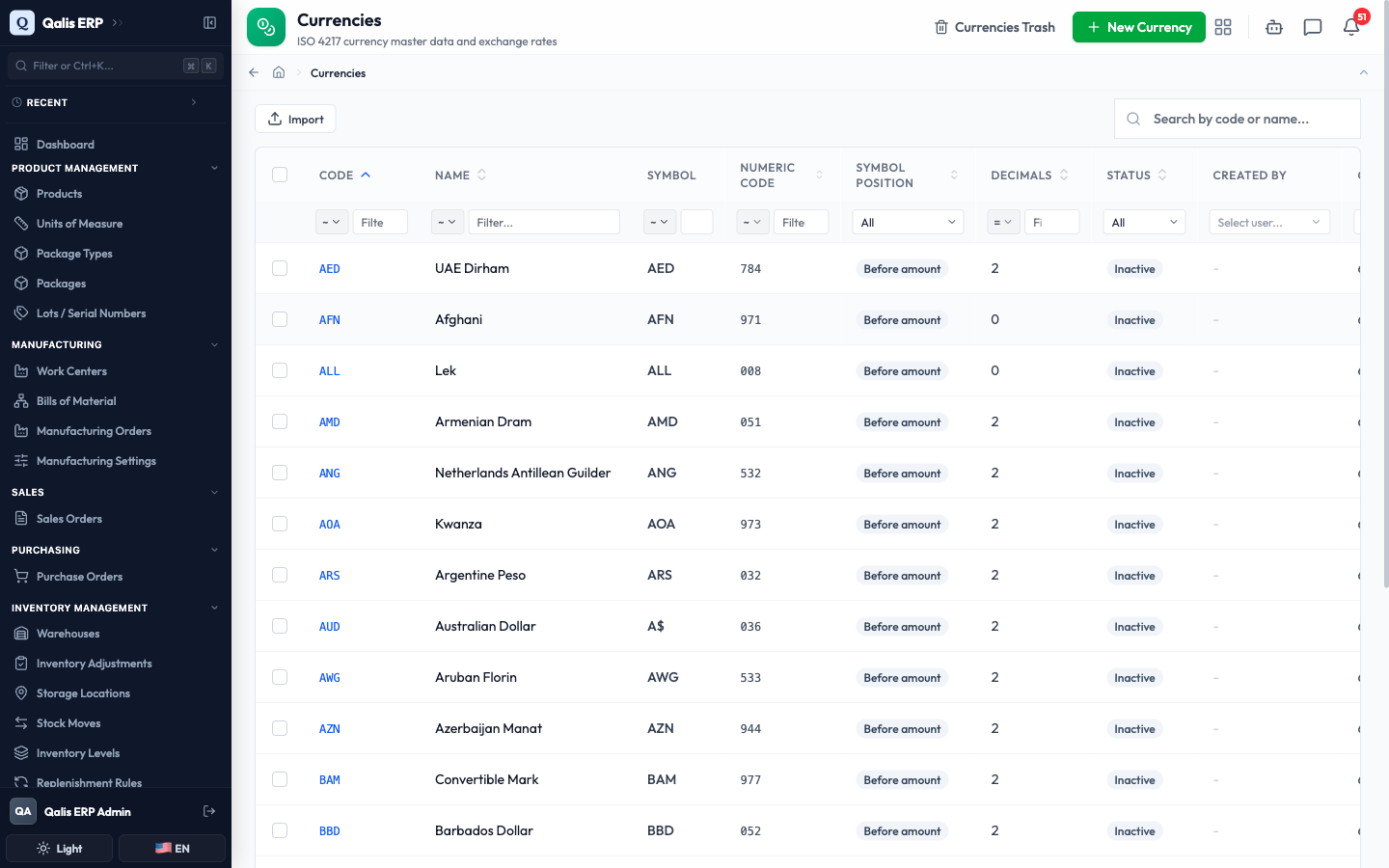
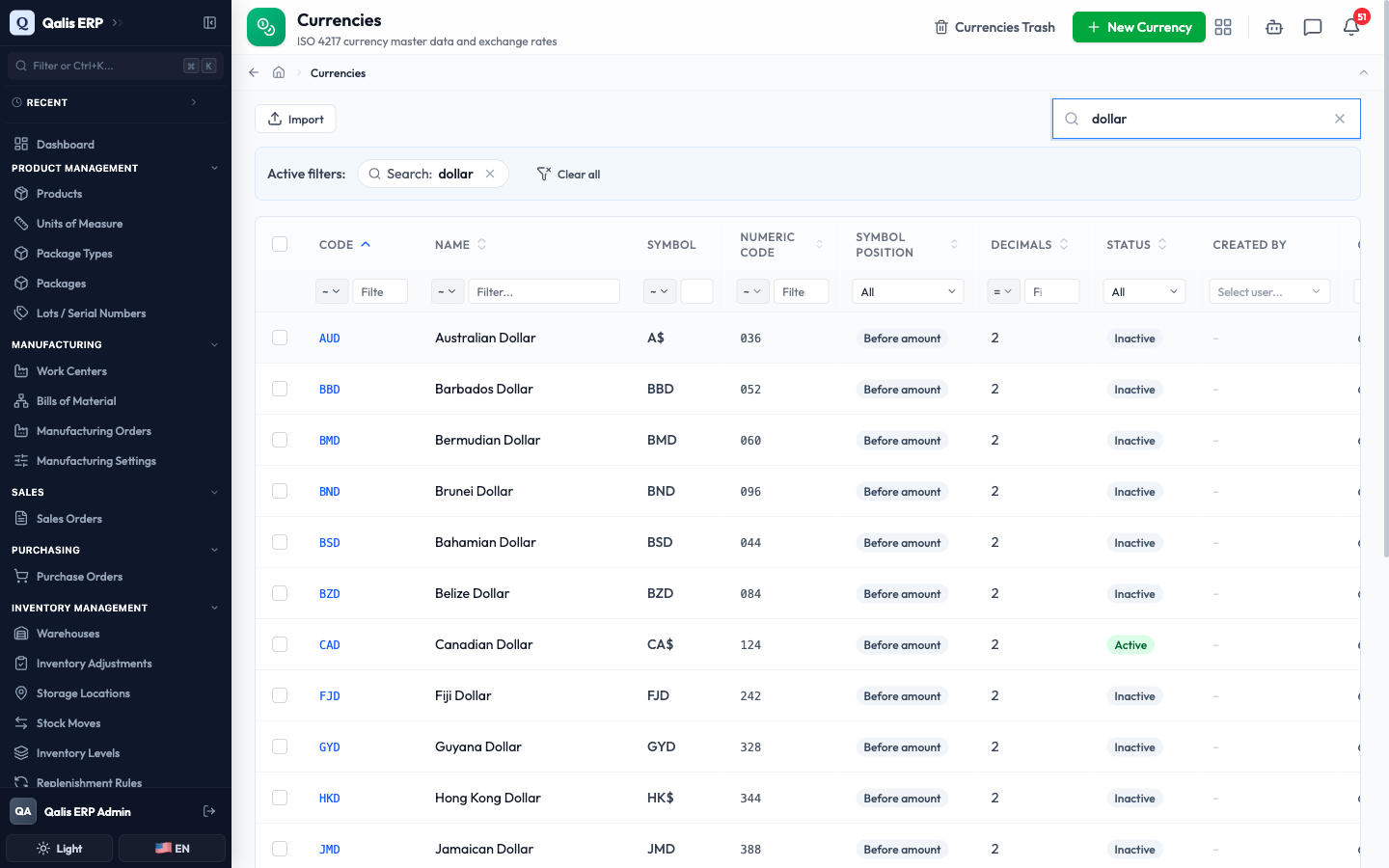
- To find one fast, type in the Search by code or name... box at the top right. The list filters as you type, so there is no need to press Enter. For example, type "dollar" to see every dollar currency.
- To narrow by a column, open the small dropdown under a column heading and pick a value. A common one is Status: set it to Yes to see only the currencies that are switched on for your business.
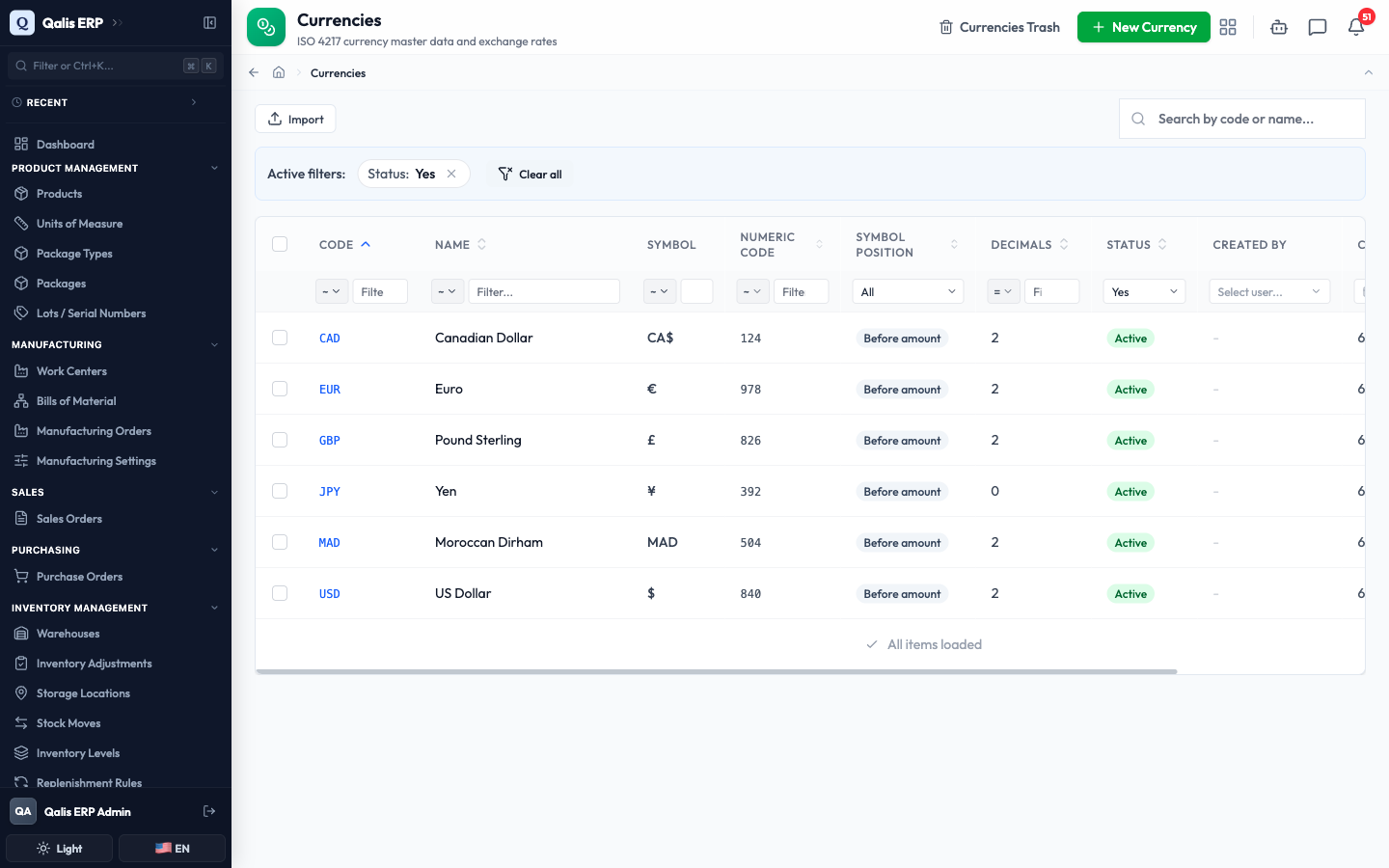
Whenever a filter is on, an Active filters banner appears under the search box showing what is applied. Click the small x on a filter to drop it, or Clear all to reset everything. The web address updates too, so you can bookmark or share a filtered view.
Add a currency
Because every standard currency is already in the list, you only add a new one when you need a currency that is not part of the standard set, such as a cryptocurrency you accept or a custom internal unit. The form is a single short section.
- On the list, click New Currency at the top right.
- Fill in the Code, a three-letter short code (for example "USD"). This is the main reference used across the app. You cannot change it later, so enter it carefully.
- Add the Name (for example "Bitcoin") and the Symbol shown next to amounts (for example the bitcoin sign).
- Set the Decimal digits, the number of places after the decimal point this currency uses. Most currencies use 2, the Yen uses 0, and some use more. The optional Numeric code, Symbol position (before or after the amount), and Rounding factor can be left as they are for most currencies.
- Leave Active switched on so the currency can be picked across the app.
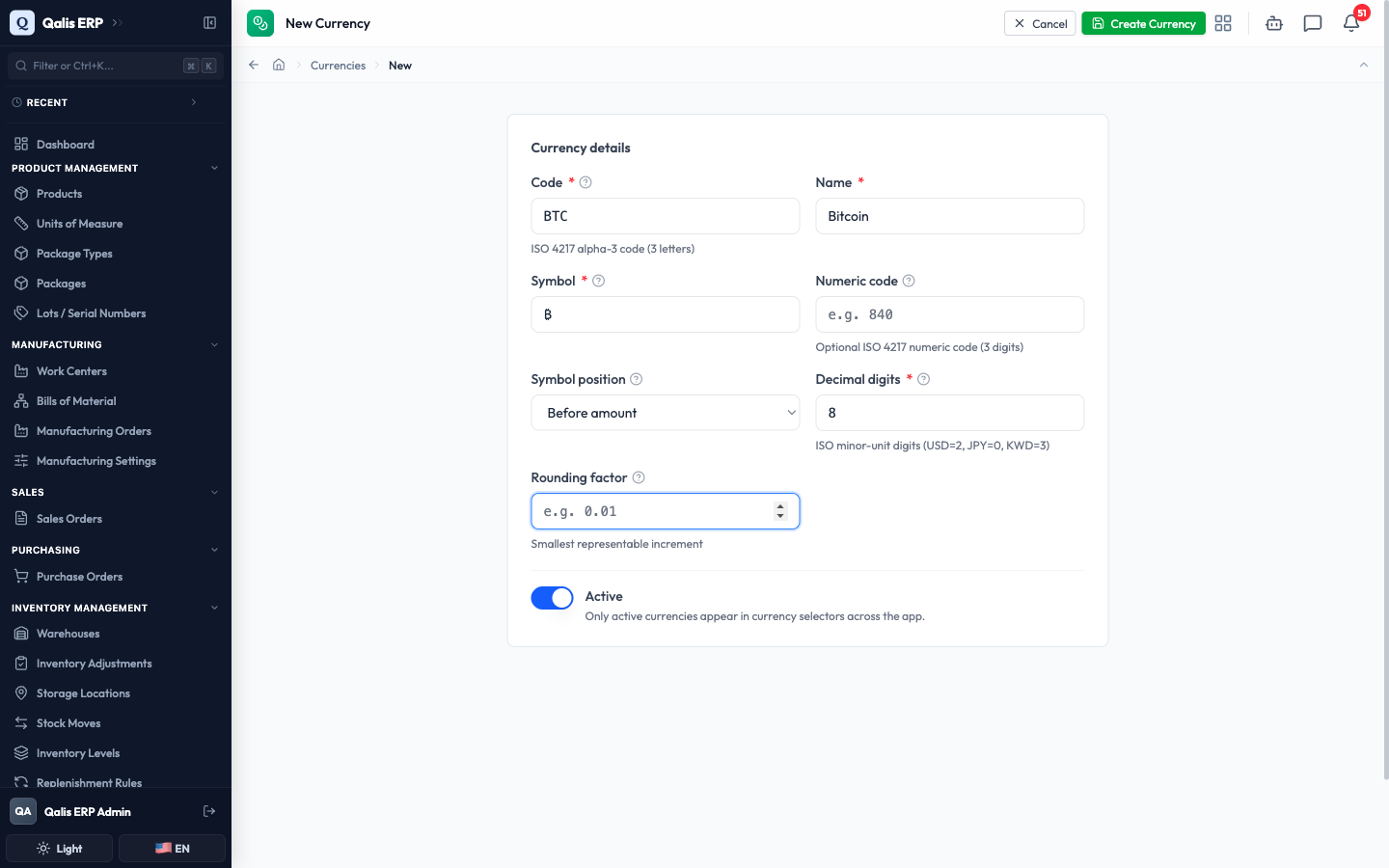
- Click Create Currency at the top right.
The app saves the currency and takes you straight to its detail page.
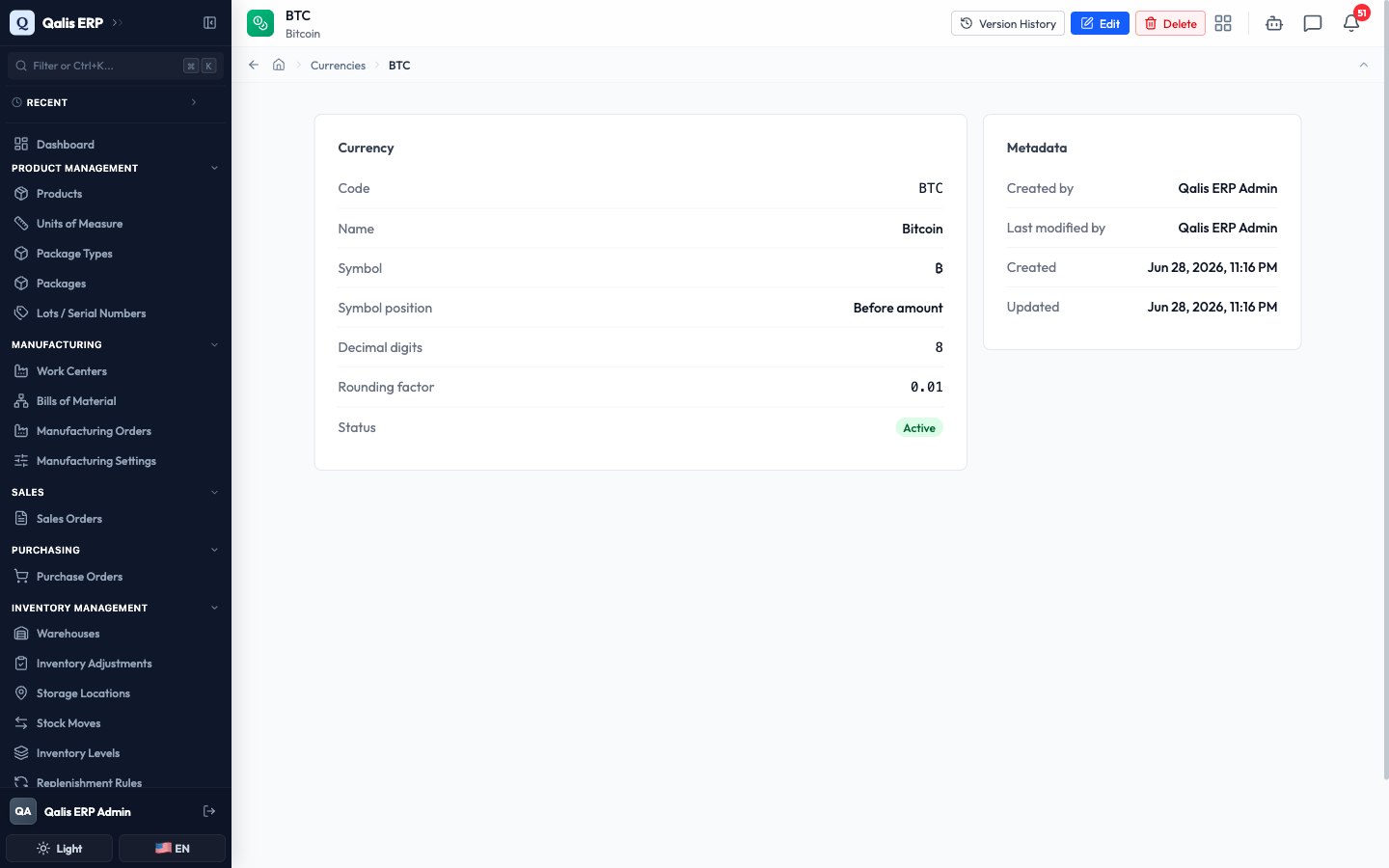
Nothing is saved while you are still filling in the form, so you can change your mind freely. The currency only exists once you click Create Currency.
Read a currency
Open any currency to see exactly how it is set up.
- Click a row in the list, or any currency Code link elsewhere in the app. The detail page opens.
- The top of the page shows the code and name, and the buttons for everything you can do: Version History, Edit, and Delete.
- The Currency panel lists the code, name, symbol, symbol position, decimal digits, rounding factor, and status. The Metadata panel records who created the currency, who last changed it, and when.
Edit a currency
The most common edit is switching a currency on or off. A currency that is switched on appears in the currency dropdowns across the app; one that is switched off stays in your records but is hidden from those lists. This is how you turn on the currencies your business uses and hide the ones it does not.
- Open the currency and click Edit at the top right. The same form opens, already filled in.
- Make your change. To stop a currency from being offered, switch Active off. To offer it again, switch it back on. You can also correct the name, symbol, or decimals here.
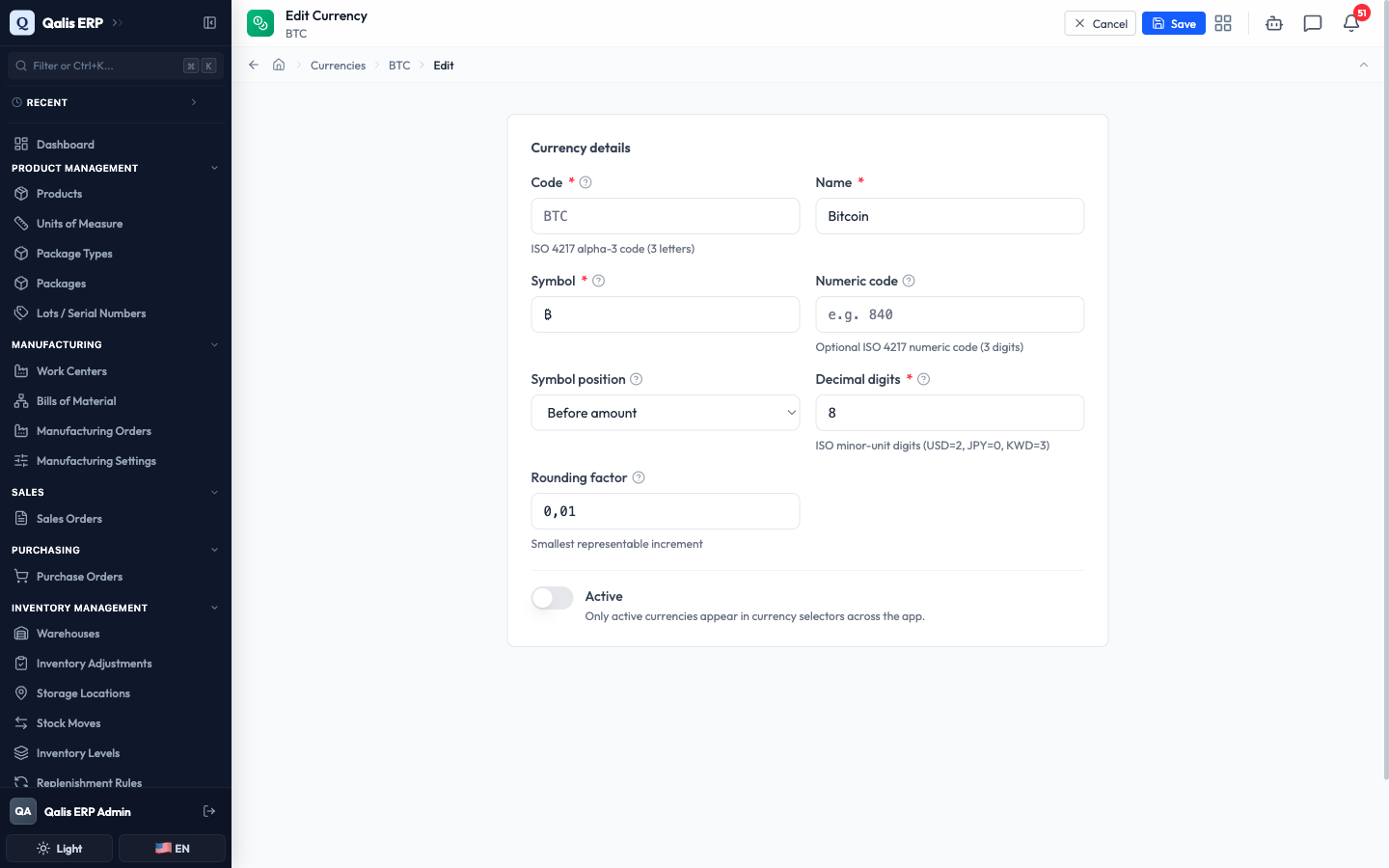
- Click Save. The app returns you to the detail page, where the new Status shows right away.
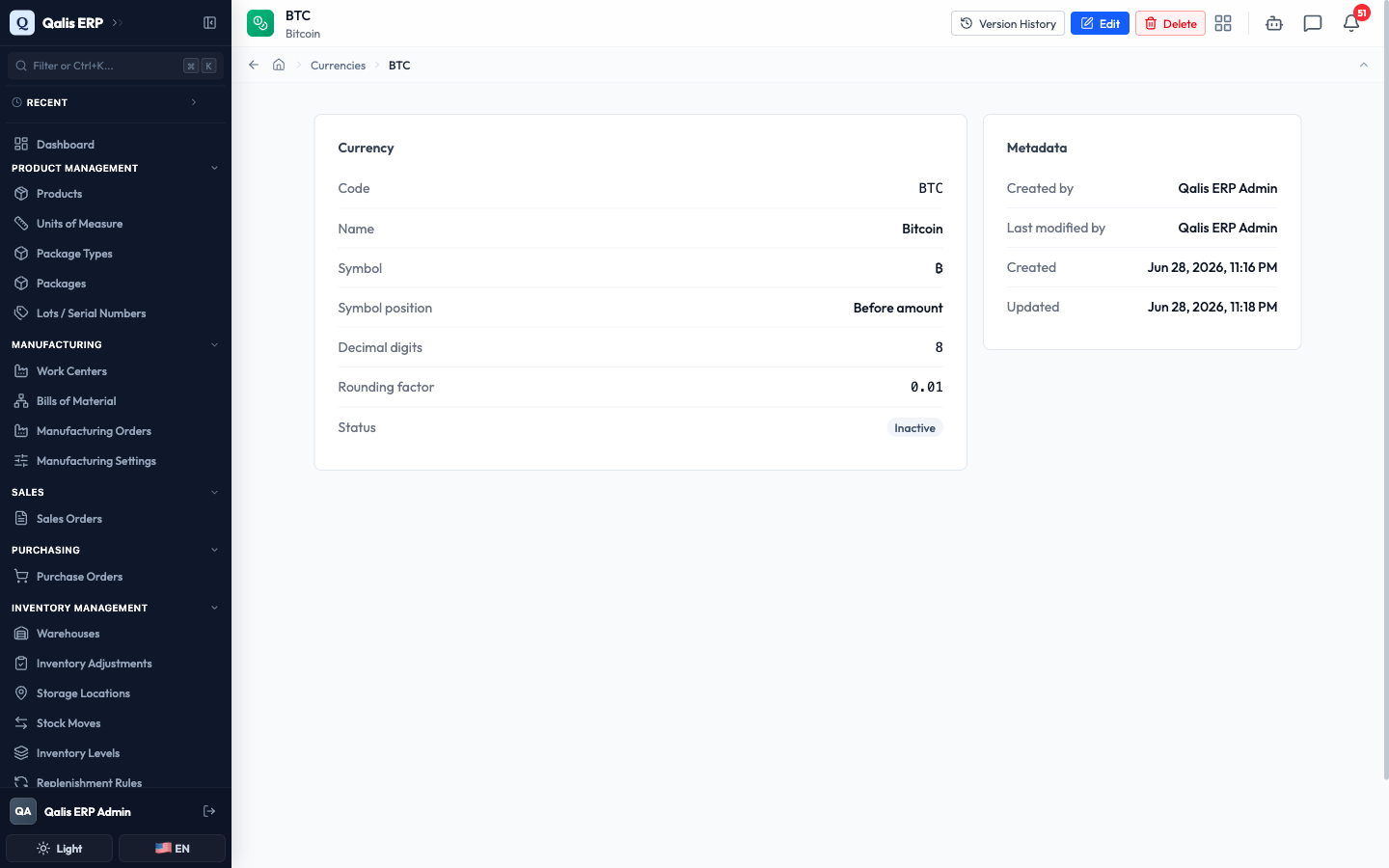
The Code cannot be changed after a currency is created, so that field is locked when you edit. Everything else can be updated.
Set your base currency and turn on automatic exchange rates
Your base currency and your exchange-rate settings live together in Organization Settings, under the Currency & exchange rates section. Open Organization Settings from the sidebar (under Administration) and scroll to that section.
- Base currency is the currency every amount in the app is reported in. Pick it once for your organization.
- Automatic exchange rates controls whether the app downloads live rates for you. Leave it on to have rates pulled in automatically, or switch it off to enter every rate by hand.
- Refresh schedule sets how often live rates are pulled: Daily, Weekly, or Manual (which means no automatic pulls).
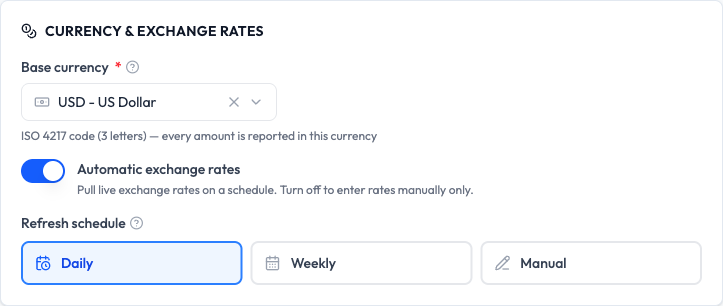
Choose your base currency carefully. It can be set freely at the start, but once your first order or cost has been recorded it is locked, because every saved amount is already stored against it. Changing it after that would make past records wrong.
Add and view exchange rates
An exchange rate tells the app how to convert one currency into another, for example how many US Dollars one Euro is worth. When automatic rates are on, the app fills these in for you on the schedule you chose. You can also add or correct a rate by hand at any time, which is useful for a contract rate or when you need a specific value on a specific day.
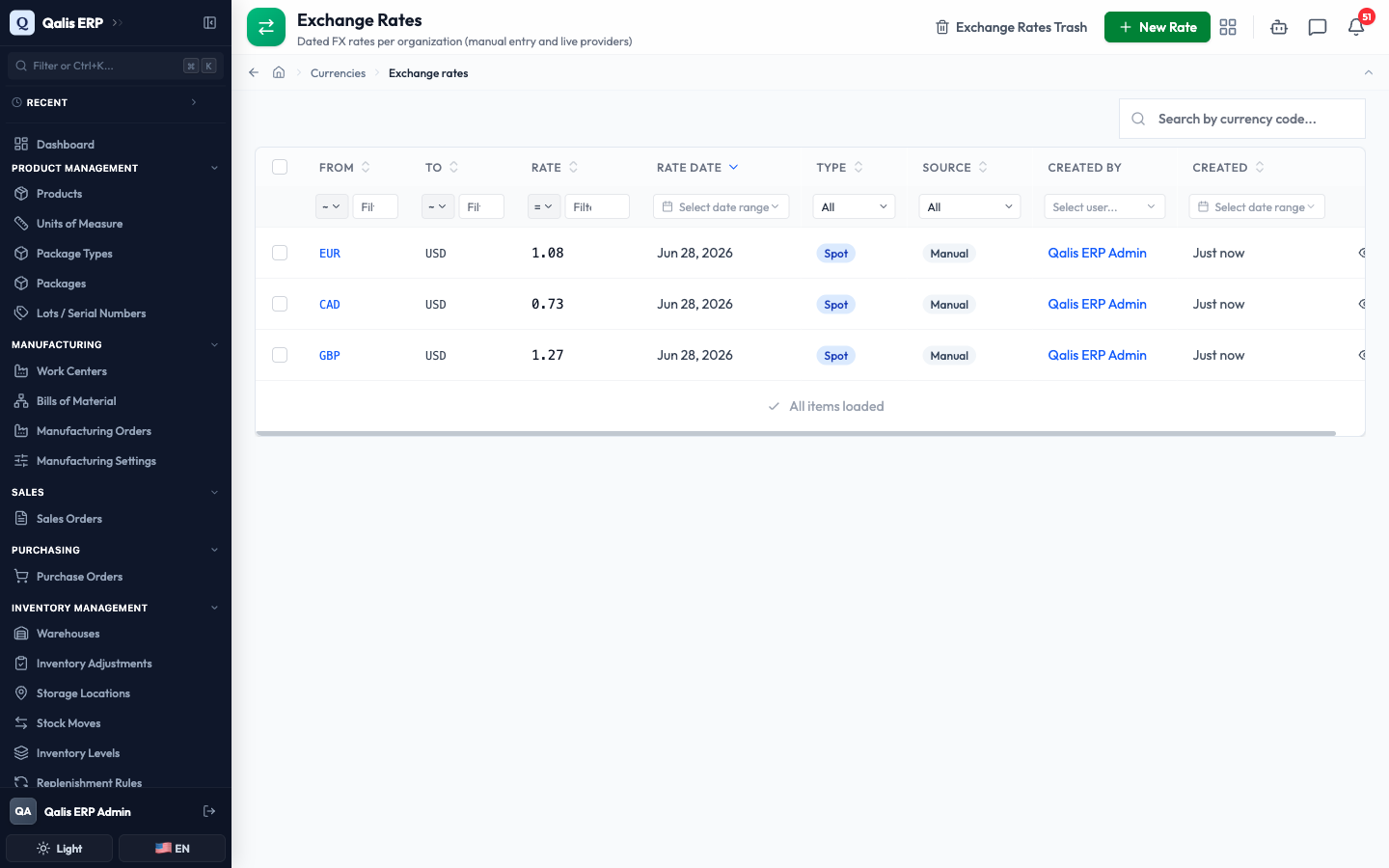
- Open the Exchange Rates list (add
/exchange-ratesto the currencies web address). It shows each rate with its From and To currencies, the Rate, the Rate date, the Type, and the Source (where the rate came from). - Click New Rate at the top right.
- Choose the From currency (the currency you are converting from) and the To currency (usually your base currency).
- Enter the Rate, which is how many units of the target currency equal one unit of the source. For example, if one Euro is worth 1.08 US Dollars, enter 1.08.
- Pick the Rate date this rate applies to (it defaults to today), and leave the Rate type as Spot unless you have a reason to change it.
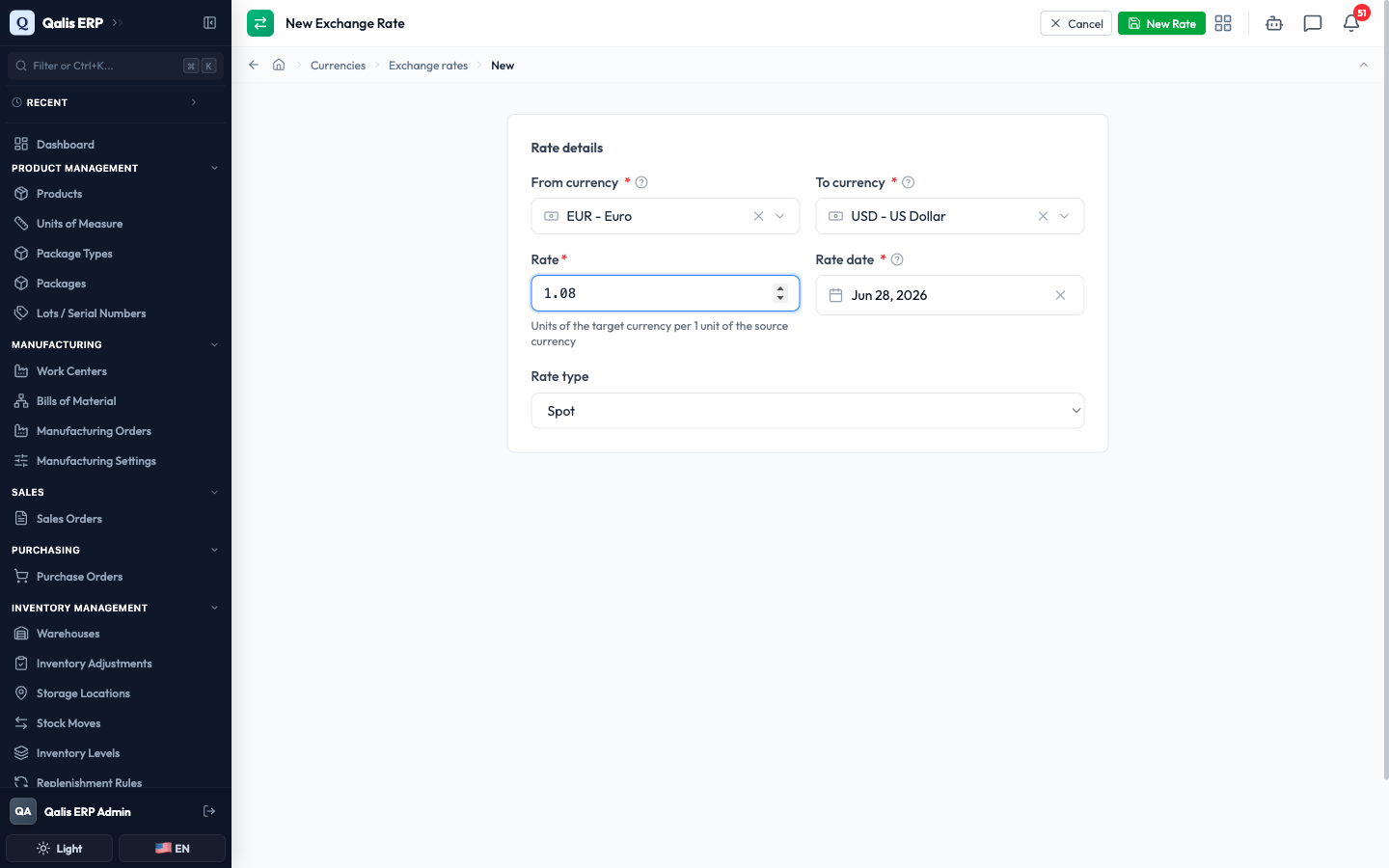
- Click New Rate at the top right to save.
The new rate appears in the list. Rates you typed in show a Source of Manual, while rates the app pulled in automatically show the provider they came from.
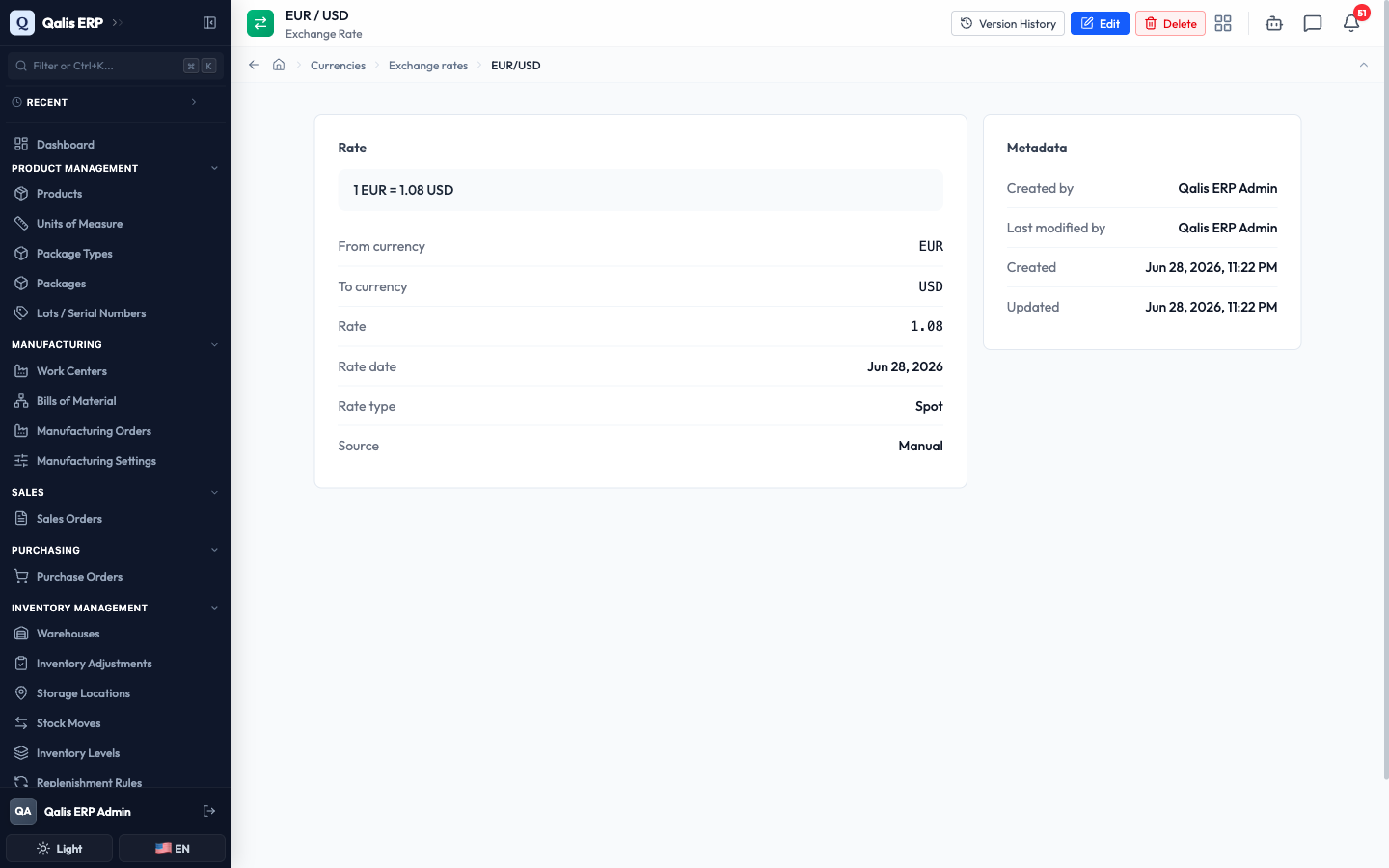
Open any rate to read it in full. The detail page spells out the conversion in plain language at the top (for example "1 EUR = 1.08 USD") and shows the date, type, and source.
When a money amount is recorded on an order or cost, the app looks up the most recent rate on or before that document's date and locks the converted base-currency amount onto it. That saved amount never changes afterward, even if the rate moves later, so each document keeps the value it had on the day.
Good to know
A few terms show up across this area. Here is what each means in plain language:
- Base currency: the single currency your organization reports everything in. Every amount, whatever currency it was entered in, is also stored in this one.
- Active: whether a currency is offered in the dropdowns across the app. Active currencies appear; inactive ones are hidden but kept in your records.
- Code: the three-letter short name for a currency (USD, EUR, GBP). It is the main reference the app uses and cannot be changed once set.
- Decimal digits: how many places after the decimal point a currency uses. This controls how amounts are shown and rounded (for example 2 for US Dollars, 0 for Yen).
- Exchange rate: how many units of one currency equal one unit of another, used to convert foreign amounts into your base currency.
- Rate date: the day a rate applies to. The app uses the most recent rate on or before a document's date.
- Rate type: a label for the kind of rate. Spot (the everyday market rate) is the normal choice.
- Source: where a rate came from. Manual means someone typed it in; the other names are the live providers the app can pull rates from automatically.