Inventory Levels
See exactly how much of every product you have, where it sits, and what is already spoken for, updated live as stock moves through your warehouses.
Last updated on June 29, 2026
Inventory Levels is your live picture of stock. For every product, at every warehouse location, it shows how much you physically have on hand, how much is already reserved for confirmed orders, and how much is genuinely free to use. You do not type any of these numbers in. Qualis keeps them up to date for you, second by second, from the stock movements that happen as you receive, ship, transfer, adjust, and scrap goods. Because of that, this screen is a place you read, not a place you edit: there are no buttons to add or change a level by hand. This guide covers what you do here most often: browsing your stock, spotting what needs attention, reading a single level in detail, checking stock from a product or location page, watching low-stock alerts on your dashboard, and exporting the numbers.
Before you start
You never create an inventory level yourself, so there is nothing to fill in. A level appears on its own once stock actually exists somewhere. For that to happen, a few things need to be set up first, all in other parts of Qualis:
- Products, so there is something to count.
- Warehouses and Storage Locations, so there is somewhere to hold the stock.
- At least one Stock Move (a receipt, transfer, adjustment, and so on) that puts stock into a location. The moment a move lands, the matching level is created or updated automatically.
If this screen is empty, it simply means no stock has moved yet. Record a stock move and the level shows up by itself.
You reach the module from the left sidebar under Inventory Management, then Inventory Levels.
Find and browse your stock levels
Start here to see everything you have in stock and to zero in on a product or location.
- Open Inventory Levels from the sidebar. A blue banner reminds you that levels are maintained automatically and cannot be created or edited by hand. Across the top, four cards give you the headline numbers: Products Tracked, Total On Hand, Low Stock Alerts, and Zero Stock. Below them is the full list, with the items closest to running out shown first so the things that need attention float to the top.
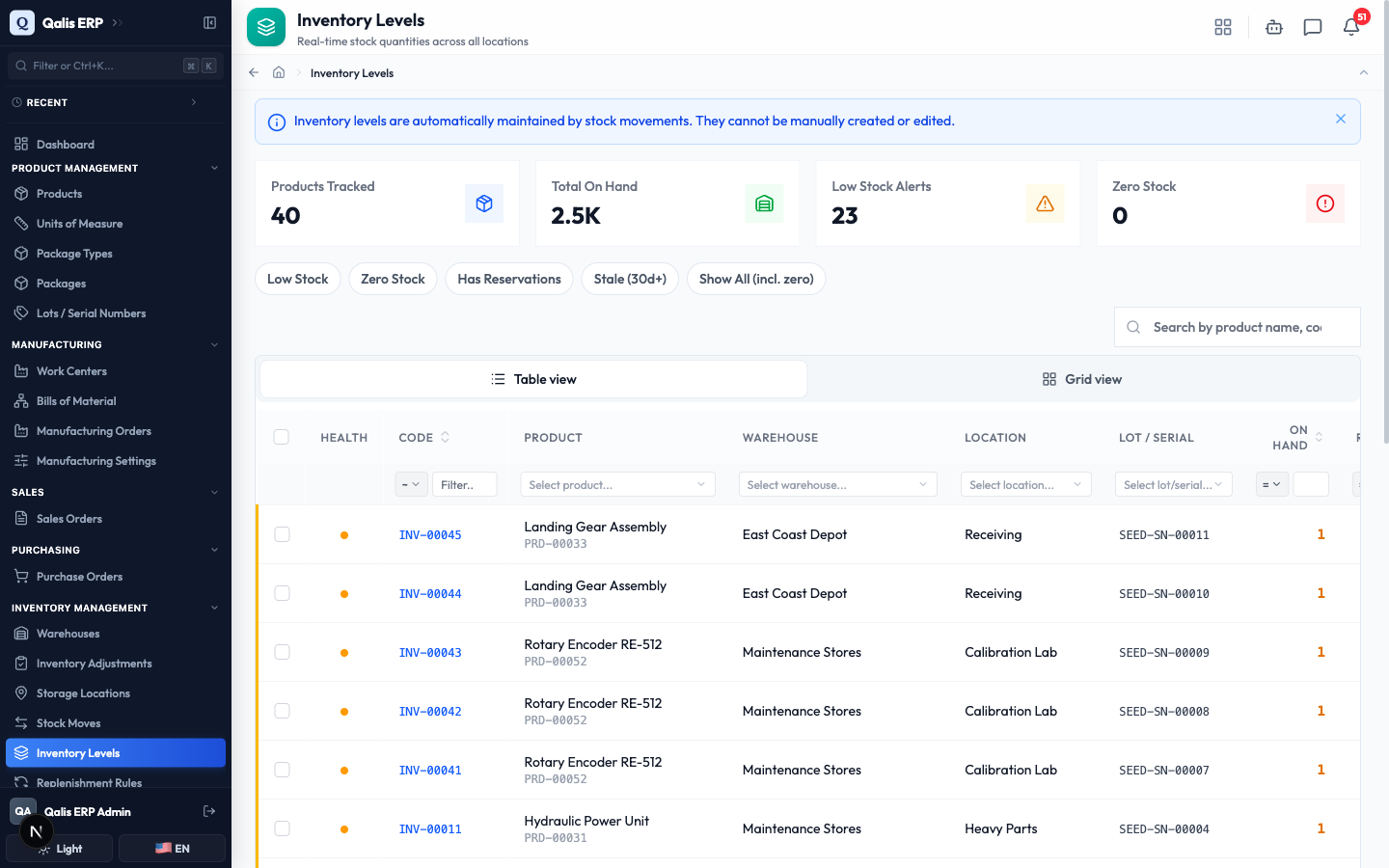
- Each row tells the whole story of one product in one place: a colored Health dot, the level Code, the Product, its Warehouse and Location, any Lot / Serial number, and the three quantities that matter: On Hand, Reserved, and Available. A small Stock Level bar shows the balance at a glance, and Last Movement tells you when the stock last changed. Many cells are links, so you can jump straight to the product, warehouse, or location.
The colored dot is your fastest read. Green means healthy, amber means low stock (fewer than 10 units available, but not empty), and red means the location has hit zero.
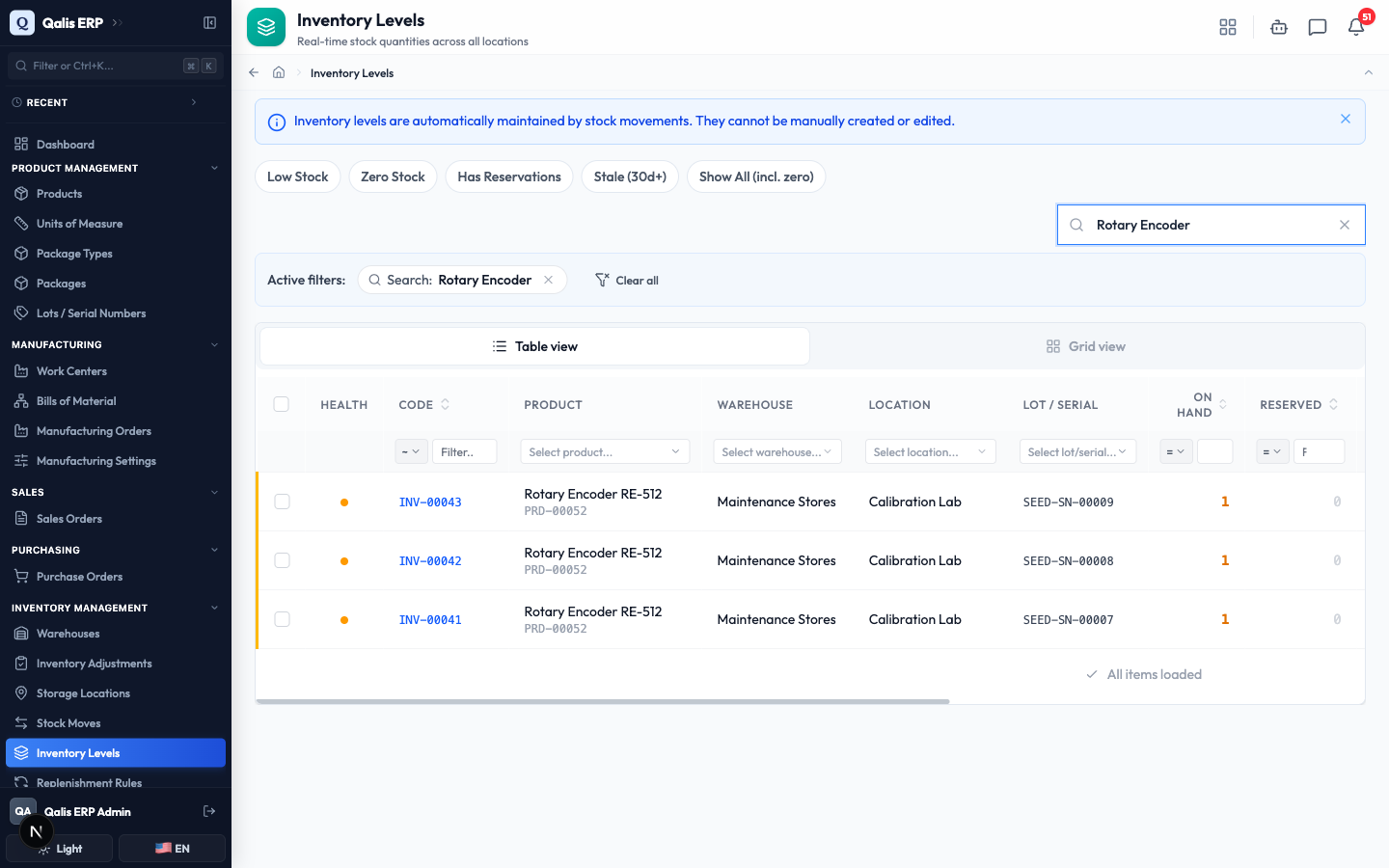
- To find something fast, type in the Search by product name, code, or location box on the right. The list filters as you type, so there is no need to press Enter. A small banner shows your active filters as chips, each with an X to remove it, plus a Clear all button.
- Prefer cards to rows? Click Grid view above the table. Every product location becomes a tidy card with the same on hand, reserved, and available figures and the stock bar. Click Table view to switch back.
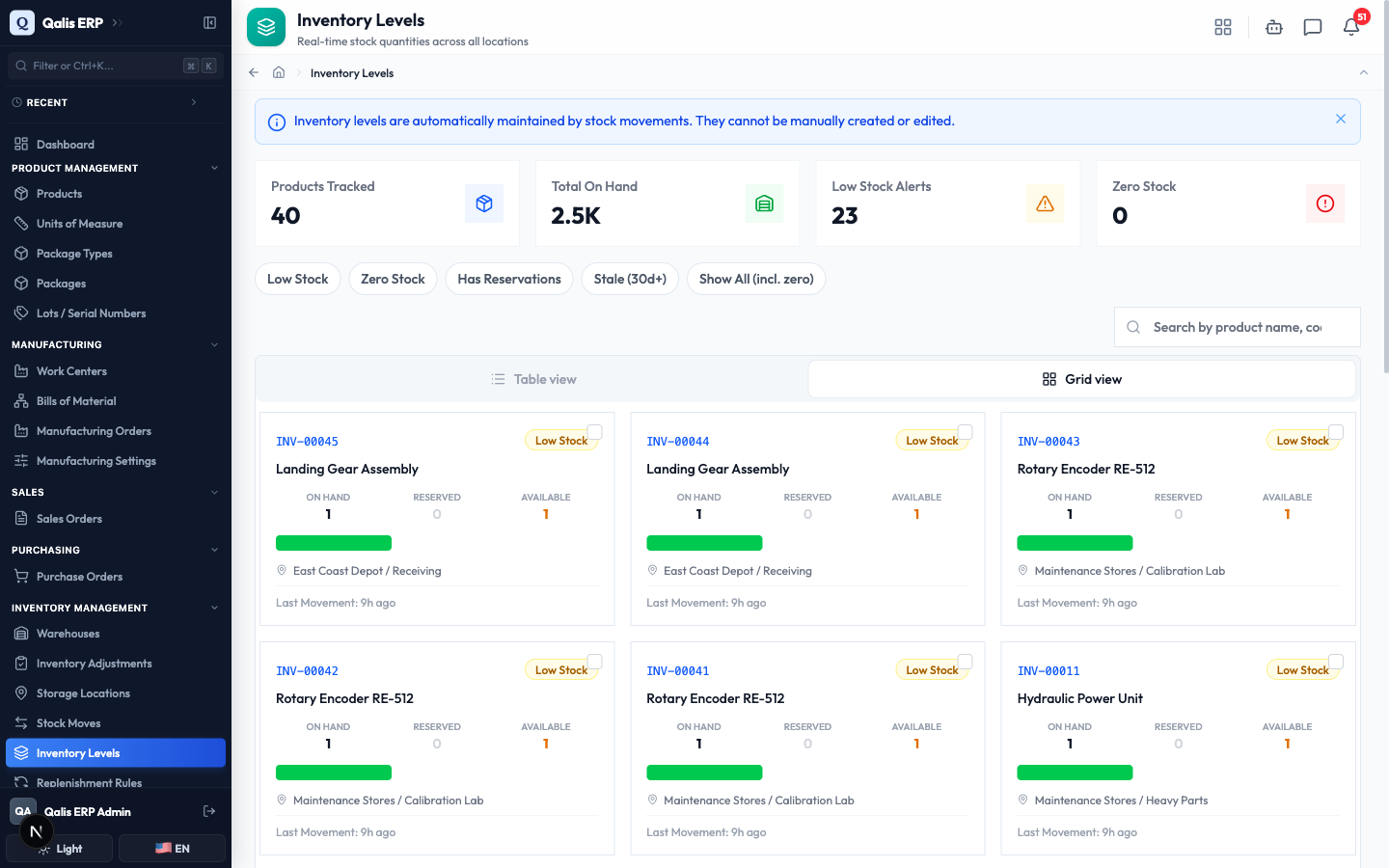
By default the list shows places that still have stock. To include locations that have dropped to zero, use the Show All (incl. zero) quick filter described in the next section.
Spot what needs attention
This is the part you will use every day: surfacing the products that are running low or have run out, before they hold up an order.
- Use the quick filter pills above the table to focus the list in one click:
- Low Stock: products with some stock left but fewer than 10 units available.
- Zero Stock: locations that have hit zero.
- Has Reservations: levels where some stock is already promised to orders.
- Stale (30d+): levels that have not moved in over 30 days, handy for spotting forgotten stock.
- Show All (incl. zero): clears the filter and includes empty locations.
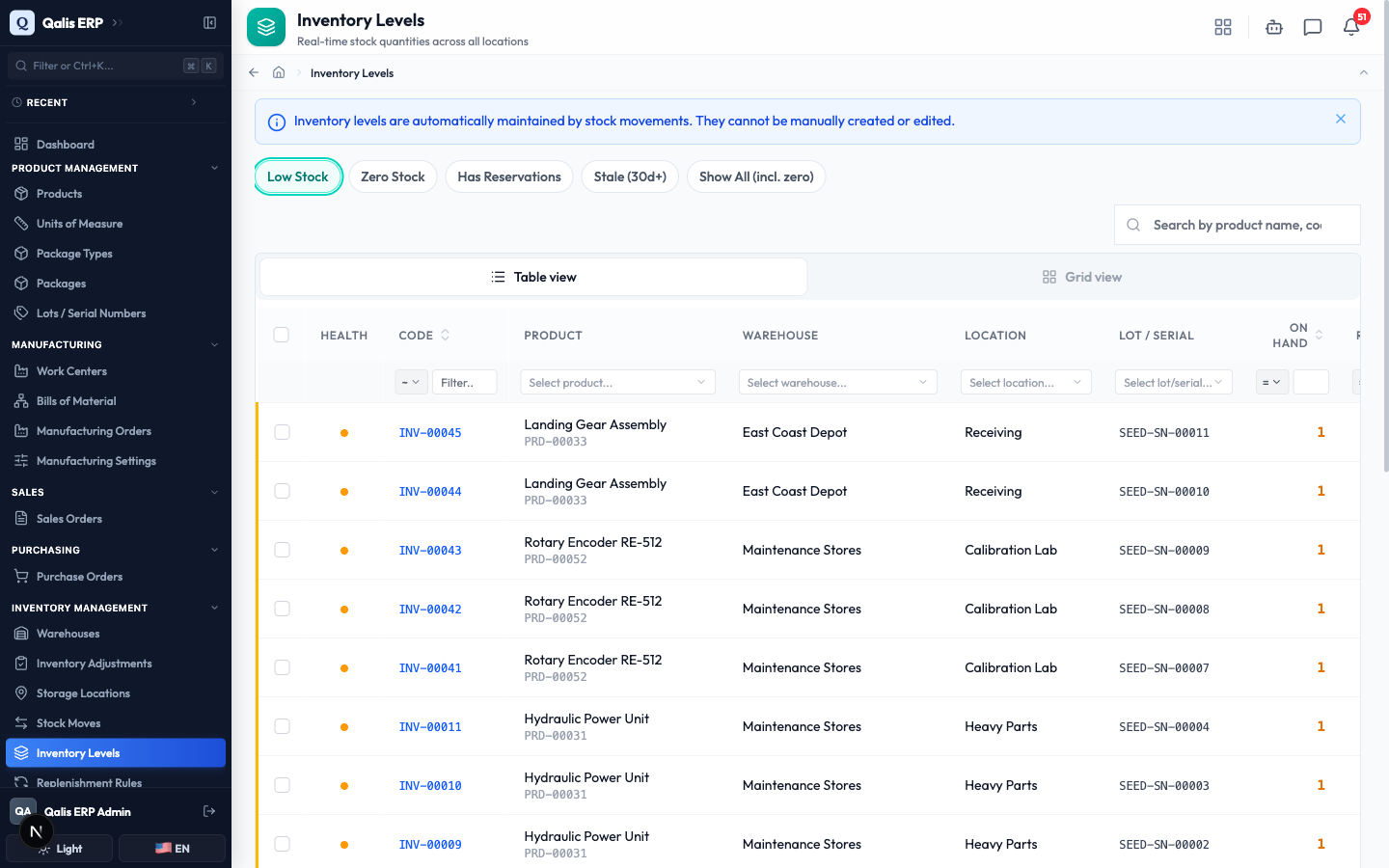
- The Low Stock Alerts and Zero Stock summary cards at the top are shortcuts too. Click one and the list jumps straight to those items.
A low-stock or zero row is also marked with a colored stripe down its left edge (amber for low, red for zero), so you can scan the list and find trouble even without the filter.
Read a stock level in detail
Open any level to see the full picture for one product in one place, including its recent history.
- Click a level's Code (for example
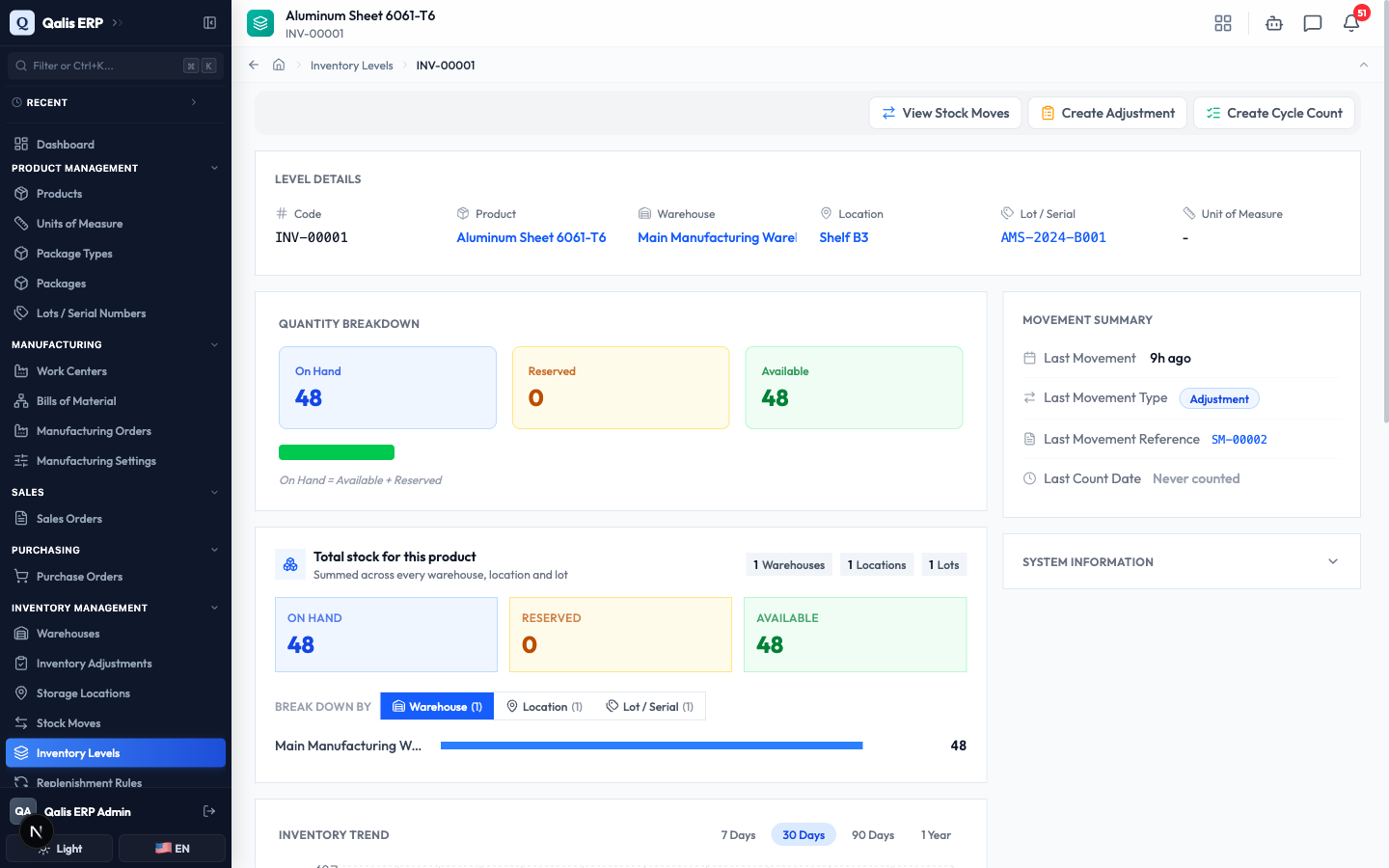
INV-00001) to open its detail page. At the top, the Level Details card names the product, warehouse, location, lot or serial number, and unit of measure. The Quantity Breakdown then shows the three figures side by side: On Hand (everything physically there), Reserved (already promised to confirmed orders), and Available (what is genuinely free). The little note On Hand = Available + Reserved explains how they relate, so Available is simply what is left once reservations are set aside.
-
On the right, the Movement Summary tells you when stock last changed here, what kind of movement it was, the reference document behind it, and when the location was last counted. If the same product sits in more than one place, the Total stock for this product card adds it all up and lets you break the total down By Warehouse, By Location, or By Lot.
-
Scroll down for the Inventory Trend chart, which plots on hand, reserved, and available over time (switch between 7 days, 30 days, 90 days, and 1 year). Below it, Stock Movement History lists the actual moves behind the current figure, each with its type, quantity, reference, who did it, and when. This is the audit trail that explains exactly how the level got to where it is.
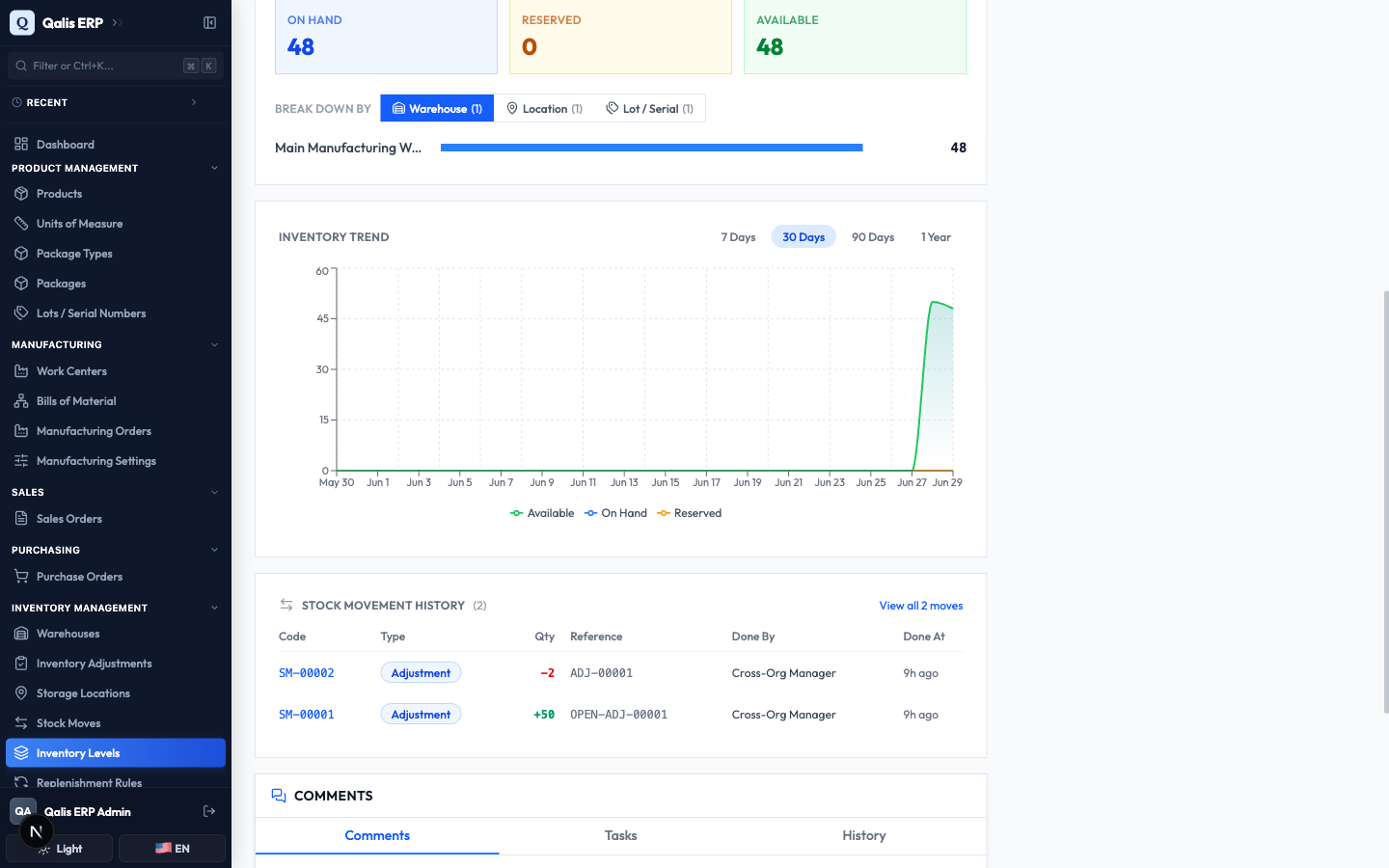
Need to change the number? You cannot do it here. Use the action buttons at the top of the page (View Stock Moves, Create Adjustment, or Create Cycle Count) to record a real movement, and the level updates itself.
Check stock from a product or location
You do not always have to come to this module to see stock. The same figures appear right where you are already working.
- Open any product detail page. If the product is tracked in inventory, it shows a Stock Levels section listing every location that holds it, with on hand, reserved, and available for each. View all opens the full Inventory Levels list filtered to that product.

- The same idea works the other way around. Open a Storage Location detail page and its Stock Levels section lists every product sitting in that location.
Keep an eye on low stock from your dashboard
You do not have to go looking for problems. Your dashboard can bring them to you.
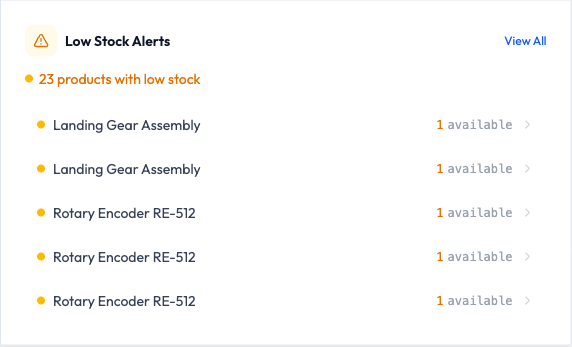
- On your Dashboard, the Low Stock Alerts widget counts how many products are running low or have hit zero and lists the most urgent ones, each with its available quantity. Click any item to open its level, or use View All to see the whole low-stock list.
Qualis also sends you a notification when a product runs out, drops to low stock, or is restocked, so you hear about it even when you are not looking at this screen.
Export your stock levels
When you need the numbers outside Qualis, for a stock take or a report, export them in a couple of clicks.
- Tick the checkbox on each level you want (or the checkbox in the table header to select the whole page). A toolbar appears showing how many are selected, with Export CSV and Export Excel buttons.
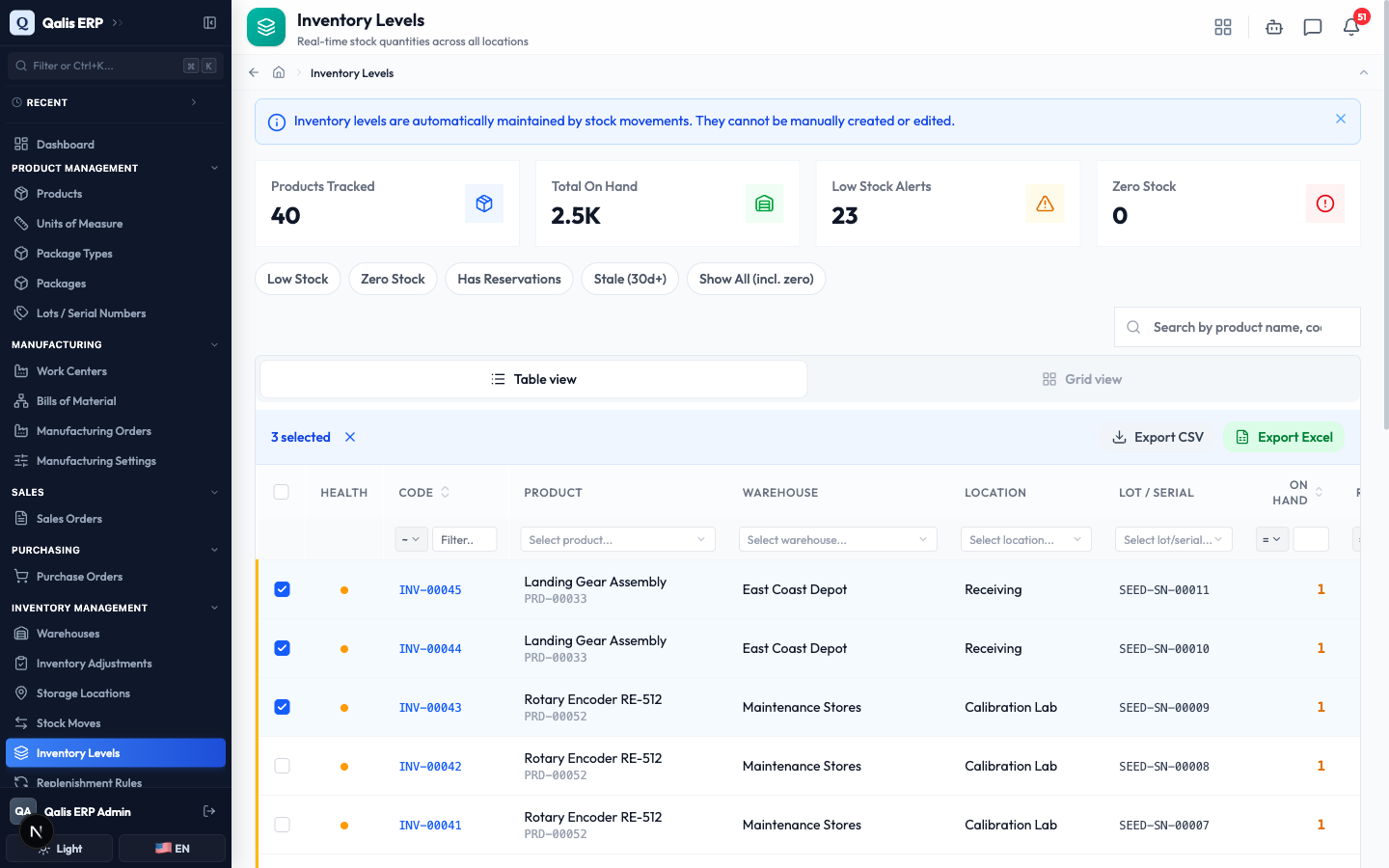
- Click Export CSV to download a spreadsheet-ready file. (Export Excel currently downloads the same CSV file; Qualis tells you so when you use it.)
Good to know
A few terms you will see on this screen, in plain words:
- On Hand: how much of the product is physically at that location right now.
- Reserved: how much of the on-hand stock is already promised to confirmed orders, so it is not free to use.
- Available: what is genuinely free to sell or consume, which is On Hand minus Reserved.
- Lot / Serial: a batch or single-item code that lets you trace a specific group of units. A product is counted separately for each lot or serial it has.
- Stale: a level that has not had any movement for more than 30 days, which can be a sign of stock that is being forgotten.