Chat
Message your colleagues in real time and link records straight into the conversation.
Last updated on June 25, 2026
Chat is the built in messaging for Qualis. Use it to ask a quick question, run a team standup, or sort out an issue without leaving the app or switching to email. Conversations can be one on one (a direct message) or a group, and you can drop a link to any record, like a part or a non-conformance, right into a message so everyone is looking at the same thing. This guide walks you through the things you do every day: opening your messages, reading a conversation, sending a message, starting a new conversation, mentioning a record, and searching.
Before you start
There is nothing to set up. Chat lives in the top bar on every screen, so it follows you everywhere in Qualis. You only need someone to talk to, which means at least one other person in your organization.
Open your messages
Your conversations are always one click away.
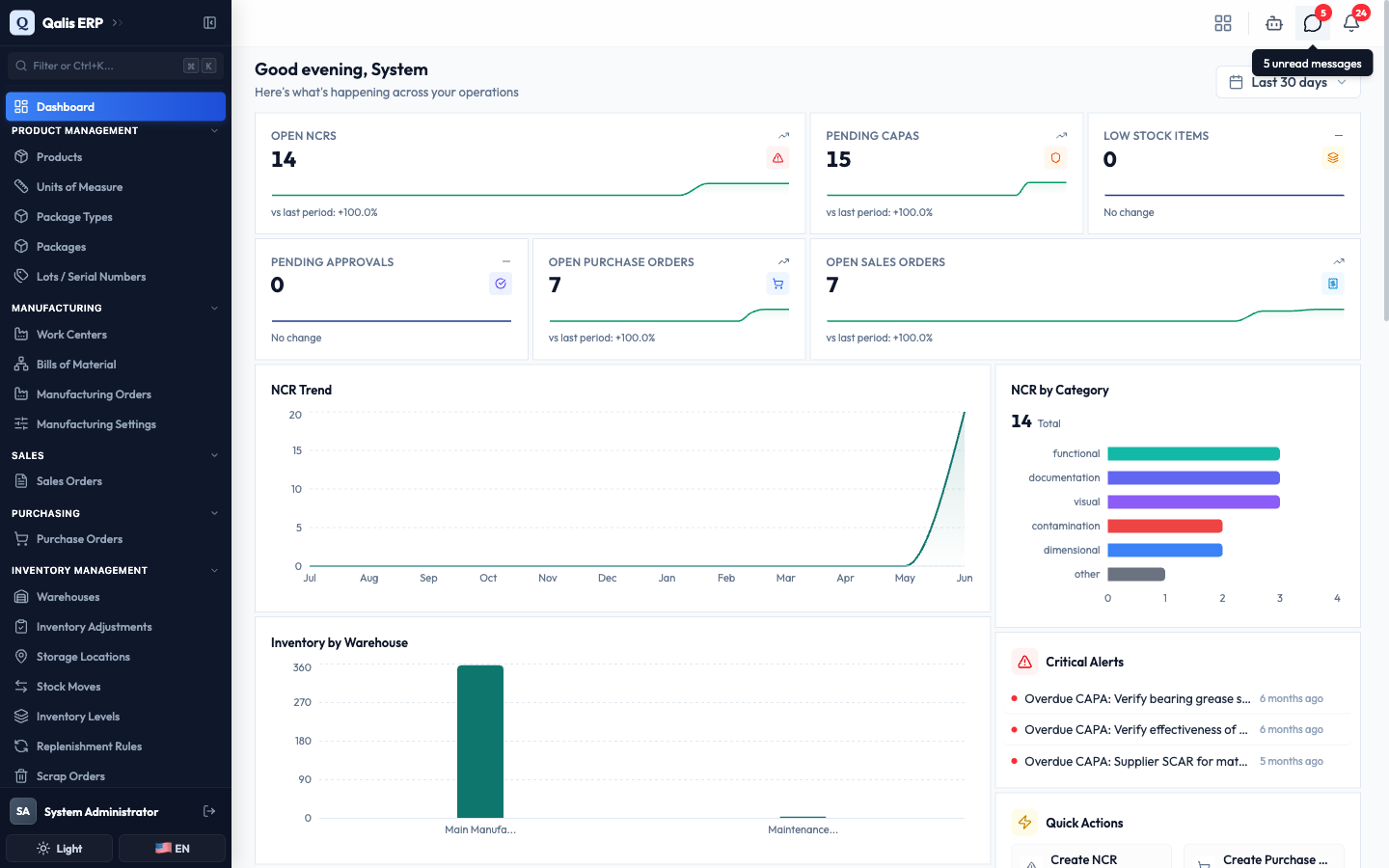
- Look at the top right of the top bar, next to the assistant and bell buttons. The chat button is the speech bubble.
- If you have unread messages, a small red number sits on the button. Hover over it to see a summary, such as 5 unread messages.
- Click the button to open the Messages panel.
The panel opens with your conversations on the left and the chat itself on the right. Until you pick a conversation, the right side invites you to choose one.
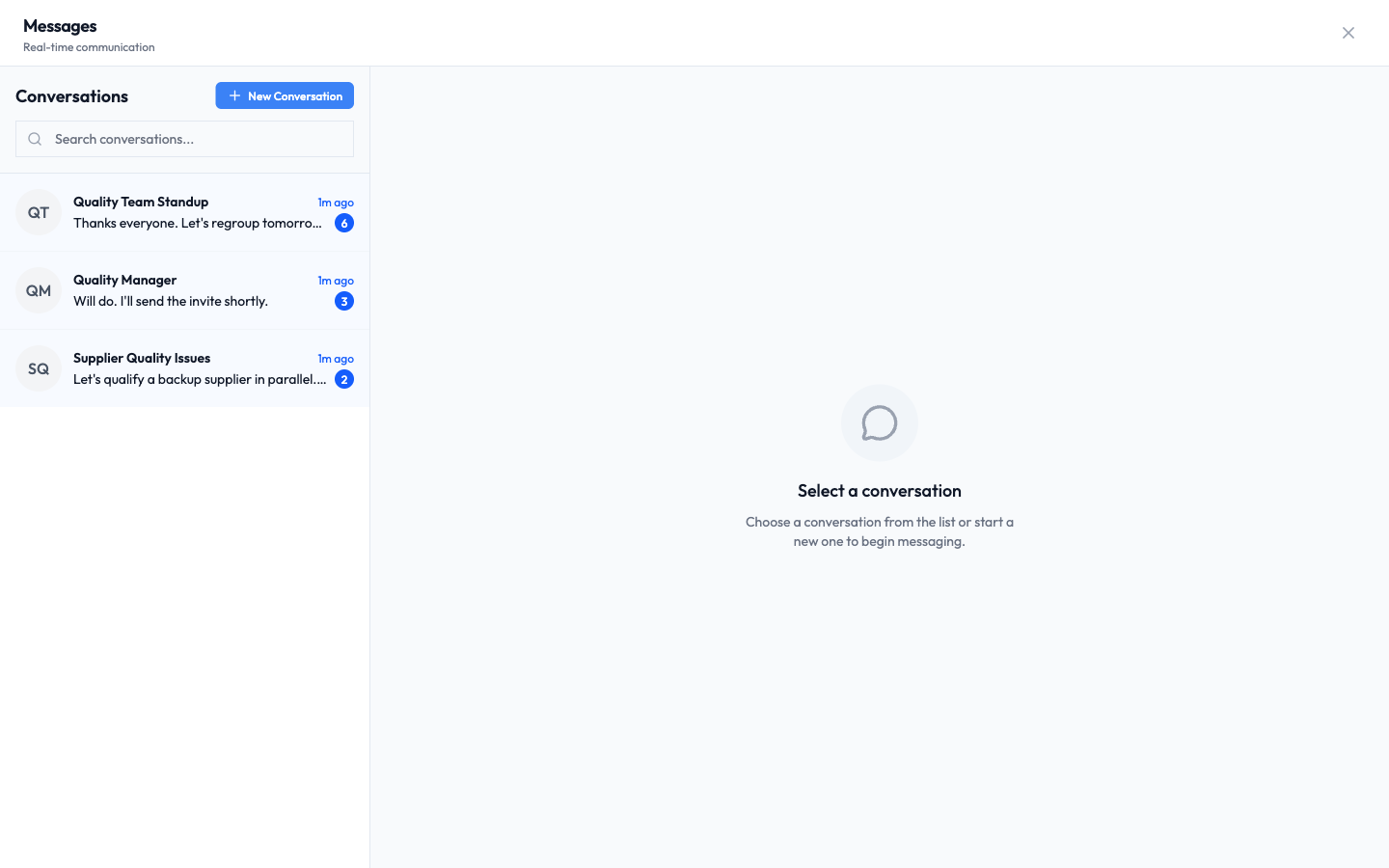
- Each row shows the conversation name, a preview of the last message, and how long ago it arrived (for example Just now or 2m ago).
- A blue number on a row counts the messages you have not read yet in that conversation.
- A two person icon marks a group conversation. A single set of initials marks a direct message with one person.
Find a conversation
When your list grows, search instead of scrolling.
- Click the Search conversations... box at the top of the list.
- Start typing. The list filters as you type, so there is no need to press Enter.
- To clear the search, click the X in the box.
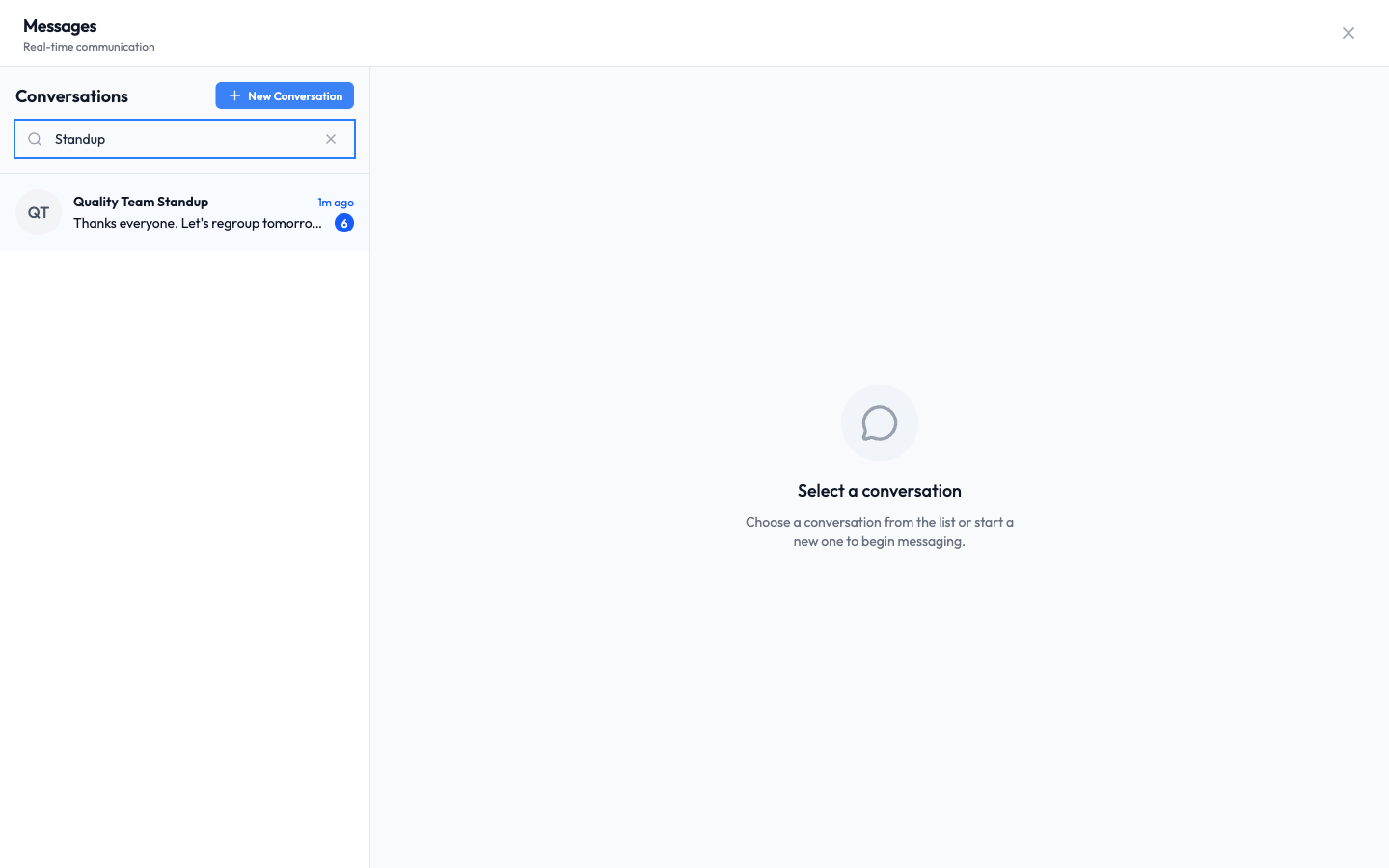
Searching looks at the conversation name, which works well for group conversations like Quality Team Standup.
Read a conversation
Open any conversation to catch up on the whole thread.
- Click a conversation in the list. It opens on the right.
- Read from top (oldest) to bottom (newest). A Today or Yesterday divider helps you place each message in time.
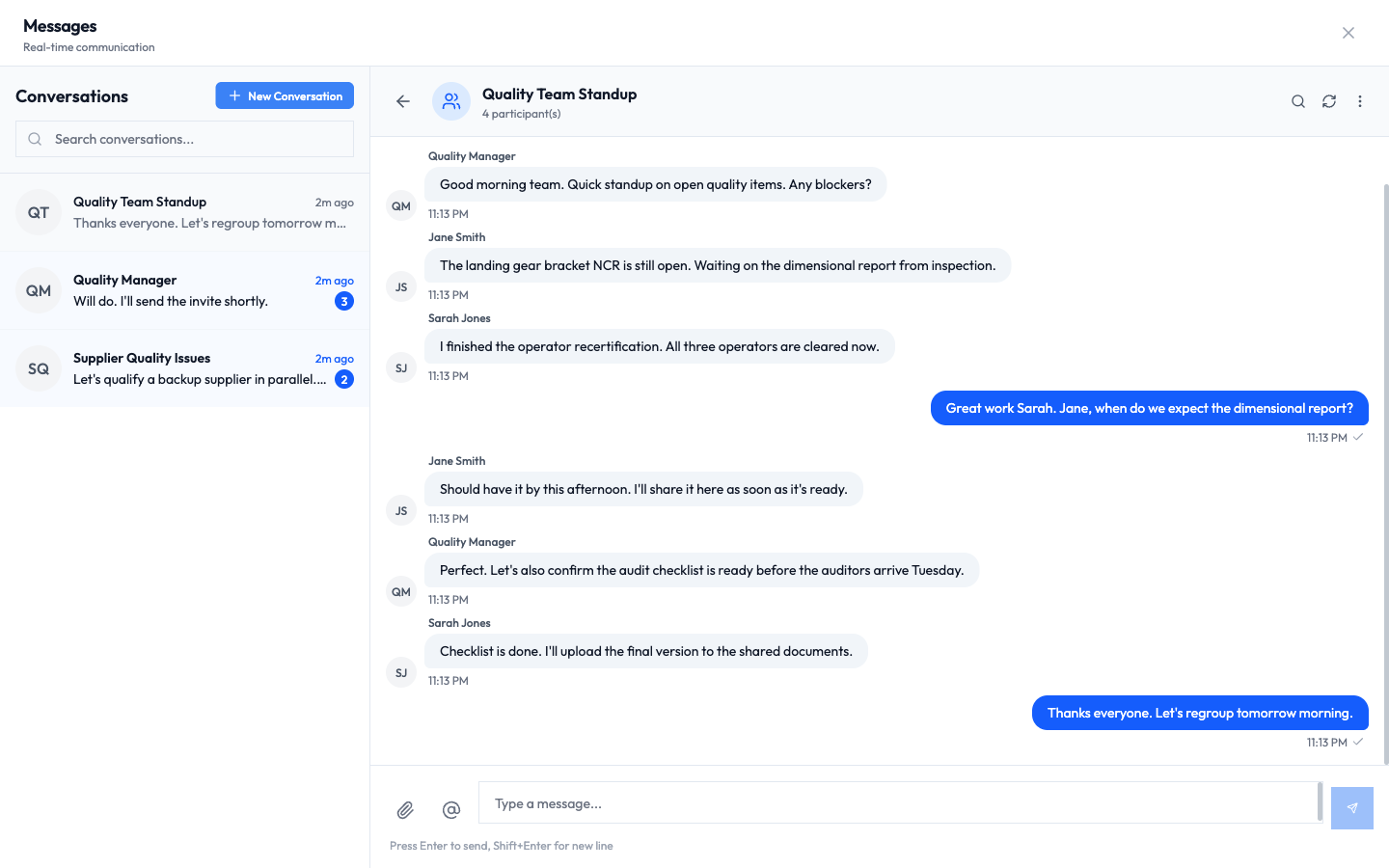
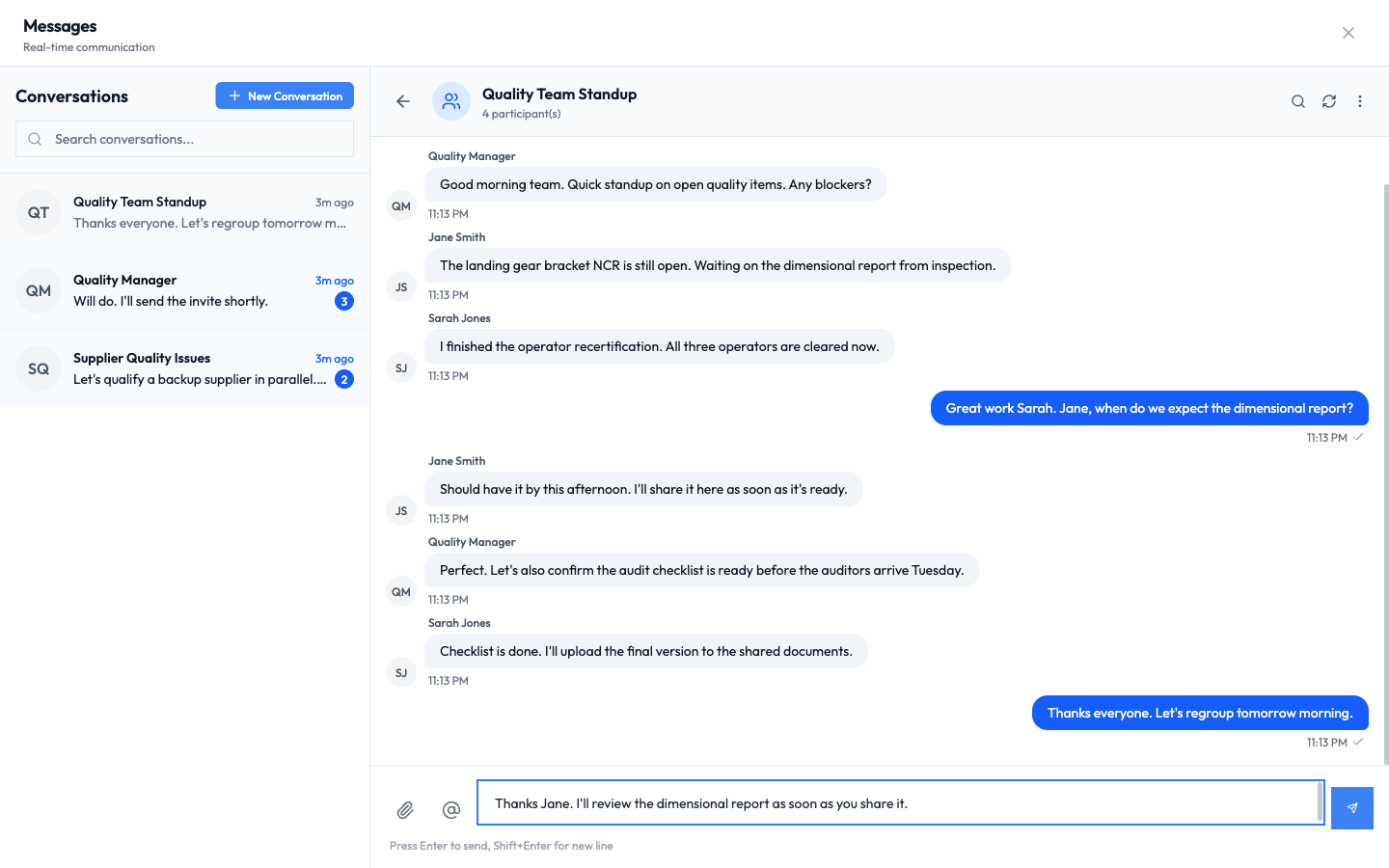
- Messages from other people sit on the left in grey, each with the sender's name above it.
- Your own messages sit on the right in blue.
- Each message shows the time it was sent. A small check mark on your messages means they were delivered.
- The header shows the conversation name and, for a group, how many people are in it (for example 4 participant(s)).
Opening a conversation marks its messages as read, so its blue count clears and the red number on the chat button goes down.
Send a message
Replying is exactly what you would expect.
- Click the Type a message... box at the bottom.
- Write your message. To add a line break without sending, hold Shift and press Enter.
- Press Enter (or click the blue send button) to send it.
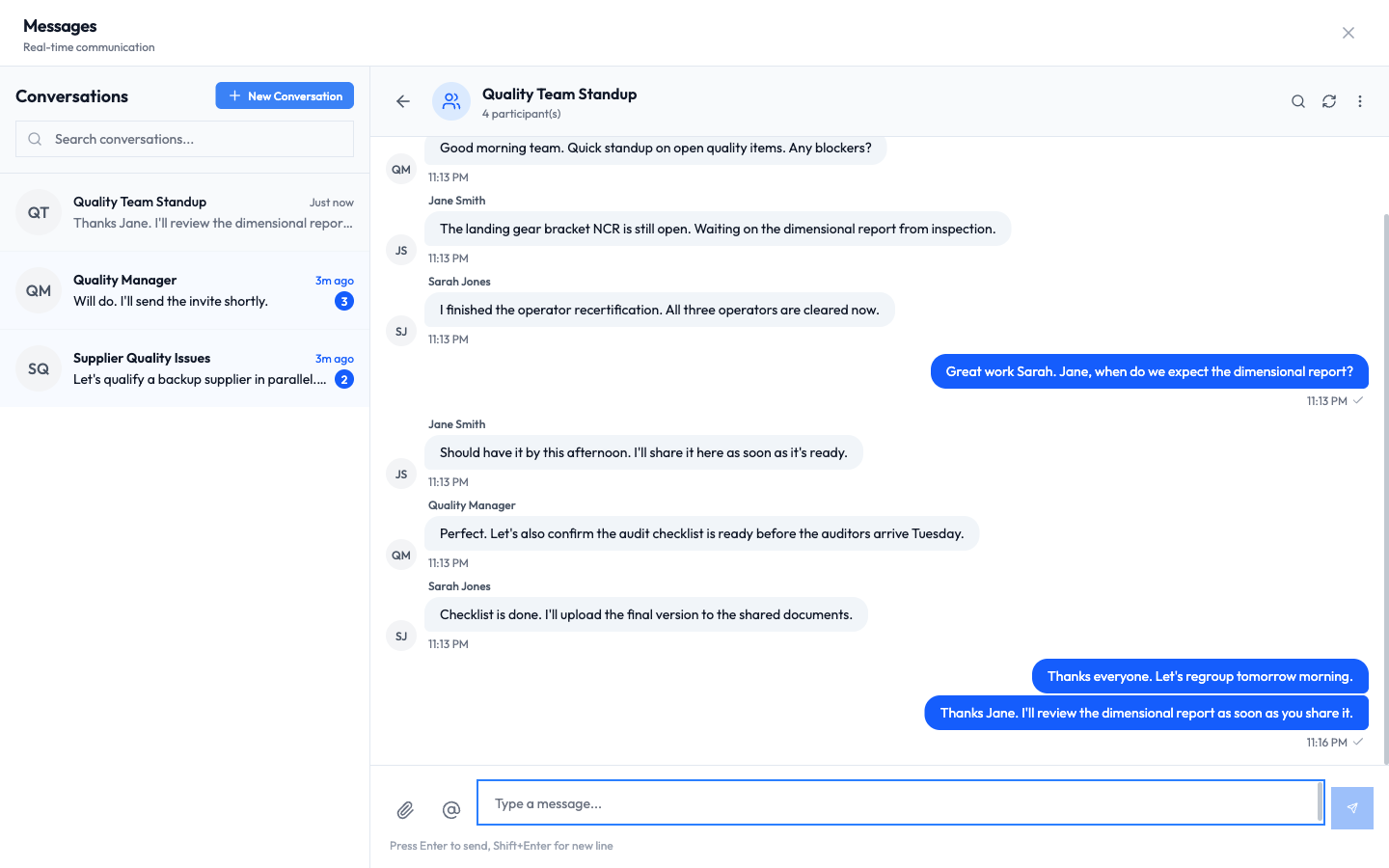
Your message appears at the bottom of the thread straight away, in blue, with the time it was sent.
To share a file or an image, click the paperclip button to the left of the box, or simply drag and drop the file onto the message area. You can also use the @ button to link a record, which the next sections cover.
Start a new conversation
Reach out to anyone in your organization in a couple of clicks.
- In the Messages panel, click New Conversation at the top of the list.
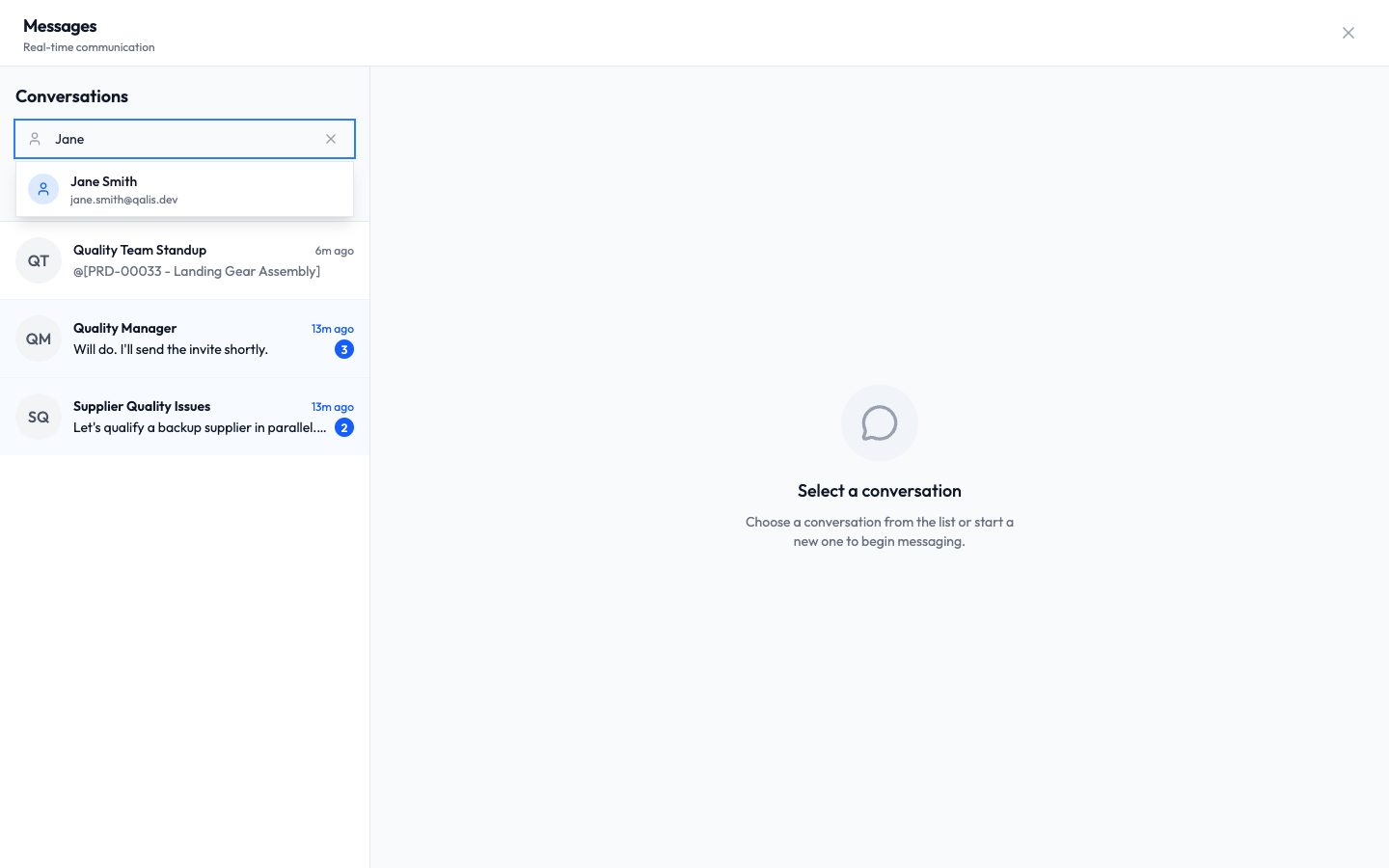
- Type a name or email in the Search for a user... box. The matching people appear below.
- Click the person you want.
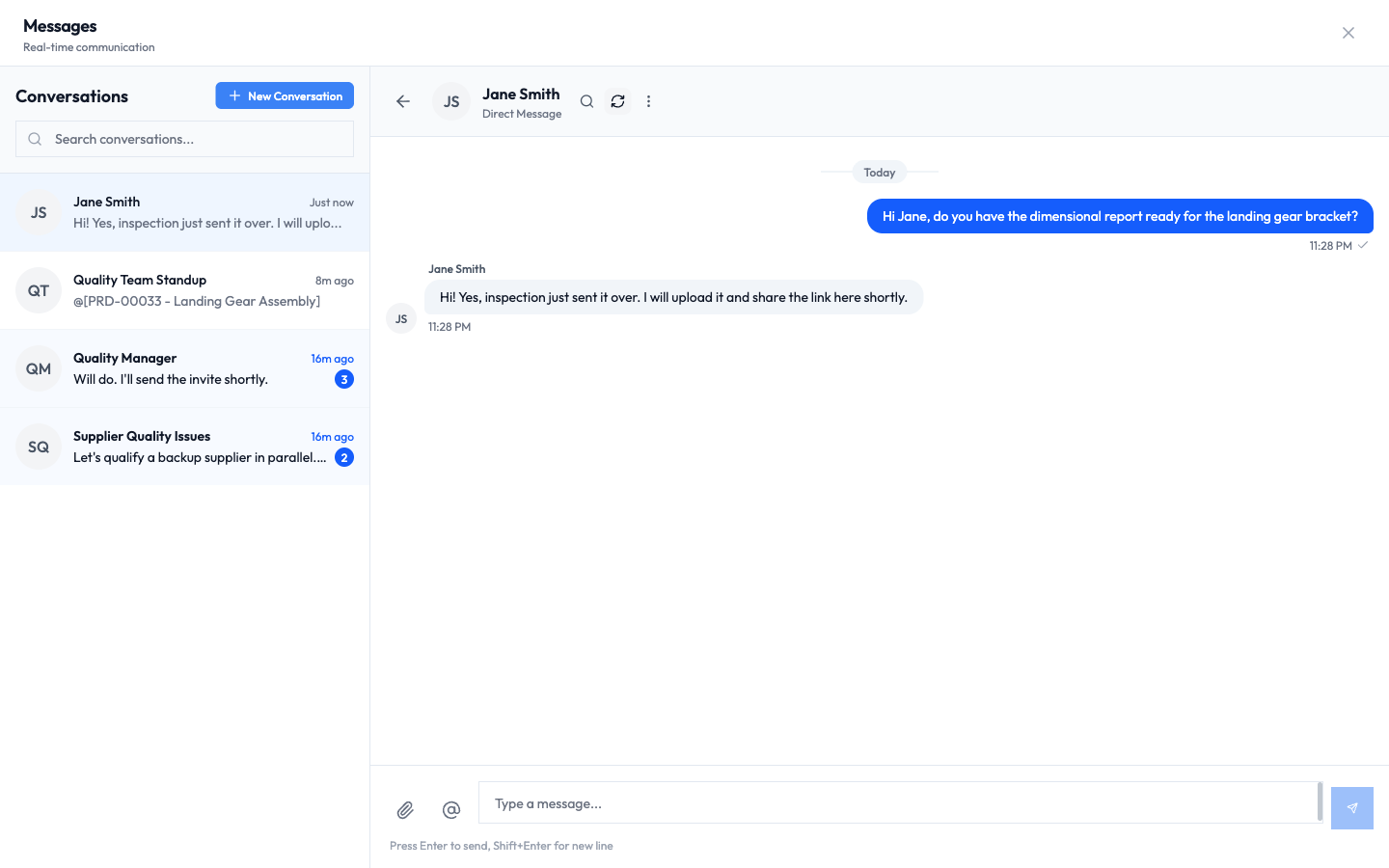
A direct conversation opens, ready for your first message. Type it and press Enter, just like any other message.
If you already have a conversation with that person, Qualis opens the existing one instead of creating a duplicate.
Mention a part, supplier, or other record
This is what makes Chat more than a chat. You can drop a live link to any record into your message, so the person reading it can open it with one click.
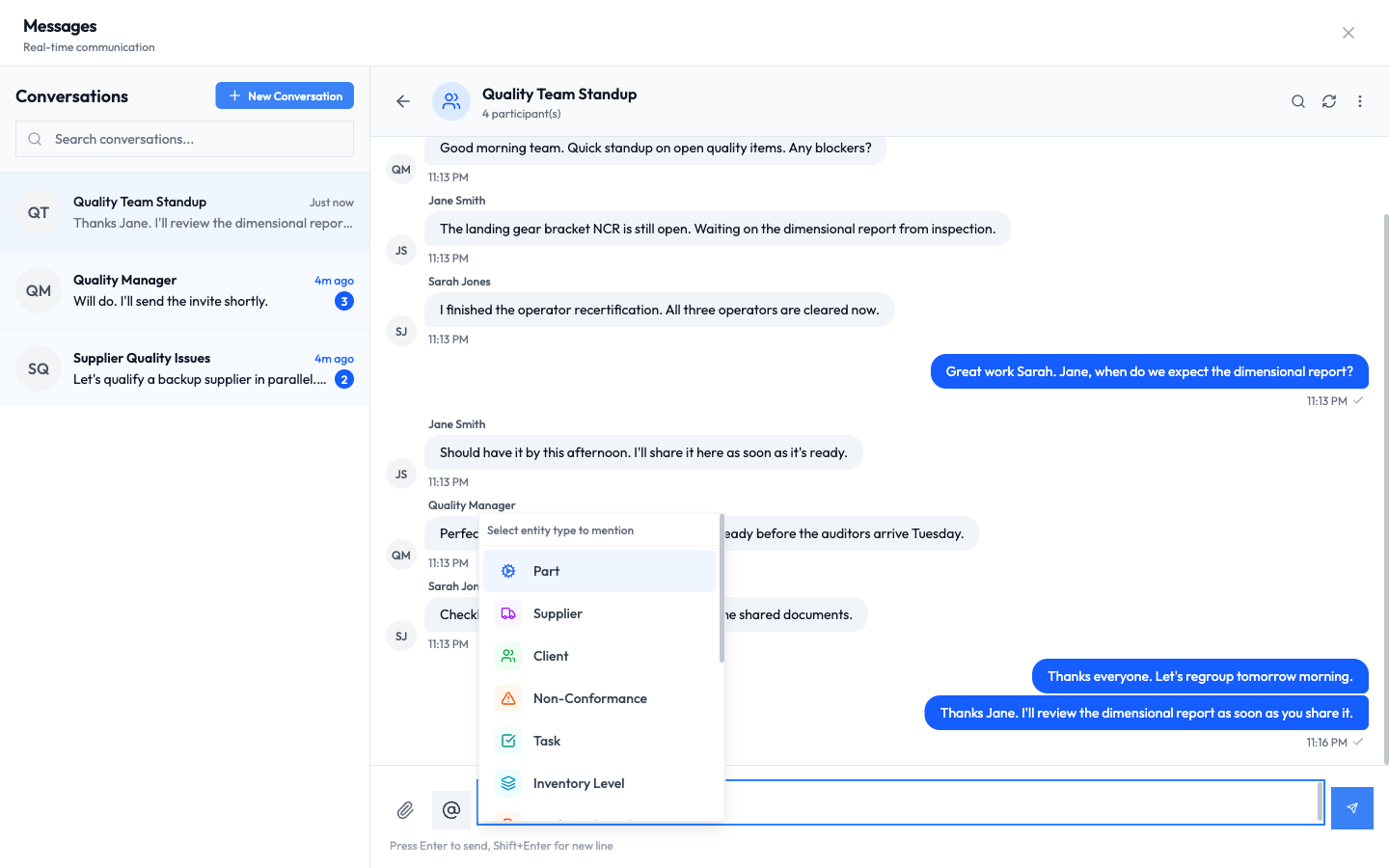
- With your cursor in the message box, click the @ button (its tooltip reads Mention Part, Supplier, or Entity). You can also just type the @ symbol.
- A menu appears. Choose the kind of record you mean, for example Part, Supplier, Client, Non-Conformance, or Task.
- Start typing to search. Results show the record's code and name, such as PRD-00033 - Landing Gear Assembly.
- Click the record you want.
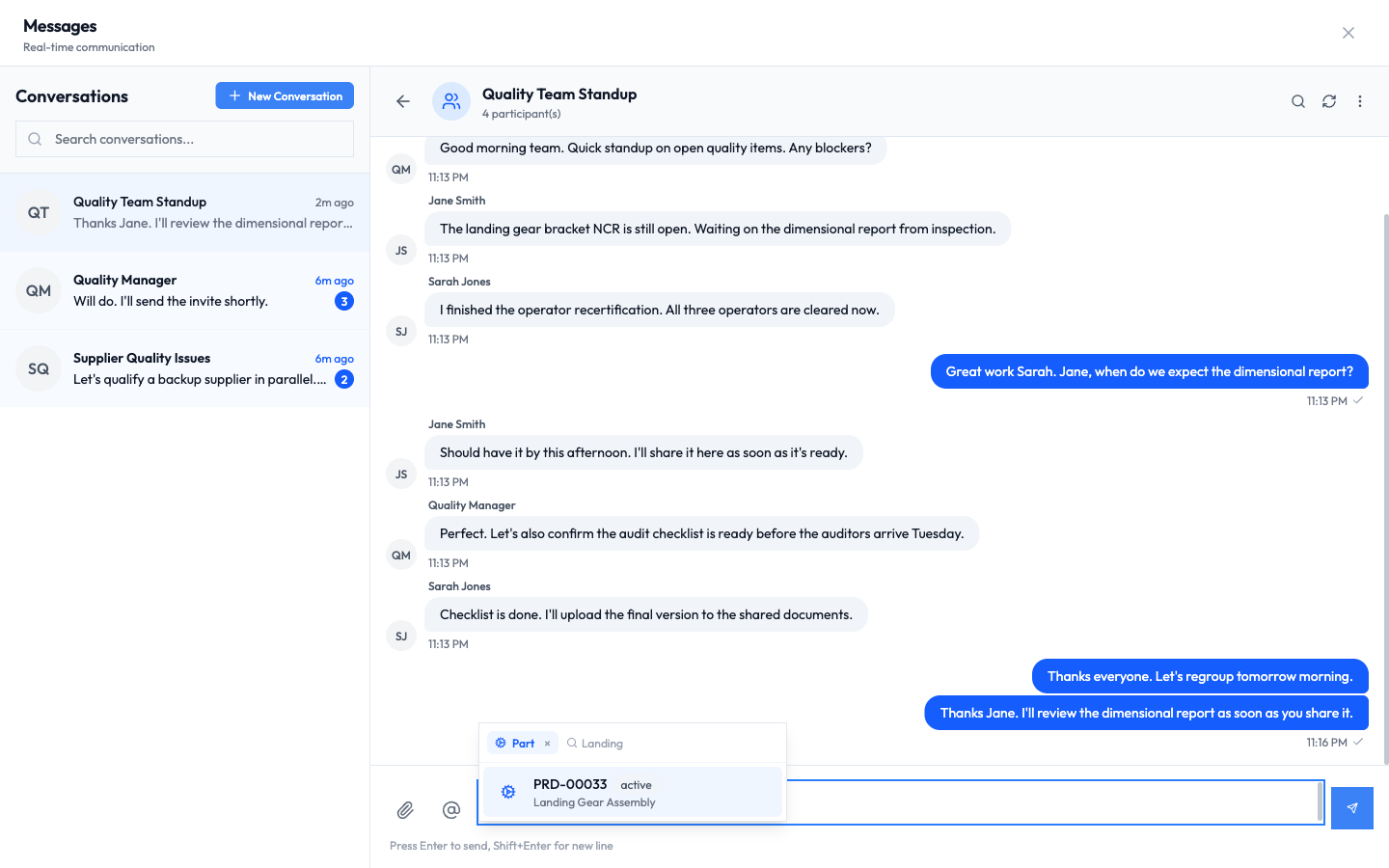
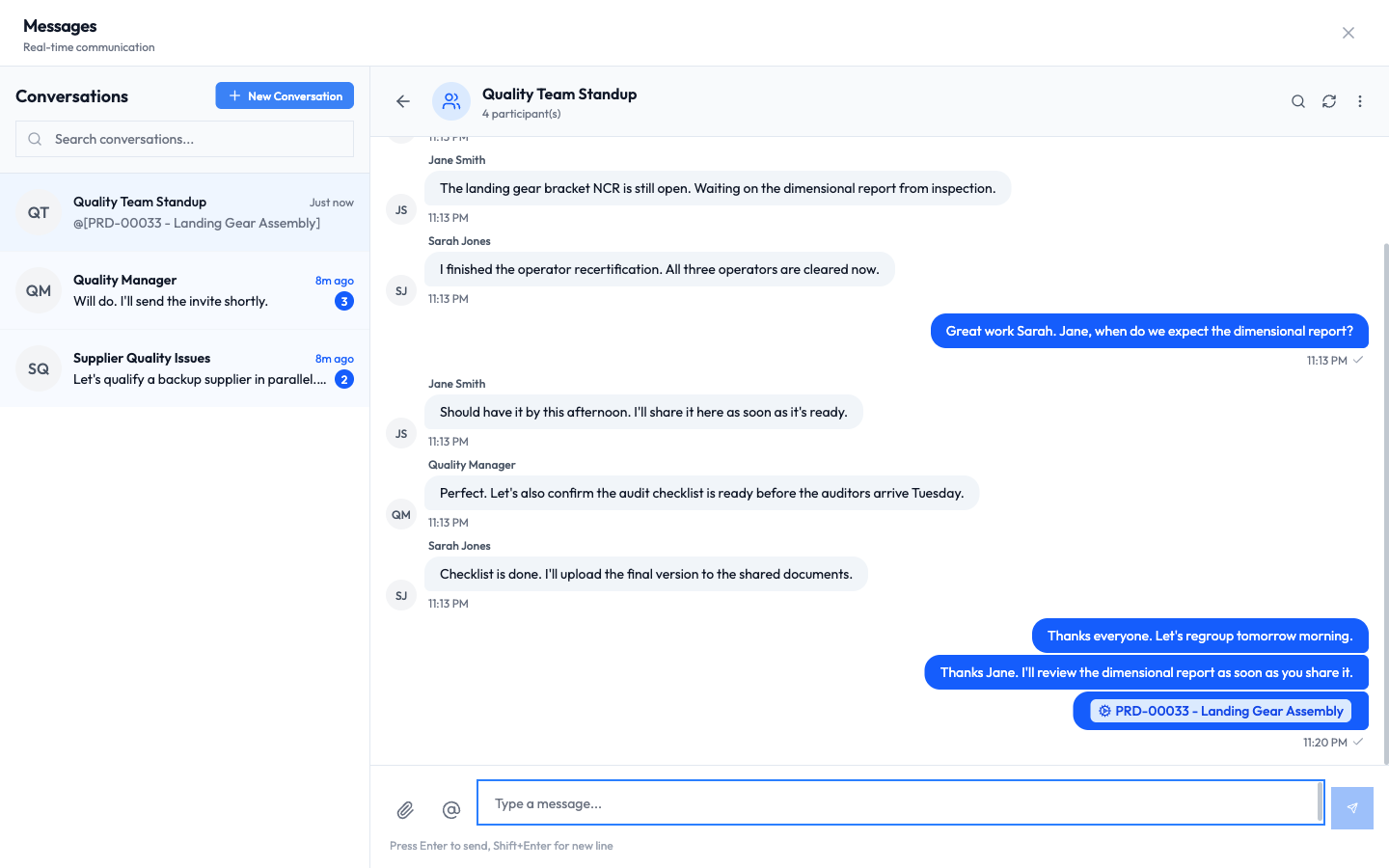
The record is added to your message as a tidy chip. Send the message as usual, and the chip appears in the conversation as a clickable link straight to that record.
Search within a conversation
Long thread? Find the exact message you remember.
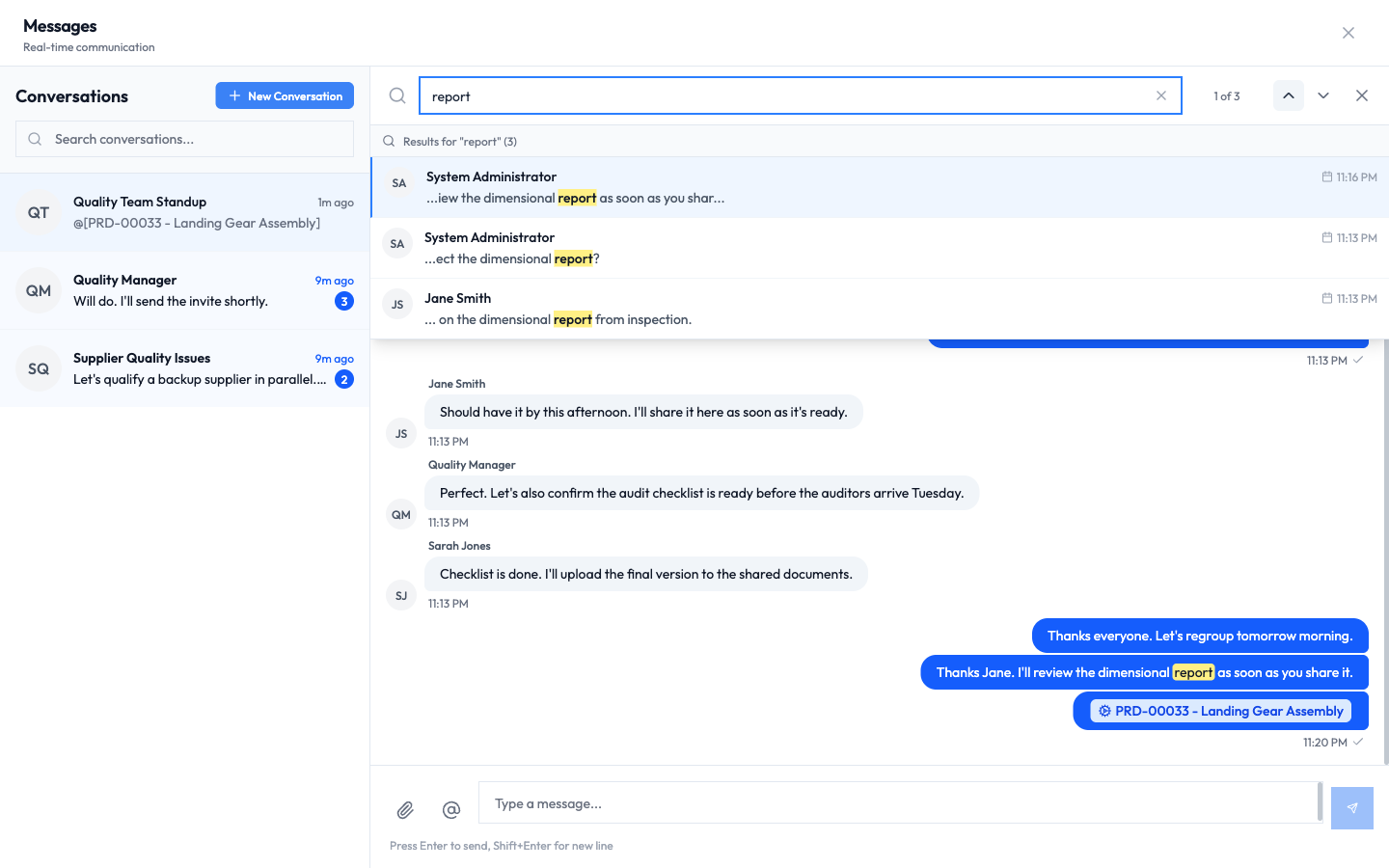
- Open the conversation, then click the magnifier in the top right of its header.
- Type what you are looking for in the Search messages... box.
- Matching words are highlighted, and a counter shows your position, such as 1 of 3. Use the up and down arrows to jump between matches, and the X to close the search.
Good to know
- Direct message: a private conversation between you and one other person.
- Group conversation: a conversation with several people, shown with a group name like Quality Team Standup.
- Unread count: the blue number on a conversation, and the red number on the chat button, counting messages you have not read.
- Mention: a link to a record (a part, supplier, non-conformance, and so on) that you add to a message with the @ button. It appears as a clickable chip.
- Read receipt: the small check mark on a message you sent, confirming it was delivered.