Scrap Orders
Record and dispose of damaged, defective, expired or otherwise unusable stock, with a reason and a full audit trail, so your inventory only counts the goods you can actually use.
Last updated on June 30, 2026
A scrap order is how you take a product out of usable inventory when it can no longer be sold, used, or shipped. Maybe a box was crushed in the rack, a batch failed inspection, or a lot passed its expiry date. You record what is being scrapped, how much, and why. The order starts as a draft you can review and adjust, and when you execute it Qualis removes the quantity from its location and records a matching stock move, so the loss is fully traceable. This guide covers the things you do most often: browsing your scrap orders, creating one, reading one, executing one, and reviewing its history.
Before you start
A scrap order points at things you set up elsewhere in Qualis, so have these ready first:
- A product to scrap, set up in Products. Every scrap order is about one product.
- A source location that holds the stock, set up in Storage Locations. This is where the goods sit today, and it must have enough on hand to cover the quantity you want to scrap.
You do not need to choose where the scrapped goods go. Qualis fills in a virtual Scrap location for you, which is the bucket that holds destroyed stock so it never shows up as available inventory again. You can change it if your site has a specific disposal area.
You reach the module from the left sidebar under Inventory Management, then Scrap Orders.
Find and browse your scrap orders
Start here to see every scrap order and zero in on the one you need.
- Open Scrap Orders from the sidebar. Two cards across the top give you the headline numbers: Scrapped This Month (the total quantity) and Scrap Value This Month (what that stock was worth). Below them, the list shows one row per scrap order, with its Reference, Status, Product, Quantity, Reason, Source Location, Scrap Location, Total Value, who created it, and when. Many cells are links, so you can jump straight to the product or location.
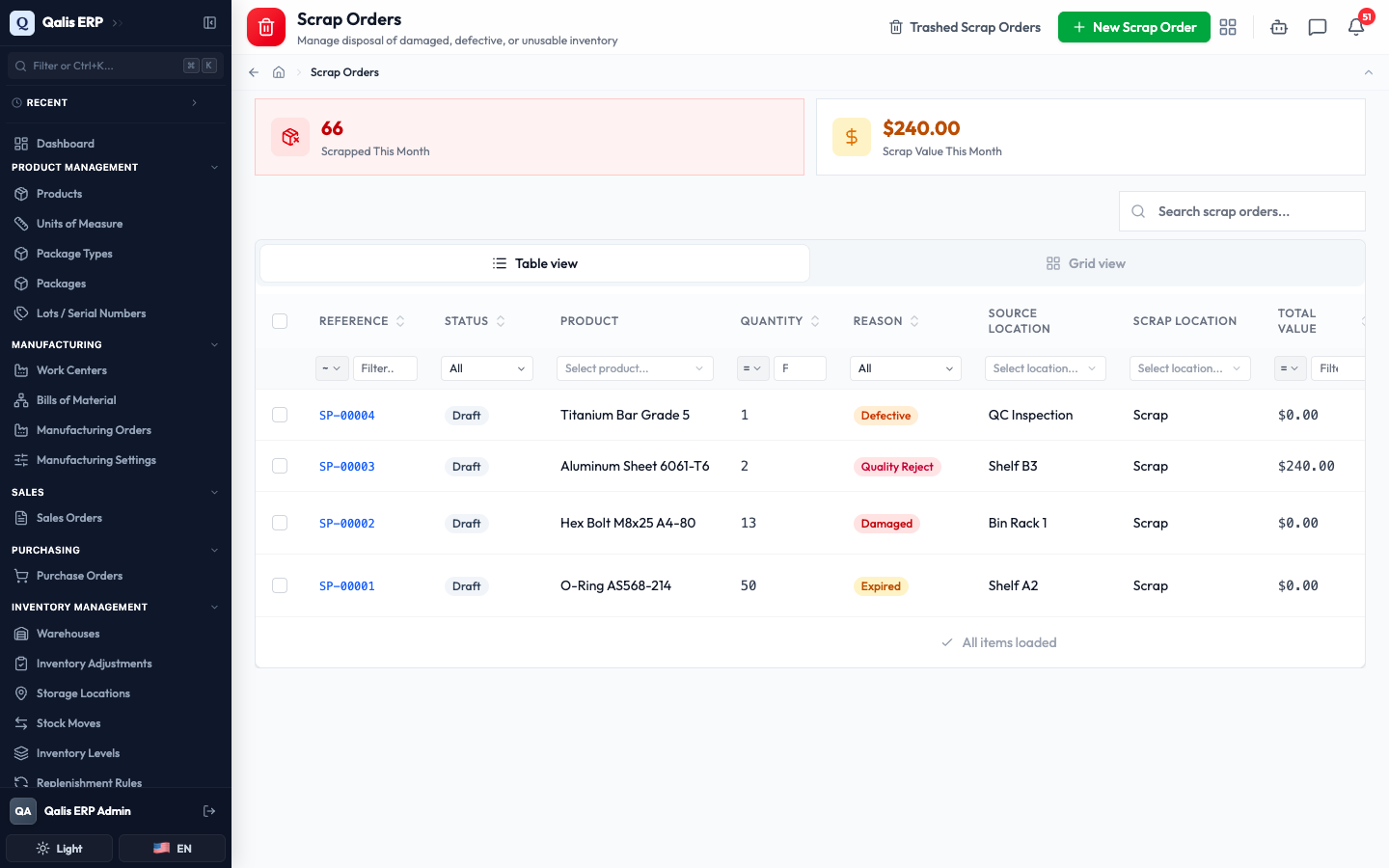
- To find one fast, type in the Search scrap orders... box near the top right. The list filters as you type, so there is no need to press Enter.
- To narrow by a single attribute, use the small filter box under any column heading. For example, open the Reason filter and pick Damaged to see only the damaged items. You can filter the same way by Status (Draft, Executed or Cancelled), Product, a Source Location, a quantity, a value range, who created it, or a created-date range.
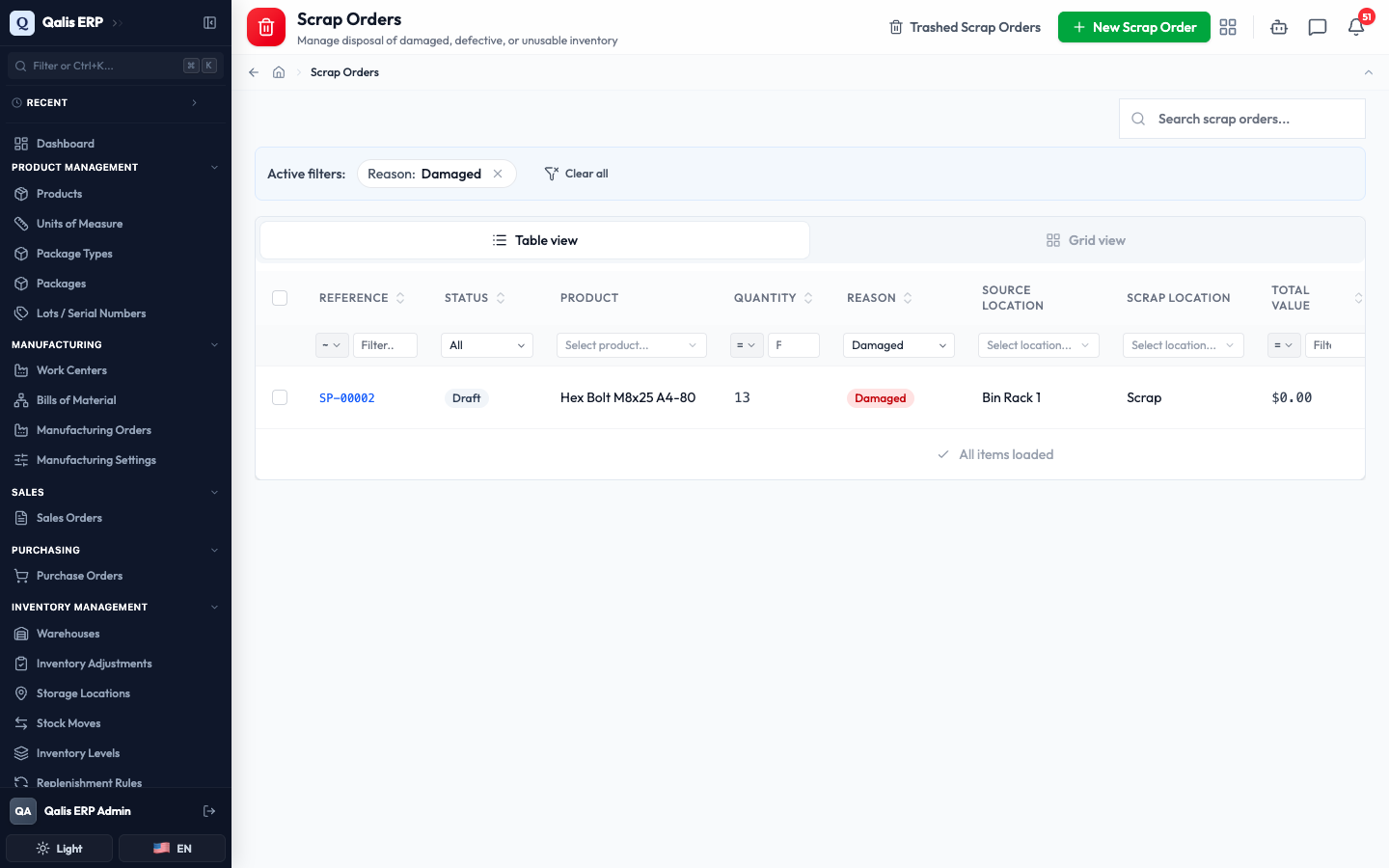
Whenever a filter is on, an Active filters banner appears above the list showing what is applied. Click the small x on a filter to drop it, or Clear all to reset everything. The web address updates too, so you can bookmark or share a filtered view. You can also switch between the table and a card grid using the Table view and Grid view buttons.
Create a scrap order
This is the main task: telling Qualis what you want to scrap and why. The form is split into three short tabs, and nothing is saved until you confirm.
- On the list, click New Scrap Order at the top right. A blank form opens on the Order Details tab.
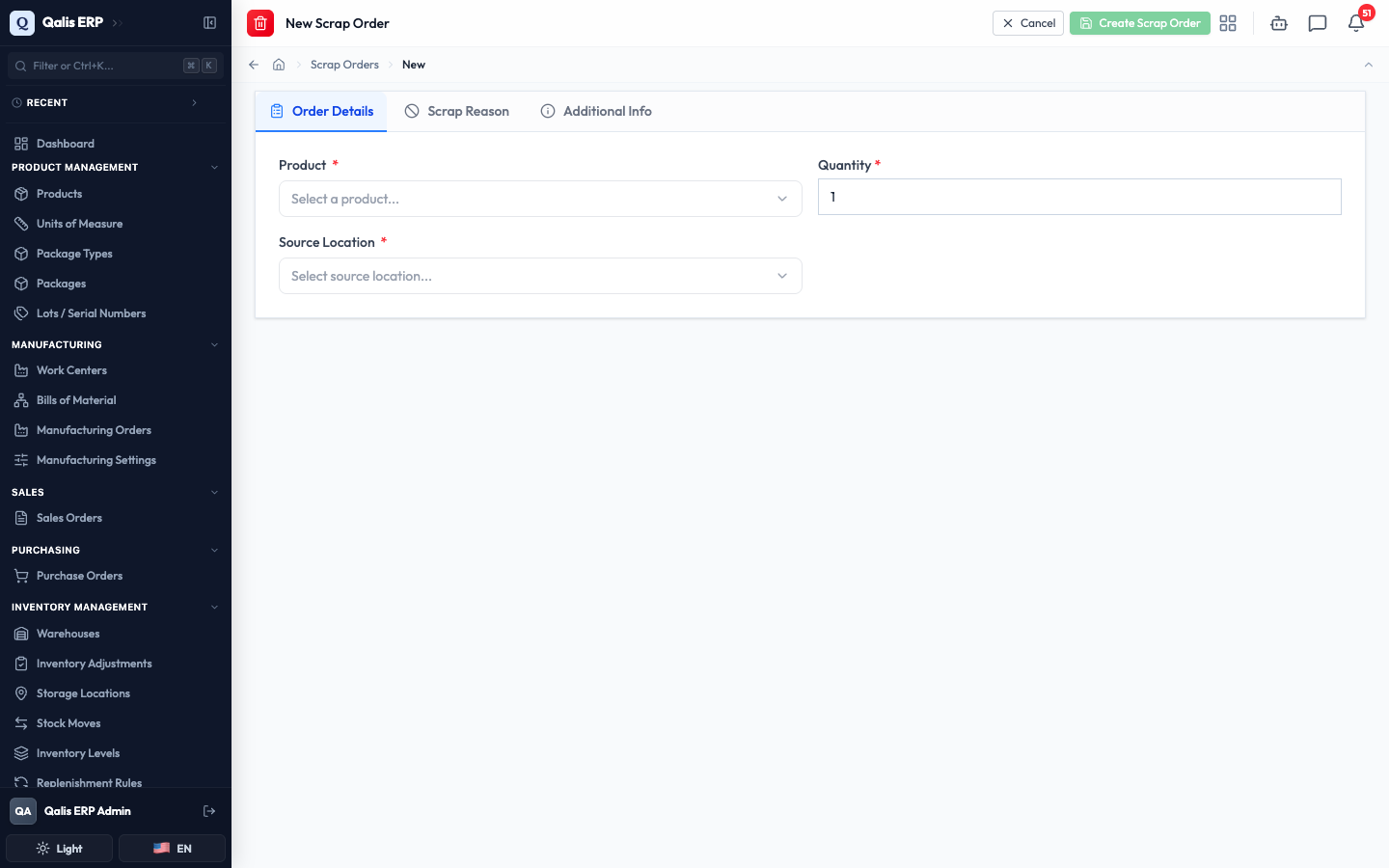
- On the Order Details tab, click Select a product... and choose the product you are scrapping. Set the Quantity to scrap. Then click Select source location... and choose where the stock is right now. Product, quantity and source location are all required.
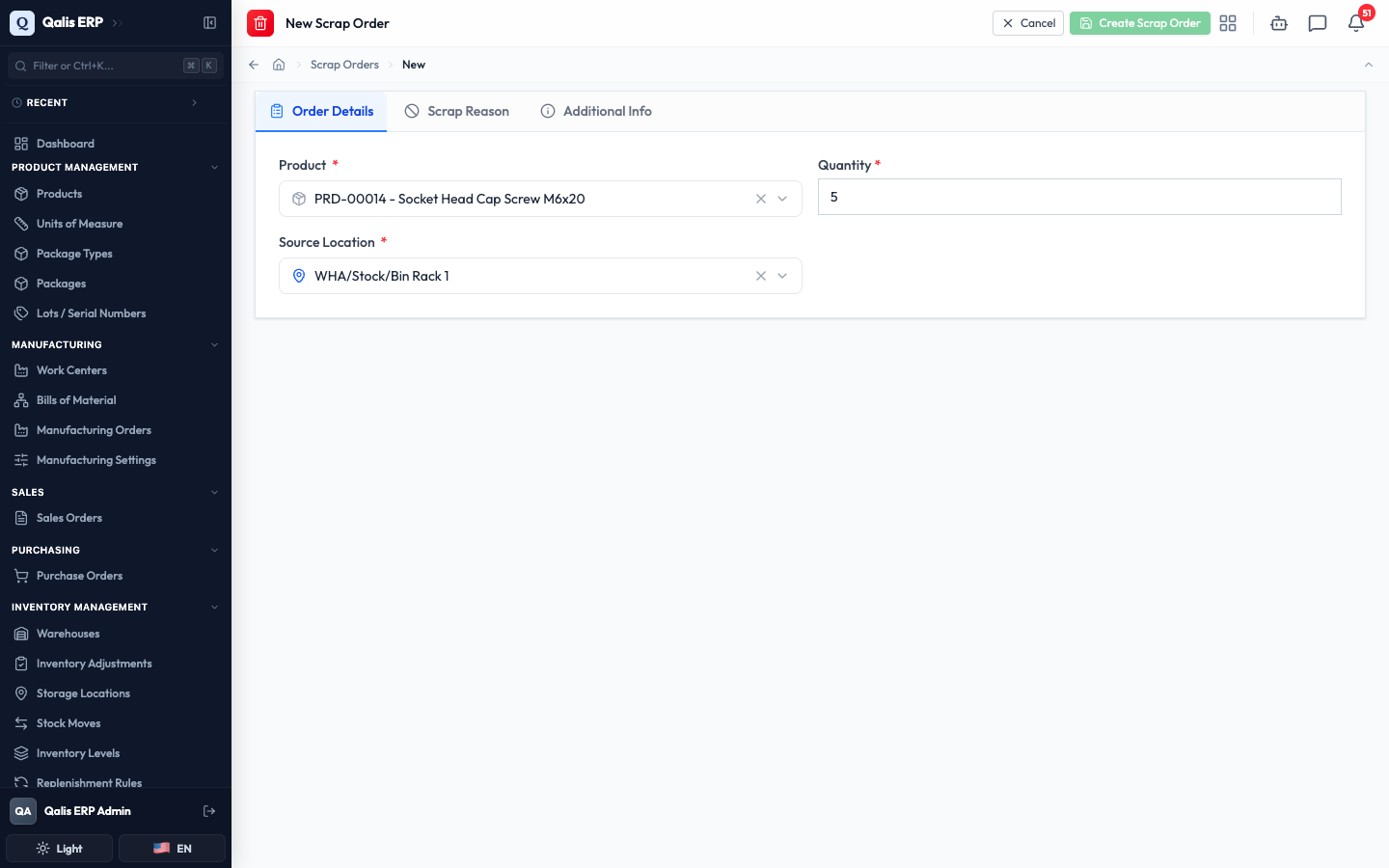
If the product is tracked by lot or serial number, a Lot/Serial Number field appears, and you choose the exact lot or serial being scrapped. For a serial-tracked item the quantity locks to 1 and the source location fills in automatically from where that serial is held.
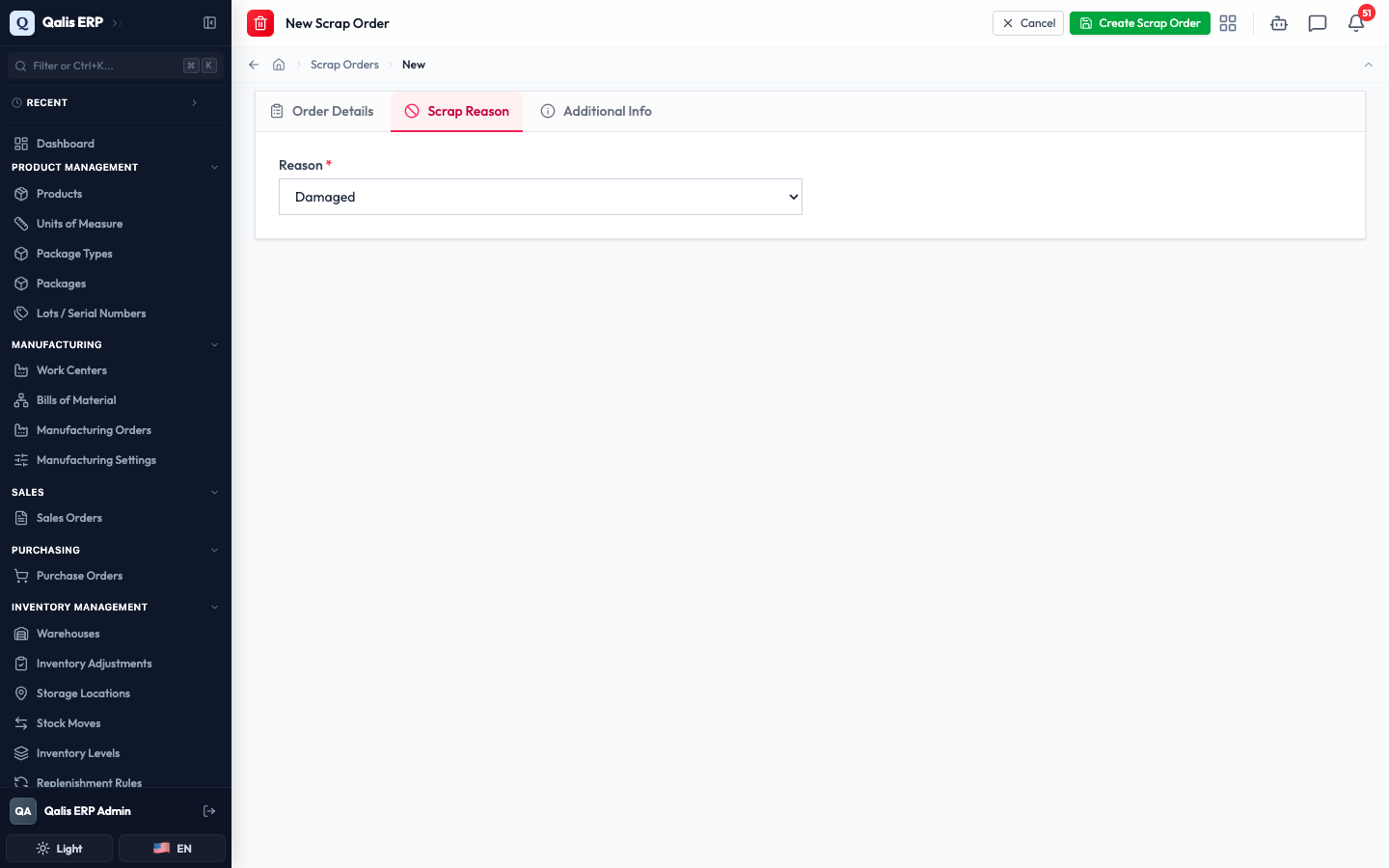
- Open the Scrap Reason tab and choose a Reason that explains why the stock is being scrapped: Damaged, Defective, Expired, Contaminated, Obsolete, Quality Reject or Other. If you pick Other, a short Reason Details box appears so you can spell it out. The reason is required.
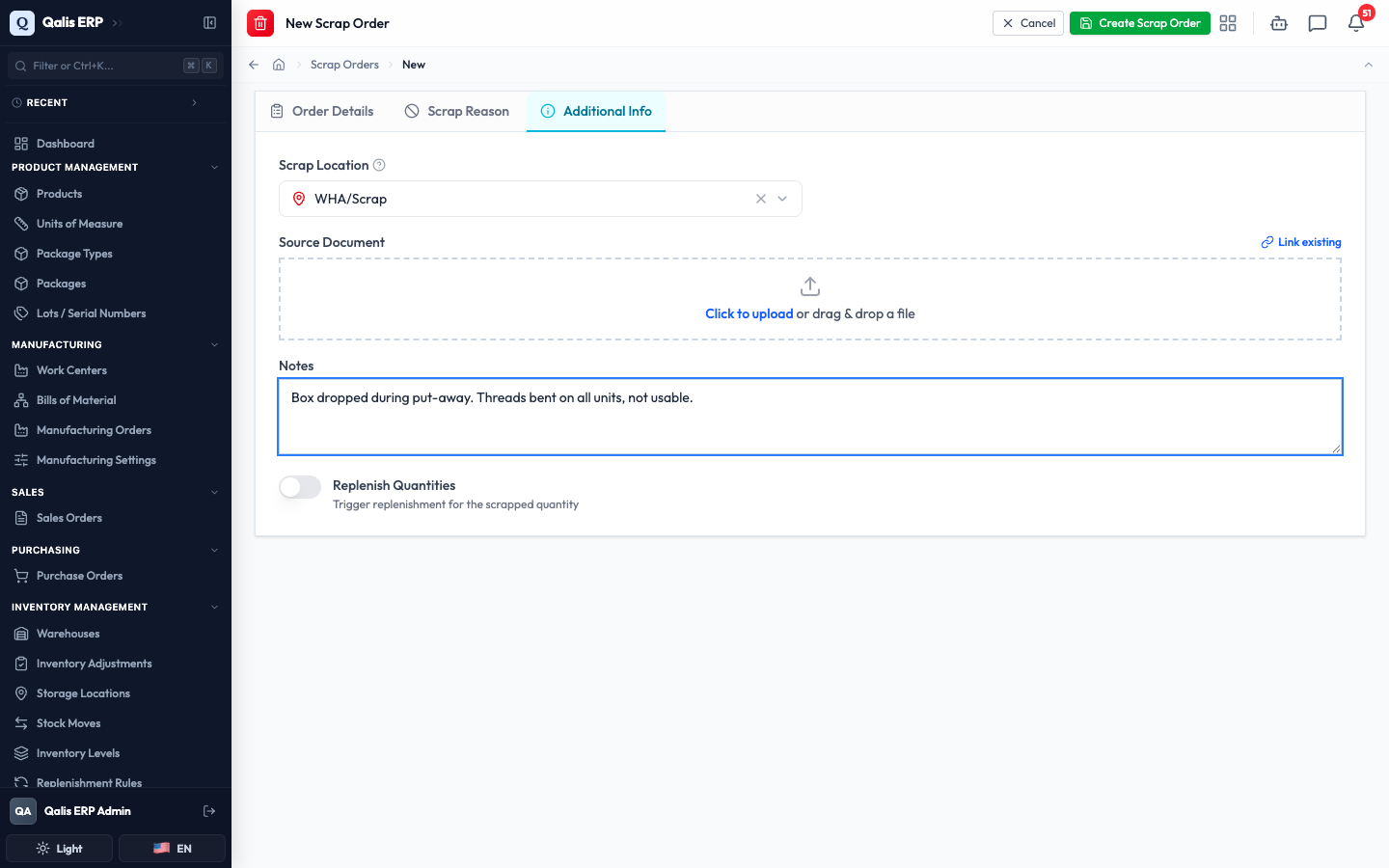
- Open the Additional Info tab for the optional extras. The Scrap Location is already set to the virtual Scrap bucket, so you usually leave it alone. You can attach a Source Document (such as a photo or a quality report) by uploading a file or clicking Link existing to point at a document already in Qualis. Add any Notes, and turn on Replenish Quantities if you want Qualis to alert your buyers to reorder the lost stock.
- Click Create Scrap Order at the top right. A summary box appears so you can check the product, quantity, source location, scrap location and reason one last time.
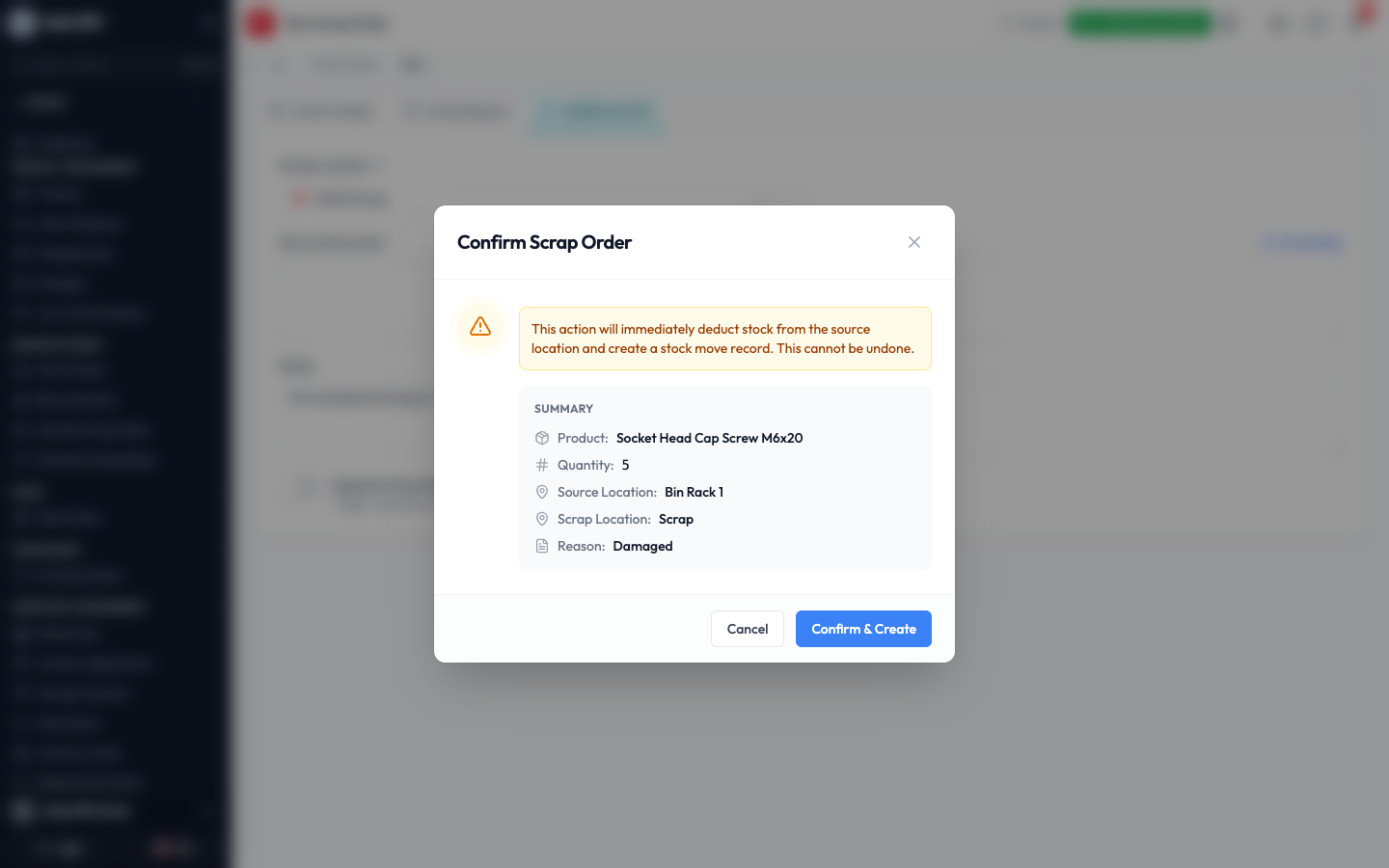
- Click Confirm & Create.
Qualis gives the order its own reference (like SP-00005), works out its value from the product cost, and opens its detail page. The order is saved as a Draft: nothing has left the shelf yet. The stock is only removed when you execute the order, which is the next step.
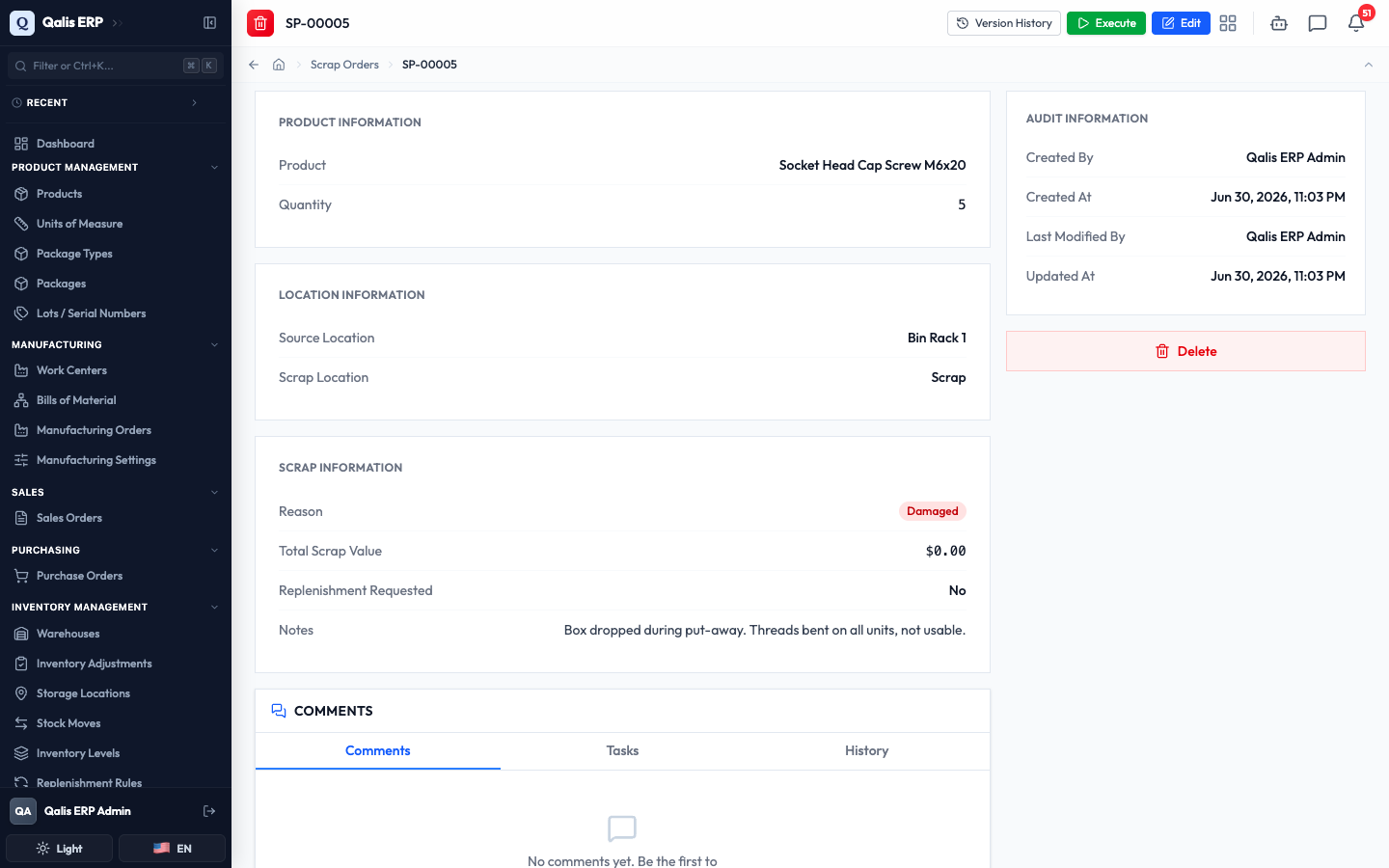
The reference code, the value, and the scrap location are all worked out for you. You only choose the product, the quantity, the source location and the reason.
Read a scrap order
Open any scrap order to see exactly what it covers.
- Click a Reference link in the list (or the order's code anywhere in Qualis). The detail page opens (shown above).
- The top of the page shows the order's reference and the buttons for what you can do here: Version History, Execute (only while the order is a draft), and Edit.
- Product Information shows the product and quantity. Location Information shows where the stock is now and where it will go. Scrap Information shows the Reason, the Total Scrap Value, whether replenishment was requested, and any notes. On the right, the Audit Information panel tells you who created the order and when. Once the order is executed, a Stock Move card also appears, linking to the inventory movement that recorded the loss.
Execute a scrap order
Executing is the step that actually removes the stock. It is deliberately separate from creating, so you have a chance to review a draft (and get it approved, if your site requires that) before anything leaves the shelf. Executing cannot be undone.
- Open a draft scrap order and click Execute at the top right.
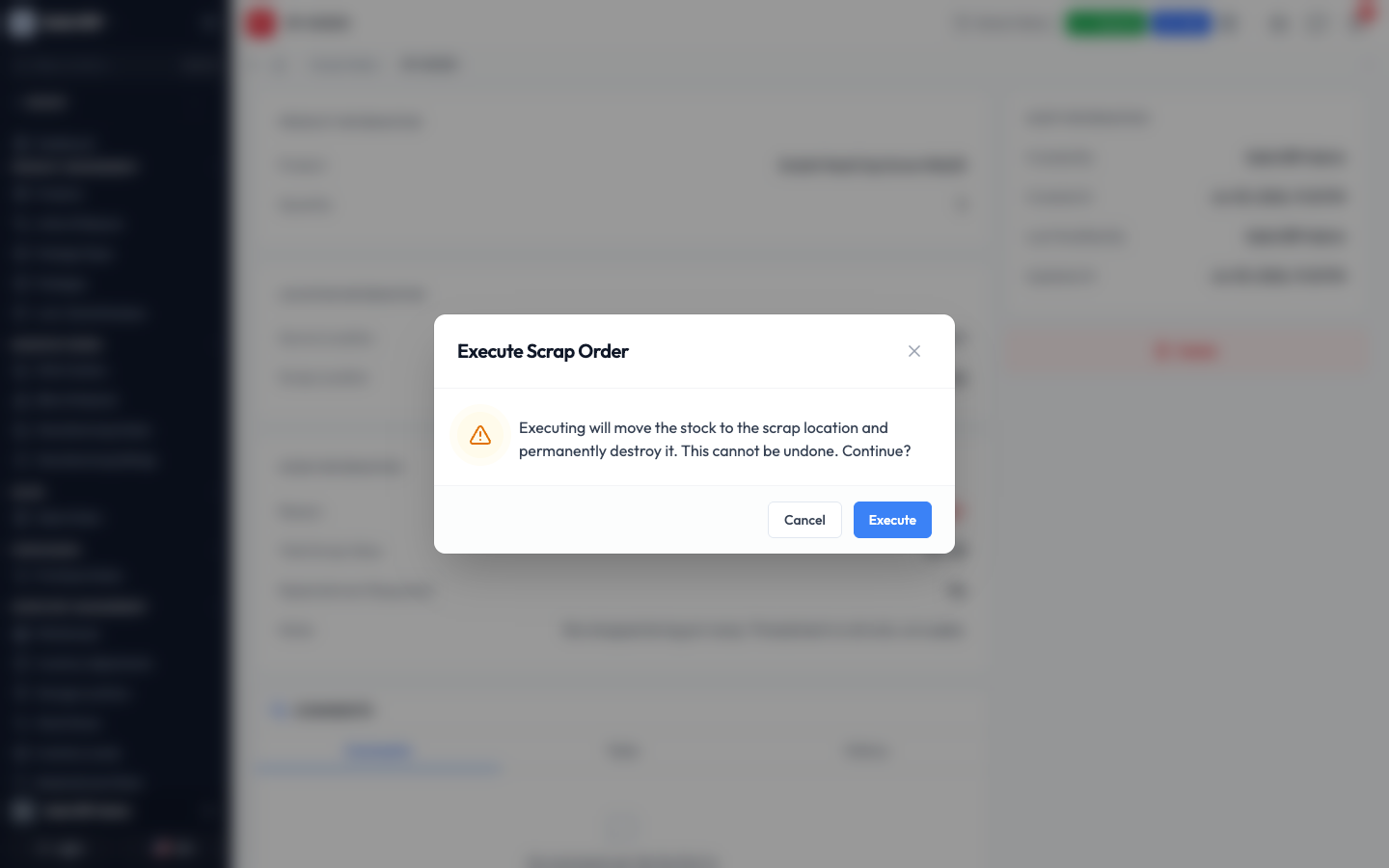
- A confirmation box explains what will happen: "Executing will move the stock to the scrap location and permanently destroy it. This cannot be undone." Click Execute to go ahead, or Cancel to stop.
-
What happens next depends on your organization's settings:
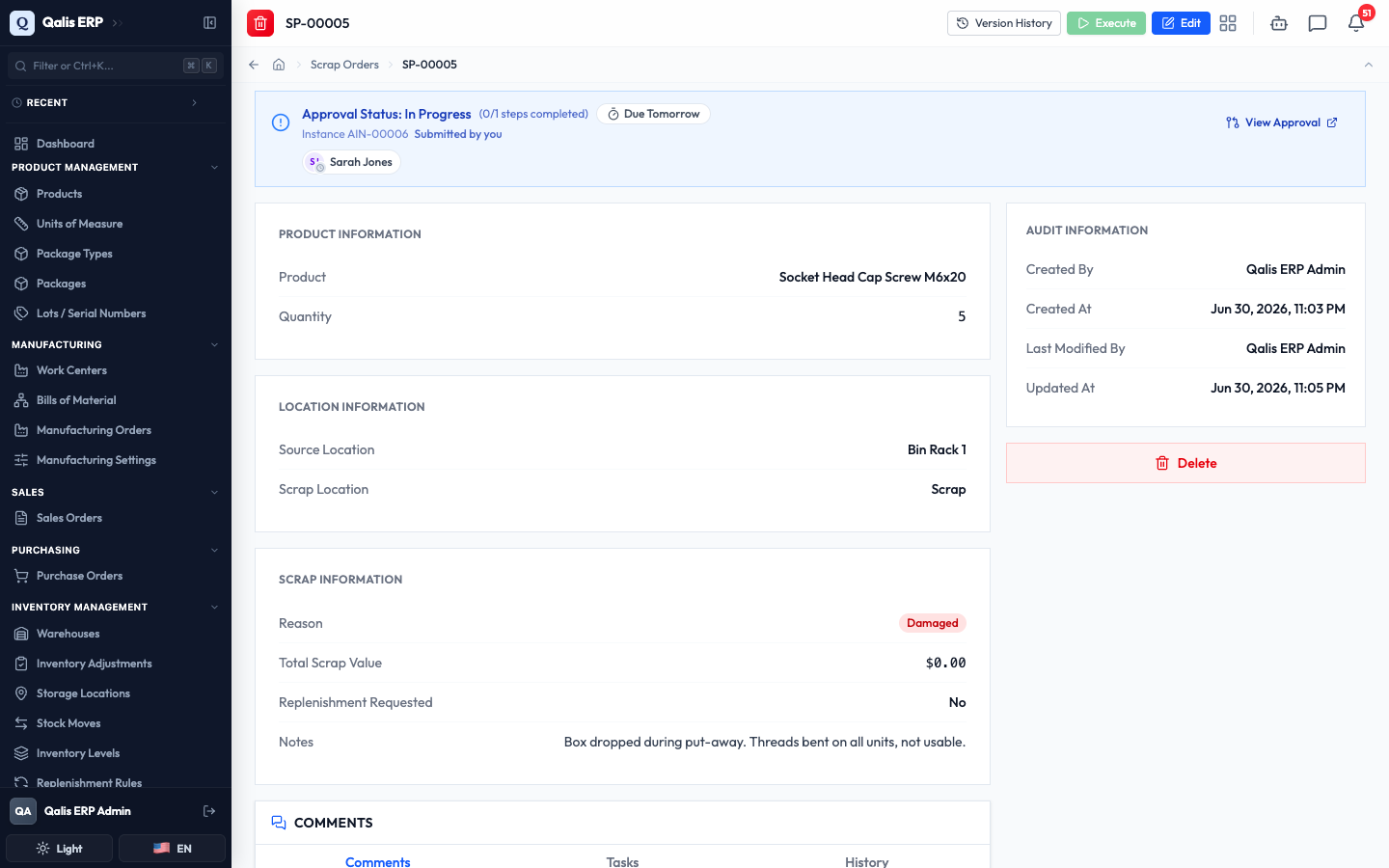
- If scrap orders need approval, the order is sent to the right approver and stays a draft in the meantime. A banner on the page shows the approval is in progress and who it is waiting on, and you can follow it with the View Approval link.
- If no approval is required, the order is executed straight away.
-
Once the order is executed (immediately, or after it is approved), its stock is removed from the source location and a matching stock move is recorded. The page now shows the Stock Move that captured the loss, and the order can no longer be edited.
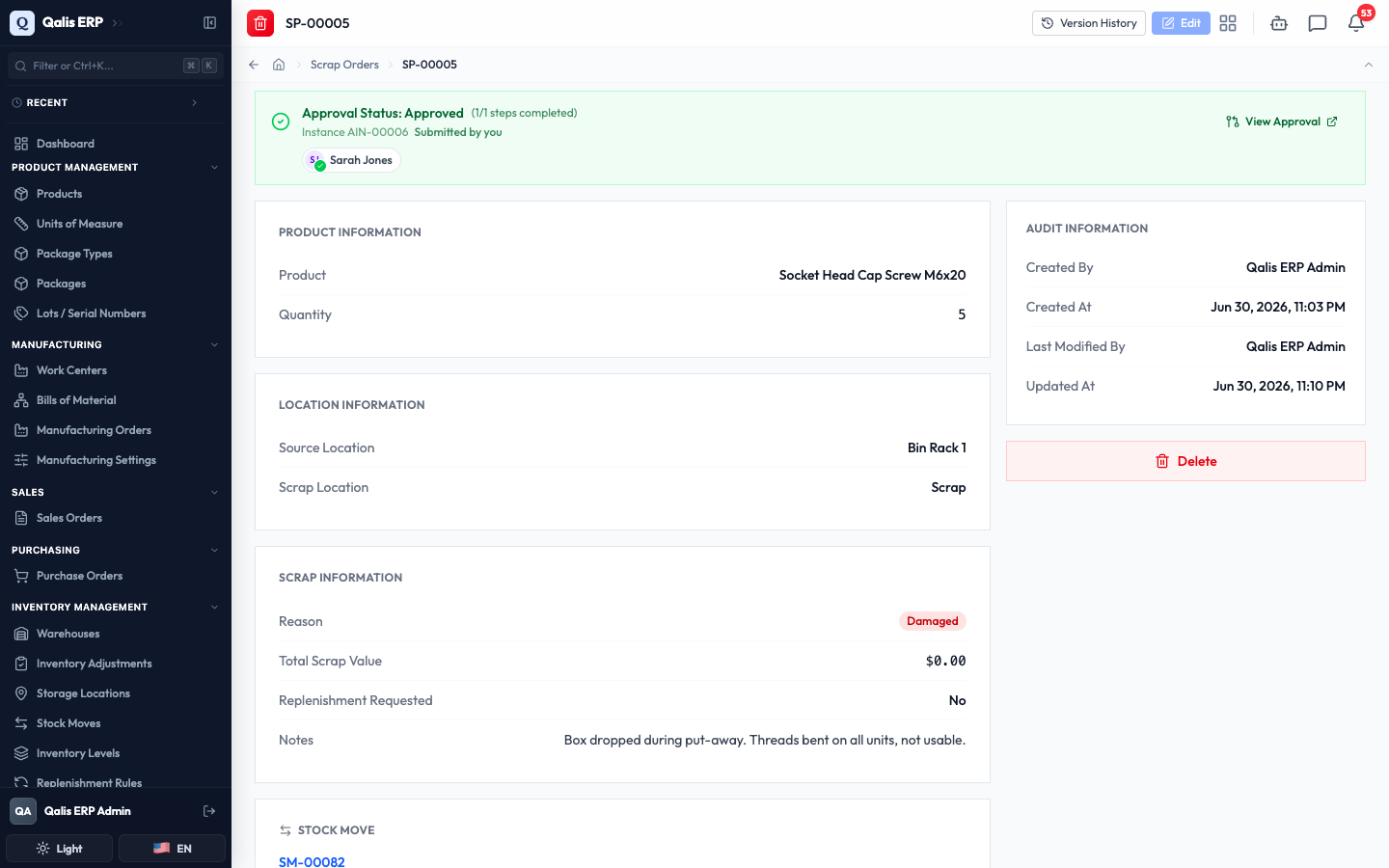
The Stock Move card links straight to that inventory movement, so the loss is always traceable back to the goods that left the shelf.

An executed scrap order is final, so you cannot edit it afterward. If you raised one by mistake, do not execute it: while it is still a draft you can Delete it from its detail page (it moves to the trash). To put scrapped stock back, record an Inventory Adjustment.
See a scrap order's history
Every scrap order keeps a record of each state it has been in, so you always have an audit trail of what happened and who did it.
- On the detail page, click Version History at the top.
- The page shows the Current Version at the top, then each saved state below, newest first. Each entry shows the date and time and the person responsible, so you can trace the order from when it was created, through approval, to when it was executed.
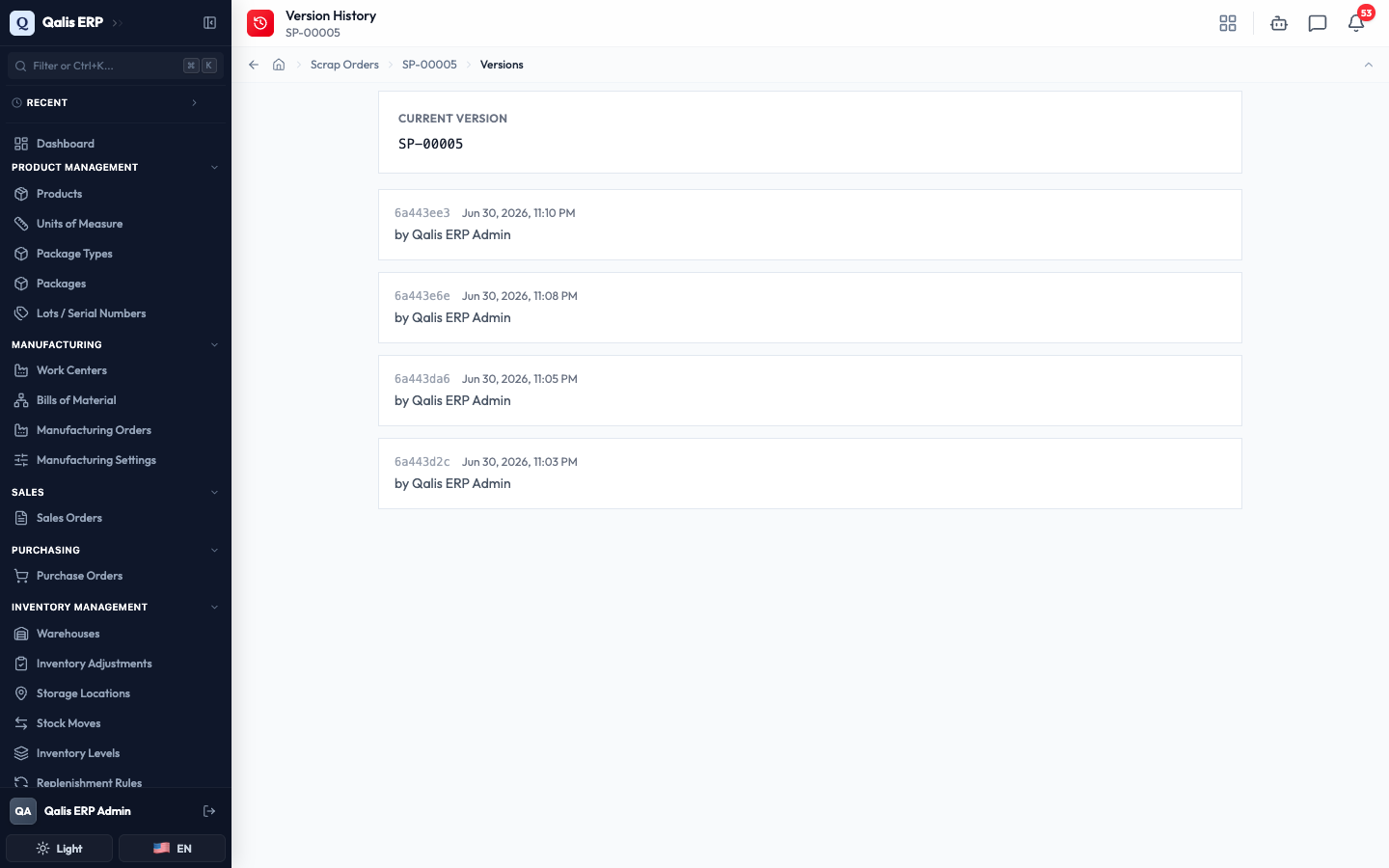
Because an executed scrap order is never edited in place, this history is a read-only audit trail of the order's whole life.
Good to know
- Scrap order: a record that removes a quantity of one product from a location because it can no longer be used, with a reason. Creating it saves a draft; executing it removes the stock.
- Draft: a scrap order that has been created but not yet executed. Nothing has left the shelf, so you can still edit, execute, or delete it.
- Executed: a scrap order whose stock has been removed. It is final and cannot be changed.
- Source location: where the stock sits today, and where it will be removed from. It must hold enough on-hand stock to cover the quantity you are scrapping.
- Scrap location: the virtual Scrap bucket that holds destroyed stock so it never counts as available again. Qualis fills this in for you.
- Reason: a short label that explains why the stock is being scrapped, such as Damaged or Expired. It is required so the history is easy to follow.
- Total scrap value: what the scrapped stock was worth, worked out from the product's cost. Qualis calculates it for you.
- Stock move: the underlying inventory movement that executing a scrap order creates. It is why a scrap is always traceable.
- Replenish quantities: an option that alerts your buyers to reorder the stock you scrapped, so a loss does not quietly leave you short.
- Approval: if your organization requires it, executing a scrap order first goes to an approver. The stock is only removed once the request is approved.