Lots / Serial Numbers
Track product batches (lots) and individual product units (serial numbers) through their lifecycle, from receipt to expiry.
Last updated on June 26, 2026
A lot is a batch of a product that was made or received together, like a single delivery of 200 bolts. A serial number is one individual unit you want to follow on its own, like a specific encoder or landing gear assembly. This module is where you keep a traceability record for each of them, so you always know what you have, where it is stored, who supplied it, and whether it is still good to use. You reach for it every time stock arrives, when something needs to go into quarantine, or when you want to look up the history of a particular batch. This guide walks you through the things you do most often: finding a record, creating one, reading it, updating its status, importing many at once, and exporting what you see.
Before you start
A lot or serial number points at things you set up elsewhere in Qualis, so it helps to have these ready first:
- The product the lot or serial number belongs to, set up in Products. Every record must name one product.
- A storage location, set up in Storage Locations, if you want to record where the stock sits.
- A supplier, set up in Suppliers, if you want to record who provided the batch.
You reach the module from the left sidebar under Product Management, then Lots / Serial Numbers.
Find and browse your records
Start here to see everything you have and zero in on the one you need.
- Open Lots / Serial Numbers from the sidebar. The list shows one row per record, with its Lot / Serial Number, Type, Product, Status, On Hand Qty, Storage Location, Expiration Date and more. Many cells are links, so you can jump straight to the product, location or supplier.
- Across the top you have Import CSV, a search box, and a switch between Table view and Grid view.
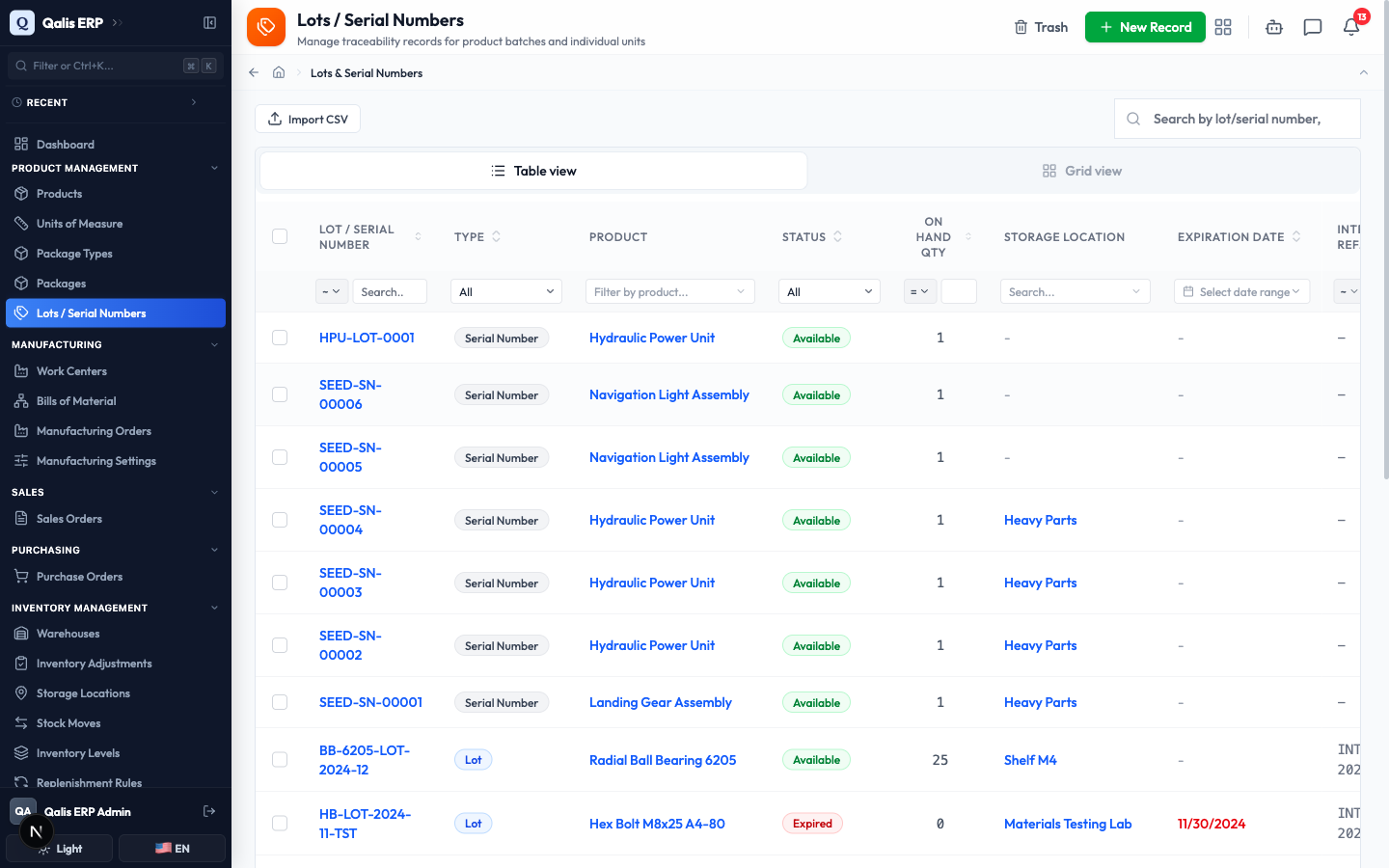
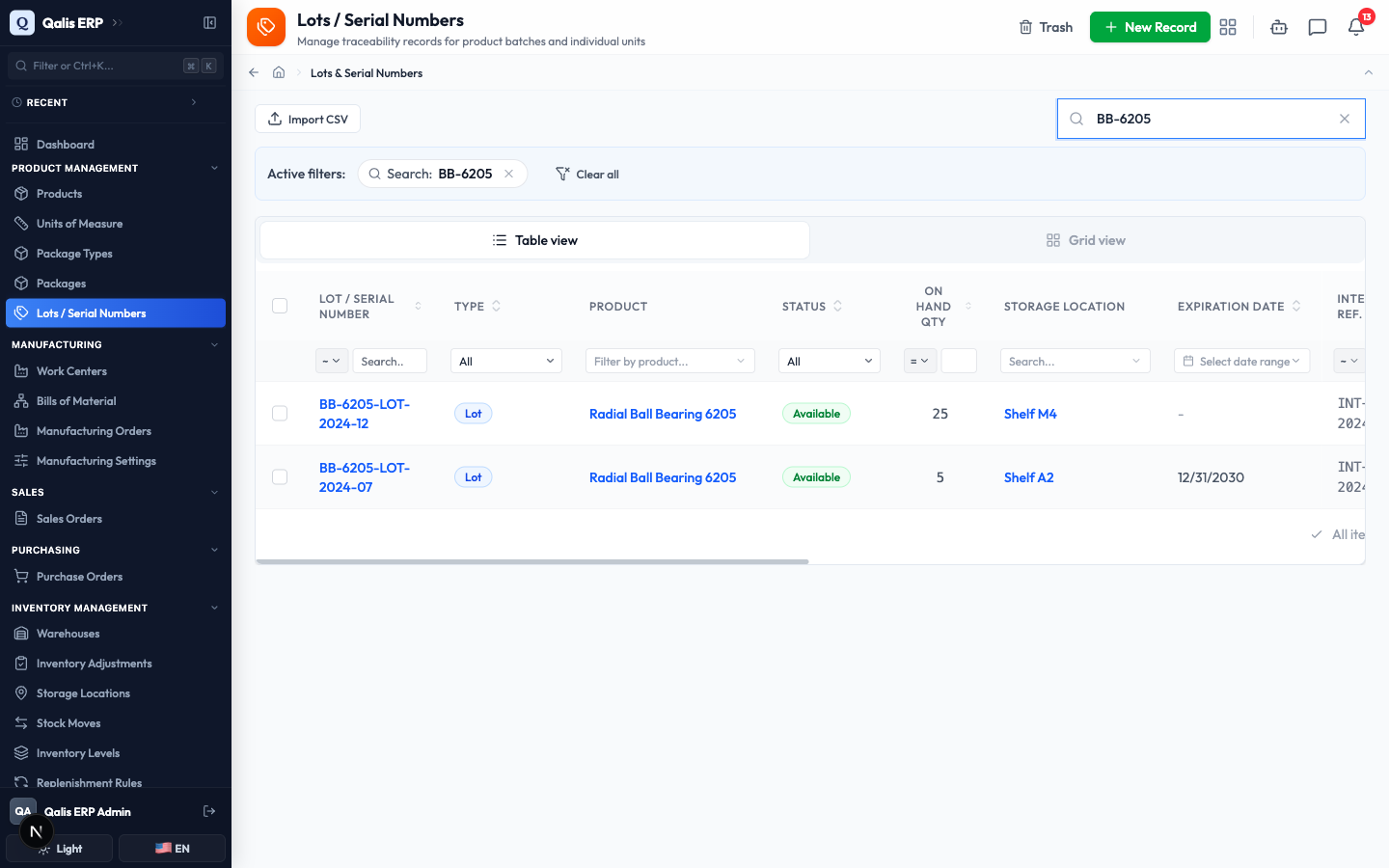
- To find one fast, type in the Search by lot/serial number, reference, description, or notes... box at the top right. The list filters as you type, so there is no need to press Enter.
- To see only records in a certain state, open the Status dropdown under the column heading and pick one, for example Quarantined. You can filter the same way by Type, Product, Supplier, Active, or by a date range on the expiration, manufacturing or created dates.
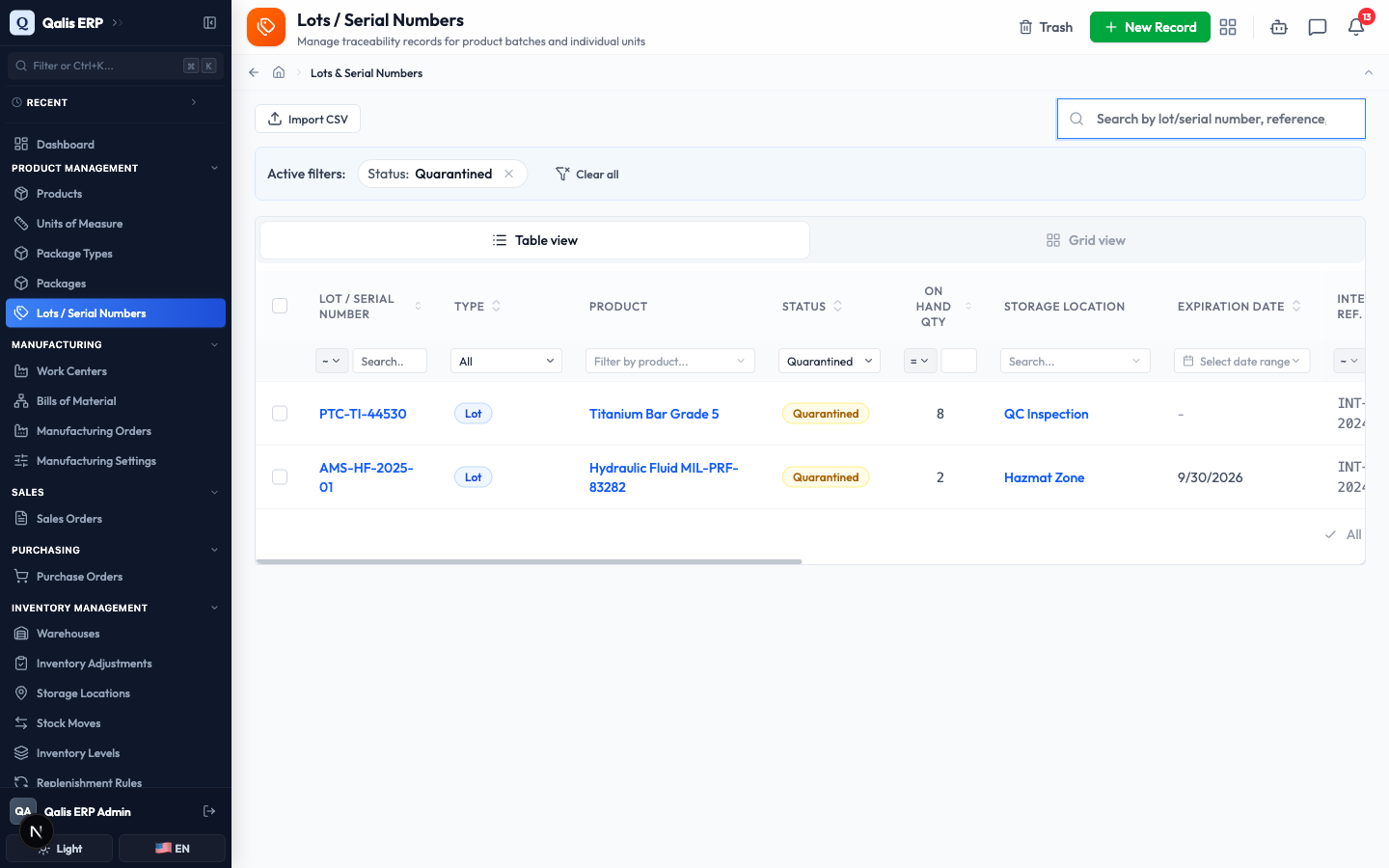
Whenever a filter is on, an Active filters banner appears under the search box showing what is applied. Click the small x on a filter to drop it, or Clear all to reset everything. The web address updates too, so you can bookmark or share a filtered view.
Create a lot or serial number
This is the main task: writing the traceability record for a batch or a single unit. The form is split into three tabs, so you can fill it in one part at a time.
- On the list, click New Record at the top right.
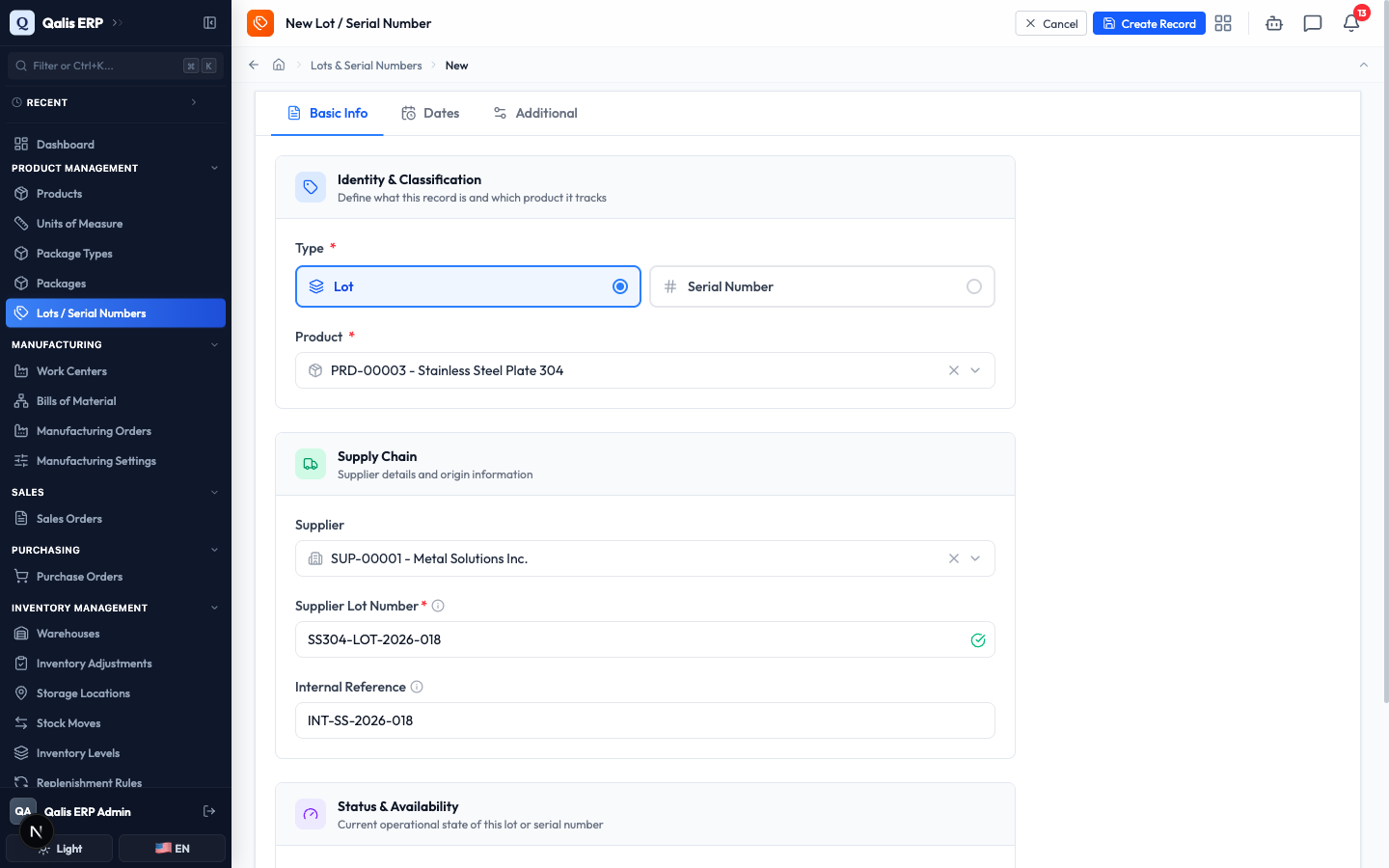
- On the Basic Info tab, under Type, choose Lot for a batch or Serial Number for a single unit. Lot is selected by default.
- Click Select a product... and choose the product this record tracks. This is required.
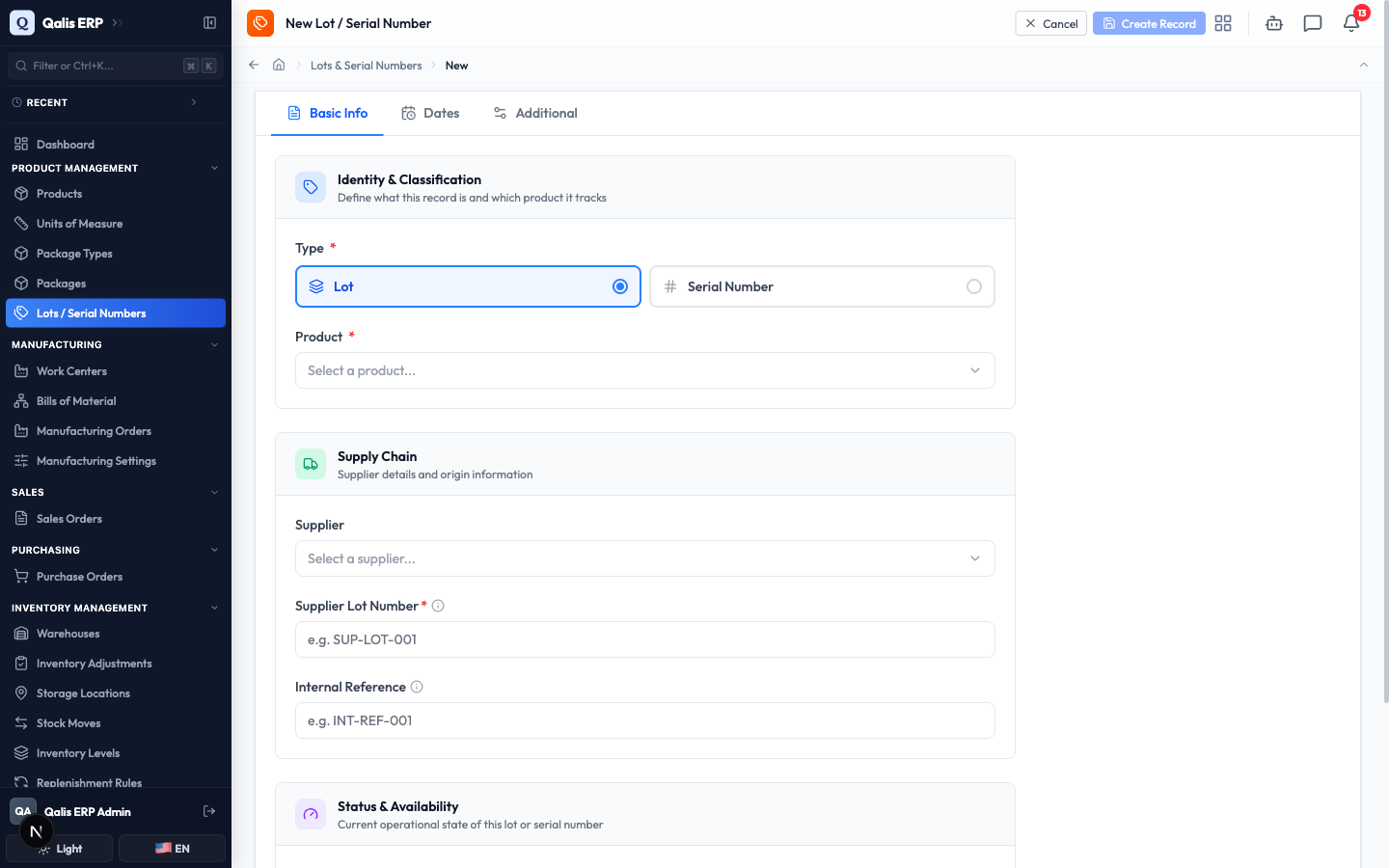
- In the Supply Chain section, choose a Supplier if you know who provided the batch.
- Fill in the Supplier Lot Number (or Supplier Serial Number). This is required, and it is the number the supplier printed on the batch. A green check appears when the number is free to use for this product.
- Add an Internal Reference if your team uses its own tracking code. This is optional.
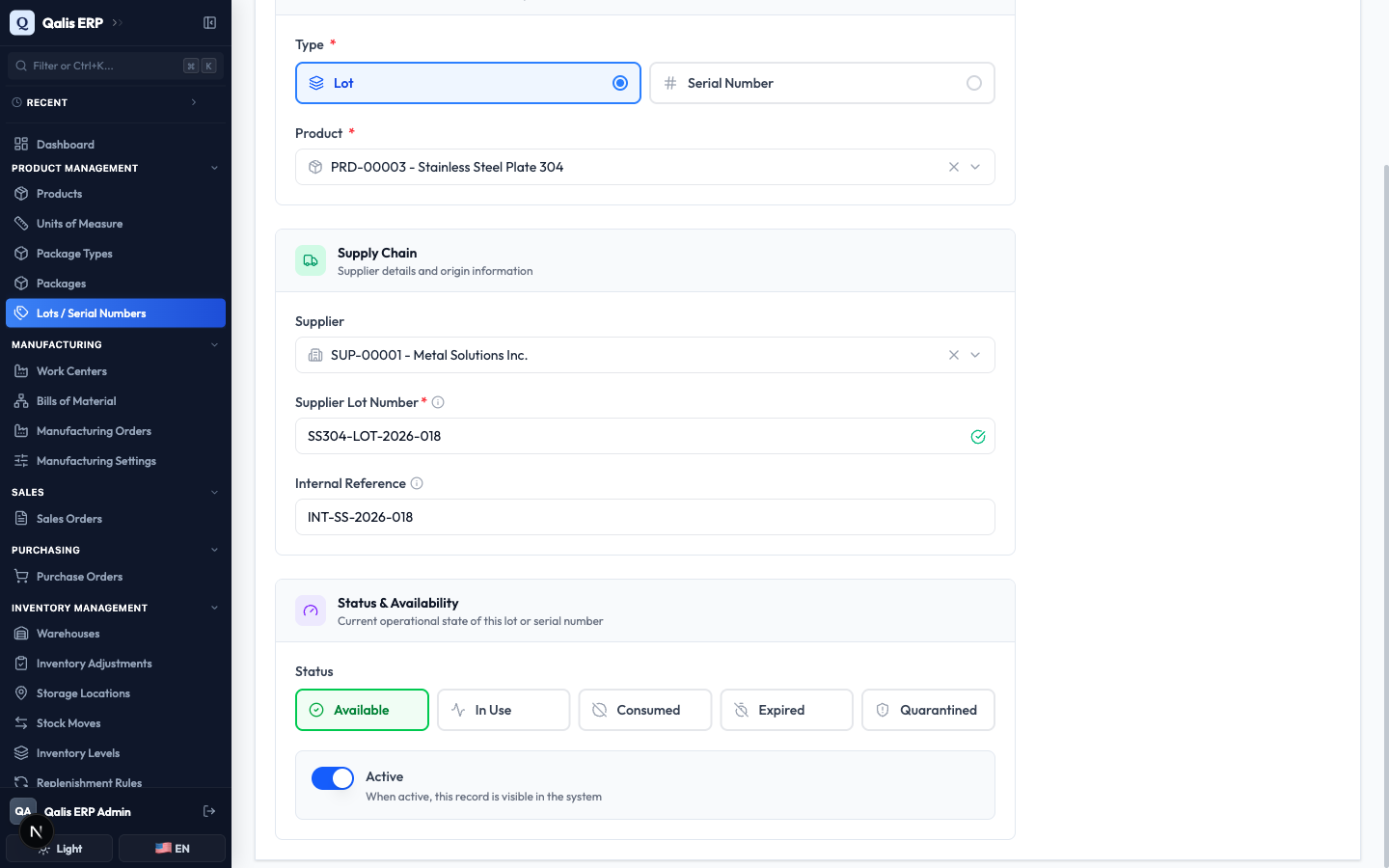
- Scroll down to Status & Availability and pick the starting Status. New stock that is ready to use is Available. Leave the Active toggle on so the record shows up in the system.
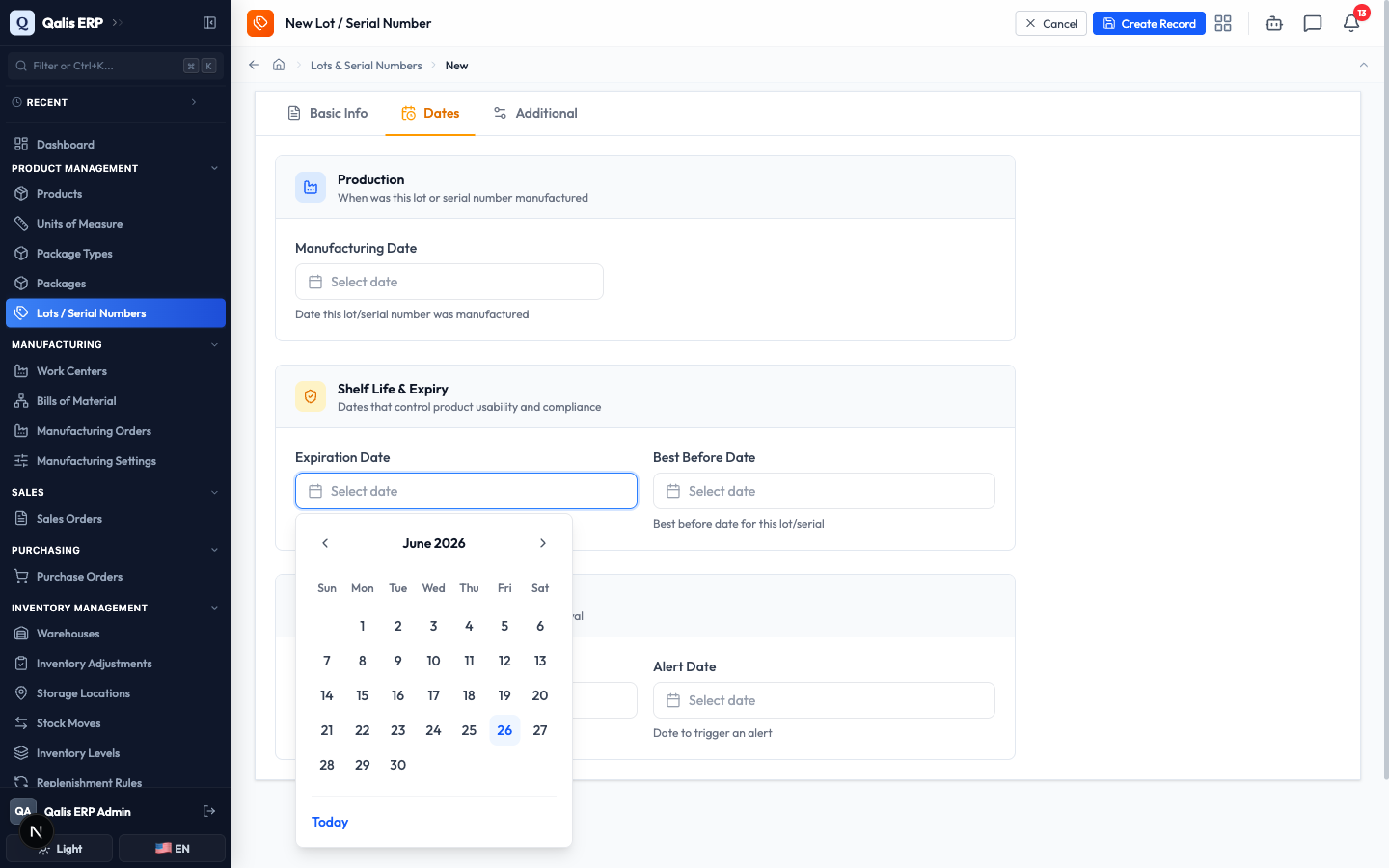
- Switch to the Dates tab to record the batch's timeline. Set the Manufacturing Date, the Expiration Date and Best Before Date for shelf life, and the Removal Date and Alert Date to drive shelf removal and reminders. Each picker has a Today button. All of these are optional.
- Click Create Record at the top right to save.
Qualis saves the record and takes you straight to its detail page.
The On Hand Quantity and Storage Location are not on the form. They come from your inventory operations (stock moves, adjustments and scrap), so a brand new record starts at zero until stock is booked against it.
Nothing is saved while you are still filling in the form, so you can change your mind freely. The record only exists once you click Create Record.
Read a record
Open any record to understand what it is and where it stands.
- Click a Lot / Serial Number link in the list (or anywhere in Qualis). The detail page opens.
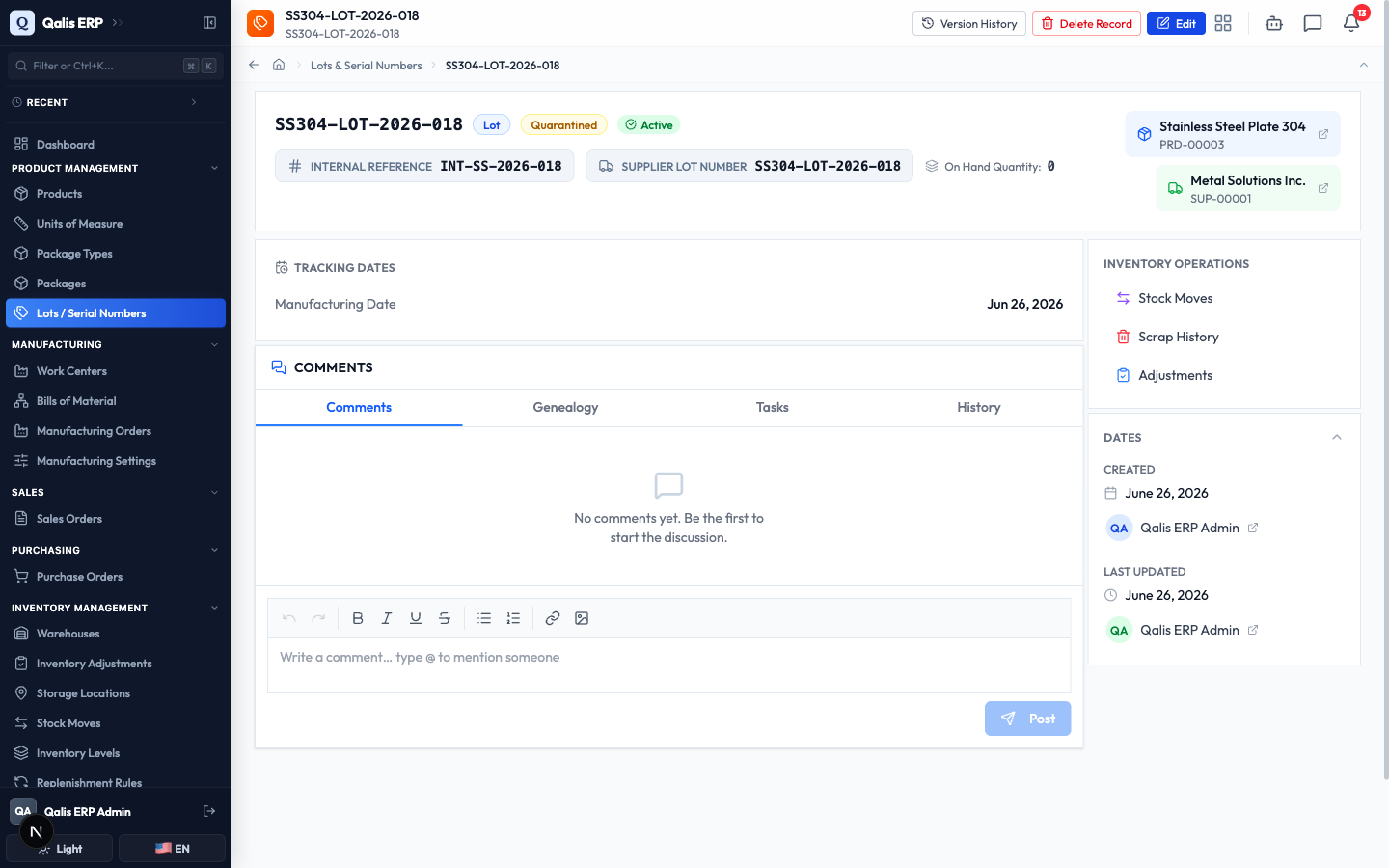
- The top of the page shows the record's number, badges for its Type, Status and whether it is Active, and the buttons for everything you can do: Version History, Delete Record and Edit.
- The main area shows the Internal Reference, Supplier Lot Number and On Hand Quantity, plus the Tracking Dates. On the right you see the linked Product and Supplier, an Inventory Operations panel with shortcuts to Stock Moves, Scrap History and Adjustments, and the audit details of who created the record and when it last changed.
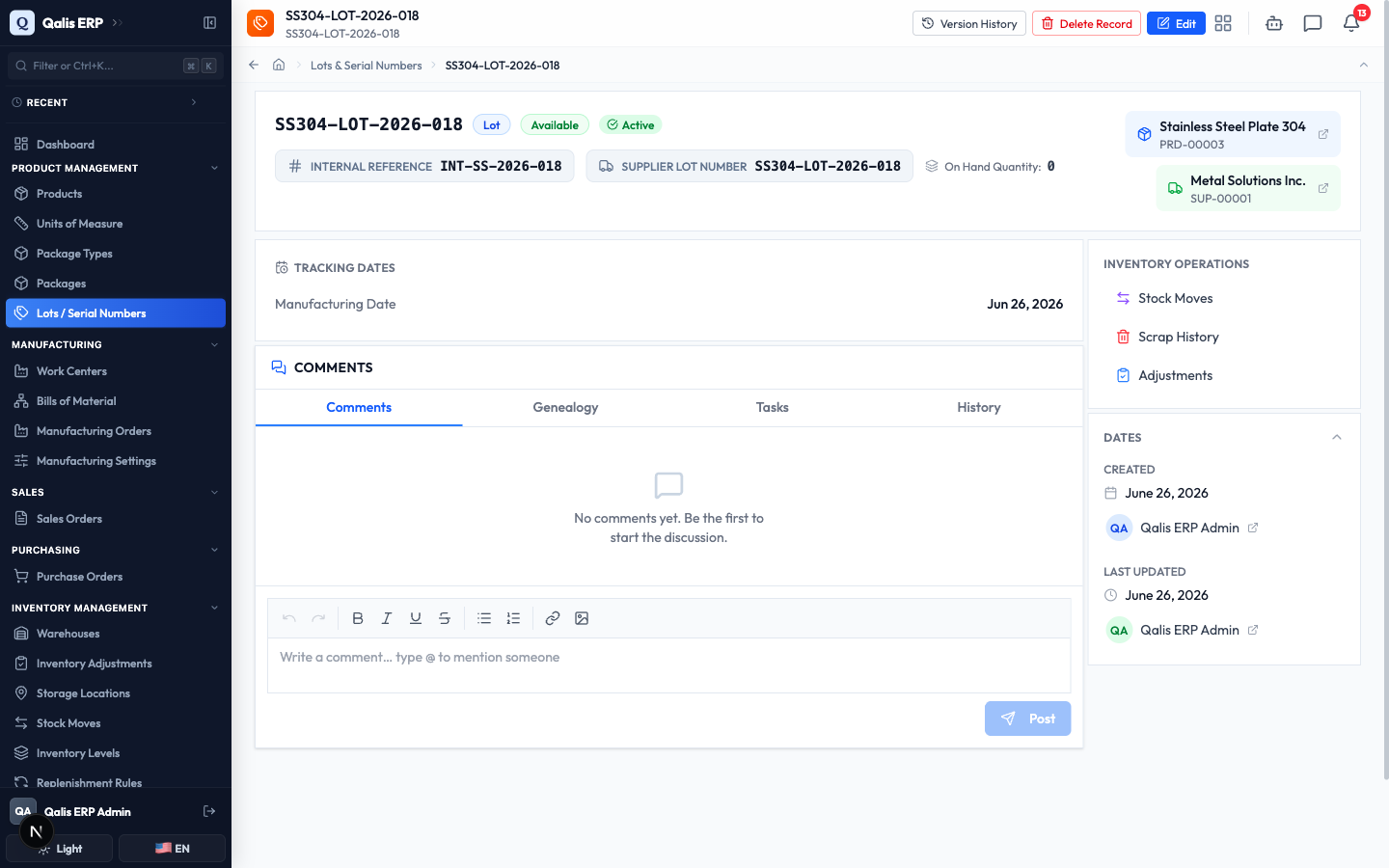
- Below that, the Comments, Genealogy, Tasks and History tabs let you discuss the record, trace where the batch came from and went, attach tasks, and review its activity.
Update a record and change its status
Use this when a batch moves through its life, for example when you put it into quarantine or mark it consumed.
- On the record's detail page, click Edit at the top right.
- The form opens with everything filled in. The Type and Product are locked here, because a record stays tied to the same product and kind for its whole life.
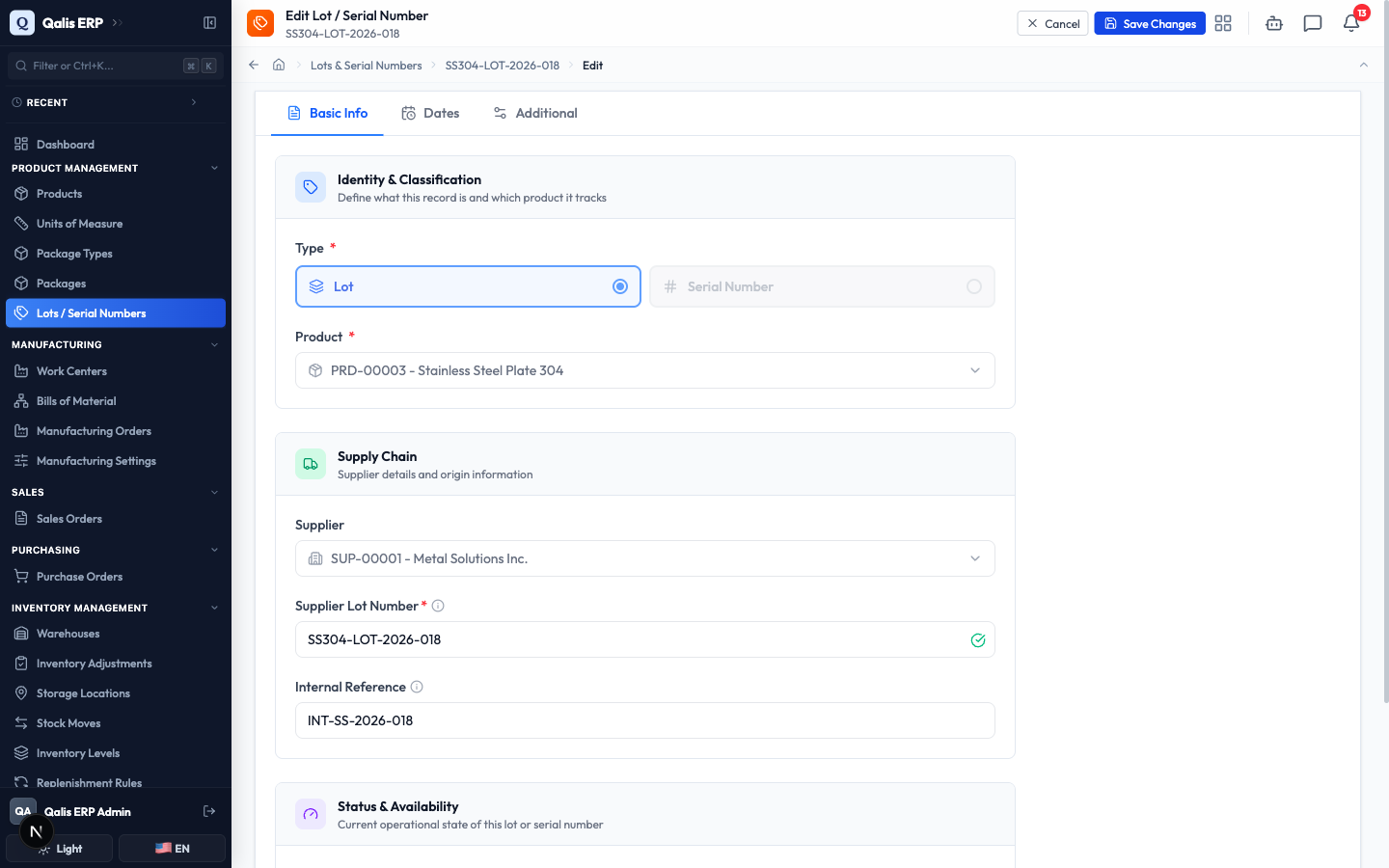
- Scroll to Status & Availability and pick the new Status, for example Quarantined to hold a batch for inspection.
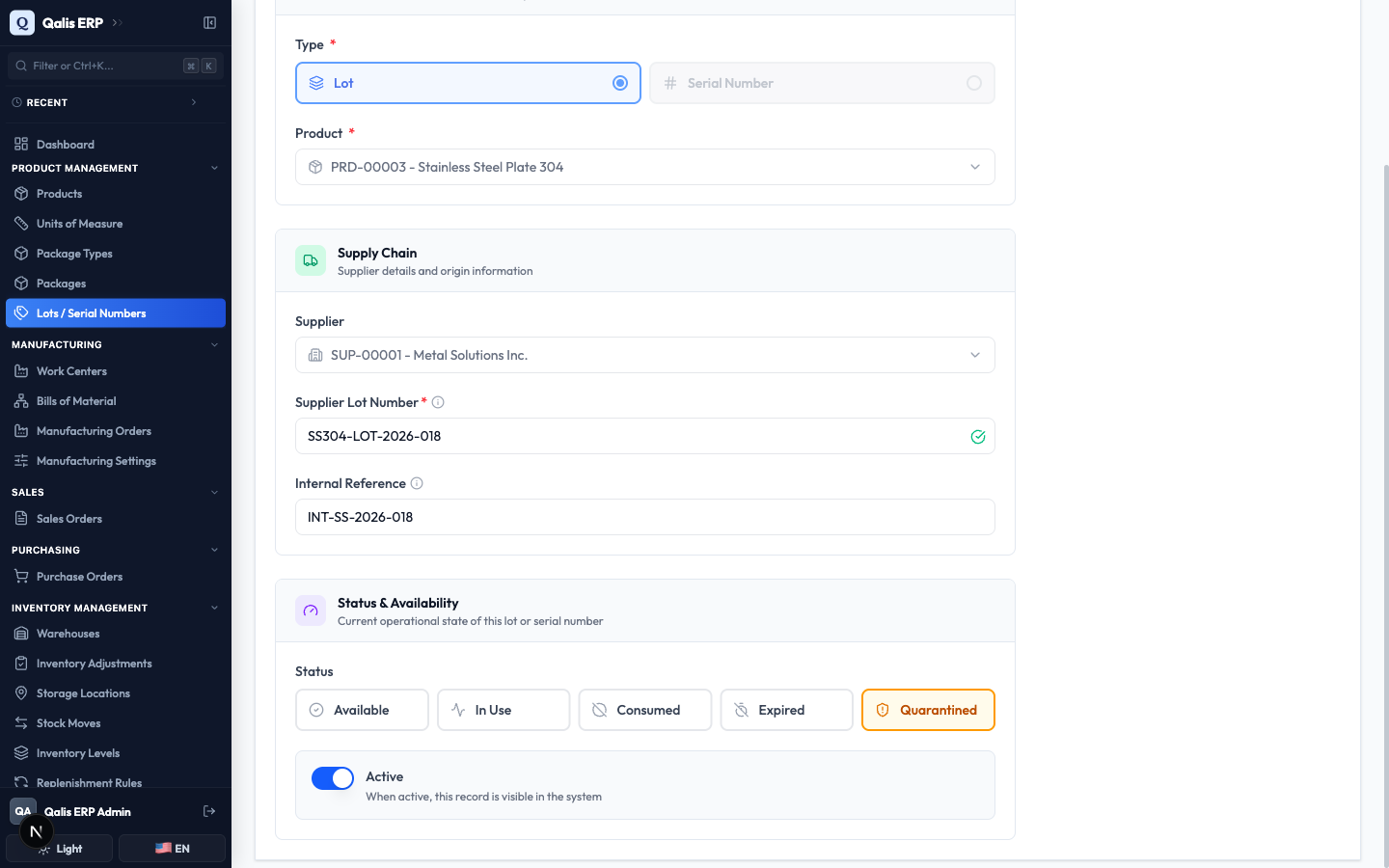
- Click Save Changes at the top right.
Qualis saves the change and returns you to the detail page, where the status badge now reads Quarantined.
See what changed over time
Every save is recorded, so you can always see who changed what.
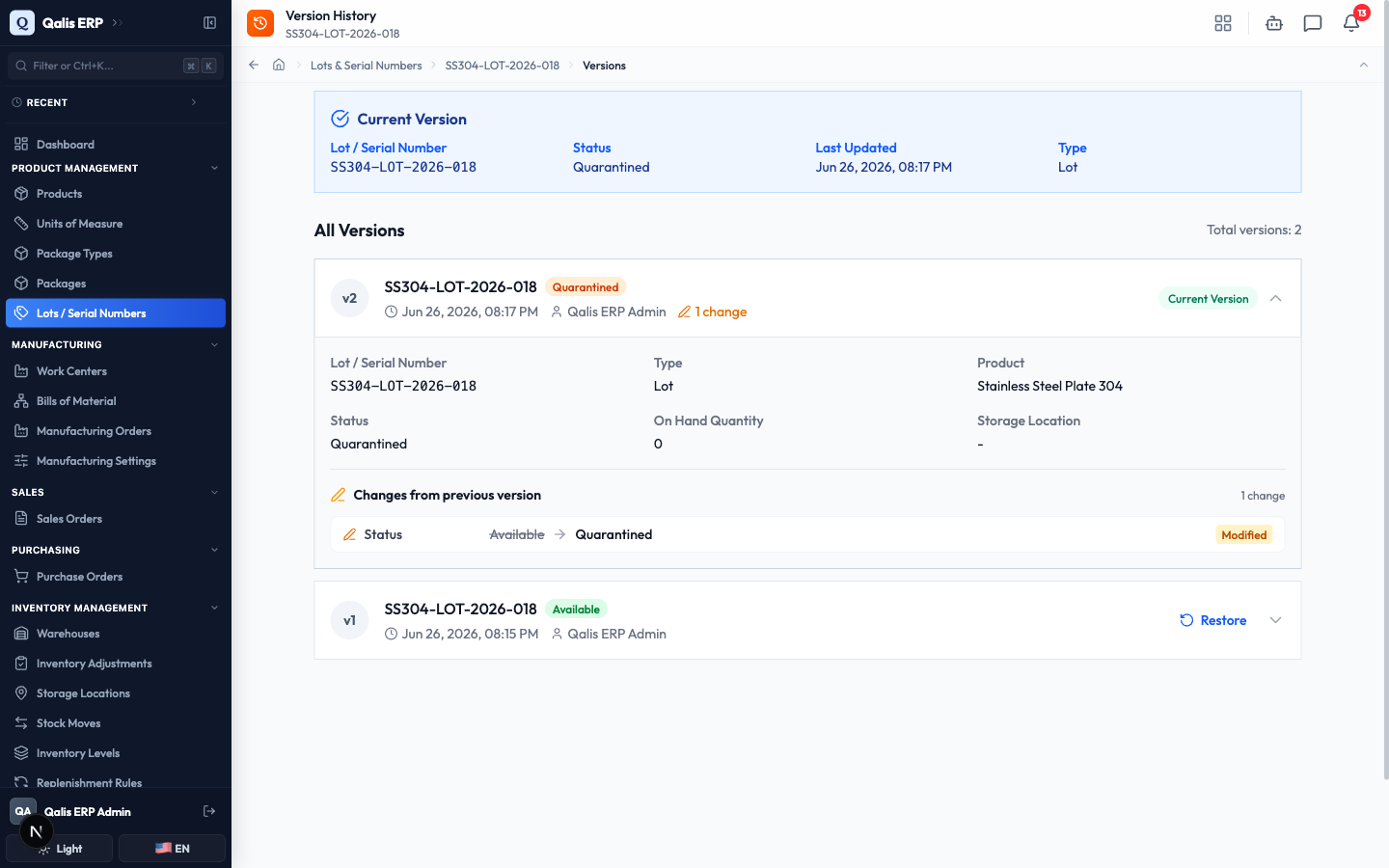
- On the detail page, click Version History at the top.
- You see the Current Version at the top and a list of All Versions below, each with the person who made it and when.
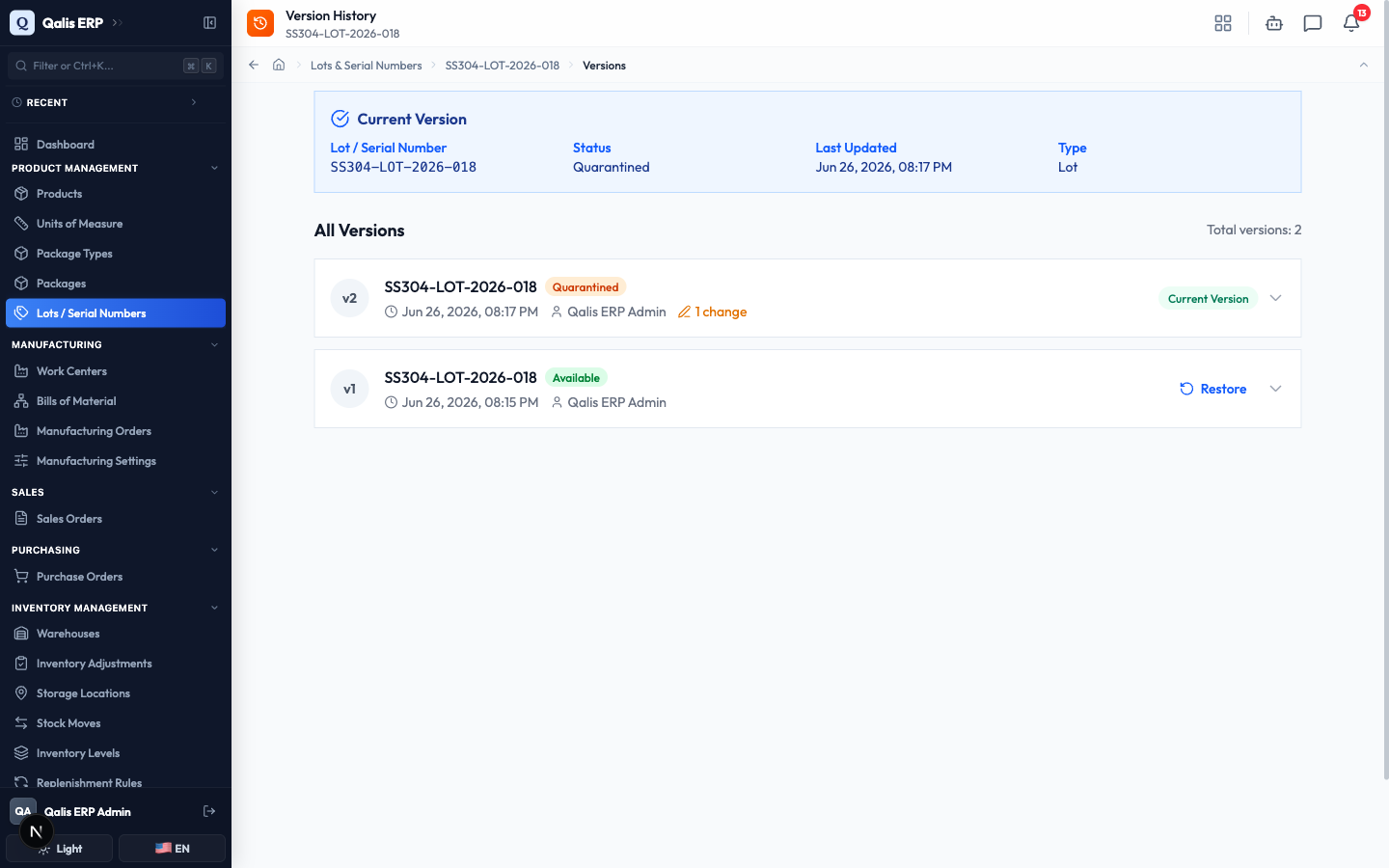
- Click 1 change (or the arrow) on a version to expand it. The Changes from previous version panel shows each field that moved, for example Status: Available to Quarantined. If you have edit permission, the Restore button on an older version rolls the record back to it.
Import many records from a CSV file
When stock arrives in bulk, you can add a whole list of lots or serial numbers at once instead of typing each one.
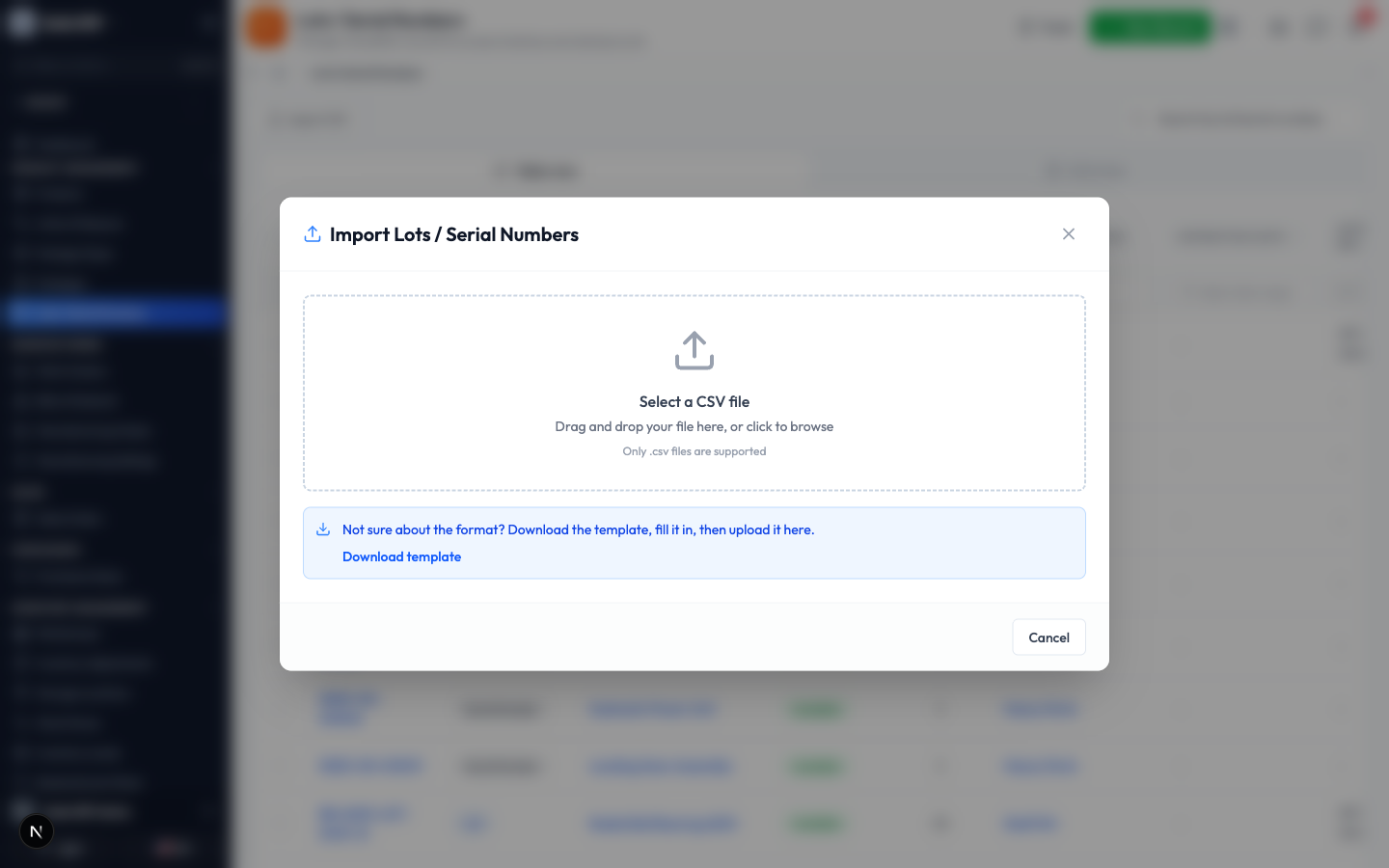
- On the list, click Import CSV at the top left.
- The import window opens. If you are not sure of the format, click Download template, fill it in, then come back. Drag your file onto the box, or click to browse for it. Only
.csvfiles are accepted.
- Qualis reads your file and shows a preview, with a green check on every row that is valid and a clear note on any row that needs fixing. Each row must have a type, a product, a supplier lot number and a status.
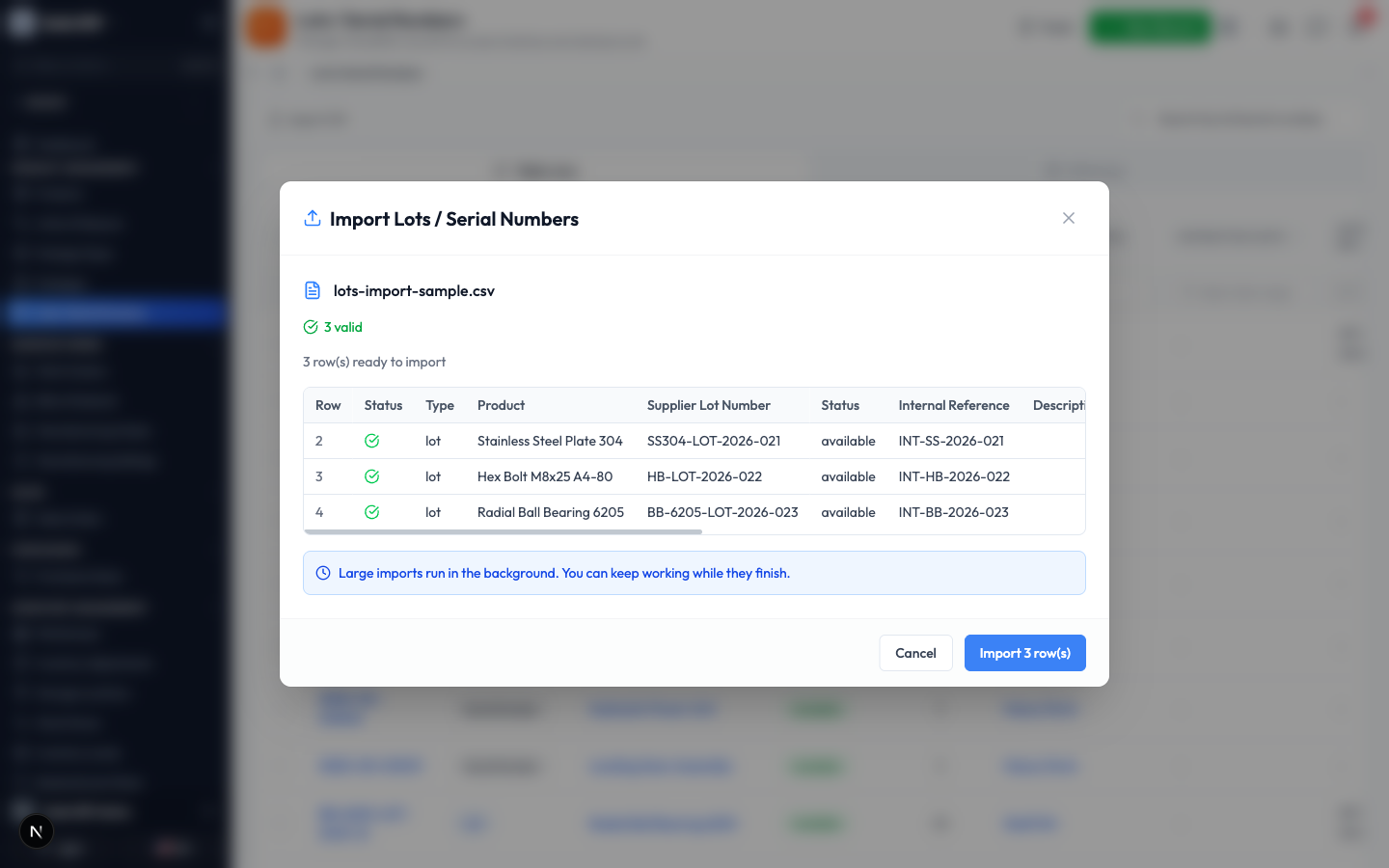
- When you are happy, click Import (n) row(s). Large imports run in the background, so you can keep working while they finish. You can follow their progress under Background Jobs.
The preview catches problems before anything is saved, like a product name that does not exist or a duplicate lot number. Fix those rows in your file and upload again.
Export what you see
Use this to pull a list out of Qualis, for a report or to share with someone.
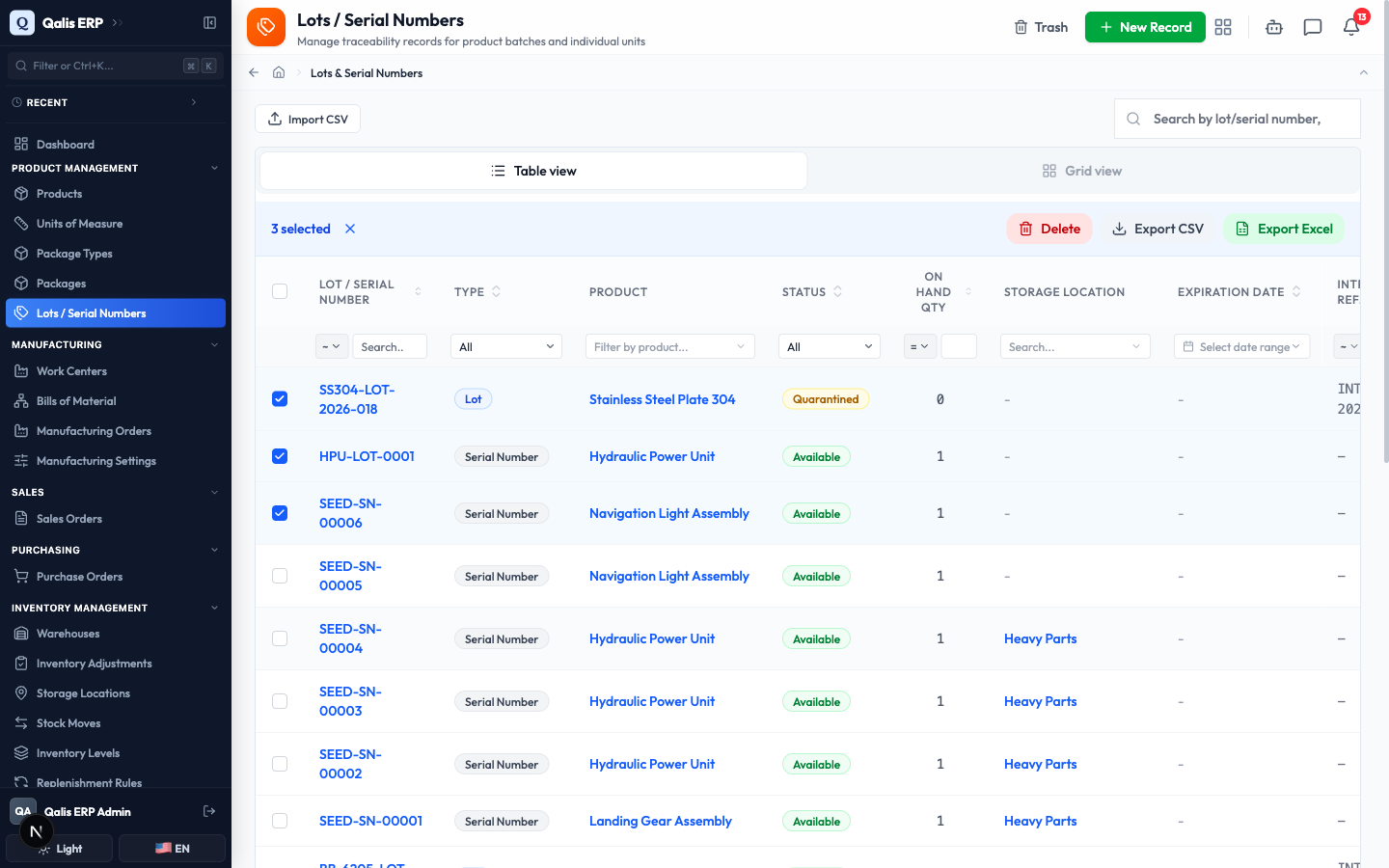
- On the list, tick the checkbox on each record you want, or use the checkbox in the header to select the whole page.
- A selection bar appears showing how many records are selected, with Export CSV and Export Excel buttons.
- Click Export CSV (or Export Excel). Qualis builds the file and downloads it, and shows a short confirmation.
Good to know
- Lot: a batch of a product that was made or received together and shares one number, like one delivery of bolts.
- Serial number: a single unit you track on its own, like one specific machine or assembly.
- Quarantined: a status that holds a batch aside, usually for inspection, so it is not used by mistake.
- On Hand Quantity: how much of the batch is currently in stock. It is set by your inventory activity, not typed in by hand.