Navigation
The Apps page, the side menu, and the command palette that let you move around the whole app quickly, plus how to switch theme and language.
Last updated on August 16, 2026
Navigation is how you move around Qualis. It is always there: the Apps page you land on when you sign in, the menu on the left, and a search box you can call up from anywhere. This guide shows the handful of moves that get you wherever you need to be in a second or two, and how to switch the look and the language to suit you.
Everything here is personal to you. The menu only lists the areas you are allowed to use, and your recent items and your theme and language choice are remembered the next time you sign in.
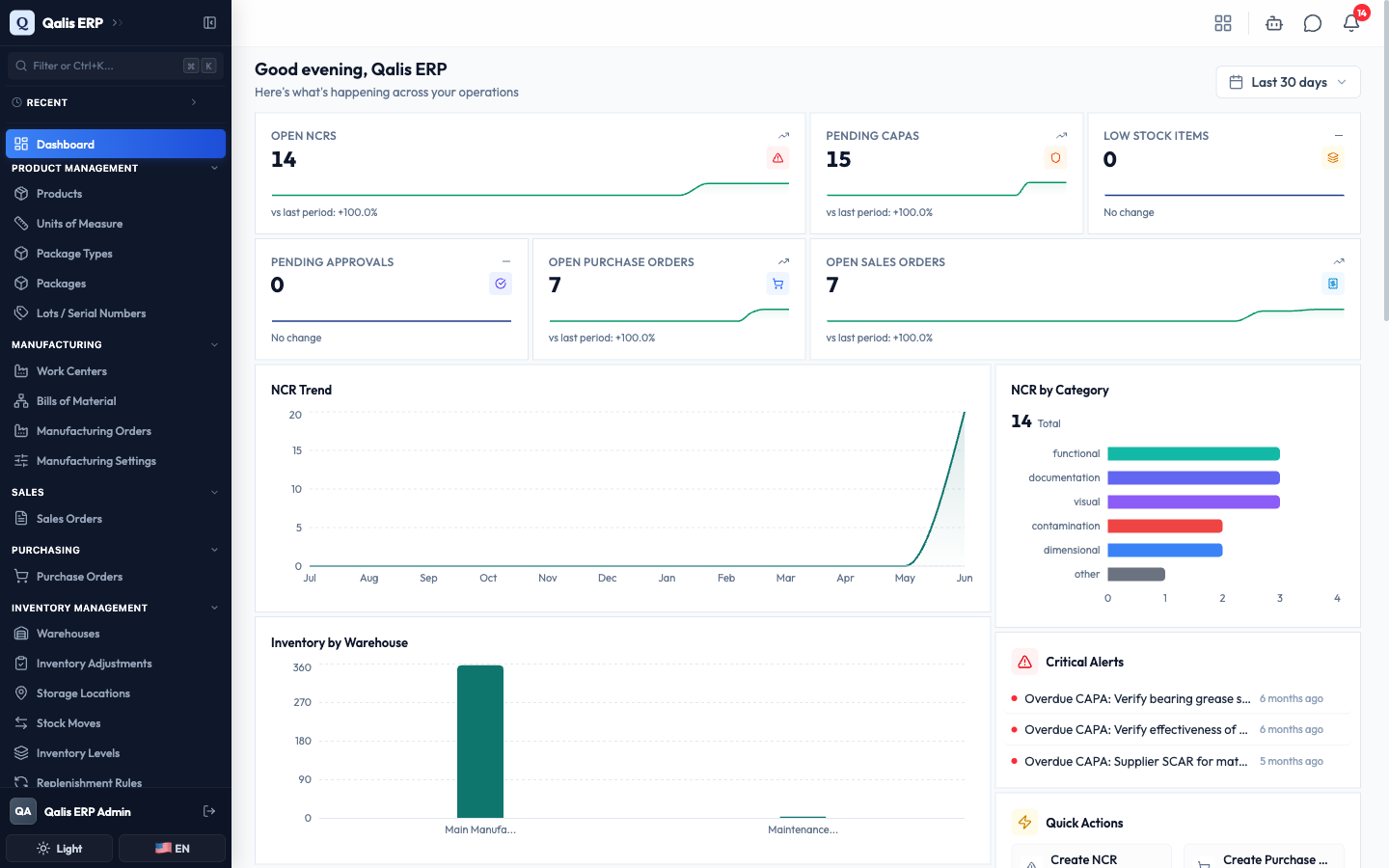
Find your way around with the sidebar
The sidebar on the left is your main map of the app. Use it to jump between areas of work.
- Look down the left edge of the screen. The sidebar is always there.
- Areas are gathered into groups with headings such as Product Management, Manufacturing, Sales, Purchasing, and Inventory Management.
- Click any item, for example Products or Purchase Orders, to open it. The item you are currently viewing stays highlighted so you always know where you are.
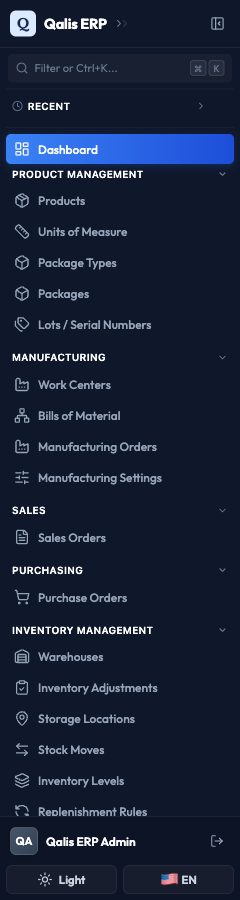
Dashboard sits at the very top, above the groups, so your home screen is always one click away.
Tip: each group heading can be folded away. Click a heading to collapse the group and tidy up the list, then click it again to bring it back.
Make the sidebar narrower
If you want more room for your work, you can shrink the sidebar down to just its icons.
- Click the arrow button at the top of the sidebar, next to the Qualis logo.
- The sidebar collapses to a thin strip of icons. Hover over any icon to see its name, and click the arrow again to bring the full labels back.

You can also collapse the sidebar by pressing the
[key, and expand it again with the]key.
Jump to anything with the command palette
The command palette is the fastest way to get anywhere. It is a single search box that finds pages, records, and actions all at once, without you taking your hands off the keyboard.
- Press
Cmd Kon a Mac, orCtrl Kon Windows. (You can also click the small⌘ Kbutton next to the filter box at the top of the sidebar.) - The palette opens in the middle of the screen. Before you type anything, it shows Quick Actions (one-click shortcuts to create things) and Navigation (every page you can open).
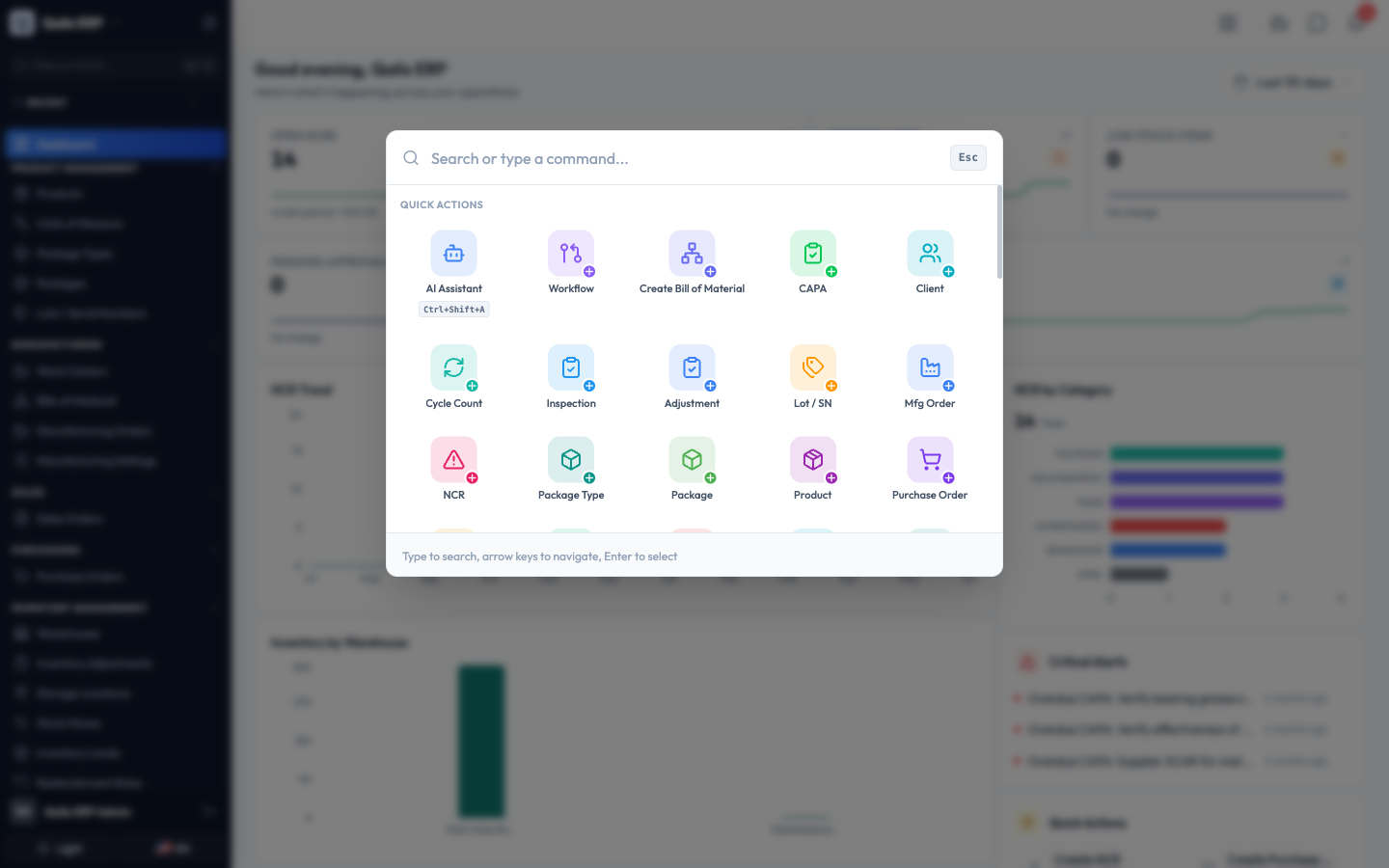
- Start typing what you are looking for. Results appear as you type, so there is no need to press Enter. You will see three kinds of result:
- Search Results: actual records that match, such as a purchase order or a product, each tagged with the area it belongs to.
- Quick Actions: things you can create right now, like Create Purchase Order.
- Navigation: pages you can open, like Purchase Orders.
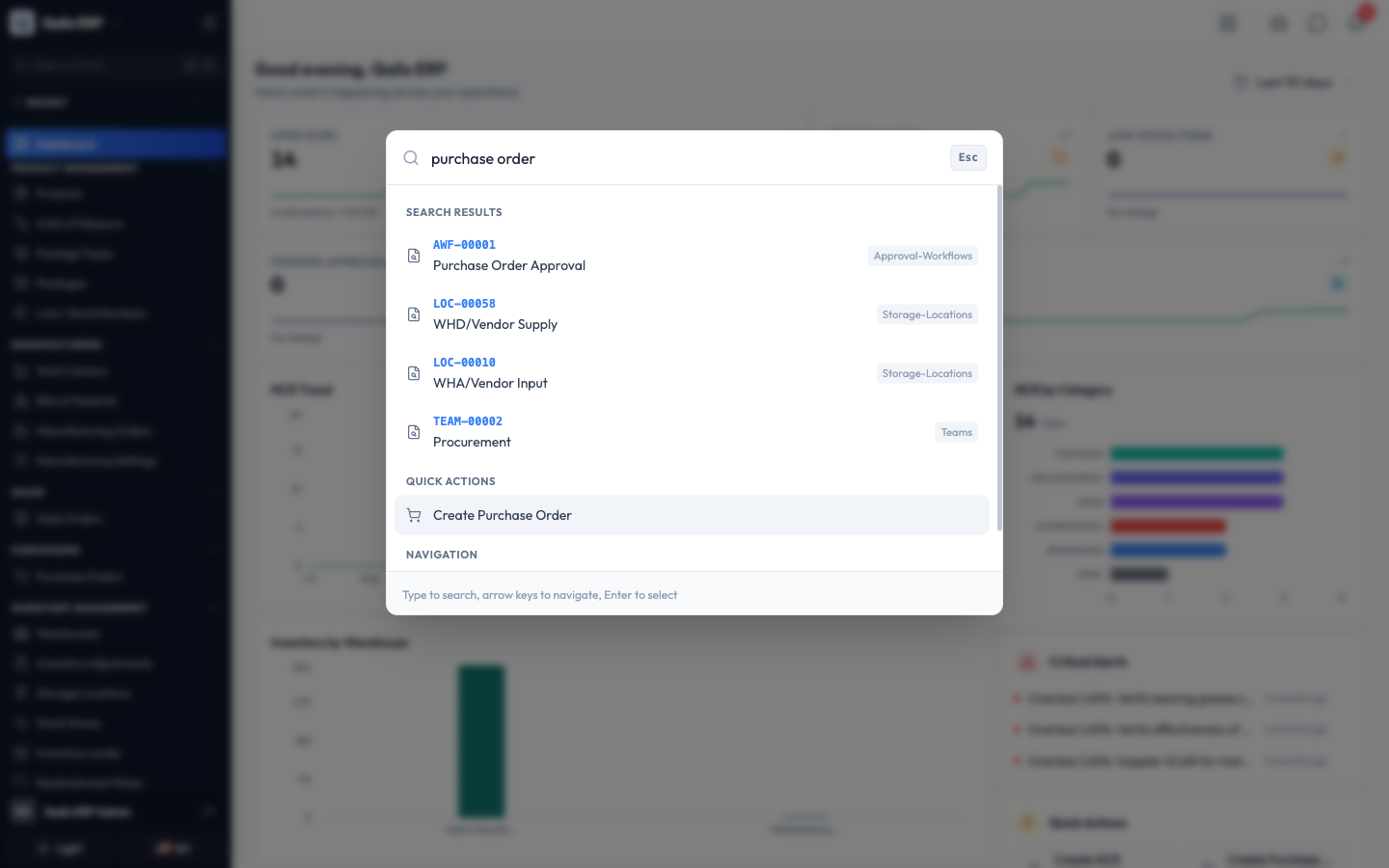
- Use the up and down arrow keys to move through the results, then press Enter to open the one you want. You can also just click it.
Tip: the footer of the palette reminds you of the controls: type to search, arrow keys to move, Enter to select. Press
Escat any time to close the palette without going anywhere.
Filter the sidebar to a single page
When you know roughly what you want but not which group it is in, the filter box at the top of the sidebar narrows the whole menu in place.
- Click the Filter or Ctrl+K... box at the top of the sidebar.
- Start typing. As you type, the sidebar hides everything that does not match.
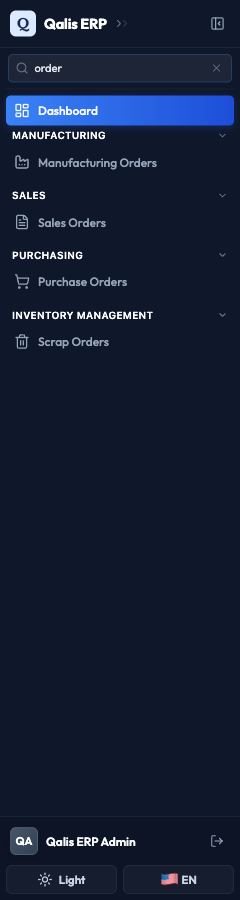
For example, typing order leaves just Manufacturing Orders, Sales Orders, Purchase Orders, and Scrap Orders. Click the one you want, then clear the box with the X to bring the full menu back.
Pick up where you left off with Recent
The Recent section near the top of the sidebar keeps a short list of the records you opened most recently, so returning to something you were just working on takes one click.
- Find the Recent heading near the top of the sidebar. Click it to fold the list open or closed.
- Each entry shows the record's reference, its name, and how long ago you opened it (for example "7 minutes ago").
- Click any entry to jump straight back to that record.
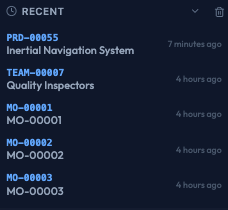
To empty the list, click the small trash icon at the right of the Recent heading. This only clears your history, it does not delete anything.
Start from the Apps page
The Apps page is where you land when you sign in: one large tile per app, such as Sell, Make, Buy, Stock, Quality, Maintain, and Admin, each with its own colour and icon. It is the entry point to everything else.
- Click the grid button (the four small squares) at the top of the screen, or press
Cmd Mon a Mac, orCtrl Mon Windows. You come straight back to the Apps page from anywhere. - Click a tile to open that app. Inside an app, the menu on the left shows only that app's areas, so it stays short and easy to scan.
- Under the apps, the Overview row keeps My Work and Reporting one click away.
The Apps page only ever shows the apps you are allowed to use. If a tile you expect is missing, the modules behind it are not installed for your organization, or are outside your permissions.
Switch theme and language
You can change how the app looks and which language it uses at any time, from the bottom of the sidebar. Both changes take effect straight away, without leaving the page you are on.
- To change the look, click the Light button at the bottom of the sidebar.
- Pick Light, Dark, or System (which follows your computer's own setting). A check mark shows the current choice.
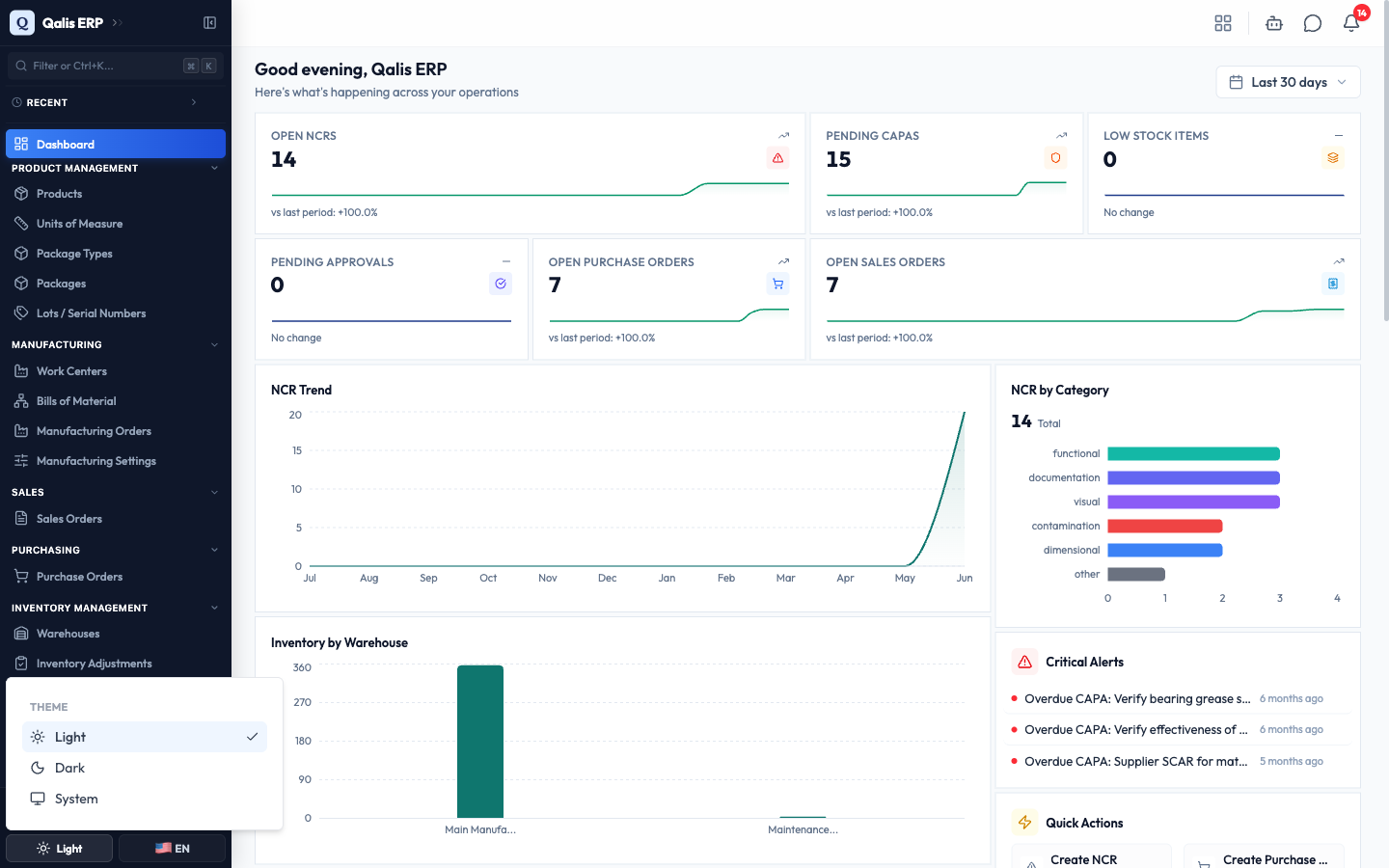
- To change the language, click the EN button next to it.
- Pick English (US) or Français (France). The whole app switches language immediately.
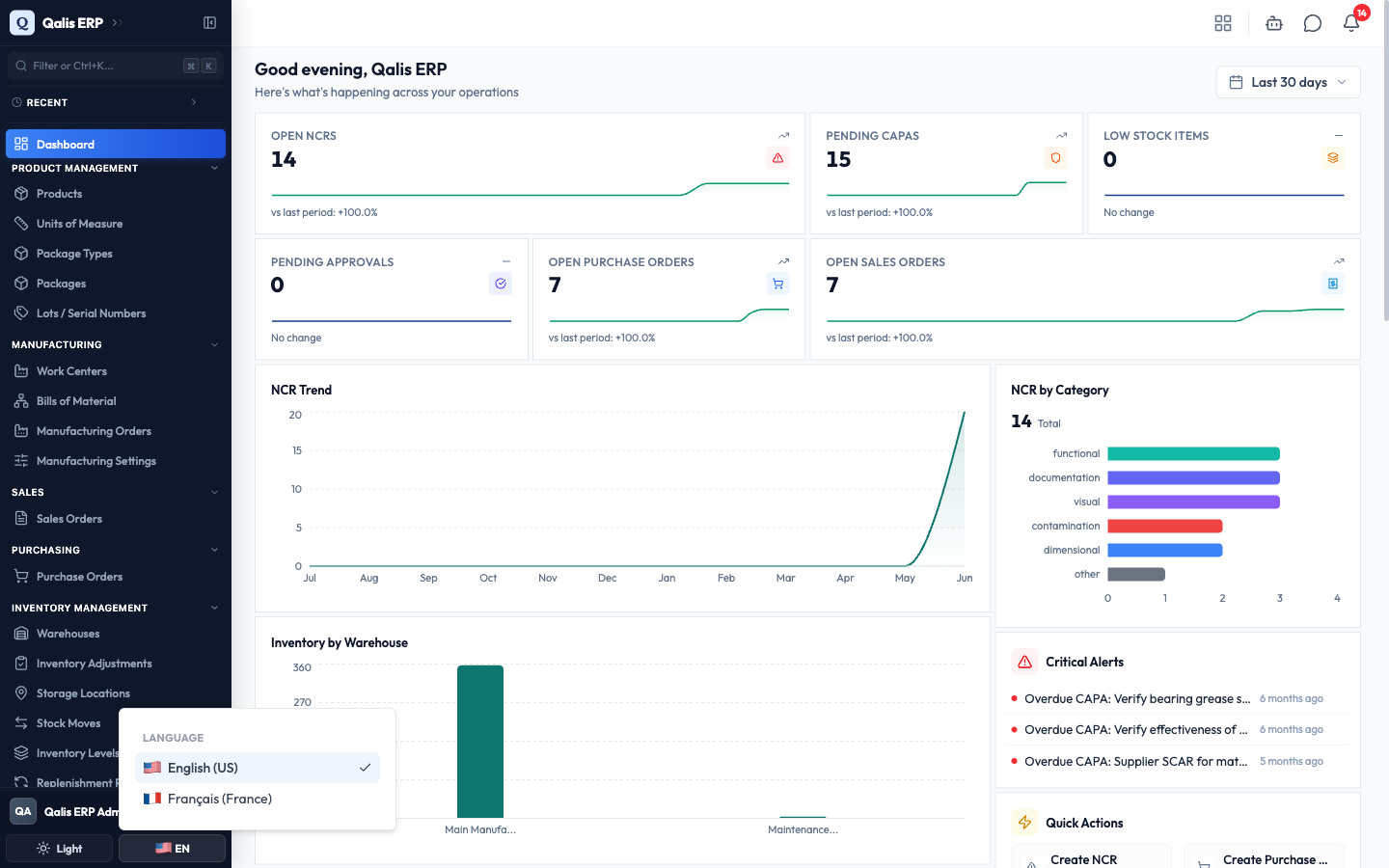
A short confirmation message appears each time you change the theme or language, so you know it took effect.
Good to know
A few terms you will meet while moving around:
- Command palette: the pop-up search box (opened with
Cmd KorCtrl K) that finds pages, records, and actions in one place. - Apps page: the page of app tiles you sign in to, reached from anywhere with the grid button or
Cmd M/Ctrl M. - Recent: the short, automatic list of records you opened most recently, shown in the sidebar.
Remember that the menu, the palette, and the Apps page only ever show the areas you are allowed to use. If a colleague can see an area you cannot, it usually means it is switched on for them or within their permissions, and outside yours.