Units of Measure
Set up the units you buy, make, store, and sell in, grouped by what they measure, with built-in conversions so the system always knows that 1 km is 1,000 m.
Last updated on June 29, 2026
Units of Measure is where you define the units your business works in: meters and kilometers, kilograms and grams, pieces and dozens, and anything else you count or measure. Units are grouped into categories (Length, Weight, Volume, and so on), and inside each category one unit is the reference that the others are measured against. Once you tell the system how the units in a category relate (for example, that 1 kilometer equals 1,000 meters), it can convert between them automatically wherever units are used across the app: on products, purchase orders, stock, and more. This guide covers what you do here most often: browsing your categories, creating a new one, looking inside a category and converting between its units, adding a new unit, and viewing or editing a unit.
Before you start
Units always live inside a category, so the category comes first. Qualis ships with a full set of common categories already set up (Length, Weight, Volume, Time, Units, and many more), each with its units ready to use, so most of the time you are browsing and adjusting rather than starting from scratch.
A couple of terms you will meet right away (there is a fuller list at the end):
- A category is a group of units that measure the same kind of thing and can convert to each other, like all the length units.
- The reference unit is the one unit in a category that everything else is measured against. It always has a ratio of 1. For Length, the reference is the meter.
You reach the module from the left sidebar under Product Management, then Units of Measure.
Browse your measurement categories
Start here to see every kind of measurement you have set up and to find the one you need.
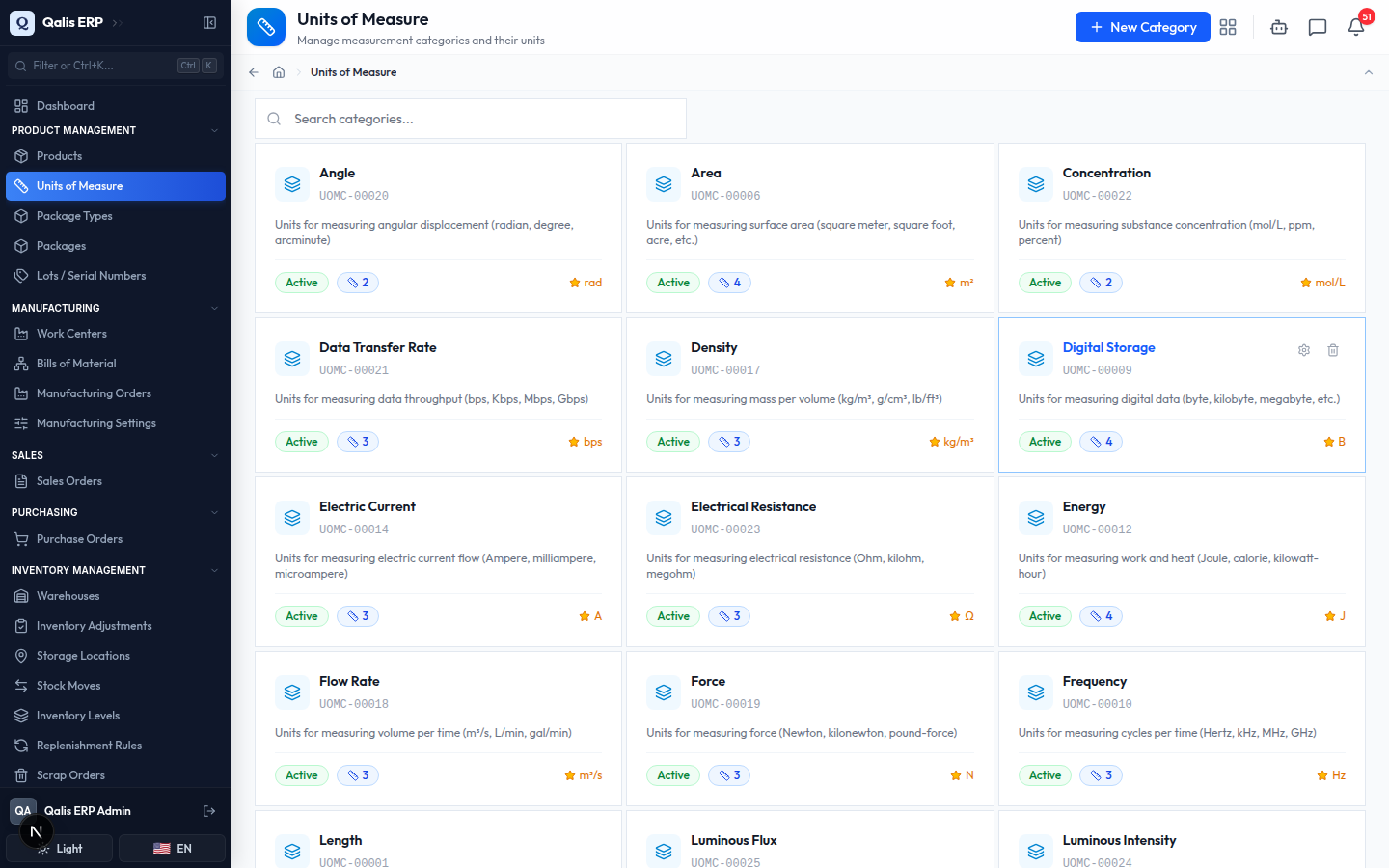
- Open Units of Measure from the sidebar. You land on a grid of cards, one per category. Each card shows the category name, its code (for example
UOMC-00001), a short description, an Active or Inactive status, how many units it contains, and its reference unit (shown as Ref: Meter (m), for example).
- To find a category quickly, type in the Search categories... box at the top. The grid filters as you type, so there is no need to press Enter.
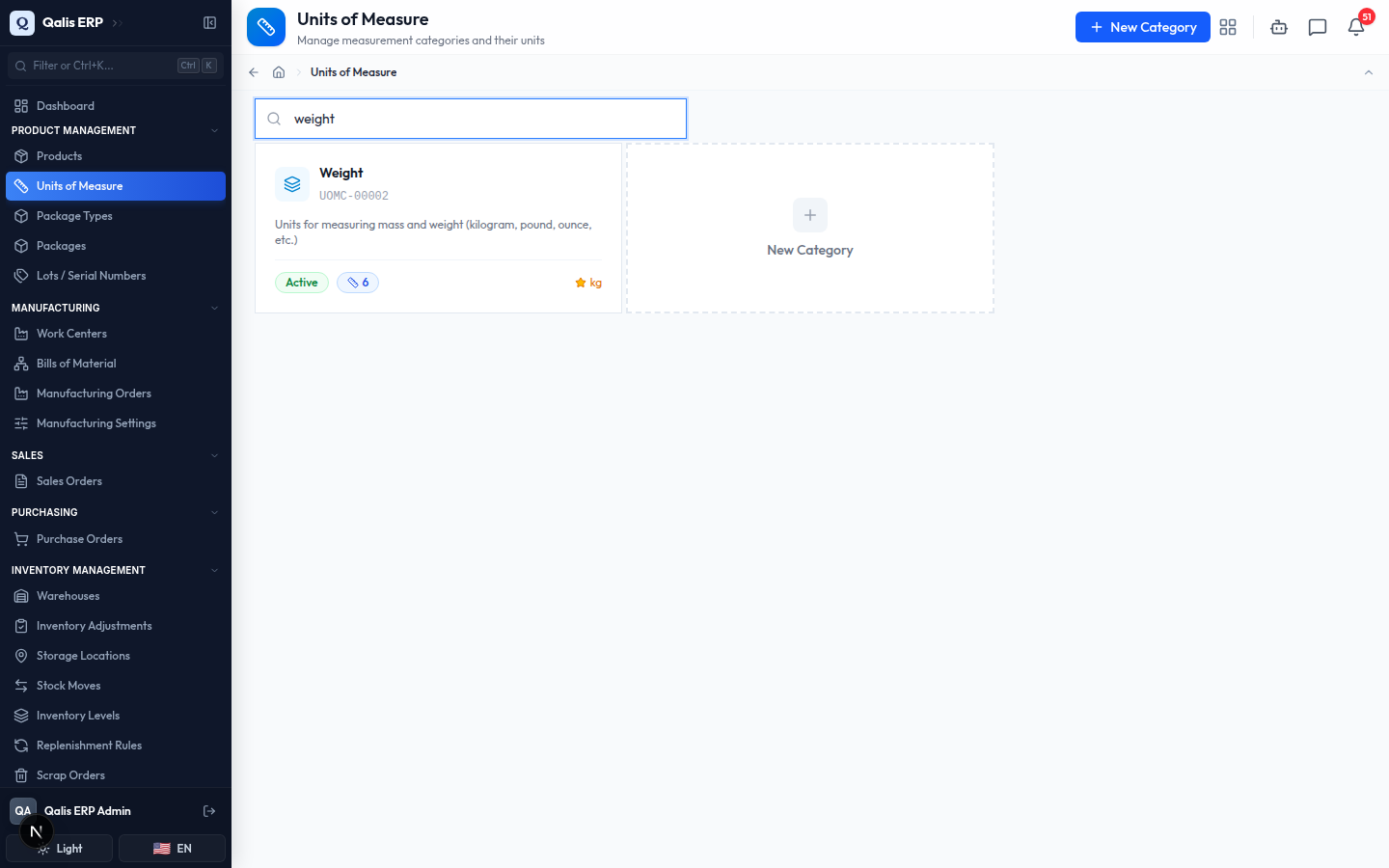
Each card hints at the health of a category at a glance: the unit count tells you how many units it holds, and the reference marker tells you whether a base unit has been set yet. A category with no reference unit cannot convert between its units until you add one.
Create a measurement category
If you measure something the standard categories do not cover, create your own category first, then add units to it.
- Click New Category at the top right. A small dialog opens.
- Type a Name (this field is required), for example
Electric Charge. The name is what you and your colleagues will recognize it by. - Add a short Description so others know what the category is for. This is optional but helpful.
- Leave Active turned on so the category is available for creating units. You can switch it off later to retire it without deleting it.
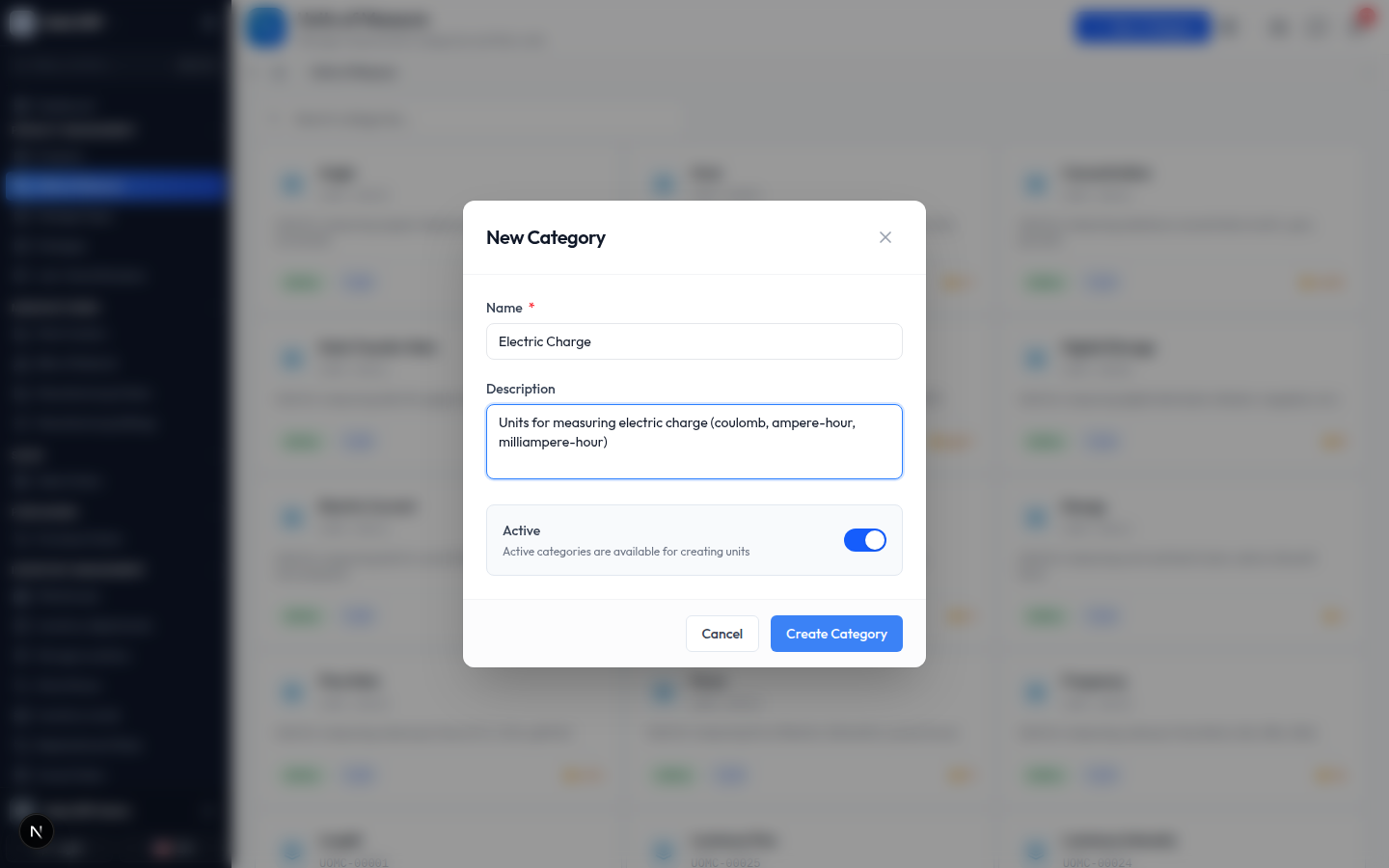
- Click Create Category. Your new category appears in the grid right away, with a code assigned automatically and a count of
0units, ready for you to fill.
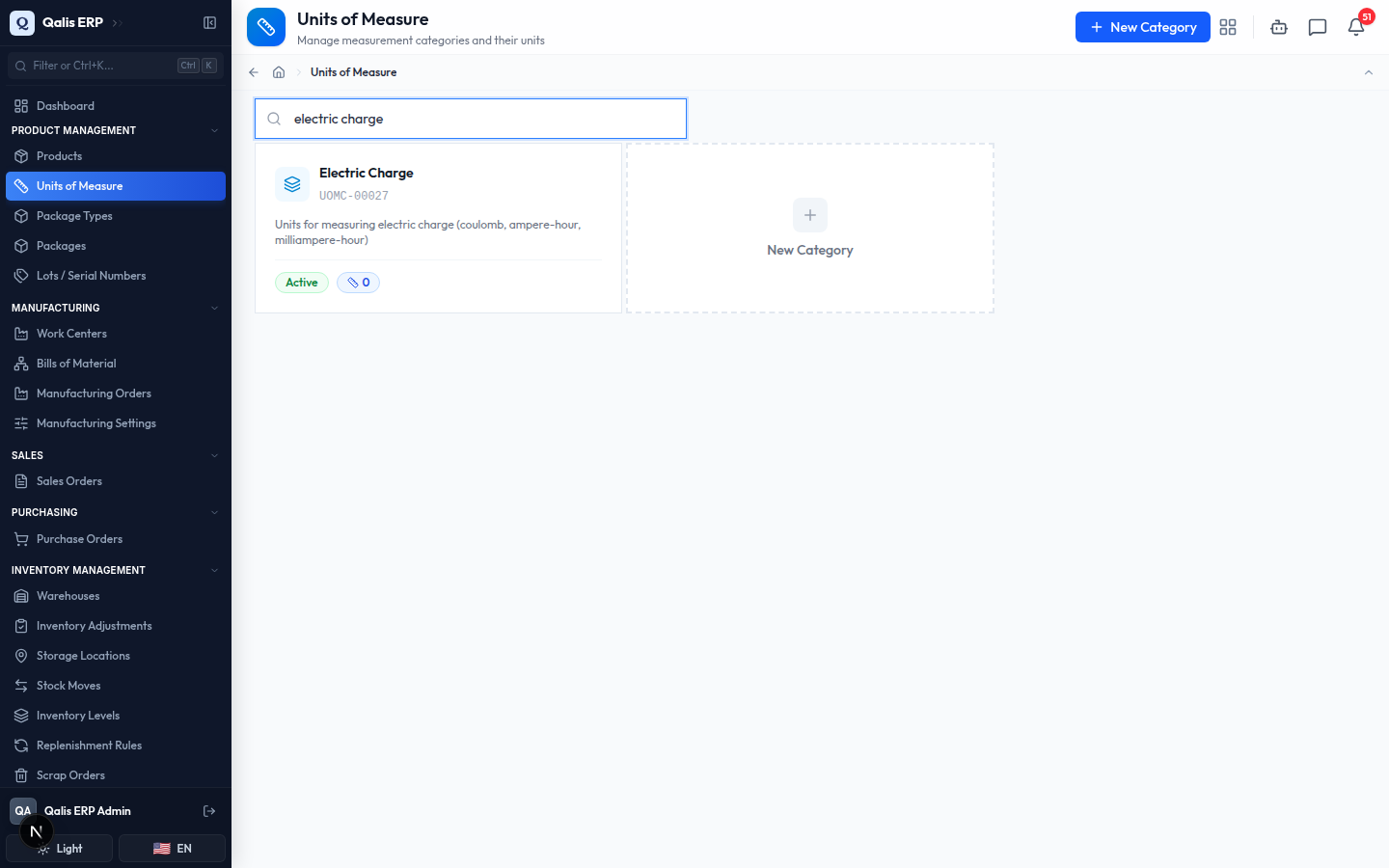
A brand new category has no reference unit yet. The first unit you add to it should be the reference (the base unit everything else compares to). The next section shows how units fit together, and the one after that shows how to add them.
Look inside a category and convert between units
Open any category to see all of its units side by side and to convert a value from one unit to another in seconds.
- From the landing page, click a category card (for example Length) to open it. At the top you see the category description, its status, the reference unit, and the unit count. Below that is a table of every unit in the category.
- The table lists each unit with its Symbol, its Type (Reference, Bigger, or Smaller), and its Ratio (how many reference units it equals). The reference unit sits at the top with a star, and the others are ordered from largest to smallest.
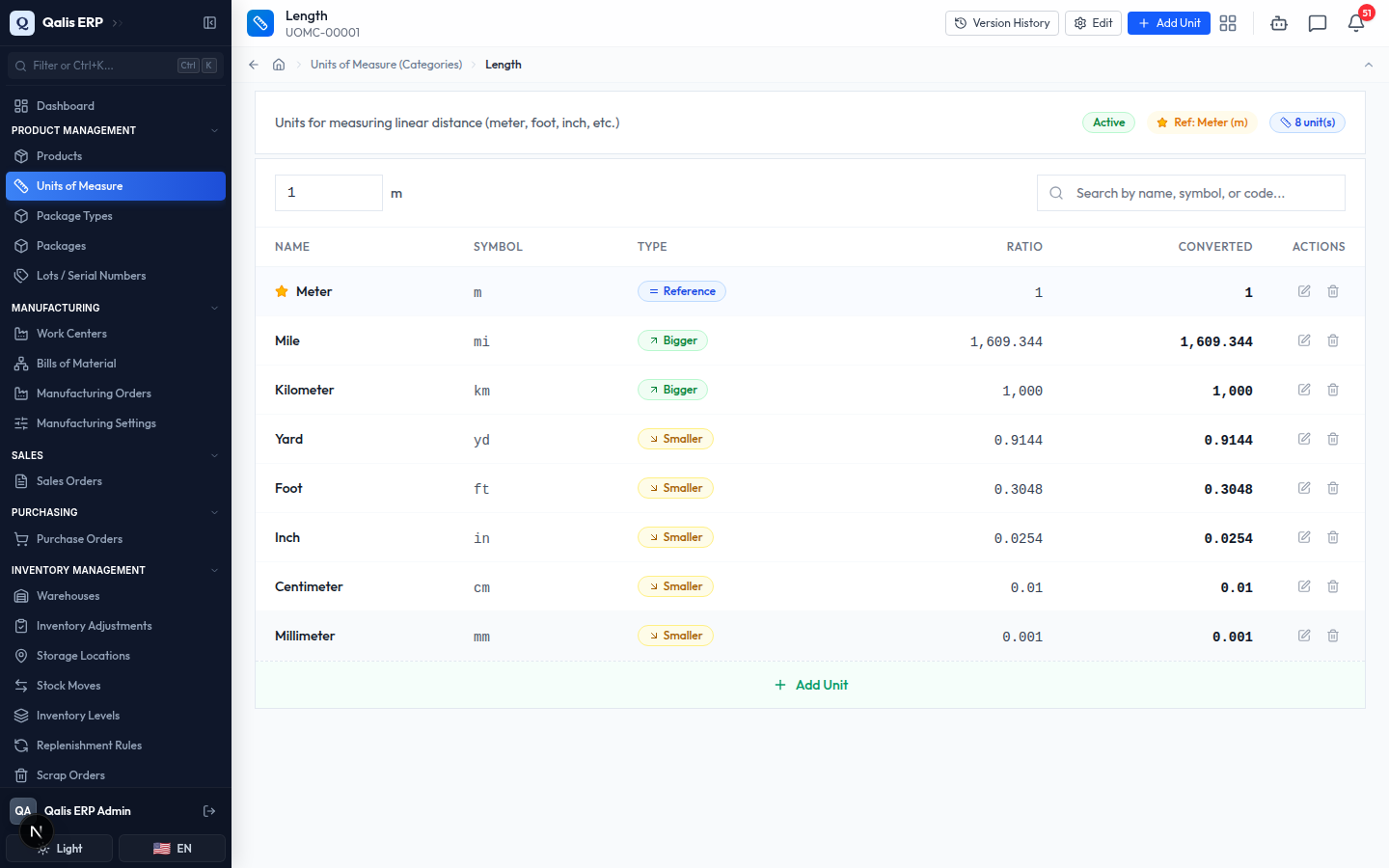
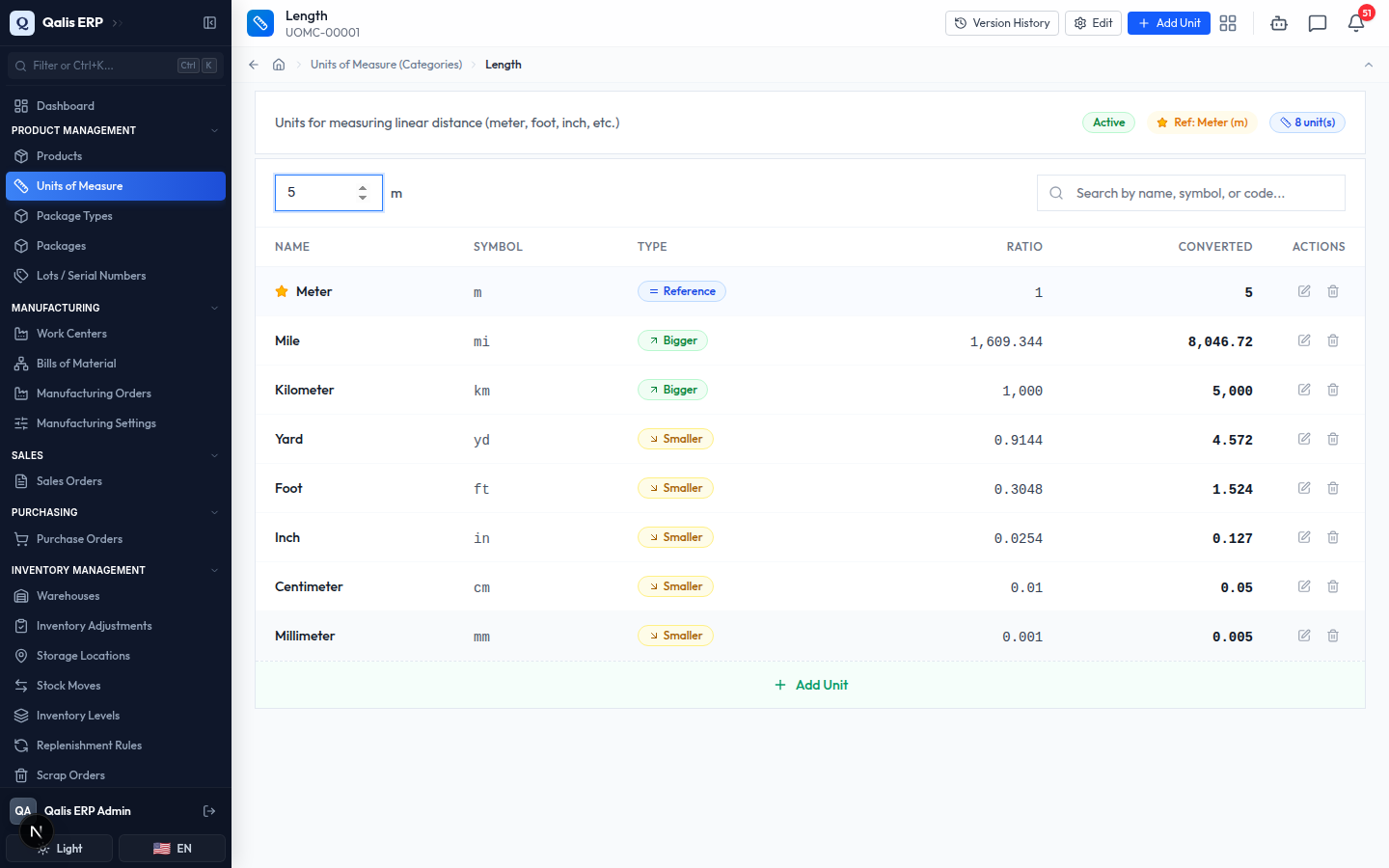
- To convert a value, type a number into the box at the top left of the table (next to the reference symbol). The Converted column instantly shows what that many of each unit equals in the reference unit. In the example below, entering
5shows that 5 kilometers are 5,000 meters, 5 miles are 8,046.72 meters, and 5 centimeters are 0.05 meters.
To find a single unit in a long list, use the Search by name, symbol, or code... box next to the converter. It filters the table as you type.
Add a unit to a category
When a category is missing a unit you need, add it in a few seconds. The system works out the conversions for you from the ratio you give.
- Inside a category, click Add Unit (at the top right, or the button below the table). A dialog opens titled Add unit to "Length", with a reminder of the category's reference unit at the top.
- Enter the unit's full Name (for example
Nautical Mile) and its Symbol (for examplenmi). Both are required. - Choose the Type. Pick Bigger if one of this unit is larger than the reference (a kilometer is bigger than a meter), or Smaller if it is smaller (a centimeter is smaller than a meter).
- Enter the Ratio: how many reference units make up one of this unit. A nautical mile is 1,852 meters, so the ratio is
1852. For bigger units the ratio is greater than 1; for smaller units it is between 0 and 1 (a centimeter's ratio is0.01).
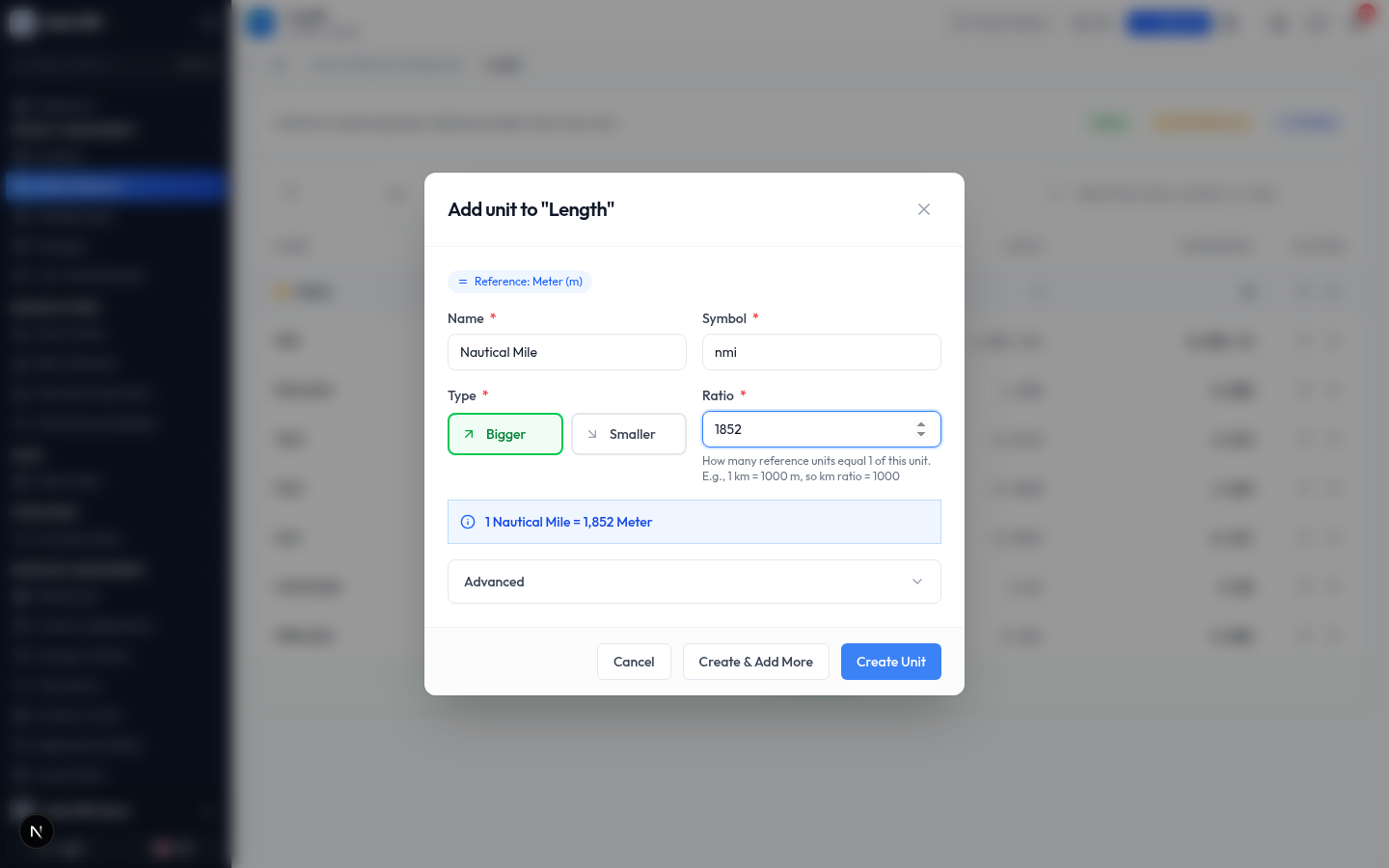
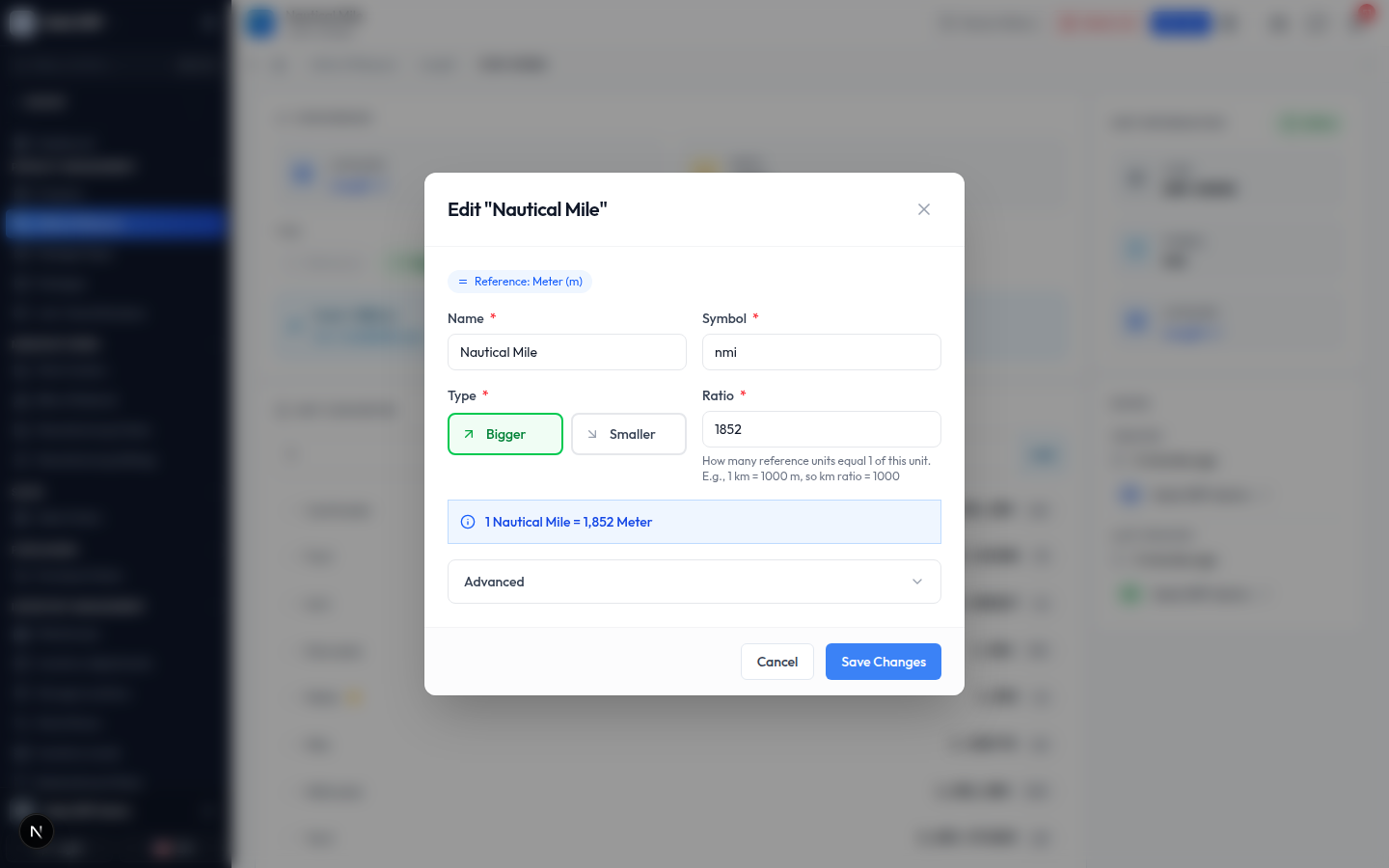
- As you fill in the ratio, a live preview confirms the conversion in plain words, for example 1 Nautical Mile = 1,852 Meter. Use it to check you have the ratio the right way round before saving.
- Click Create Unit. The dialog closes and your new unit appears in the table, slotted into the right place by size, and the category's unit count goes up by one. (If you have several to add, use Create & Add More to keep the dialog open for the next one.)
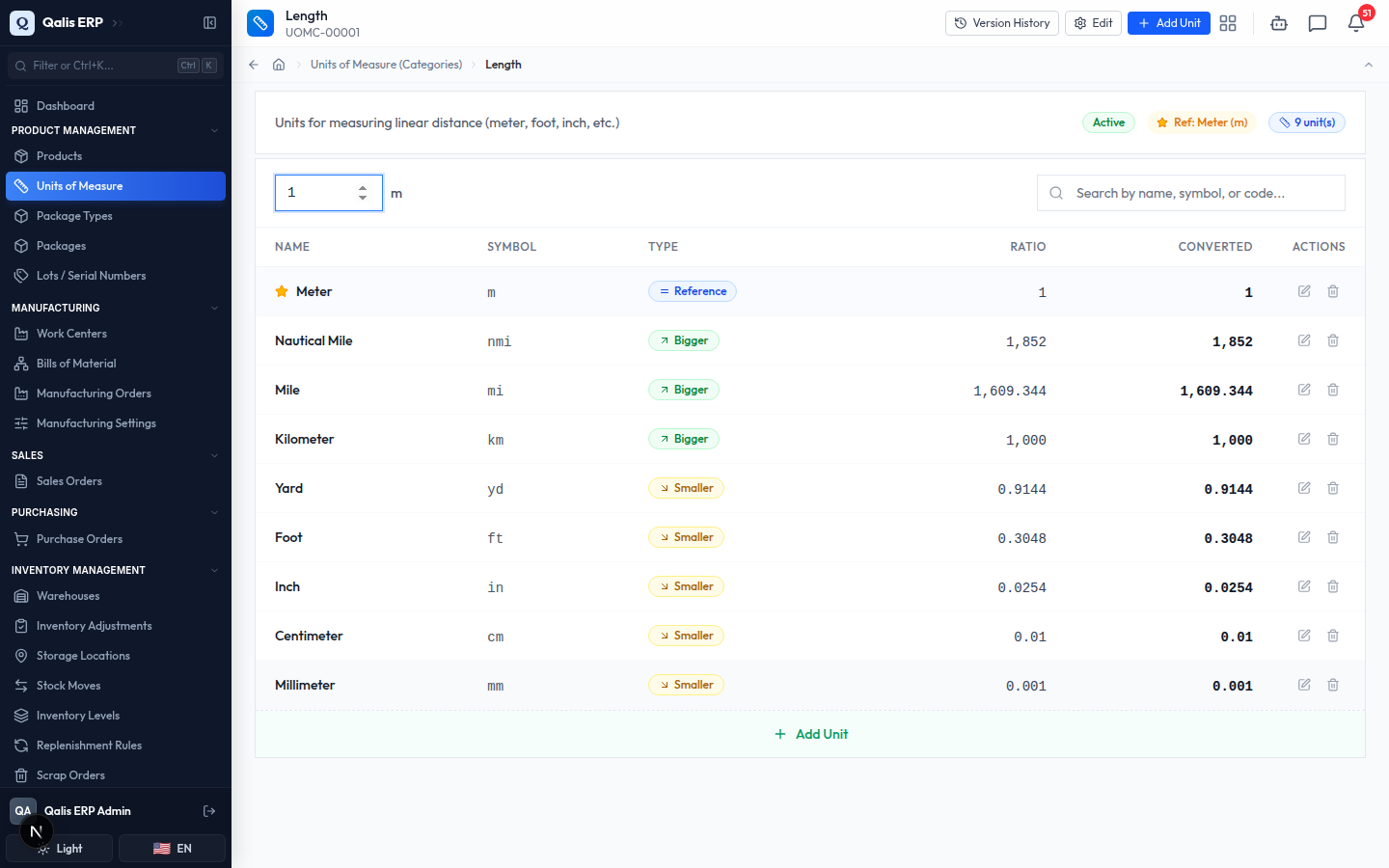
The very first unit in a brand new category is the reference unit and is locked to a ratio of 1. Once a reference exists, every other unit you add is measured against it, which is why you choose Bigger or Smaller from then on.
Open a unit and edit it
Open any unit to see its full details, try out conversions, and make changes.
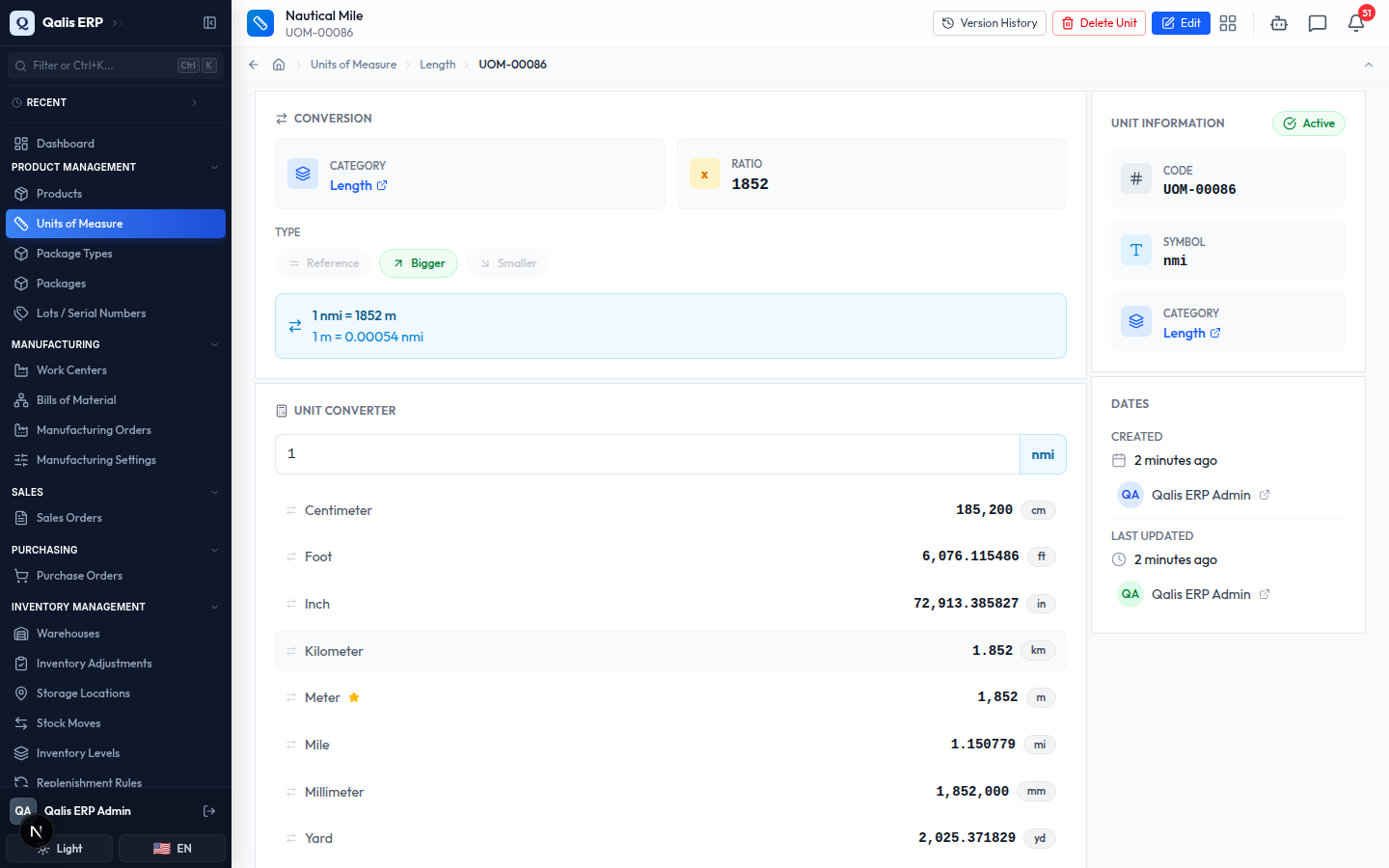
- Click a unit's name (or its code) anywhere it appears, for example in a category's table. Its detail page opens. The Conversion card shows the category, the ratio, the type, and the plain-language conversions (1 nmi = 1852 m and the reverse). The Unit Converter below it lets you type a quantity and see it expressed in every other unit in the category at once. On the right, Unit Information lists the code, symbol, category, and status, and Dates shows who created the unit and when.
- To make a change, click Edit in the top bar. A dialog opens with the unit's current values filled in. Adjust the Name, Symbol, Type, or Ratio, then click Save Changes. The conversion preview updates as you type, so you can confirm the new figures before saving.
The top bar also has Version History, which keeps a record of every change to the unit and who made it, and Delete Unit, which moves the unit to the trash where it can be restored later. A unit that is still in use elsewhere (on a product or an order, for example) cannot be deleted until those links are removed, so you never end up with broken references.
Good to know
A few terms you will see throughout this module, in plain words:
- Category: a group of units that measure the same thing and can convert to each other, such as Length or Weight. Units only convert within their own category.
- Reference unit: the one base unit in a category that all the others are measured against. It always has a ratio of 1 (the meter for Length, the kilogram for Weight). Each category has exactly one.
- Ratio: how many reference units equal one of this unit. A kilometer's ratio is 1,000 because 1 km is 1,000 m. A centimeter's ratio is 0.01 because 1 cm is 0.01 m.
- Type: whether a unit is the Reference, a Bigger unit (ratio greater than 1), or a Smaller unit (ratio between 0 and 1).
- Symbol: the short abbreviation shown on screens and documents, like
m,kg, orpcs. - Active / Inactive: an active unit is available for use across the app. Switching a unit or category to inactive retires it without deleting it.