PO Email Notifications
Email your procurement team automatically the moment a purchase order is created.
Last updated on June 29, 2026
PO Email Notifications keeps the right people in the loop without anyone having to remember to tell them. Once it is switched on, every time a purchase order is created in your organization, the module sends a tidy email to the addresses you choose, with the order's reference, supplier, total, and a button that opens the order. It is a small add-on with no screens of its own to manage day to day: you set it up once, decide who gets notified and how the email reads, and then it works quietly in the background.
This guide walks you through turning it on, choosing your recipients, customizing the subject line, seeing a notification arrive, and changing your settings later.
Before you start
- This is a Marketplace add-on, so someone needs to install it for your organization first. The steps below cover that.
- Installing and configuring modules is reserved for organization admins. If you do not see the buttons described here, ask an admin to set it up.
- The module works hand in hand with Purchase Orders. That module is required, so the Marketplace installs it automatically if it is not already on.
Turn on notifications and choose who gets them
This is the one setup you do, and it covers everything: switching the module on and telling it who to email and what to say.
- Open the sidebar, scroll to the Administration group, and click Marketplace. Search for PO Email Notifications and open it. Its page explains what the module does and shows an Install button in the top right.
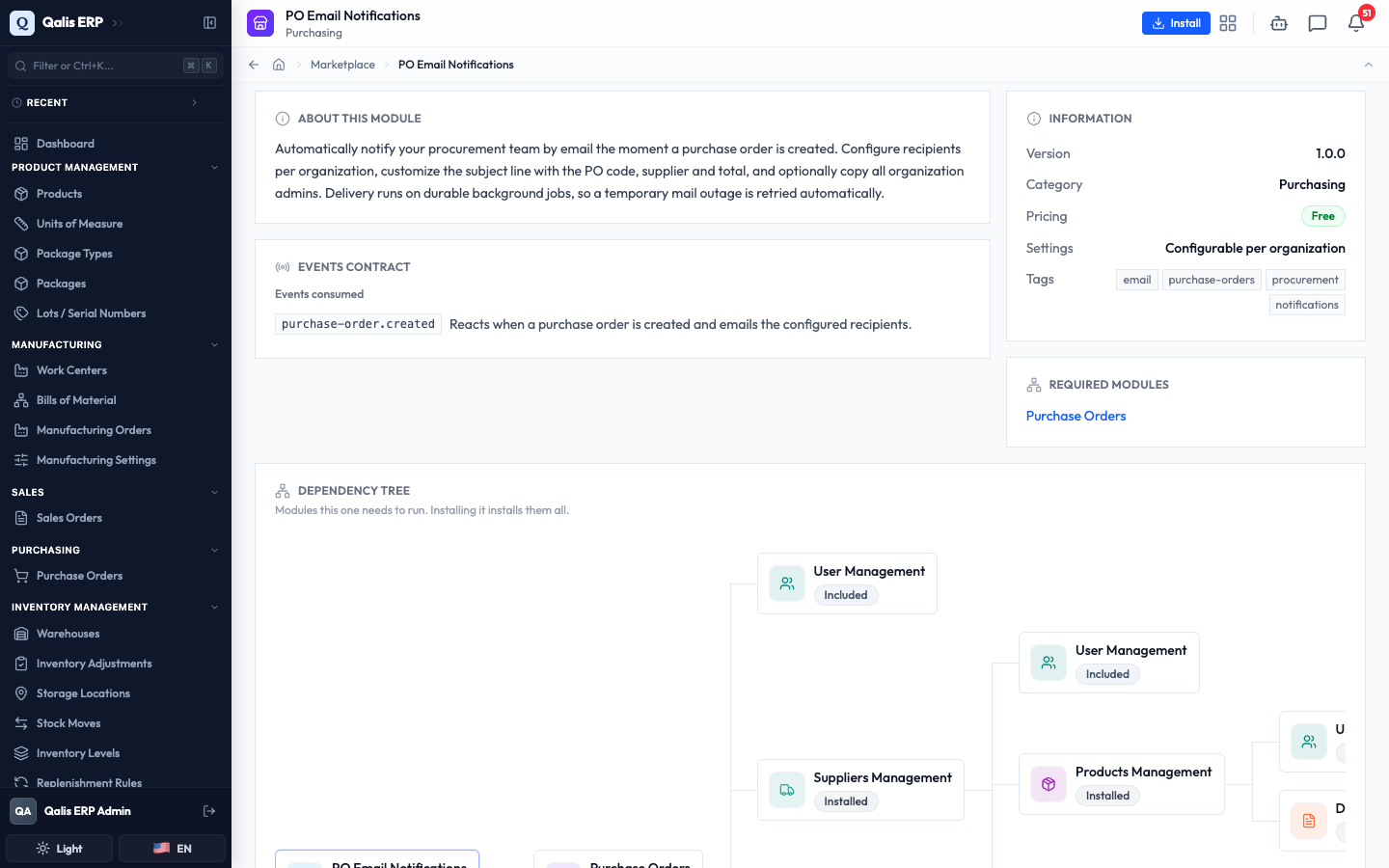
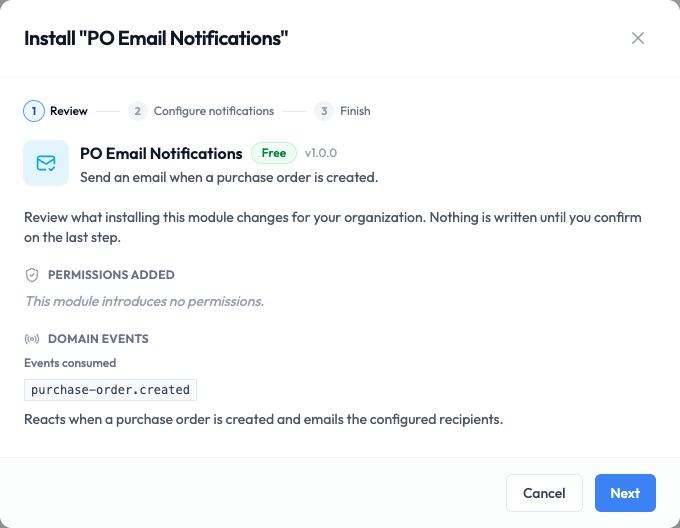
- Click Install. A short window opens with three steps: Review, Configure notifications, and Finish. The first step summarizes what installing changes, including that the module reacts whenever a purchase order is created. Nothing is saved yet.
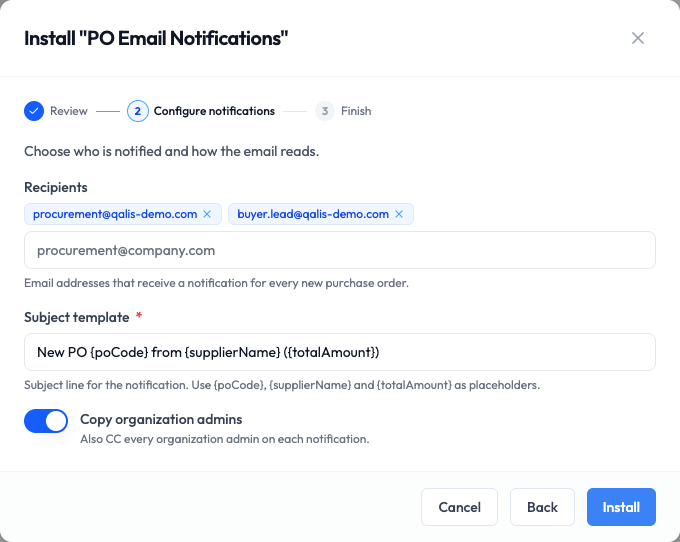
- Click Next to reach Configure notifications. This is where you decide who is notified and how the email reads. There are three settings:
- Recipients: the email addresses that get notified for every new purchase order. Type an address and press Enter to add it. Each one appears as a chip with an x to remove it. You can add several (for example, your procurement inbox and a lead buyer).
- Subject template: the subject line of the email. It comes filled in with a sensible default, and you can change it. You can drop in details from the order using placeholders (see "Customize the subject line" below).
- Copy organization admins: turn this on to also send a copy to every admin in your organization, on top of your recipients.
- Click Install. A short progress screen appears while the module is set up, then a confirmation that it is installed and active for your organization.
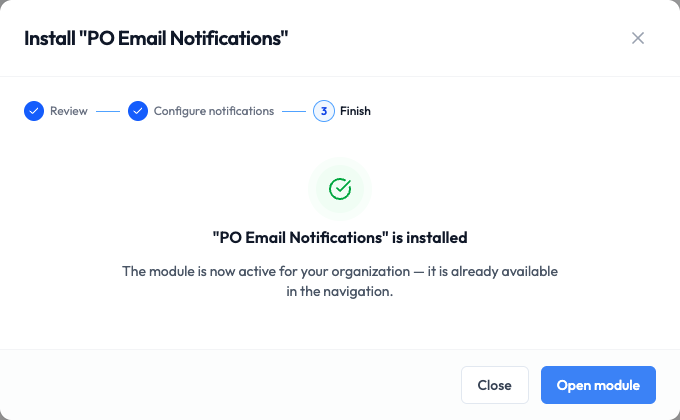
- Click Close. You are done. From now on, every new purchase order sends an email to the people you listed.
You need at least one person to notify. If you leave Recipients empty and do not turn on Copy organization admins, there is no one to email, so nothing is sent.
Customize the subject line
The subject line is the first thing your recipients see, so it helps to make it specific. You write it once as a template, and the module fills in the details of each order automatically.
Type whatever wording you like in the Subject template box, and use these placeholders wherever you want the order's details to appear:
| Placeholder | Becomes | Example |
|---|---|---|
{poCode} | The purchase order's reference | PO-00091 |
{supplierName} | The supplier on the order | Apex Aerospace Forgings |
{totalAmount} | The order total, with its currency | $5,020.00 |
For example, the template New PO {poCode} from {supplierName} ({totalAmount}) produces a subject line like New PO PO-00091 from Apex Aerospace Forgings ($5,020.00) on a real order.
If a detail is not known for a particular order, its placeholder simply turns into nothing, so you never see a stray
{token}in the subject. A placeholder is optional. If you prefer a plain subject likeNew purchase order, just leave them out.
See a notification arrive
There is nothing to do here, this is what happens on its own. Whenever anyone in your organization creates a purchase order, the email goes out a moment later.
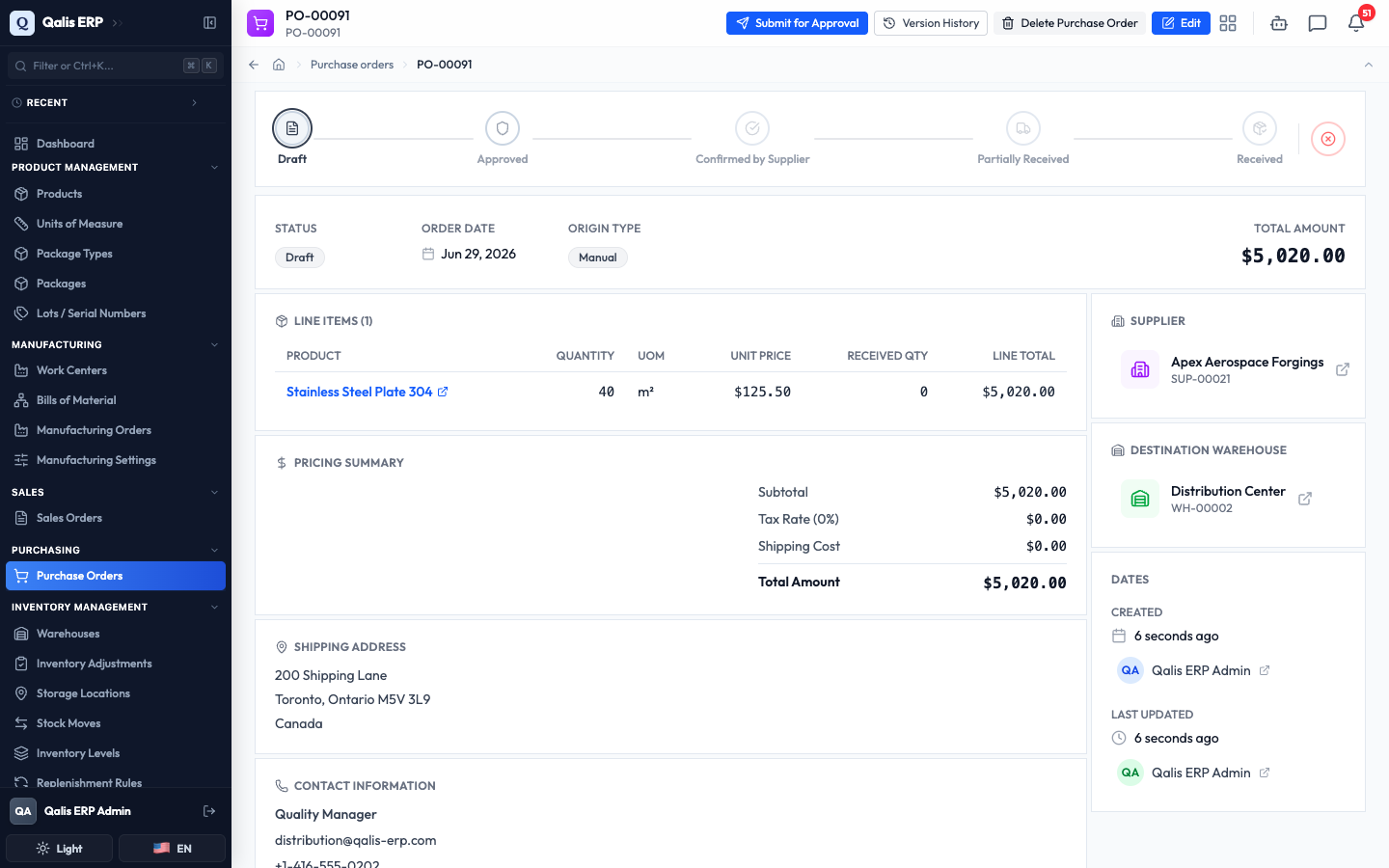
- Someone creates a purchase order as usual, in the Purchase Orders area.
- Within moments, everyone on your Recipients list receives the email. If you turned on Copy organization admins, your admins are copied too. You can see both on the message itself: the recipients are on the To line, and the admins are on the Cc line.

- The email itself is short and clear. It shows the order's Reference, Supplier, Total, and Order date, with a View purchase order button (and a plain link beneath it) that opens the order directly.
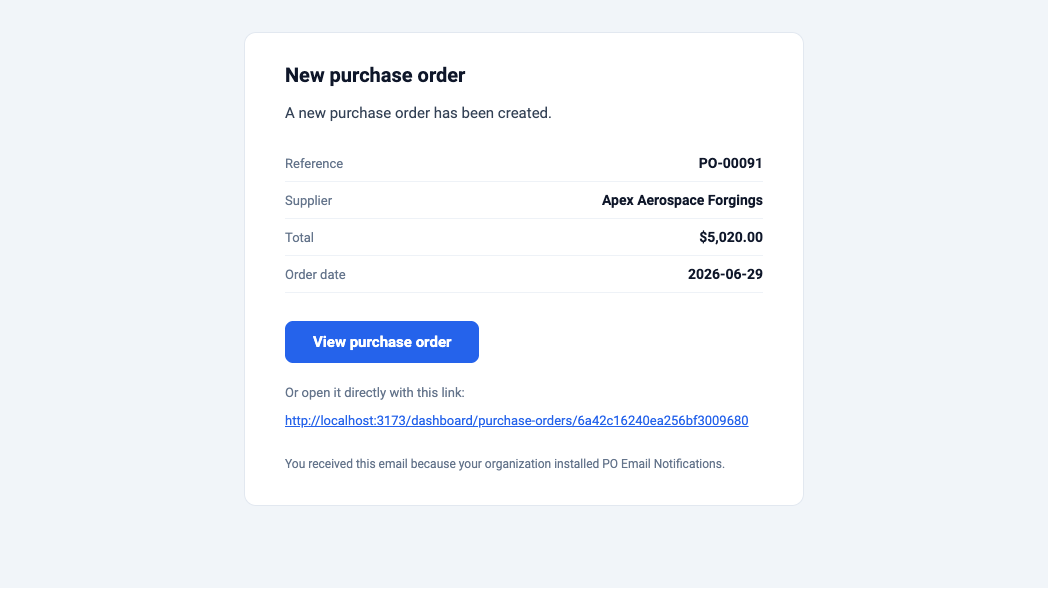
Delivery is reliable. If your mail server is briefly unavailable, the module keeps trying in the background, so a notification is not lost.
Change who gets notified later
You can adjust the recipients, the subject line, or the admin copy at any time. Your changes apply to every purchase order created from then on.
- Open Marketplace from the sidebar, then PO Email Notifications. On its page, click Manage settings in the top right.
- The settings page opens with your current choices already filled in. Add or remove recipients, edit the subject, or flip the admin copy on or off.
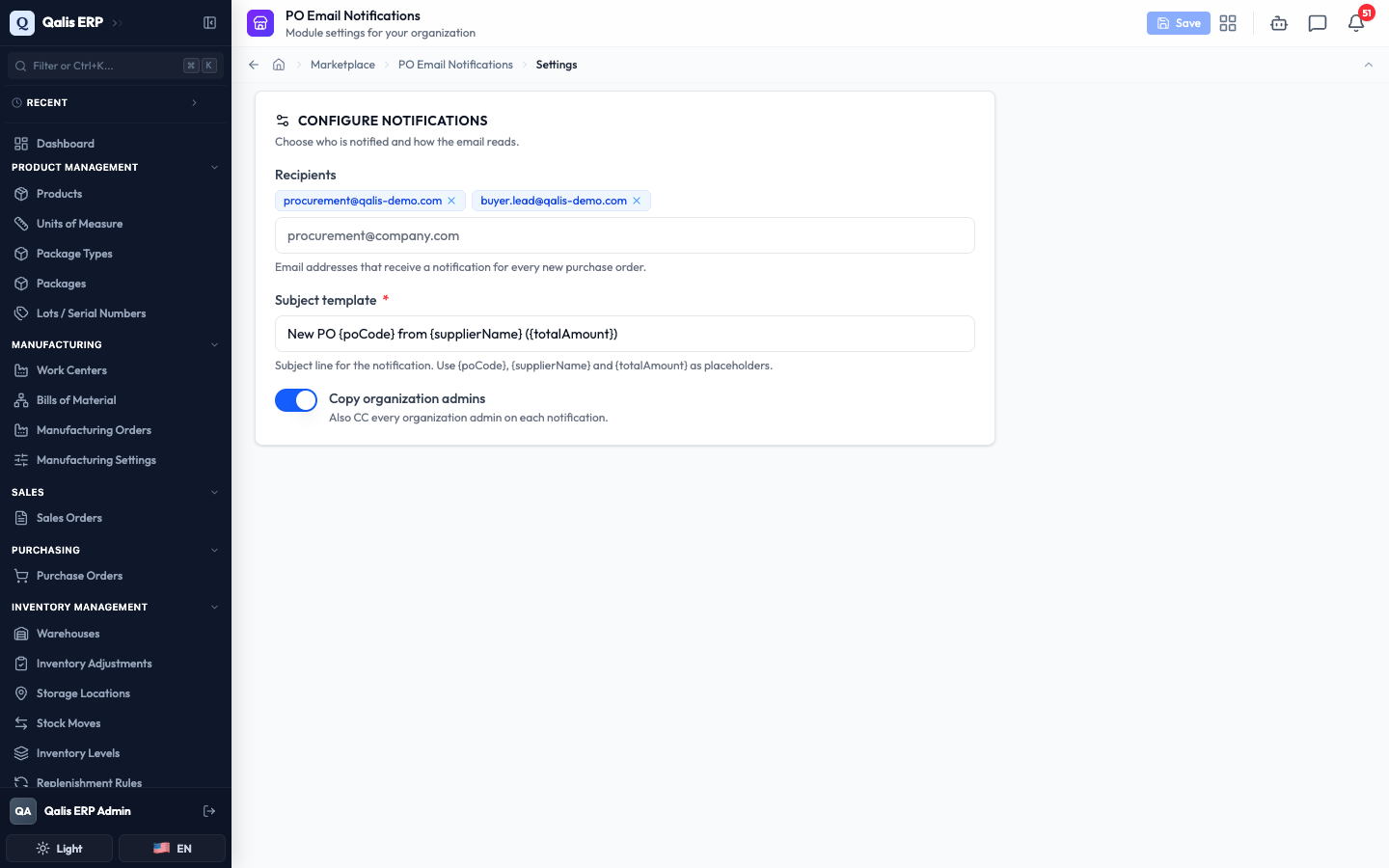
- Click Save in the top right. A short message confirms the change, and the Save button greys out again until your next edit.
The Save button stays inactive until you actually change something, so you always know whether you have unsaved edits.
Good to know
- Recipient: an email address you add to the Recipients list. Everyone on the list gets a copy of every new purchase order notification.
- Subject template: the reusable subject line you write once. The module fills in each order's details using placeholders.
- Placeholder: a tag like
{poCode}that stands in for a detail of the order, swapped for the real value when the email is sent. - Copy organization admins: an option to also send each notification to your organization's admins, in addition to your recipients.
- Organization admin: a member of your organization who can install and configure modules. Only admins can change these settings.