Package Types
Set up a reusable catalogue of shipping containers (boxes, pallets, crates, bins) with their size, weight limits, and carrier details.
Last updated on June 26, 2026
A package type is a reusable description of a physical container you pack goods into, like a standard cardboard box, a wooden crate, a plastic bin, or a pallet. Each one records the container's size, how much it weighs empty, how much it can safely hold, and any shipping details such as the carrier and a barcode. You set these up once, and the rest of Qualis (for example when you build a Package) can pick from your list instead of retyping the same measurements every time. This guide walks you through the things you do most often: finding a container type, creating one, reading its details, updating it, importing many at once, exporting your list, and reviewing its change history.
You reach the module from the left sidebar under Product Management, then Package Types. There is nothing to set up first, you can create your first container type straight away.
Find and browse your package types
Start here to see every container type you have and zero in on the one you need.
- Open Package Types from the sidebar. The list shows one row per container type, with its Code, Name, Dimensions (mm), Empty Weight (kg), Max Weight (kg), Carrier, and Status. You can also switch between Table view and Grid view with the toggle above the list.
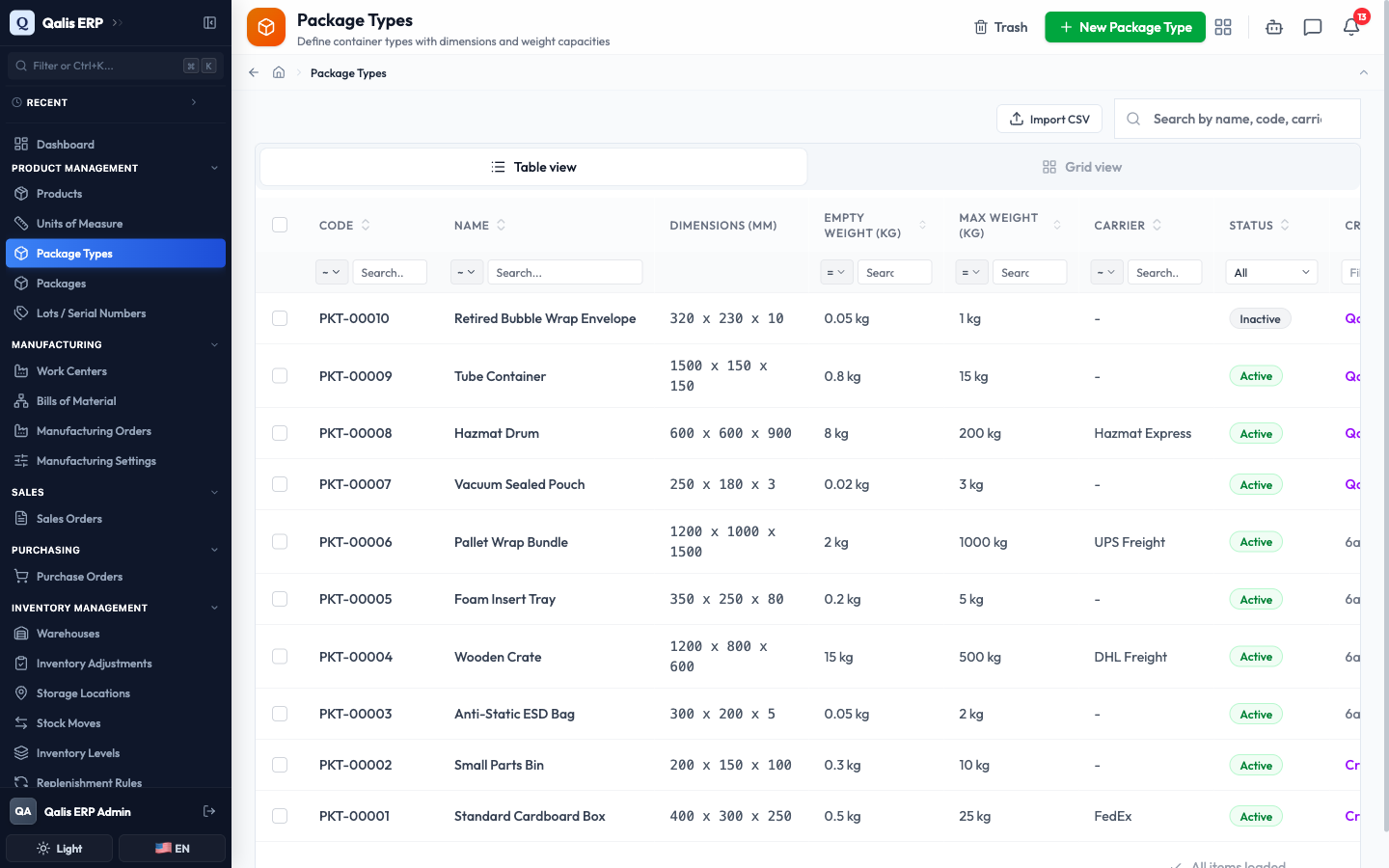
- To find one fast, type in the Search by name, code, carrier, or barcode... box at the top right. The list filters as you type, so there is no need to press Enter.
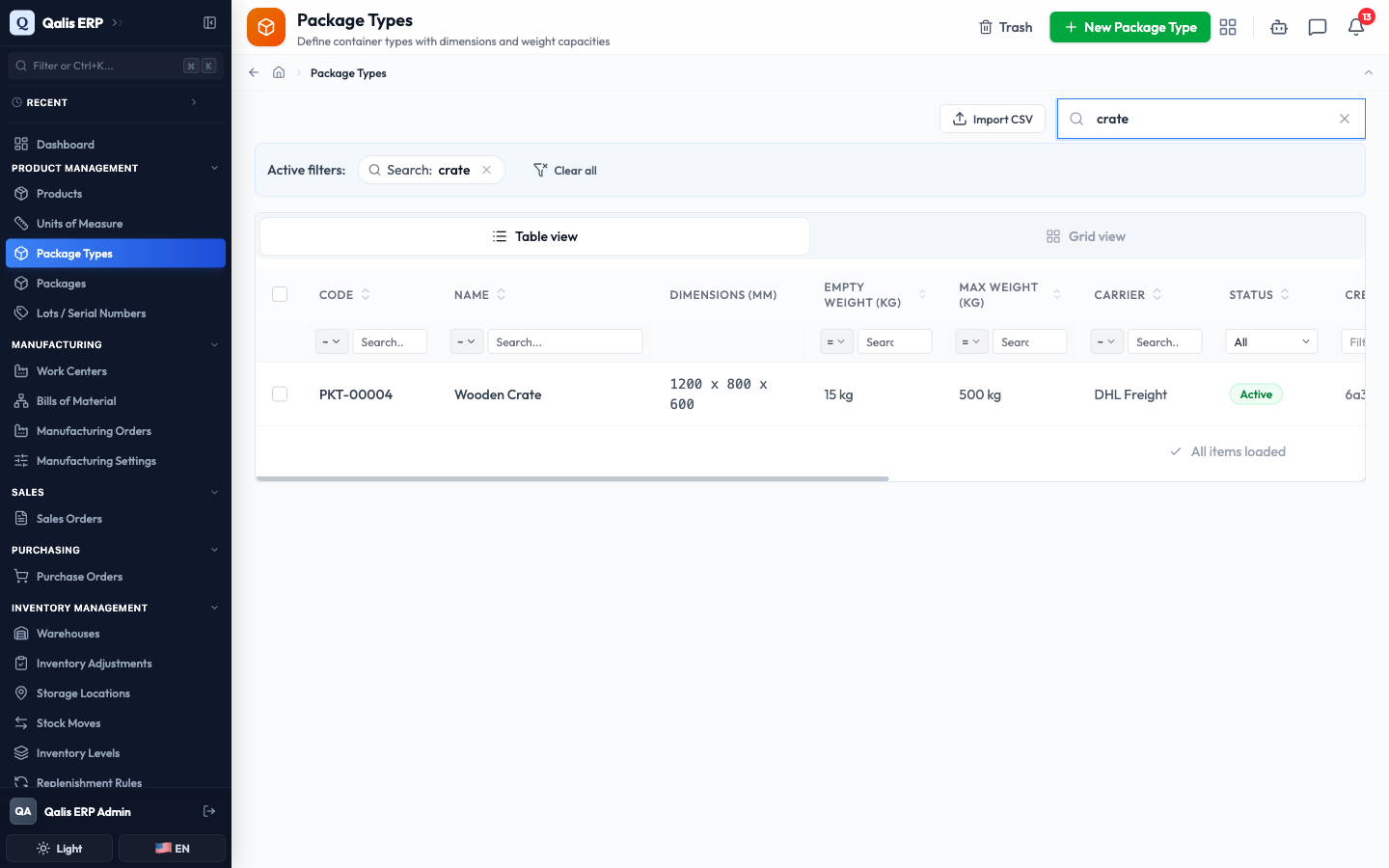
- To see only containers in a certain state, open the Status dropdown under the column heading and choose Active or Inactive. You can filter the same way on other columns, such as Carrier, Empty Weight, Max Weight, Created By, or a date range on when records were created or updated.
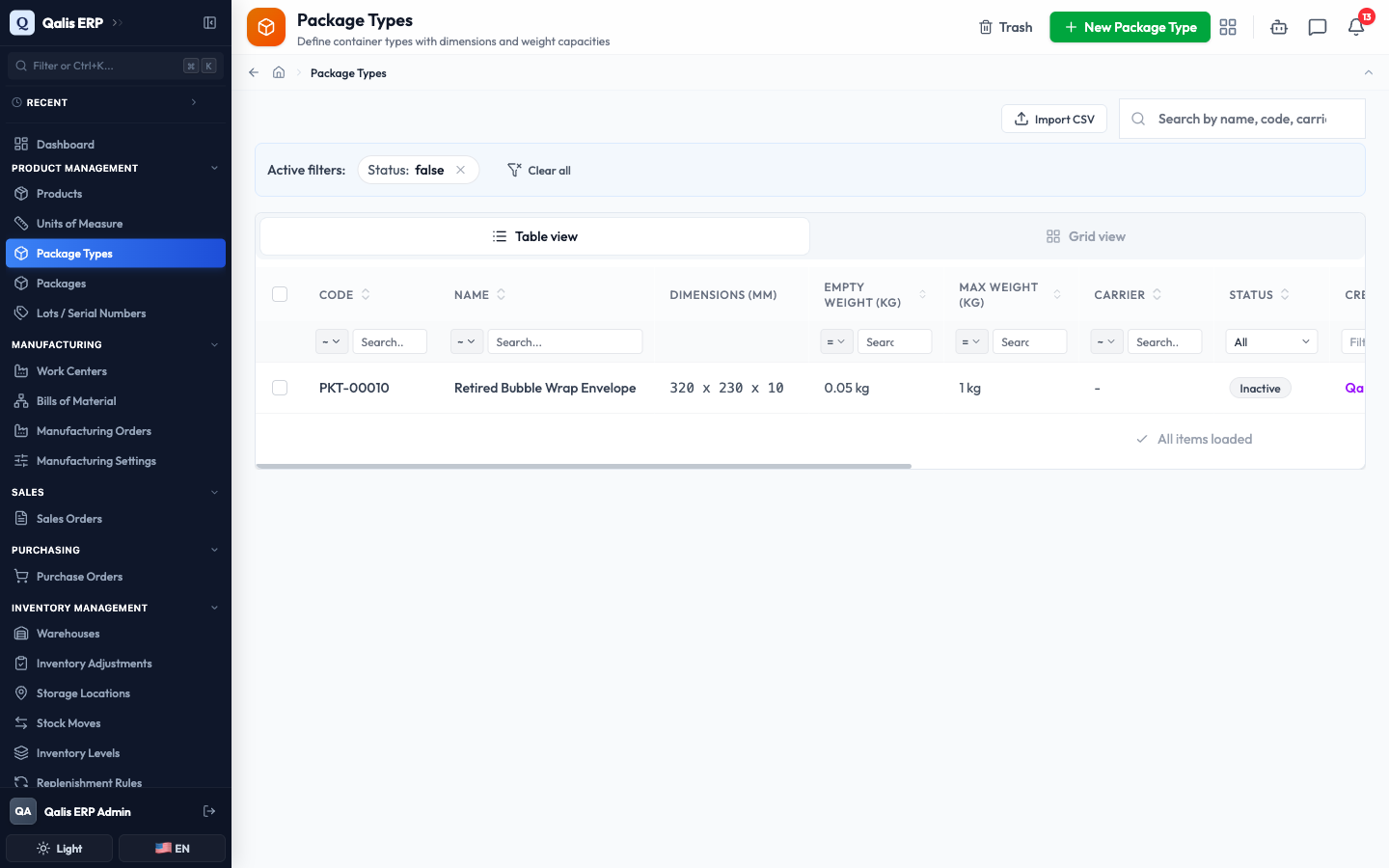
Whenever a filter is on, an Active filters banner appears under the search box showing what is applied. Click the small x on a filter to drop it, or Clear all to reset everything. The web address updates too, so you can bookmark or share a filtered view.
Create a package type
This is the main task: describing a new container so the rest of the system can use it. The form is split into four tabs, so you can fill it in one part at a time. Only the Name is required, everything else is optional.
- Click New Package Type (top right of the list). You start on the Basic Info tab.
- Type a clear Name, for example
Euro Stacking Container, and an optional Description explaining what the container is for. Leave the Active switch on so the container is available for use right away.
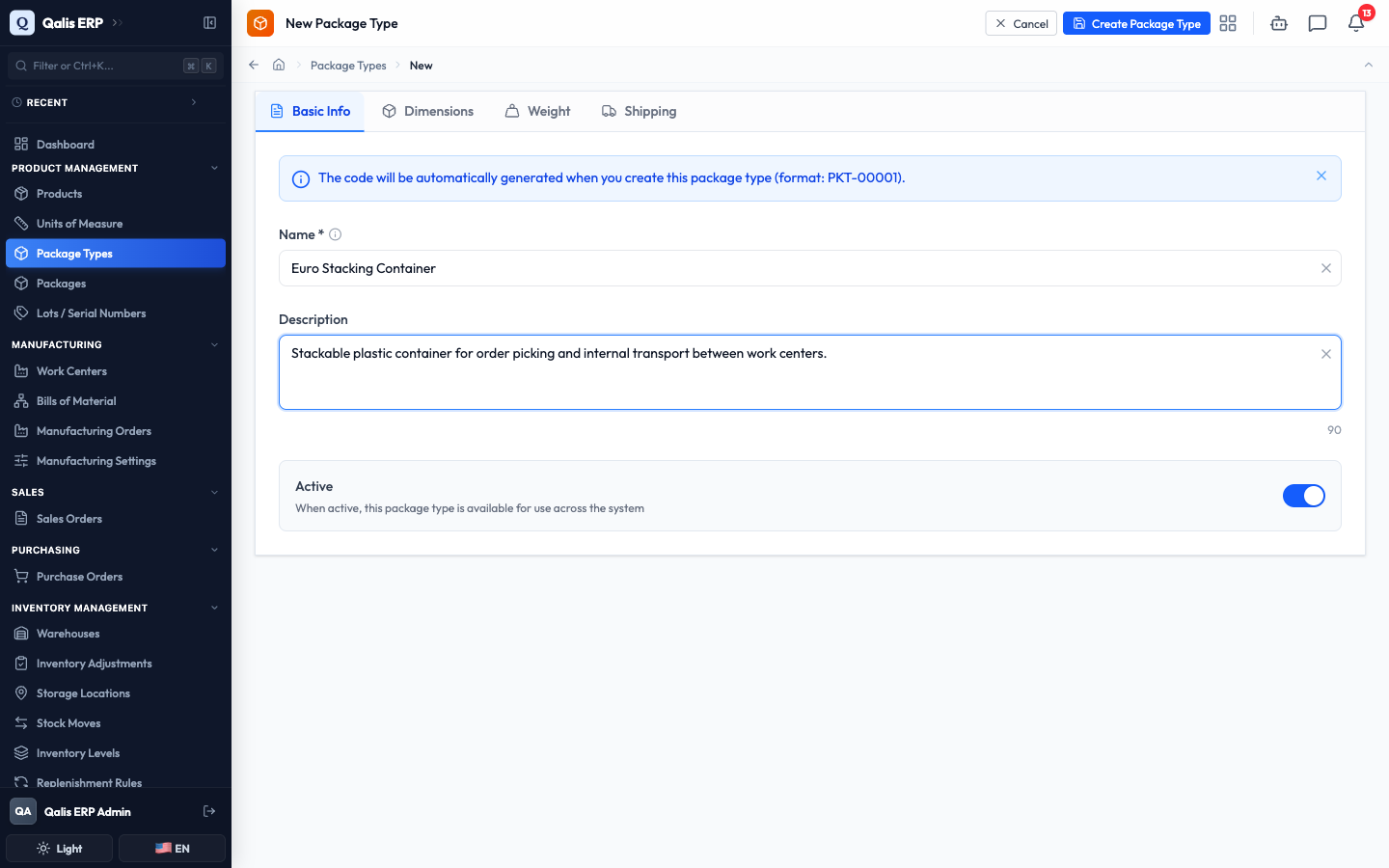
You do not type a code. Qualis assigns one automatically when you save (for example
PKT-00011), as the blue note on the form explains.
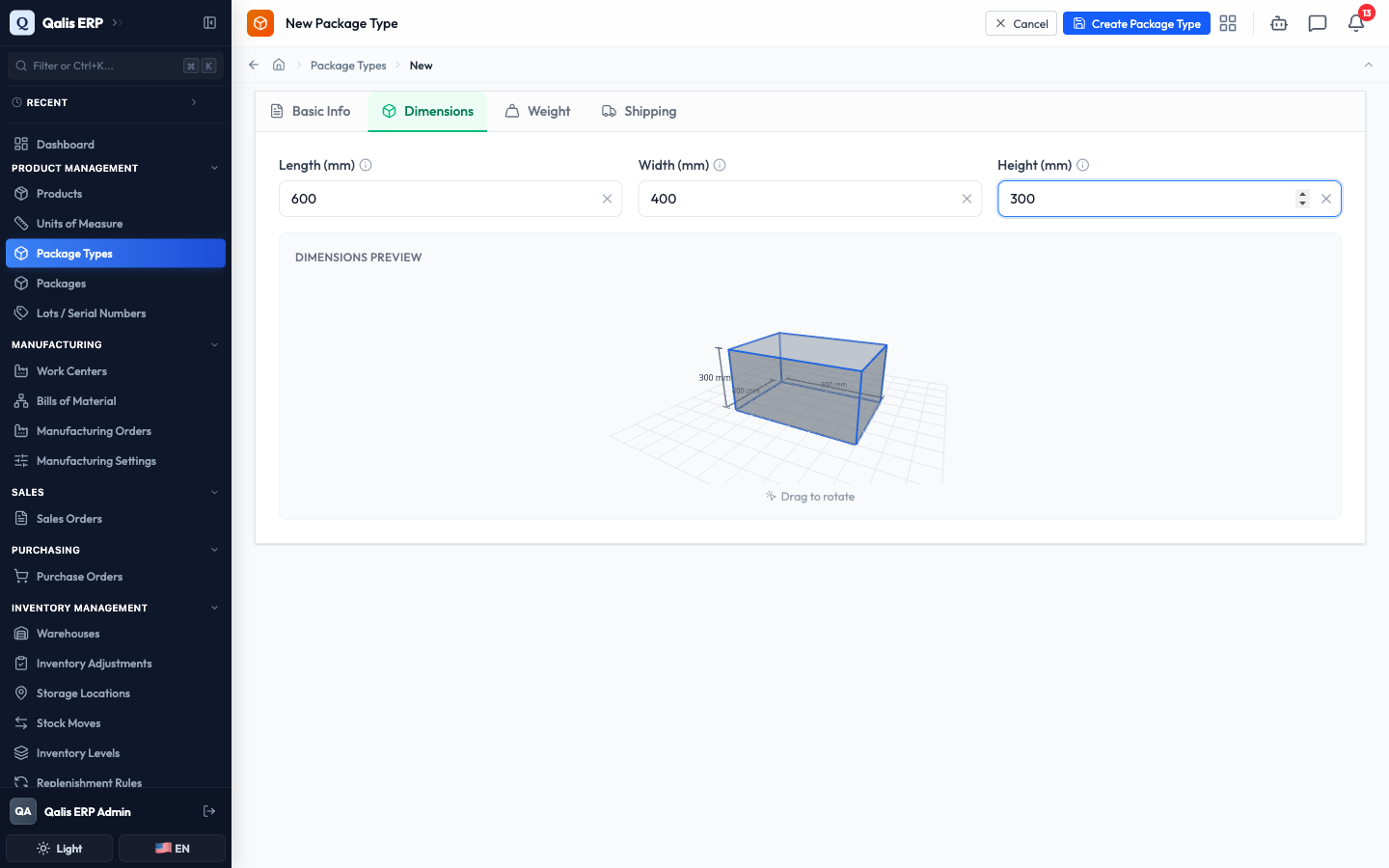
- Open the Dimensions tab and enter the Length, Width, and Height in millimetres. A live 3D preview of the box appears as you type, and you can drag it to rotate and check the shape looks right.
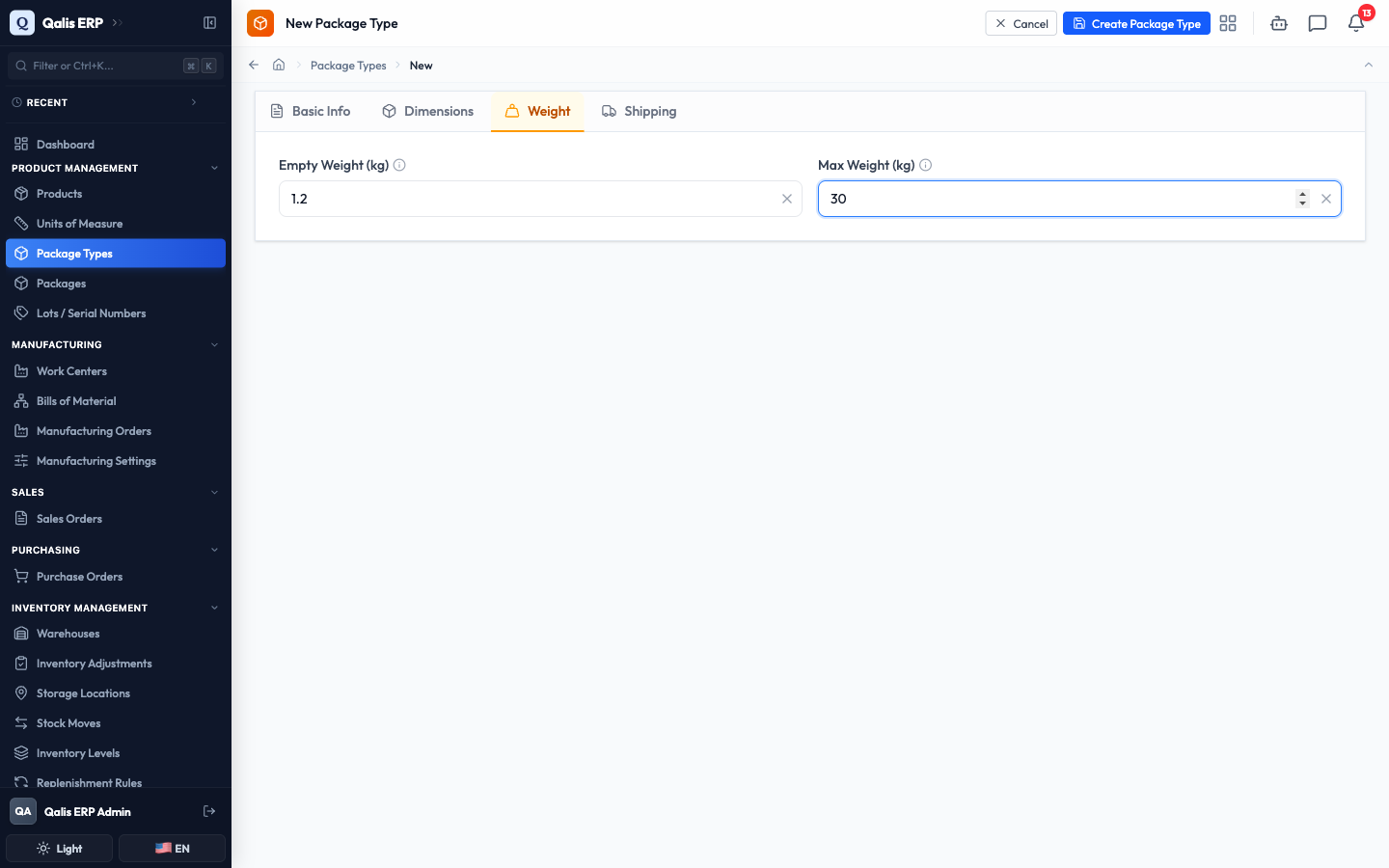
- Open the Weight tab and enter the Empty Weight (how much the container weighs on its own) and the Max Weight (the most it can safely hold), both in kilograms.
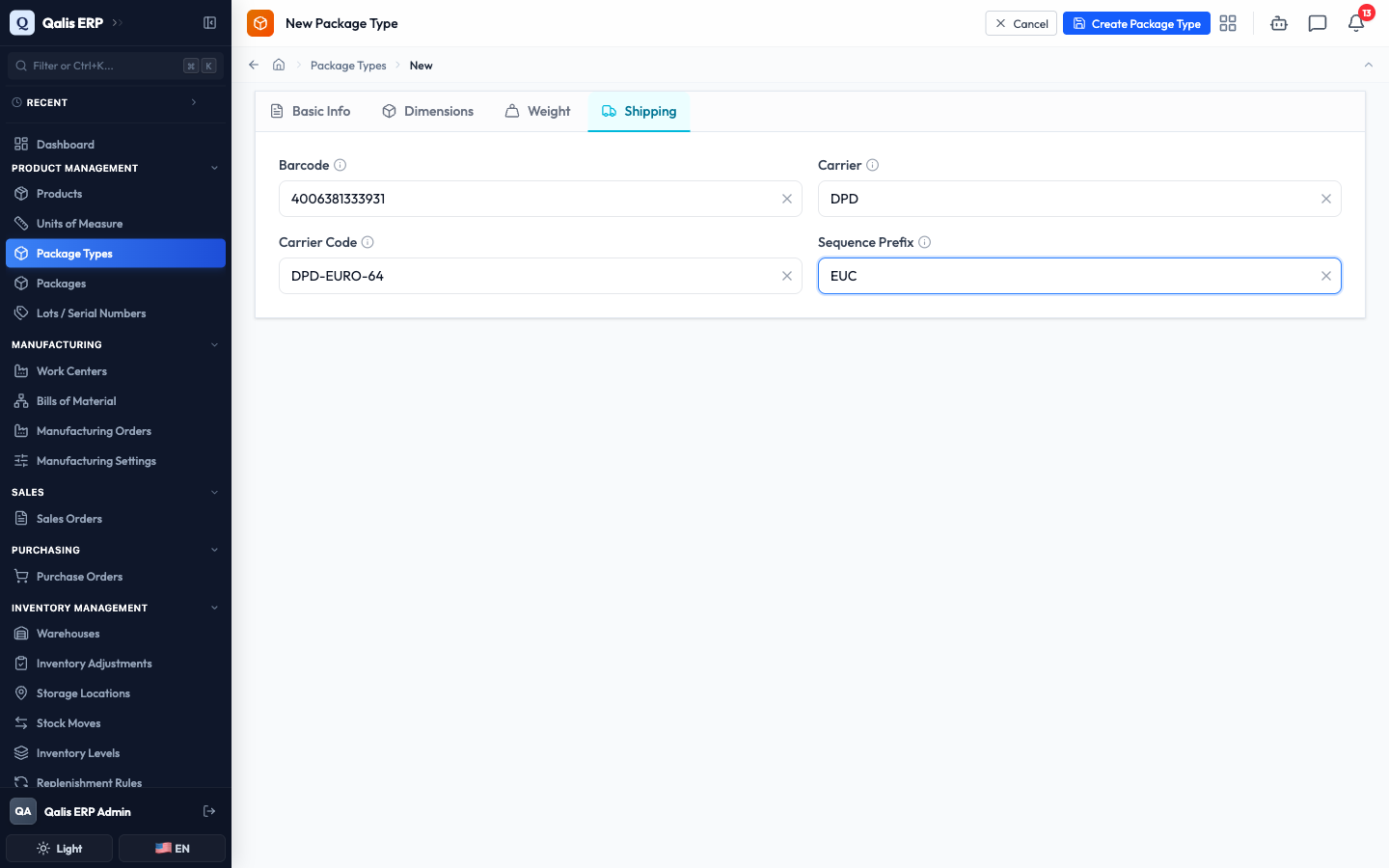
- Open the Shipping tab if you want to record carrier details: a Barcode, the Carrier name, the Carrier Code that carrier uses for this container, and a Sequence Prefix used when generating package references.
- When you are happy, click Create Package Type at the top right.
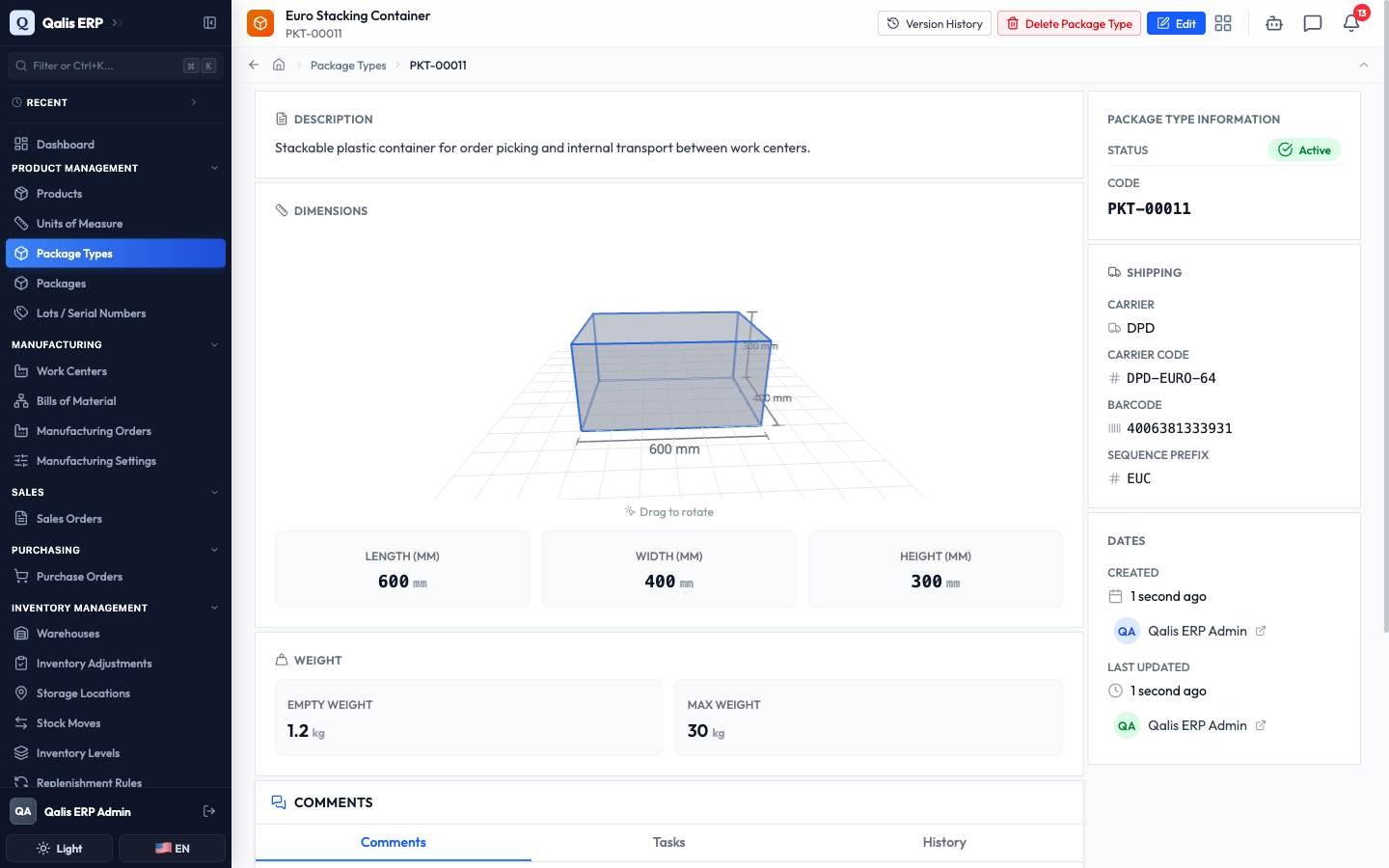
What happens next: Qualis saves the container, gives it a code, and opens its details page so you can review everything you entered.
Open and read a package type
Open any container type to see everything about it on one page.
- From the list, click a container type's Name or Code to open its details page.
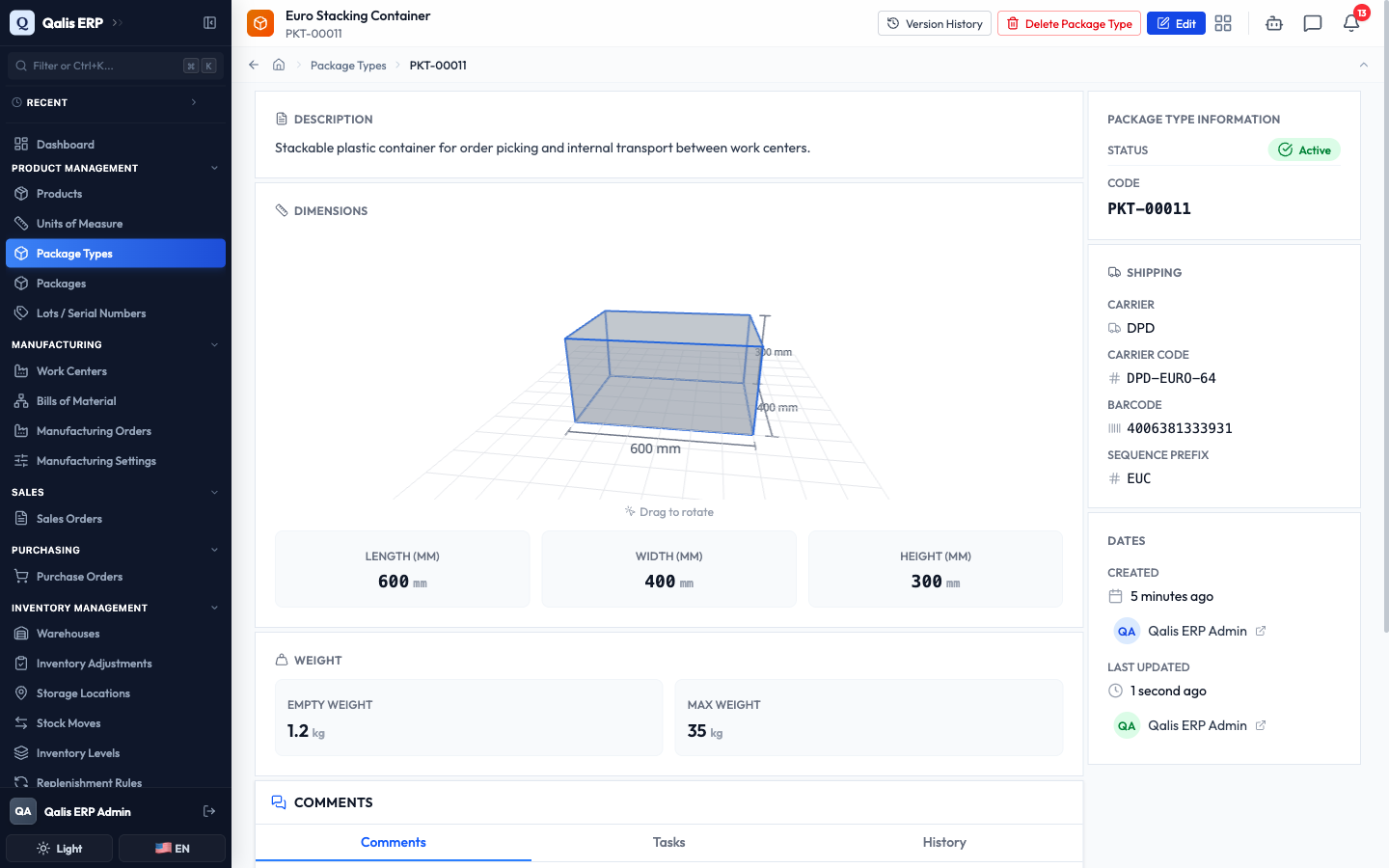
- The main area shows the Description, a Dimensions panel with the 3D model you can drag to rotate, and a Weight panel. The buttons at the top right let you Edit it, view its Version History, or Delete it.
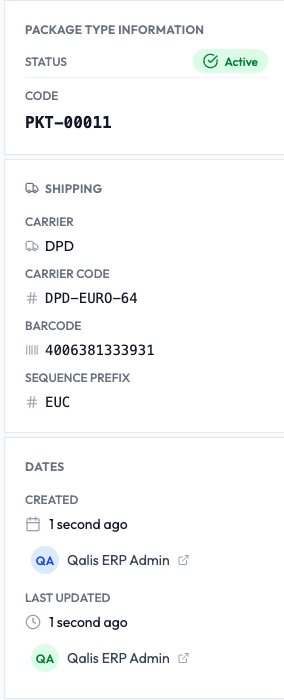
- The panel on the right gives you the key facts at a glance: the Status and Code, the Shipping details (carrier, carrier code, barcode, sequence prefix), and the Dates showing who created and last updated the record and when.
Edit a package type
Update a container's details whenever something changes, for example if you re-rate how much it can hold.
- Open the container type and click Edit at the top right (or open the Edit action from the list).
- The form opens with everything already filled in, across the same four tabs. Go to the tab with the field you want to change. Here we open the Weight tab and change the Max Weight from 30 to 35.
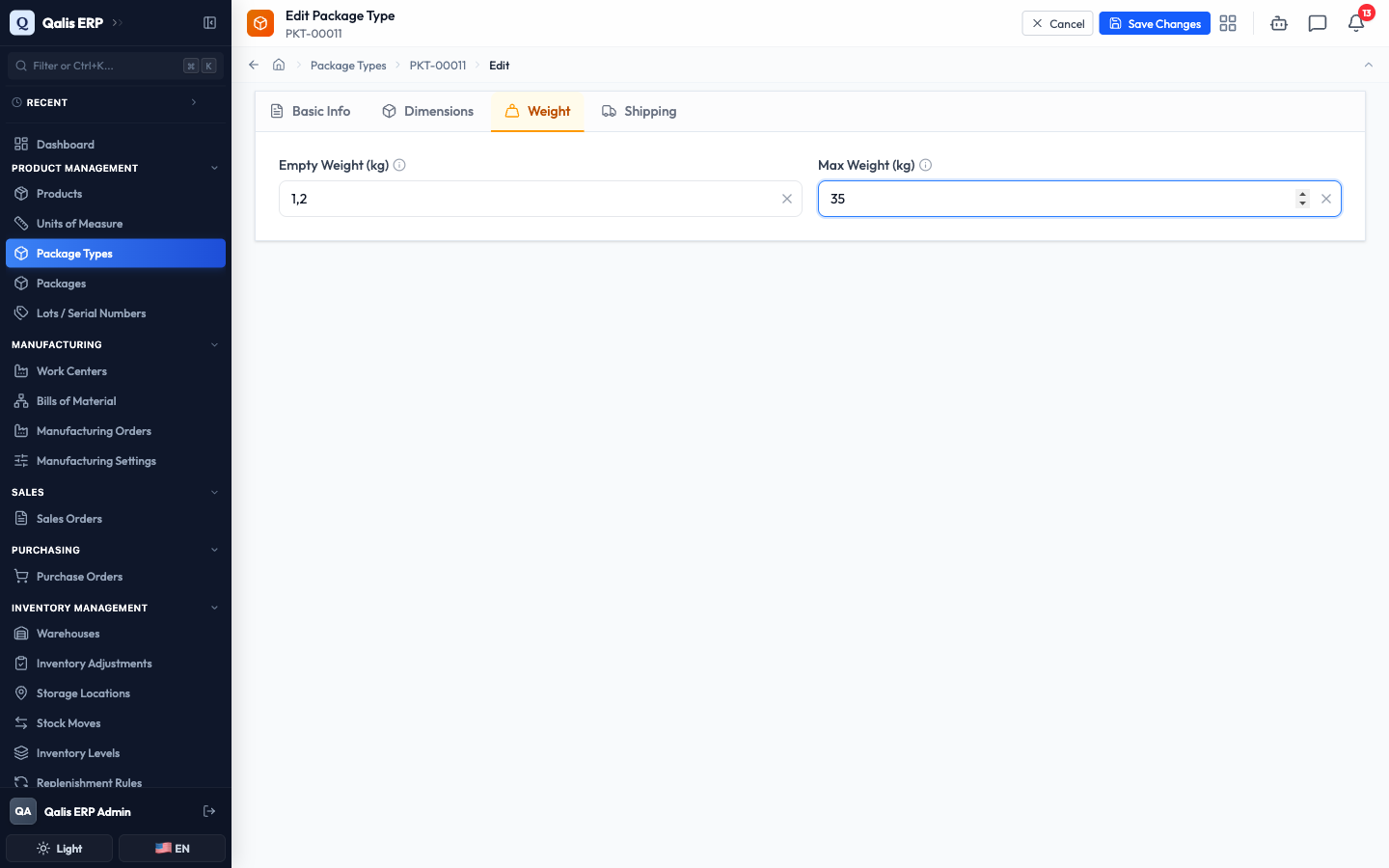
- Click Save Changes at the top right.
What happens next: Qualis saves your change, shows a short confirmation message, and returns you to the details page with the new value in place. Notice the Last Updated time refreshes to reflect your edit.
Import many package types from a CSV
When you are setting up the system, or adding a batch of new containers, you can import them all at once from a spreadsheet instead of creating them one by one.
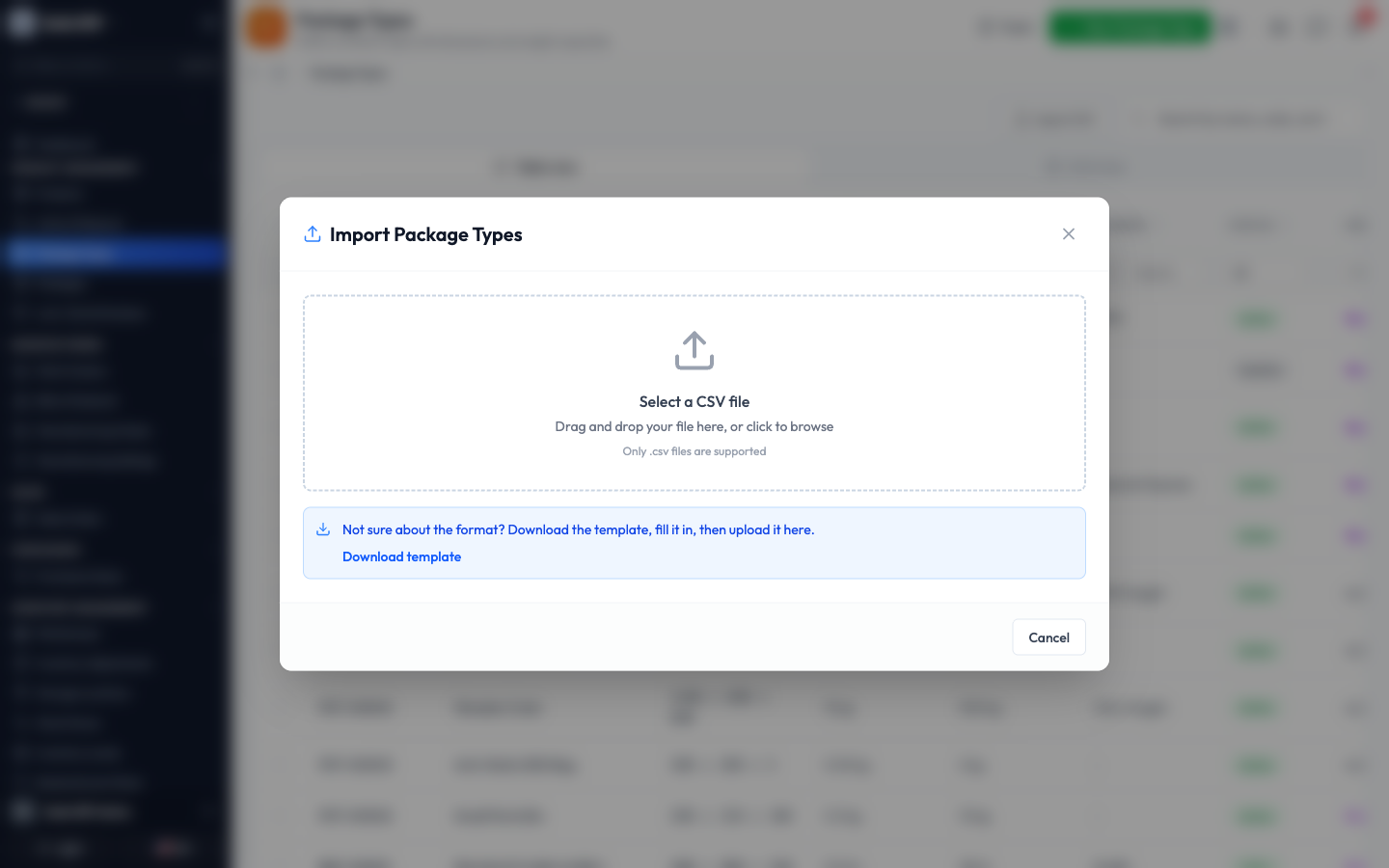
- On the list, click Import CSV (top left of the toolbar). The Import Package Types window opens.
- Drag your CSV file onto the upload area, or click it to browse for the file. If you are not sure of the format, click Download template, fill it in, then upload it. The only column you must fill in is the package type Name; all the other columns (description, dimensions, weights, barcode, carrier, and so on) are optional.
- Qualis checks every row and shows you a preview with a green tick for each valid row and a count of how many are ready. Review it to make sure the data looks right.
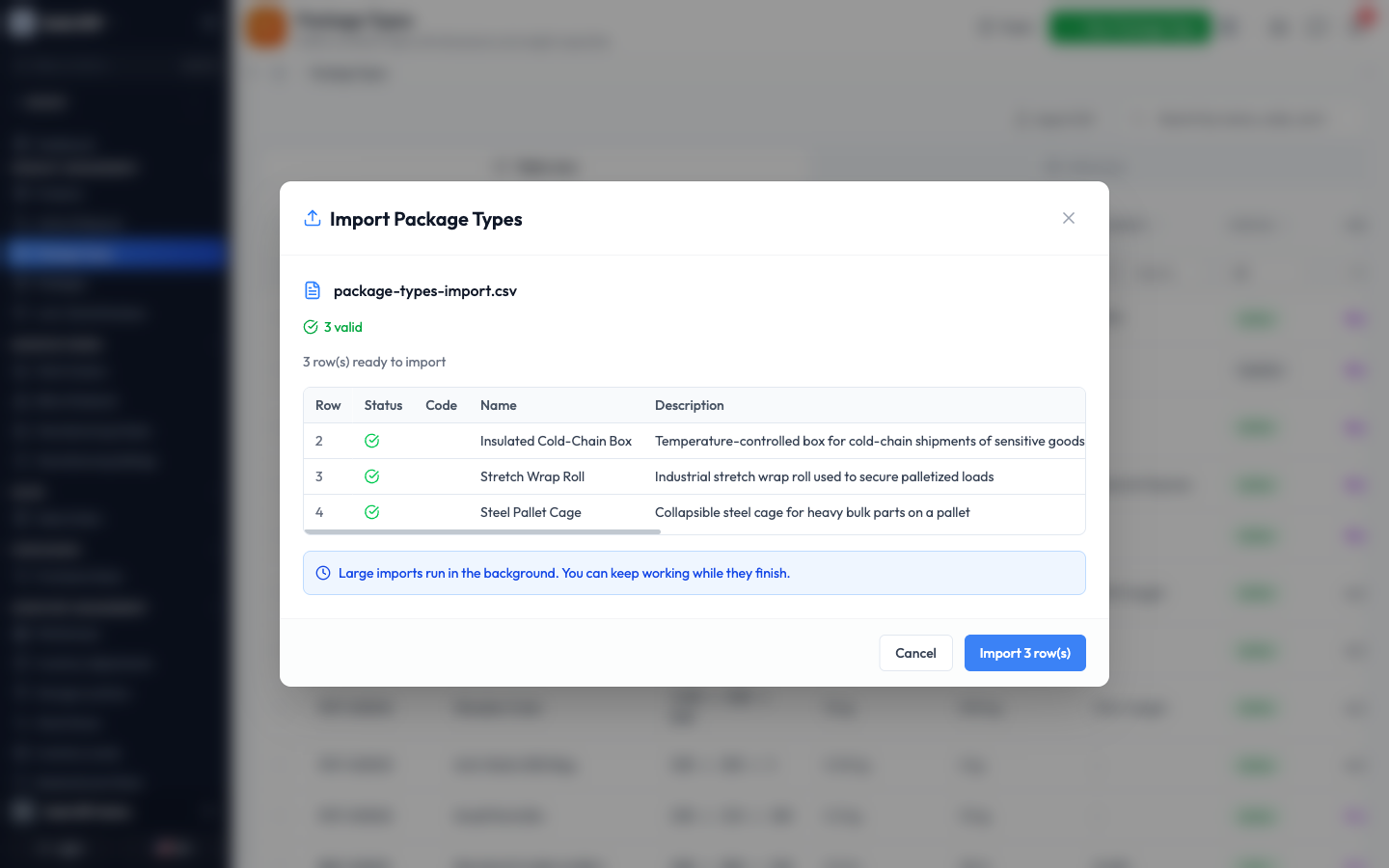
- Click Import to confirm. Large imports run in the background, so you can keep working while they finish. You can follow their progress on the Background Jobs page.
If any row has a problem (for example a missing name or a name that is already used), it is flagged in the preview so you can fix your file and try again before anything is saved.
Export package types
Export your container types to a spreadsheet whenever you need them outside Qualis, for sharing or reporting.
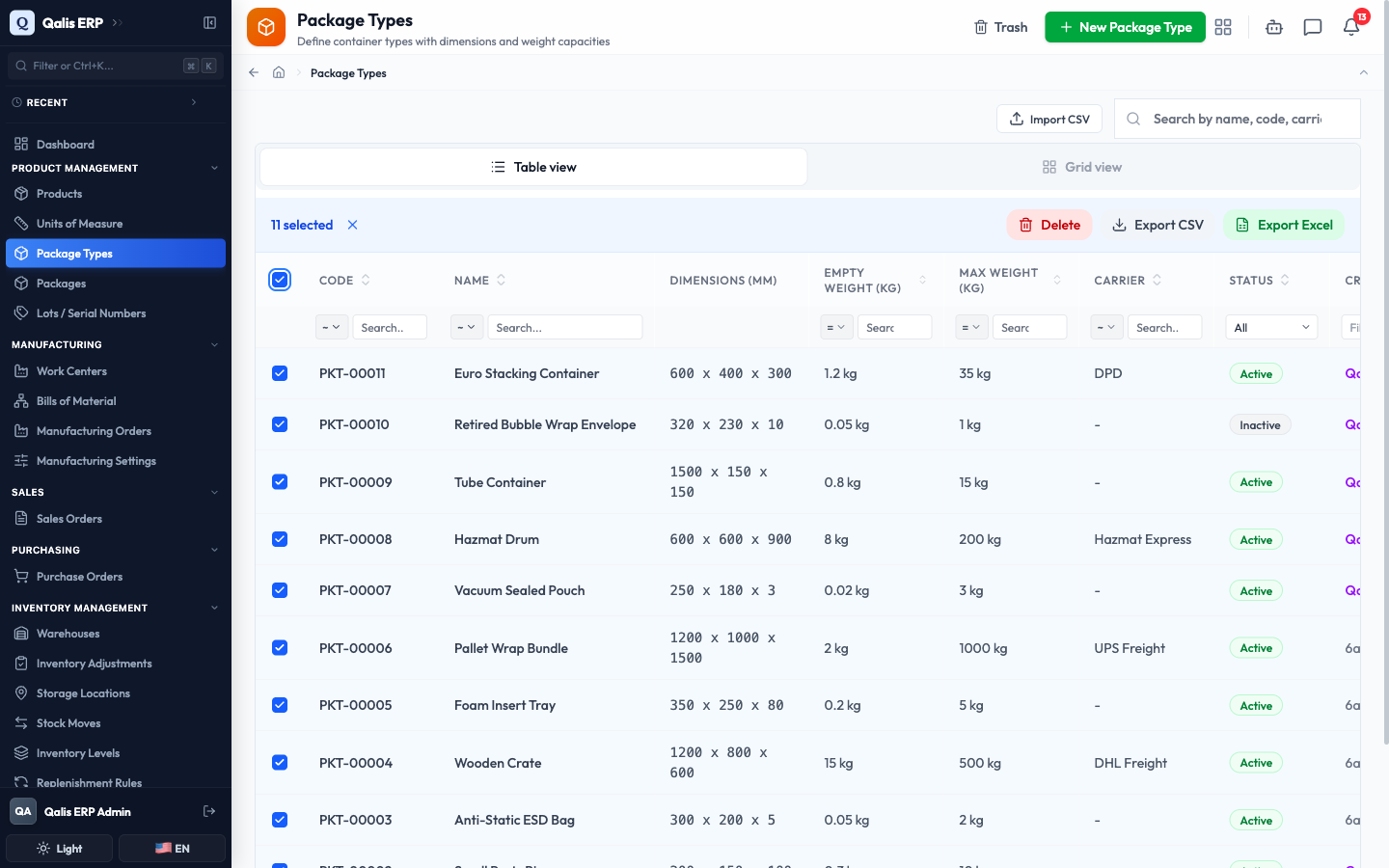
- On the list, tick the checkbox at the far left of each row you want, or tick the checkbox in the header to select everything on screen.
- A toolbar appears showing how many are selected, with Export CSV and Export Excel buttons. Click the format you want, and the file downloads.
Track changes with version history
Every time someone saves a change, Qualis keeps a snapshot, so you always have a full history of who changed what and when.
- Open a container type and click Version History at the top right.
- The Current Version is shown at the top, followed by every earlier version in order. Each entry shows who made the change and when.
- Click a version that says a field changed to expand it. The Changes from previous version section highlights exactly what was edited, with the old value in red (Before) and the new value in green (After). Here you can see the maximum weight changed from 30 to 35.
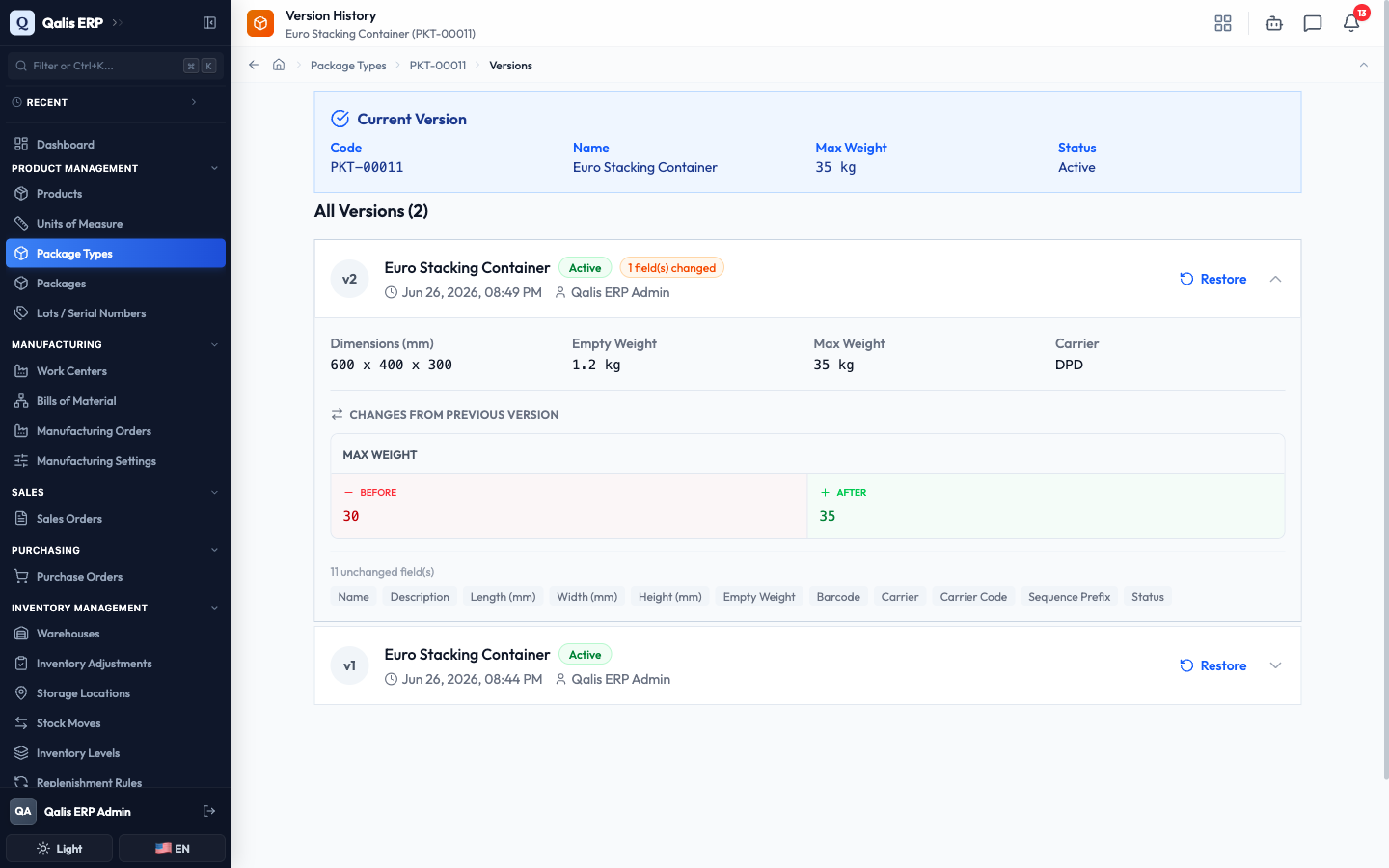
If you have permission to edit, each earlier version has a Restore button that brings its values back as a new version, without losing the history in between.
Good to know
- Code: a short reference Qualis assigns automatically when you create a container type (like
PKT-00011). You never type or change it. - Active vs Inactive: the Active switch controls whether a container type is offered for use elsewhere in the system. Turn it off to retire a container without deleting it, so its history and any records that used it stay intact.
- Empty weight vs max weight: empty weight is what the container weighs on its own; max weight is the heaviest load it can safely carry. Both are in kilograms.
- Dimensions: length, width, and height are recorded in millimetres, and shown together in the list as
length x width x height. - Deleting is protected: if a container type is already used by one or more Packages, Qualis will not let you delete it (so you never end up with packages pointing at a missing container). Set it to Inactive instead. Deleted container types first go to the Trash, where you can restore them or remove them for good.