Notifications
Stay on top of important activity across every module.
Last updated on June 25, 2026
Qualis keeps you informed without you having to go looking. The bell in the top bar lights up whenever something needs your attention: a task assigned to you, an approval waiting on you, a stock level running low, or a comment that mentions you. This guide shows you how to spot new notifications, read them, jump straight to what they are about, and clear them once you are done.
Before you start
There is nothing to set up. The notification bell is part of the app for everyone, and it sits in the top bar on every screen. As long as you are signed in, your notifications follow you wherever you go in Qualis.
Spot new notifications
The bell tells you, at a glance, whether anything needs you.
- Look at the top right of the top bar, next to the chat and assistant buttons. The bell is always there.
- When you have unread notifications, a small red number appears on the bell. It tells you how many you have not read yet. If you have more than 99, it shows 99+.
- Hover over the bell to see a short summary, such as 8 new notification(s).

The number updates on its own. You do not need to refresh the page to know when something new has arrived.
Open and read your notifications
Click the bell to see what has happened.
- Click the bell. A panel opens just below it with your most recent notifications at the top.
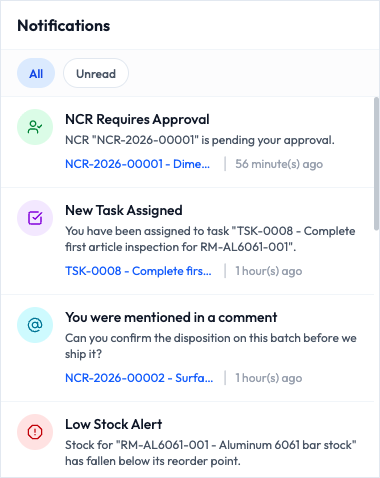
- Read down the list. Each notification gives you the key facts at a glance.
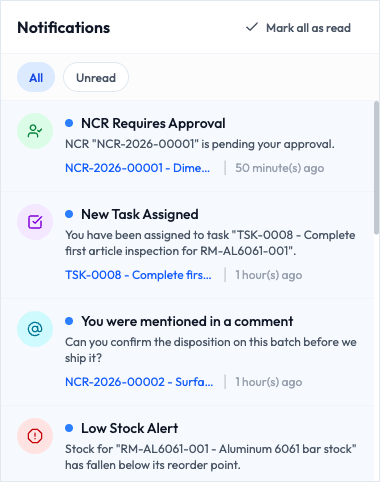
Every notification is laid out the same way, so it is easy to scan:
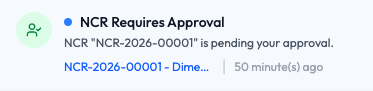
- A colored icon shows the kind of notification, for example an approval request, a task, a mention, an alert, a status change, a reminder, or general information.
- The title tells you what happened in a few words.
- A short summary gives you a line or two more detail.
- The related record appears in blue, such as
NCR-2026-00001, so you know exactly which item it is about. - The time tells you how long ago it arrived, like
50 minute(s) agoor2 day(s) ago.
A blue dot next to the title, along with a light blue background, means you have not read that notification yet.
The list starts with your newest notifications. Scroll down to see older ones, and if there are more, a Load more button appears at the bottom.
Show only what you have not read
When your list gets long, you can hide everything you have already seen.
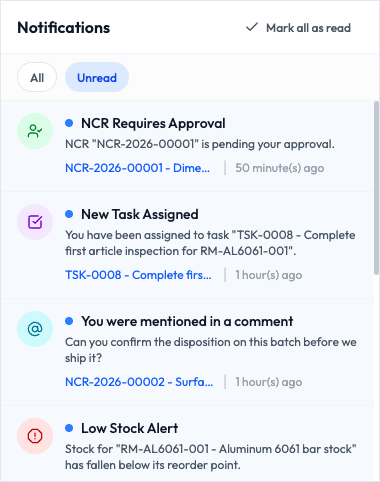
- At the top of the panel, find the two buttons: All and Unread.
- Click Unread to show only the notifications you have not read yet. Everything you have already opened is hidden.
- Click All at any time to bring the full list back.
Open the record a notification is about
Most notifications point to a specific record, like a task, an NCR, or an inspection. You can jump straight to it.
- Find a notification with a blue related record name, for example New Task Assigned linked to
TSK-0008. - Click anywhere on the notification.
- Qualis opens that record for you right away, so you can act on it without searching.
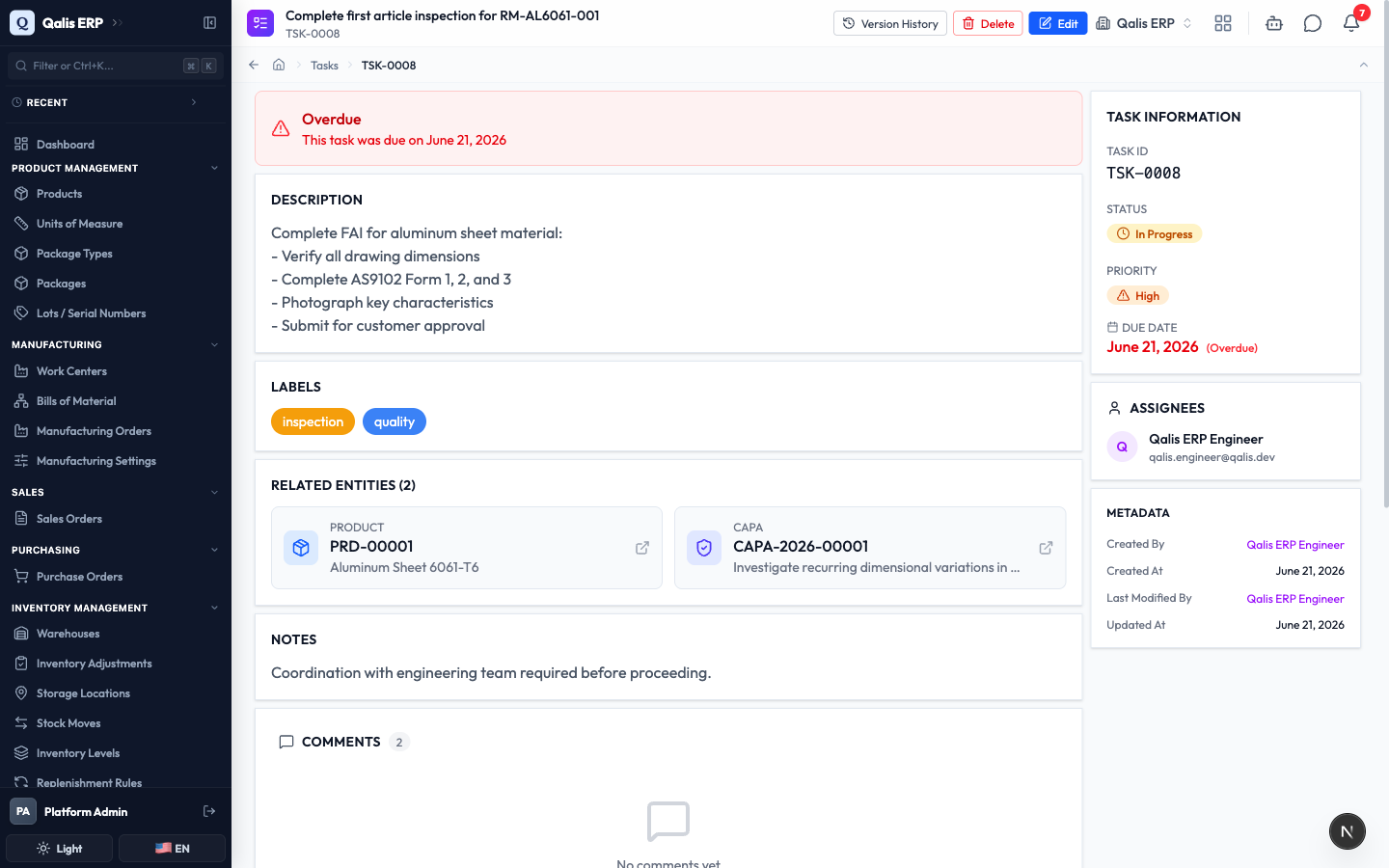
Opening a record also marks that notification as read, so the red number on the bell goes down by one. If a notification is just information and has no related record, clicking it simply marks it as read.
Mark notifications as read
You have two easy ways to clear notifications once you have dealt with them.
- To clear one notification, just click it. As you saw above, opening it marks it as read.
- To clear all of them at once, open the bell and click Mark all as read in the top right of the panel.
A short message confirms it, and the red number on the bell disappears. The blue dots are gone, and the Mark all as read button no longer shows because there is nothing left to clear.
Marking notifications as read does not delete them. They stay in your list under All so you can look back at them whenever you need.
When you are all caught up
When you have no notifications waiting, the panel gives you a friendly all clear.
- Open the bell.
- You see a bell icon with the message No notifications and You're all caught up! New notifications will appear here.
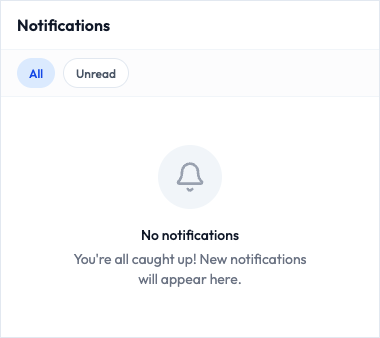
That is exactly what you want to see at the end of the day. New notifications will arrive here automatically as things happen, so you can close the panel and get on with your work.
Good to know
- Notification: a short message telling you something happened that may need your attention.
- Unread: a notification you have not opened yet, shown with a blue dot and a light blue background.
- Bell badge: the red number on the bell that counts how many unread notifications you have.
- Related record: the task, NCR, inspection, or other item a notification is about. Click the notification to open it.
- Mark all as read: a one click way to clear every unread notification at once.