Packages
Pack your products into real containers, track what is inside each one, nest packages together, and follow them from open to delivered.
Last updated on June 27, 2026
A package is an actual, physical container you have packed with goods, for example a wooden crate of parts, a pallet of boxes, or a sealed pouch of screws. Each package records which container type it uses, what products and quantities are inside it, where it is stored, how much it weighs, and how far along it is on its way to the customer. You can also nest packages inside one another (boxes on a pallet, trays inside a crate) so a whole shipment is organised in one place. This guide covers the things you do most often: finding a package, creating one, reading its details, moving it through its shipping stages, nesting packages together, and editing one.
You reach the module from the left sidebar under Product Management, then Packages.
Before you start
A package is built from things you set up in other parts of Qualis, so it helps to have these ready first:
- A package type is required on every package. This is the kind of container (a box, crate, pallet, bin). You pick one from your Package Types list, so create the container type first if it does not exist yet.
- Products are what you put inside a package. To list contents, the products you are packing should already exist in your Products list.
- A storage location is optional but useful. It records where the packed container is sitting (a warehouse shelf, a staging area, a loading dock).
Find and browse your packages
Start here to see every package and zero in on the one you need.
- Open Packages from the sidebar. The list shows one row per package, with its Code, Name, Package Type, Storage Location, Status, Usage, and the number of Items inside. You can switch between Table view and Grid view with the toggle above the list.
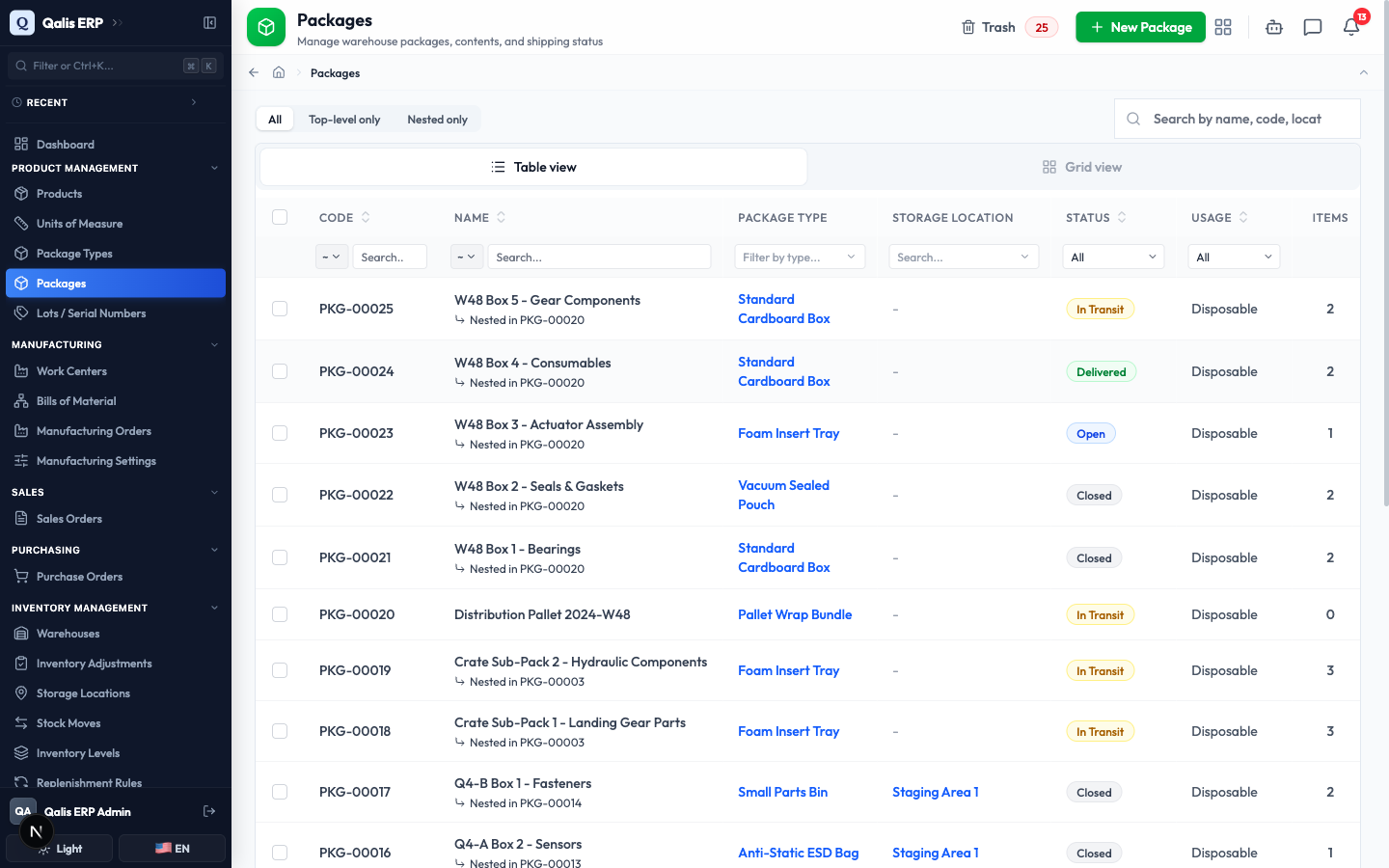
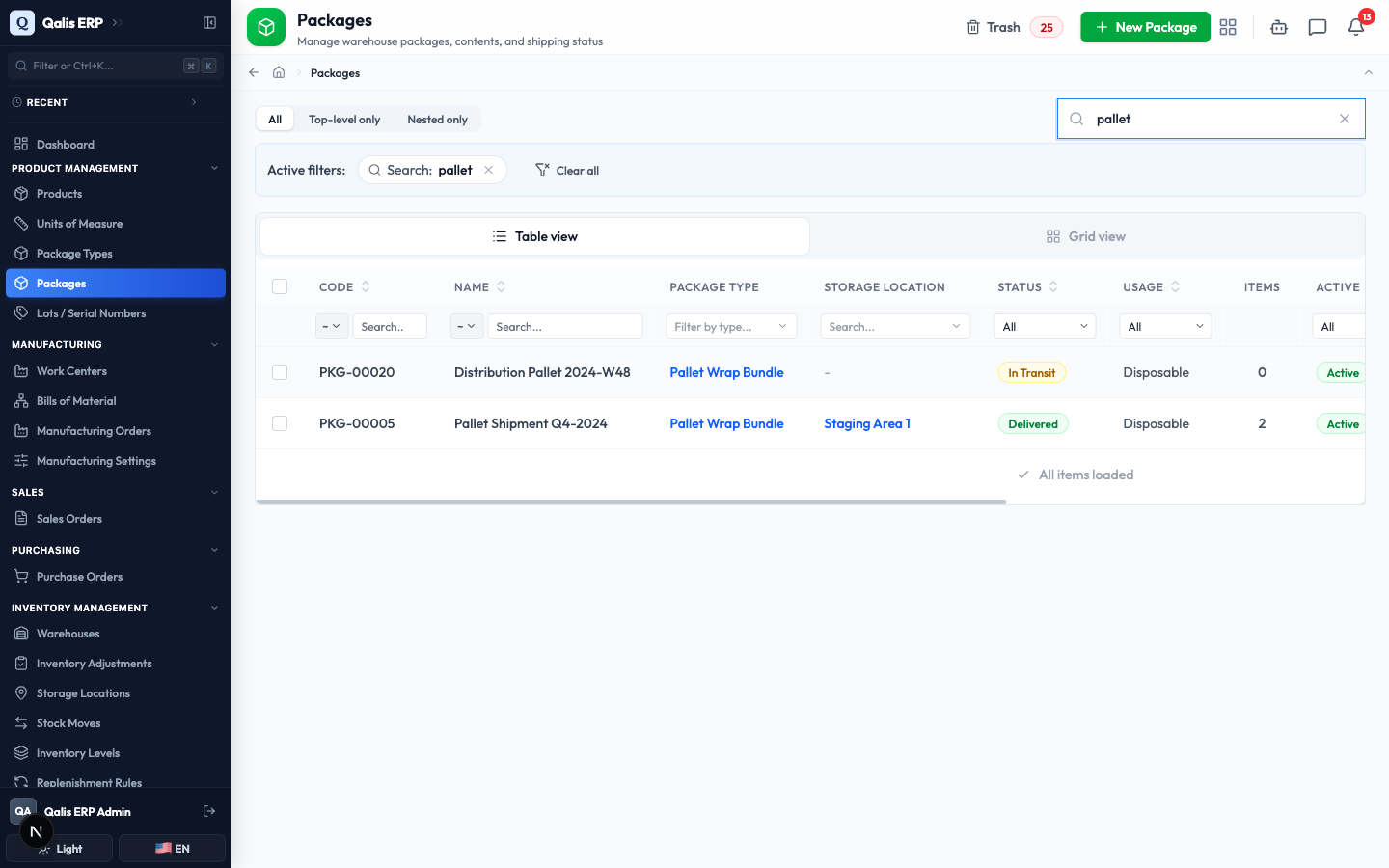
- To find one fast, type in the Search by name, code, location, or reference... box at the top right. The list filters as you type, so there is no need to press Enter.
- To see only packages in a certain stage, open the Status dropdown under the column heading and pick Open, Closed, In Transit, or Delivered. You can filter the same way on other columns, such as Package Type, Usage, Storage Location, Created By, or a date range.
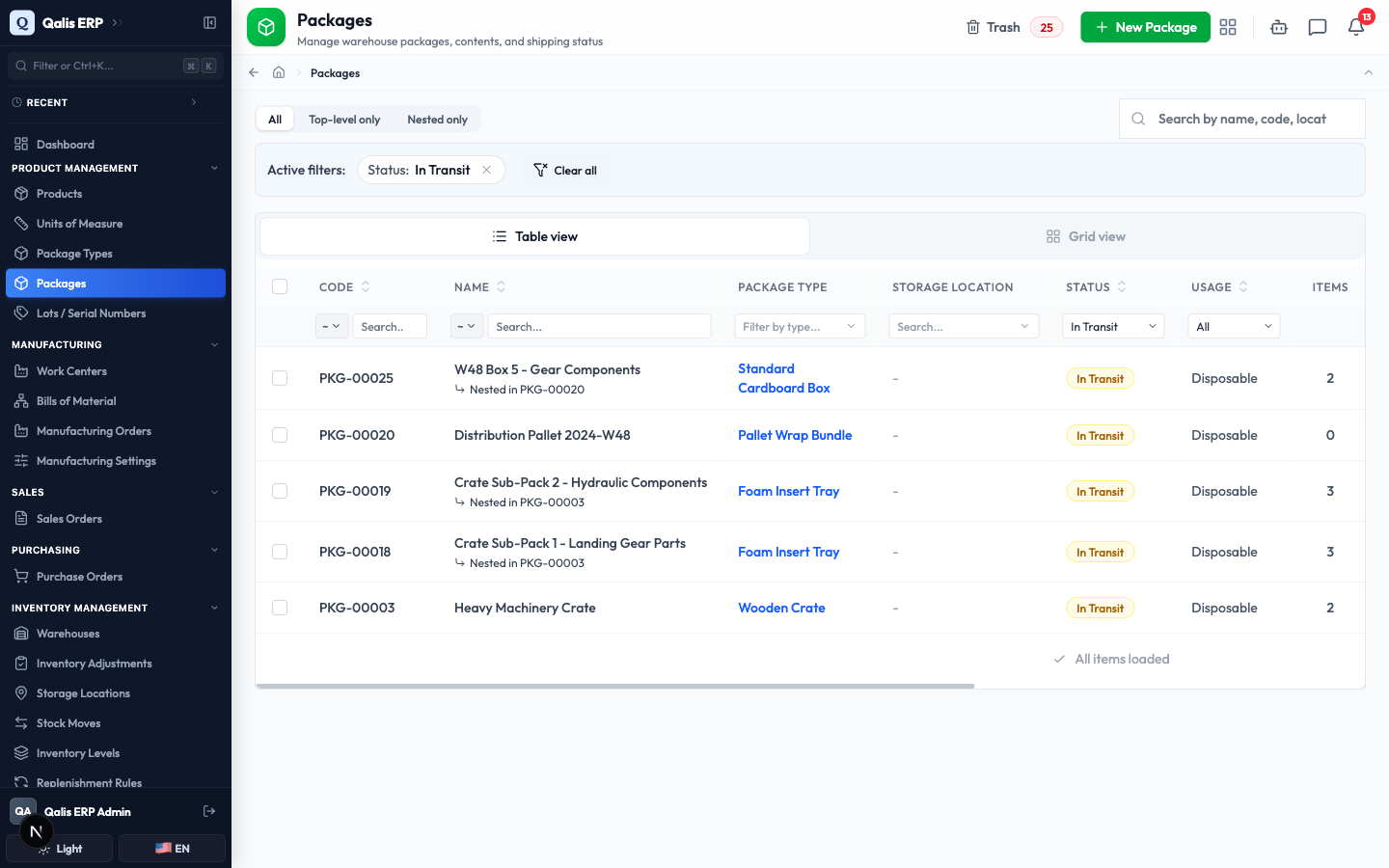
Whenever a filter is on, an Active filters banner appears showing what is applied. Click the small x on a filter to drop it, or Clear all to reset everything. The web address updates too, so you can bookmark or share a filtered view. The quick tabs above the list (All, Top-level only, Nested only) are a fast way to hide or show packages that sit inside another package.
Create a package
This is the main task: recording a container you have packed. The form is split into three tabs, so you can fill it in one part at a time.
- Click New Package (top right of the list). You start on the Basic Info tab. You do not type a code, Qualis assigns one automatically when you save (for example
PKG-00026), as the blue note explains.
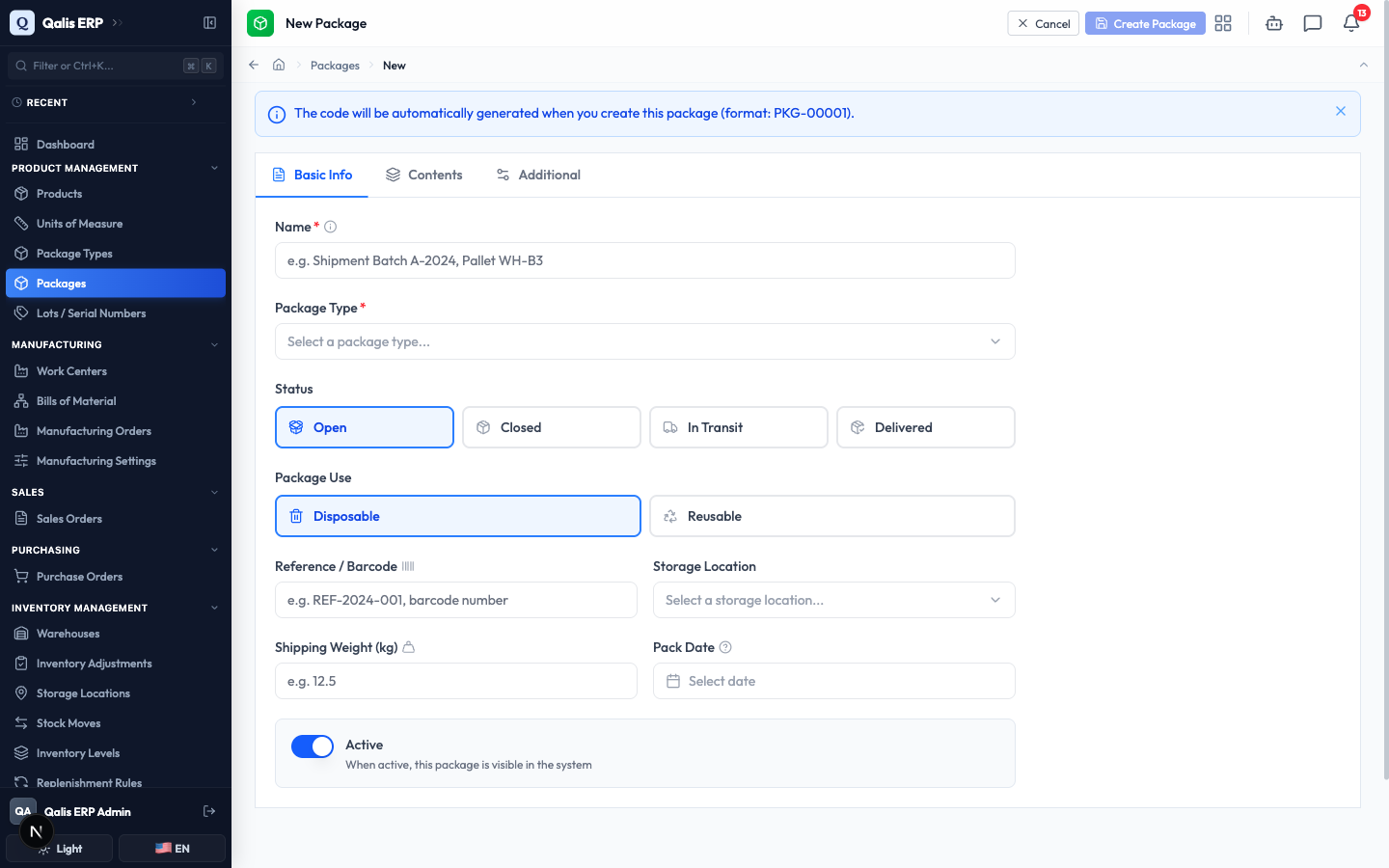
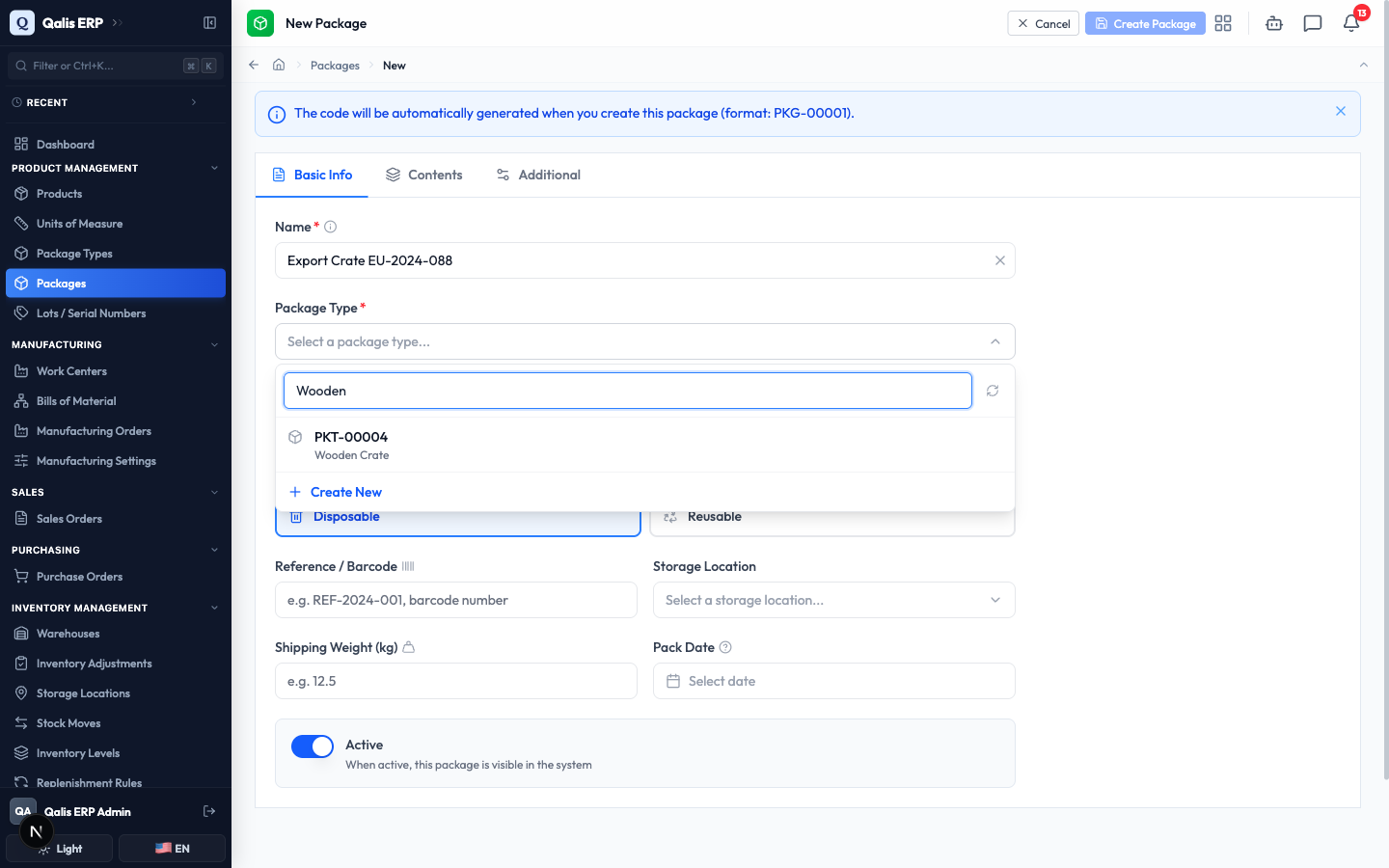
- Type a clear Name for the package, for example
Export Crate EU-2024-088. Then open the Package Type box and search for the container you used. The list loads as you type, so a few letters is enough.
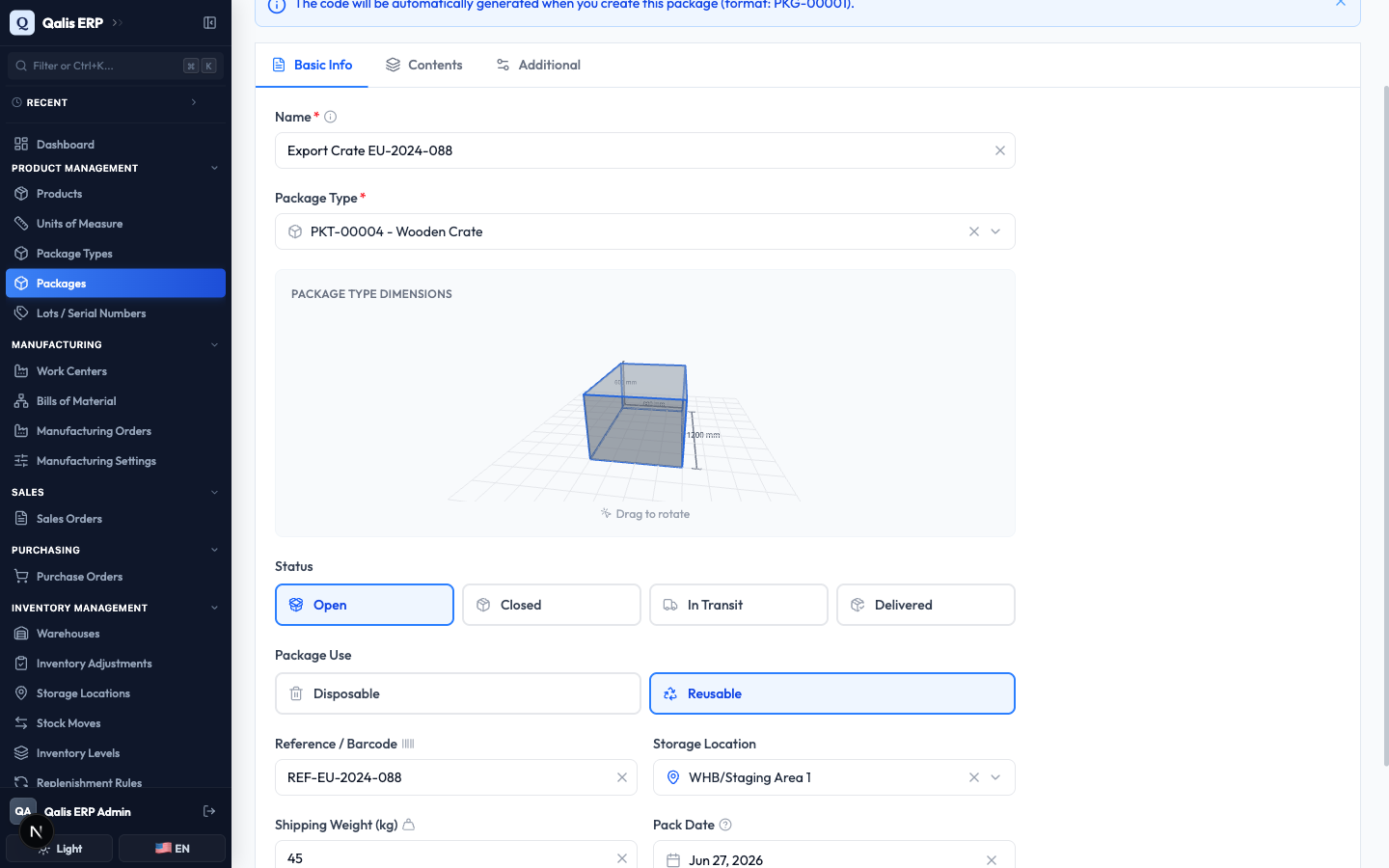
- Fill in the rest of the Basic Info tab. Choose a Status (a new package usually starts at Open) and a Package Use (Disposable for a one-time container, Reusable for one you get back). Optionally add a Reference / Barcode, a Storage Location, a Shipping Weight in kilograms, and a Pack Date. When you pick a package type that has measurements, a 3D preview of the box appears that you can drag to rotate.
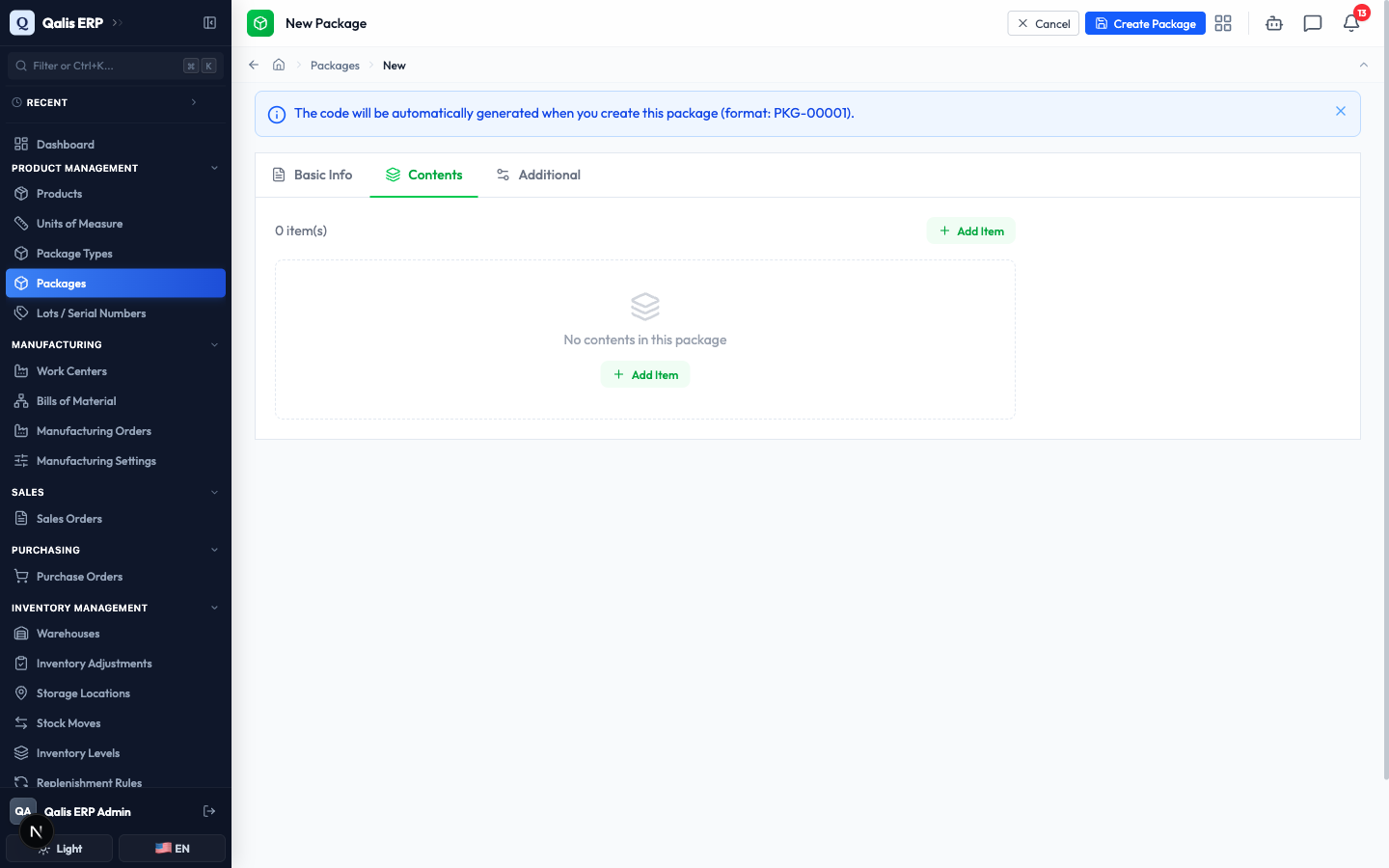
- Open the Contents tab to record what is inside. A new package starts empty.
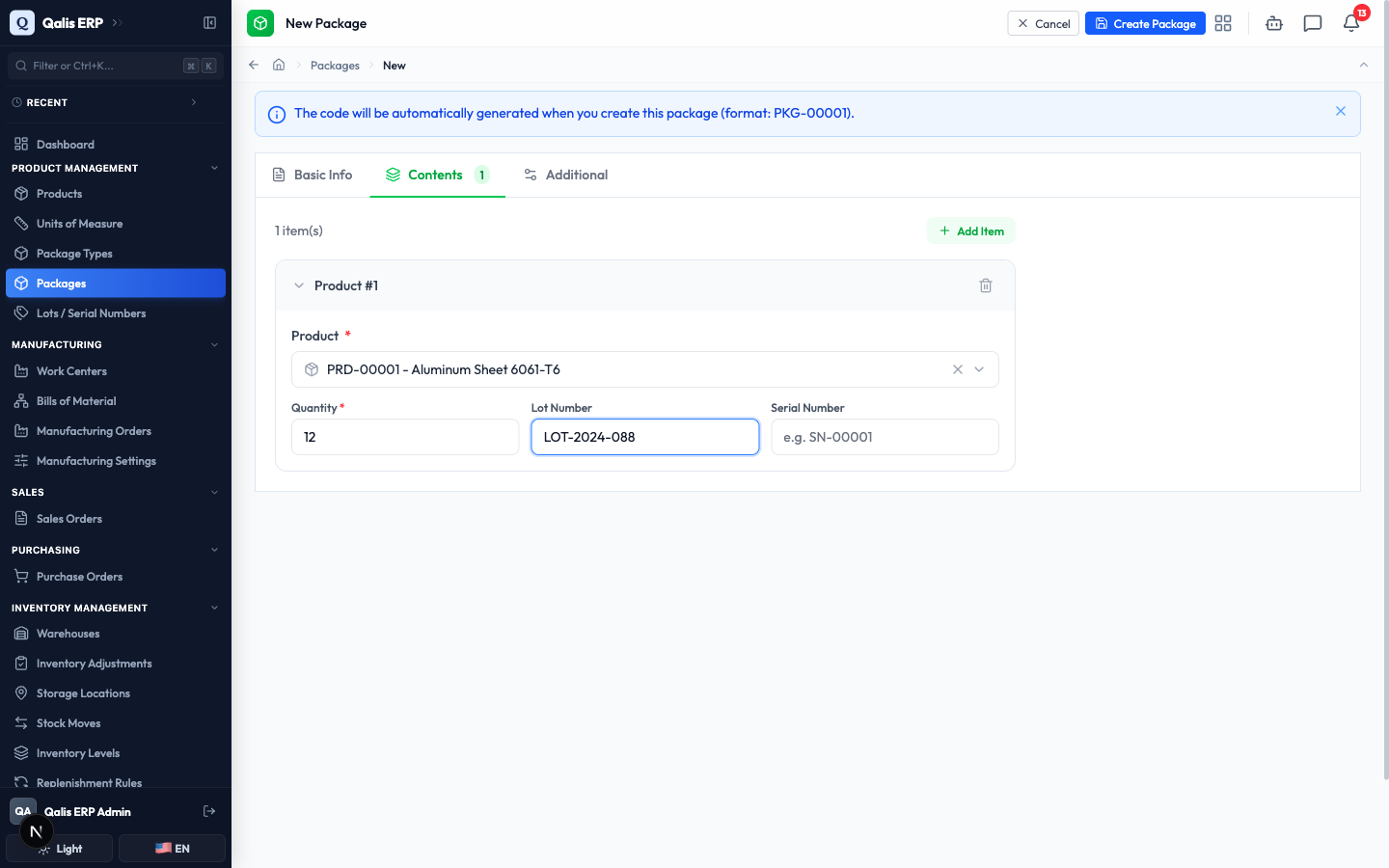
- Click Add Item. For each item, pick the Product, set the Quantity, and add a Lot Number or Serial Number if you are tracking those. Click Add Item again for every extra product in the package.
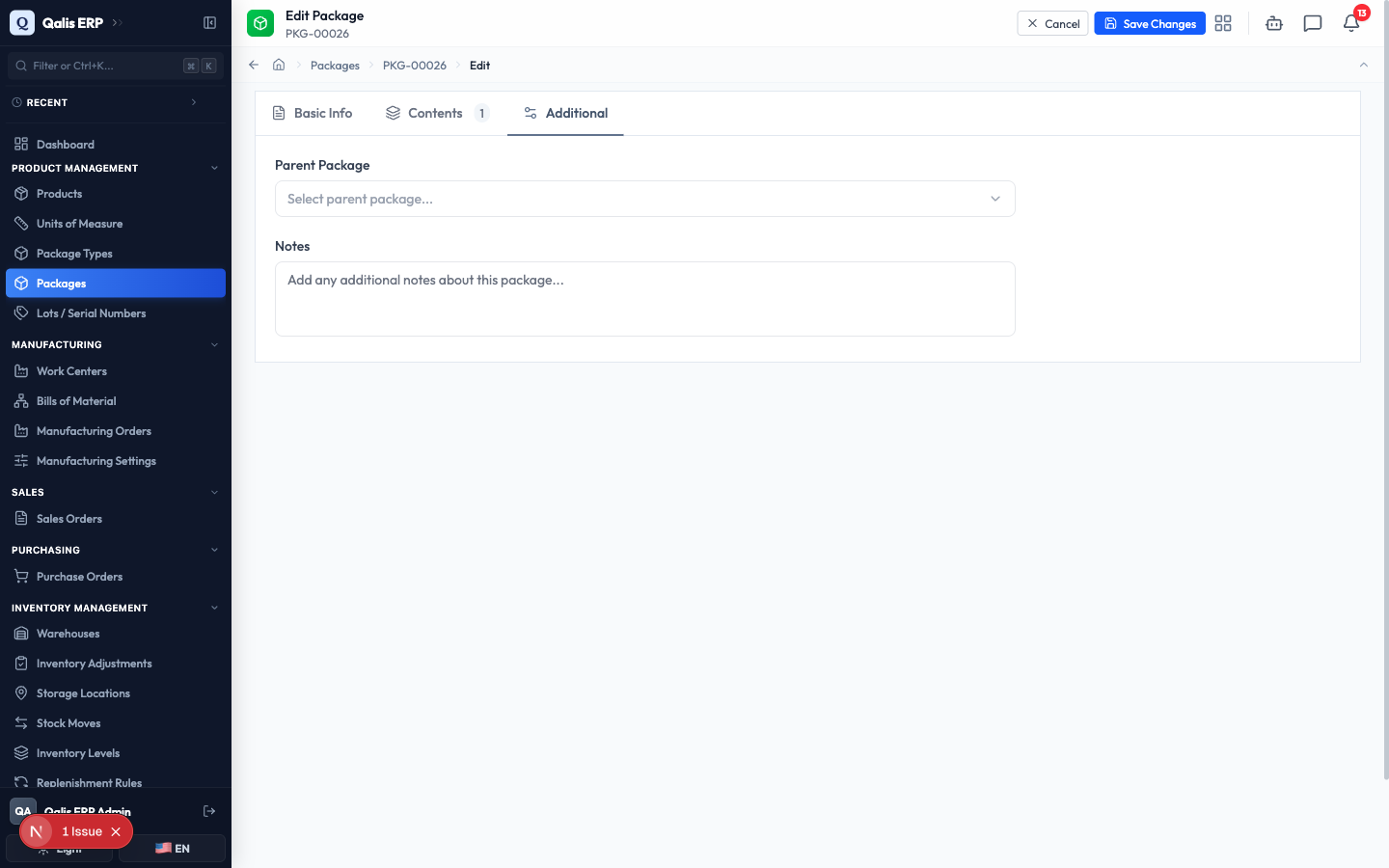
The Additional tab is where you can nest this package inside another one (Parent Package) and add free-form Notes. Both are optional, and nesting is covered in its own section below.
- When you are happy, click Create Package at the top right.
What happens next: Qualis saves the package, gives it a code, and opens its details page so you can review everything. See the next section for what that page shows.
Read a package's details
Open any package to see everything about it on one page.
- From the list, click a package's Name or Code to open its details page.
- The row near the top gives you the key facts at a glance: whether it is Active, its Package Type, its Usage, the Reference, Storage Location, Shipping Weight, and Pack Date. Items that link to another record, such as the package type or location, are clickable so you can jump straight to them.
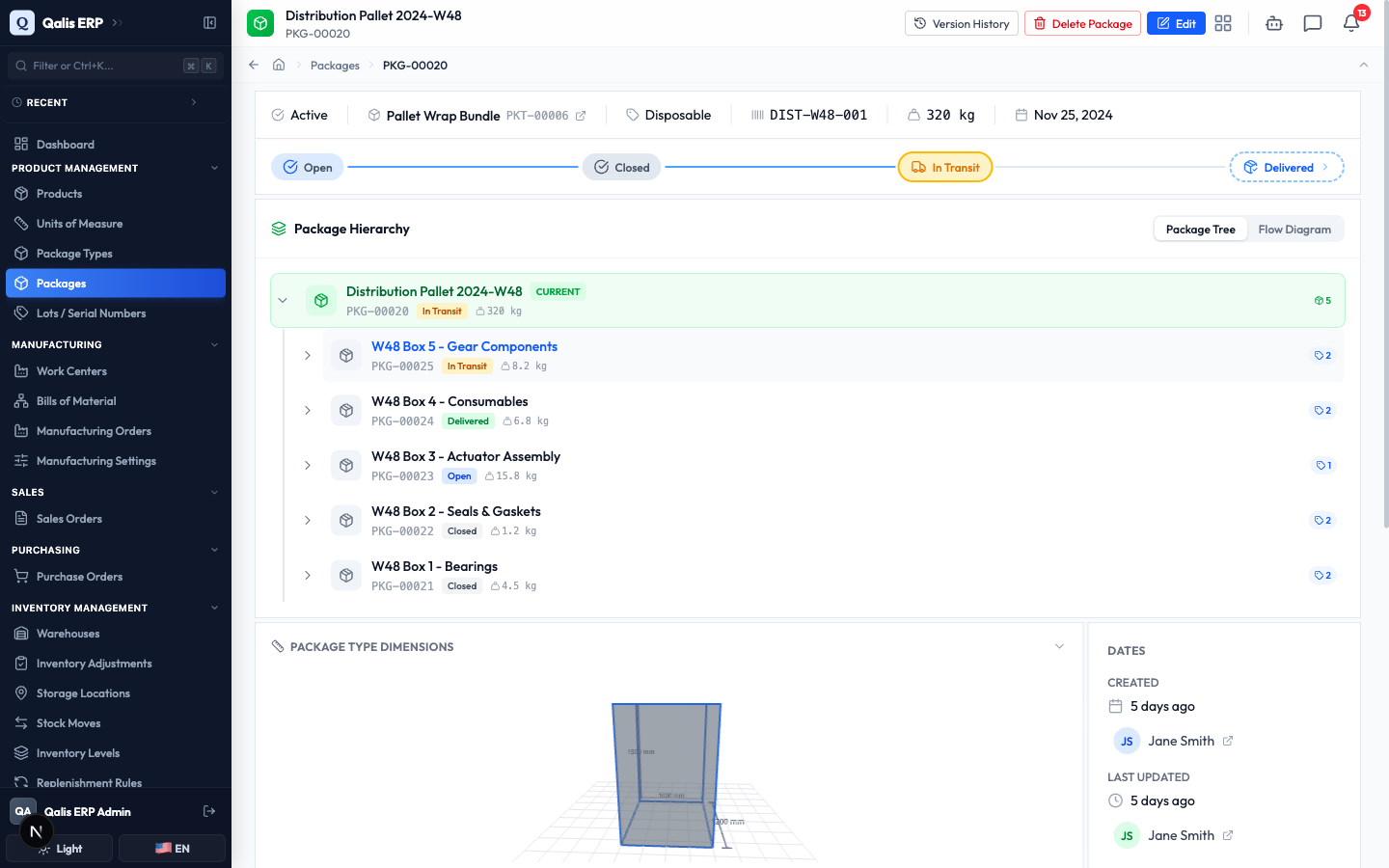
- Below that, the status stepper shows how far the package has travelled, from Open through Closed and In Transit to Delivered. The Package Hierarchy panel lists what is inside: the products with their quantities and lot numbers, and any packages nested within. The panel on the right shows the Dates, who created the package and who last changed it. At the very bottom you can leave Comments, assign Tasks, and review the History.
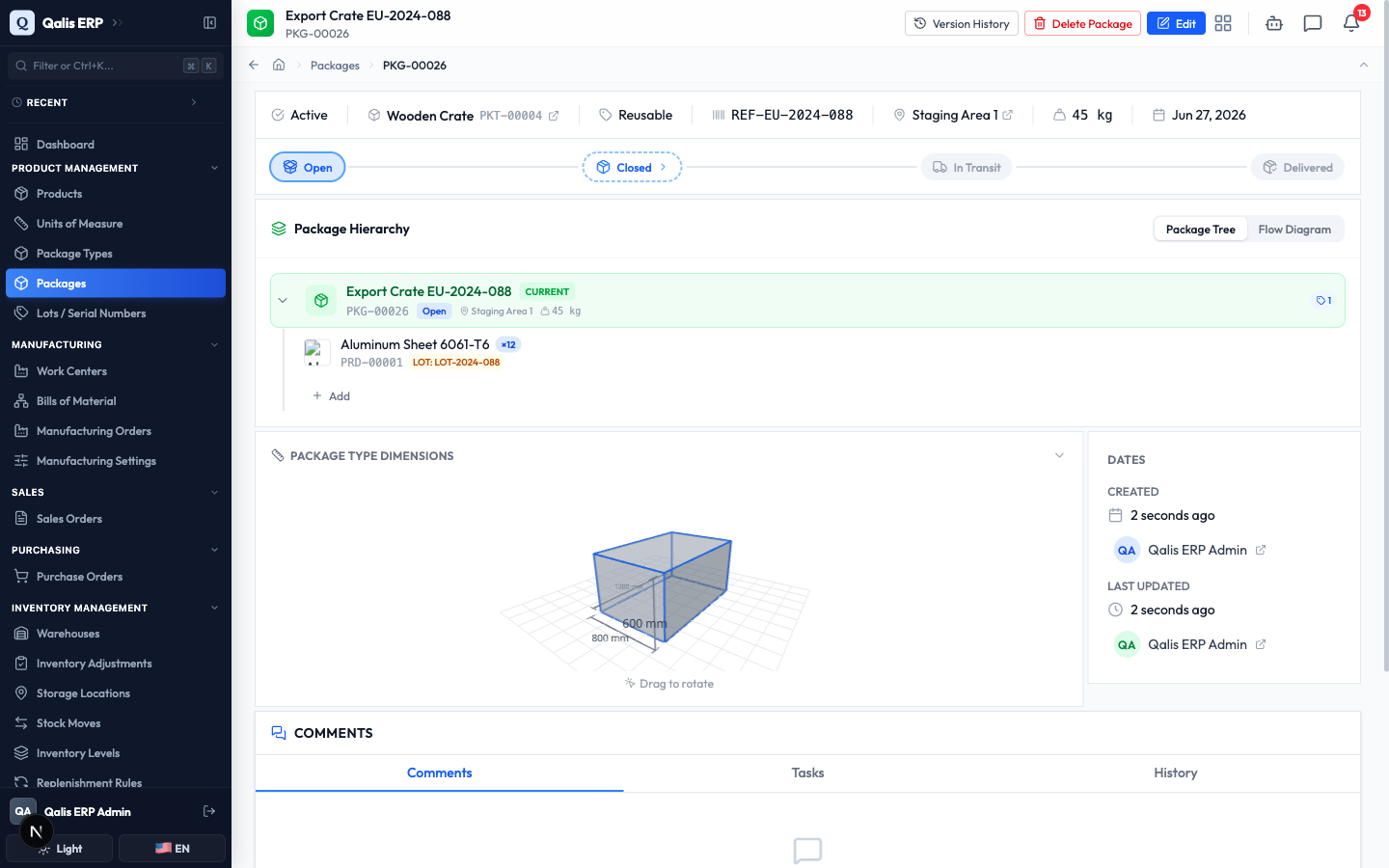
The buttons at the top right let you Edit the package, open its Version History, or Delete it.
Move a package through its shipping status
A package travels forward through four stages: Open, Closed, In Transit, and Delivered. You move it one stage at a time using the stepper on its details page.
- On the package's details page, click the next stage in the stepper. From Open, that is Closed. The package advances and you see a confirmation message.
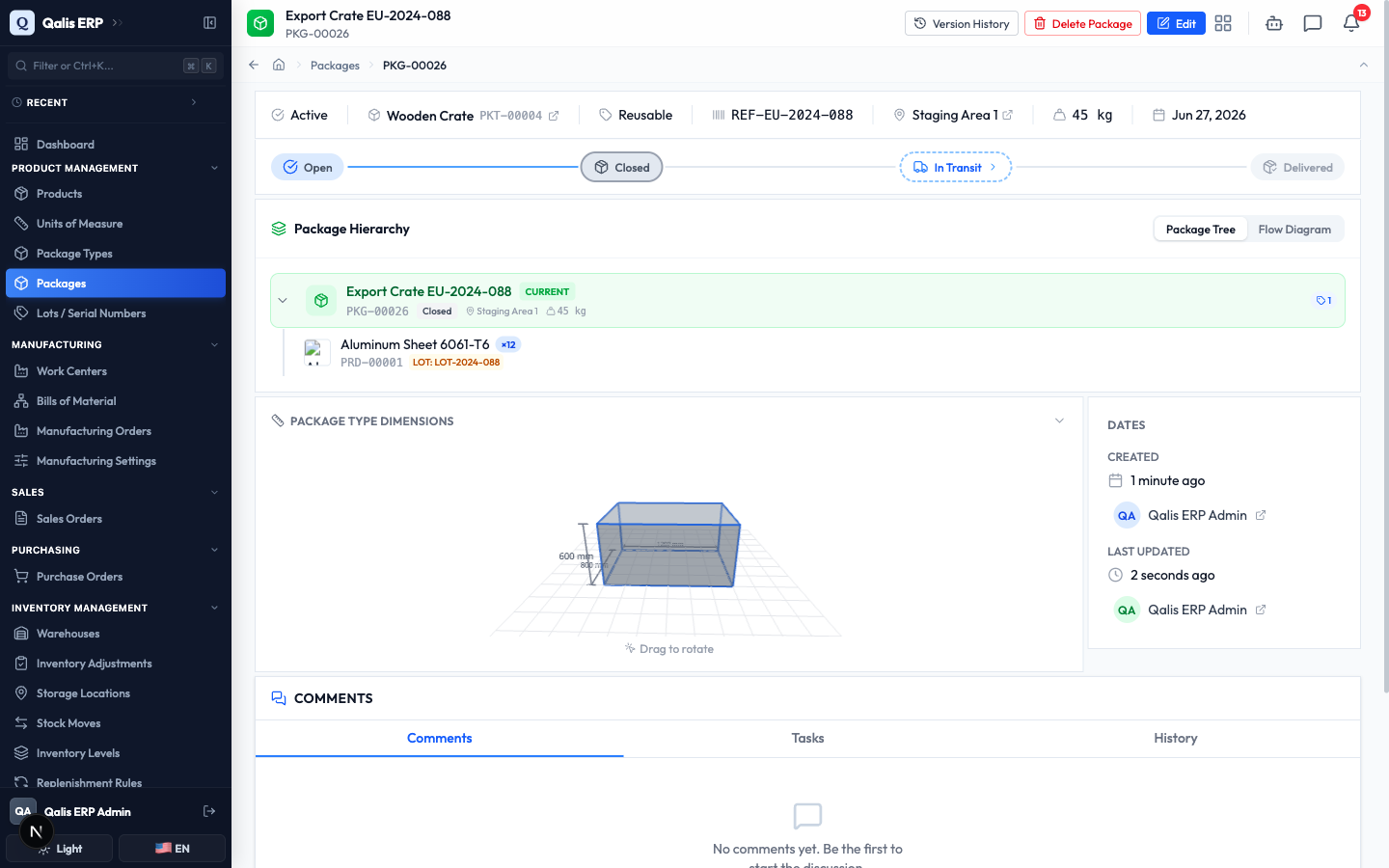
Closing a package locks its contents: once it is Closed, you can no longer add or remove items. Make sure everything is inside before you close it.
- If a package has other packages nested inside it, changing its status also changes theirs. Before the change is applied, Qualis shows you exactly which sub-packages will be affected and asks you to confirm. Click Deliver All (or Close All or Ship All) to apply the change to everything, or Cancel to stop.
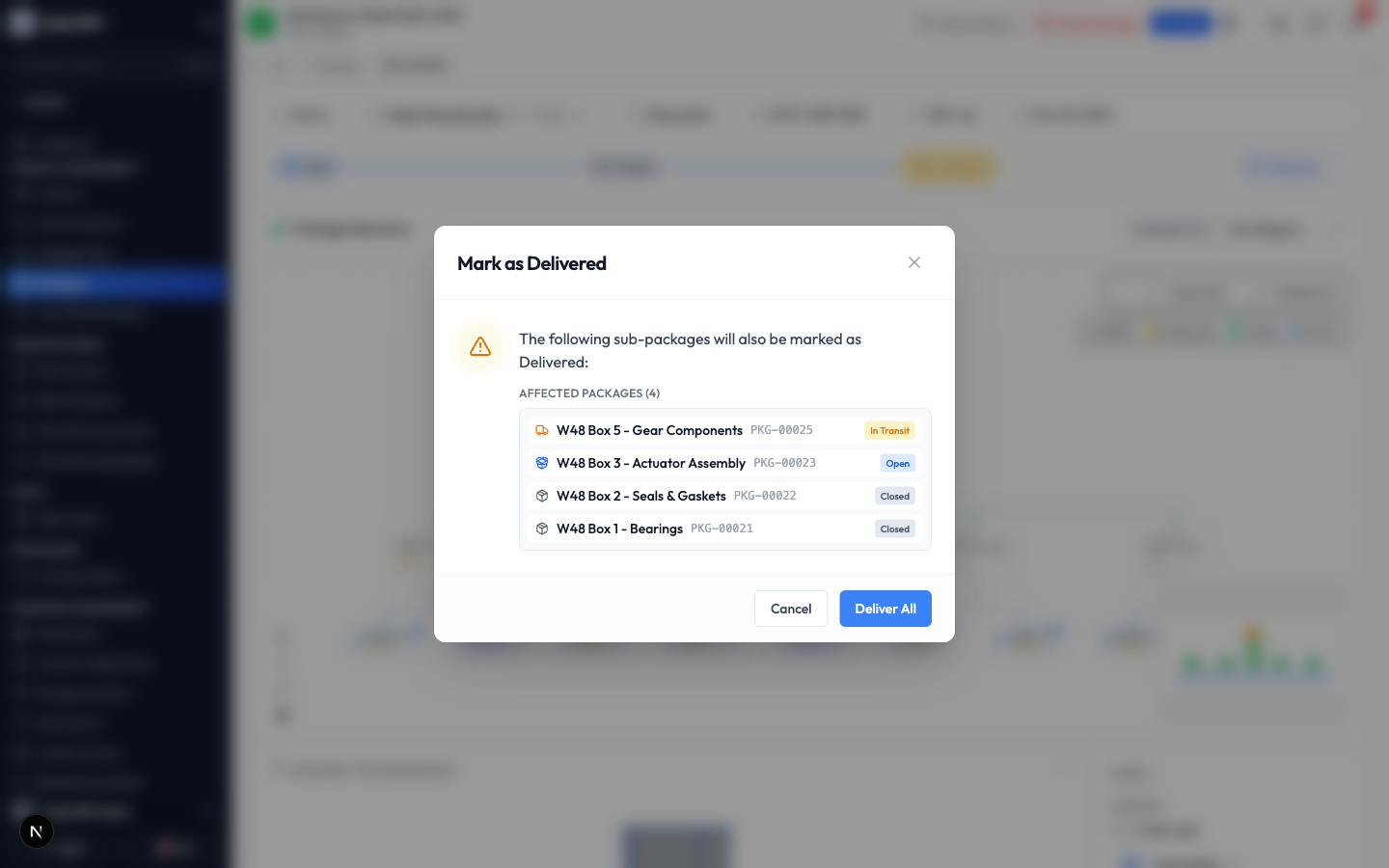
You cannot mark a package as In Transit while any package nested inside it is still Open. Close those inner packages first, then ship the whole thing together.
Nest packages inside one another
Packing real shipments often means boxes inside a crate, or many boxes on a pallet. You can mirror that by nesting one package inside another, which keeps a whole shipment organised under a single parent.
- To nest a package, open it for editing and go to the Additional tab. Open the Parent Package box and pick the package it sits inside. Save your change.
- Open the parent package's details page to see the whole structure. The Package Hierarchy panel lists the parent at the top with each nested package beneath it, showing each one's status, weight, and item count. Click any nested package's name to open it.
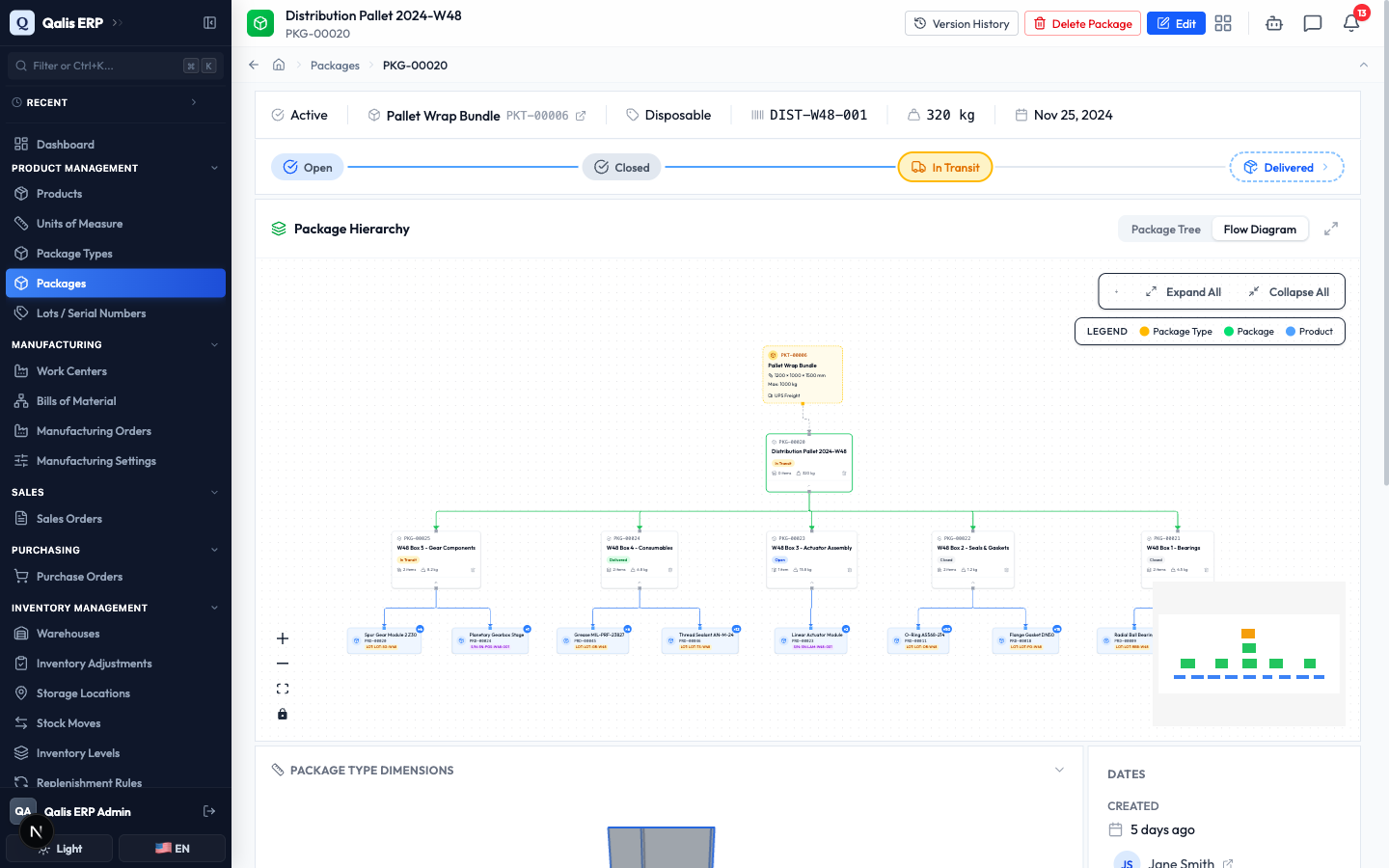
- For a visual map of a large shipment, switch the panel to Flow Diagram. It draws the package type at the top, the parent package, every nested package, and the products inside them, colour coded with a legend. You can zoom, and use Expand All or Collapse All to control how much detail you see.
Edit a package
Update a package whenever something changes, for example after you add a note or correct a weight.
- From the package's details page, click Edit at the top right. The form opens with everything already filled in, using the same three tabs as when you created it.
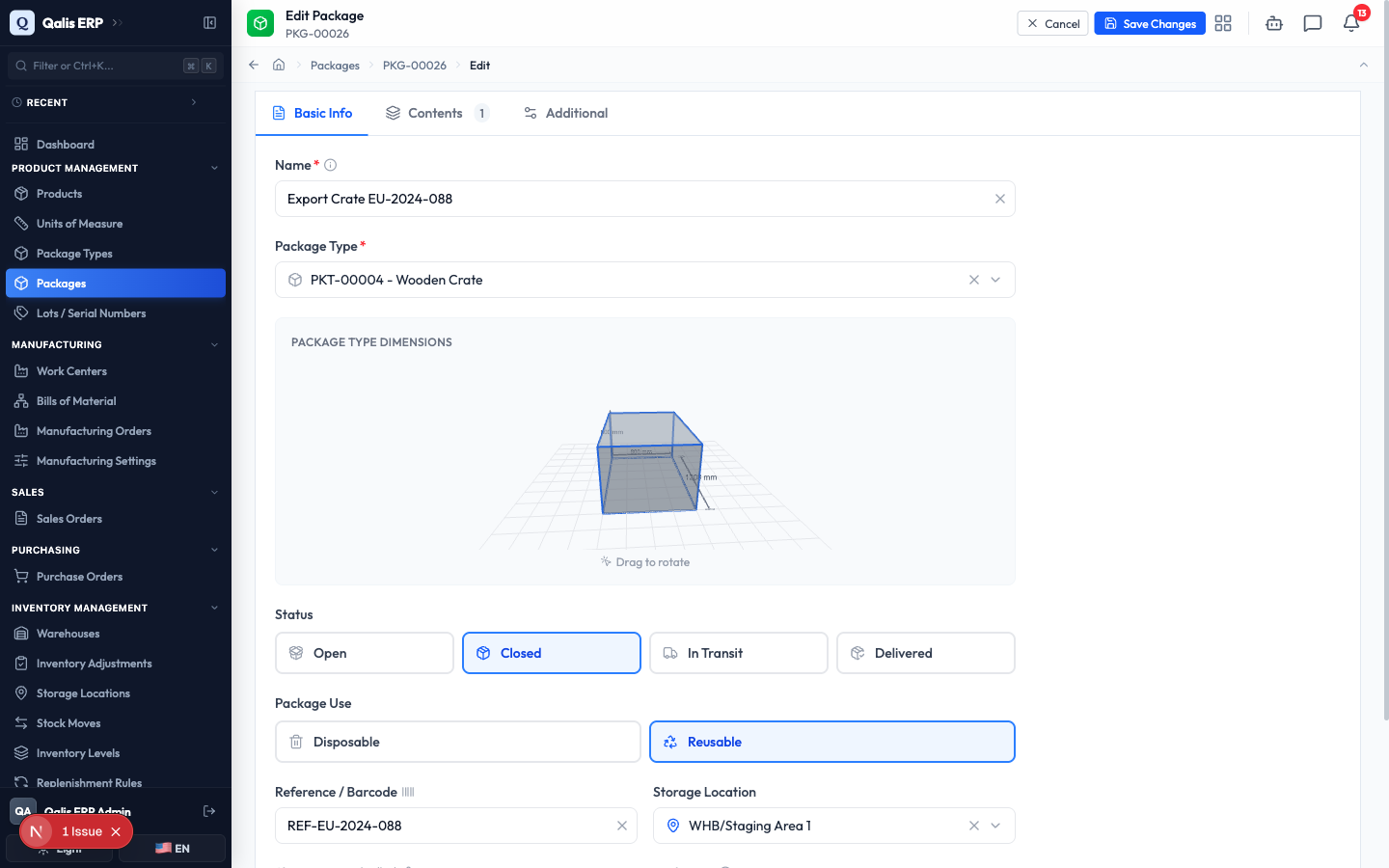
- Make your changes on any tab. For example, open the Additional tab and type a Notes entry. When you are done, click Save Changes at the top right.
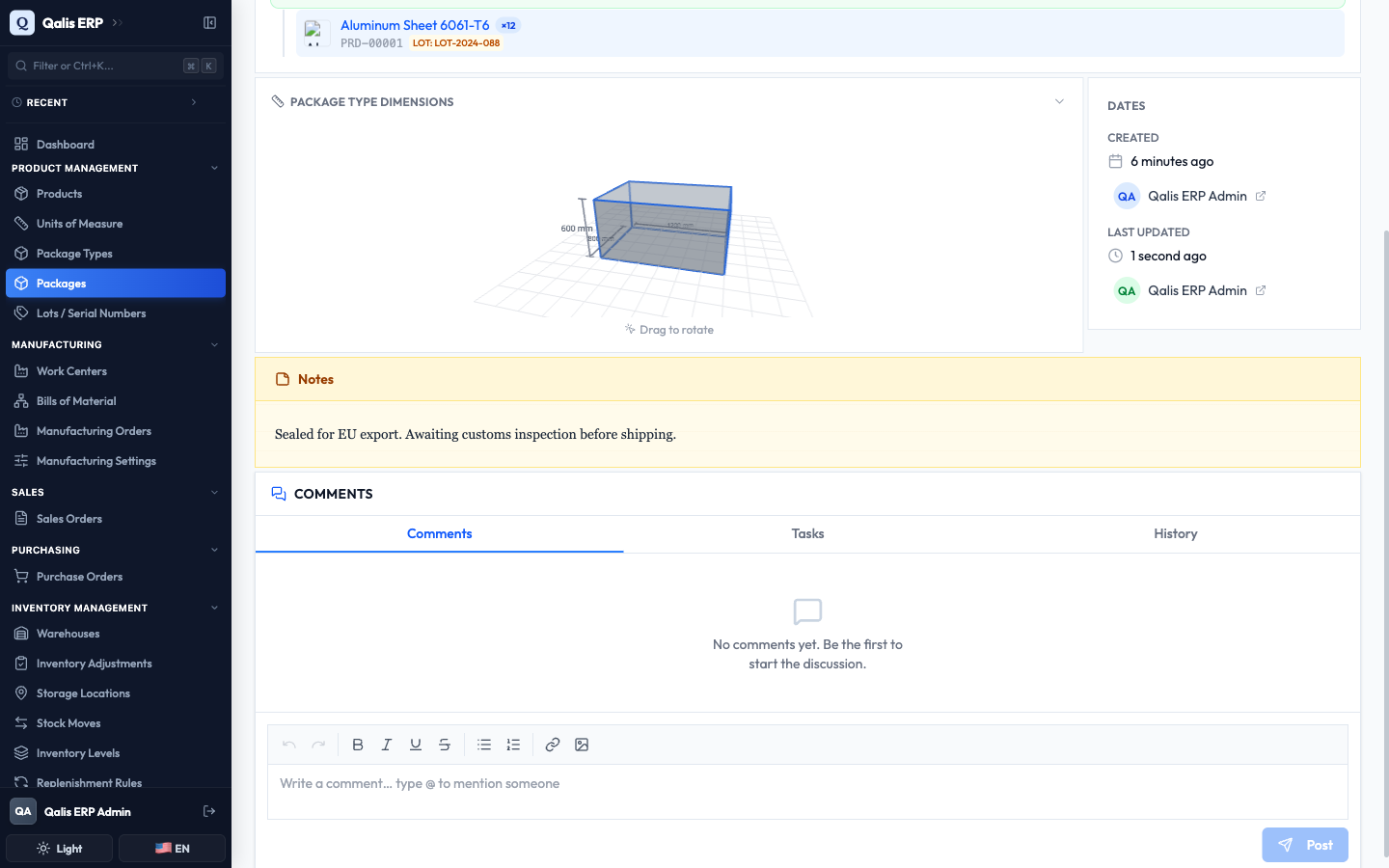
What happens next: Qualis saves your changes and returns you to the details page, where the update is shown straight away (here, the new note appears in the Notes panel and the Last Updated time refreshes).
Good to know
- Open, Closed, In Transit, Delivered are the four stages a package moves through. Open means you are still filling it, Closed means it is sealed and its contents are locked, In Transit means it is on its way, and Delivered means it has arrived.
- Disposable or Reusable describes the container itself. A Disposable container is used once, a Reusable one is one you expect to get back and use again.
- A nested or sub-package is a package that sits inside another package, like a box on a pallet. The package it sits inside is its parent package.
- A Lot Number or Serial Number identifies a specific batch or individual unit of a product. Record these on a content item when you need to trace exactly which stock went into the package.