Purchase Orders
Raise orders to your suppliers, get them approved, confirm them with the vendor, and receive the goods into your warehouse, all tracked from draft to received.
Last updated on June 30, 2026
A purchase order (PO) is the document you send to a supplier to buy goods: which products, how many, at what price, and where they should be delivered. Purchase Orders is where you create those orders, watch them move through their life (draft, approved, confirmed by the supplier, then received), and book the goods into your warehouse when they arrive. Every order keeps its own running totals, its supplier and warehouse, and a full history, so you always know what is on order and what has already turned up. This guide covers the things you do most: finding orders, creating one, reading it, getting it approved, confirming it with your supplier, and receiving the goods.
Before you start
A purchase order links several other parts of Qualis together, so a few things need to exist first. Most are already set up in a working system:
- Suppliers, so you have a vendor to order from.
- Products that are marked as purchasable, so you have something to put on the order.
- Warehouses (and their Storage Locations), so there is somewhere for the goods to be delivered and received.
To receive goods later, the destination warehouse also needs the right storage locations (a vendor location, a receiving area, and a stock location). If any are missing, Qualis tells you exactly what to add when you try to receive.
You reach the module from the left sidebar under Purchasing, then Purchase Orders.
Find and browse your purchase orders
Start here to see every order and to narrow down to the ones you care about.
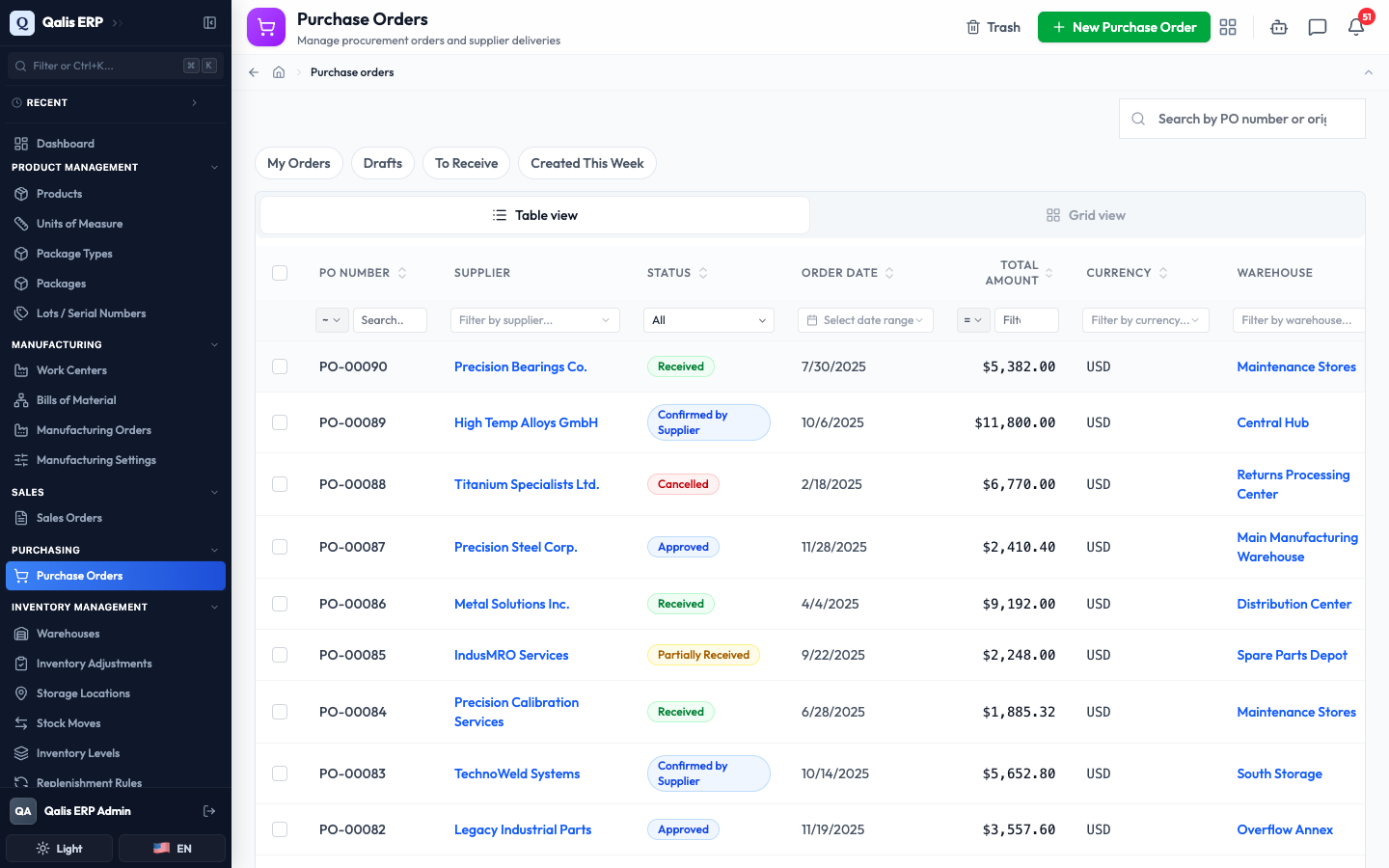
- Open Purchase Orders from the sidebar. You land on the full list, newest first. Each row shows the PO Number, Supplier, a colored Status badge, the Order Date, the Total Amount and its Currency, and the destination Warehouse. The supplier and warehouse names are links, so you can jump straight to them.
-
Use the quick filter pills above the table to focus the list in one click:
- My Orders: only the orders you created.
- Drafts: orders still being prepared.
- To Receive: orders confirmed by the supplier and waiting for goods to arrive.
- Created This Week: recently raised orders.
-
To find a specific order, type in the Search by PO number or origin reference box on the right. The list filters as you type, so there is no need to press Enter. When a filter is active, a banner shows it as a chip with an X to remove it, plus a Clear all button. Your filters are saved in the page address, so you can bookmark or share a filtered view.
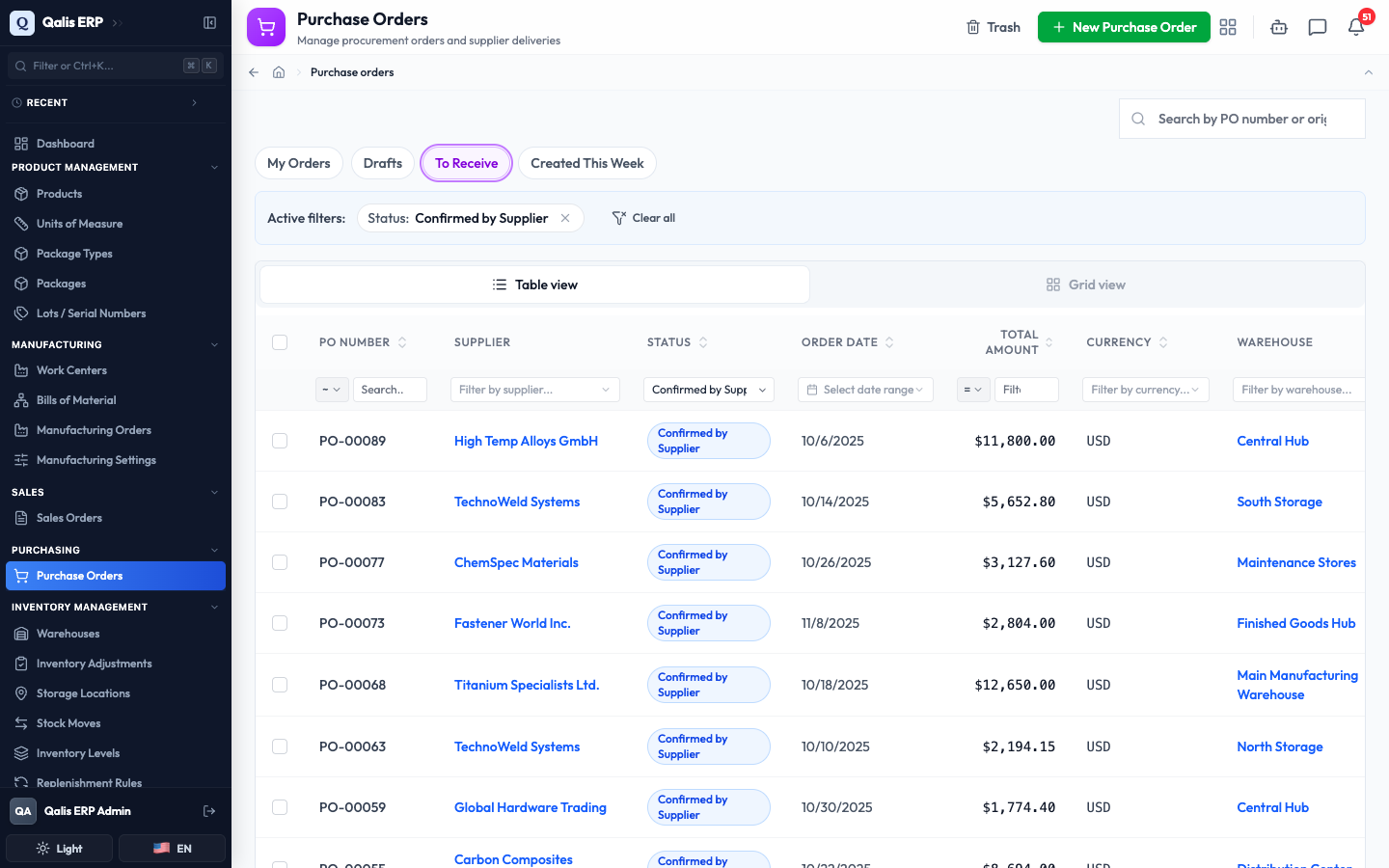
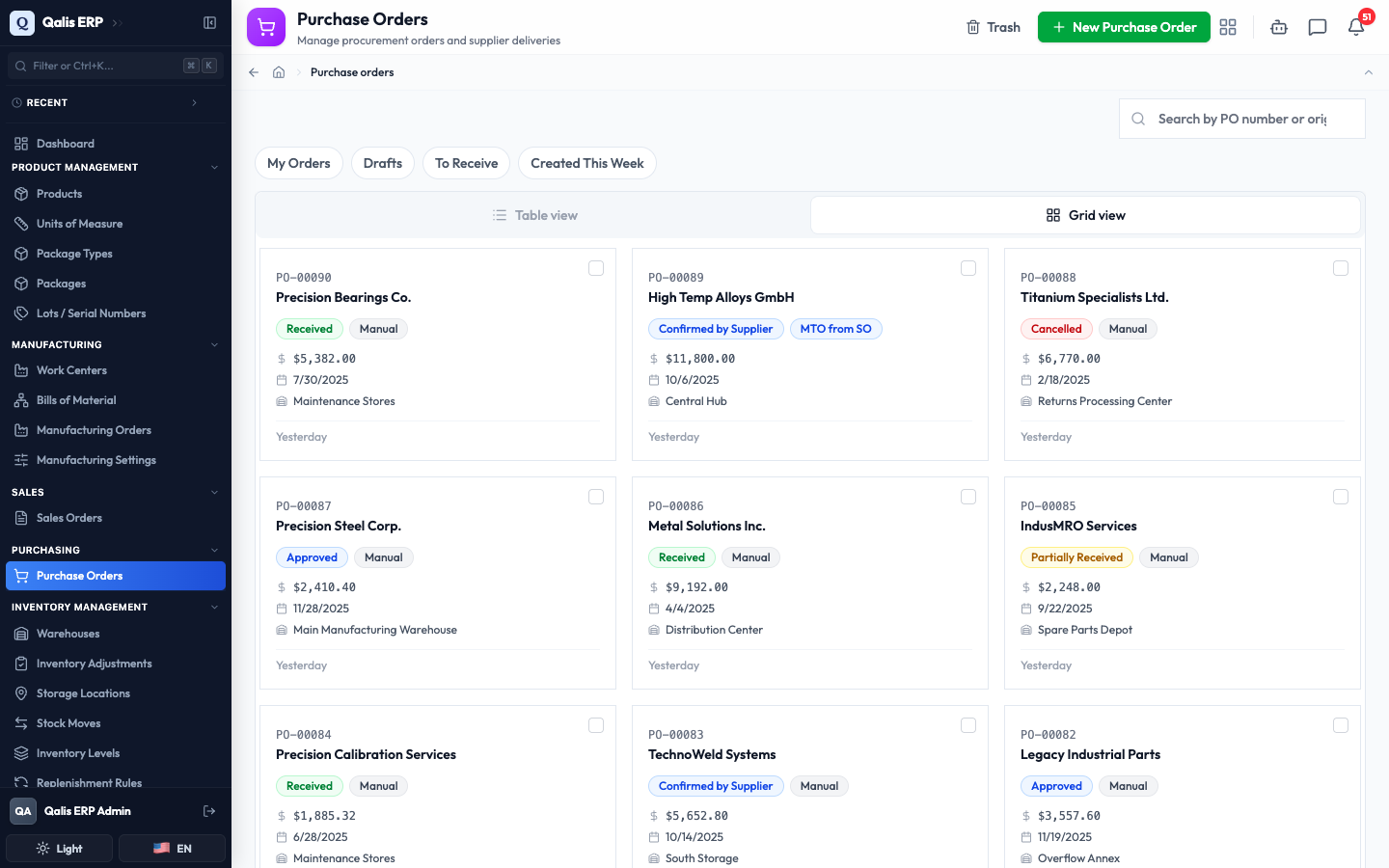
- Each column also has its own filter in the row just under the headers, including searchable pickers for Supplier, Warehouse, and Currency, and a date range for Order Date. Prefer cards to rows? Click Grid view above the table to see each order as a tidy card; click Table view to switch back.
Create a purchase order
This is the main task: raising a new order to a supplier. The form is split into three tabs along the top.
-
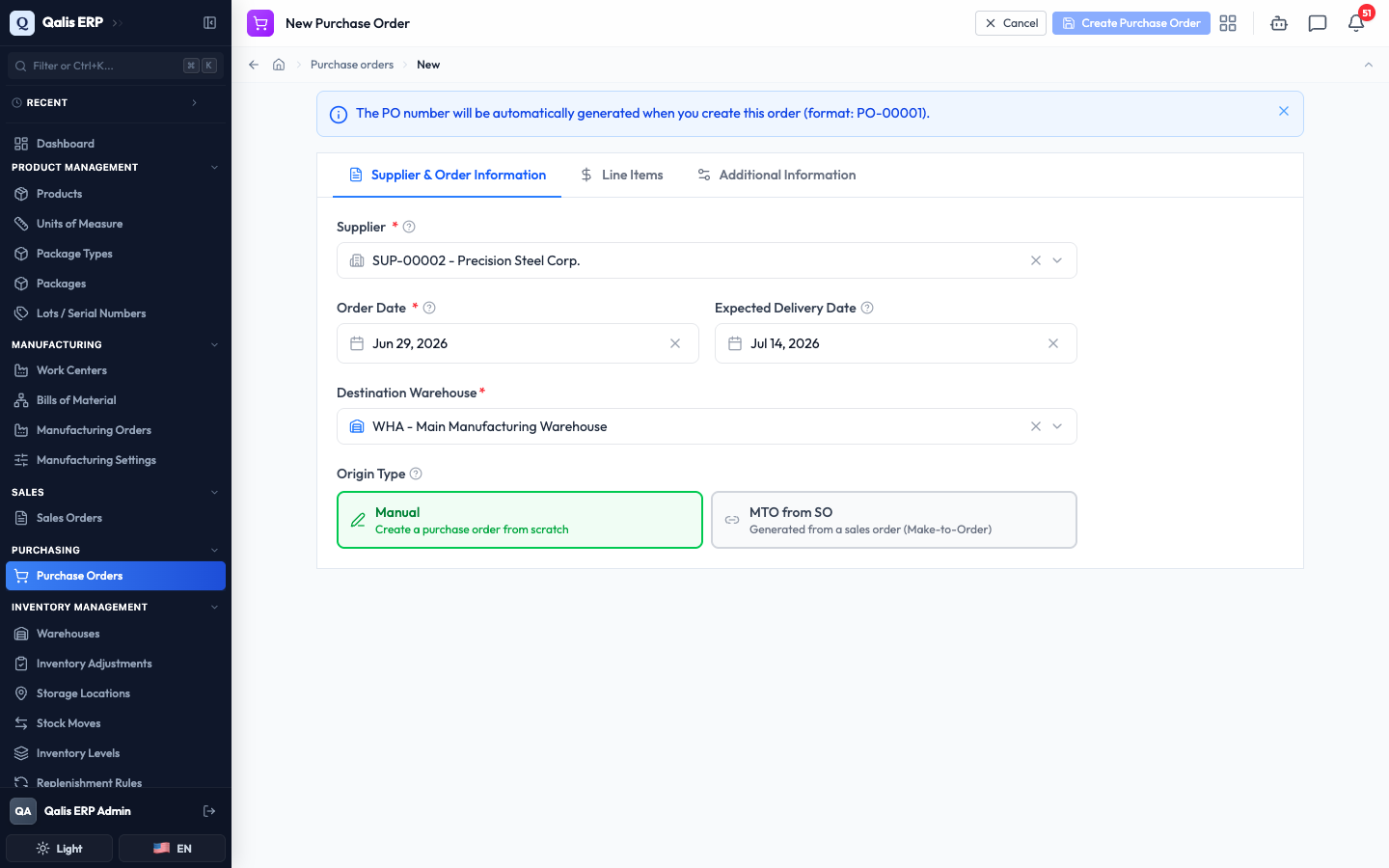
Click New Purchase Order (top right). A blue banner reminds you that the PO Number is generated for you when you save (in the format PO-00001), so there is nothing to type there.
-
On the Supplier & Order Information tab, fill in the order's basics. Fields marked with a red asterisk are required:
- Supplier: the vendor who will fulfill the order. Start typing to search, then pick from the list.
- Order Date: the day the order is issued. It defaults to today.
- Expected Delivery Date: when you expect the goods to arrive (optional). Use the calendar picker.
- Destination Warehouse: where the goods will be received.
- Origin Type: leave this on Manual for an order you are raising yourself. (MTO from SO is used when an order is generated automatically from a sales order.)
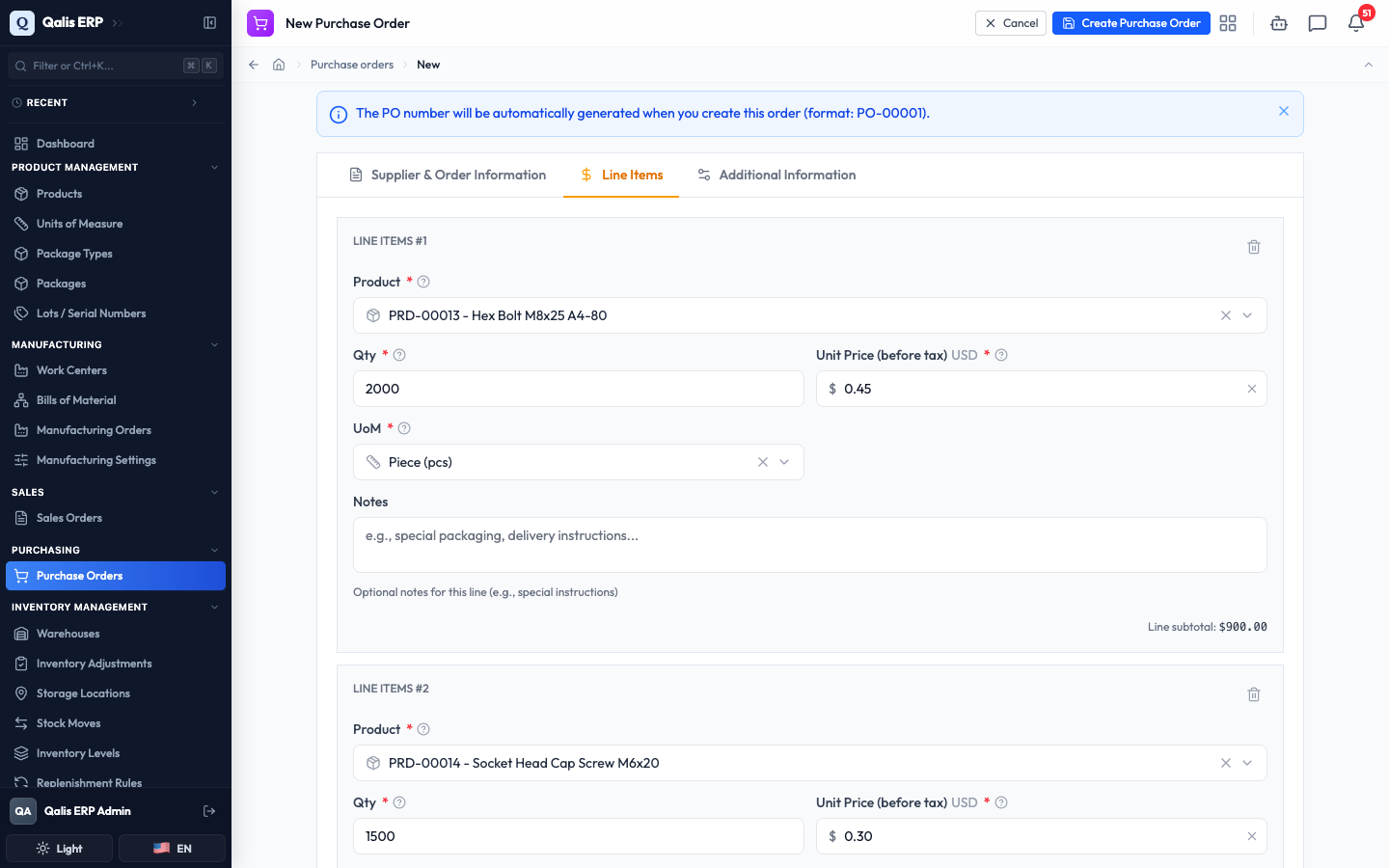
- Switch to the Line Items tab and click Add Line Item for each product you want to order. For every line, pick the Product, then enter the Qty (quantity), the Unit Price before tax, and the UoM (unit of measure, for example pieces or kilograms). You can add an optional note. Qualis shows a running Line subtotal for each line as you type.
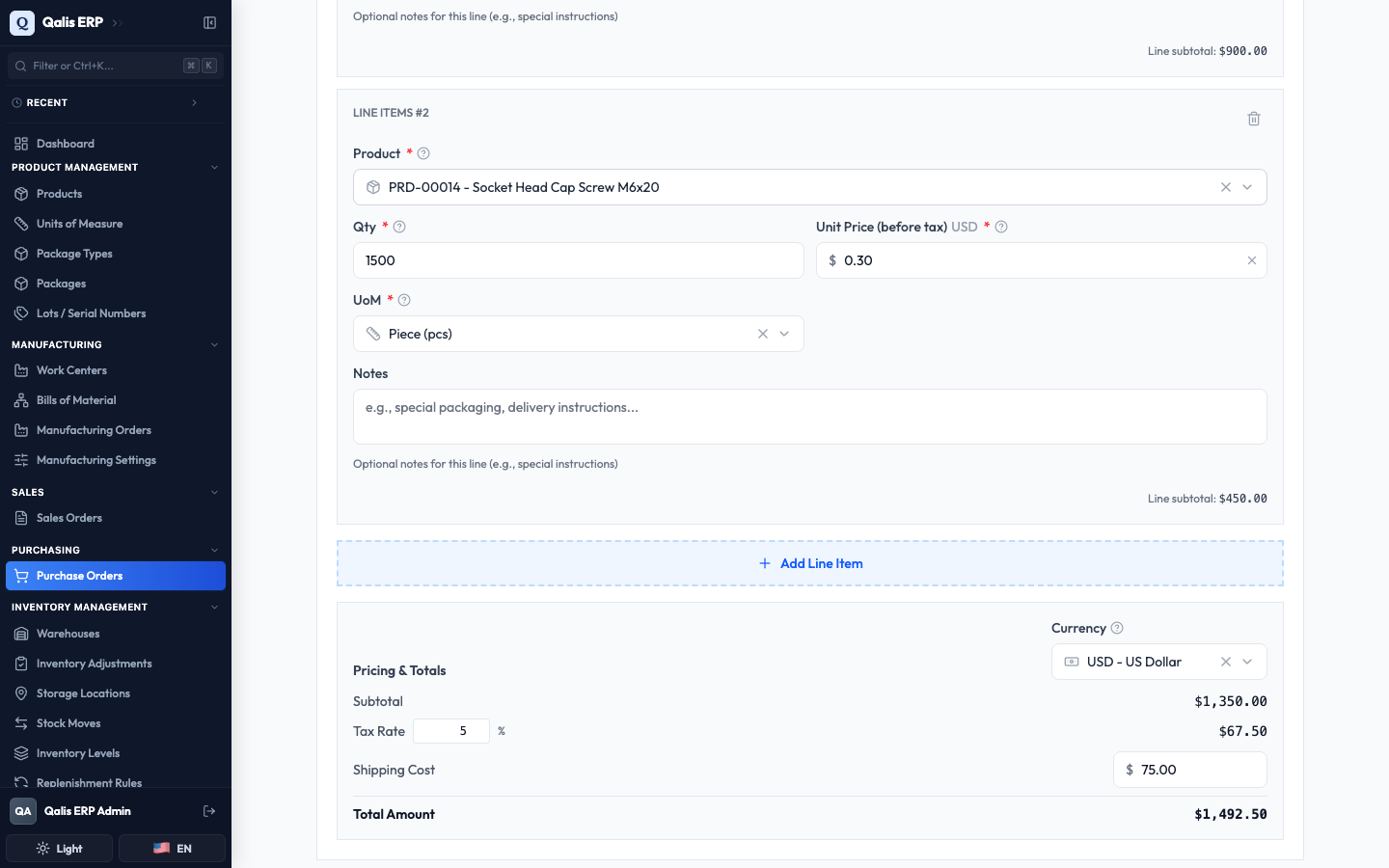
- Scroll down on the same tab to Pricing & Totals. Choose the document Currency (it defaults to your base currency), then optionally set a Tax Rate (%) and a Shipping Cost. Qualis adds everything up live: the Subtotal, the tax, the shipping, and the final Total Amount. The Additional Information tab holds optional extras like payment terms, a shipping address, and contact details.
- Click Create Purchase Order (top right). Qualis saves the order, gives it its PO number, and takes you straight to its detail page.
A new order always starts as a Draft. While it is a draft you can edit or delete it freely. Once it moves past draft, editing and deleting are locked to protect the order's history.
Open and read a purchase order
Click any order in the list to open its detail page. Everything about the order is on one screen.
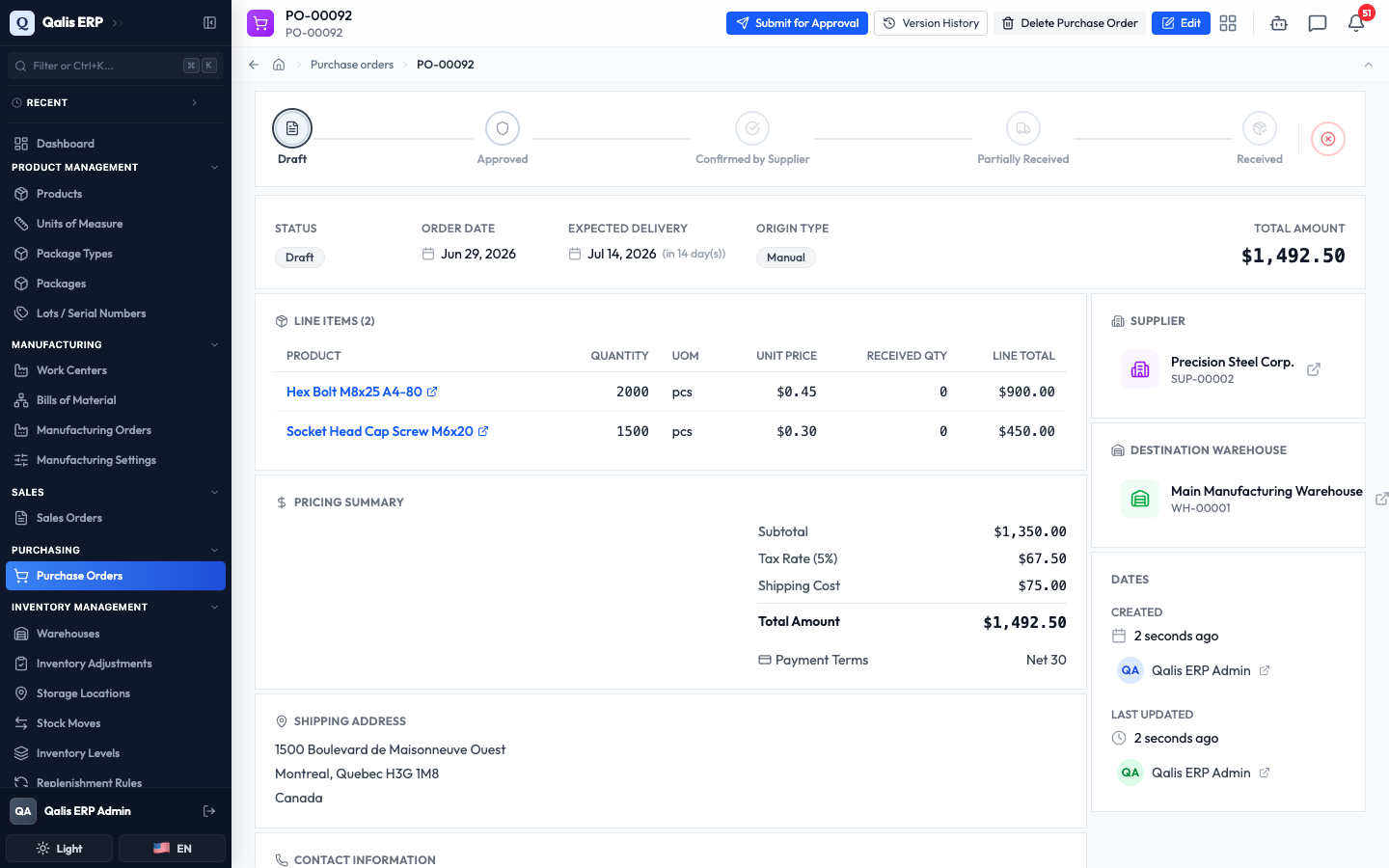
- The status timeline across the top shows where the order is in its life: Draft, Approved, Confirmed by Supplier, Partially Received, and Received. The current step is highlighted, completed steps are ticked, and a small red circle at the end lets you cancel the order.
- The bar below it gives the headline facts: Status, Order Date, Expected Delivery, Origin Type, and the Total Amount.
- Line Items lists each product with its quantity, unit price, how much has been received so far, and the line total.
- Pricing Summary repeats the subtotal, tax, shipping, total, and payment terms.
- The sidebar on the right shows the Supplier, the Destination Warehouse, the Supplier Acknowledgment (once the order is confirmed), and the created and last-updated dates. The supplier and warehouse are links to their own pages.
- The top bar holds the order's actions: Edit, Delete, and Version History (which records every change for the audit trail). Depending on the order's status, its next step also appears here or on the timeline, such as Submit for Approval on a draft, and the timeline steps themselves are clickable to move the order forward.
Get an order approved
Before an order can be sent to the supplier, it usually needs approval. From a draft order's detail page:
- Click Submit for Approval in the top bar. If the order does not need approval, this button instead reads Mark as Approved, and clicking it approves the order in a single step. When an approval workflow does apply, a window opens showing which workflow it is, the first approval step, and exactly who will be asked to approve.
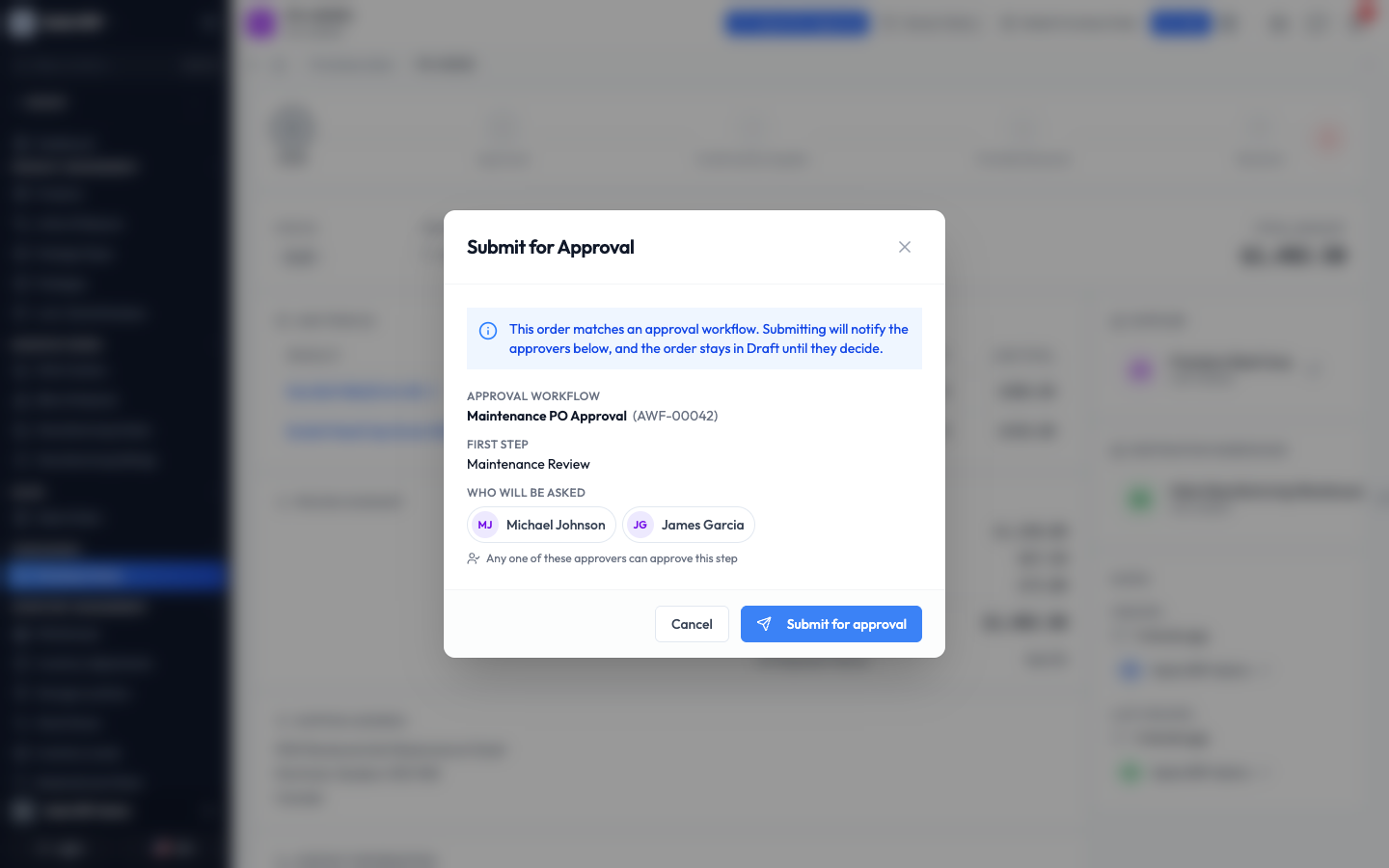
- Click Submit for approval. The approvers are notified, and the order's detail page shows an Approval Status banner with the progress so far. The order stays a draft, and the Approved step on the timeline carries a small lock, until the approvers sign off.
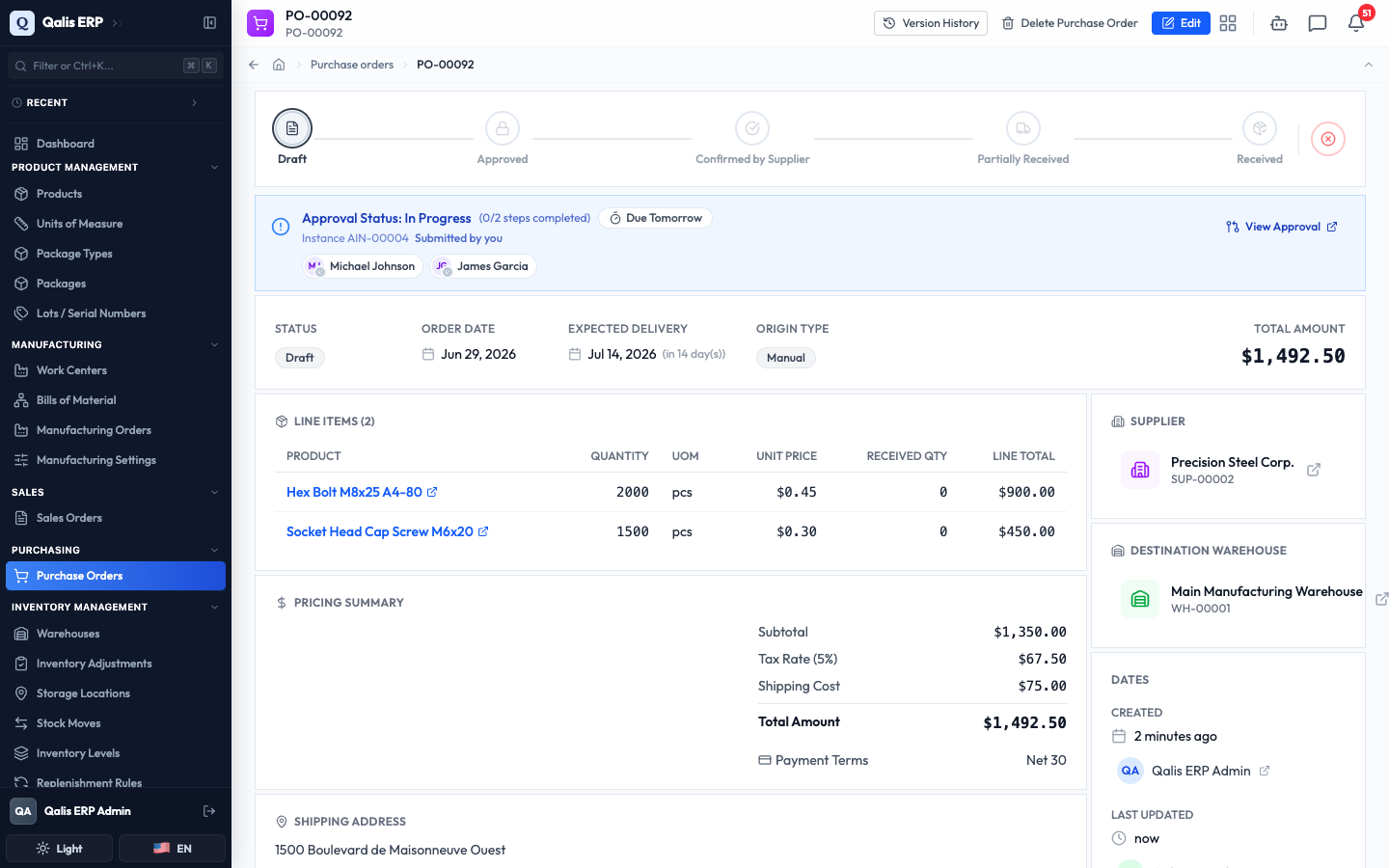
Once the approvers sign off, the order's status changes to Approved and the lock clears, so you can move on to confirming it with your supplier. You can also start approval by clicking the Approved step on the timeline directly, which submits the order without showing the preview window.
Confirm the order with your supplier
When the supplier accepts the order and sends back their acknowledgment, you record it here. This moves the order to Confirmed by Supplier, which is the signal that goods are now on their way. From an approved order:
- Click the Confirmed by Supplier step on the timeline. A Supplier Acknowledgment window opens. Enter the supplier's Acknowledgment Number (their reference for the order) and the Acknowledgment Date, then click Confirm Order.
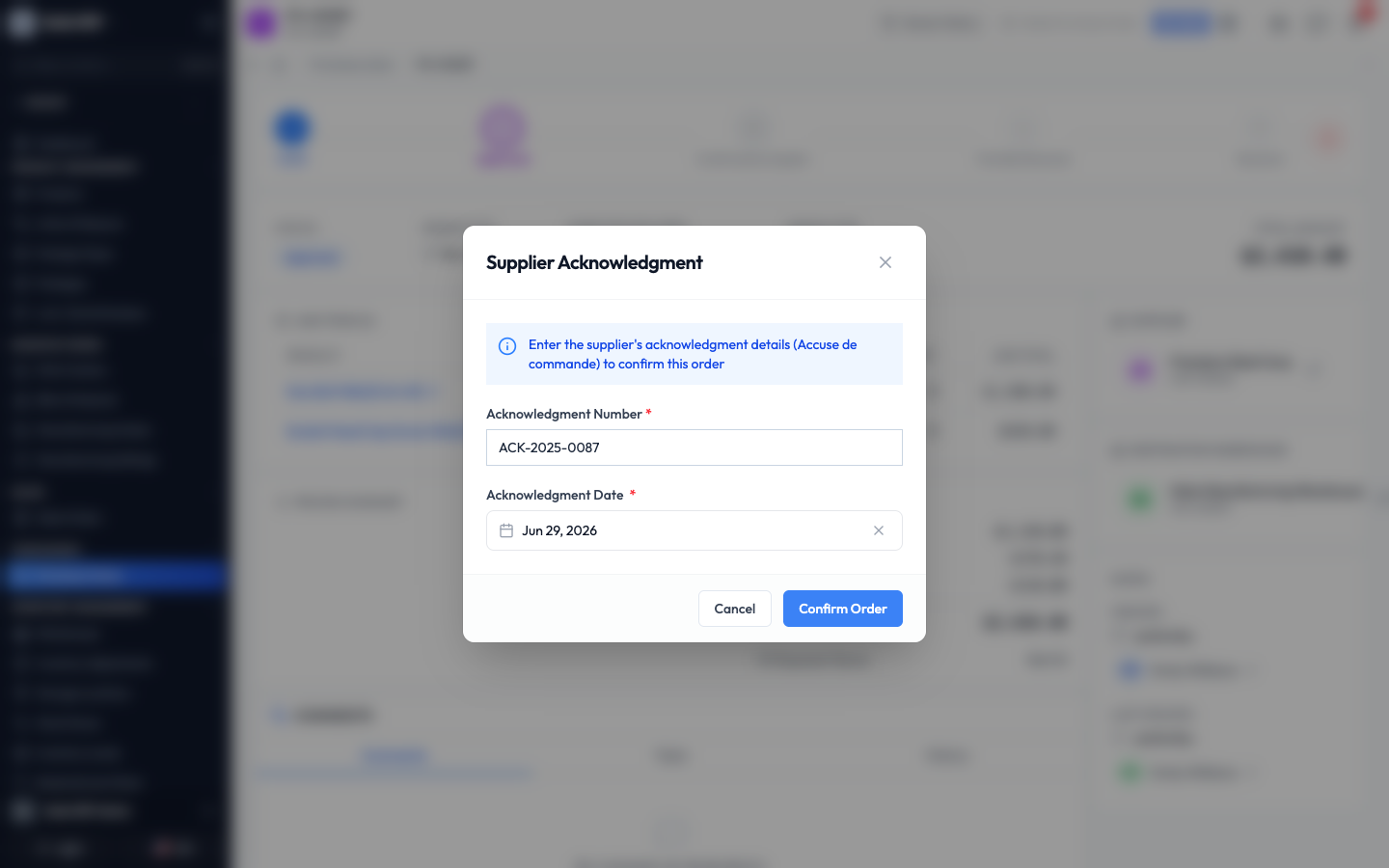
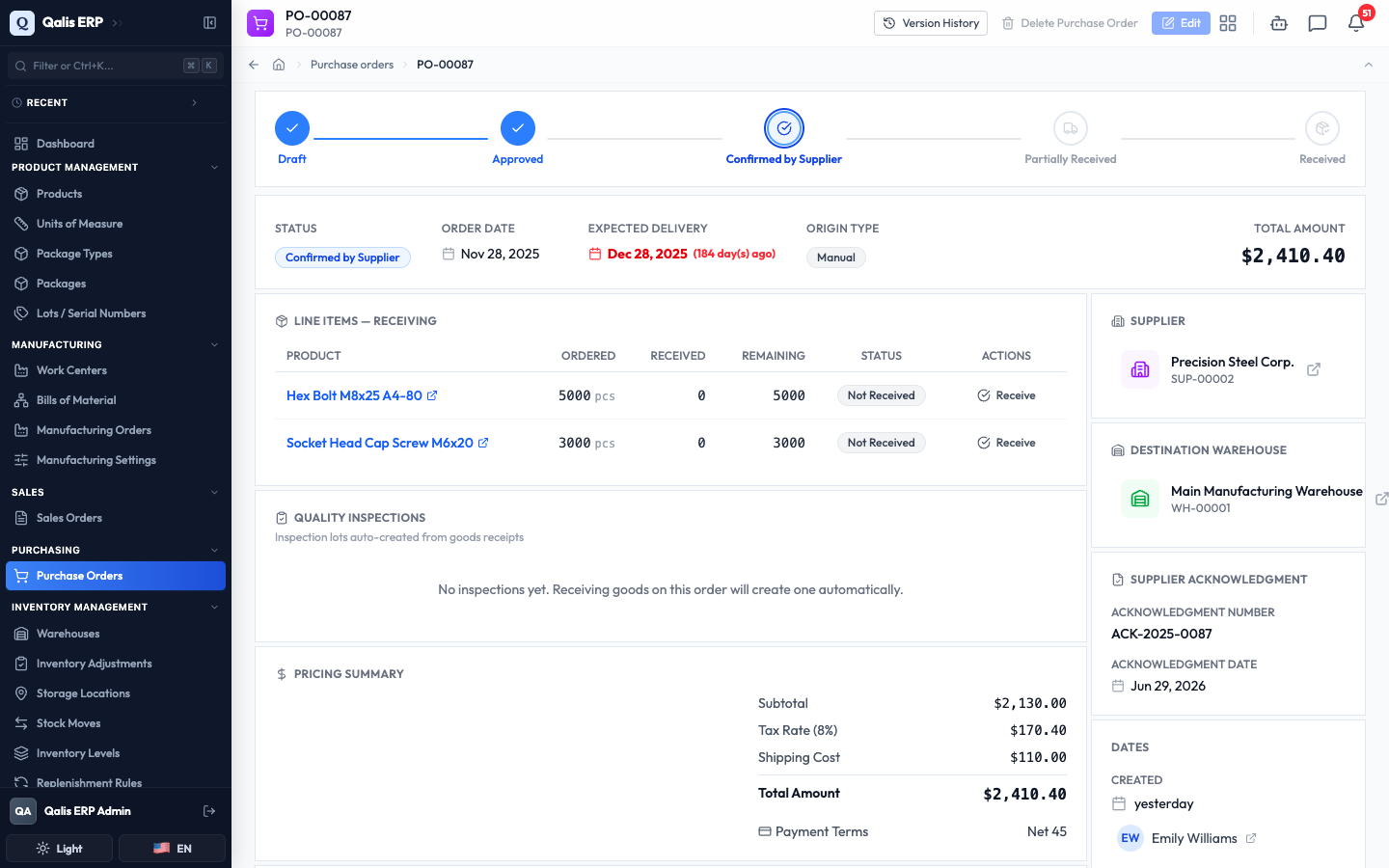
- The order moves to Confirmed by Supplier. The acknowledgment details now appear in the sidebar, and a new receiving section appears under the order's line items, ready for when the goods arrive.
Receive the goods
When the delivery turns up, you book it in line by line. Qualis updates your stock automatically and tracks how much of each line is still outstanding. You can receive goods on an order that is Confirmed by Supplier or already Partially Received.
-
In the receiving section under the order's line items, find the product that arrived and click Receive on its row. The Receive Items window opens, showing how much was Ordered, already Received, and still Remaining.
-
Enter the Quantity to Receive, then pick the Receiving Location (where the goods are being put away). If the product is tracked by lot or serial number, you also choose an existing Lot / Serial Number or create a new one. Click Confirm Receipt.
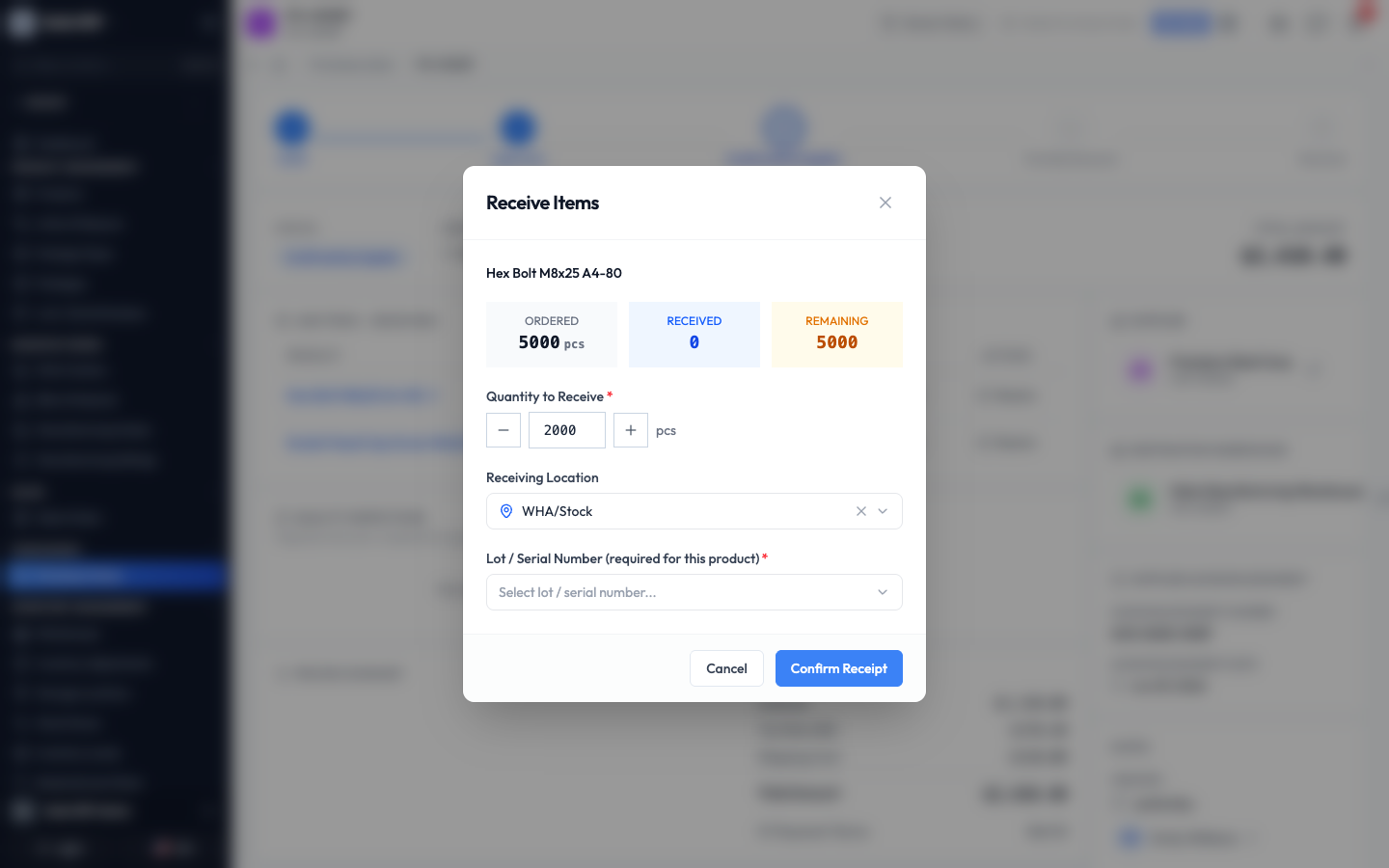
- Qualis records the receipt and updates the line. If some of the order is still outstanding, the order moves to Partially Received and each line shows what has come in and what is still due. When every line is fully received, the order moves to Received.
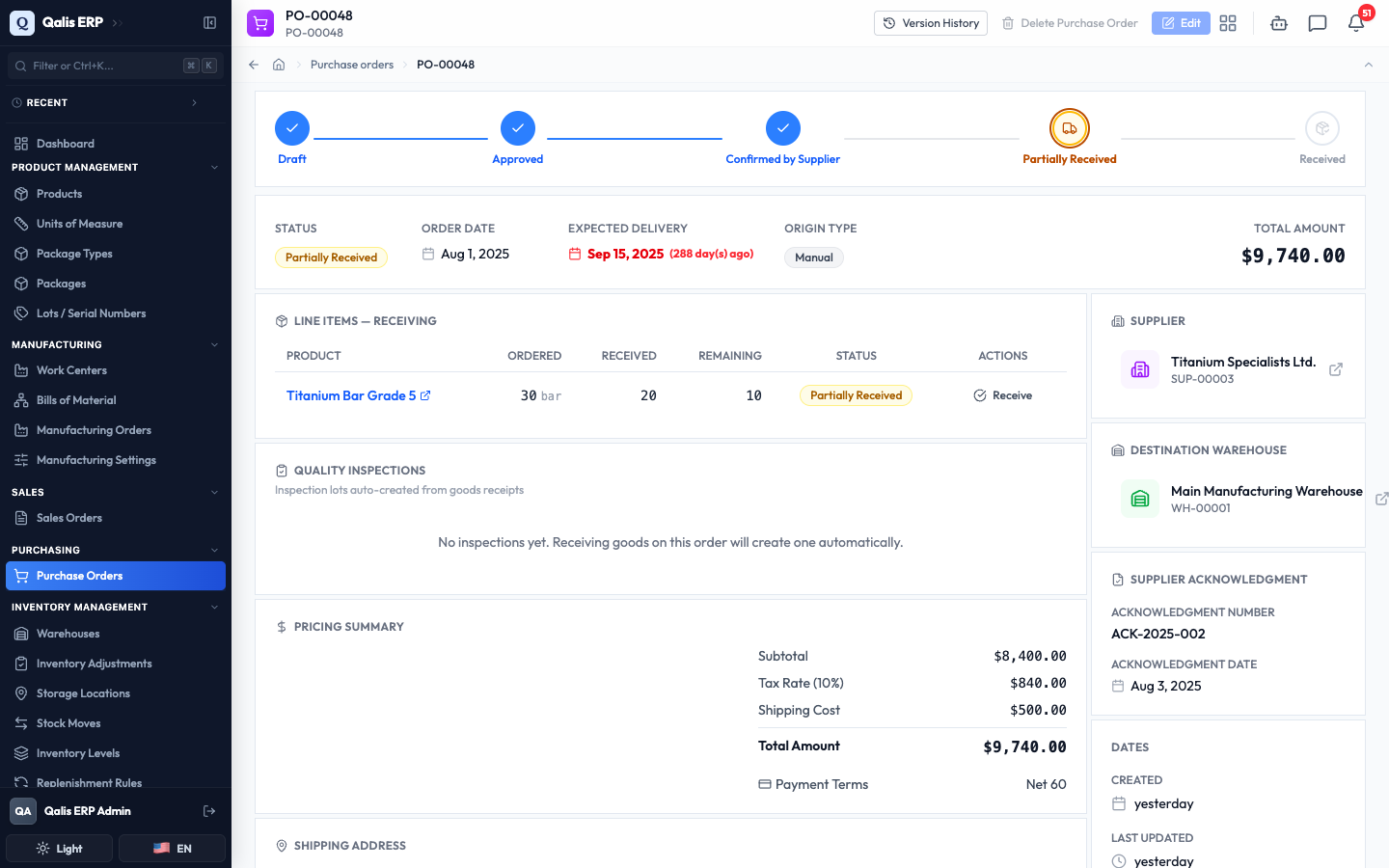
Receiving an inventory-tracked product automatically creates a Quality Inspection for the delivery, so your team can check the items before they are used. If the destination warehouse is missing a storage location it needs to receive, a red banner explains exactly which one to add, and the Receive buttons stay disabled until it is in place.
Cancel an order
If an order falls through, open it and click the small red circle at the right-hand end of the status timeline (just after the last step), then confirm in the window that appears. You can cancel an order while it is a Draft or Approved. A cancelled order shows a Revert to Draft button on that same timeline, so you can reopen it if you need it again. An order that already has received goods cannot be cancelled.
Good to know
A few terms you will meet on this screen:
- Status: where an order is in its life, from Draft through Approved, Confirmed by Supplier, Partially Received, and Received, or Cancelled if it is called off.
- Supplier acknowledgment: the supplier's confirmation that they accept your order, recorded as a reference number and a date when you confirm the order.
- Lot / Serial number: a label that tracks a specific batch (lot) or a single item (serial) of a product. Products set up this way ask for one when you receive them.
- UoM: unit of measure, such as pieces, kilograms, or boxes, that tells Qualis how a quantity is counted.
- Document currency: the currency the order's prices and totals are in. Its value is also recorded in your base currency at the order's exchange rate.
- MTO (Make-to-Order): an order's origin type when it was generated automatically from a sales order, rather than created by hand.