Audit and Versioning
Track every change with full audit trails and version history.
Last updated on June 25, 2026
Every time someone in your organization creates, edits, or deletes something, Qualis remembers it. You do not have to turn anything on. This guide shows you how to read that history in two ways: the Audit Logs page, which is one running list of everything that happens across the whole app, and a record's own Version History, which keeps a dated snapshot each time the record changes and lets you roll back to an earlier one.
How it works
There are two tools, and they answer two different questions.
- Audit Logs answer "who did what, and when?" across your entire organization. It is one long, searchable list of actions: who created a product, who changed a team, who deleted a document. It is read only. You can look, filter, and search, but you cannot edit or remove an entry. This is your activity trail.
- Version History answers "how did this one record change over time, and can I undo it?" Every record (a product, a supplier, a purchase order, and so on) keeps a snapshot each time it is saved. You can open any past snapshot, see what it held, and restore it.
Both are filled in for you automatically. You never create an audit entry or a version by hand. You just use your records as normal, and Qualis records the history in the background.
Before you start
- The Audit Logs page lives under Administration in the sidebar and is meant for administrators. If you do not have permission to view it, it will not appear in your sidebar, and opening its link shows an access message instead.
- Version History is available on any record you are allowed to view. To restore an older version you also need permission to edit that kind of record. If you cannot restore, the button is greyed out and explains why when you hover it.
Browse the audit log
This is the single place to see everything that has happened recently.
- Open the sidebar, scroll to the Administration group, and click Audit Logs.
- The page opens with the newest activity at the top. The heading reads Audit Logs, with the subtitle View system activity and change history, and a counter on the left tells you how many entries there are.
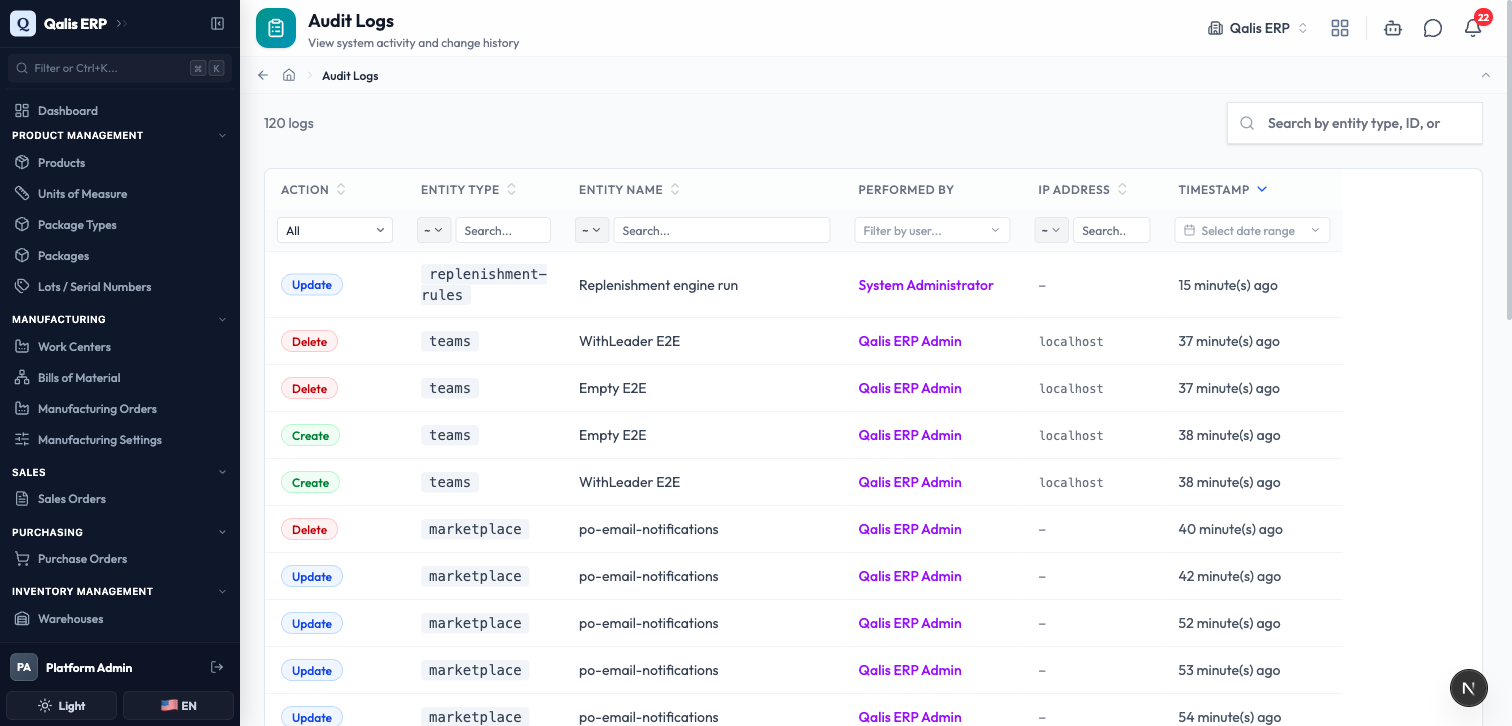
Each row tells you one thing that happened, read left to right:
- Action: what was done, shown as a colored badge. Green is Create, blue is Update, red is Delete, and so on for restores, imports, exports, and logins.
- Entity Type: the kind of record involved, such as
products,teams, ordocuments. - Entity Name: the friendly name of the exact record, like PRD-00055 - Inertial Navigation System.
- Performed By: the person who did it. Their name is a link, so you can click through to their profile. Some entries are done by System Administrator, which means the app did it automatically (for example a scheduled currency update).
- IP Address and Timestamp: where the action came from and when. The time shows as "15 minute(s) ago"; hover it to see the exact date and time.
The list keeps loading more entries as you scroll, so you can keep going back through the history without clicking through pages.
Filter the log to find what you need
The full list is large, so narrow it down to the activity you care about. Every box in the row under the column headers is a filter.
- Use any of the filters at the top of the table:
- The Action dropdown to show only one kind of action, for example only Update.
- The Entity Type or Entity Name boxes to type part of a record's type or name.
- Filter by user to pick one person and see only what they did.
- Select date range to limit the list to a period.
- The list updates as you choose. A blue banner appears showing your active filters as removable chips, with a Clear all link to reset everything at once.
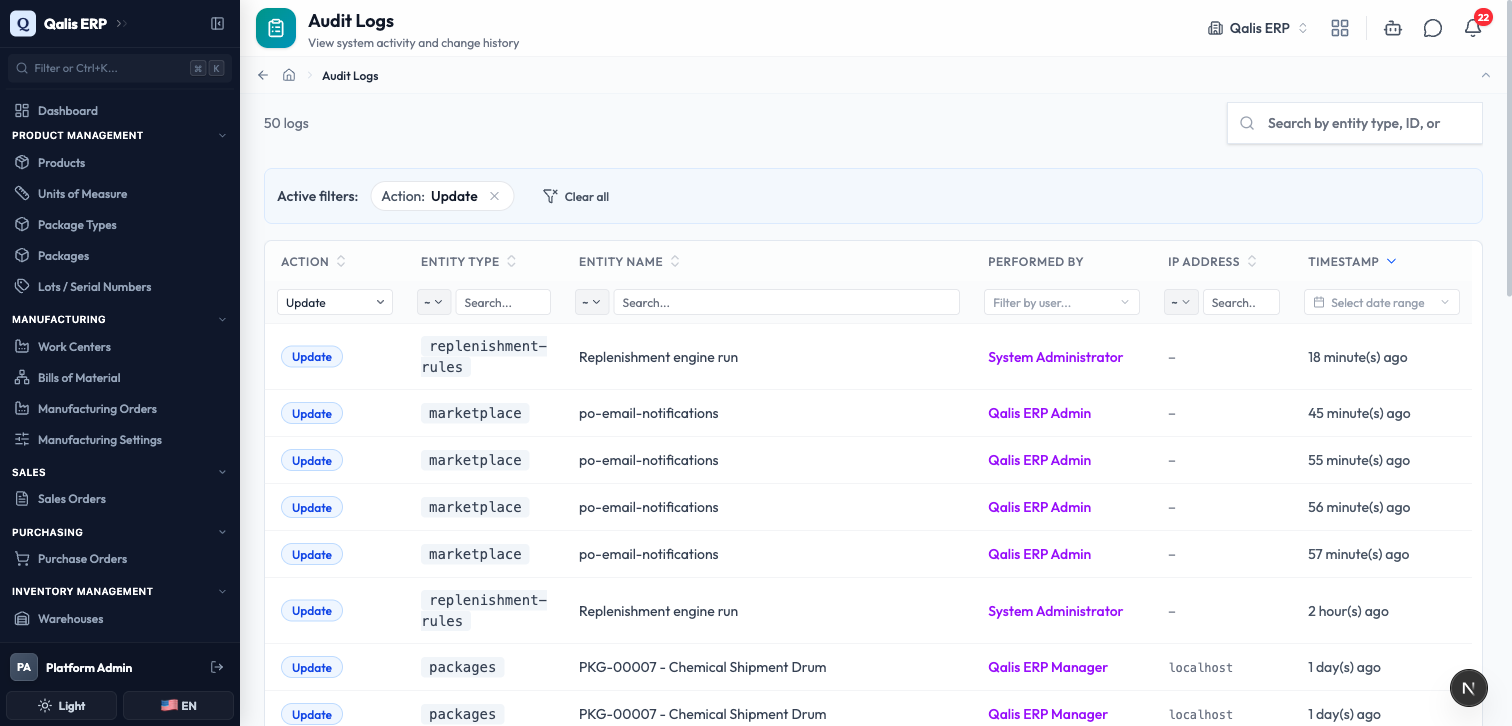
In the example above, the Action filter is set to Update, the counter drops to show only matching rows, and the banner reads Active filters: Action: Update.
The web address updates with your filters. You can bookmark a filtered view or paste the link to a colleague, and they will open the exact same results.
If your filters match nothing, the page tells you plainly with No results match your filters so you know to loosen them. When you have permission to export, you can also select entries and download them as a file for your records.
See everything that happened to one record
Sometimes you do not want the whole organization's activity, just the story of one record. Every record's detail page carries its own history, with the exact before and after of each change.
- Open any record, for example a product.
- Scroll down to the Comments panel near the bottom of the page.
- Click the History tab.
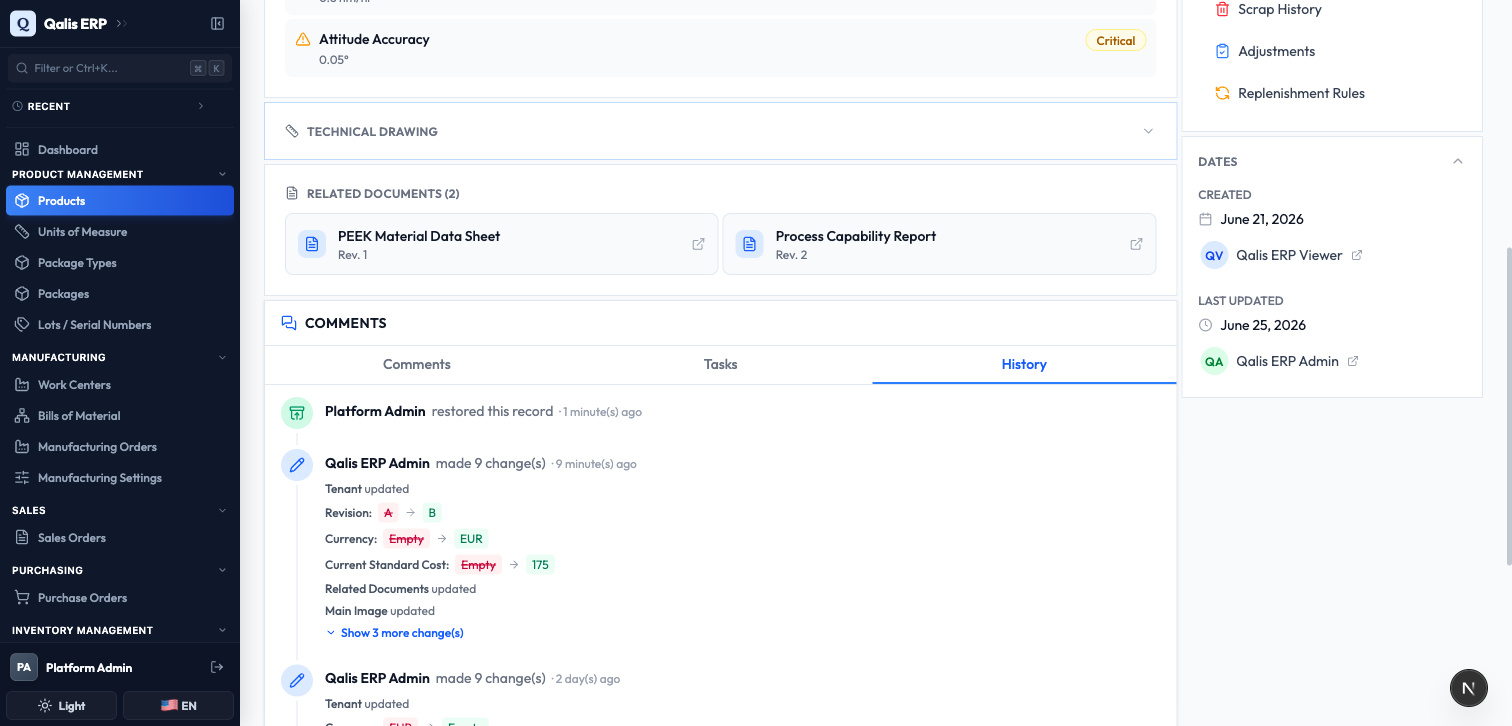
You now see a timeline for that record alone. Each entry names the person, says what they did ("made 9 change(s)", "restored this record"), and shows how long ago. For an edit, it lists each field that changed with the old value crossed out in red and the new value in green, for example Revision: A to B or Current Standard Cost: Empty to 175. If there are many changes, click Show more change(s) to see the rest.
This is the clearest way to answer "what exactly changed here, and who changed it?" for a single record, without scrolling the whole organization's log.
Open a record's version history
Version History is a separate, record level tool. Where the timeline above lists each change, Version History keeps a full saved copy of the record at each point, so you can inspect an old copy and bring it back.
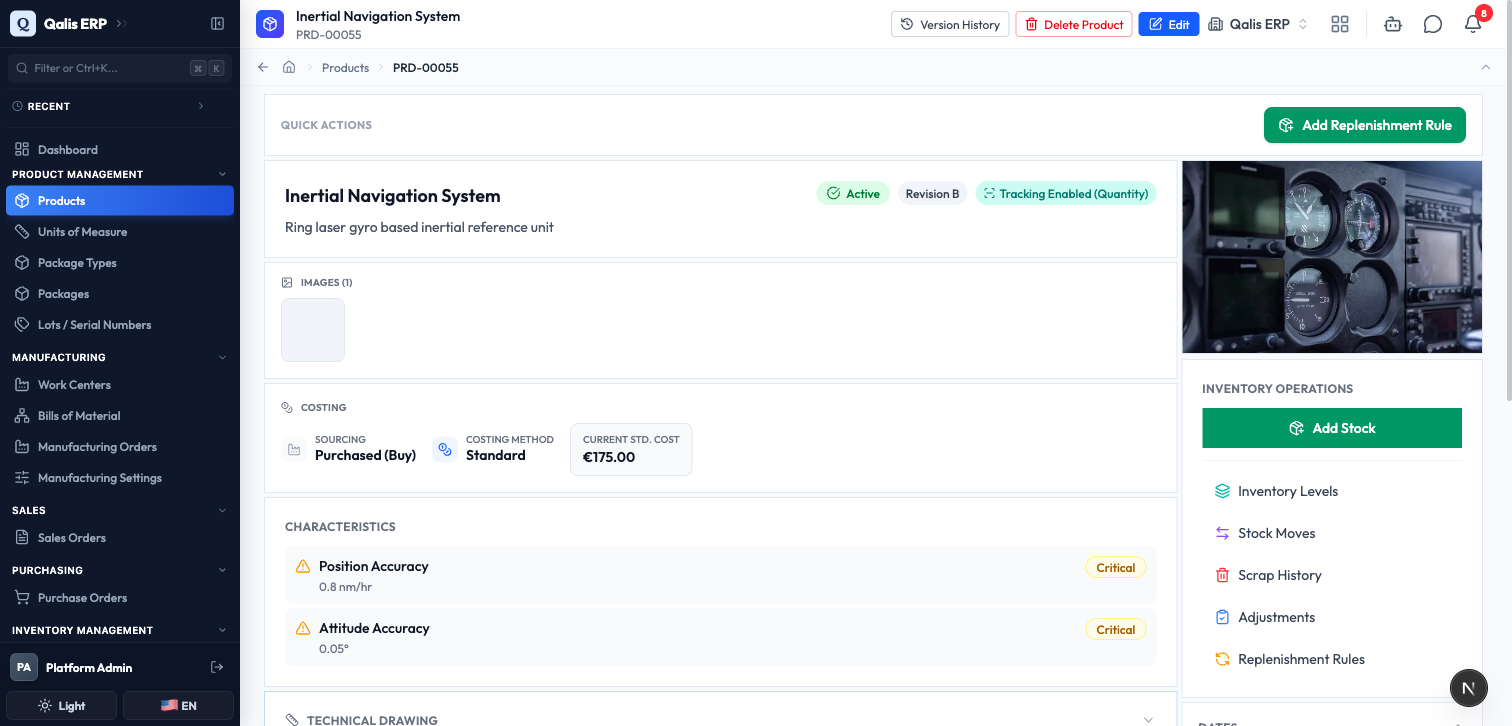
- Open the record you want, for example the product Inertial Navigation System.
- In the bar at the top of the page, click Version History.
The Version History page opens. At the top, a blue Current Version card shows the record as it stands today, with its Revision, Status, and Last Updated time. Below it, All Versions lists every saved copy, newest first, labelled v5, v4, v3, and so on. Each one shows its revision, its status, when it was saved, and who saved it.
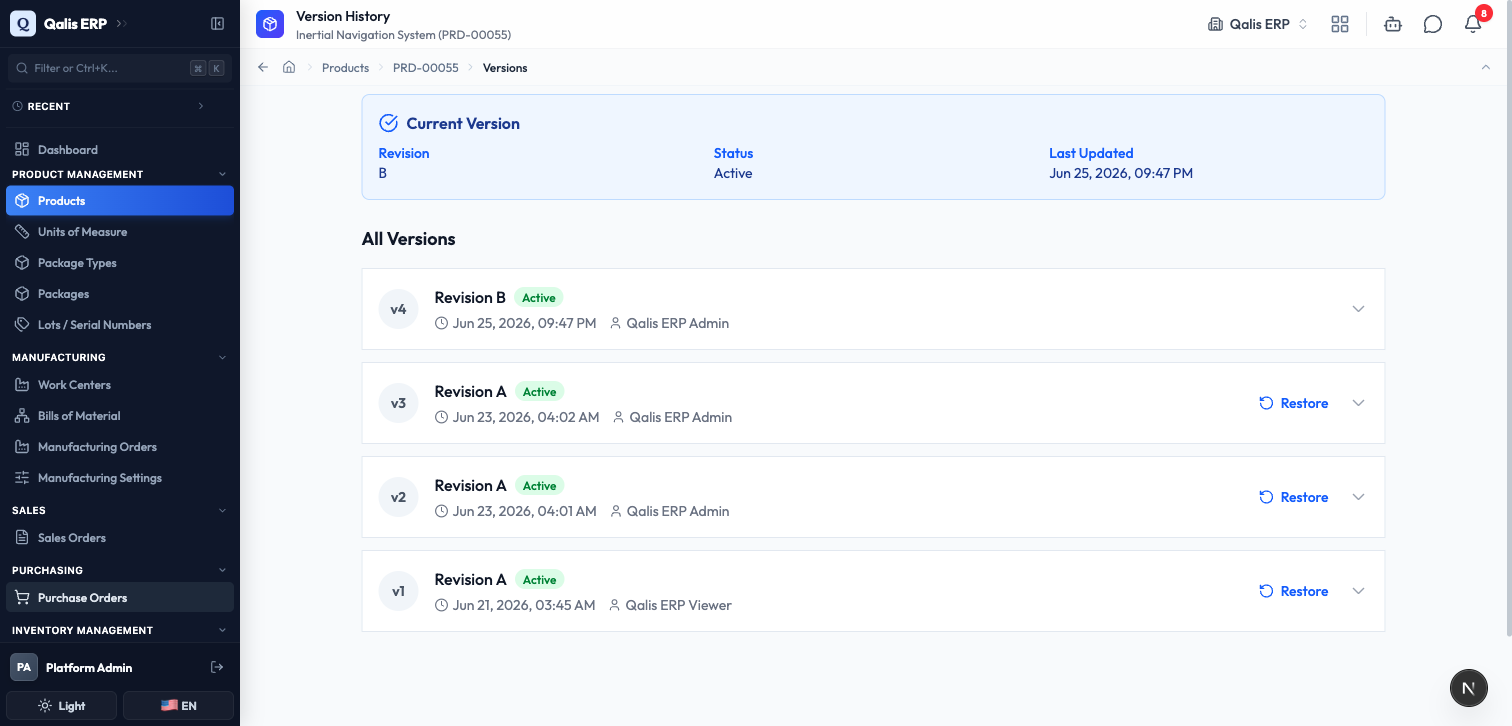
To see what a particular version held, click it to expand. The card opens to show that version's full details: its product number, name, revision, status, attachment counts, and description, exactly as they were at that moment.
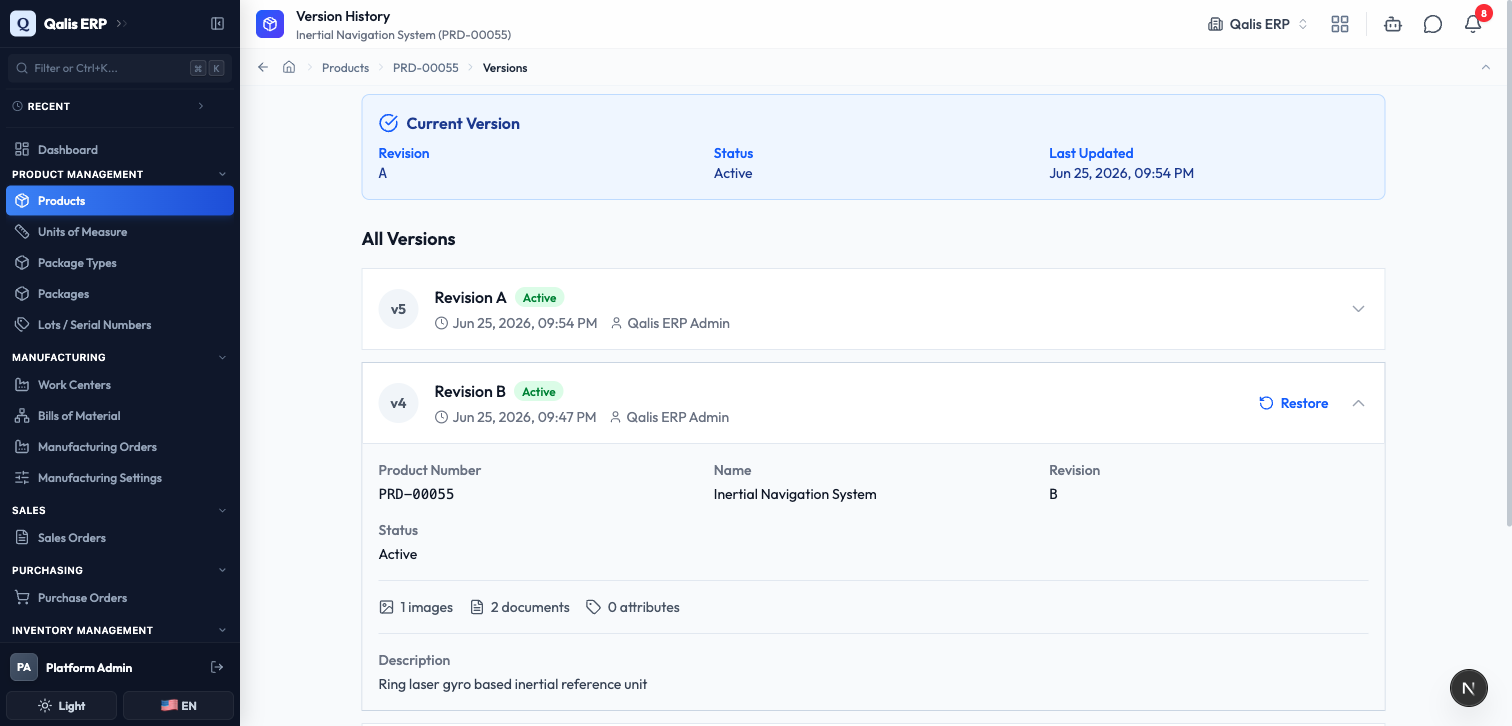
Versions are created automatically when you save changes. You do not add them yourself, so you will always have a complete trail to look back on.
Restore a previous version
If a change was wrong, you can roll the record back to how it was. Restoring is safe: it never erases history. Instead it creates a fresh version that matches the old one, so the steps in between are still on record.
- On the Version History page, find the version you want to return to. Every version except the latest has a Restore button on its right.
- Click Restore. A confirmation window appears titled Restore Version, explaining that this will create a new version with the restored content.
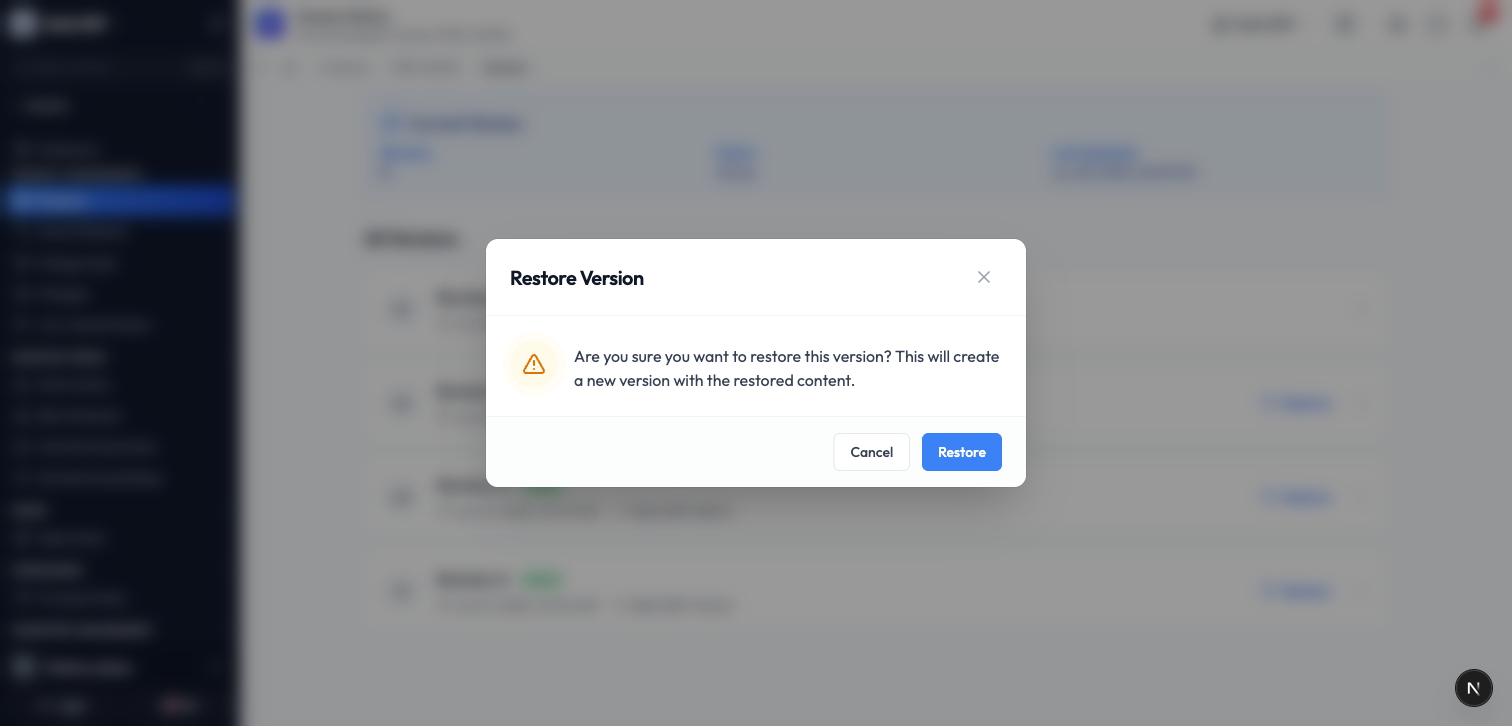
- Click Restore to confirm, or Cancel to back out. Nothing changes until you confirm.
- The record rolls back, and a message confirms Version restored successfully.
A new entry appears at the top of the list (for example v5), holding the restored content, and the Current Version card now matches the version you chose. In the example below, the record was on Revision B and has been rolled back to Revision A, with the new version recorded as the latest.
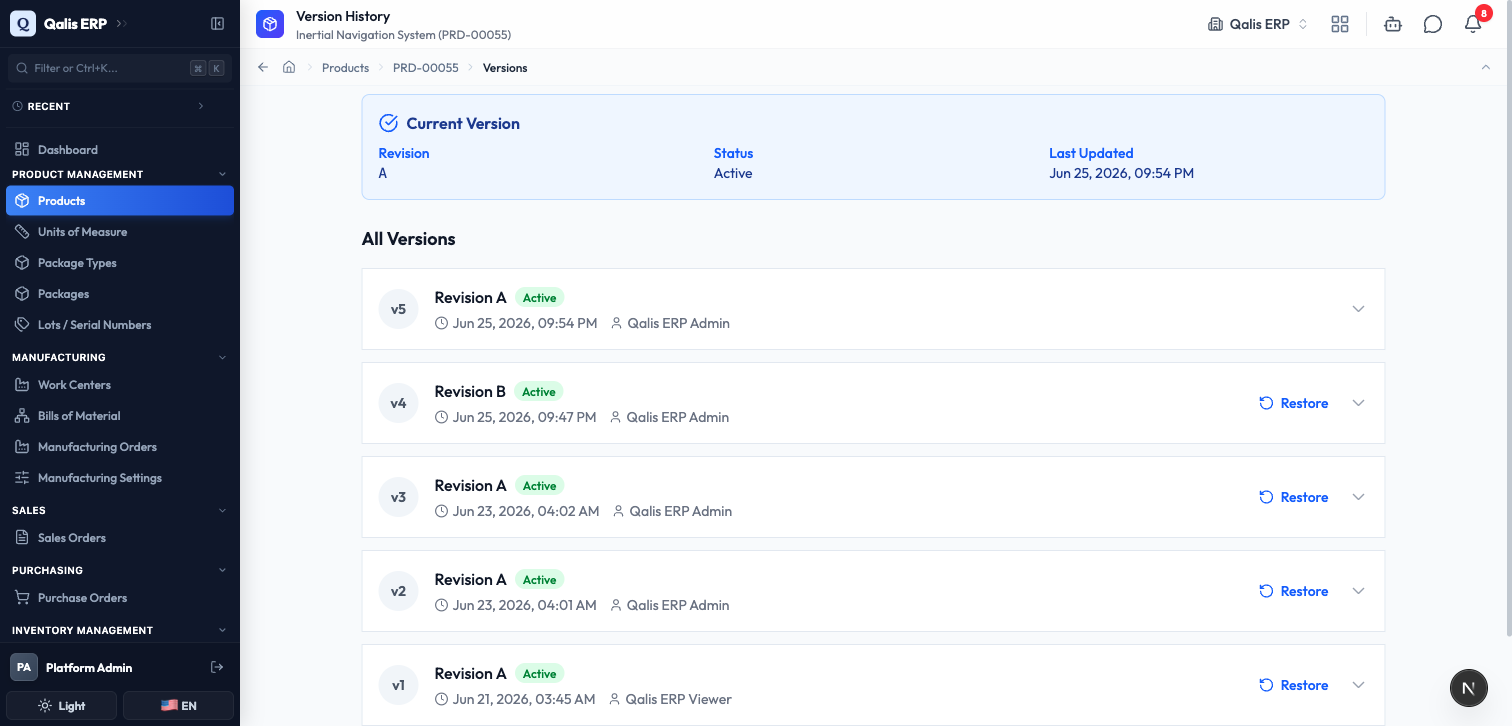
A restore is itself an action, so it also shows up in the audit log and in the record's History tab as "restored this record". Nothing is hidden, and you can always restore again to step forward or back.
Good to know
- Audit log: one running list of every action across your organization. Read only, searchable, and filterable.
- Action: the type of thing that happened to a record, such as Create, Update, Delete, or Restore. Shown as a colored badge.
- Performed by: the person who did the action. Entries marked System Administrator were done automatically by the app.
- Version: a saved snapshot of one record at a moment in time. A new one is kept each time the record is saved.
- Current version: the record as it stands right now, shown at the top of its Version History.
- Restore: bring back an older version. It creates a new version with the old content and keeps the history intact, so it can always be undone.
- History tab: the per record timeline (under the Comments panel) that shows each change field by field, with the old and new values side by side.