Cycle Counts
Schedule recurring inventory counts for each storage location, so stock is checked on a regular rhythm instead of one big year-end count.
Last updated on June 29, 2026
A cycle count is a plan to recount the stock in one storage location on a regular rhythm, for example every week or every month. Instead of closing the warehouse for one giant count at year end, you spread the work out: high value or fast moving areas get counted often, quiet areas less often. This module is where you set up and manage those plans. Each record is a schedule that says which location to count, how often, who is responsible, and how urgent it is. Qualis then tracks when each location is next due and warns you when one falls behind. This guide walks you through the things you do most often: finding your schedules, creating one, reading it, pausing or resuming it, and reviewing its history.
Before you start
A cycle count points at a place you set up elsewhere in Qualis, so it helps to have this ready first:
- A storage location to count, set up in Storage Locations. Every schedule must name one. You can only count a physical location (the kind where stock actually sits, like a stock zone, a shelf, or a shipping dock). Locations such as customer or vendor sites cannot be counted.
You reach the module from the left sidebar under Inventory Management, then Cycle Counts.
Find and browse your schedules
Start here to see all your schedules and zero in on the one you need.
- Open Cycle Counts from the sidebar. Across the top, four cards give you the headline numbers at a glance: Active Schedules, Overdue Counts, Due This Week, and the On-Time Rate. Below them, the list shows one row per schedule, with its Reference, Name, Location, Status, Priority, Frequency (Days), Next Count Date and more. Many cells are links, so you can jump straight to the location or the assigned person.
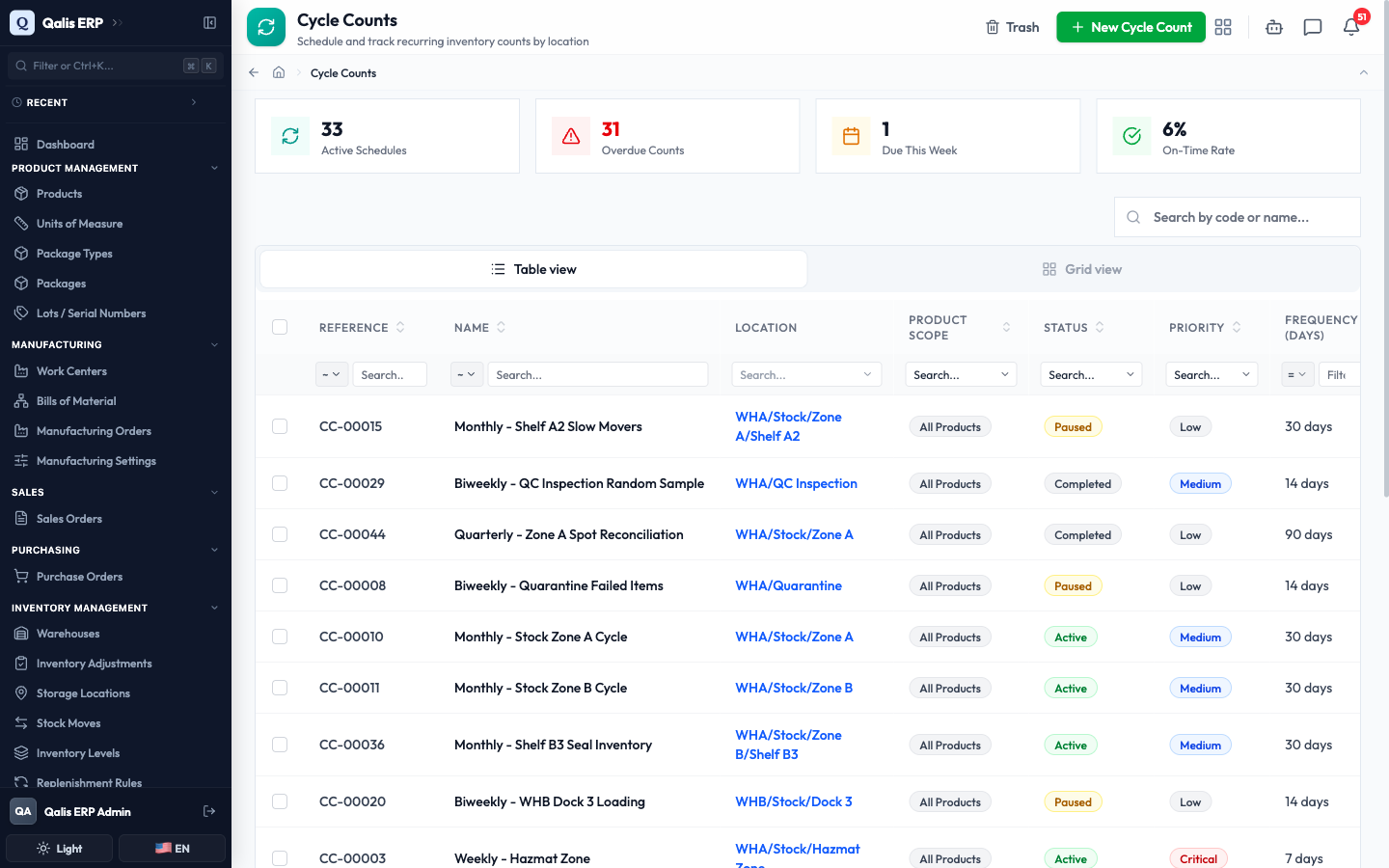
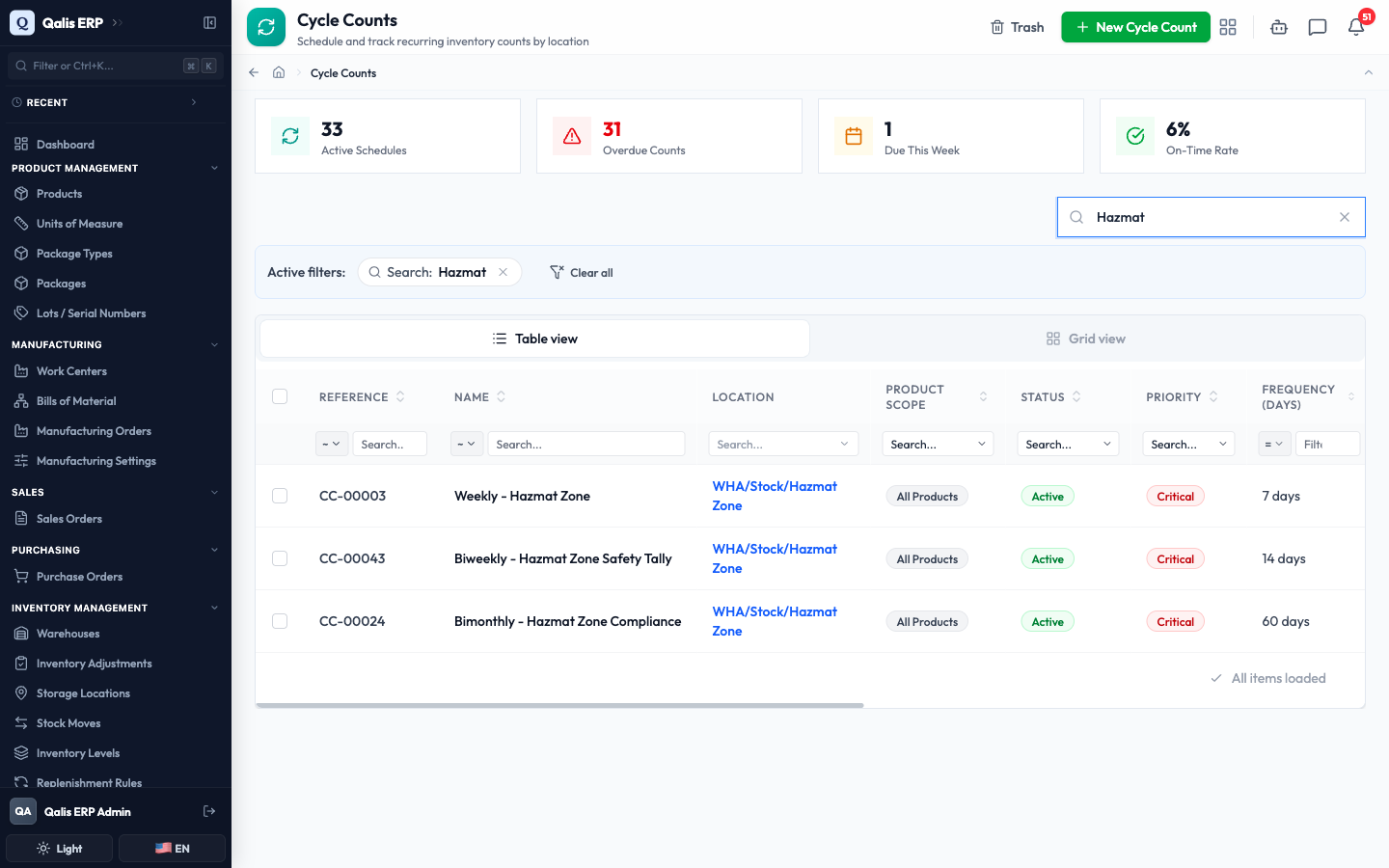
- To find one fast, type in the Search by code or name... box near the top right. The list filters as you type, so there is no need to press Enter.
- To narrow by a single attribute, use the small filter box under any column heading. For example, open the Status filter and pick Paused to see only the schedules that are on hold. You can filter the same way by Location, Product Scope, Priority, Assigned To, or by a date range on the next count, last count or created date.
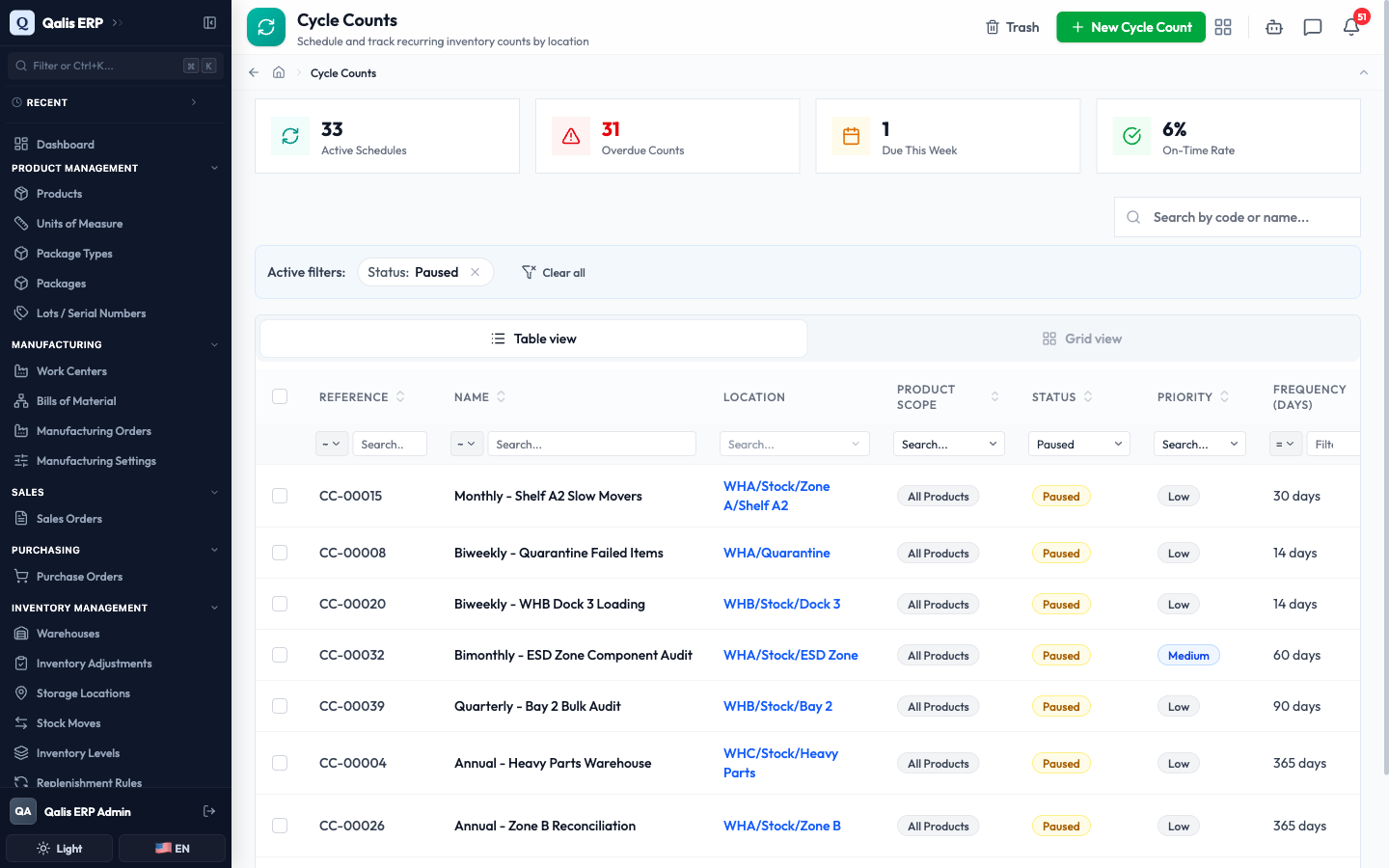
Whenever a filter is on, an Active filters banner appears above the list showing what is applied. Click the small x on a filter to drop it, or Clear all to reset everything. The web address updates too, so you can bookmark or share a filtered view.
Create a cycle count schedule
This is the main task: setting up a new plan to count a location on a regular rhythm. The form is split into four tabs, so you can fill it in one part at a time. Nothing is saved until you click Save, so you can move between tabs freely.
- On the list, click New Cycle Count at the top right.
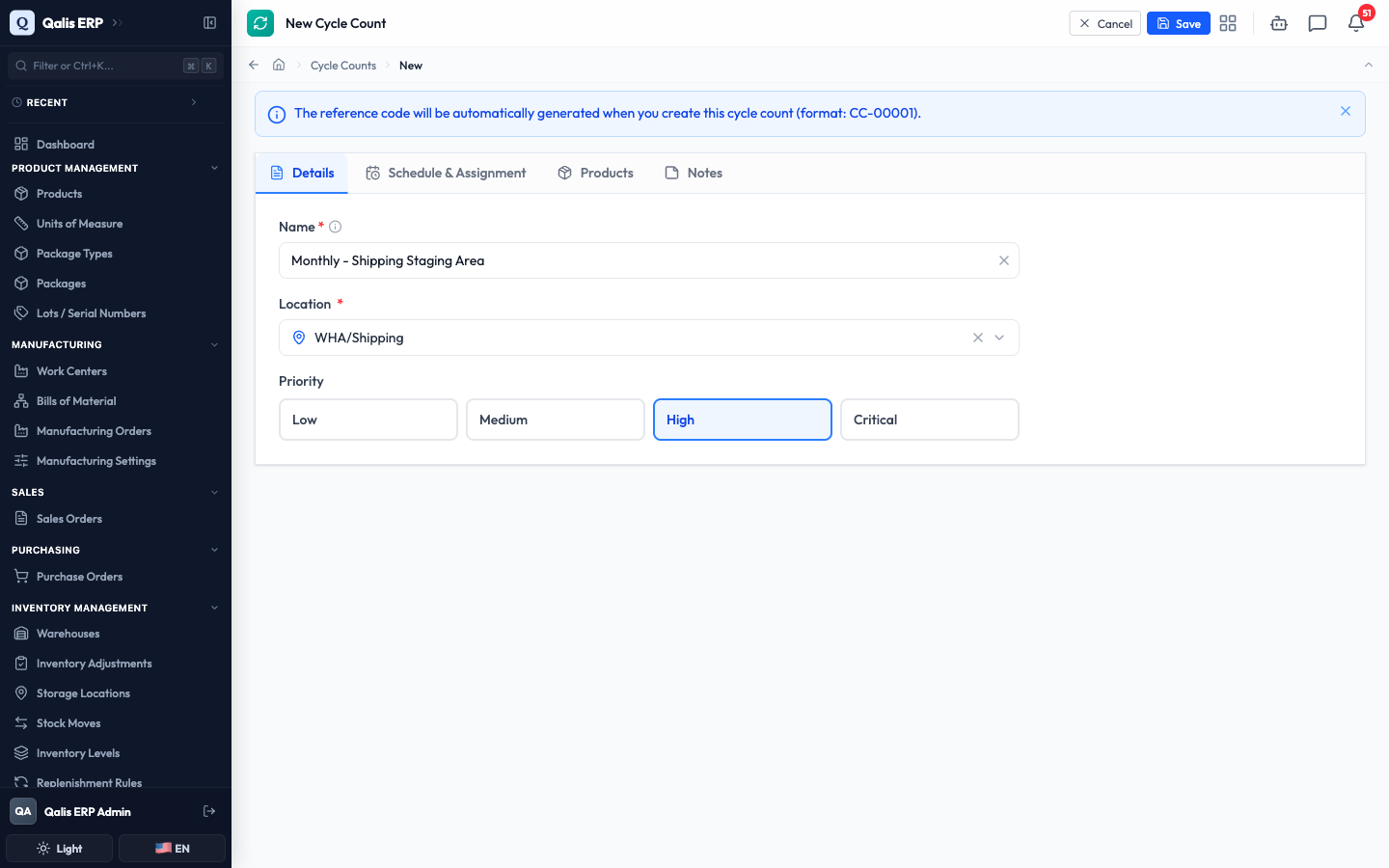
- On the Details tab, type a clear Name that tells people what this plan is for, for example "Monthly - Shipping Staging Area". This is required.
- Click Select location... and choose the location this plan counts. This is required.
- Pick a Priority: Low, Medium, High or Critical. This helps your team see which counts matter most.
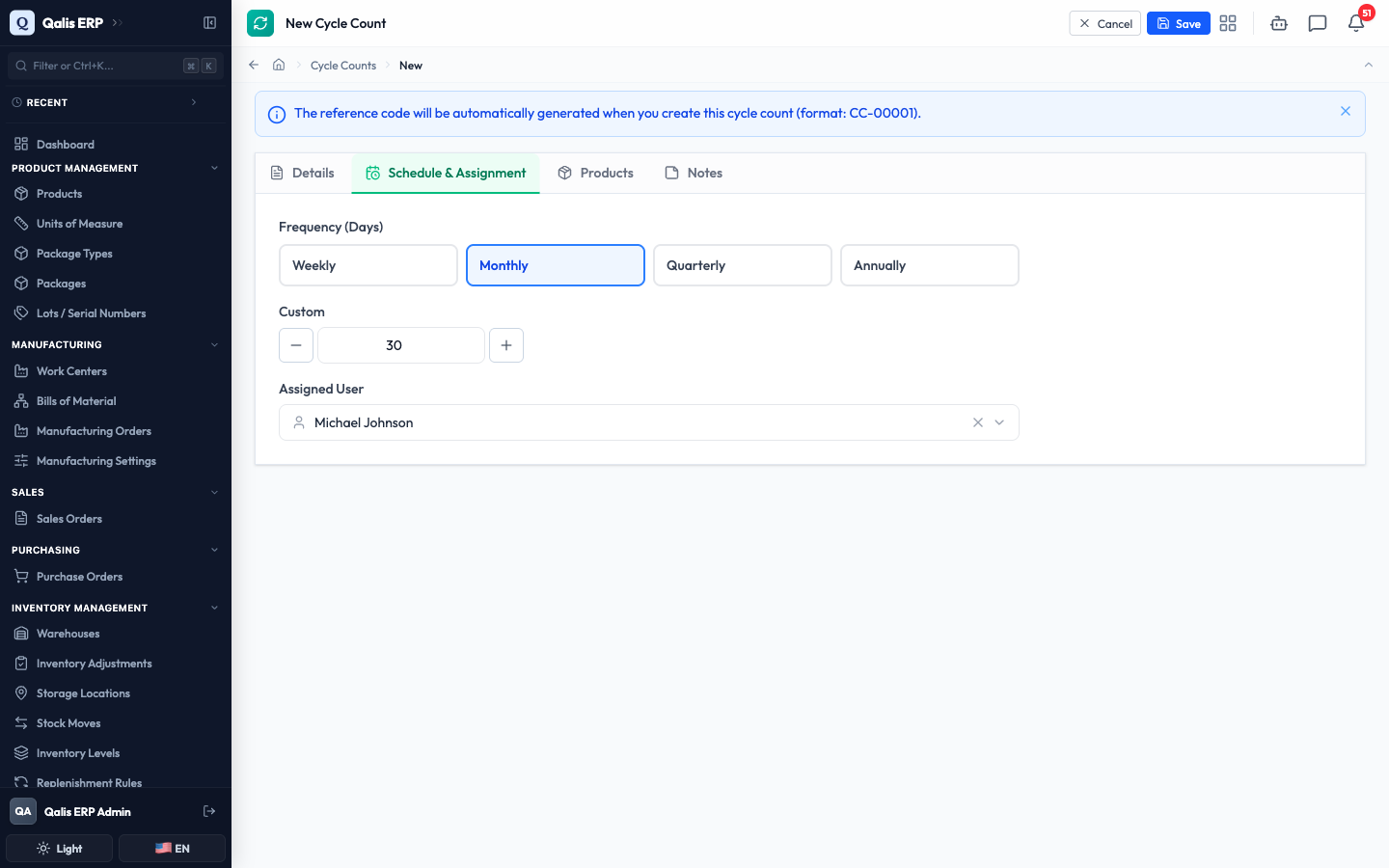
- Switch to the Schedule & Assignment tab. Under Frequency (Days), pick how often to count: Weekly, Monthly, Quarterly or Annually. If you need a different rhythm, type any number of days in the Custom box, or use the plus and minus buttons.
- Optionally, open Assigned User and choose the person responsible for counting this location.
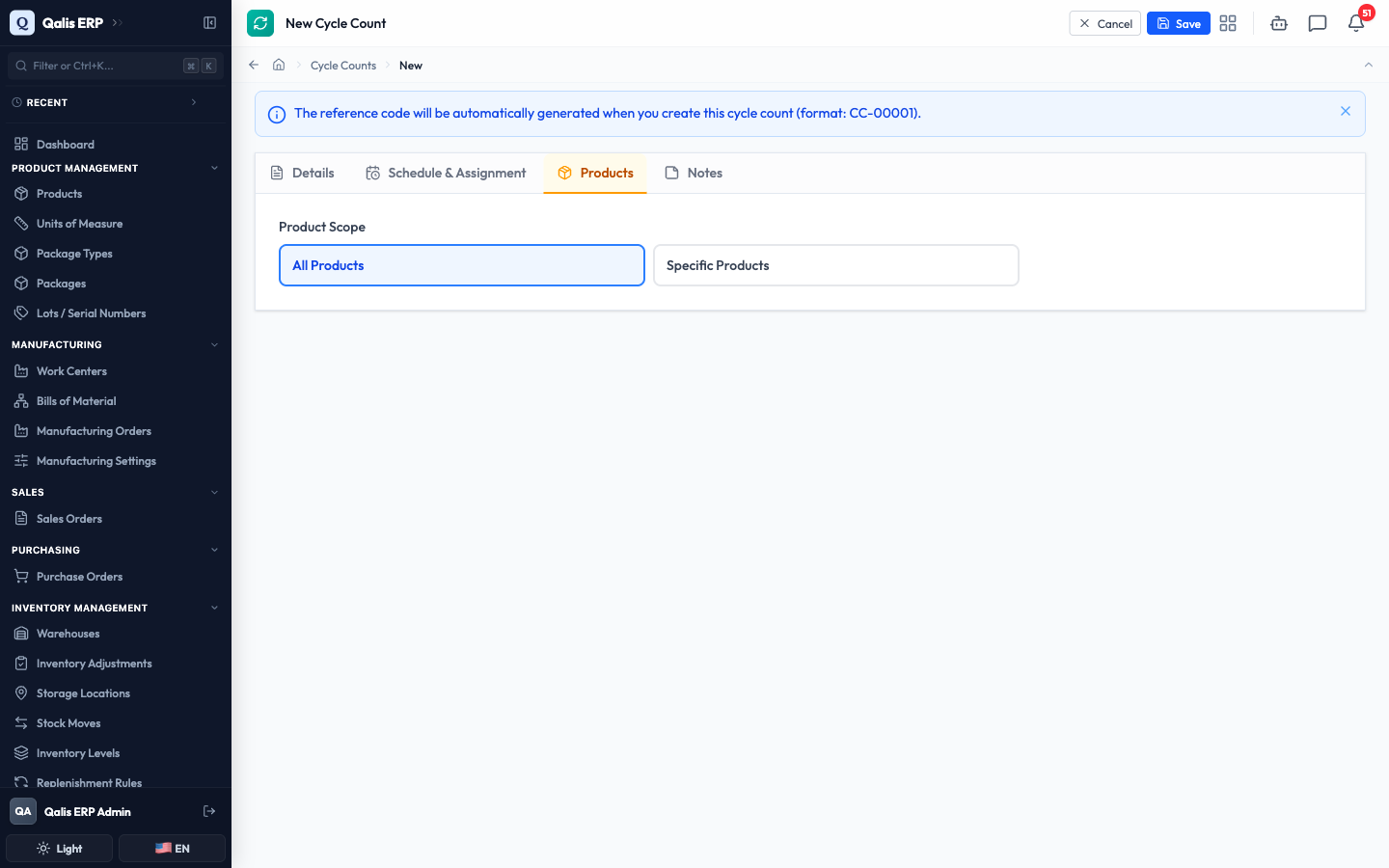
- Switch to the Products tab and choose a Product Scope. Leave it on All Products to count everything at the location. Choose Specific Products if you only want to count a short list of items, and a product picker appears so you can add them.
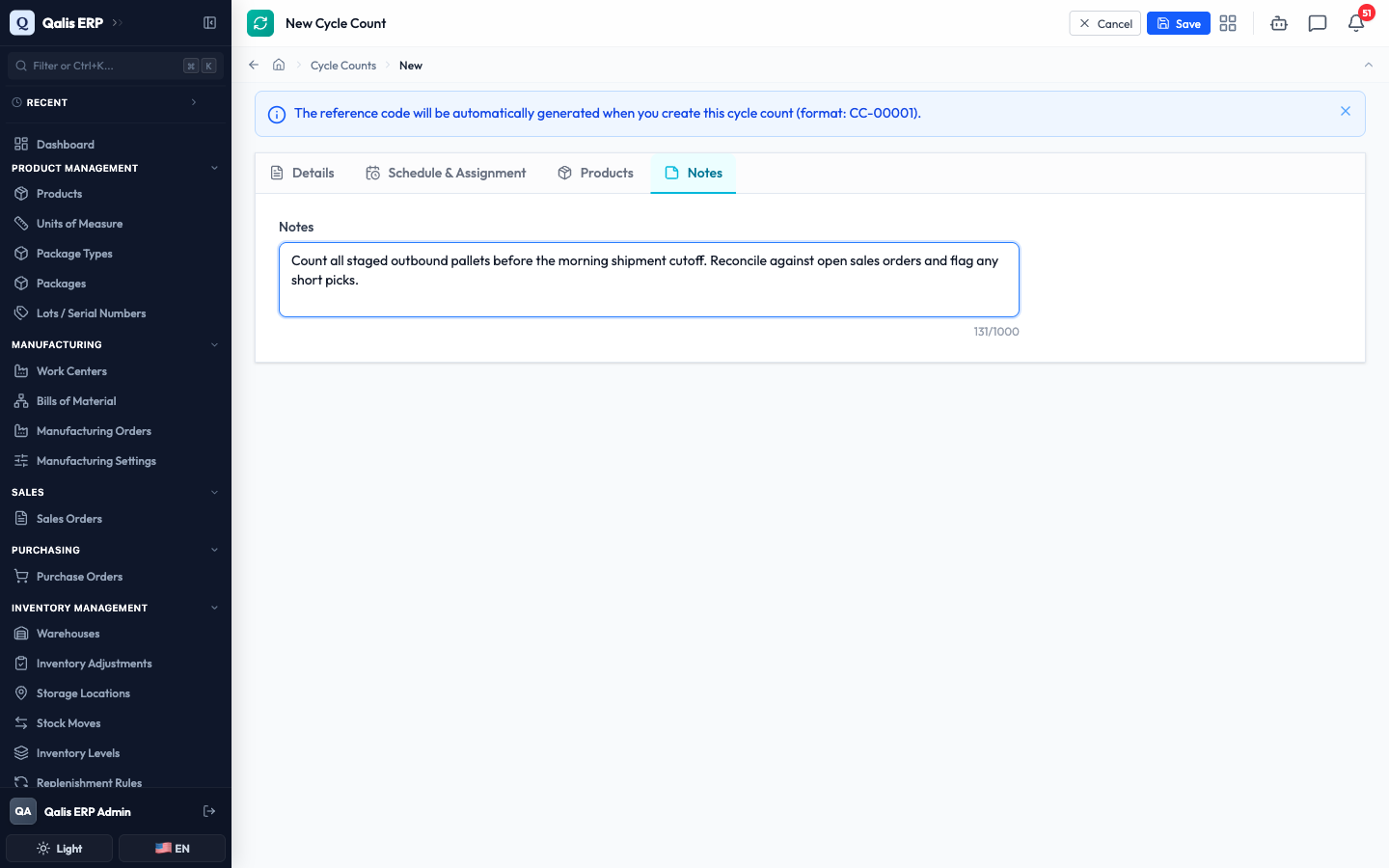
- Switch to the Notes tab to add any instructions for whoever does the count, for example what to check or when to do it. A counter shows how much room is left.
- Click Save at the top right.
Qualis gives the schedule its own reference (like CC-00046), saves it, and takes you straight to its detail page.
The reference code, the Next Count Date, and the count totals are all worked out for you. A brand new schedule starts with no last count yet, so you do not type those in.
Read a schedule
Open any schedule to understand what it covers and where it stands.
- Click a Reference link in the list (or the schedule's name anywhere in Qualis). The detail page opens.
- The top of the page shows the schedule's name, its reference, a Status badge, and the buttons for everything you can do: Version History, Delete and Edit.
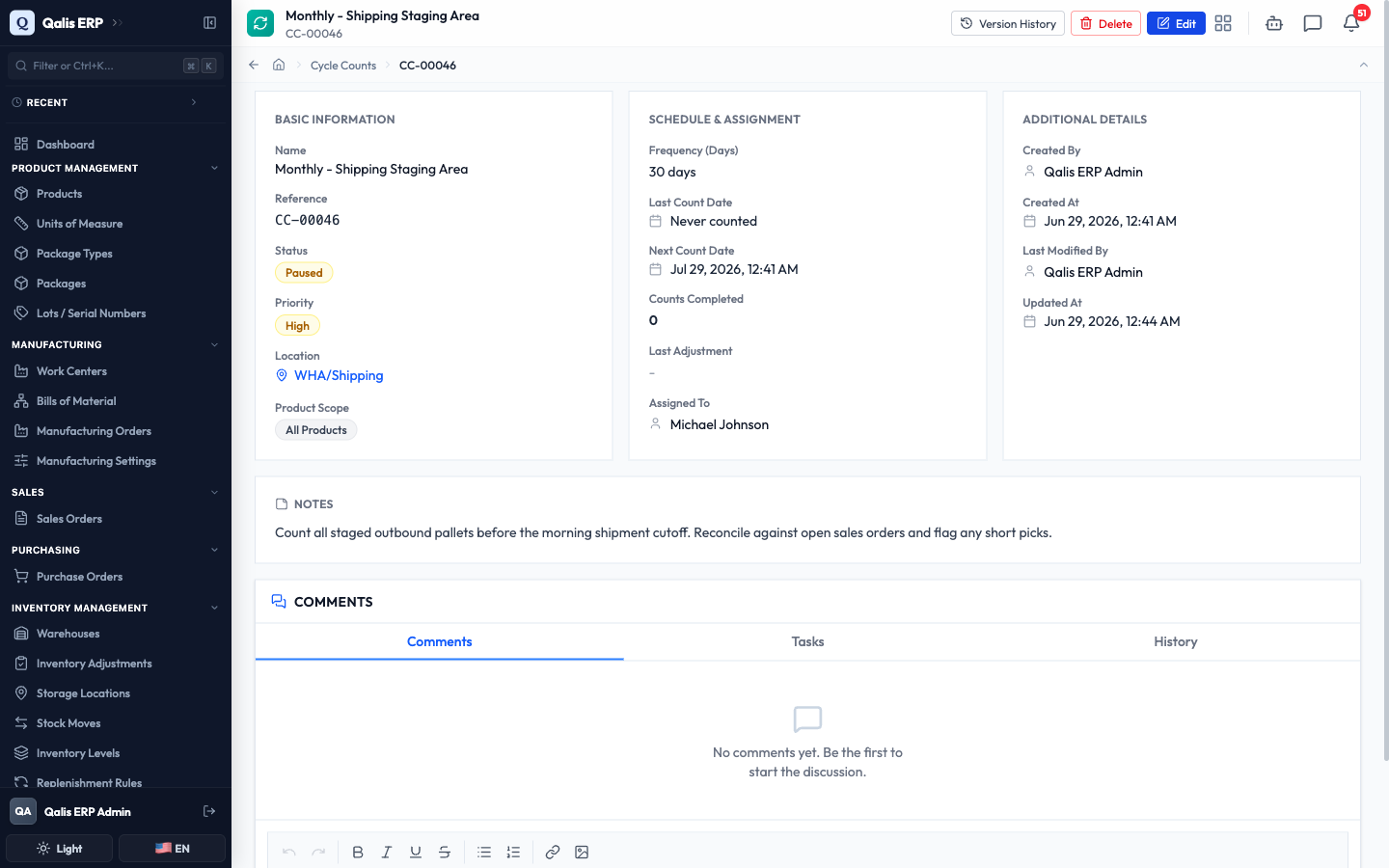
- The page is laid out in three cards. Basic Information shows the name, status, priority, location and product scope. Schedule & Assignment shows the frequency, the Last Count Date, the Next Count Date, how many Counts Completed so far, the Last Adjustment, and who it is Assigned To. Additional Details shows who created the schedule and when it last changed. Any notes appear in their own card below.
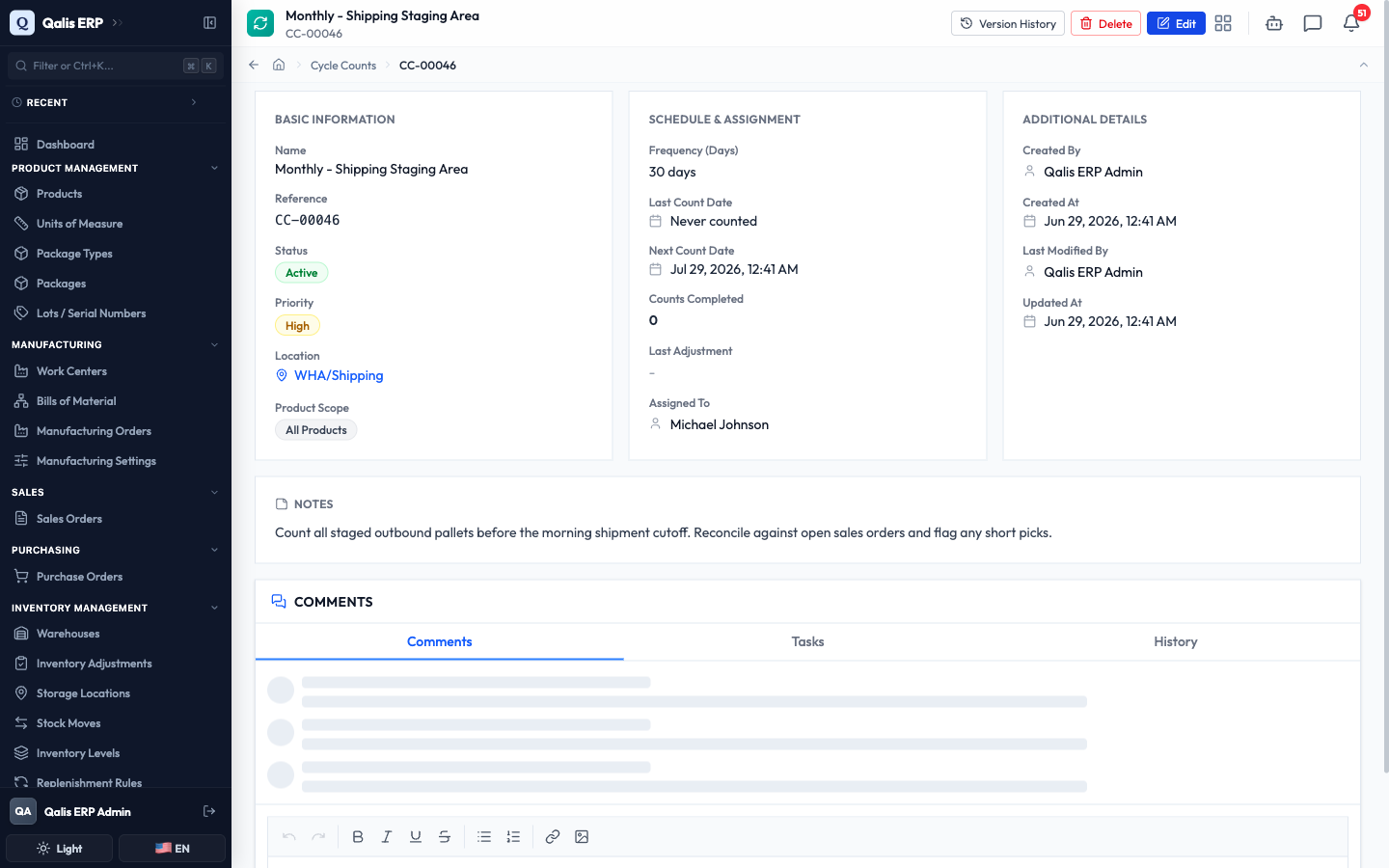
When a schedule is Active and its next count is in the past, the count is overdue. Qualis shows a red banner across the top and turns the Next Count Date red, so you know to count that location soon.
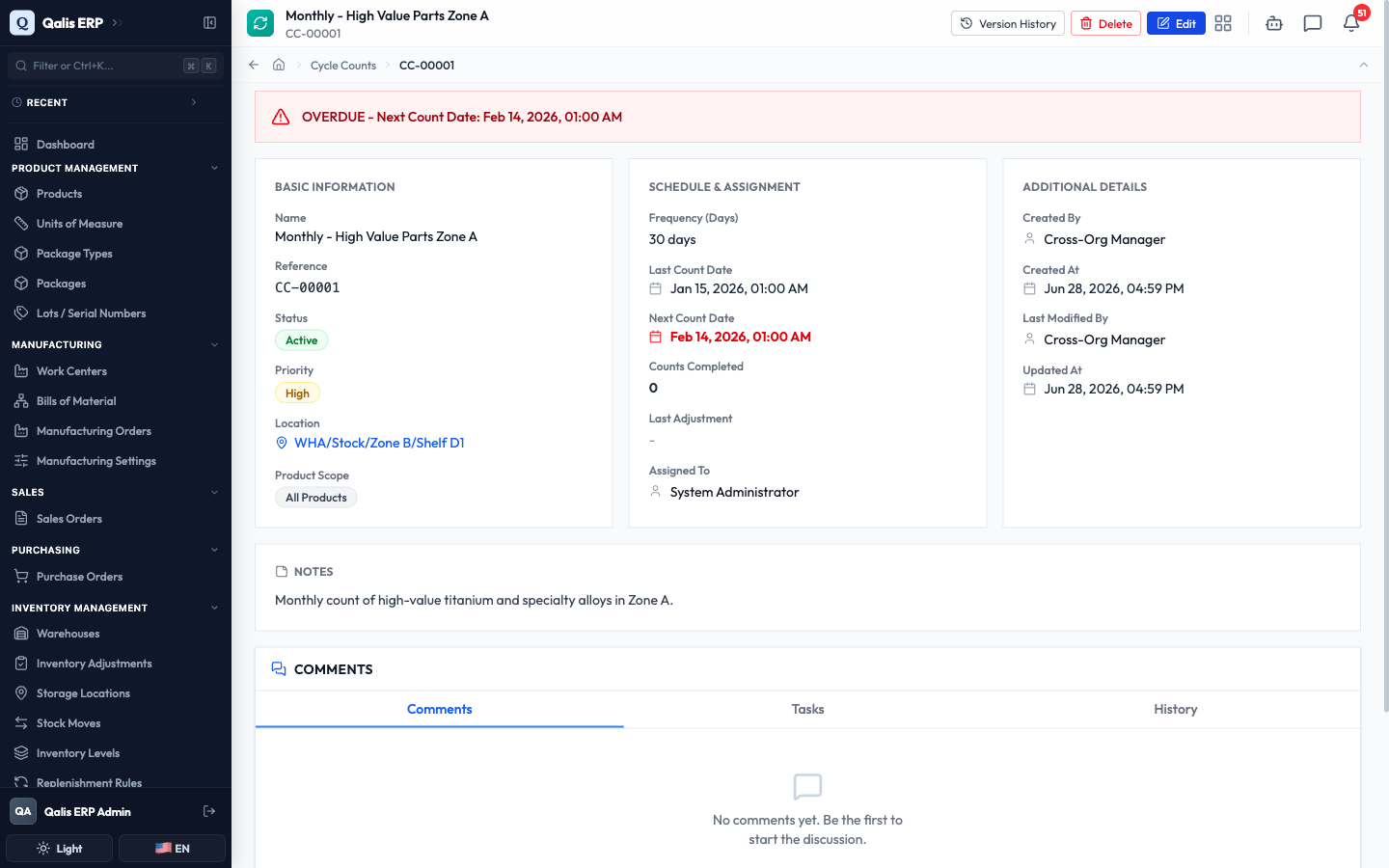
The Last Count Date, Counts Completed and Last Adjustment fill in by themselves. They update each time a count for this location is recorded as an inventory adjustment, so you never edit them by hand.
Pause or resume a schedule
Use this when a location should stop being counted for a while, for example during a reorganization, and later when it is ready again.
- On the schedule's detail page, click Edit at the top right.
- The form opens with everything filled in. On the Details tab, look for the Status buttons (these appear only when editing an existing schedule). Choose Paused to put the plan on hold, or Active to start it counting again. Completed marks a plan that is finished for good.
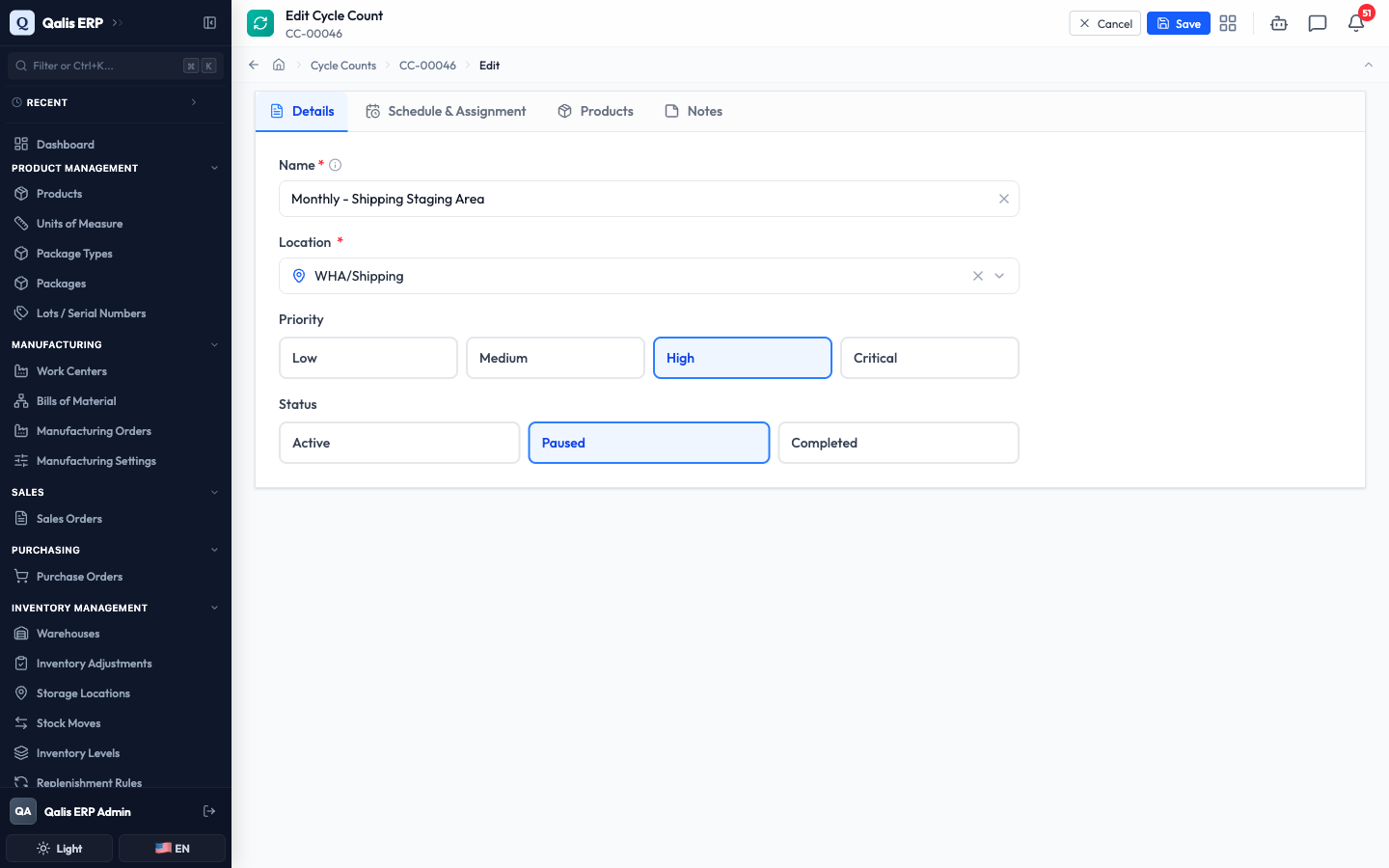
- Click Save at the top right.
Qualis saves the change and returns you to the detail page, where the status badge now reads Paused. A paused schedule is never flagged as overdue, so it drops out of your due and overdue counts until you resume it.
See what changed over time
Every save is recorded, so you can always see who changed what, and roll back if needed.
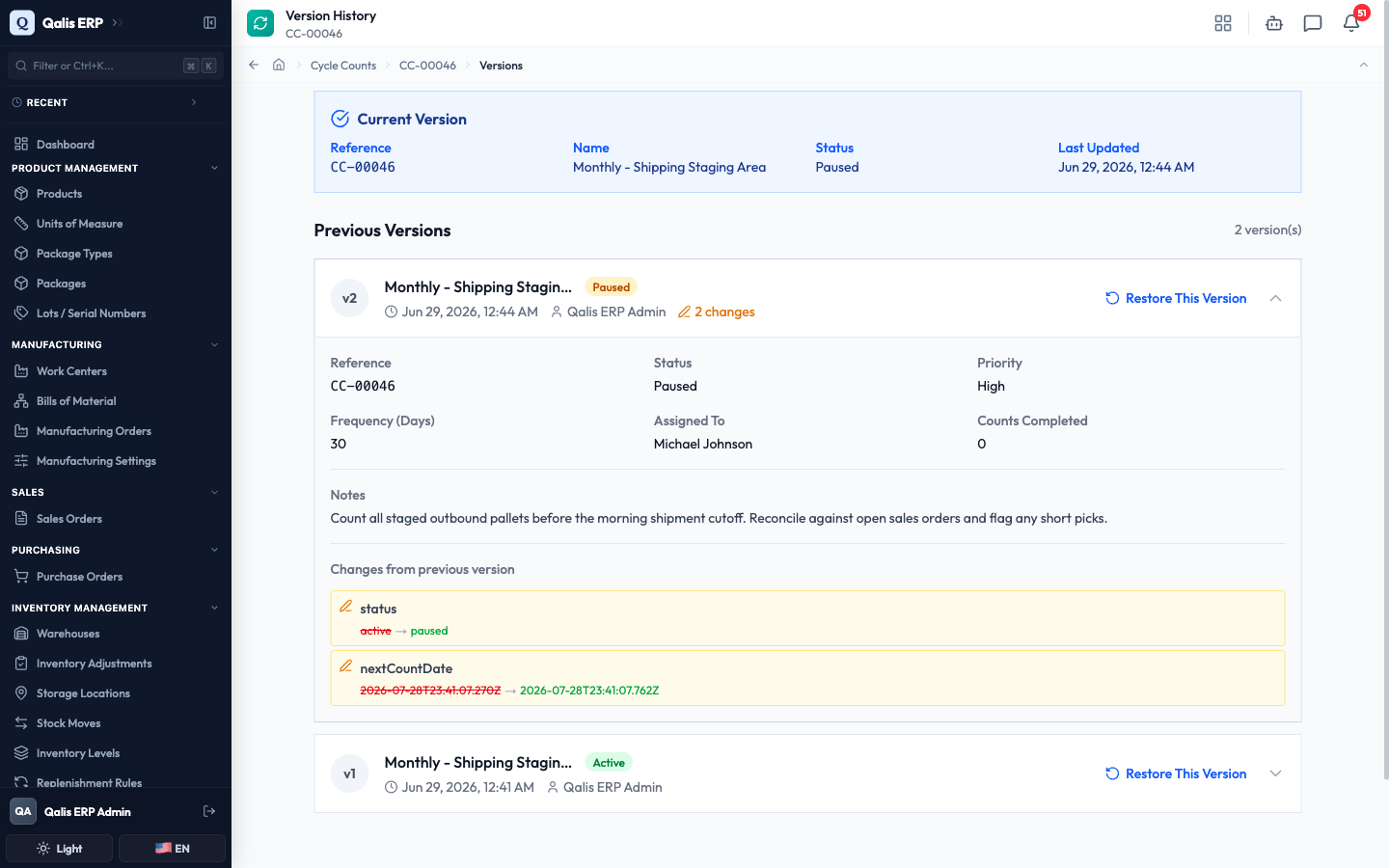
- On the detail page, click Version History at the top.
- You see the Current Version at the top and a list of Previous Versions below, each with the person who made it and when.
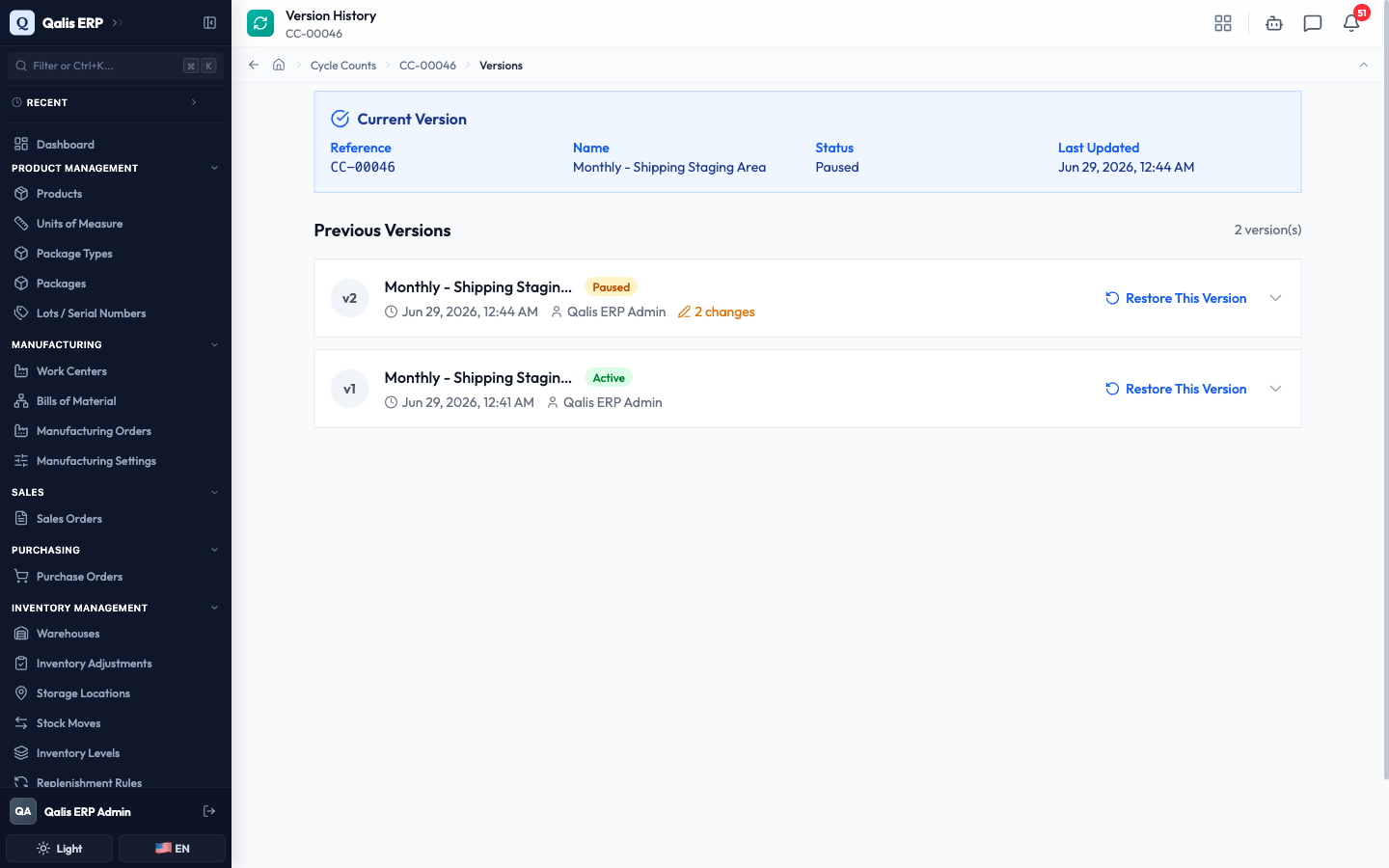
- Click a version (or its arrow) to expand it. The Changes from previous version panel shows each field that moved, for example status: active to paused. If you have edit permission, Restore This Version rolls the schedule back to that point.
Good to know
- Cycle count: a schedule to recount one location on a regular rhythm. The actual physical count is recorded elsewhere, as an inventory adjustment, which then updates this schedule's last count date and totals.
- Frequency: how many days pass between counts. Weekly is 7 days, Monthly is 30, Quarterly is 90, Annually is 365. You can also set any custom number of days.
- Next Count Date: the day a location is next due to be counted. Qualis works it out from the last count plus the frequency, so you cannot type it in.
- Overdue: an active schedule whose next count date has already passed. It shows a red warning so the location gets counted soon.
- Paused: a schedule that is temporarily on hold. It is not counted and never shows as overdue until you resume it.