Sales Orders
Take a customer order from a quotation through confirmation and delivery, with stock and purchasing handled for you.
Last updated on June 30, 2026
A sales order is the record of what a customer has bought from you. It says who the customer is, which products and how many, the price, and where to ship it. You start most orders as a quotation while you are still agreeing the details, then confirm it once the customer says yes. Confirming sets aside the stock you need and, for make-to-order items, raises the purchase or manufacturing orders to get them. When the goods are ready you record each delivery, and the order tracks its own progress from confirmed to partially delivered to fully delivered. This guide walks through the things you do most often: finding an order, creating one, reading it, confirming it, and recording a delivery.
Before you start
A sales order points at things you set up elsewhere in Qualis, so it helps to have these ready first:
- The customer you are selling to, set up in Clients.
- The products you are selling, set up in Products and marked as available for sale.
- A currency for the order. Qualis fills this in for you from the customer or your organization, so you rarely need to touch it.
You reach the module from the left sidebar under Sales, then Sales Orders.
Find and browse your sales orders
Start here to see everything you have and zero in on the one you need.
- Open Sales Orders from the sidebar. The list shows one row per order, with its Order #, Customer, Status, Order Date, Total, Currency and who created it.
- Across the top you have buttons for Trashed Sales Orders and New Sales Order, and you can switch between Table view and Grid view.
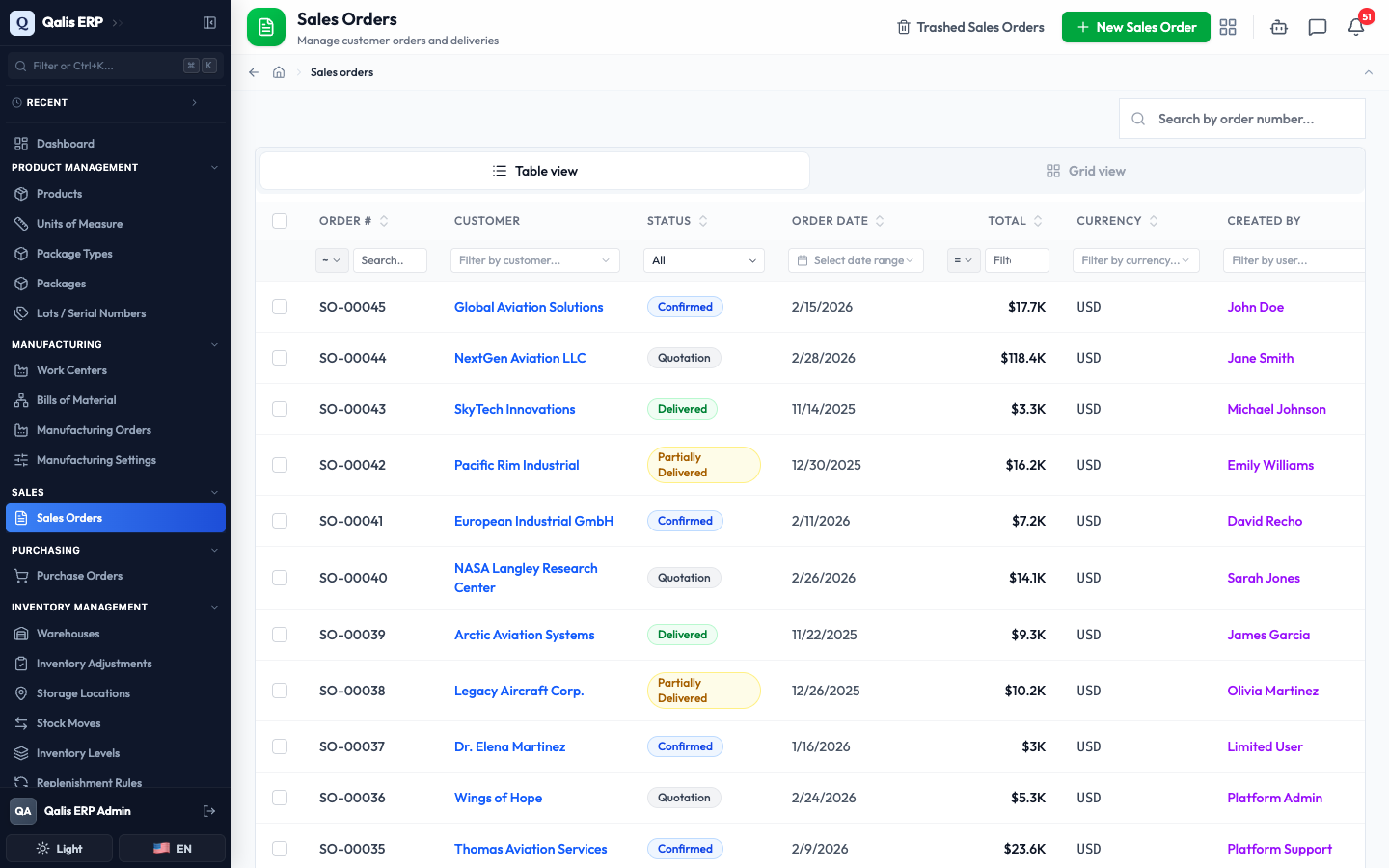
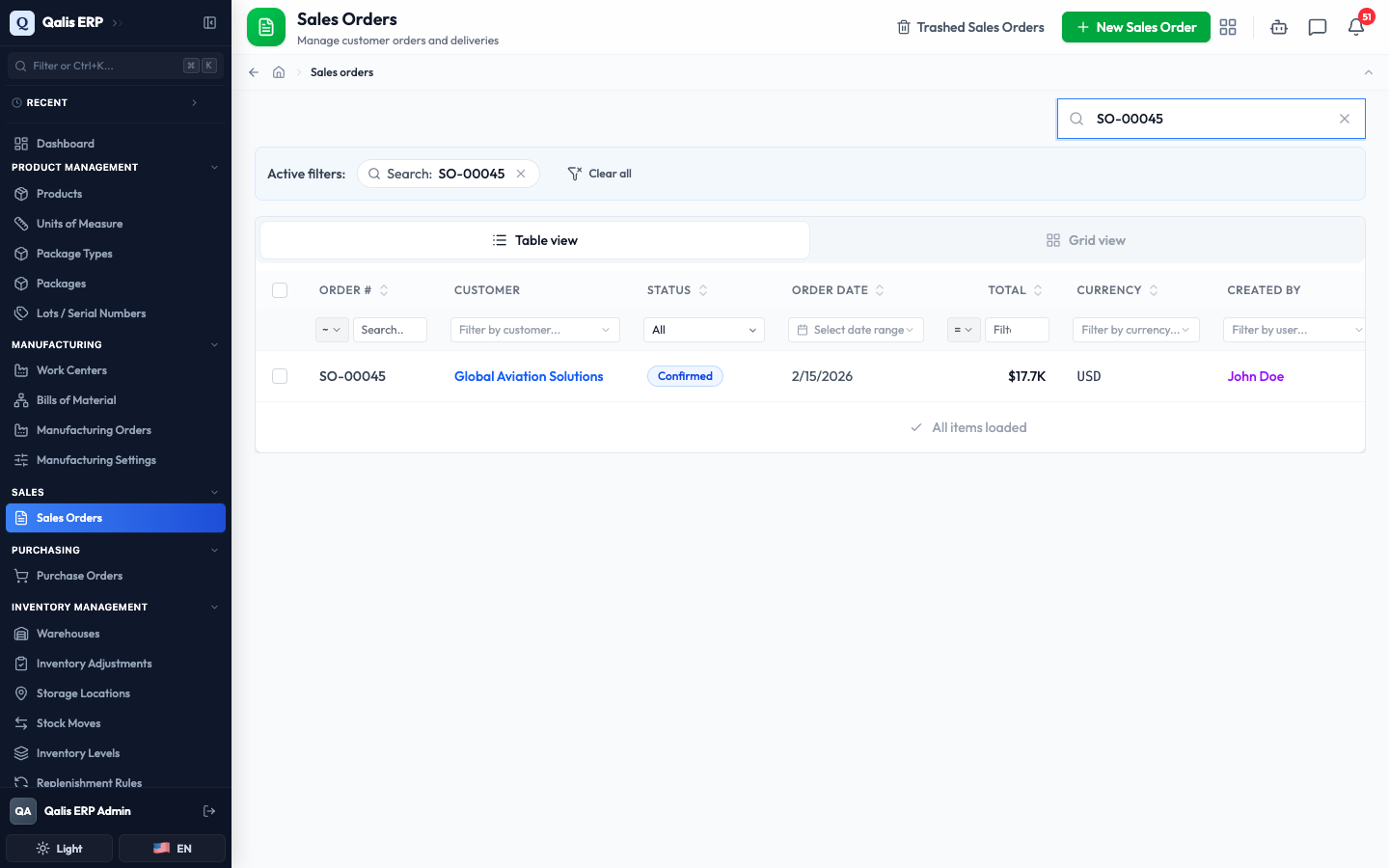
- To find one fast, type in the Search by order number... box at the top right. The list filters as you type, so there is no need to press Enter.
- To see only orders in a certain state, open the Status dropdown under the column heading and pick one, for example Confirmed. You can filter the same way by Customer, Currency, a date range or who created the order.
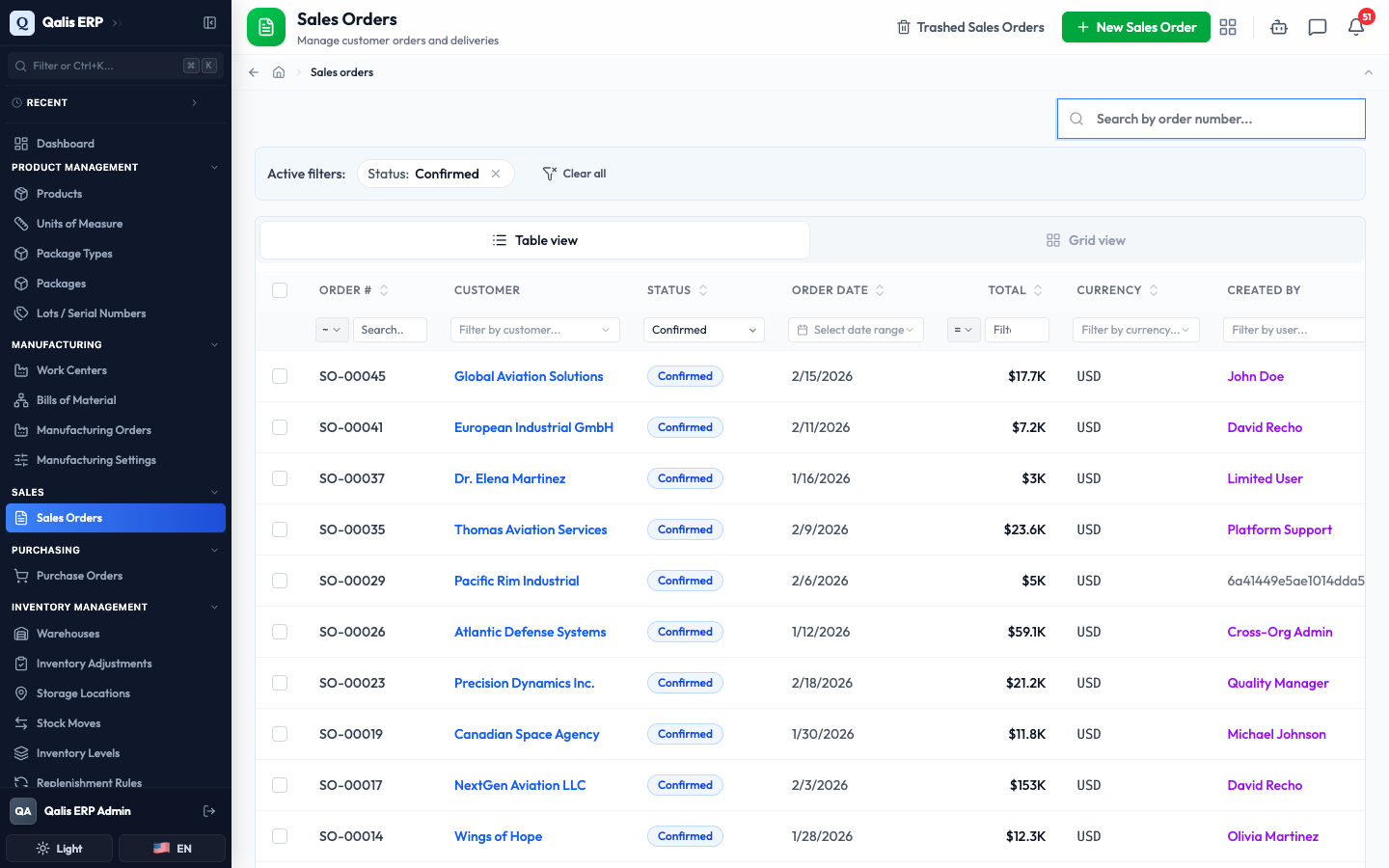
Whenever a filter is on, an Active filters banner appears under the search box showing what is applied. Click the small x on a filter to drop it, or Clear all to reset everything. The web address updates too, so you can bookmark or share a filtered view.
Create a sales order
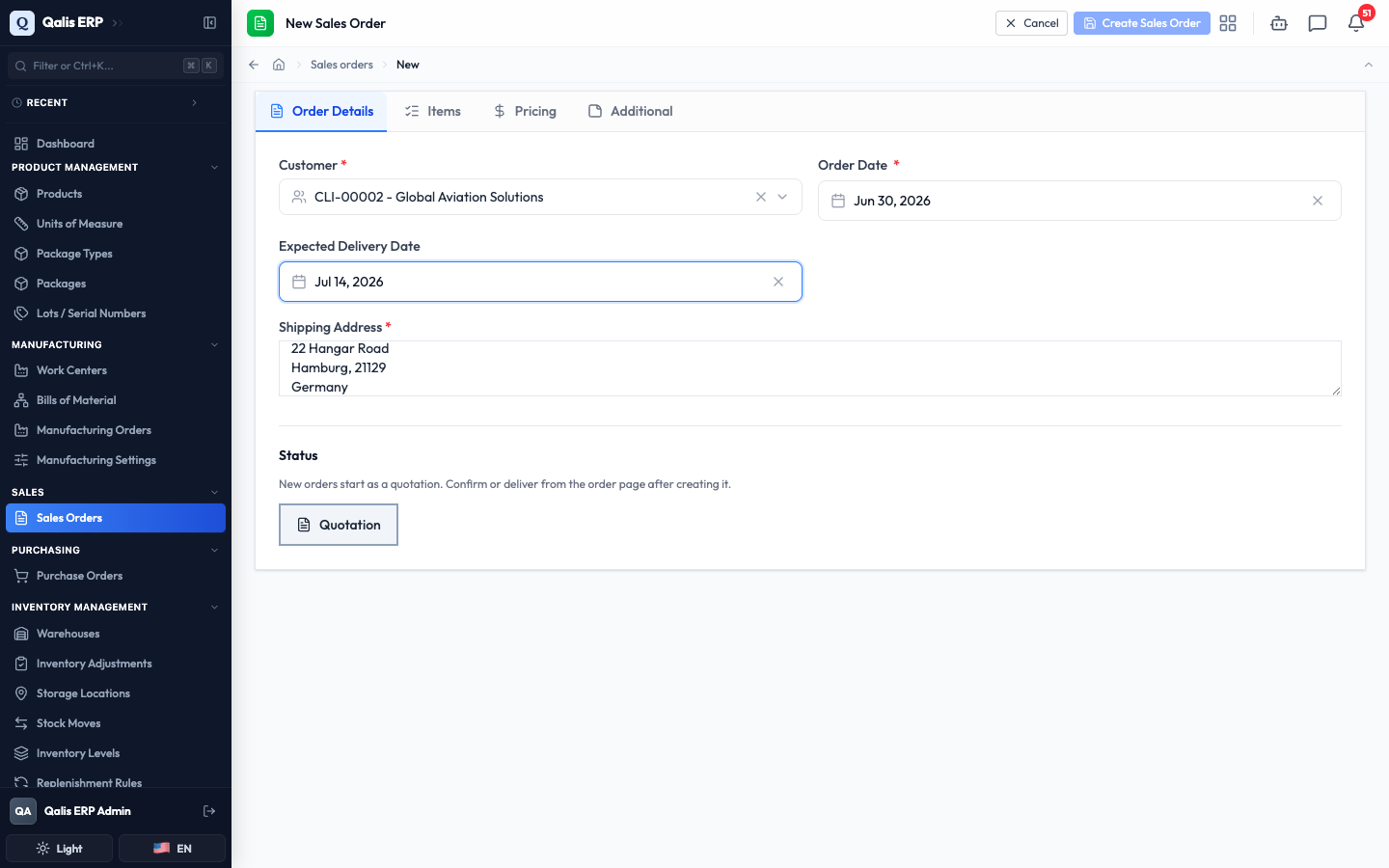
This is the main task: writing down what a customer has ordered. The form is split into tabs, so you can fill it in one section at a time. New orders always start as a quotation.
- On the list, click New Sales Order at the top right.
- On the Order Details tab, click Select a customer... and choose the customer. This is required. Picking the customer also fills in the order's currency for you.
- Set the Order Date (it starts on today) and, if you know it, an Expected Delivery Date from the calendar. The calendar has a Today button for quick picks.
- Type the Shipping Address where the goods should go. This is required.
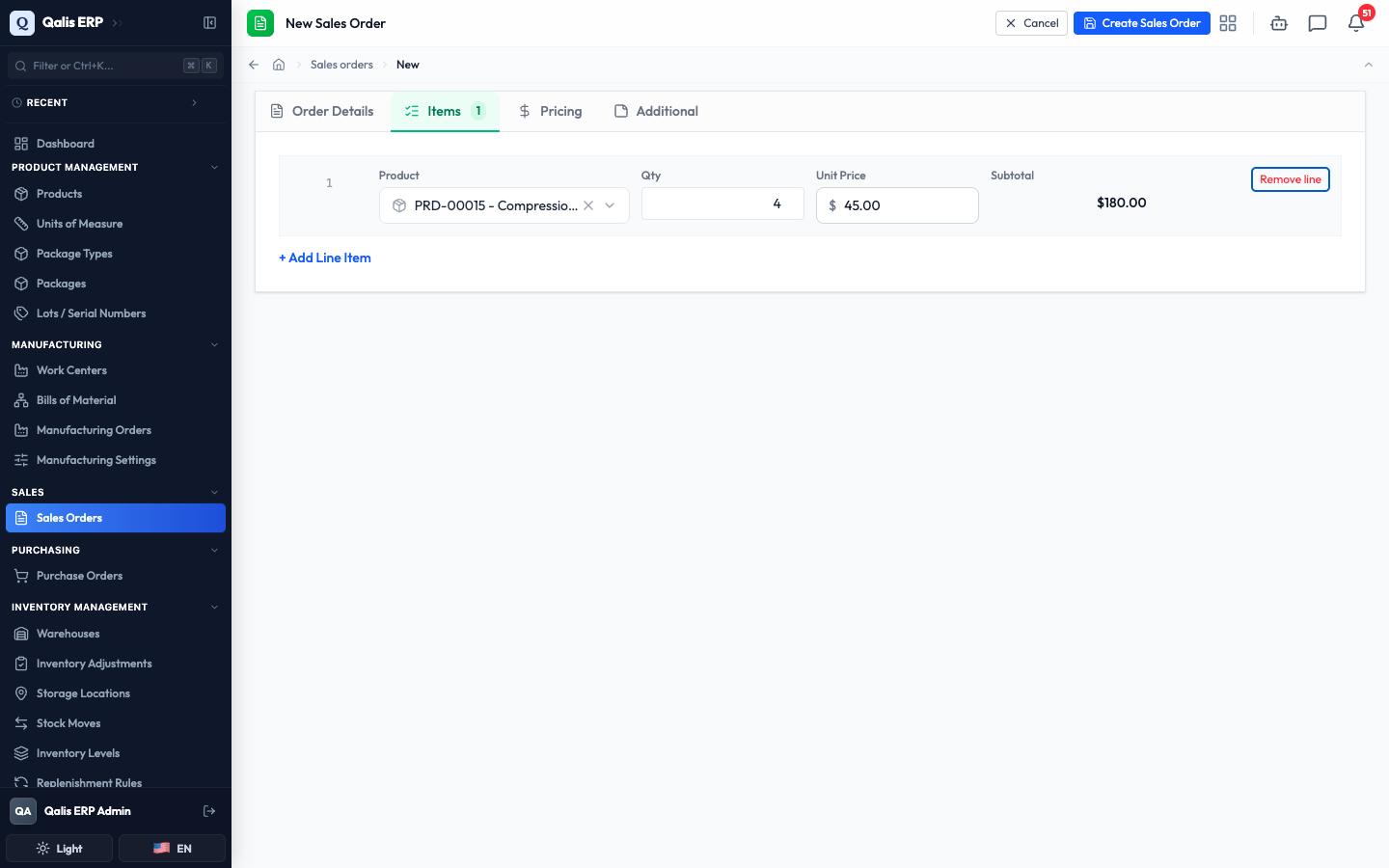
- Switch to the Items tab and click Add Line Item. For each line, pick the Product, set the Qty, and enter the Unit Price. Qualis shows the line Subtotal as you type. Add a line for every product the customer ordered, and use Remove line to drop one.
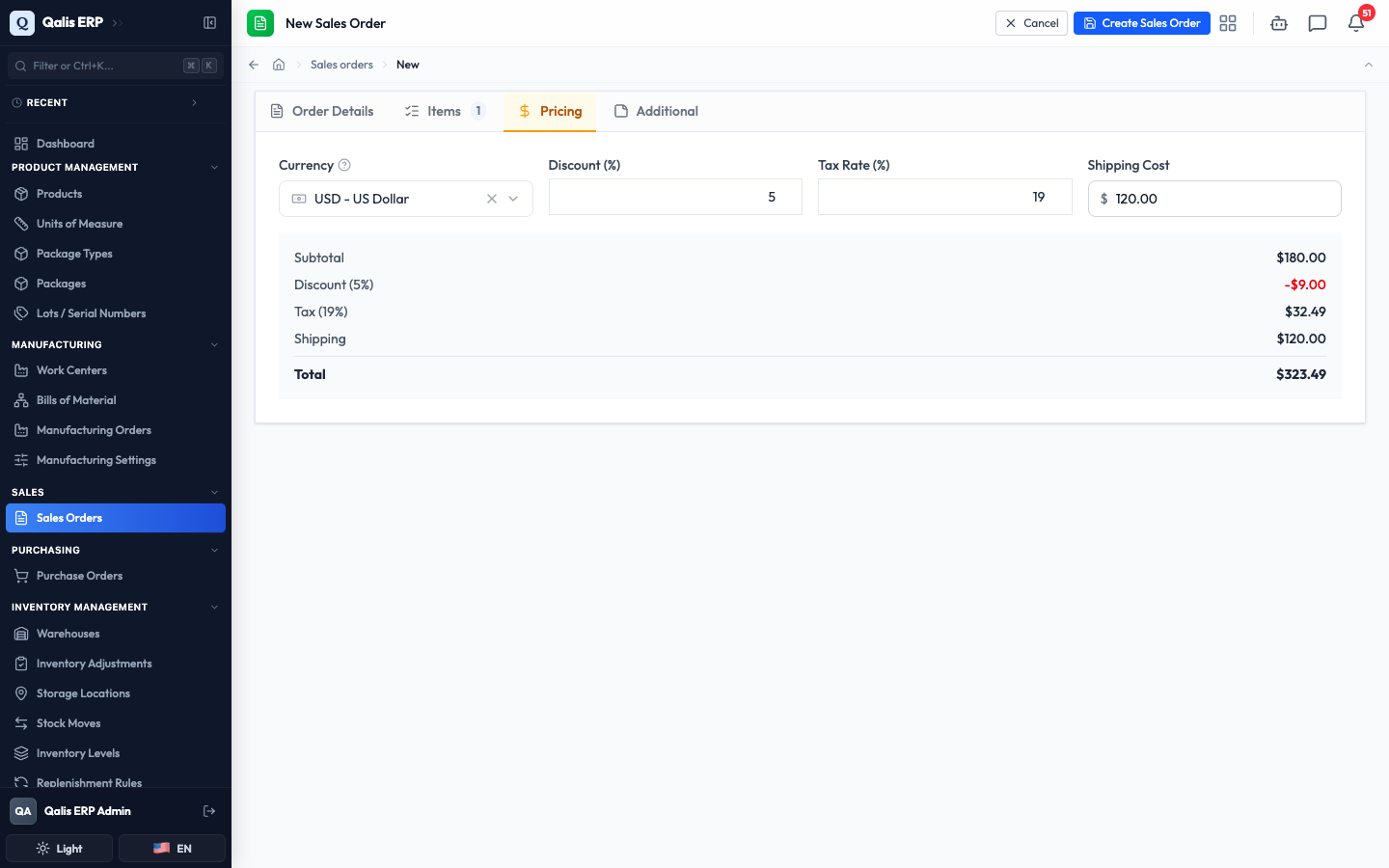
- Open the Pricing tab to set the money side. Enter a Discount (%), a Tax Rate (%) and a Shipping Cost if they apply. The summary box updates live, showing the Subtotal, the discount and tax amounts, the shipping, and the Total.
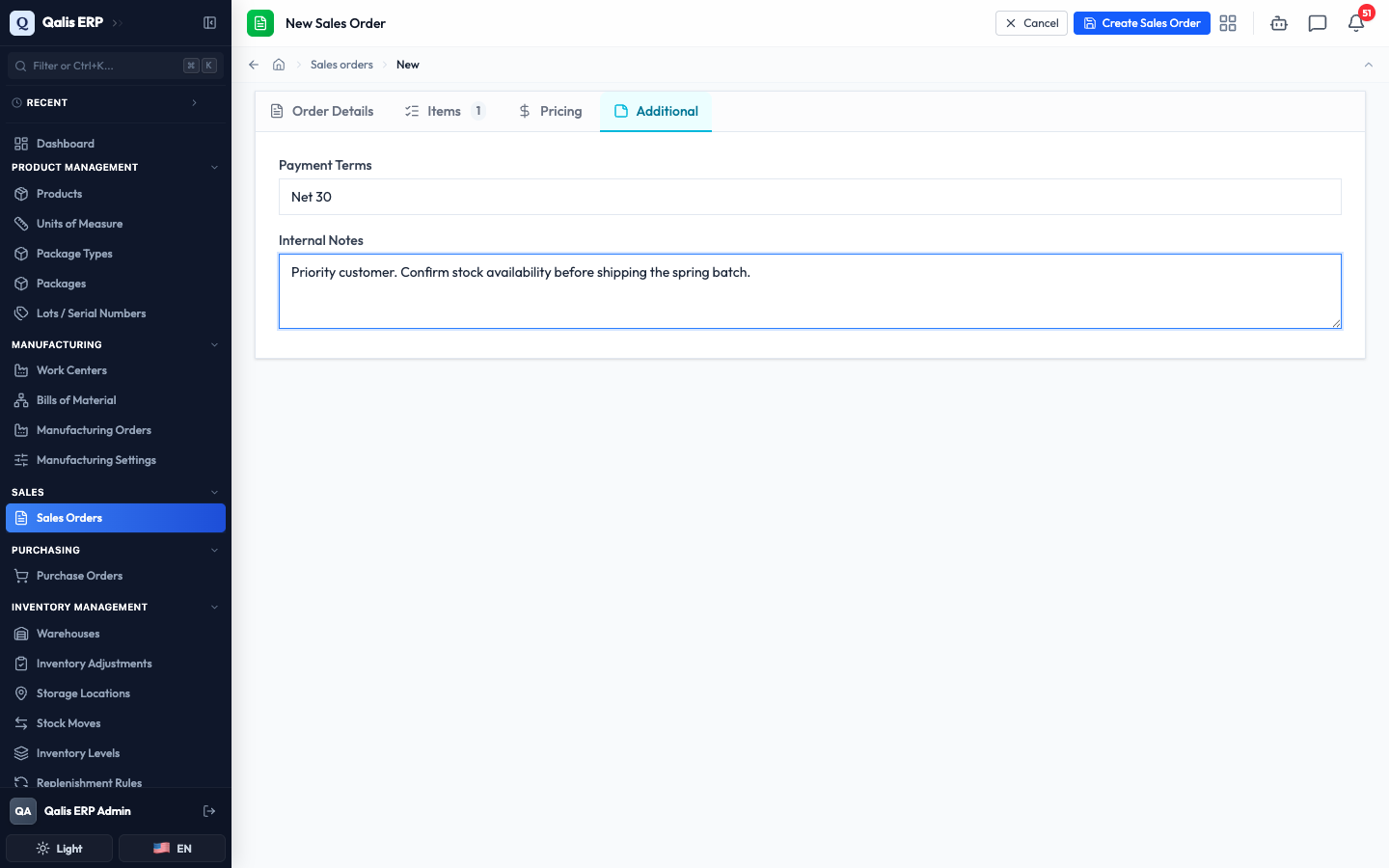
- On the Additional tab you can record Payment Terms (for example "Net 30") and Internal Notes that only your team sees. Both are optional.
- Click Create Sales Order at the top right to save.
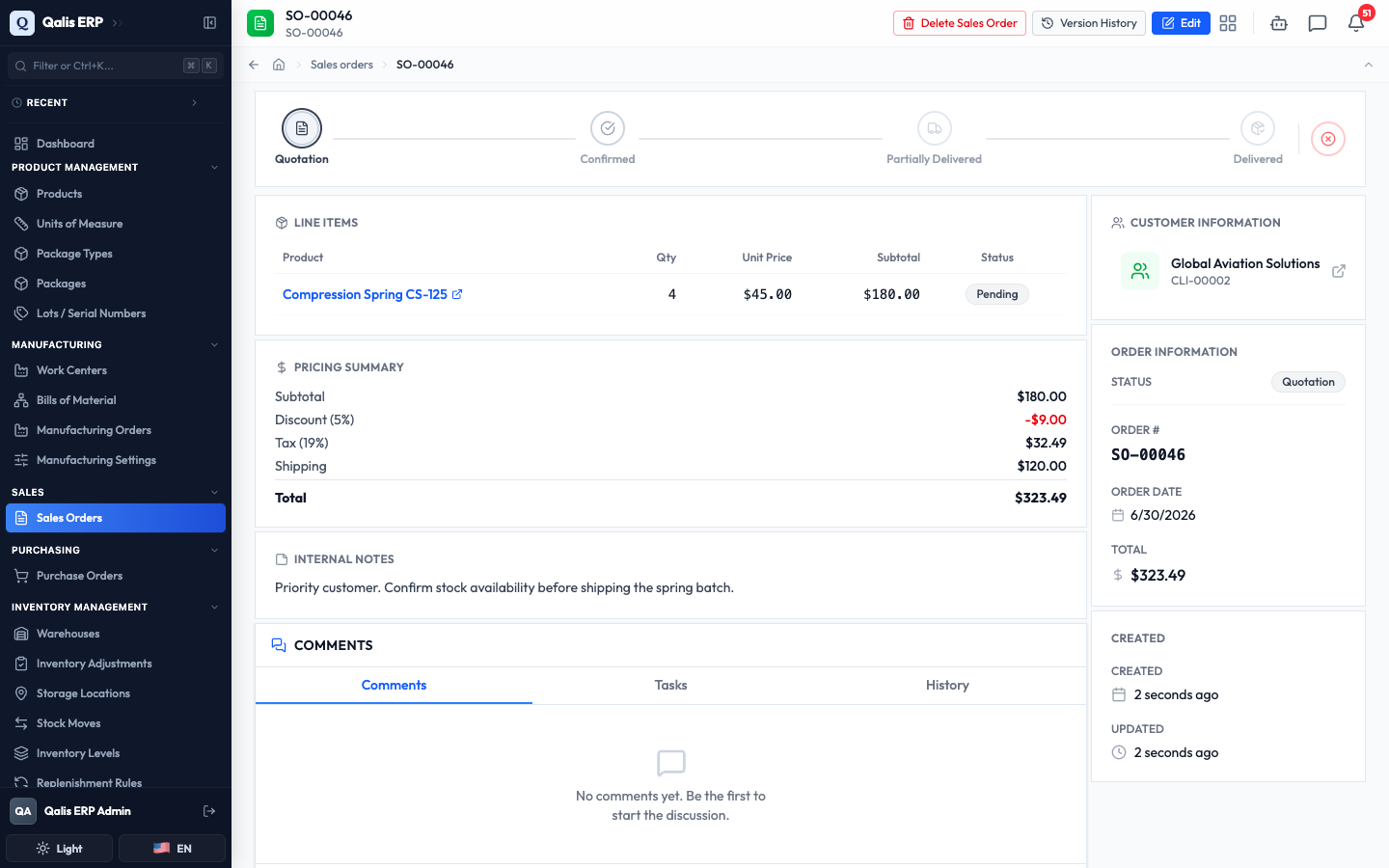
Qualis saves the order, gives it a number (like SO-00046), and takes you straight to its detail page. The order starts as a Quotation.
Nothing is committed while you are still filling in the form, so you can change your mind freely. The order only exists once you click Create Sales Order.
Read a sales order
Open any order to understand what was ordered and where it stands.
- Click a row in the list (or an Order # link anywhere in Qualis). The detail page opens.
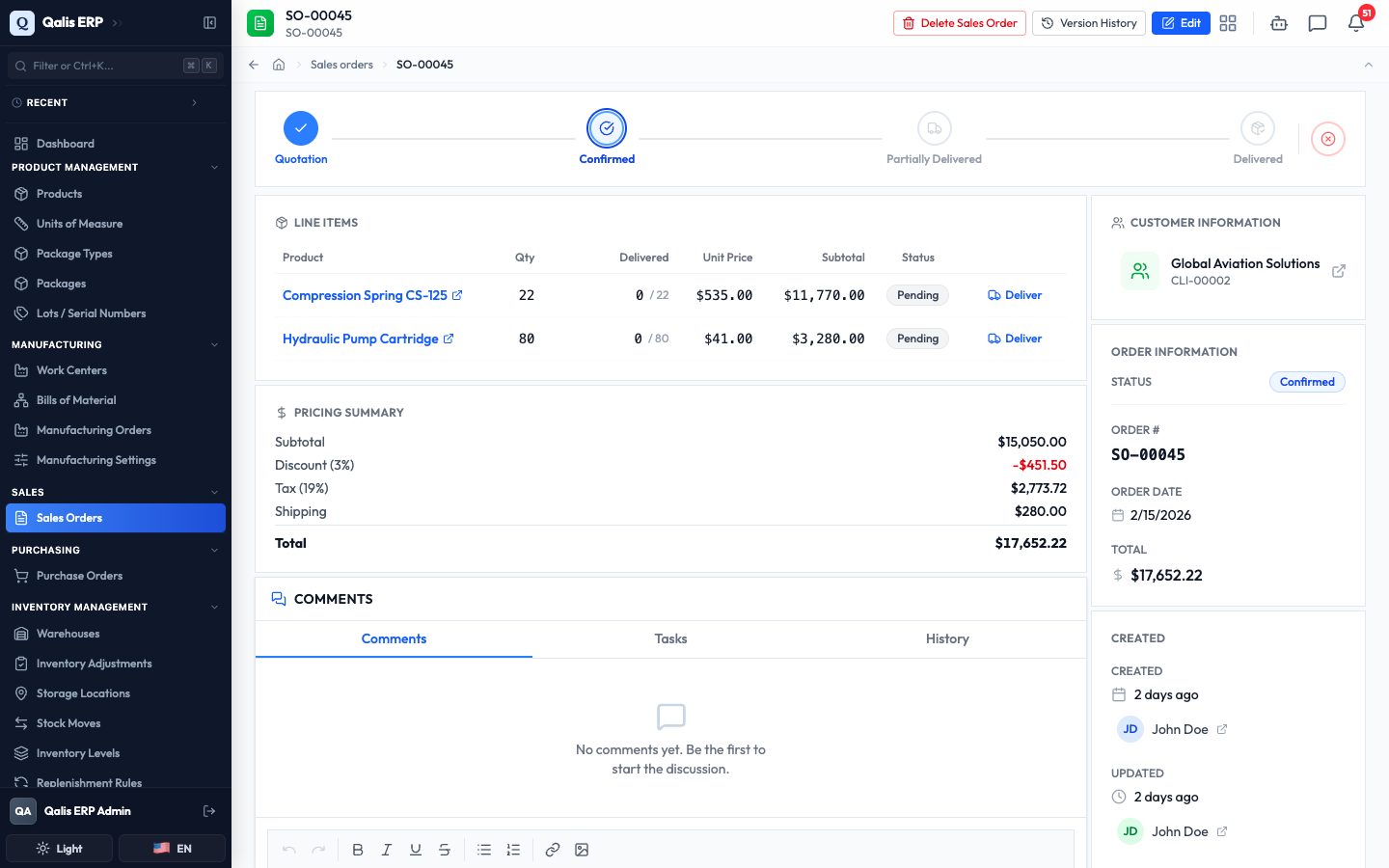
- The bar at the top of the page is the order's life shown as steps: Quotation, Confirmed, Partially Delivered, Delivered. The current step is highlighted, and completed steps show a check.
- The Line Items table lists each product with its quantity, unit price and line subtotal. The Pricing Summary below breaks down the subtotal, discount, tax, shipping and total.
- On the right, the Customer Information and Order Information panels show the customer, the status, the order date and the total, plus who created the order and when it last changed.
- At the very top right you have the buttons for what you can do to the order: Edit, Version History and Delete Sales Order.
Every detail page also has a Comments area at the bottom, where you and your team can leave notes, add tasks, and see the order's history.
Confirm an order
Confirming turns a quotation into a firm order. It sets aside (reserves) the stock the order needs, and for any make-to-order items it automatically raises the purchase orders or manufacturing orders needed to fulfil them.
- Open the quotation you want to confirm.
- On the status bar at the top, click the Confirmed step. The order moves to Confirmed.
- Each line now shows a Delivered count (such as 0 / 22) and a Deliver button, ready for you to record shipments. The status badge on the right reads Confirmed.
Your organization can require sign-off before an order is confirmed. When an approval is set up (see Approval Workflows), clicking Confirmed sends the order for approval instead, and it shows Pending Approval until the approvers sign off. Confirming also reserves stock, so if there is not enough on hand the order stays a quotation and tells you what is short.
Record a delivery
Once an order is confirmed, you record each shipment as it goes out. The order keeps a running count of how much of each line has been delivered, and moves itself along as you go.
- Open a Confirmed (or Partially Delivered) order. On the line you are shipping, click Deliver.
- A panel opens for that product. It shows how many were Ordered, how many are already Delivered, and how many are Remaining. Enter the Quantity to deliver for this shipment, using the plus and minus buttons or by typing.
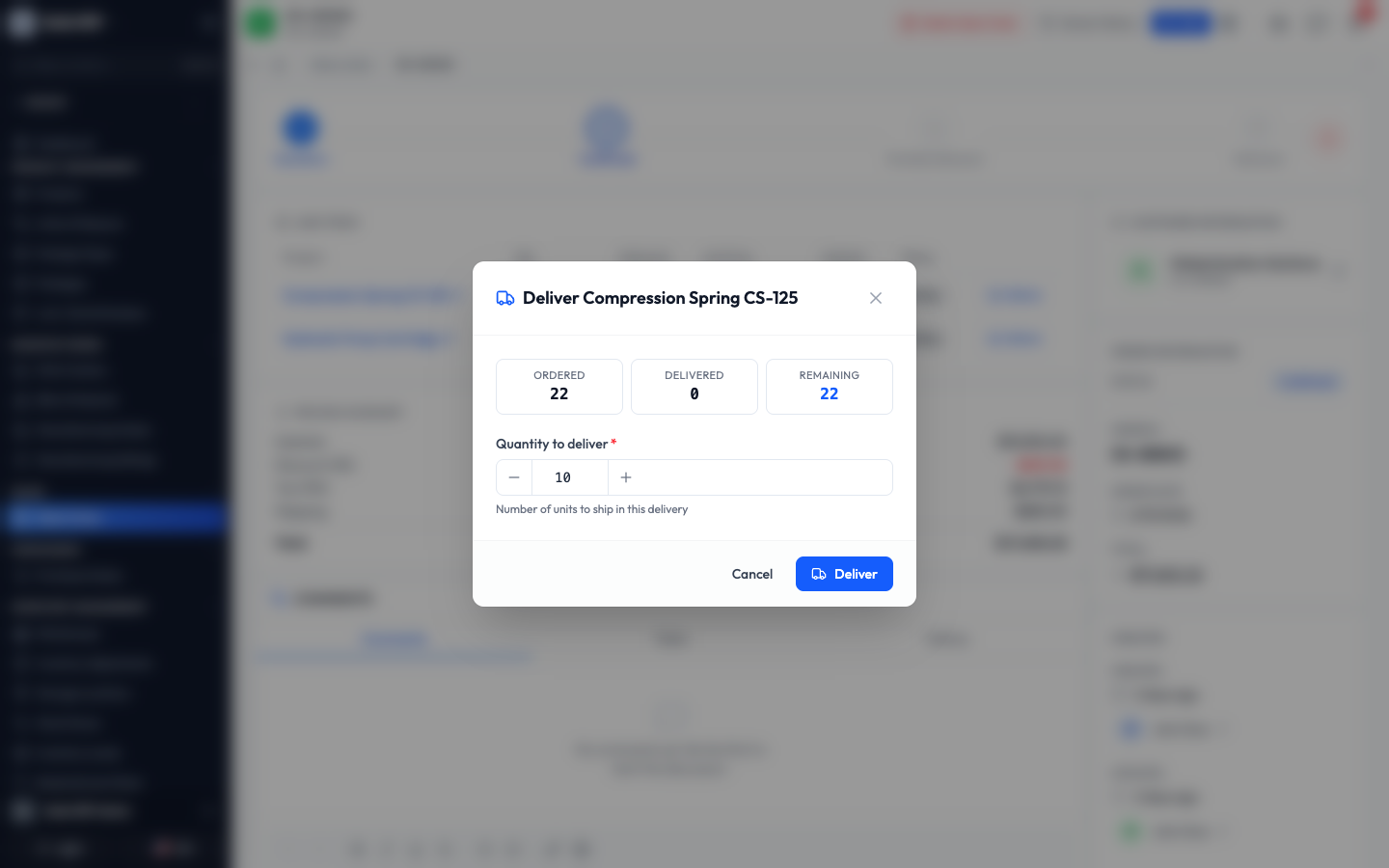
- Click Deliver to record the shipment. Qualis ships the goods from stock and updates the line's delivered count.
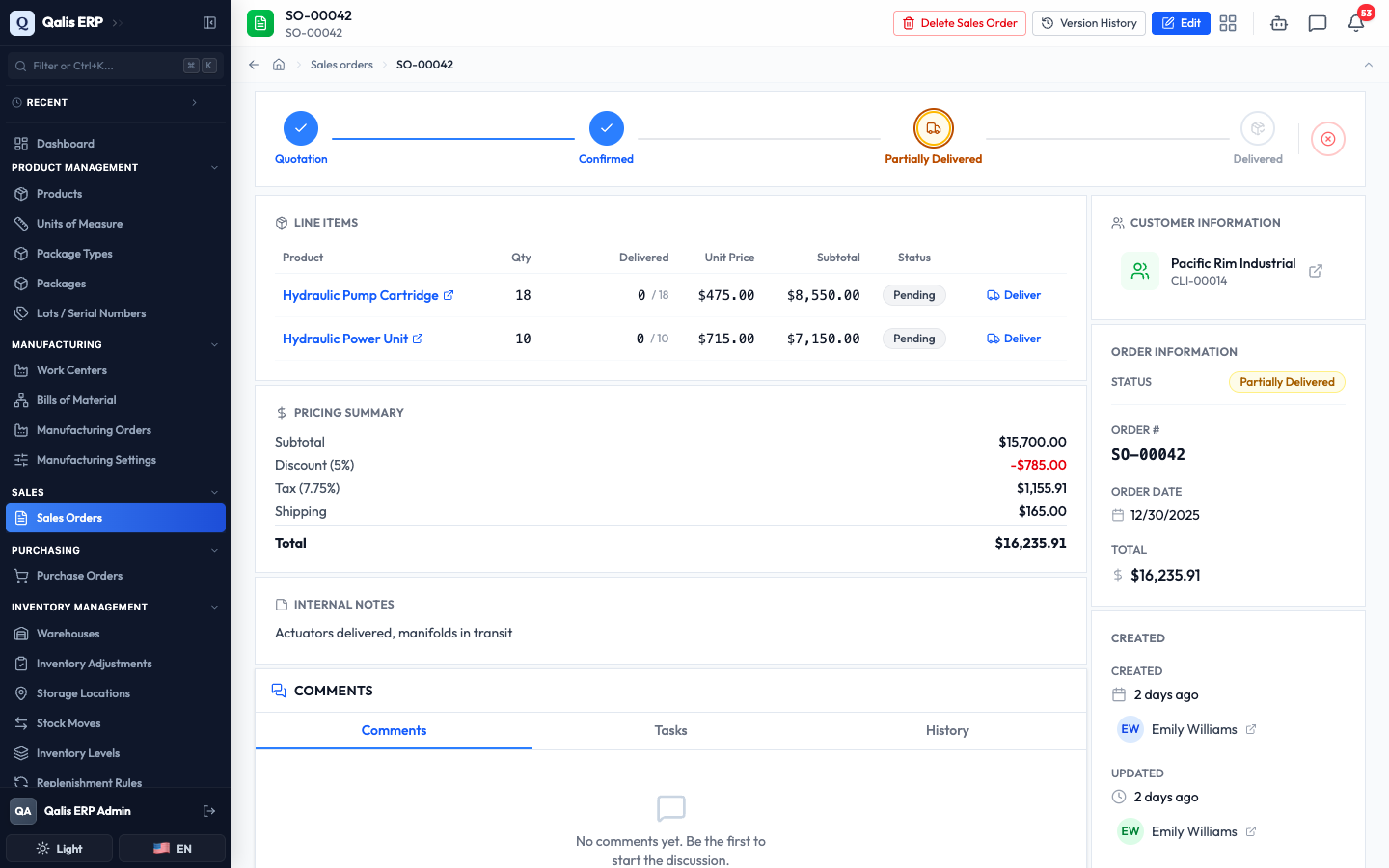
When some items are shipped but others are still to come, the order's status becomes Partially Delivered. Once every line is fully shipped, it becomes Delivered.
If a product is tracked by lot or serial number, the Deliver panel also asks you to pick the exact lot or serial you are shipping, so the order stays traceable.
More you can do
- Edit an order from its detail page to change the customer, lines, pricing or addresses. If you change the status of an order that already has deliveries, Qualis warns you before resetting the delivered counts.
- Cancel Order with the red button at the end of the status bar when an order falls through. Cancelling releases any reserved stock. A cancelled order can be sent back to a quotation with Revert to Quotation.
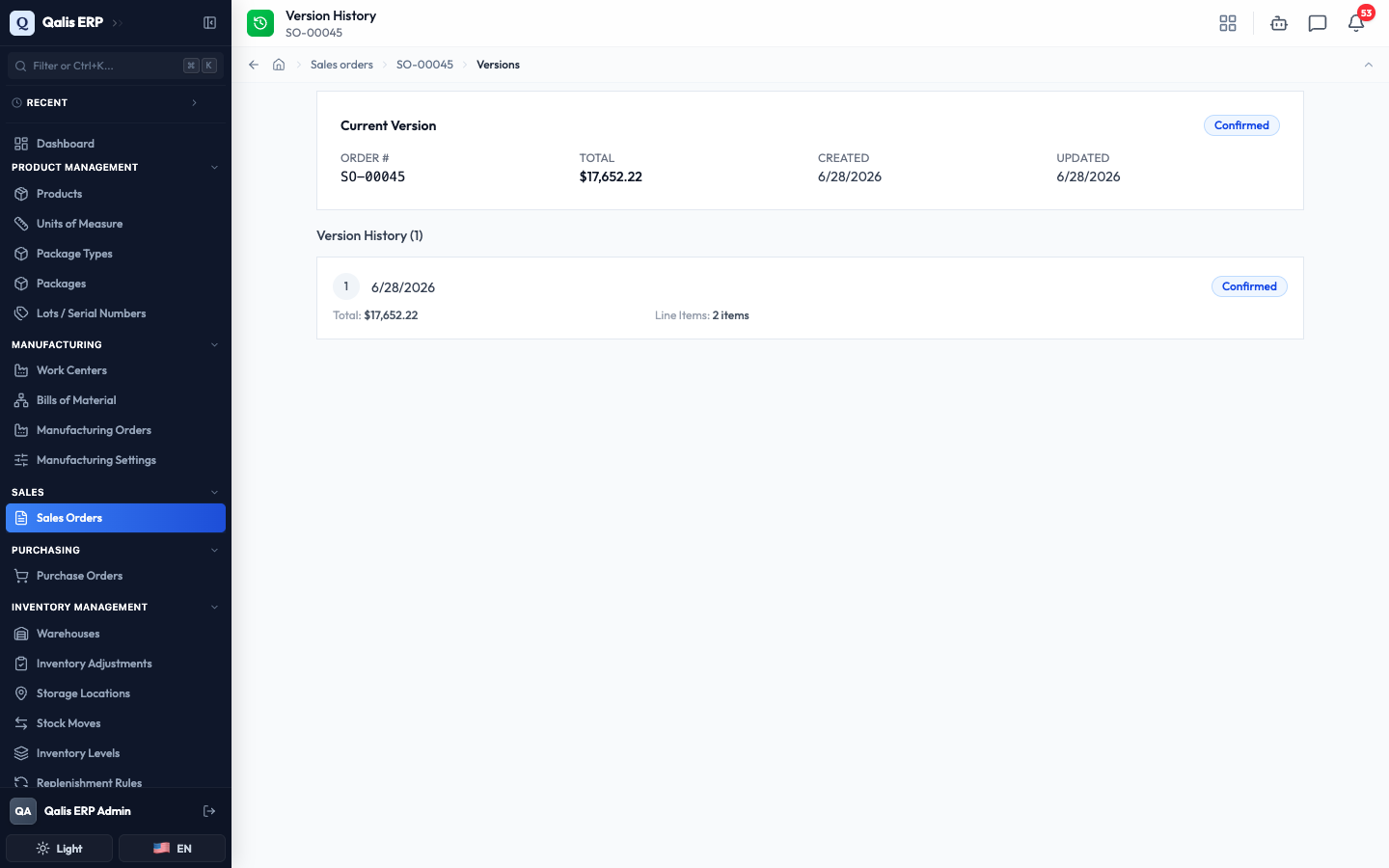
- Version History lets you review every past edit, who made it and when, and restore a previous version if you have permission to update the order.
- Import orders from a spreadsheet to create many at once, and export a filtered list to take it with you.
- Trashed Sales Orders holds orders you have deleted, so you can restore one or remove it for good.
Good to know
- Quotation: a draft order you are still agreeing with the customer. Nothing is reserved yet.
- Confirm: the action that makes an order firm, reserves its stock, and raises any purchase or manufacturing orders needed for make-to-order items.
- Make-to-order (MTO): an item you buy or build only once a customer orders it, rather than keeping it in stock. Confirming the sales order kicks off that buying or building for you.
- Reservation: stock set aside for an order so it is not used by something else.
- Delivery: a shipment of some or all of a line. The order tracks the delivered count per line and updates its status as you record them.
- Status: where the order is in its life, from Quotation and Confirmed, through Partially Delivered, to Delivered (or Cancelled).