Manufacturing Orders
Plan and run the making of a product, from a written order through release, shop-floor work, and finishing.
Last updated on June 26, 2026
A manufacturing order (often shortened to MO) is the instruction to make a product. It says which product to build, how many, and when, and it carries the recipe (the materials and the steps) for the people who do the work. You create the order while you are planning, then release it when you are ready to start. Releasing freezes the recipe, lines up the components, and creates the work orders that the shop floor follows operation by operation. This guide walks you through the things you do most often: finding an order, creating one, reading it, releasing it, working it on the shop floor, and finishing it.
Before you start
A manufacturing order points at things you set up elsewhere in Qualis, so it helps to have these ready first:
- The product you want to build, set up in Products.
- An active bill of material for that product, set up in Bills of Material. This is the recipe Qualis freezes when you release the order.
- At least one work center (for example an assembly line or a machining cell), set up in Work Centers. Your work orders run at these.
You reach the module from the left sidebar under Manufacturing, then Manufacturing Orders.
Find and browse your manufacturing orders
Start here to see everything you have and zero in on the one you need.
- Open Manufacturing Orders from the sidebar. The list shows one row per order, with its MO Number, Product, Quantity, Status, Source and more.
- Across the top you have quick buttons for Work Orders, Genealogy Trace, Trashed Manufacturing Orders and New Manufacturing Order, plus quick filters like My Orders, Released, In Process and Overdue.
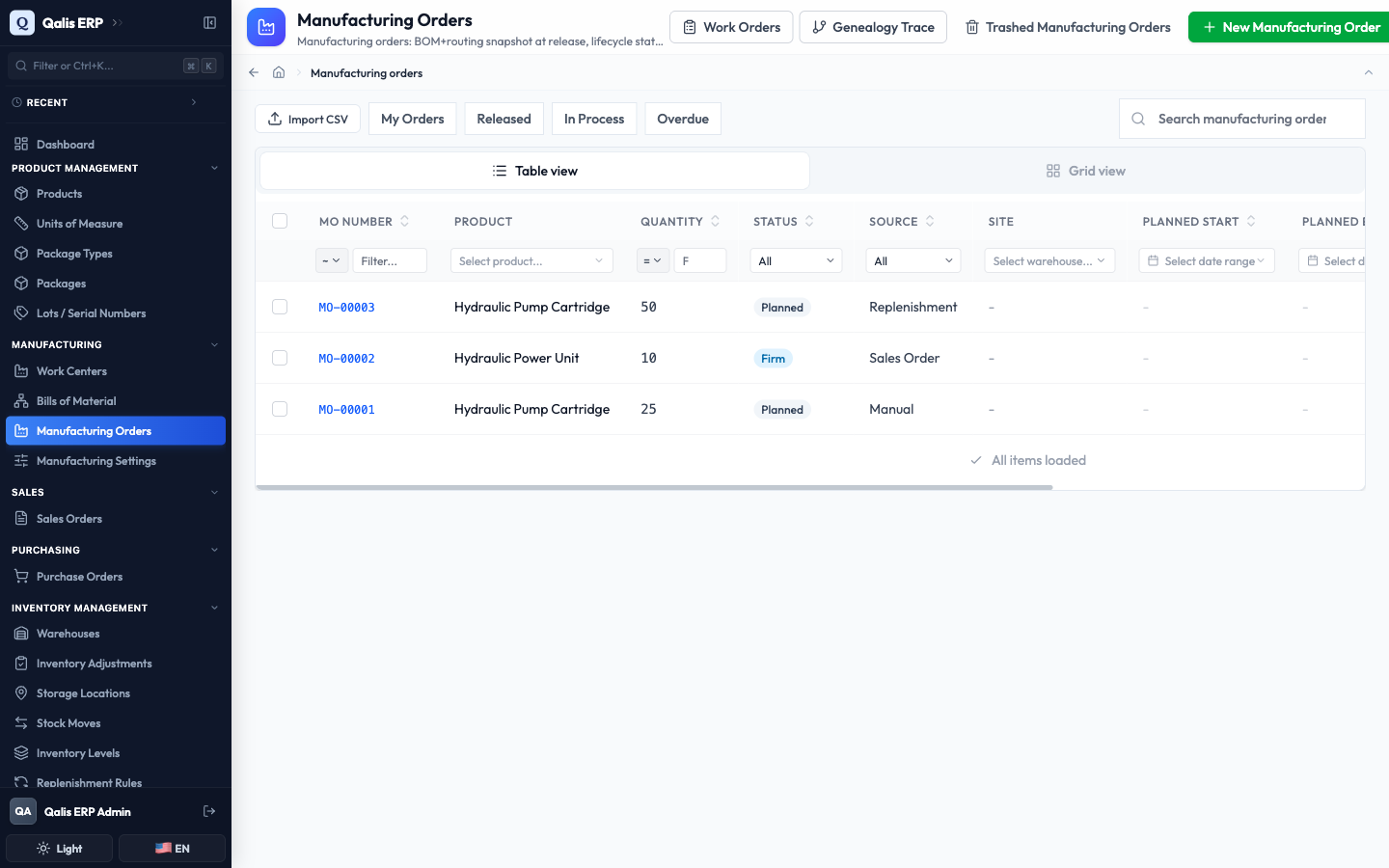
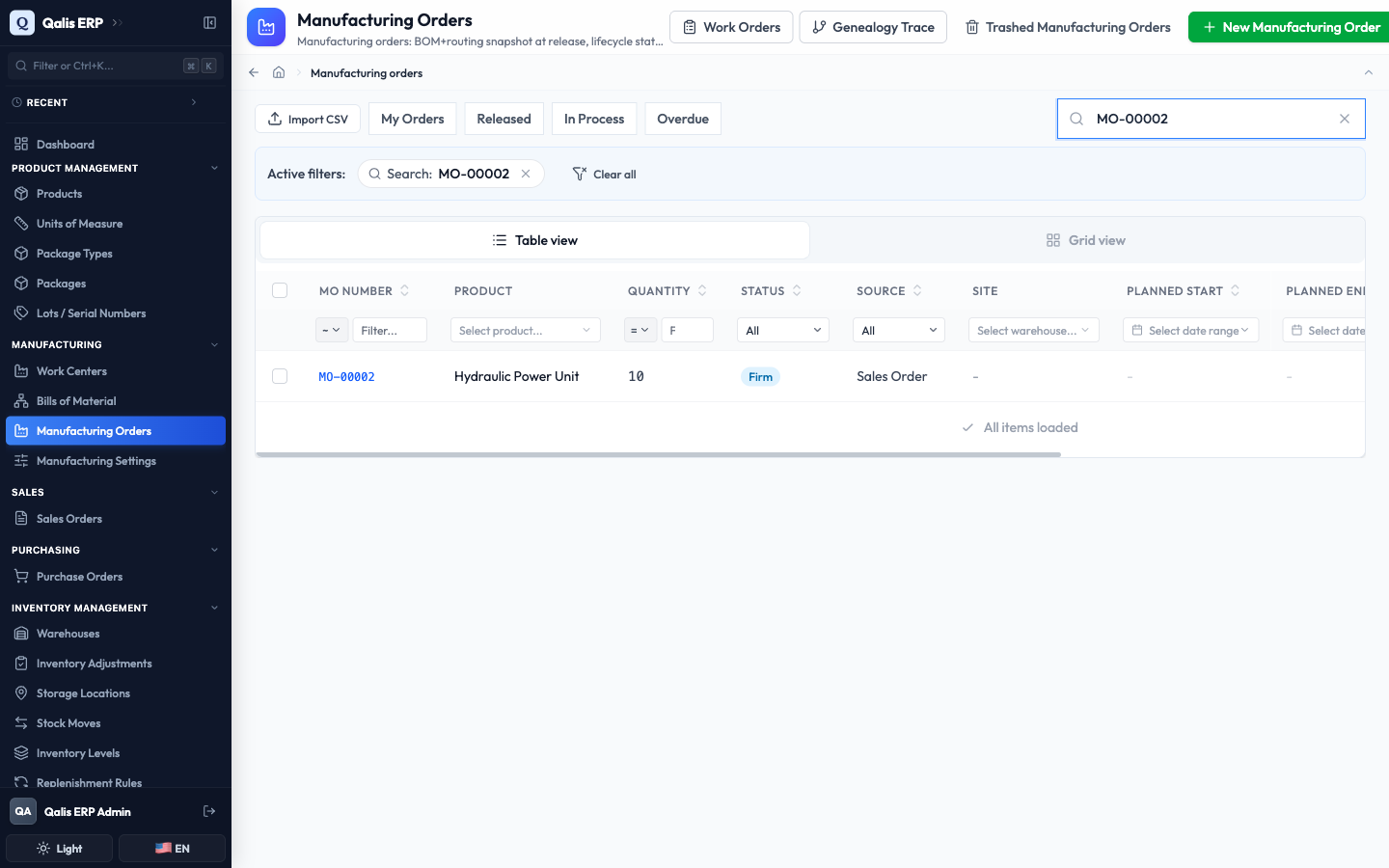
- To find one fast, type in the Search manufacturing orders... box at the top right. The list filters as you type, so there is no need to press Enter. Search looks at the order number and its notes.
- To see only orders in a certain state, open the Status dropdown under the column heading and pick one, for example Planned. You can filter the same way by Source, Product, Site or a date range.
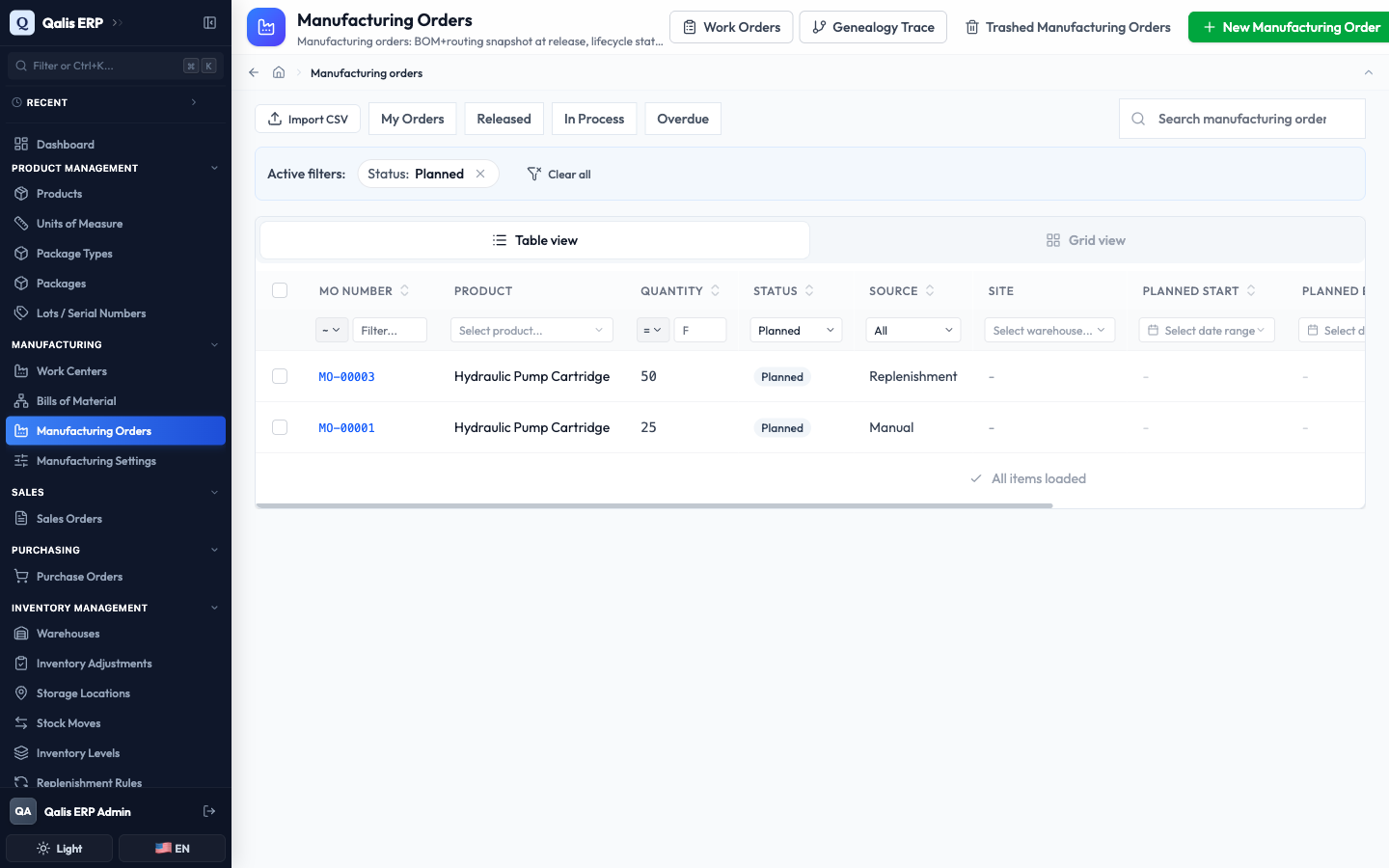
Whenever a filter is on, an Active filters banner appears under the search box showing what is applied. Click the small x on a filter to drop it, or Clear all to reset everything. The web address updates too, so you can bookmark or share a filtered view.
Create a manufacturing order
This is the main task: writing the order for a product you want to make. The form is split into tabs, so you can fill it in one section at a time.
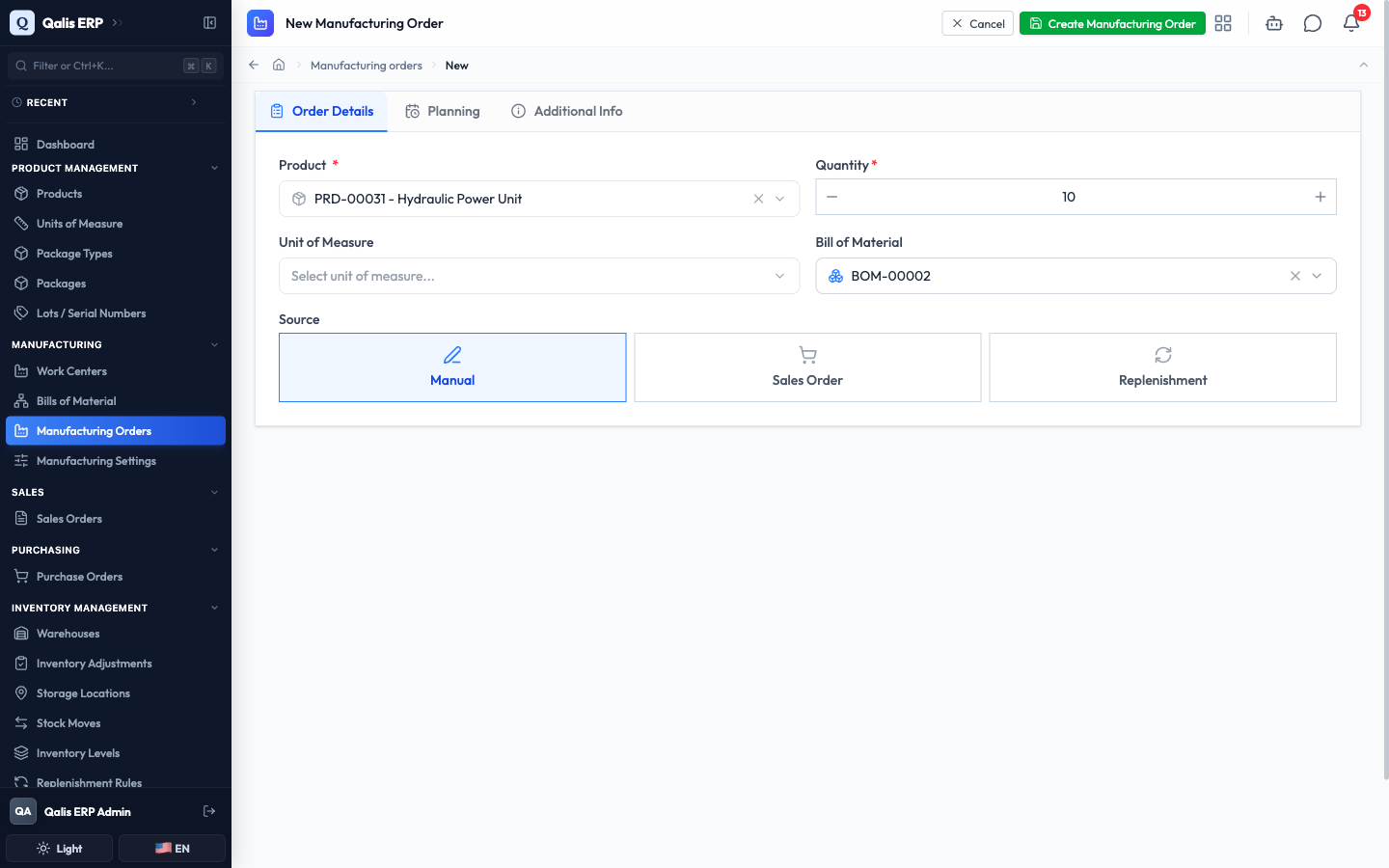
- On the list, click New Manufacturing Order at the top right.
- On the Order Details tab, click Select a product... and choose the finished product you want to build. This is required.
- Set the Quantity to make. Use the minus and plus buttons or type the number. The Unit of Measure is optional.
- Pick the Bill of Material that should be used. If you leave it empty, Qualis finds the product's active default recipe for you when you release.
- Choose a Source: Manual for an order you are raising yourself, Sales Order when you are building to fulfil a customer order, or Replenishment when you are restocking.
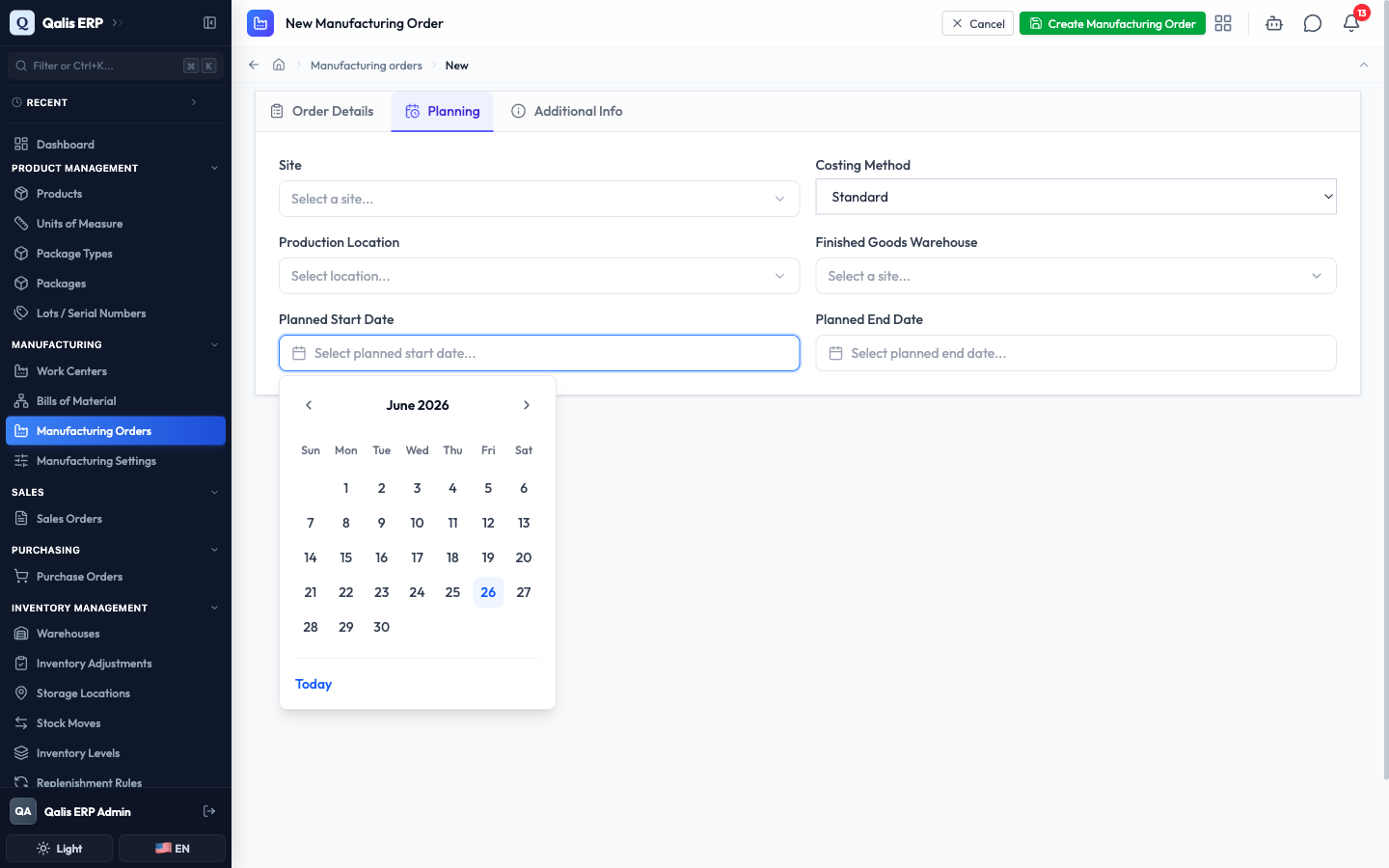
- Switch to the Planning tab, where you set where and when the order runs.
- Choose a Site, a Production Location and a Finished Goods Warehouse if you know them, and leave the Costing Method on its default unless you need to change it.
- Set the Planned Start Date and Planned End Date from the calendar. It has a Today button for quick picks, and the end date must be on or after the start.
- Open the Additional Info tab and add any Notes the order team should know. This is optional.
- Click Create Manufacturing Order at the top right to save.
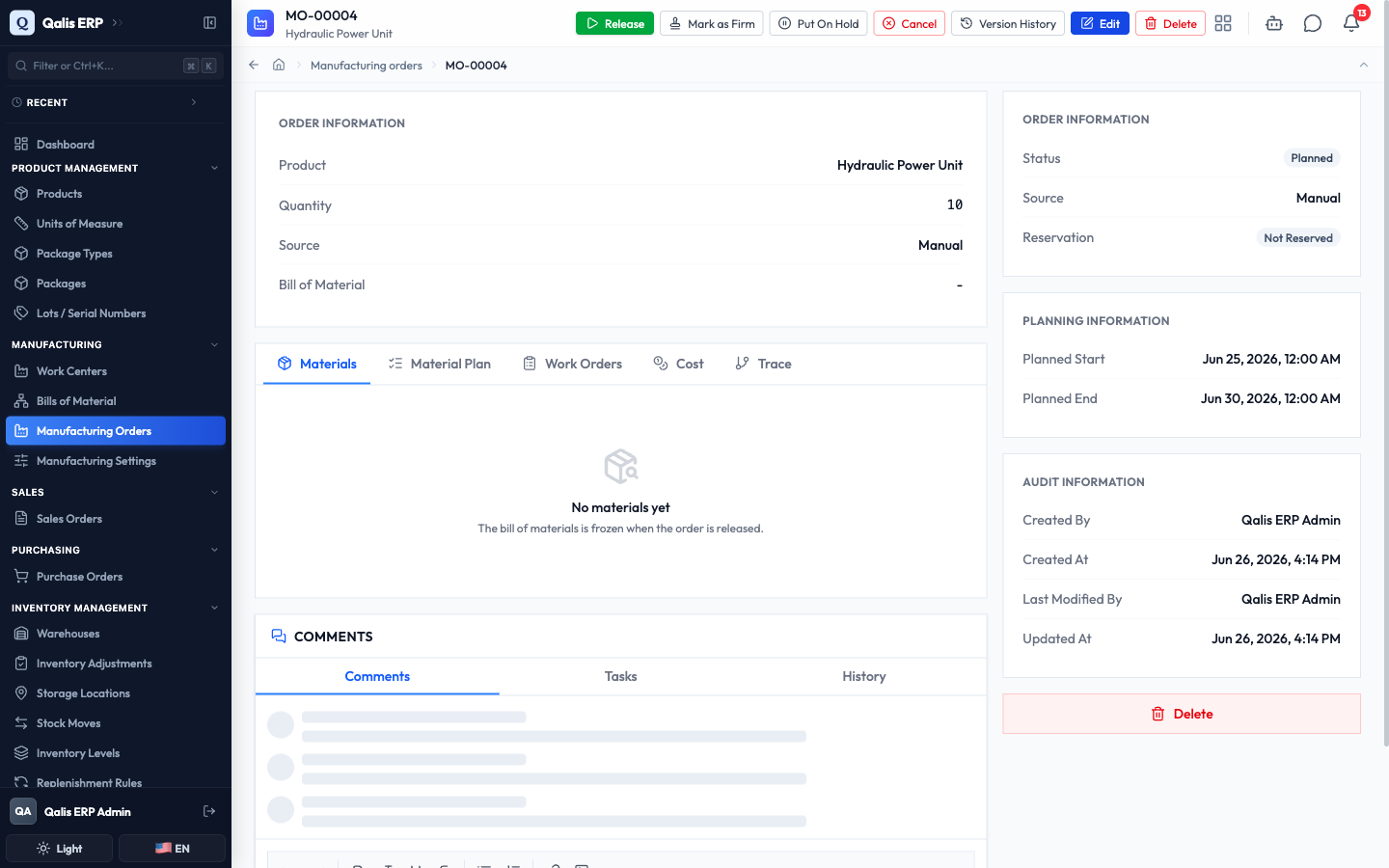
Qualis saves the order, gives it a number (like MO-00004), and takes you straight to its detail page. The order starts in Planned status.
Nothing is committed while you are still filling in the form, so you can change your mind freely. The order only exists once you click Create Manufacturing Order.
Read a manufacturing order
Open any order to understand what it is making and where it stands.
- Click a row in the list (or an MO Number link anywhere in Qualis). The detail page opens.
- The top of the page shows the order number, the product, and the buttons for everything you can do: release it, mark it firm, put it on hold, cancel it, view its version history, edit it, or delete it. Which buttons are active depends on the order's status.
- The left Order Information panel lists the product, quantity and source. The right side shows the live Status, the Reservation state, the Planning Information (your planned start and end), and the Audit Information (who created the order and when it last changed).
- Below the order information sits a row of tabs: Materials, Material Plan, Work Orders, Cost and Trace. On a freshly created order these are mostly empty, with a note that the recipe is frozen when the order is released. They fill in once you release the order.
Every detail page also has a Comments area at the bottom, where you and your team can leave notes, add tasks, and see the order's history.
Release a manufacturing order
Releasing is the moment an order goes from a plan to a live job. It freezes the recipe so it cannot drift, lines up the components, and creates the work orders the shop floor will follow.
- Open the order you want to start. You can release an order that is Planned, Firm or On Hold. Click Release at the top.
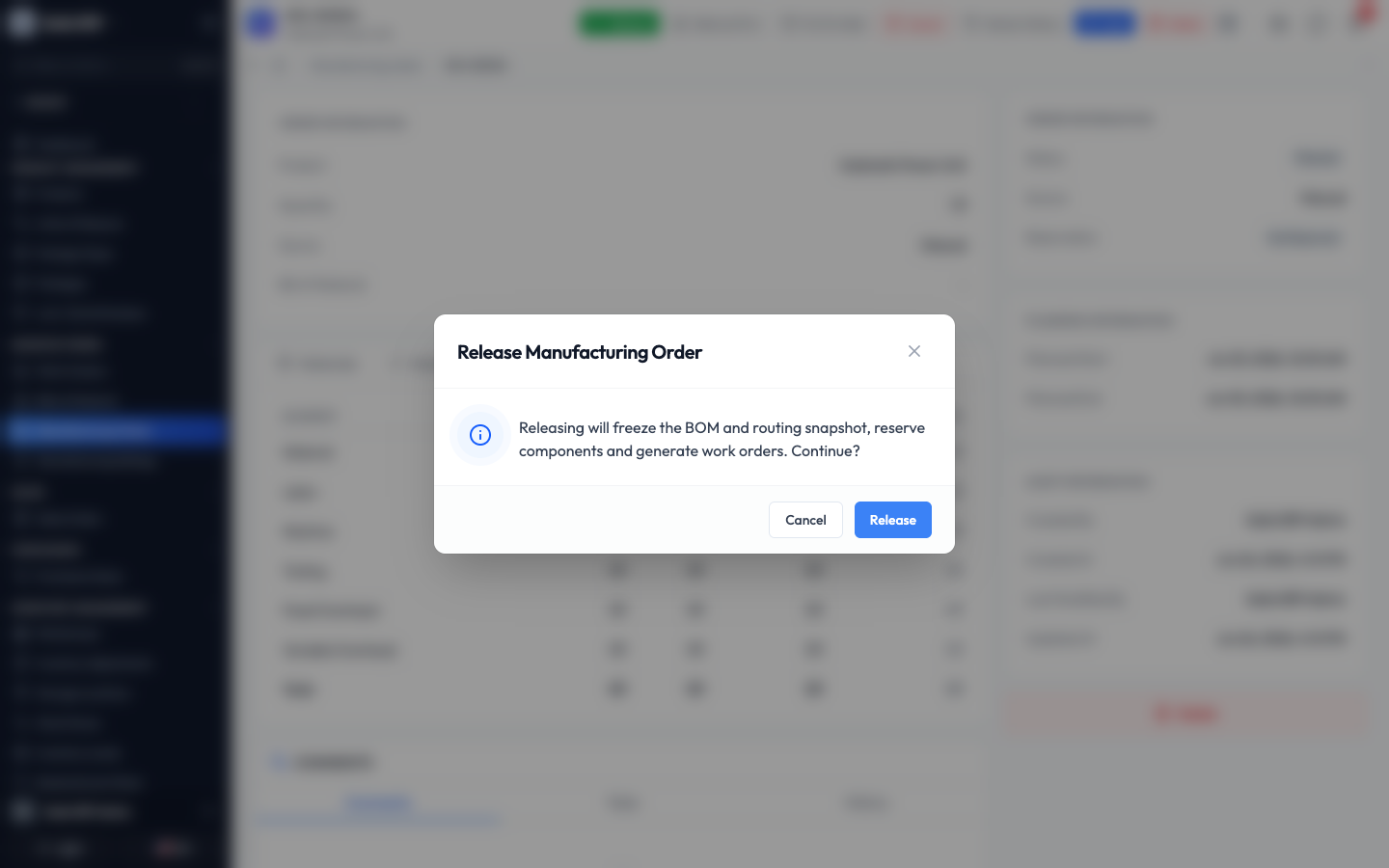
- Qualis asks you to confirm, and explains what will happen. Read it, then click Release.
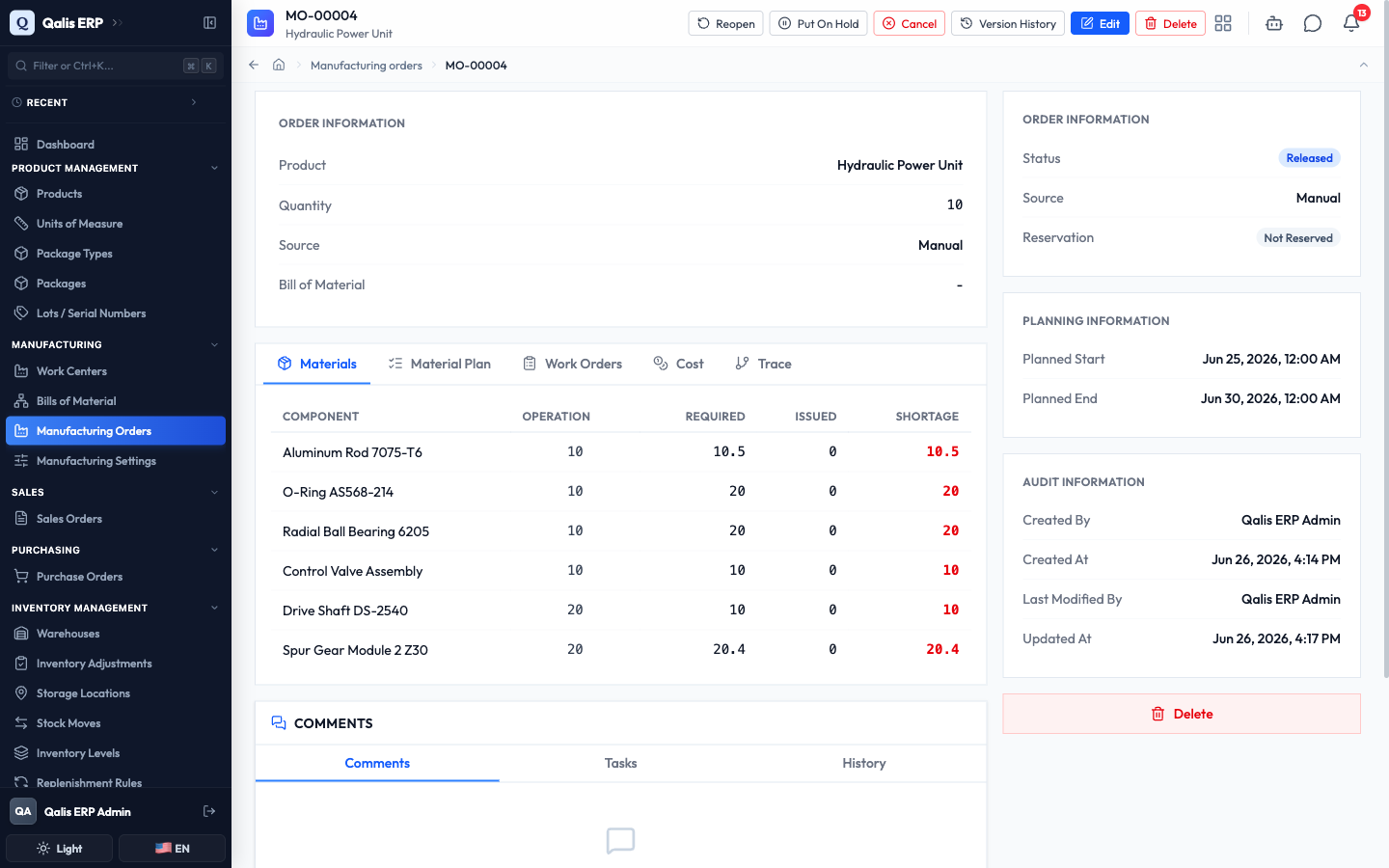
- The order moves to Released. The Materials tab now lists every component the order consumes, with how much is Required, how much has been Issued, and any Shortage in red. This is the frozen recipe, copied from the bill of material so later changes to the recipe cannot affect this order.
- Open the Work Orders tab to see the steps Qualis generated, one per operation. Each work order has a sequence, a work center, and a status that starts at Ready. These are what your shop floor works through, in order.
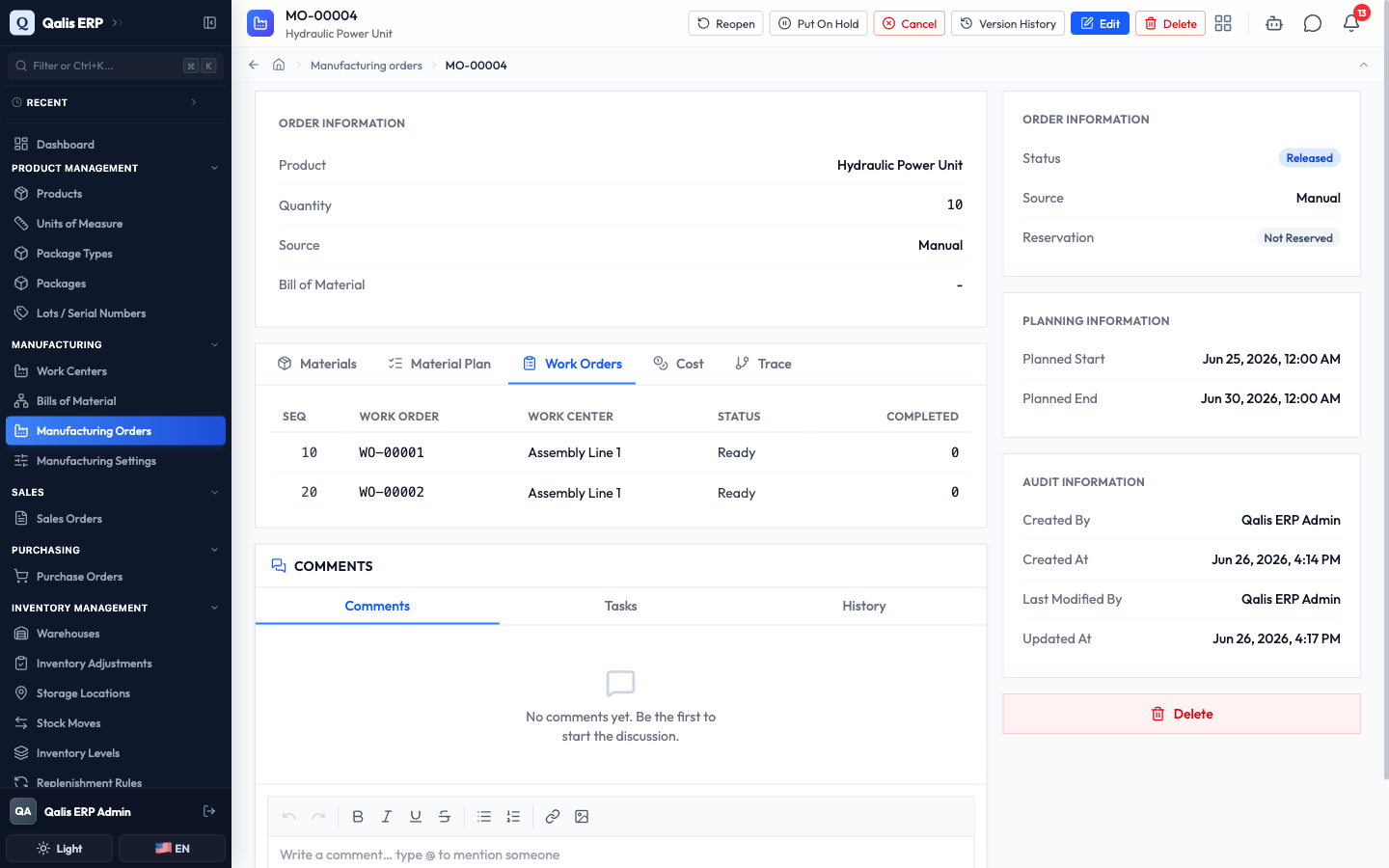
Releasing freezes the recipe on purpose, so treat it as a committed step. If you need to stop a released order, you can Put On Hold to pause it or Cancel it (which frees its reserved components). A released order cannot be sent back to Planned.
Work the order on the shop floor
Once an order is released, the people on the floor carry it out one work order at a time. Each work order has its own screen for recording what happened.
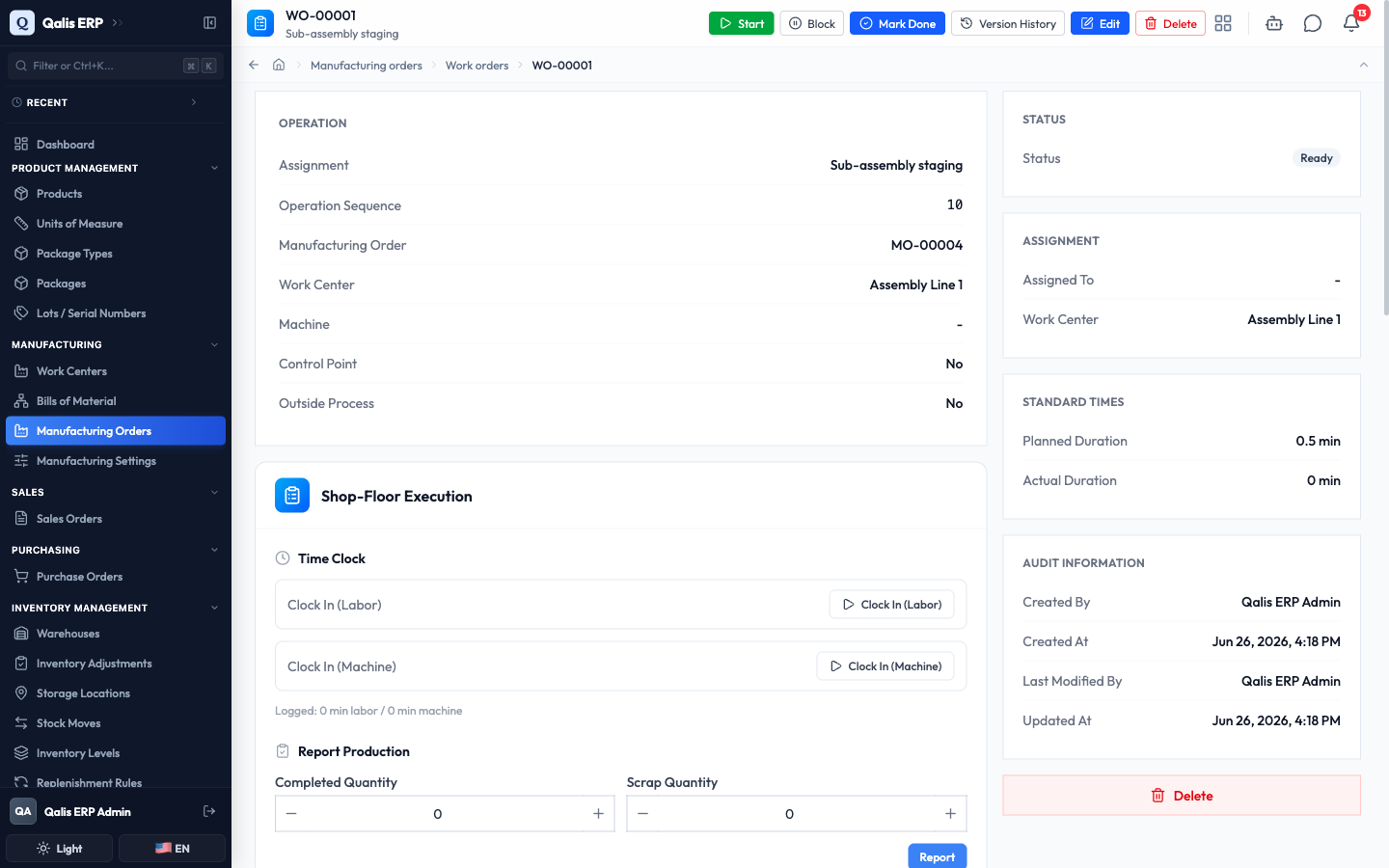
- From the order's Work Orders tab, click a Work Order number to open it. The top of the page tells you the operation, its work center, and its status, with buttons to Start, Block or Mark Done.
- Use the Shop-Floor Execution panel to record work as it happens. The Time Clock lets an operator clock in and out for labor or machine time, and Report Production is where you enter the Completed Quantity (and any Scrap Quantity) and click Report.
- Scroll down to Issue Materials to record the components consumed at this step. Each line shows its Required, Issued and Remaining amounts, with an Issue button.
- Use Receive Output to take the finished goods (and any byproduct) into stock once they are made, using the Receive button on each line.
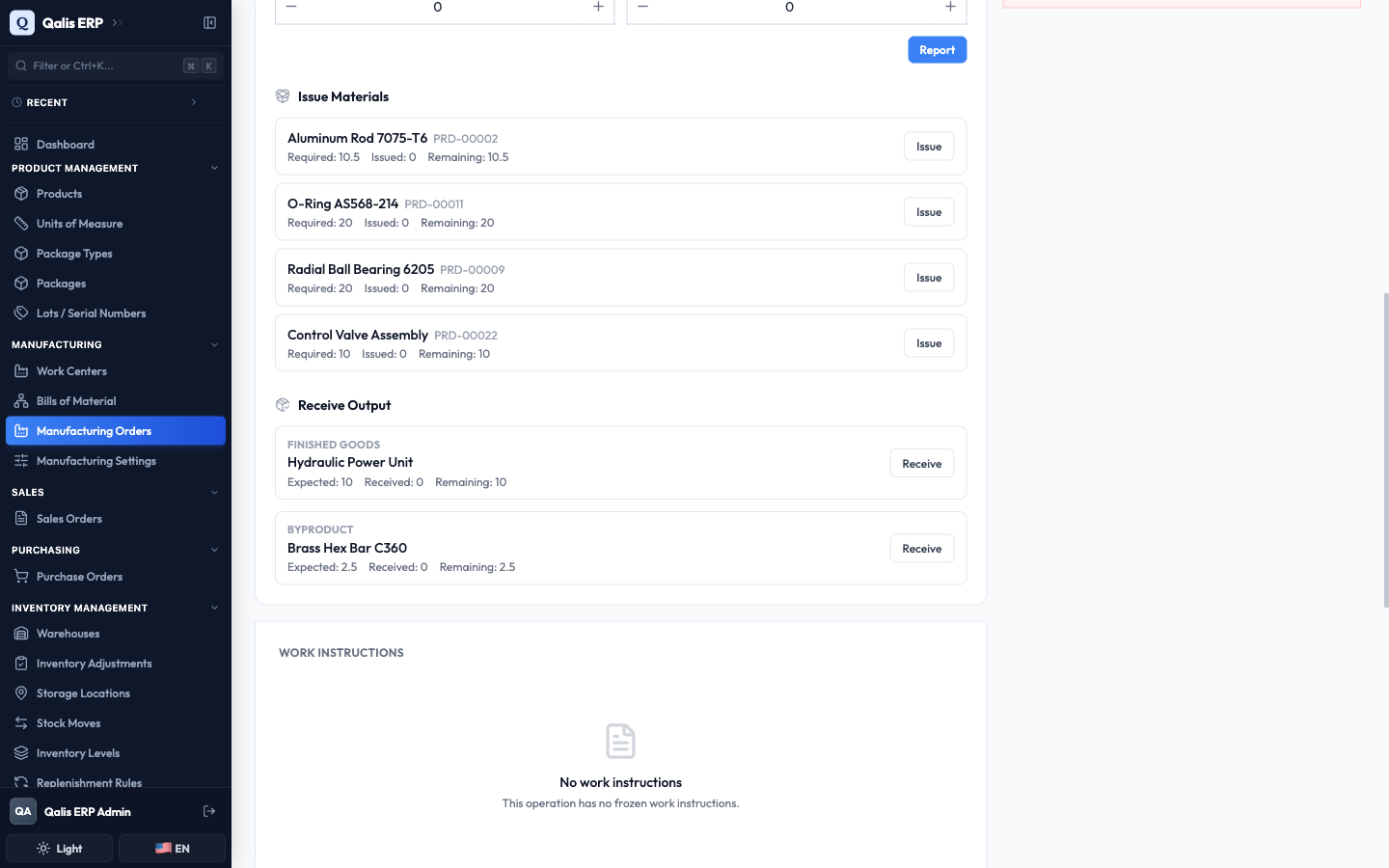
- When an operation is finished, click Mark Done. On the last operation this also receives the finished goods into inventory. The work order's status becomes Done.
Reporting is only allowed while the order is live on the floor. To take finished goods into stock, the destination warehouse needs a stock location set up in Storage Locations.
Finish the order: complete and close
When all the work is done and the finished goods are received, you wrap the order up in two steps.
- Complete the order. On the order's detail page, click Complete. Qualis confirms with "Completing will mark production as finished and post the finished-goods receipt." This marks the order Completed.
- Close the order. Click Close and confirm. Closing finalizes the cost differences between what you planned and what you actually used, and locks the order so it can no longer be changed.
Closing cannot be undone, so only close an order once you are sure everything is recorded. A completed order can still be reopened if you need to fix something, but a closed one is final.
More you can do
- Mark as Firm to commit a planned order without releasing it yet, so planners know it is going ahead.
- Put On Hold to pause an order, or Cancel to stop it and release its reservations.
- Material Plan (a tab on the detail page) shows whether each component will be available in time, and lets you raise a purchase order or another manufacturing order to cover a shortage.
- Import CSV to create many orders at once from a spreadsheet, and export a filtered list to take it with you.
- Genealogy Trace follows a finished lot or serial number back to the components and orders that made it, which matters for recalls and quality.
- Version History and Trashed Manufacturing Orders let you review past edits, restore a previous version, or recover an order you deleted.
Good to know
- Manufacturing order (MO): the instruction to make a set quantity of a product, carrying its recipe and tracking it from plan to finish.
- Work order: one operation (one step) of a manufacturing order, carried out at a work center. Qualis creates these when you release the order.
- Bill of material (BOM): the recipe for a product, listing the components and the steps to build it. The order freezes a copy of it at release.
- Release: the action that turns a planned order into a live job, freezing its recipe and generating its work orders.
- Reservation: setting aside the components an order needs so they are not used by something else.
- Shortage: a component the order needs more of than is available, shown in red so you can act before it stalls production.
- Byproduct: a secondary output that comes out of the process alongside the main product.
- Status: where the order is in its life, from Planned and Firm, through Released and In Process, to Completed and Closed (or On Hold and Cancelled).